Project Tasks
approvedby paulpaterson
Allows you to easily create linked tasks for projects by managing the task ID's and dependencies.
Project Tasks Plugin
Allows you to easily create linked tasks for projects by managing the task ID's and dependencies.
What is it
This Obsidian plugin allows you to easily manage tasks that are part of an overall project.
The excellent Tasks plugin allows you to specify task dependencies but this can be a bit fiddly to manage. This plugin makes it easy to create a sequence of tasks with dependencies. You can create from an existing set of tasks or build the tasks from scratch.
Dependencies
This plugin requires the Tasks plugin.
Project specific views also requires the Dataviews plugin but this is optional.
Key Highlights
- Automatically create and manage Task ID's
- Create and manage Task dependencies
- Associate project specific tags
- All existing task functionality like due dates, recurrence
- Tasks continue to work on vaults that do not have the plugin installed
- Use dataviews to show project tasks that are due now
- (Future) Supports parallel task execution
- (Future) Supports optional and conditional tasks
How to set up
The easiest way is to install the plugin via the Obsidian community plugins screen.
Additionally, you can clone this repository into your Vault/.obsidian/plugins directory and then enable it in the same way you would normally.
> git clone https://github.com/paulpaterson/obsidian-project-tasks
Usage instructions
The plugin comprises a number of Obsidian commands which can be executed from the Command Palette or bound to hotkeys.
The actions relate to task ID's and dependencies:

- The word after the 🆔 identifies the task ID
- The word after the ⛔ identifies the dependency
For a general description of how dependencies work, see the Tasks documentation. This plugin just automates a common use case to make it easier to use.
There are two core commands and a number of variants that adjust the scope of the "project".
Set Task ID's
Adds task ID's and dependencies (before and after links) to a series of tasks. This makes the tasks behave as a sequential list. Each task is blocked until the task before it is completed.
Command: set-ids
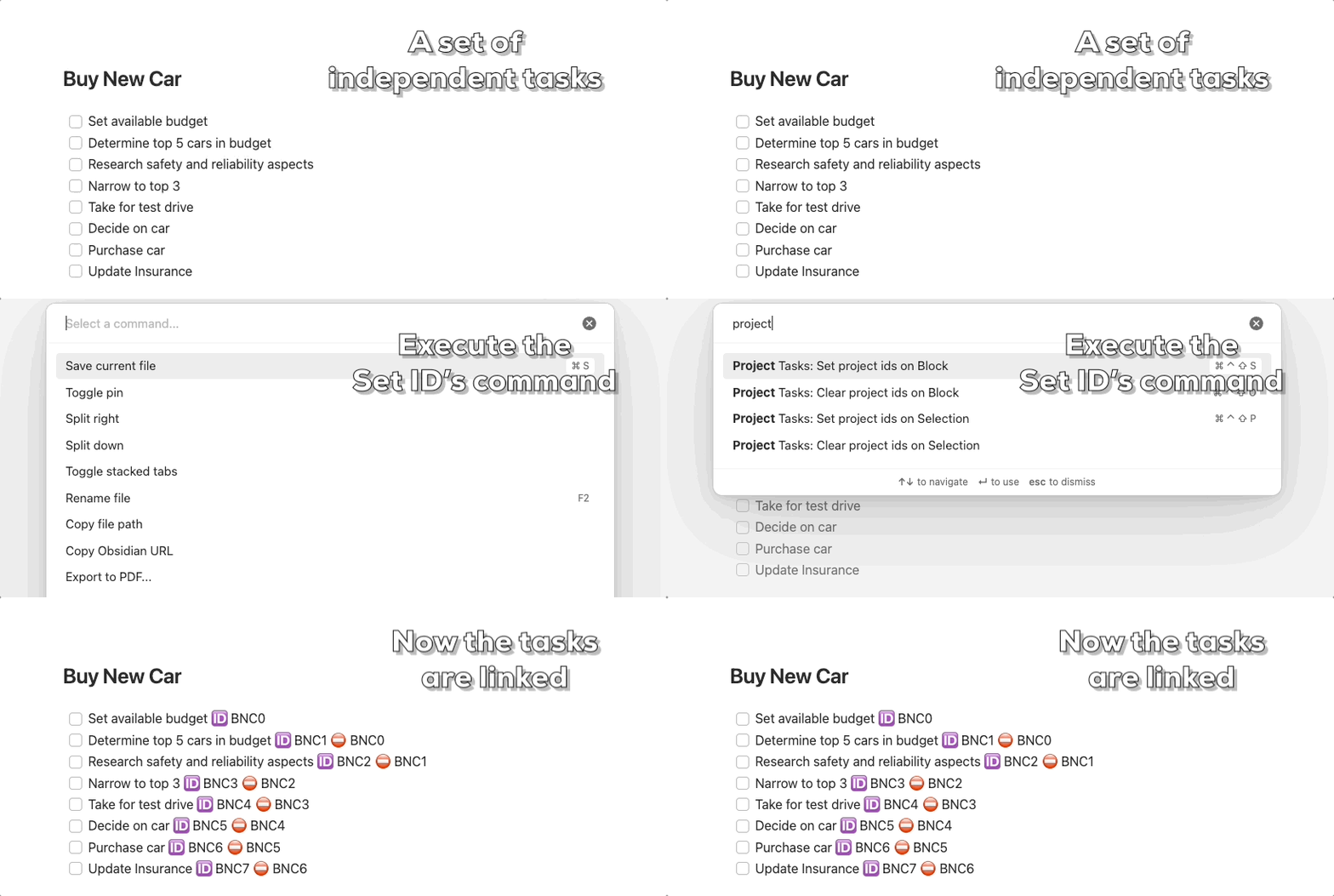
The tasks are now linked as a sequential set. All tasks except the first will be blocked until the first one is completed. When the first task is completed it then unblocks the other tasks.
The format of the project ID's can be controlled using the Options
Project Views
By adding tags to the tasks you can also use the Project View, which is useful to show the currently active tasks. Only tasks that are active, due and not blocked by other tasks will be shown.
You can configure the tag to be added to the tasks in the Options.
Tasks with tags look like this.

You can then create a view to see only the active tasks.
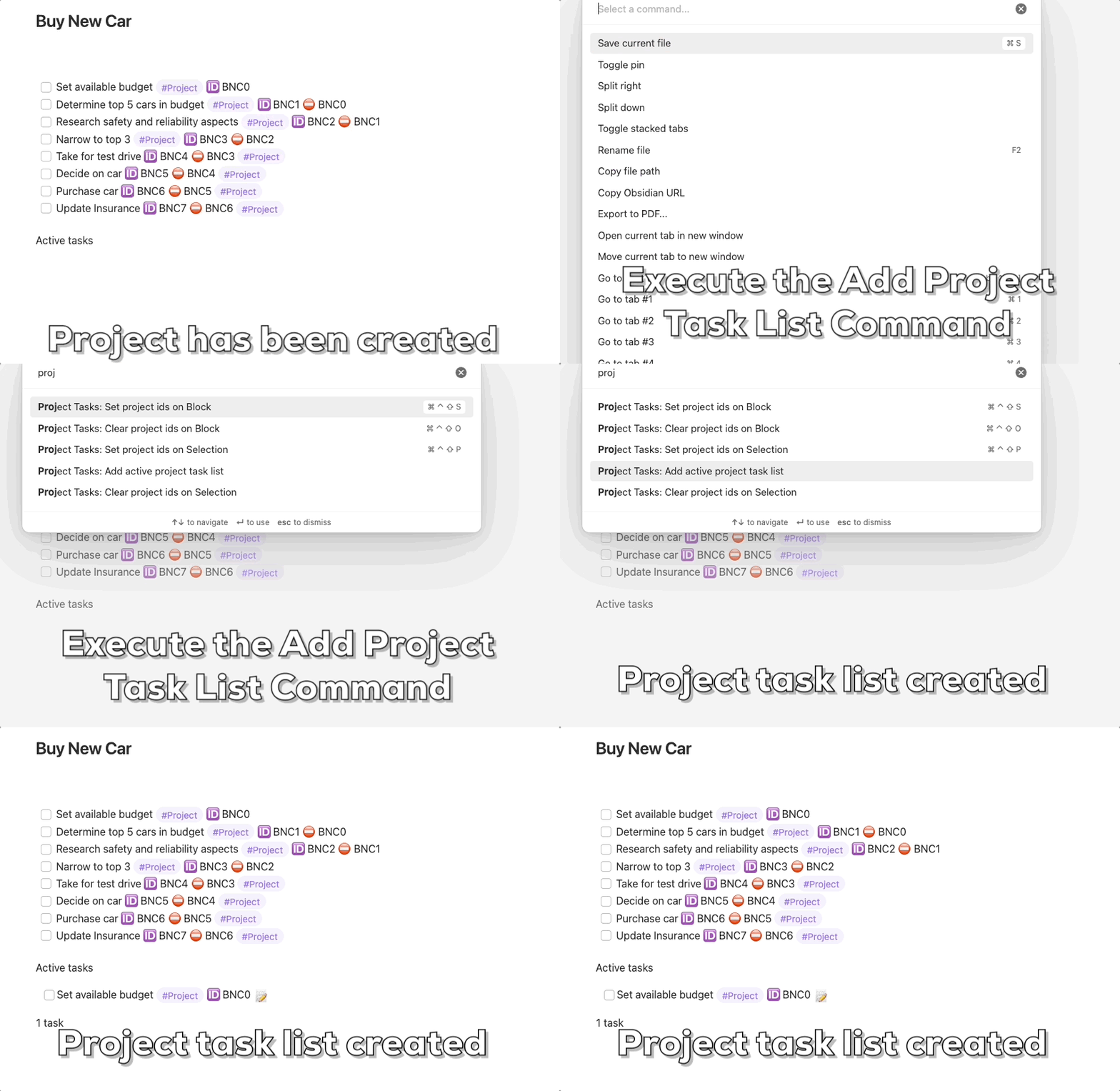
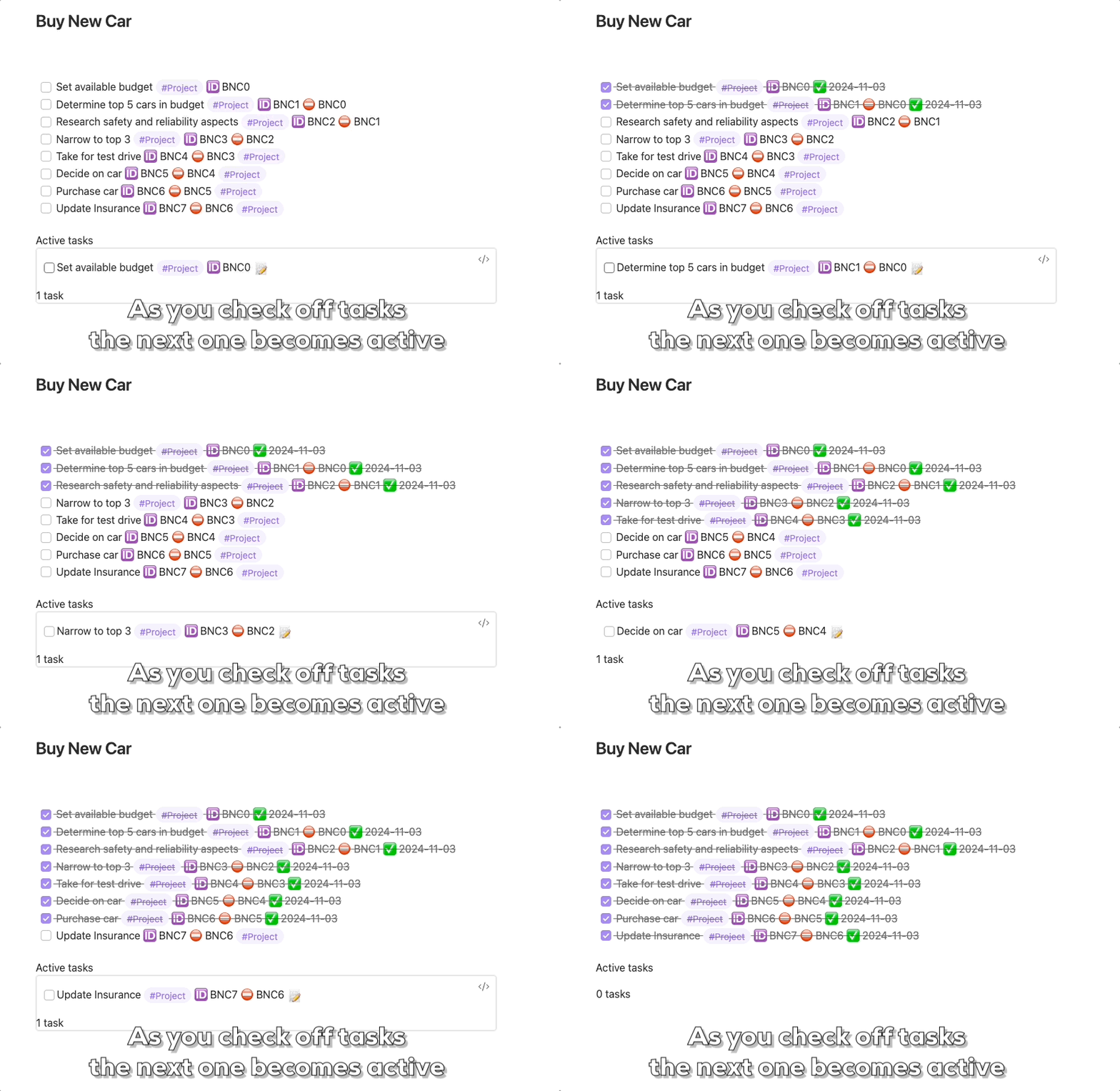
As you complete tasks in the project the next task up becomes available and you can see this in the view you just created.
You can have the view in any file, it doesn't have to be in the one where the tasks are.
You can customize your own views just using the following block.
'''tasks
tags includes #INSERT_TAG_NAME
not done
hide backlink
is not blocked
'''
Nested Tags
TODO: Explain nested tags
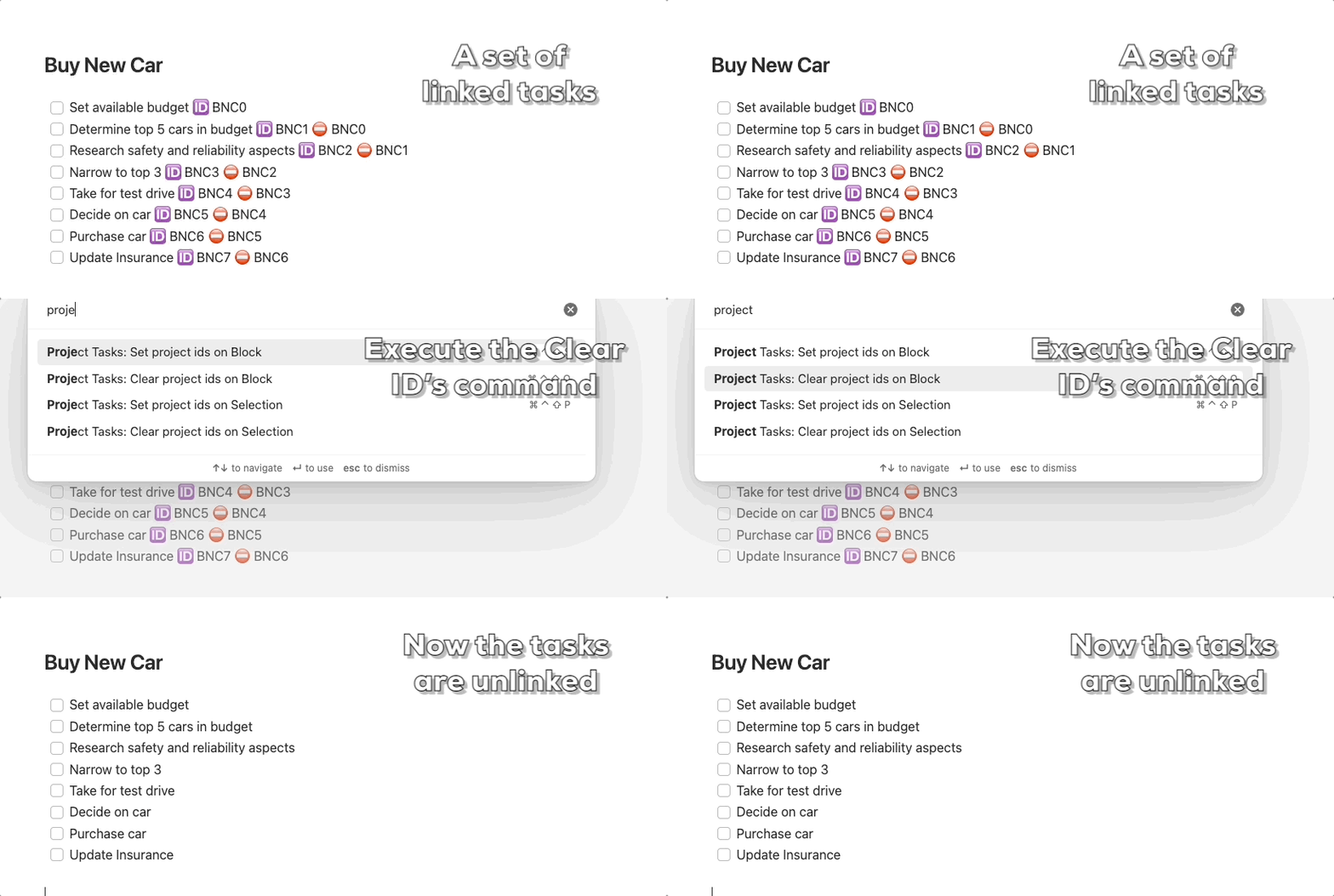
Clear Task ID's
Removes all task ID's and dependencies from all tasks. You can use this if you want to revert back to using disconnected tasks. It removes all ID's and dependencies, even ones which you may have created manually.
Command: clear-ids
Scopes
There are three different scopes which affect which tasks are converted to project tasks (or cleared).
- Current Selection - impacts only tasks which are currently selected
- Current Block - impacts tasks in the block or section where the cursor is currently. Blocks begin and end with a Markdown Header. The beginning or end of the file act as block boundaries.
- Current File - impacts all tasks in the current file
The different commands for creating project ids are:
- Command: set-ids
- Command: set-ids-block
- Command: set-ids-file
The corresponding commands for clearing project ids are:
- Command: clear-ids
- Command: clear-ids-block
- Command: clear-ids-file
Options
Controlling the form of the Project ID
The ID added to the task by the set-ids commands can be adjusted to match your own preference using the Project ID method option. All ID's are of the form of a prefix followed by a number.
In this example the prefix is BNC and the number is 1.
Long ID's tend to look a bit cumbersome in Obsidian and so these options are intended to help you create ID's which are short, unique but still understandable. These options are purely cosmetic, they don't impact how the tasks work. However, it is possible to create some non-unique ID's and currently the plugin doesn't check for that!
There are three main ways to determine the ID.
- Using a prefix - a standard prefix is used. This is set in the
Project ID prefixoption. The number will set to a random number to ensure ID's are unique across the entire vault. You can control the number of digits in the number using theLength of random ID numberoption. - Using the section name - the header of the section is used for the prefix. If there is no section then the file name is used. The number is sequential in increasing order.
- Using the file name - the name of the file is used. The number is sequential in increasing order.
When using the section or file name option for the prefix then some other options allow further customization of the ID. These are intended to create shorter ID's which still are recognizable.
- Remove vowels - lower case vowels are removed from the prefix
- First letters of words - the prefix is split into words and the first letters are used. The letters are capitalized
Automatically Adding Project tags
You can use the Automatically add tags option to automatically add one or more tags to all tasks in the project. This allows you to use Project Views of other searching and filtering in Obsidian to see your project tasks.
The tags will be added to all tags and will be cleared if you use the clear-ids command.

You can enter multiple tags, one per line, in the options dialog. You do not need to enter the "#" sign, this will be added automatically.

Clear All Tags
The [Automatically add tags](#Automatically Adding Project tags) option allows you to add ID's to a set of tasks.
By default when you do perform a [Clear Task ID's](#Clear Task ID's) then only these tags will be removed. If you had manually added tags to the tasks then these will be retained.
By setting the Clear All Tags option then all tags will be removed from project tasks (and replaced with the automatic tags if you specified this). This will remove any manually added tags.
This option is useful if you have changed the list of automatic tags because then you can clear the old automatic tags.
Using Front Matter
All of the options that you can set in the options dialog can also be set at a file level by putting the option values in the front matter of the file and setting the Override Settings option.
When the Override Settings option is set then the options in the front matter will override whatever is set in the main dialog options. This allows you to override one or many of the options to create a custom set of options for a file.
You can use this, for instance, to create Project Specific settings at the file level.
It is important to use the internal name and type of the settings. These are shown in the table below.
| Option | Internal Name | Type | Description |
|---|---|---|---|
| Prefix Method | idPrefixMethod | Number | 1=Use Prefix, 2=Use Section name, 3=Use Filename |
| Project Prefix | projectPrefix | String | Sets the prefix to use when Prefix Method is set to "Use Prefix" |
| Random ID Length | randomIDLength | Number | The length of the random number to use when Prefix Method is set to "Use Prefix" |
| Sequential Start Number | sequentialStartNumber | Number | The initial number for the ID when Prefix Method is Section or Filename |
| Remove Vowels | removeVowels | Boolean | Whether lower case vowels are removed from the ID prefix |
| First Letters of Words | firstLettersOfWords | Boolean | Whether only the first letters of words in the prefix are used |
| Automatic Tag Names | automaticTagNames | List of Strings | The set of tag names to add to project tasks |
| Clear All Tags | clearAllTags | Boolean | Whether to clear all tags, or just the "autoamtic" tags, from tasks when clearing the ID's |
| Nested Tag Behavior | nestedTaskBehavior | Number | 1=Nested tasks run in parallel, 2=Nested tasks run sequentially |
For plugin developers
Search results and similarity scores are powered by semantic analysis of your plugin's README. If your plugin isn't appearing for searches you'd expect, try updating your README to clearly describe your plugin's purpose, features, and use cases.