Quick Daily Note
approvedby shuiyi
快捷创建日记(标题为日期+自定义名字);日历面板按日期管理待办;定时提醒;标题等级调整;粘贴代码自动识别语言;粘贴图片自动保存到指定目录;图片渲染增强(裁剪/放大/复制/重命名/删除);Mermaid 图表增强(缩放/下载/PDF 优化)。 - This plugin has not been manually reviewed by Obsidian staff.
Quick Daily Note 快捷日记
English | 简体中文
A daily-journal and todo companion plugin for Obsidian: one-click daily notes, a calendar panel with per-day todos, scheduled reminders, and paste/rendering enhancements.
Features
📝 Daily Notes
- Click the calendar icon in the ribbon, or run the command "New daily note (enter name)" to create a note titled "date + name" — the folder and date format are configurable. If a note with the same name exists, it opens directly.
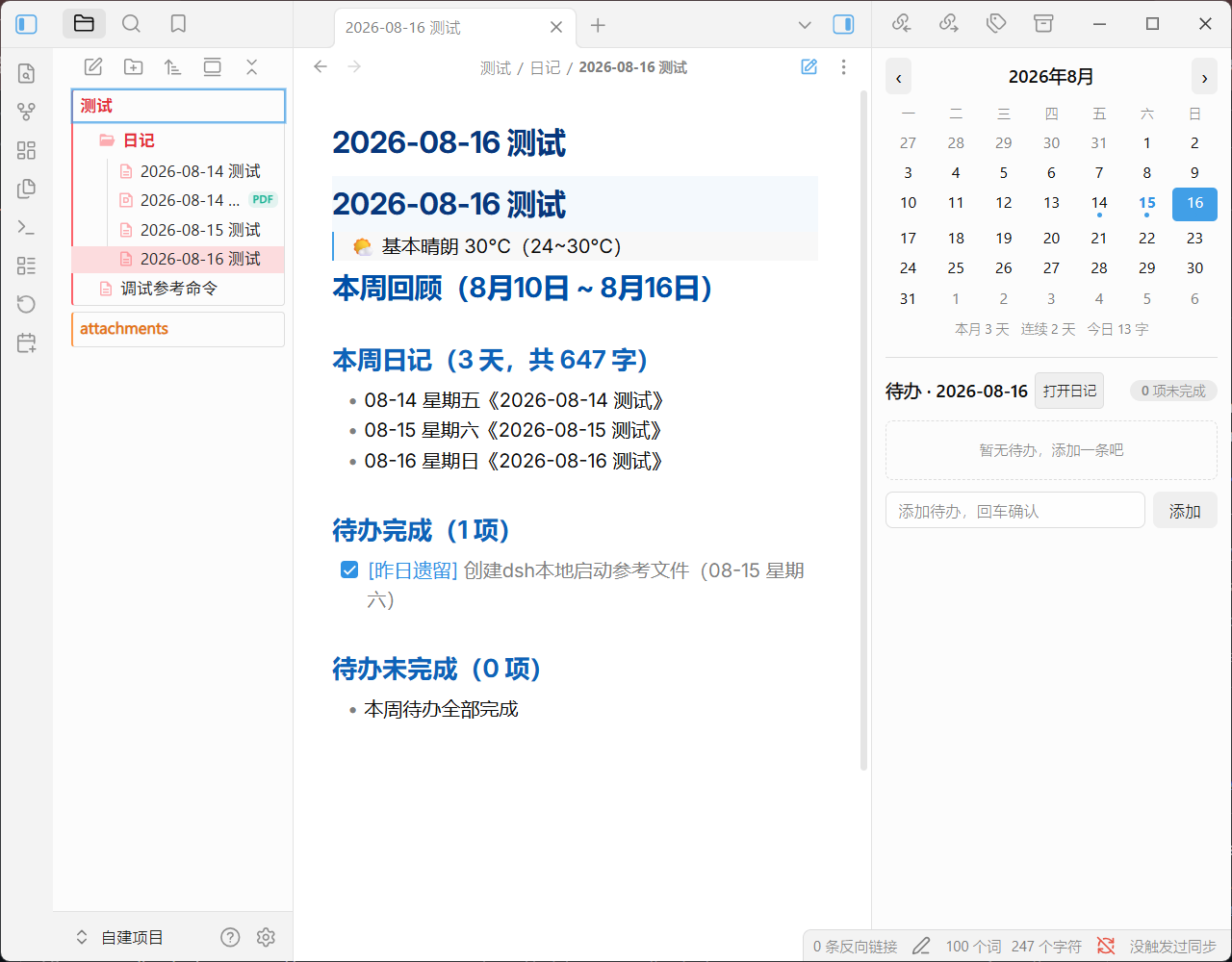
- In the sidebar calendar panel, double-click a date to open or create that day's note.
- Weekly notes — the calendar has a "W" (weekly) column on the left of the day grid, separated by a divider, one cell per week row: double-click it to open that week's note (named by ISO week, e.g. "2026-W37 周记") or create it for a weekly study summary. A single click changes nothing — the selected date, the todo list and the day-note list stay untouched; weeks that already have a note show a dot.
- Templates — optionally apply a Markdown template when creating daily or weekly notes (toggle in settings, template file picked from the vault). Placeholders are replaced on creation:
{{title}},{{date}},{{time}},{{date:FORMAT}}, and{{week}}(weekly notes only, e.g. 2026-W37; there{{date}}is the week's Monday).
✅ Calendar & Todos
- The calendar panel manages todos per day: add with the input box (Enter), check off, double-click to edit text, or open the row-end ⋯ menu for edit / copy / delete.
- Multi-line todos — the add box and the todo editor are auto-growing text areas that wrap long text (no more moving the cursor horizontally through a single line): Enter confirms / saves, Shift+Enter inserts a newline, and multi-line todo text renders with line breaks preserved (the weekly review flattens them into single checklist lines).
- When yesterday has unfinished todos, a "Carry over to today" banner appears at the top — one click moves them to today, marked as "carried over".
- Below the calendar: stats for this month's diary days, consecutive diary days, and today's word count.
- Multiple daily notes per day — click a date in the calendar panel to list all daily notes created for that day; click a title to jump to that note, or use + New to create another one for the same day.
⏰ Reminders
- Scheduled prompts to add a todo, or to check the day's unfinished todos; clicking the notification opens the calendar panel.
- Email notifications — when a todo is added, or the daily unfinished-todo check finds pending items, an email is sent to your custom mailbox (via Web3Forms, free tier ~250/month). Toggleable in settings; configure the Access Key from web3forms.com and your recipient email there.
📊 Weekly Review
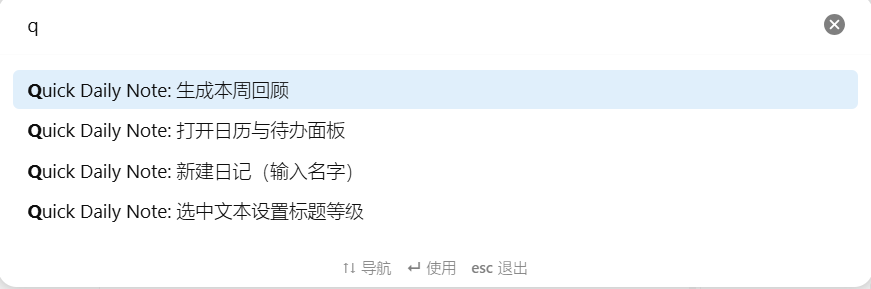
- The command "Generate weekly review" summarizes the week's diaries (days, word count, titles) and completed/uncompleted todos into Markdown, inserted at the cursor.
- The command "Generate weekly review for a chosen week" first shows a picker of the last 12 weeks (including the current one, searchable by week number or date) and generates the same summary for the selected week (titled e.g. "2026-W36 回顾").
⌨️ Paste Enhancements
- Auto-detect the language of pasted code (30+ languages, including Mermaid diagrams, zero dependencies) and wrap it in a fenced code block; plain text, single-line weak matches, and pastes inside code blocks are left alone.
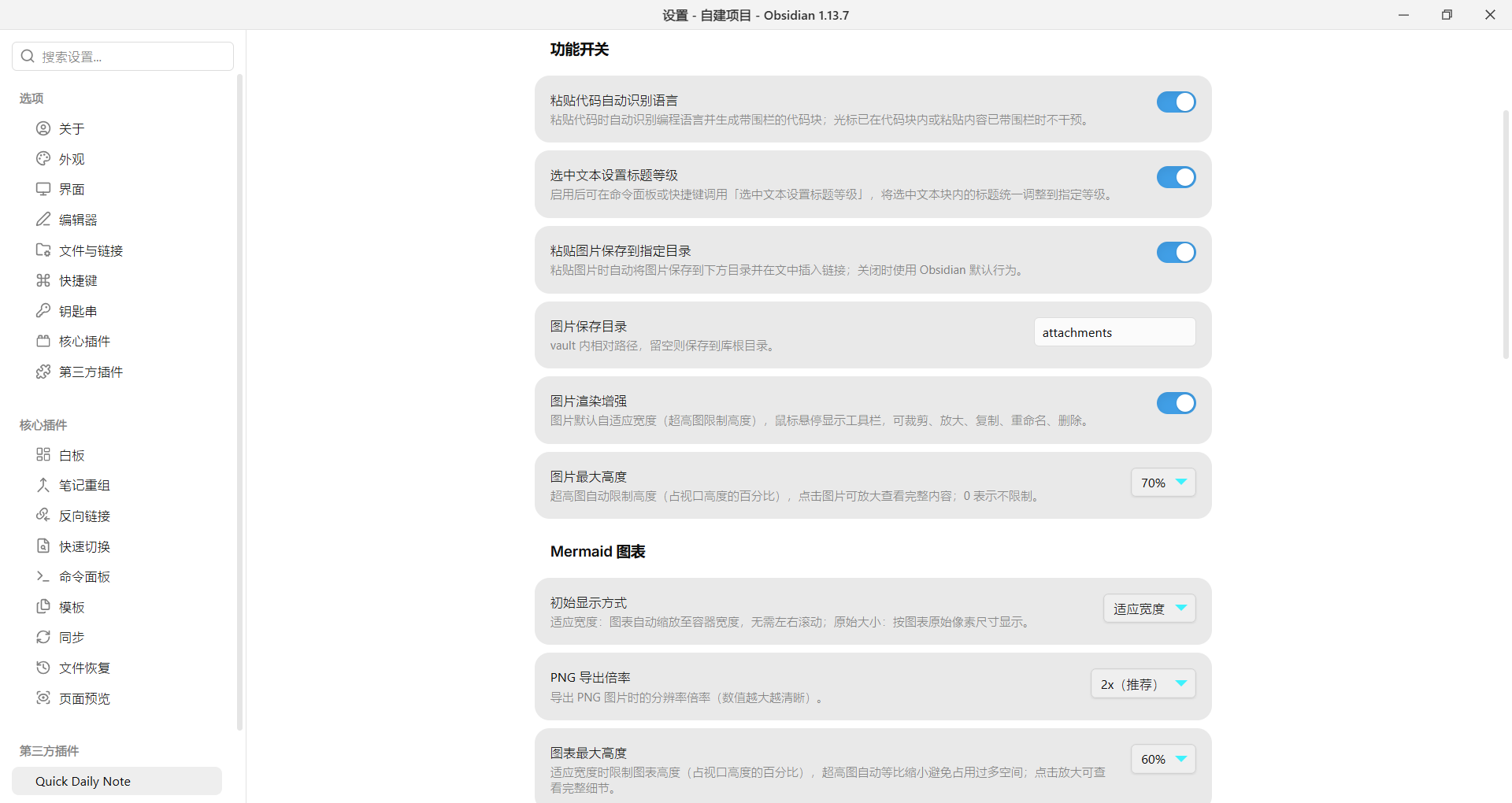
- Optionally save pasted images into a configurable folder (vault-relative path; empty = vault root) and insert the link at the cursor (off by default).
- File explorer copy/paste — with a file or folder selected in the sidebar file explorer,
Ctrl/Cmd+C/Ctrl/Cmd+Xcopy or cut it (folders included, copied recursively), andCtrl/Cmd+Vpastes it into the selected folder, or the folder of the selected file — even while that file is open — (duplicates get a numbered suffix); files copied from the system file manager can be pasted into the vault the same way. Copying/pasting text in the editor keeps its native behavior. Toggleable in settings. - Code block delete — a delete button next to the native copy button on rendered code blocks (reading view & live preview) removes the whole block from the note.
- Inline code copy — click inline code in reading view to copy its content instantly (Alt/Ctrl+click in live preview/editor, so plain clicks still position the cursor); code blocks are unaffected. Toggleable in settings.
- Quick line copy — hold Alt and click anywhere on a line to copy the whole line without selecting it (live preview/editor copies the source line under the cursor; reading view copies the clicked paragraph/heading/list item, and lines inside code blocks are located by click position with indentation preserved). Plain clicks are unaffected and task checkboxes still toggle; Alt+click on inline code still copies the code itself. Off by default, toggleable in settings.
- Blank lines around media — pasted images and pasted code blocks are inserted with an empty line above and below; a command "Blank lines around images/code blocks" formats the current note the same way (fences of any length/type are respected, code block content is untouched).
- Sync-ready storage — plugin settings and todo data are saved to a single file
quick-daily-note.jsonin the vault root, so they sync across devices with vault sync tools (e.g. Remotely Save). The name intentionally has no dot prefix — Remotely Save skips dotfiles. Legacydata.json/.quick-daily-note.jsonconfigs are auto-migrated on first load, and changes synced in from another device reload automatically. Background settings are per-device (stored locally in the plugin's data.json, not synced), so each device can have its own wallpaper.
🖼️ Image Enhancements
- Images fit the note width automatically; overly tall images are height-limited.
- Hover a rendered image for a toolbar: crop, copy, rename, delete (deleting also removes the references in notes and moves the file to the system trash). Click the image to zoom.
- Click an image to view it enlarged, with crop and other actions in the modal toolbar.
📈 Mermaid Enhancements
- Diagrams fit the container width (or render at original size), with a configurable height limit for tall diagrams.
- Toolbar above the diagram (outside the rendered frame): zoom in/out, reset, download as SVG or PNG (export scale configurable); click a diagram to view it enlarged.
- Diagrams adapt to the page width when printing or exporting to PDF — never clipped.
🌤️ Weather Recording
- When enabled, the current day's weather is fetched and written below the note title after creating a daily note (data from Open-Meteo, no API key; failures never block note creation).
🖼️ App Background
- Set the whole interface background to a custom image or video from your vault — videos (mp4/webm/ogv) play as a dynamic wallpaper — with full adjustments: opacity, blur, brightness, contrast, position, scale and fit mode.
Screenshots
Installation
Community Plugin Browser (once listed)
Settings → Community plugins → Browse, then search for Quick Daily Note.
BRAT (before listing)
- Install the BRAT plugin.
- Run the command
BRAT: Add a beta plugin for testingand enter456-77/quick-daily-note. - Enable Quick Daily Note.
Manual Install
Download the latest release from GitHub, and copy main.js, manifest.json, and styles.css into <vault>/.obsidian/plugins/quick-daily-note/, then enable the plugin in Settings.
Usage
Commands
| Command | Description |
|---|---|
| New daily note (enter name) | Create a note titled "date + name"; opens the existing note if present |
| Open calendar & todo panel | Open the calendar and todo panel |
| Set heading level for selection | Normalize headings in the selected text block (toggleable in settings) |
| Generate weekly review | Summarize the week's diaries and todos at the cursor |
| Generate weekly review for a chosen week | Pick one of the last 12 weeks, then summarize that week's diaries and todos at the cursor |
| Back to previous cursor (same note) | Return to the previous cursor position in the current note; also triggered by the back shortcut (Alt+← / Cmd+Alt+←) |
Image Toolbar Buttons
| Button | Action |
|---|---|
| ✂ | Crop |
| ⧉ | Copy |
| ✎ | Rename |
| 🗑 | Delete (removes note references; file goes to the trash) |
Settings
Daily Notes
| Setting | Description |
|---|---|
| Storage folder | Folder for diary files; empty = vault root |
| Date format | moment format, e.g. YYYY-MM-DD |
Feature Toggles
| Setting | Description |
|---|---|
| Auto-detect code language on paste | On by default |
| Set heading level for selection | On by default |
| Save pasted images to a folder | Off by default |
| Save pasted files to a folder (pasting in the editor) | Off by default |
| File explorer copy/paste | Copy/cut files & folders with Ctrl/Cmd+C/X, paste with Ctrl/Cmd+V in the file explorer; also imports files copied from the system file manager; on by default |
| Show hidden files | Show dotfiles/folders and file types Obsidian can't render; mirrors Obsidian's global setting (Files & Links); off by default |
| Email notifications | Email your mailbox when a todo is added or the unfinished-todo check fires (Web3Forms); off by default |
| Image storage folder | Defaults to attachments |
| Image rendering enhancements | On by default |
| Max image height | Percentage of viewport; 0 = unlimited; 70% by default |
Mermaid Diagrams
| Setting | Description |
|---|---|
| Initial display mode | Fit width / original size; fit width by default |
| PNG export scale | 1x / 2x / 3x; 2x by default |
| Max diagram height | Percentage of viewport; 0 = unlimited; 60% by default |
App Background
| Setting | Description |
|---|---|
| Enable background image | Off by default; restores the theme background when disabled |
| Image path | Vault-relative path; images (png/jpg/webp/gif) or videos (mp4/webm) |
| Opacity | 10% – 100%; lower values keep text readable |
| Blur radius | 0 – 30 px Gaussian blur |
| Brightness | 20% – 200% (100% = original) |
| Contrast | 20% – 200% (100% = original) |
| Horizontal / vertical position | 0% – 100% image alignment |
| Scale | 50% – 250% (100% = original size) |
| Fit mode | Cover (fill the window, cropped) / contain (whole image visible) |
Weather
| Setting | Description |
|---|---|
| Record weather when creating daily notes | Off by default |
| City | e.g. Beijing, Shanghai |
Reminders
| Setting | Description |
|---|---|
| Add-todo reminder | Off by default; 08:00 by default |
| Unfinished-todo check | Off by default; 21:00 by default |
Data & Privacy
- All data is stored in your vault's
data.json; nothing is uploaded to any server. - The only network request is weather data from open-meteo.com when weather recording is enabled (public API, no key, off by default).
Compatibility
- Requires Obsidian v1.7.2 or later.
- Works on desktop and mobile.
Development
npm install
npm run build   # tsc type check + esbuild bundle
Build output: main.js, manifest.json, styles.css.
Support & Feedback
Issues and suggestions are welcome at GitHub Issues.
License
For plugin developers
Search results and similarity scores are powered by semantic analysis of your plugin's README. If your plugin isn't appearing for searches you'd expect, try updating your README to clearly describe your plugin's purpose, features, and use cases.