by chadidi
Sync your browser reading list into a searchable dashboard panel.
Reading List for Obsidian
Browse your browser reading list in a dashboard panel inside Obsidian, without turning every item into its own note.
Features
- Multi-browser support: Read your reading list from Google Chrome, Microsoft Edge, Chromium (Brave, Arc, etc.), Safari (macOS), or Mozilla Firefox (via a bookmark folder).
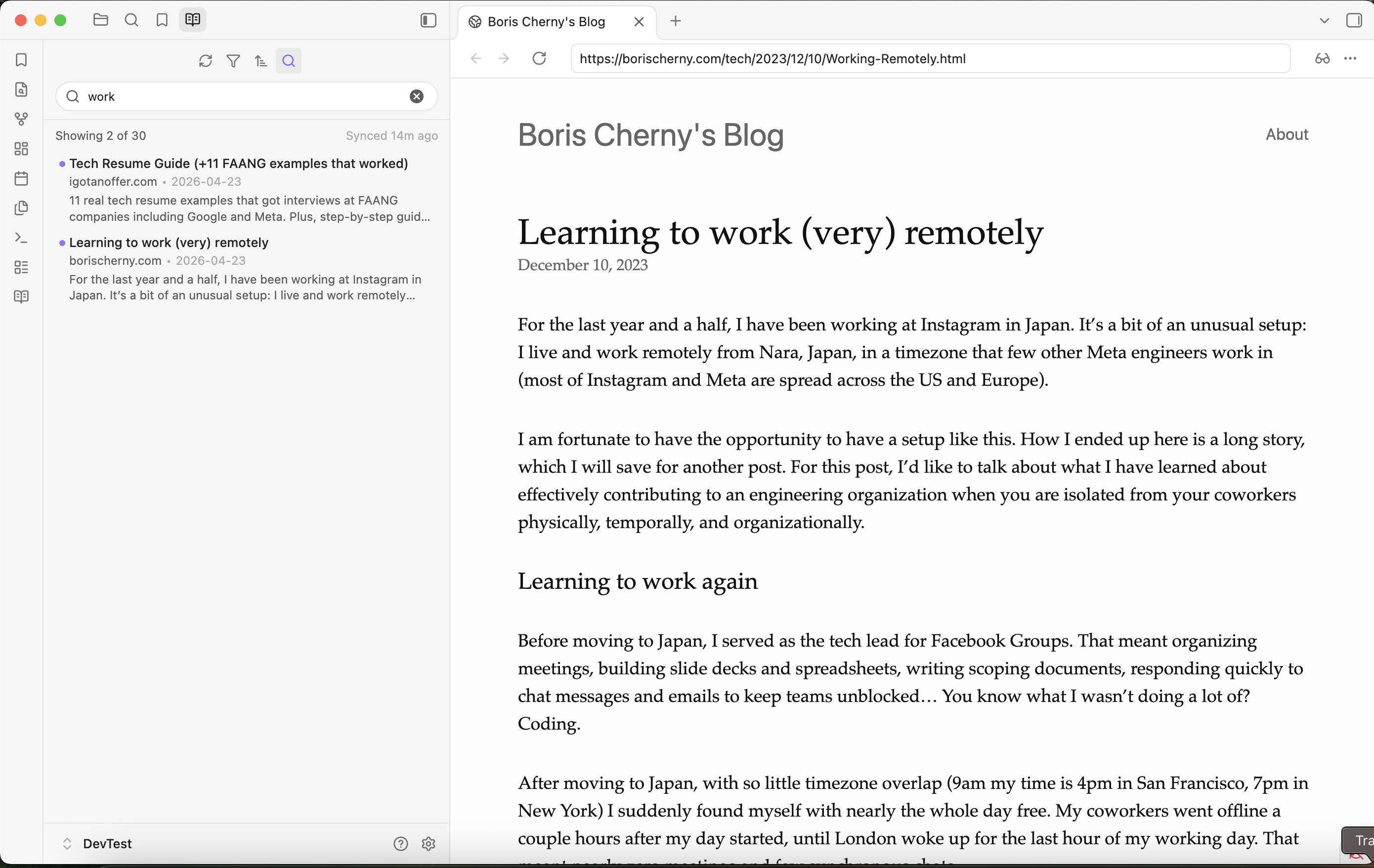
- Dashboard panel: Every item lives in a dedicated panel in Obsidian's left sidebar, next to the core Bookmarks panel. Open it from the ribbon icon, the command palette, or the settings tab.
- Search, filter, sort: Filter by read state (when the browser tracks it), search by title or URL, and sort by date added or title.
- Read inside Obsidian: Selecting an item opens the page as a new tab in the main workspace using the core Web Viewer, where notes normally open.
- Open in browser: The open icon on each item sends the page to your default browser instead.
- Article previews: Show the preview text (
excerpt) the browser records next to each item. - No vault clutter: Nothing is written into your notes. The reading list is rendered on demand from data the plugin keeps in its own
data.json. - Flexible automation: Sync manually on demand, automatically on startup, or at periodic intervals.
Installation
Community plugins (Recommended)
Install directly from the Obsidian community plugins store:
- Open Obsidian Settings → Community plugins.
- Select Browse and search for Reading List.
- Select Install, then select Enable.
- Open Settings → Reading List to configure the plugin.
Manual installation
- Download the latest release (
main.js,manifest.json,styles.css) from the Releases page. - Create a folder named
reading-listin your vault's plugin directory:<vault>/.obsidian/plugins/reading-list/. - Copy
main.js,manifest.json, andstyles.cssinto that folder. - Reload Obsidian and enable the plugin under Settings → Community plugins.
Build from source
git clone https://github.com/chadidi/obsidian-reading-list.git
cd obsidian-reading-list
npm install
npm run build
Copy main.js, manifest.json, and styles.css into <vault>/.obsidian/plugins/reading-list/.
First run
- Go to Settings → Reading List.
- Select your browser under Source. The plugin will automatically detect your browser's default reading list file on macOS, Windows, or Linux.
- Select Sync reading list (or use the Sync button on the dashboard) to import your items.
- Open the dashboard with the ribbon icon (book icon) or the command Reading List: Open dashboard.
- Automatic syncs (on startup or periodic) are kept disabled until one manual sync has completed successfully, so nothing is imported by surprise.
The dashboard
The dashboard is a panel that opens in the left sidebar, next to the core Bookmarks panel, and shows every item in your reading list:
- Search filters by title or URL as you type.
- Read filter shows all items, only unread, or only read. Browsers that do not record a read state (Safari, Firefox) count as unread.
- Sort orders by date added (newest or oldest first) or by title.
- Sync re-imports the list from your browser without leaving the panel.
Selecting an item's title opens the page as a new tab in the main workspace, using Obsidian's core Web Viewer. The open icon on the right sends the page to your default browser instead. If the core Web Viewer plugin is disabled, titles fall back to opening in your default browser.
Supported browsers
The Browser and Profile menus are populated from locally detected browsers and profiles. The plugin resolves each selected profile's bookmark file automatically.
| Browser family | Profile data | Notes |
|---|---|---|
| Chromium-based (Chrome, Chromium, Edge, Brave, Arc, Vivaldi) | Profile Bookmarks or AccountBookmarks file | Reads bookmarks from the folder configured in Bookmarks folder. Defaults are Other Bookmarks/Reading List for Chrome and Chromium browsers, and Other Favorites/Reading List for Edge. |
| Firefox and Firefox Developer Edition | Profile places.sqlite | Firefox has no native reading list, so the plugin reads bookmarks inside the shared Bookmarks folder setting (default: Other Bookmarks/Reading List, matched by name anywhere in the tree). It reads a temporary copy together with the -wal file so uncheckpointed changes are included. |
| Safari | ~/Library/Safari/Bookmarks.plist (macOS) | Safari's Bookmarks folder setting is hidden; it reads the Reading List directly from this file. Because macOS protects ~/Library/Safari/, use Choose Bookmarks.plist in settings to grant read access to just that file for the session (no Full Disk Access needed), or grant Obsidian Full Disk Access in macOS System Settings → Privacy & Security. Safari records an article excerpt but no read state, and no creation dates. |
Sync behavior
- One-way sync: The dashboard always shows the reading list exactly as the browser reports it on the latest sync.
- New items: Items that appear in the browser since the last sync are added to the dashboard.
- Removed items: Items you remove from the browser's reading list are dropped from the dashboard on the next sync. Nothing is deleted from your vault.
- No notes are created: The plugin never writes items into your vault. Any notes you created with an earlier version of the plugin are left untouched.
Disclosures & privacy
- Desktop only: This plugin requires Obsidian's desktop application (macOS, Windows, or Linux) because it uses local filesystem access to read browser data files.
- Filesystem access outside vault: This plugin reads local browser files stored on your computer (such as
Bookmarks.plistfor Safari, theReading Listfile for Chrome/Chromium, orplaces.sqlitefor Firefox). These files are read strictly to import your reading list. When you pick a SafariBookmarks.plistthrough the native file dialog, its contents are held in memory for the current session only and are never written to disk or persisted in settings. - Local storage of the list: The imported items (title, URL, add date, excerpt, read state) are stored in the plugin's own
data.jsoninside the plugin folder so the dashboard can render without re-reading the browser. Nothing is written into your notes. - 100% offline & private: No network requests are made. No analytics or telemetry are collected. All reading-list processing happens completely locally on your device.
License
For plugin developers
Search results and similarity scores are powered by semantic analysis of your plugin's README. If your plugin isn't appearing for searches you'd expect, try updating your README to clearly describe your plugin's purpose, features, and use cases.