Review Edit
approvedby wenzhi-ding
Review note edits as a Git-style diff, then keep or revert each hunk. Ideal for reviewing AI edits. - This plugin has not been manually reviewed by Obsidian staff.
Review Edit
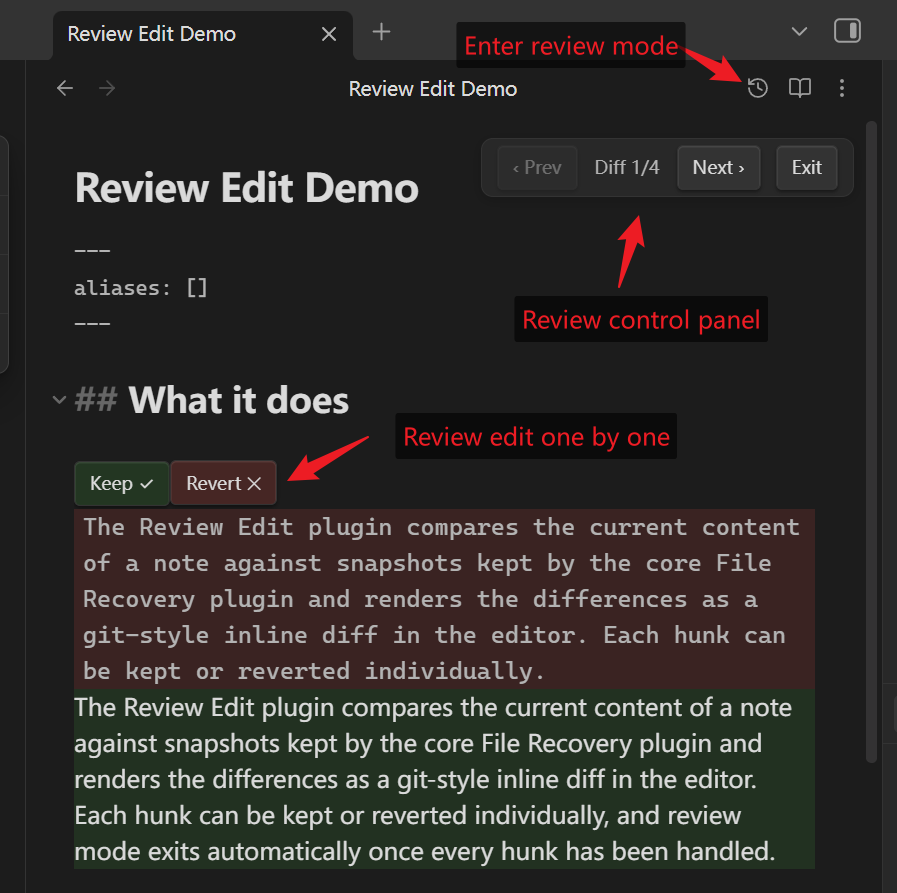
Review the changes in a note against a historical snapshot, rendered as a git-style inline diff inside the Obsidian editor. Keep (✓) or revert (✕) each diff hunk individually. Review Edit maintains its own automatic snapshots — no setup and no git required — and additionally uses snapshots from the core File Recovery plugin when available. The interface language follows Obsidian's display language (English and Chinese are built in).
Installation
Install from Obsidian's community plugin browser, or manually: download main.js, styles.css, and manifest.json from the latest release into <vault>/.obsidian/plugins/review-edit/, then enable Review Edit in Settings → Community plugins.
Automatic snapshots
Once enabled, Review Edit snapshots every note automatically: whenever you stop editing a note for longer than the session threshold (1 minute by default), the pre-edit content is snapshotted. This works for edits made by external tools and scripts while Obsidian is running, not just in-app edits — ideal for reviewing AI edits. On first launch it takes a baseline snapshot of your whole vault in the background, and snapshots older than the retention period (30 days by default) are pruned automatically.
Snapshots are stored locally in this device's IndexedDB and never leave your machine. You can purge all of them anytime from the plugin settings, where the threshold and retention are also configurable. File Recovery snapshots, when available, are used as an additional source.
Usage
- Edit a note — in the Obsidian editor or with any external tool. Snapshots are taken automatically at each editing-session boundary (see above), plus File Recovery's own snapshots if that core plugin is enabled.
- Start a review from any of the three entry points: the history button (clock icon) at the top right of the editor, the ribbon icon on the left sidebar, or the command Compare with an earlier snapshot to pick a baseline snapshot. The command Compare with the previous snapshot skips the picker and diffs against the most recent differing snapshot.
- Green lines were added since the baseline; red blocks are old content that was removed.
- A navigation bar "‹ Prev | Diff i/n | Next ›" appears at the top right and bottom right of the editor. n is the number of pending hunks; Next scrolls to the nearest pending hunk below the middle of the view, Prev to the nearest one above, and entering review mode scrolls to the first hunk.
- Keep ✓ keeps the current text. Revert ✕ restores the old text for that hunk, and the counter decreases. When every hunk is handled, review mode exits automatically. The navigation bar also has an exit button (or press
Esc) — unhandled changes are all kept.
Known limitations
- Automatic snapshots capture the pre-edit state at each editing-session boundary. Edits made while Obsidian is not running have no pre-edit snapshot; the review then compares against the last stored state.
- The snapshot picker only lists snapshots that differ from the current content. Identical entries (e.g. snapshots taken despite no content change) are hidden automatically.
- The editor is read-only while in diff mode; if the file is modified externally, the mode exits automatically.
Compatibility
Automatic snapshots use only public plugin APIs (vault events + the plugin's own IndexedDB store). Reading File Recovery snapshots relies on that core plugin's internal IndexedDB structure (the same approach as the Time Machine community plugin); there is no public API for this. If an Obsidian update breaks it, only src/snapshot-source.ts needs to be adapted — automatic snapshots are unaffected.
中文说明
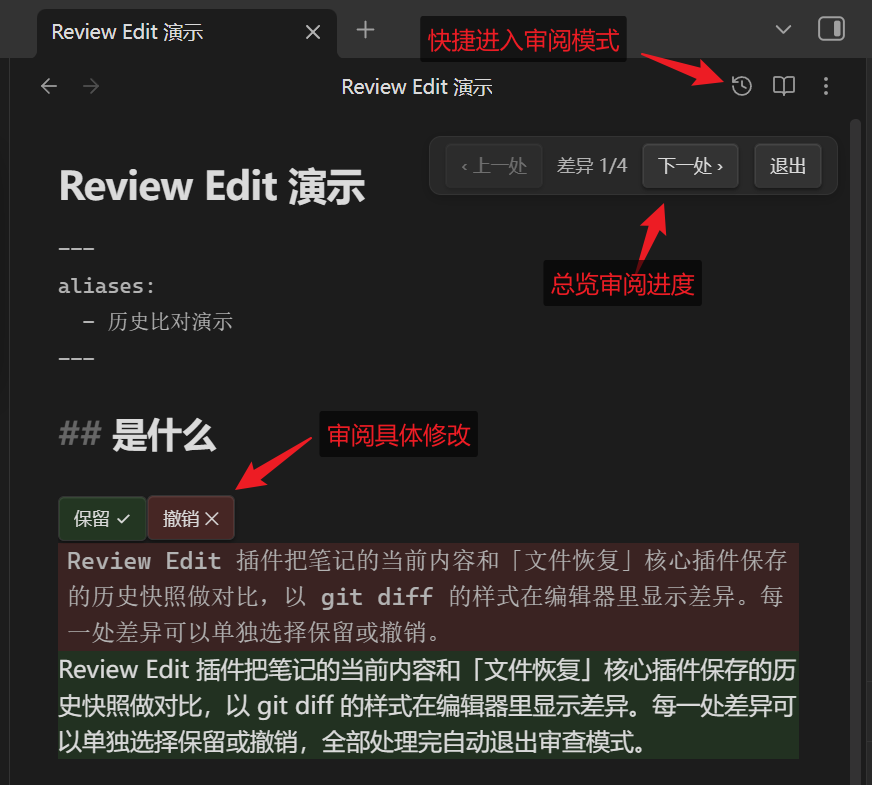
在 Obsidian 编辑器内以 git diff 风格审查一篇笔记相对历史快照的改动,逐块「保留 ✓」或「撤销 ✕」。插件自带一套自动快照系统——零配置、不依赖 git——核心插件「文件恢复」的快照可用时作为补充数据源。界面语言跟随 Obsidian 显示语言(内置中英文)。
安装
在 Obsidian 社区插件市场搜索安装,或从 最新 release 下载 main.js、styles.css、manifest.json 放入 <vault>/.obsidian/plugins/review-edit/,然后在 设置 → 第三方插件 中启用。
自动快照
启用后插件自动为笔记保存快照:编辑停顿超过会话阈值(默认 1 分钟)即自动保存改前内容;只要 Obsidian 在运行,外部工具和脚本对笔记的修改同样会被记录,特别适合审查 AI 的批量改动。首次启动会后台做一次全库基线,过期快照按保留期自动清理(默认 30 天)。快照只存在本机 IndexedDB,不上传,可随时在插件设置里一键清除;阈值与保留期也可在设置里调整。核心插件「文件恢复」的快照仍会作为补充数据源使用。
使用
- 编辑一篇笔记——编辑器内或任何外部工具均可。快照在每个编辑会话边界自动保存(见上),若「文件恢复」核心插件启用,它的快照也会一并纳入。
- 三种入口任选:编辑器右上角的「历史比对」按钮(时钟图标,在阅读模式切换按钮旁边)、左侧栏图标、或 Ctrl+P 执行「与历史版本对比」选择基准时间点(「与上一个快照对比」跳过选择直接比最近一个不同的快照)。
- 绿色行 = 相对基准新增;红色块 = 相对基准删除的旧内容。
- 编辑器右上角和右下角有导航条「‹ 上一处 | 差异 i/n | 下一处 ›」:n 是待处理差异块总数,「下一处」滚动定位到视口中线下方最近的一处、「上一处」定位到中线上方最近的一处(均居中显示),进入模式时自动定位到第一个差异块。
- 「保留 ✓」维持现状;「撤销 ✕」把该块还原为旧版本,导航计数同步减少;全部处理完自动退出。导航条上还有「退出」按钮(或按 Esc):随时直接退出,未处理的改动全部保留。
已知限制
- 自动快照在每个编辑会话边界保存改前内容;Obsidian 未运行期间发生的外部编辑没有改前快照,审查时对比的是上一次入库的状态。
- 选择器只列出与当前内容不同的快照;内容相同的条目会被自动隐藏。
- diff 模式期间编辑器只读;文件被外部修改时自动退出模式。
兼容性
自动快照只使用公开的插件 API(vault 事件 + 插件自己的 IndexedDB 存储)。读取文件恢复的快照依赖该核心插件的内部 IndexedDB 结构(社区插件 Time Machine 采用同一方式),Obsidian 大版本更新后若失效,只需适配 src/snapshot-source.ts——自动快照不受影响。
For plugin developers
Search results and similarity scores are powered by semantic analysis of your plugin's README. If your plugin isn't appearing for searches you'd expect, try updating your README to clearly describe your plugin's purpose, features, and use cases.