Note Snapshots
approvedby Aphasia
Per-note version control with meaningful history. Save snapshots with names, diffs, and all attachments. - This plugin has not been manually reviewed by Obsidian staff.
Note Snapshots
Another per-note version-control plugin for Obsidian.
Built around one idea: keep a meaningful snapshot history.
Important notes:
- Tested against a sandbox vault on both desktop and mobile, but can't cover every scenario.
- The plugin has known limitations, worth a look for the cases it can't fully handle.
- No feature changes are planned — this was written to solve my own problems. Bugs and Obsidian-version breaks will be fixed.
Features
- Full control over snapshots. Create or delete a snapshot whenever you want. The plugin never decides on your behalf — there's no background autosave or cleanup.
- Navigating snapshot history freely. Restoring never forces a new snapshot (unsaved work is flagged for your decision), so the history stays short enough to read at a glance no matter how often you switch between snapshots.
- A snapshot keeps the note's attachments. A restore can bring the whole note back, even an attachment that's since gone missing or been changed in place.
- Locking protects a snapshot against deletion.
- Diffs against the current note or the previous snapshot.
- Snapshots are plain files in the vault. They sync with whatever already syncs the vault, and are greppable and recoverable by hand.
Folder-wide snapshot and restore are out of scope by design (see Out of scope).
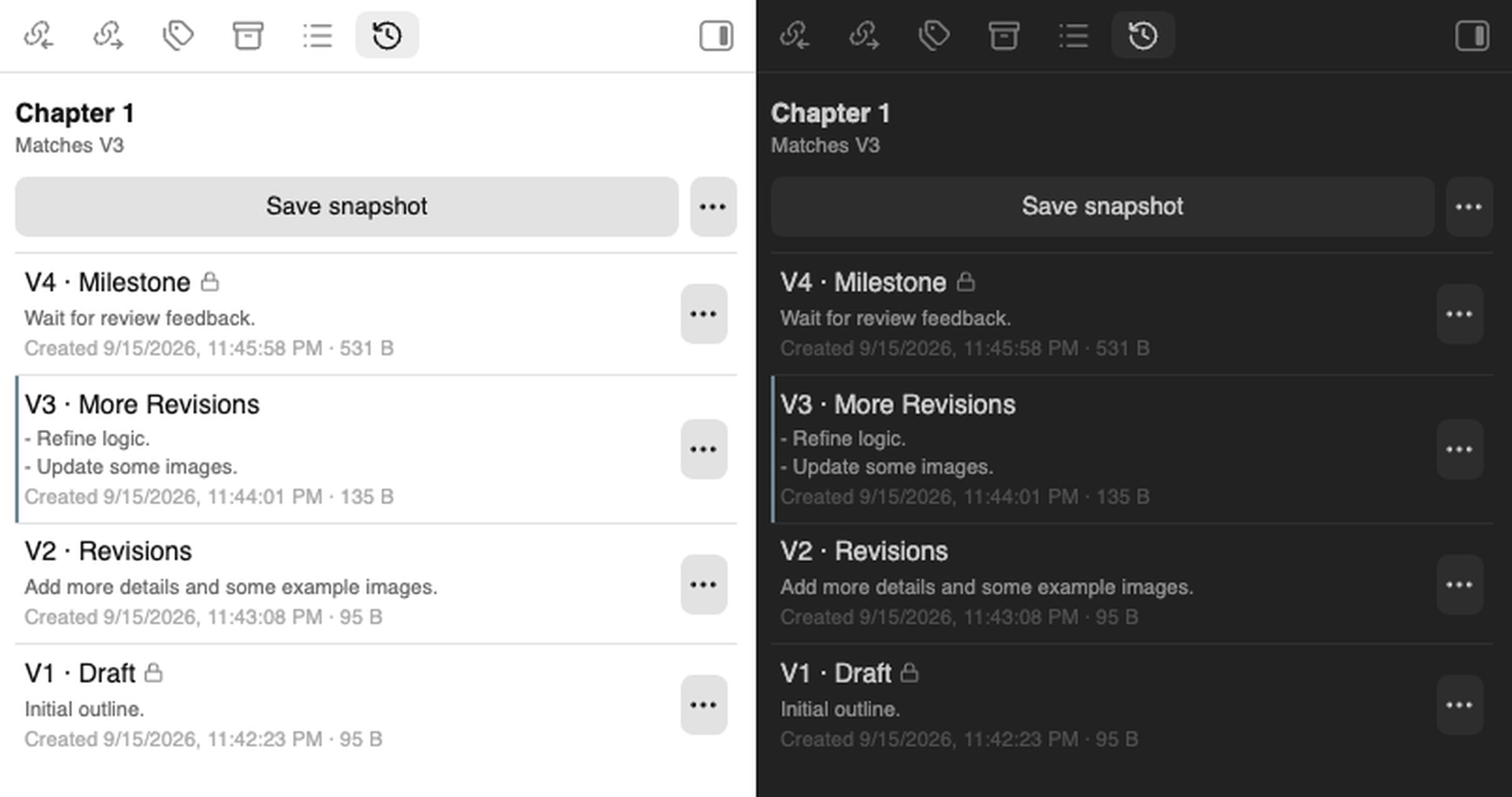
Installation
From within Obsidian
In Settings → Community plugins → Browse, search for Note Snapshots, then Install and Enable.
Manual
Build the plugin and copy it into your vault:
pnpm install
pnpm build
This writes dist/. Copy it to <vault>/.obsidian/plugins/note-snapshots/, then
enable Note Snapshots under Settings → Community plugins.
Requires Obsidian 1.5.0 or newer. Works on desktop and mobile — see the mobile picture-refresh lag under Limitations.
Usage
Open the sidebar from the ribbon's history icon (Snapshot history), or run Open snapshot history from the command palette.
| Command | Description |
|---|---|
| Save a named snapshot of the current note | Prompts for a name (optionally prefilled) and a note, then snapshots |
| Save a snapshot of the current note | Snapshots without prompting |
| Open snapshot history | Opens the sidebar |
| Clean up history of deleted notes | Permanently removes orphaned histories older than the configured window (run manually; never automatic) |
The sidebar shows whether the note matches a saved snapshot, has unsaved changes, or
is untracked. Each row shows one snapshot's details and has a ⋮ menu of actions for
it; the header's ⋮ menu holds the note-wide ones. Click a row to diff it against the
current note, or double-click it to restore that snapshot.
Settings
| Setting | Default | Notes |
|---|---|---|
| Snapshot store folder | .note-snapshots | Vault-relative. Changing it doesn't move existing history. |
| Keep history of deleted notes | 30 days | Age an orphaned history must reach before Clean up removes it. 0 keeps it indefinitely. Cleanup is always manual. |
| Suggested name for new snapshots | none | Prefills the name prompt: date, datetime, or a custom template. |
| Confirm before restoring | only when a restore would overwrite unsaved work | Always / Only when a restore would overwrite unsaved work / Never. Attachments modified-in-place are also considered unsaved work. |
| Confirm before deleting a snapshot | on |
Development
The codebase started largely vibe-coded with Claude; docs/implementation-plan.md records the design rationale and where the initial output was simplified and hardened during review.
Requires Node ≥ 20.19.6 and pnpm 10.25.0 (both provided by the dev container).
pnpm install
pnpm dev         # rebuild on change
pnpm build       # tsc + esbuild production bundle
pnpm typecheck   # tsc over src and test
pnpm test        # core checks against an in-memory vault
pnpm test runs the core against a stubbed obsidian module and an in-memory
vault, so the invariants above — the no-growth property, copy-vs-move
discrimination, attachment recovery — are checked without launching Obsidian.
Build output folder: OBSIDIAN_PLUGIN_DIR if set, else
<OBSIDIAN_VAULT>/.obsidian/plugins/note-snapshots/, else dist/ (flat — the
location Obsidian's community-plugin build verification expects; the installed cases
above use the id from manifest.json instead). Pair OBSIDIAN_VAULT with pnpm dev
for a rebuild-into-vault loop; see
.devcontainer/devcontainer.json.
How it works
Storage
Snapshots are plain files in the vault — syncable, greppable, recoverable by hand:
.note-snapshots/
  central.json               # note index: id → path, for rename tracking and orphan cleanup
  <noteId>/
    manifest.json            # this note's snapshot pointer and per-snapshot metadata
    <snapshotId>.md          # snapshot content, uncompressed
    attachments/<hash>.bin   # embedded attachments, deduplicated by content hash
A note's noteId is a ns-id key written into its frontmatter on the first snapshot.
Identity is resolved by that id, not by path, so renaming A.md to B.md keeps the
history intact. The path recorded in central.json is separate bookkeeping: it's
repaired lazily as the note moves, and used to find a deleted note's history so it
can be marked orphaned for cleanup.
A note's snapshot pointer marks which snapshot its working file currently
matches, or none. The V1, V2, … labels in the sidebar are display only —
sorted by capture time.
How unsaved work is detected
"Unsaved work" means the note text or any embedded attachment is not in stored snapshots.
- Attachment content matters. One modified in place is treated as unsaved work as well.
- Path is not considered at all. Renaming or moving the note does not make it count as unsaved work.
This is only for flagging. You can always save a snapshot.
How a snapshot is restored
Restoring writes the stored content back and moves the snapshot pointer to the target snapshot. No new snapshot is created, so flipping between snapshots never grows the history.
When the note has unsaved changes, restoring asks first: Snapshot & restore (the default) captures that work as a snapshot so it stays recoverable, while Restore only discards it and checks the snapshot out straight away.
Only the content is restored; the note's name and folder are left alone.
Embedded attachments in the target snapshot are reconciled alongside the text:
- Missing — the target snapshot's attachment isn't in the vault anymore — recreated from the backup.
- Unchanged — the vault's attachment still matches the target snapshot's — left alone.
- Changed in place — an attachment still sits at the path but differs from the target
snapshot's copy — the plugin asks for your decision:
- ✅ already captured in snapshot history:
- Restore & replace attachments (default) — overwrites it.
- Restore text only — leaves it as is.
- ⚠️ not captured anywhere:
- Snapshot & restore (default) — backs up the current note and its attachments as a new snapshot, then overwrites.
- Restore only — skips the backup and overwrites it anyway.
- ✅ already captured in snapshot history:
The plugin works on a per-note basis, so take care if the attachment is shared with another note (see Limitations).
Whether a still-present attachment has changed is checked by size, then by hash if below the "Large attachment threshold" setting (25 MB by default), so a large attachment can be mistakenly judged unchanged (see When attachment recovery falls short). Lower the threshold if that risk matters more to you than the cost of hashing large files, or set it to 0 to always hash regardless of size.
Setting "Confirm before restoring" to Never skips this prompt: the restore proceeds
immediately, still recreating any missing attachment but leaving a changed-in-place one
untouched for safety.
When attachment recovery falls short
Attachment recovery is best-effort. Two questions about what you did cover where it can miss.
1. Did you move the note to another folder since the snapshot?
If not, every embed resolves — the attachment comes back exactly where it was. If you did, whether it still resolves depends on the link style:
- ✅ Wikilink —
![[image.png]]:- Obsidian resolves it by filename, so it always works.
- ✅ Relative link to an attachment beside or below the note —
,:- the attachment moves with the note.
- ✅ Absolute link into the vault folder or a fixed attachments folder —
:- the attachment keeps its recorded path, which is where the link points.
- the one gap: if the note was in the vault root when the snapshot was captured, every fixed path counted as under its folder too — so once the note moves, the attachment relocates with it anyway, and the link breaks.
- ❌ Anything else — including a relative link that points outside the note's
folder (
):- move the attachment or fix the link.
This is because restore never rewrites embed links, so a recreated attachment only resolves where its link already points. The plugin decides where to place an attachment purely by comparing recorded paths from the snapshot:
- If the attachment is at or below the note's own folder, it moves with the note.
- Otherwise, it stays at its recorded path.
2. Did you modify the attachment in place (same name, different content)?
Almost always fine: restore notices the change and asks before touching the attachment.
The one exception is an edit to an attachment at or above the "Large attachment threshold" setting (25 MB by default) that leaves it the exact same size — restore checks by size alone, takes it for unchanged, and leaves it.
Limitations
- Identity lives in a frontmatter field. A note's history is linked through the
ns-idkey in its frontmatter. Strip or clear that field — a "clear frontmatter" command, a format conversion, manual editing — and the note silently detaches from its history; the next snapshot just starts a new one, with no error. - A shared attachment can surprise another note. Restore only considers the note being restored, so overwriting a shared attachment can unexpectedly change what another note embedding it sees too. Keep each attachment to a single note if you can.
- Attachment recovery is best-effort. A note moved since the snapshot, or a same-size edit to a large attachment, can leave a stale or missing attachment behind. See When attachment recovery falls short for exactly when.
- On mobile, a restored picture can keep showing the old version. The restore itself is correct — this is a display lag. Obsidian mobile's resource URLs don't change when a file's content does (unlike desktop, where the URL carries the file's modified time), so the webview keeps serving the cached image until the app is fully closed and reopened. This is an Obsidian mobile limitation, not something the plugin can fix from within a note.
Out of scope
-
A snapshot is about one note and its embedded attachments. Links to other notes (
[[Other note]]) and embeds of other notes (![[Other note]]) are stored as plain text; the plugin never snapshots, restores, or otherwise touches the notes they point at. Version-controlling complex relationships between notes and attachments is out of scope. If you need whole-vault, commit-style history across many files at once, use obsidian-git instead — or alongside this plugin, for the coarse-grained layer. -
No folder operations, by design. A folder-wide snapshot could only ever be a batch over independent per-file histories:
- One click would write a snapshot into every file, with no matching bulk undo.
- A shared "folder snapshot" label means nothing across histories that diverge as files are added and reverted.
- "Restore the folder" has no honest answer for files created since.
Snapshot the files you care about, one history each.
License
For plugin developers
Search results and similarity scores are powered by semantic analysis of your plugin's README. If your plugin isn't appearing for searches you'd expect, try updating your README to clearly describe your plugin's purpose, features, and use cases.