by Alejandro Escanes
Distraction-free writing: full-screen focus mode with typewriter scrolling, paragraph or line spotlight, page themes and key sounds.
Scribe of Lagash - Focus


An Obsidian plugin that helps writers concentrate on their work and remove distractions with a distraction-free focus view and four focus modes. It is part of the Scribe of Lagash series, a set of independent, focused tools for planning and writing stories in Obsidian.
Thank you
If this plugin helps your writing, you can support its development buying me a coffee on Ko-fi

Installation
Requires Obsidian ≥1.10.0.
You can install it from the
community plugins page,
or download main.js, manifest.json, and styles.css from the
latest release
and copy them into <vault>/.obsidian/plugins/scribe-of-lagash-focus/.
Scribe of Lagash Plugins
Scribe of Lagash is a series of independent, single-concern Obsidian plugins for planning and writing stories:
- Scribe of Lagash - Visualization (github repository) — helps writers visualize their chapters and scenes.
- Scribe of Lagash - Goals and Stats (github repository) — helps writers set goals and see detailed statistics for their story.
- Scribe of Lagash - Focus (github repository) — helps writers focus on their work and remove distractions.
Each plugin works fine on its own, and none requires another, but they are designed to complement each other and work best together.
About the name
"Scribe" is the writer at the center of every plugin in the series, and "Lagash" nods to Nippur de Lagash, the classic Argentine comic.
Features
Focus view
Click the full-screen icon in the left ribbon, or run the "Focus mode"
command, to hide everything except the current note: both sidebars, the ribbon,
the tab strip and view header, the status bar, the title bar and any other
panes. Leave with Esc or by running the same command again.
Hotkey. The first time you enable the plugin it asks you to choose a key combination for "Focus mode" and opens Obsidian's Hotkeys screen for you. The plugin never picks a key itself (Obsidian's guidelines forbid default hotkeys). You can change the key at any time in Hotkeys, or reopen the prompt with the "Set focus mode hotkey" command. Focus mode applies to the whole vault, and is always off after Obsidian restarts.
On desktop, focus mode also takes the window full screen and leaves it again
when you exit; Esc ends both at once.
Focus modes
Pick a mode from the Focus mode menu in the dock. Every mode hides the interface the same way (see above); they differ in how the text itself is shown. Your choice is remembered for next time.
Distraction-free (default)
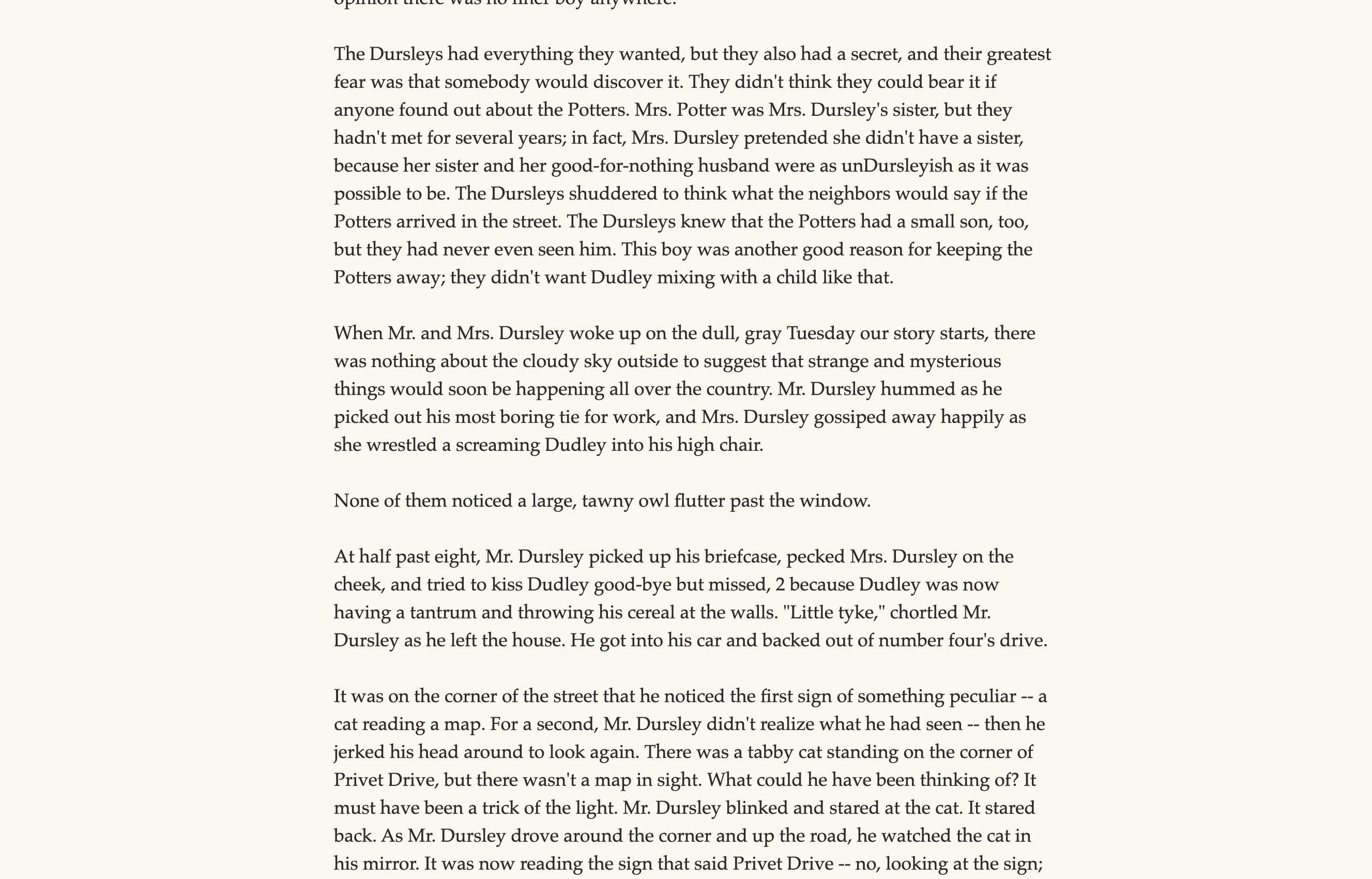
Only the page: nothing is dimmed and the text scrolls normally.
Typewriter
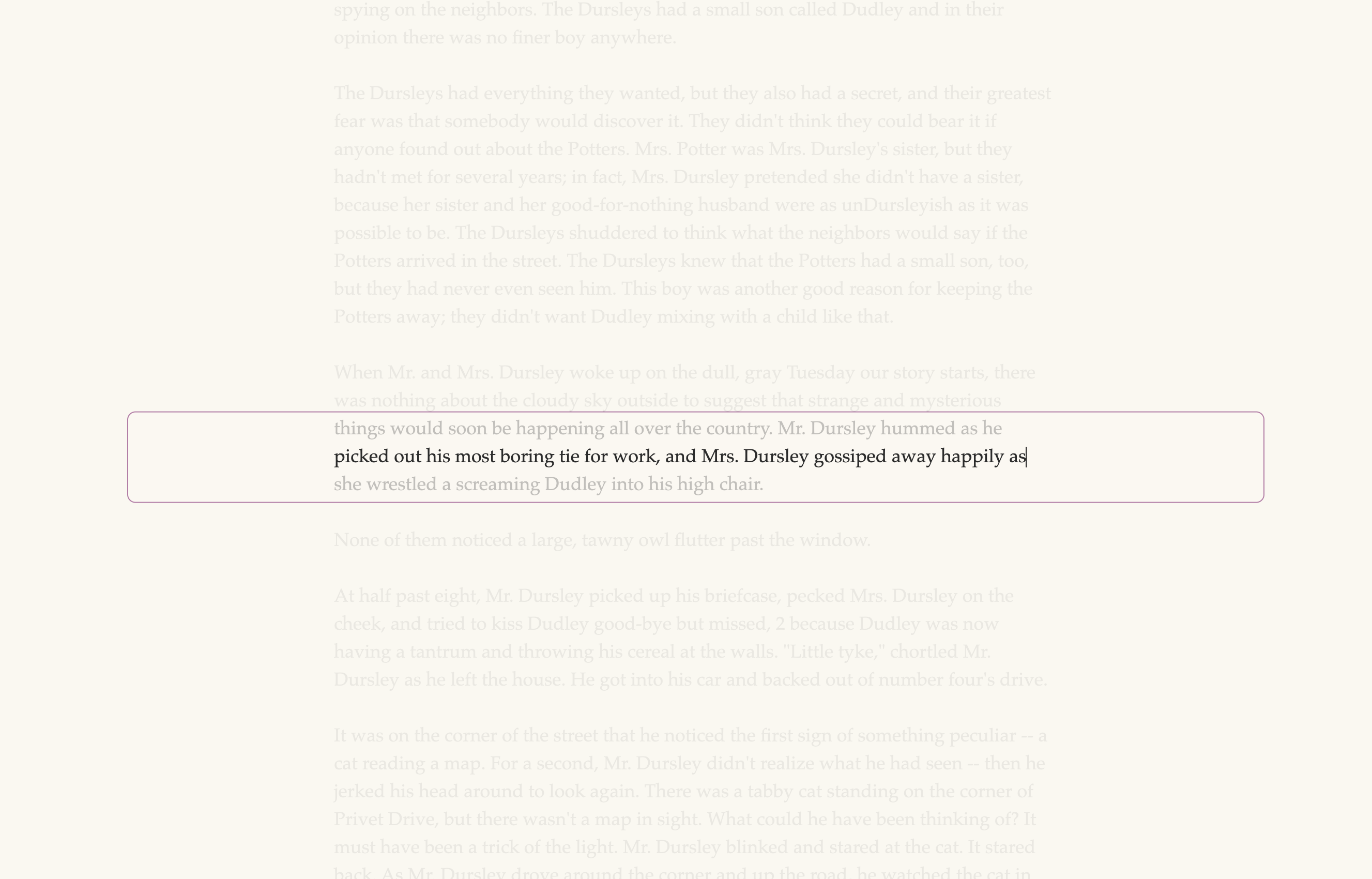
Keeps the line you are writing in a box at the middle of the screen, like paper rolling through a typewriter: the text moves past the box and everything outside it is dimmed. Inside the box only the line with the cursor is lit. The note title is hidden, and the page gets extra space above and below so the first and last lines can reach the middle too.
Spotlight
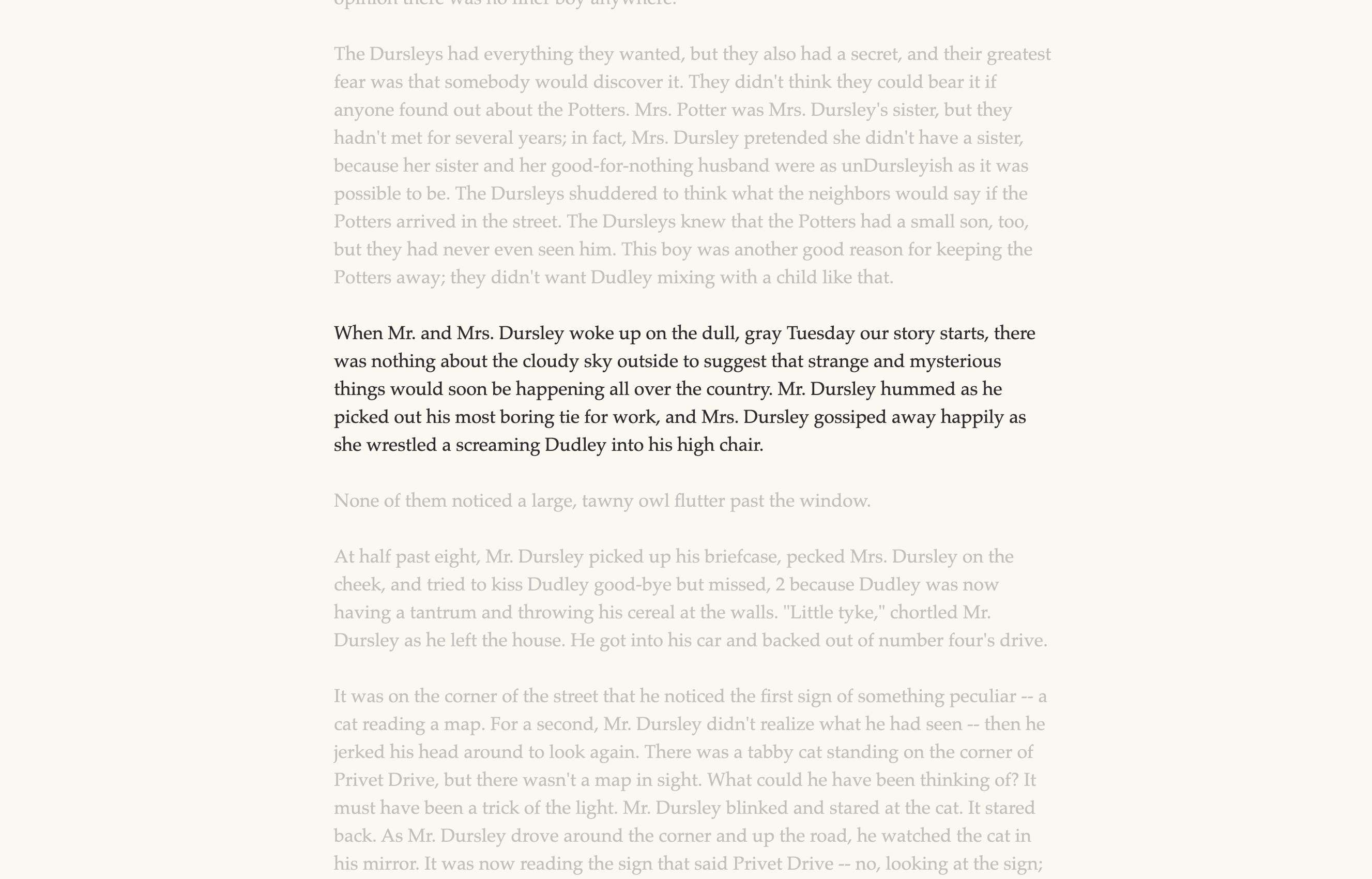
Dims everything except the paragraph you are writing. A paragraph is the run of lines between blank lines.
Deep work
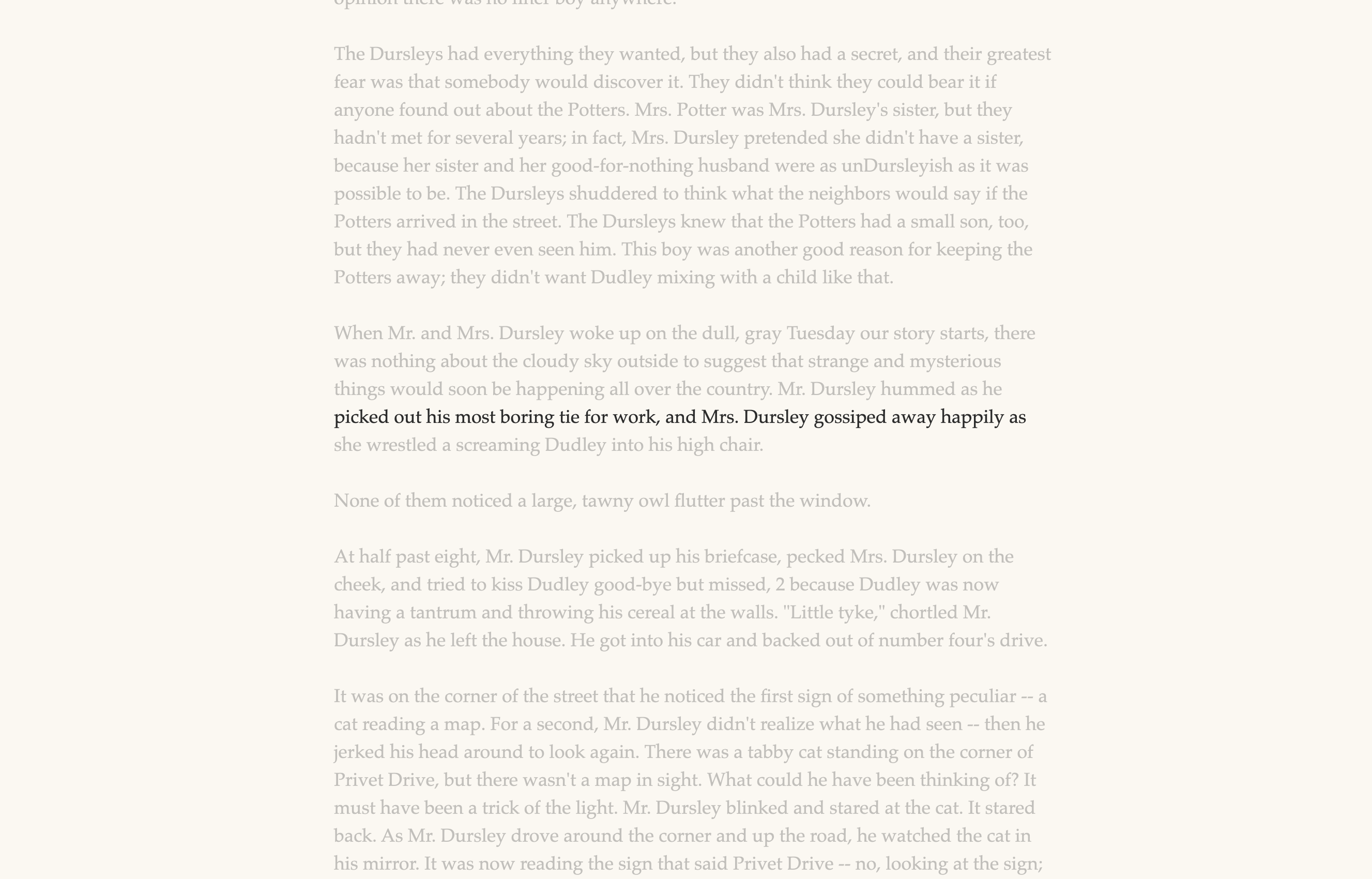
Like Spotlight, but narrower: dims everything except the line you are writing. The text is not centered and the note title stays. A line is one row as the editor wraps it, so it ends where the text moves to the next row, even mid-sentence.
Notes:
- Typewriter scrolling and dimming follow the cursor, so they apply in the editor (Live Preview and Source mode). Reading view is shown undimmed.
- Dimming only changes how the editor looks. Your note is never edited.
Themes
Pick a Theme from the dock to change the color of the page while focus mode is on. Each theme is a background and a text color, applied to the note you are writing (editor and Reading view). The dock, the info panel and the Typewriter box take on the same colors, so everything looks like one page. Your choice is remembered for next time.
| Theme | Page | Text | Feel |
|---|---|---|---|
| Paper (default) | #fbf8f1 | #2b2b2b | Warm white |
| Sepia | #f4ecd8 | #5b4636 | Dried clay |
| Dark | #1e1e1e | #d4d4d4 | Neutral dark |
| Night | #14161a | #9aa0a6 | Dark, low glare |
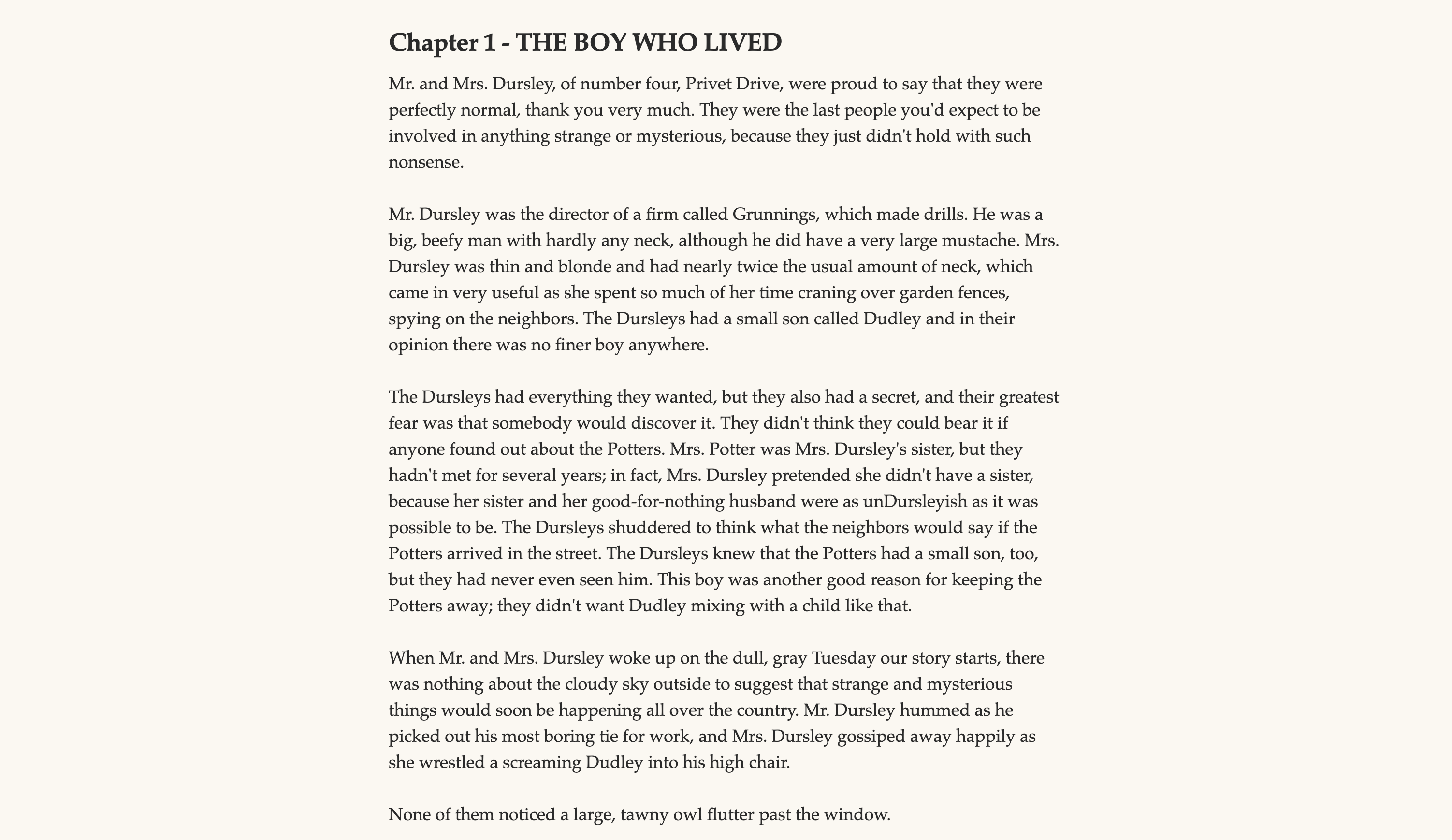 Paper | 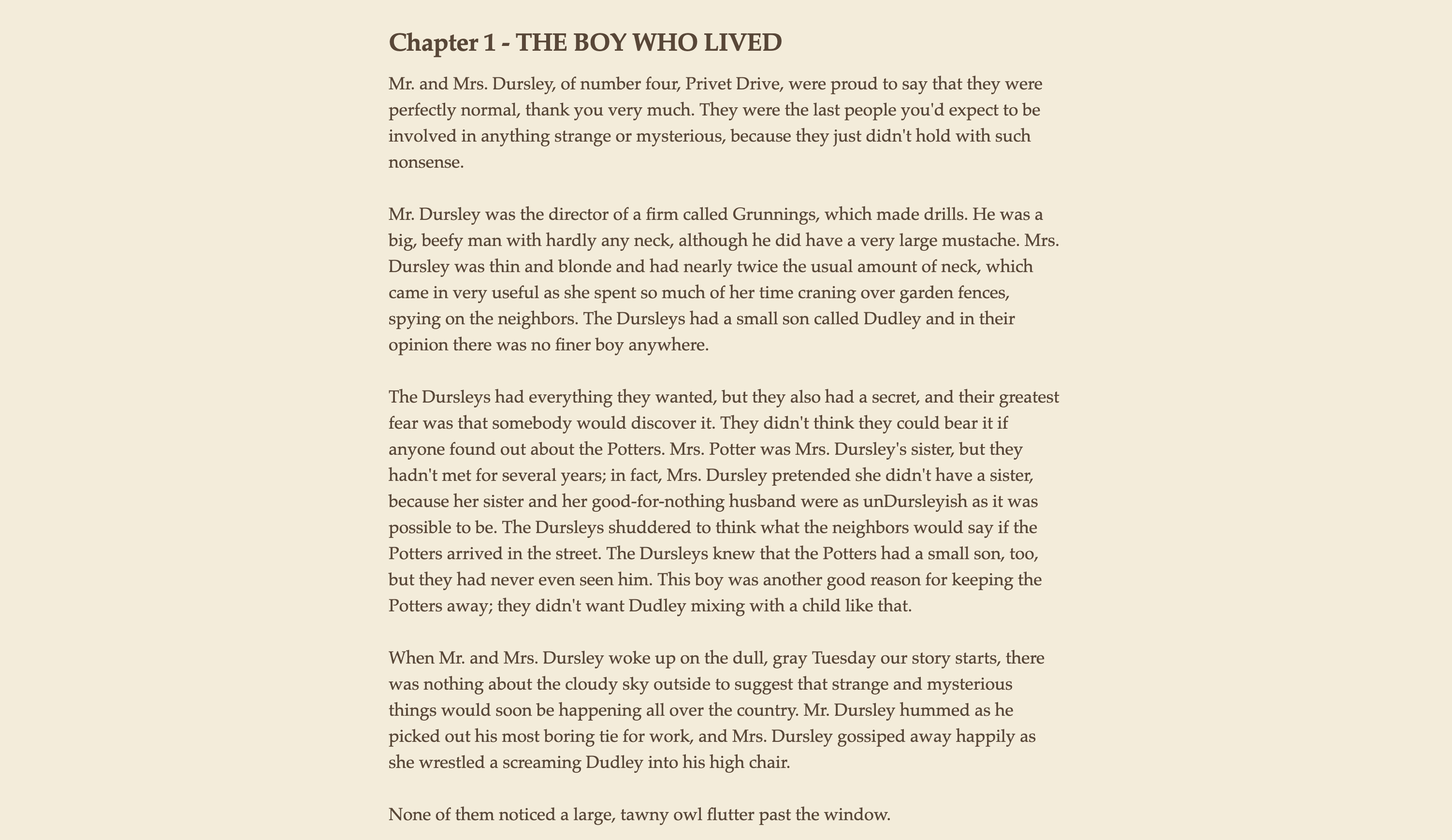 Sepia |
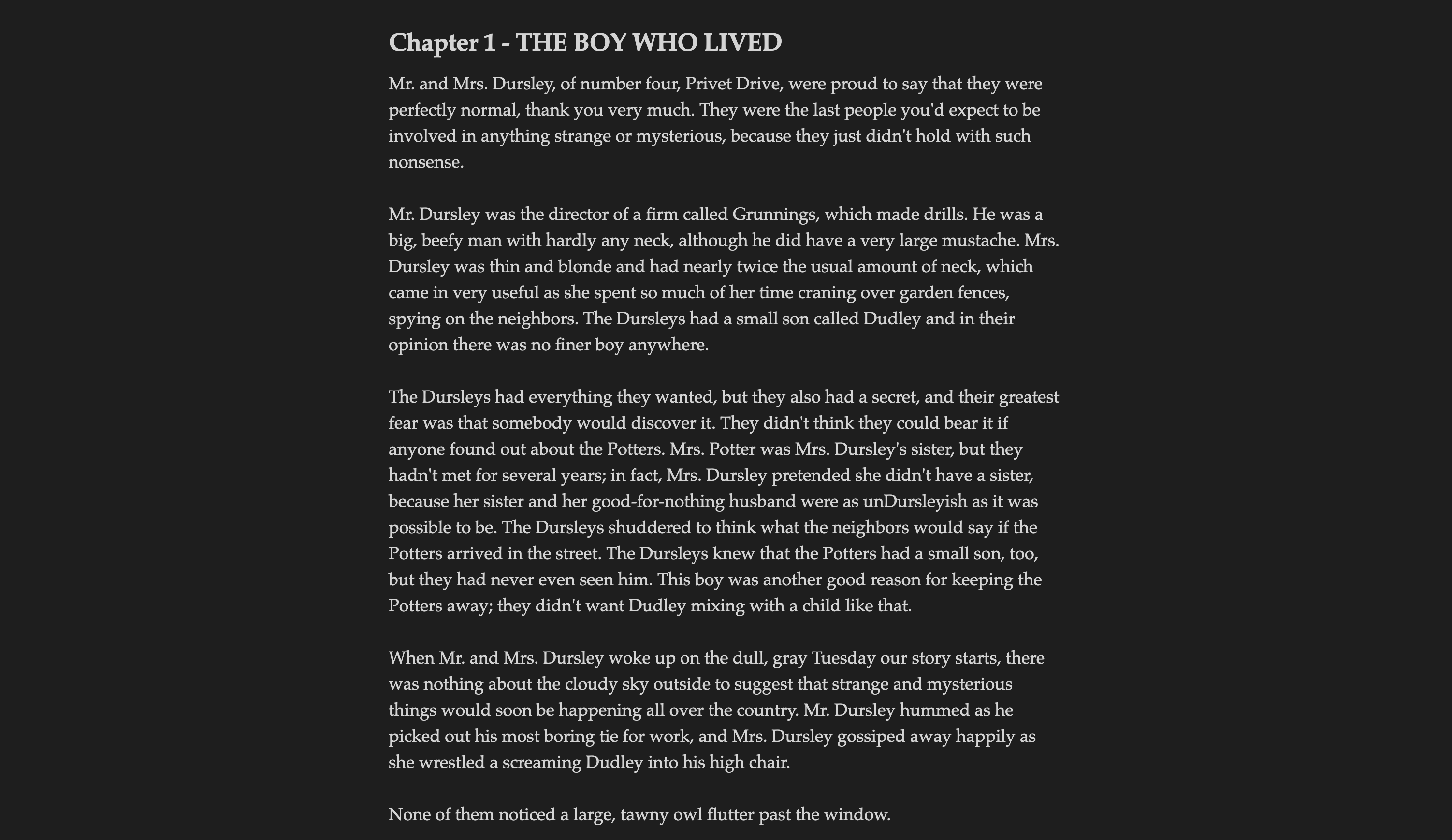 Dark | 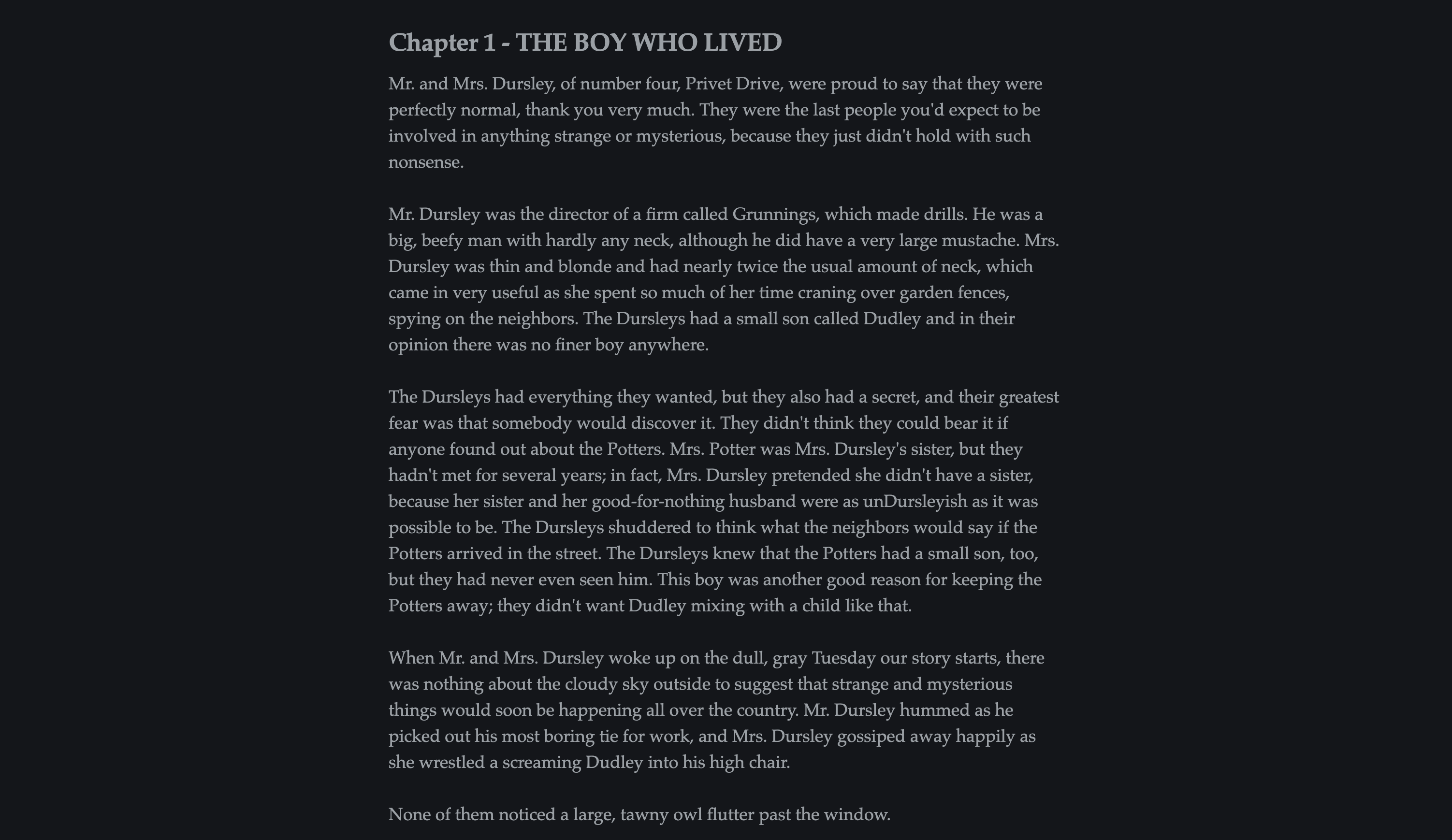 Night |
Notes:
- Themes only color the body text and the page. Headings and links keep their own colors, code keeps Obsidian's own monospace font, and the cursor takes the text color.
- They never change your Obsidian theme or any of its colors, and leaving focus mode puts everything back exactly as it was.
Dock menu
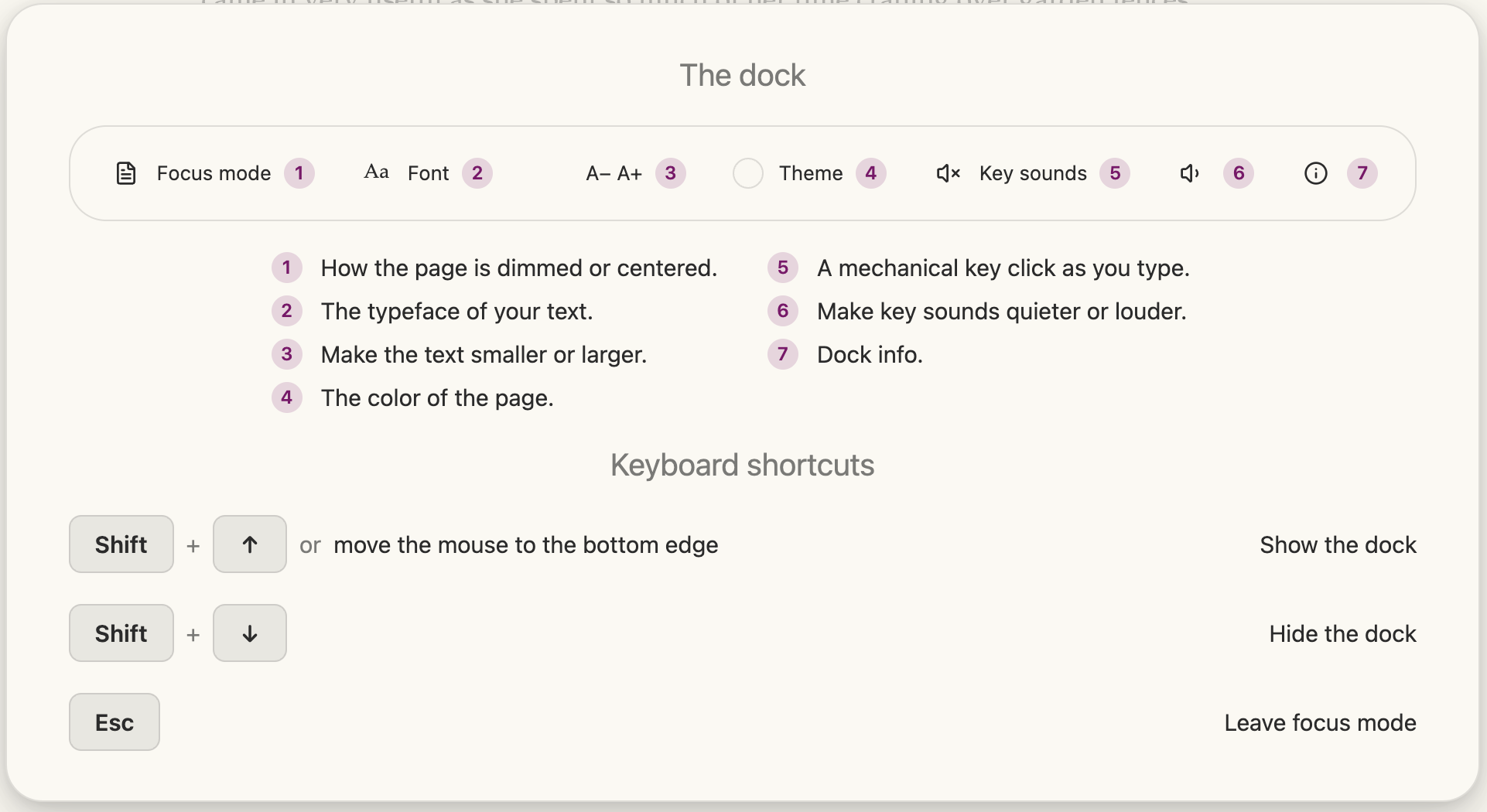
A small bar at the bottom center of the screen, like the macOS Dock. It shows
for 3 seconds when focus mode turns on, then hides. Move the pointer to the
bottom edge of the window (anywhere along it, not only where the dock is), or press Shift + Up arrow, to bring it back;
Shift + Down arrow hides it right away.
It changes the note instantly and remembers your choices:
- Focus mode — Distraction-free, Typewriter, Spotlight or Deep work (see Focus modes).
- Font — Georgia, Garamond, Baskerville, Palatino, Times New Roman, Courier New or Helvetica, applied to the note's text and title (code keeps its own font). Garamond, Baskerville and Palatino are listed only if they are installed on your computer; the others are always listed. If a saved font is missing (for example after syncing to another computer) Georgia is shown instead, and your choice returns where the font exists.
- Text size — smaller (
A−) and larger (A+). - Theme — Paper, Sepia, Dark or Night (see Themes above).
- Key sounds — on or off (off by default, and remembered). See below.
- Key sound volume — two speaker buttons next to Key sounds make the sounds quieter or louder, in five clear steps. They are disabled while key sounds are off, and each press plays a click at the new level. The level is remembered.
- Info — the
ibutton at the right end opens a large, centered panel with a miniature of the dock and a one-line explanation of each control, then the dock shortcuts (Shift+Up arrowor moving the mouse to the bottom edge shows the dock,Shift+Down arrowhides it,Escleaves focus mode). Click anywhere or pressEscto close the panel; with the panel open,Esconly closes it.
The plugin has no settings tab, never edits your notes, and only changes how the editor looks while focus mode is on.
Spell check is off in focus mode
While focus mode is on, the editor's spell checker is always switched off, so no red squiggles appear under names or invented words while you write. There is no setting or dock control for this. It applies to the note's text only (not to other fields), your Obsidian spell check setting is never changed, and spell check works again as soon as you leave focus mode.
Key sounds
Turn on Key sounds in the dock to hear a mechanical keyboard as you type in focus mode. The sounds are recordings of a real keyboard: twelve different normal keys, plus the space bar, Enter and Backspace (two recordings each), so repeated presses do not sound alike. A press never repeats the recording just played, and each one varies slightly in pitch and volume. Letters, digits, punctuation and Tab use the normal keys, and Delete shares the Backspace sound. Arrows, Shift, Ctrl, Cmd and Alt, shortcuts, held-down keys and keys typed through an input method (for example, accents or CJK) are silent. Sounds play only in the note's editor, only while focus mode is on, and are embedded in the plugin, so nothing is downloaded.
Planned next
- Session extras that pair with Goals and Stats, such as a timer.
Development
npm install
npm run prepare  # activate the Husky pre-commit hook (once; npm install skips it because ignore-scripts=true)
npm run dev    # watch build, outputs main.js
npm run build  # type-check + production build
npm test       # unit tests (Node's built-in runner; no test framework dependency)
npm run validate # typecheck + test + lint + lint:css (run before every commit)
Supply-chain safety
- Every dependency in
package.jsonis pinned to an exact version — no^/~ranges and nolatest..npmrcsetssave-exact=trueso futurenpm install <pkg>additions stay pinned by default. .npmrcalso setsignore-scripts=true, sonpm install/npm cinever runs a dependency'spreinstall/install/postinstallscript automatically. The only dependency that ships one isesbuild, and its script just optimizes linking its already-installed platform binary — the build works fine without it. On the rare platform where it doesn't (e.g. an environment without a matching prebuilt@esbuild/*package), runnpm run rebuild:esbuildto explicitly and visibly opt that one script back in for that single command.
To try the plugin in a vault, copy (or symlink) manifest.json, main.js,
and styles.css into <vault>/.obsidian/plugins/scribe-of-lagash-focus/,
then enable it from Obsidian's Community Plugins settings.
Contributing
Found a bug, or have a feature request? Open one on the GitHub Issues page — there's a template for each.
Contributions are welcome — see CONTRIBUTING.md for dev setup, code conventions, and the PR process. This project follows a Code of Conduct.
Found a security issue? See SECURITY.md instead of opening a public issue.
See CHANGELOG.md for release history.
License
MIT.
For plugin developers
Search results and similarity scores are powered by semantic analysis of your plugin's README. If your plugin isn't appearing for searches you'd expect, try updating your README to clearly describe your plugin's purpose, features, and use cases.