Star Pins
approvedby Brightwav3
Star a file from its header to pin it as an Arc-style tile at the top of the file explorer. - This plugin has not been manually reviewed by Obsidian staff.
Star Pins
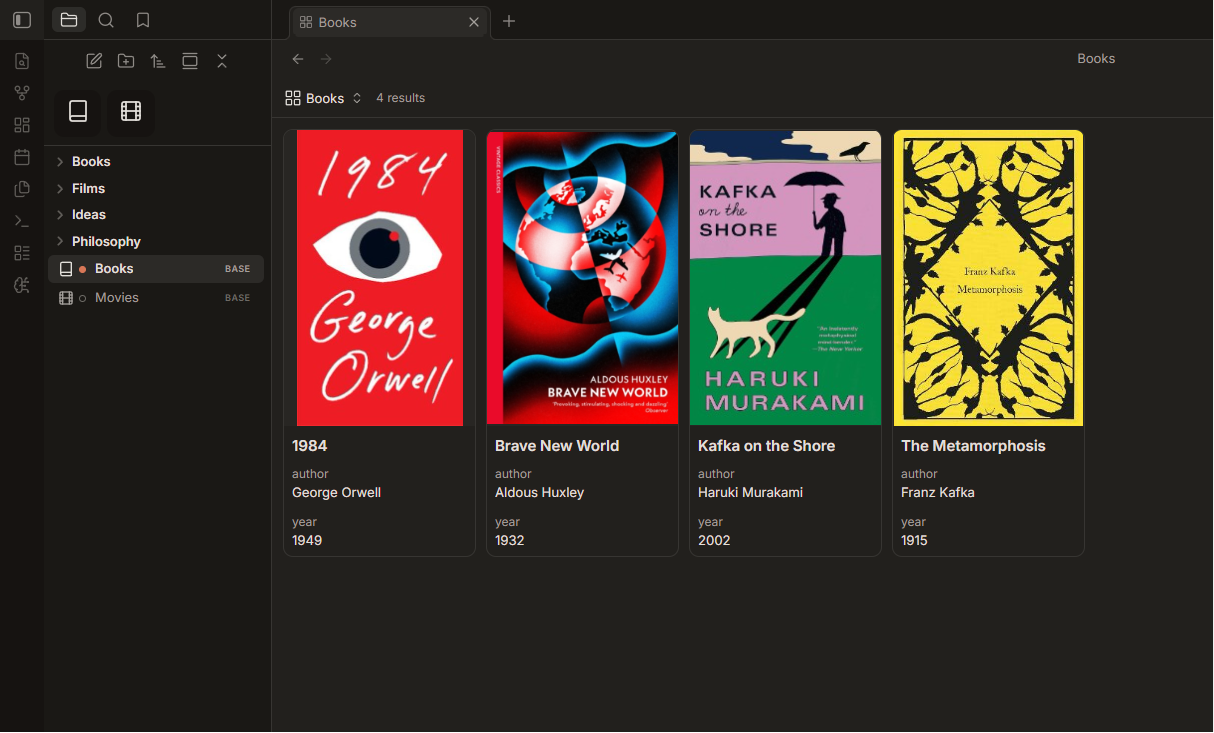
An Obsidian plugin that turns your most-used notes into Arc-style tiles pinned at the top of the file explorer.
Star a file straight from its header and it appears as a compact, icon-driven tile above your file tree — one click away, always in view. Reorder tiles by dragging, right-click to manage them, and keep everything in sync as files are renamed or moved.



Features
- Star from the header — a star button is added to every file view's header bar. Click it to pin or unpin the current file.
- Arc-style tile grid — pinned files render as tiles at the very top of the file explorer, above the file tree.
- Drag & drop reordering — rearrange tiles freely; drop into the empty gap to send a tile to the end.
- Iconize integration — if you use the Iconize plugin, each tile shows the icon you assigned to that file (Lucide, Font Awesome, emoji, and other packs are supported). Files without an icon fall back to a clean monogram.
- Command & hotkey support — bind "Pin / unpin current file" to a hotkey for keyboard-only pinning.
- Right-click actions — unpin a tile or open the file in a new tab from its context menu.
- Stays consistent — pins follow files when they're renamed and are cleaned up automatically when files are deleted.
- Works beyond Markdown — any file view that supports header actions (Markdown, Canvas, Bases, …) can be pinned.
Installation
Manual
- Download
main.js,manifest.json, andstyles.cssfrom this repository. - Copy them into your vault at
.obsidian/plugins/star-pins/. - Reload Obsidian, then enable Star Pins under Settings → Community plugins.
Tip: the folder name must be
star-pins(matching theidinmanifest.json).
Usage
- Open any note.
- Click the ★ star icon in the file's header to pin it — a tile appears at the top of the file explorer.
- Click a tile to open the file (Ctrl/⌘-click to open in a new tab).
- Drag tiles to reorder them.
- Right-click a tile to Unpin or Open in new tab.
To unpin, click the star in the header again, use the tile's context menu, or run the "Pin / unpin current file" command.
Compatibility
- Requires Obsidian 1.4.0 or newer.
- Works on desktop and mobile (
isDesktopOnly: false). - Optional: Iconize for per-file tile icons. Not required — Star Pins works fine without it.
License
MIT © 2026 Šimon Zelenka
For plugin developers
Search results and similarity scores are powered by semantic analysis of your plugin's README. If your plugin isn't appearing for searches you'd expect, try updating your README to clearly describe your plugin's purpose, features, and use cases.