Summarize Video To Text
approvedby xilidou
Turn a YouTube, TikTok or Instagram video into a structured note: TL;DR, key insights, timestamped chapters, optional summary, quiz and transcript. Requires a summarizevideototext.com account. - This plugin has not been manually reviewed by Obsidian staff.
Summarize Video To Text — Obsidian plugin
Turn a YouTube, TikTok or Instagram video into a structured Obsidian note in one command:
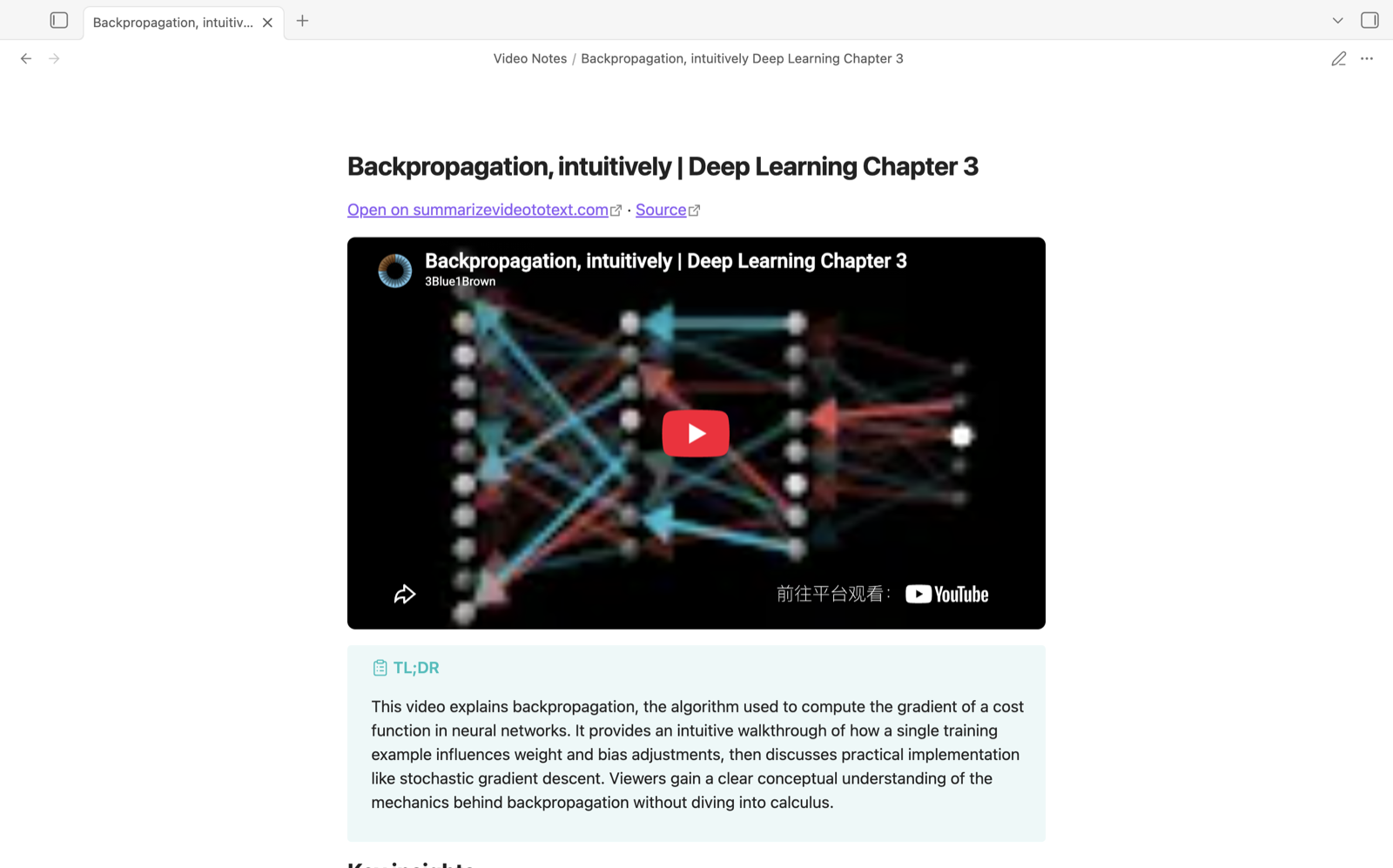
- TL;DR callout and key insights
- Embedded player (YouTube and TikTok) at the top of the note; timestamp links seek it in place
- Chapters with timestamped bullet points (with the player off, a timestamp opens the video's page on summarizevideototext.com at that second)
- Optional summary in one of several templates (bullet, table, chapter digest, …)
- Optional quiz with collapsed answers — and one command turns it into spaced-repetition flashcards
- Optional transcript in a collapsed callout
- A link back to the video's page on summarizevideototext.com (player, Q&A, quiz, progress) plus the original source link
- Frontmatter with title, source, workspace link, channel, language and tags — ready for Dataview
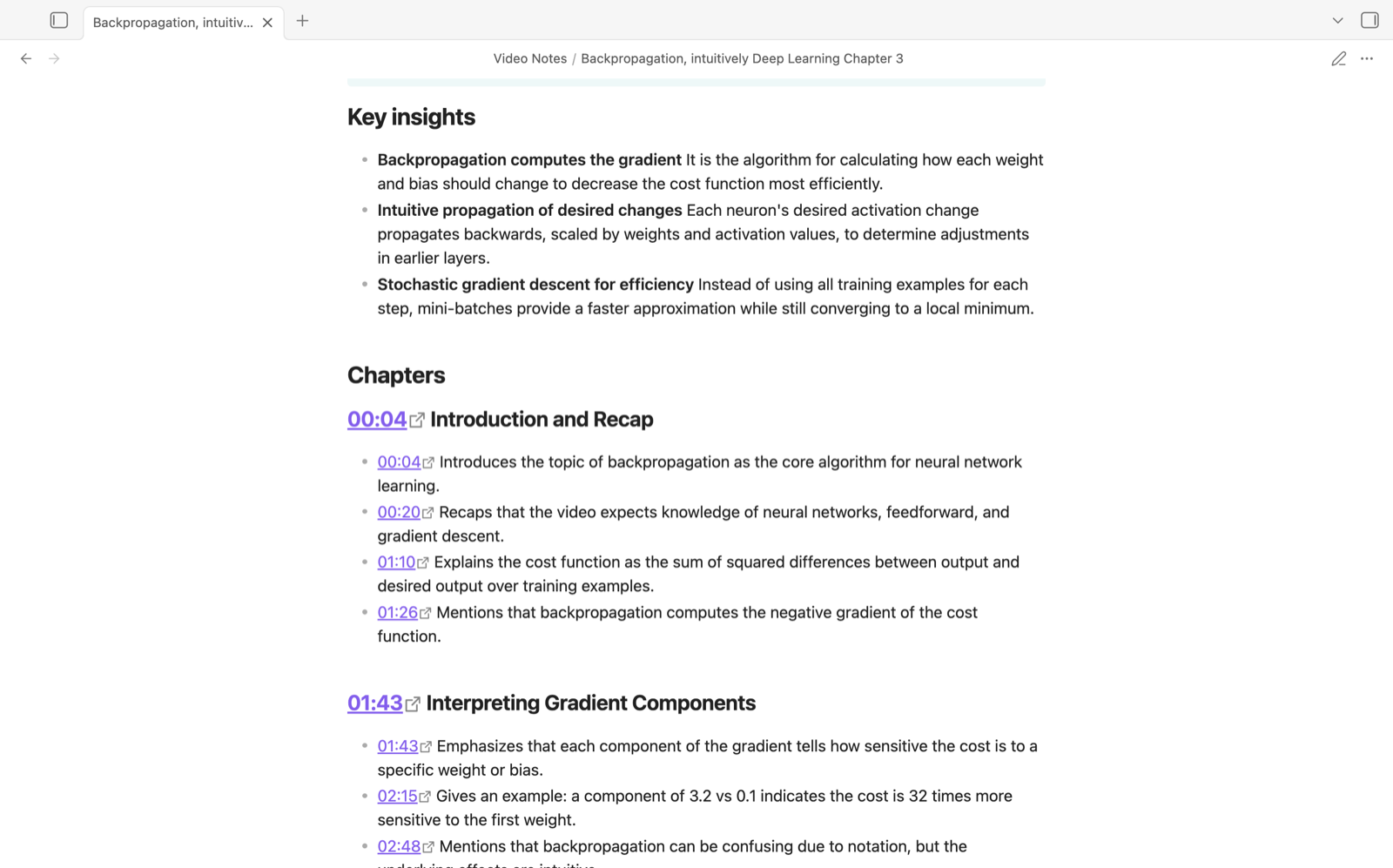
Everything is generated by summarizevideototext.com; the note Markdown itself comes from the site's export endpoint, so the website's Export → Obsidian button and this plugin produce the same note. The plugin stores no model keys and sends nothing but the video link and your account token to that service.
Before you install
- Account required. The plugin only works with a summarizevideototext.com account. A free account covers a daily allowance of videos; longer videos, unlimited use and the quiz section are part of the paid Pro plan (pricing).
- Network use. Every command sends the video link, your output-language choice and your account token to
https://summarizevideototext.com(or the server URL you set). The video is fetched and analysed there; nothing is processed locally and no other service is contacted. See the site's privacy policy and terms. - No telemetry. The plugin itself collects nothing; the server keeps ordinary request logs for the calls above.
Setup
- Install the plugin and enable it.
- Open Settings → Summarize Video To Text and click Connect. Your browser opens the website; sign in (Google, or create a free account) and it will send you back to Obsidian.
- If the browser can't open Obsidian, copy the token shown on the website and paste it into the Or paste a token field.
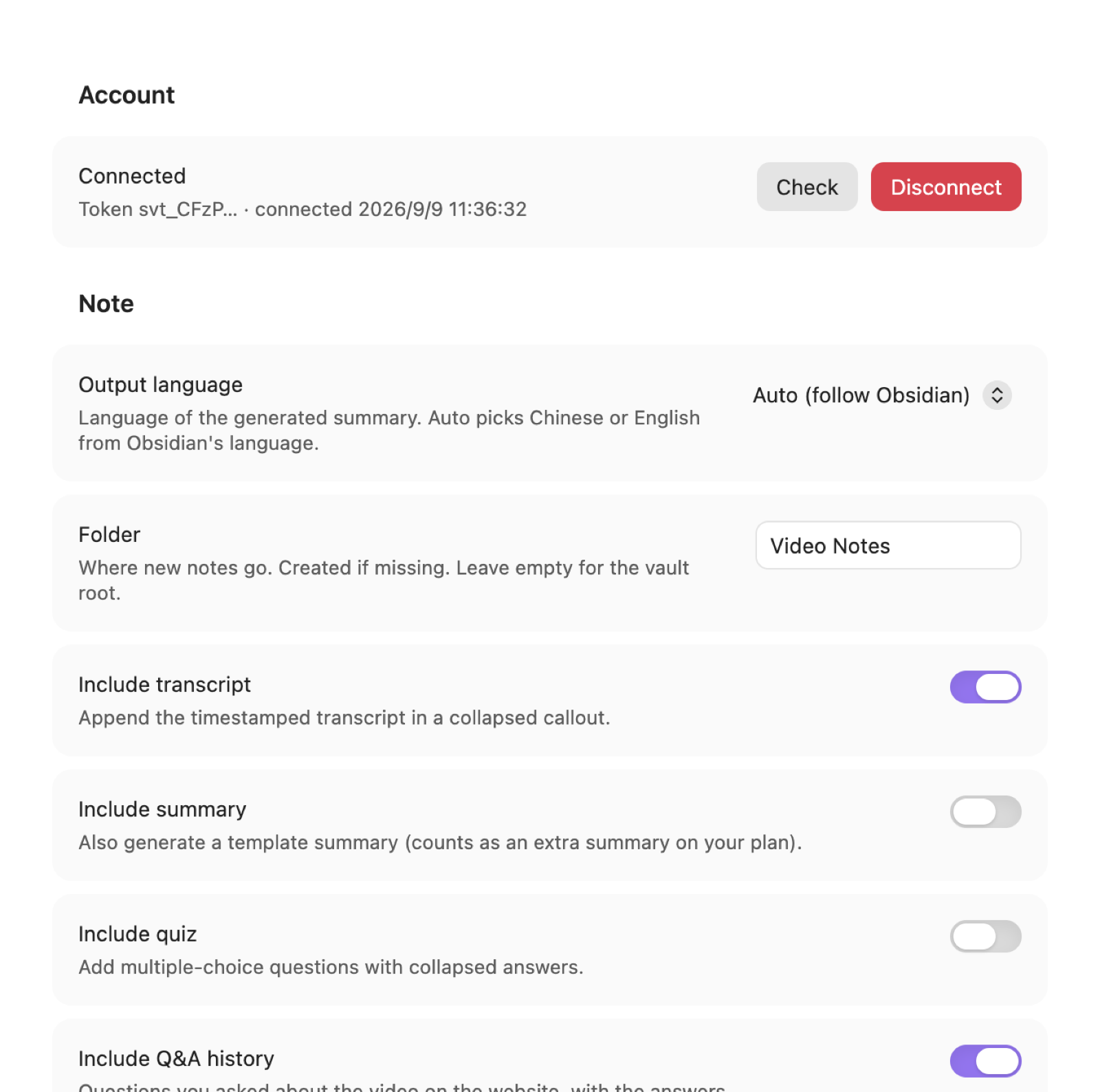
Free accounts get a daily allowance of summaries; Pro removes the daily cap. See the pricing page.
Usage
-
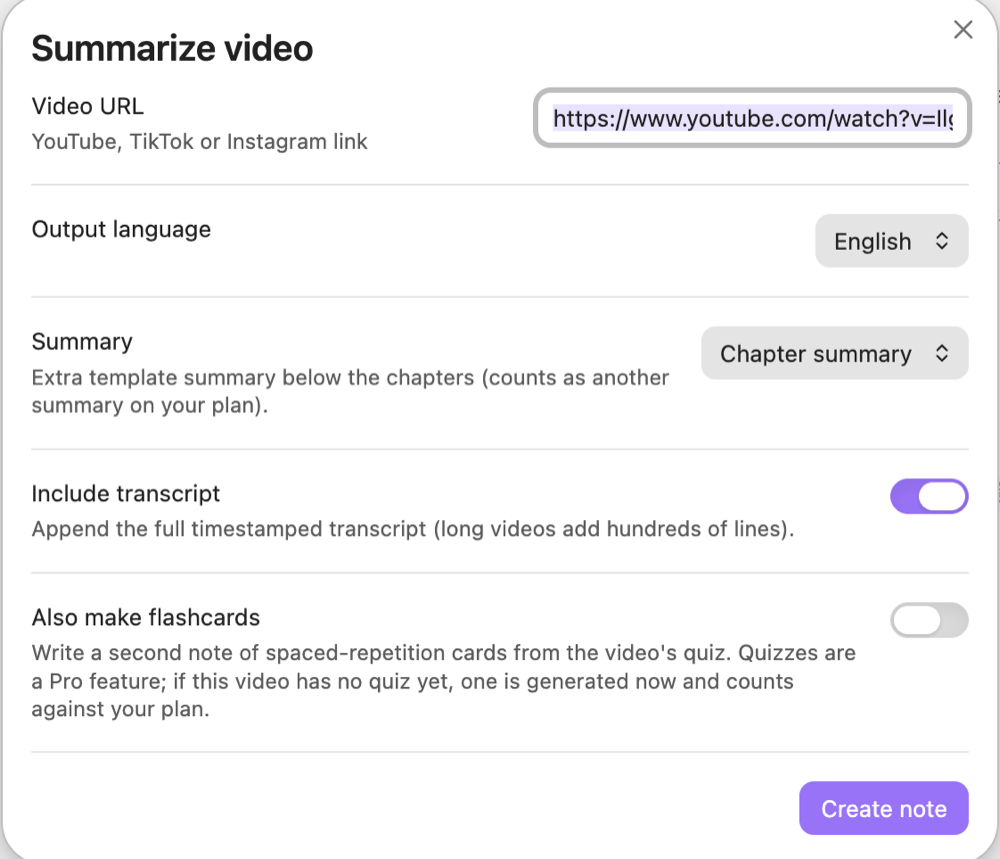
Command palette → Summarize video from URL: paste a link (the clipboard is pre-filled if it holds a link). The dialog lets you pick the output language and an optional summary template for this note only.
-
Right-click a link in the editor or in reading view → Summarize video.
-
Select a link in a note → Summarize video link in selection (no dialog, uses your settings).
-
Or click the video icon in the ribbon.
-
From the website: on any video page, Export → Obsidian sends the note straight into this plugin (no re-analysis).
-
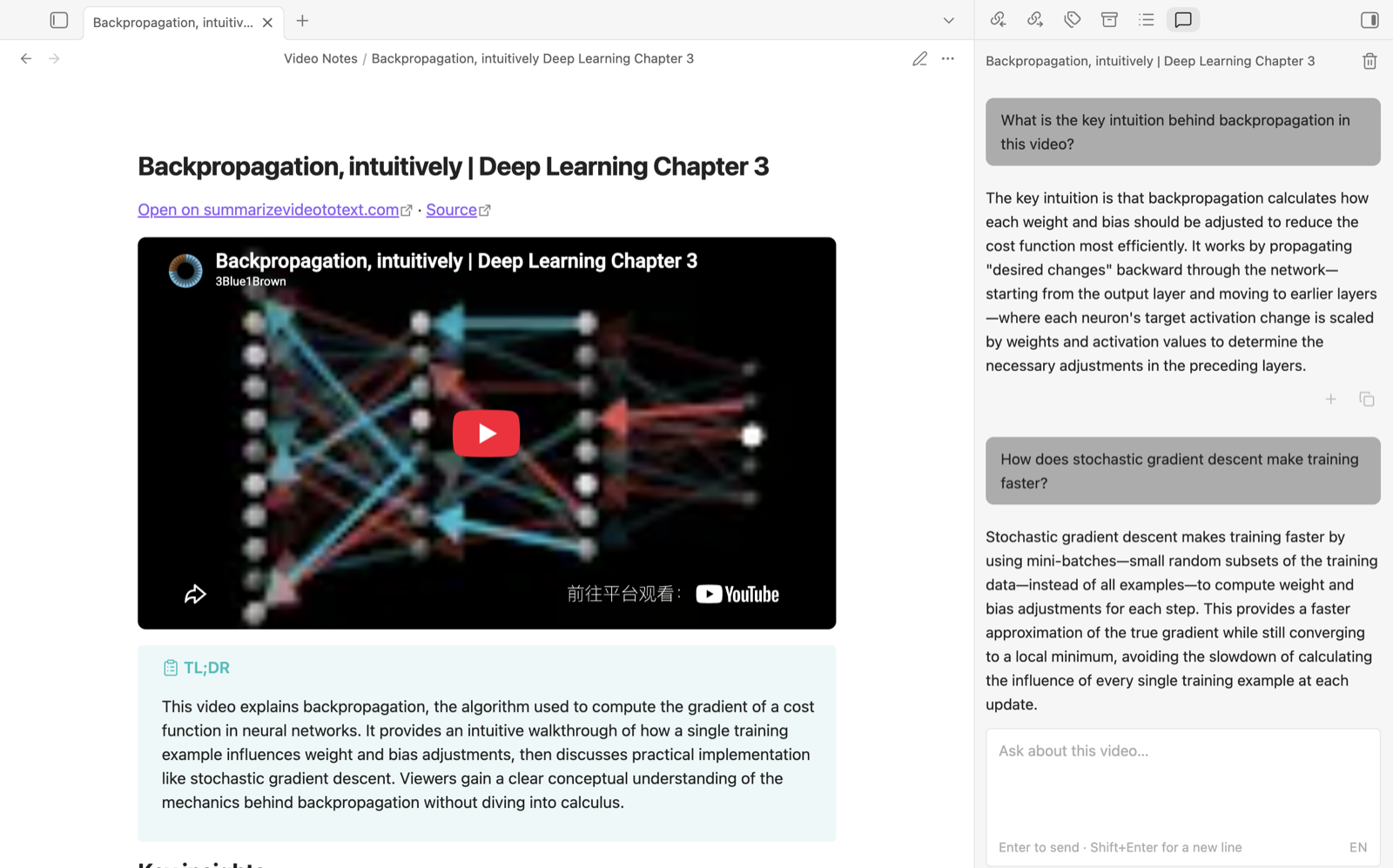
Open video chat: a right-sidebar panel to ask questions about the note you're reading. It uses the note's generated section as context, keeps the conversation per video (same history as the website's Q&A tab), and Add to note appends an answer under your own notes.
-
Refresh video note: re-fetch the generated part of the current note (new quiz results, Q&A, progress). Everything outside the
%% svt:start %%/%% svt:end %%markers, and any frontmatter keys you added, is kept. -
Create flashcards from video note (also on the note's right-click menu): turn the video's quiz into a separate note of cards for the Spaced Repetition plugin — multi-line format, the correct option and its explanation on the back, and a timestamp link to the moment the question came from. Run it again after new questions appear and only the missing cards are appended: existing cards, their review schedule (
<!--SR:…-->) and any cards you wrote yourself are never touched. Ticking Also make flashcards in the Summarize video dialog does the same thing while the note is created, so both notes land in one go. Cards come from the quiz, which is a Pro feature: if the video already has one, building the cards costs nothing extra; if it doesn't, a quiz is generated then and counts against your plan. The video note is written first either way.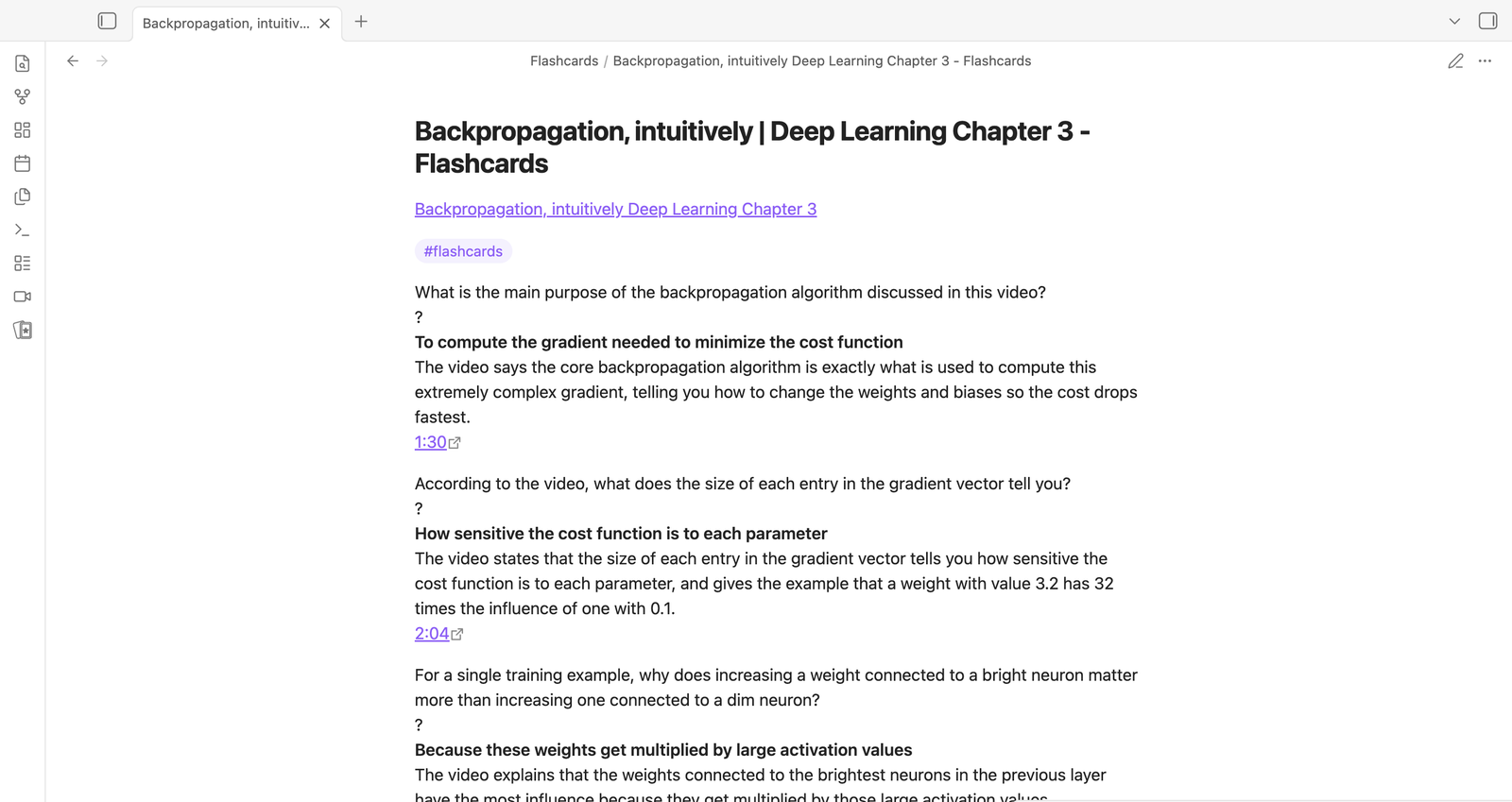
Chat answers use the summary quota of your plan like a question asked on the website.
Notes are created in the folder you choose (default Video Notes) and opened automatically.
Settings
| Setting | What it does |
|---|---|
| Output language | Language of the summary. Auto follows Obsidian's language (Chinese or English). |
| Folder | Destination folder, created if missing. |
| Include transcript | Append the timestamped transcript (collapsed). |
| Include summary | Also request a template summary. Counts as an extra summary on your plan. |
| Include quiz | Add multiple-choice questions with collapsed answers (Pro). |
| Include Q&A history | Add the questions you asked about the video on the website. |
| Embed video player | YouTube and TikTok: put a svt-video block (rendered as a player) at the top instead of the thumbnail. Clicking a timestamp seeks the player. With the player off, YouTube timestamps open the browser at that second; TikTok links open the video from the start (TikTok has no seek parameter). Instagram and uploads keep the thumbnail. |
| Open note after creating | Self-explanatory. |
| Make flashcards with every new note | Default for the Also make flashcards toggle in the dialog. A video with no quiz yet gets one generated, which counts against your plan (Pro). |
| Flashcards folder | Where Create flashcards from video note puts the card notes (default Flashcards). |
| Deck tag | Tag written at the top of a card note; the Spaced Repetition plugin uses it as the deck. A nested tag such as #flashcards/videos becomes a sub-deck. |
| Server URL | Advanced. Only change to test a preview deployment. |
| Preview bypass secret | Advanced. Vercel Protection Bypass for Automation secret, only needed for a protected preview server. |
Privacy and network use
- The plugin talks only to the server URL in settings (default
https://summarizevideototext.com). - It sends the video link, your chosen language and your account token. Video content is fetched and processed server-side.
- Your token is stored in this vault's
.obsidian/plugins/summarize-video-to-text/data.json. If you sync or share the vault, treat that file as a secret; you can revoke tokens any time at summarizevideototext.com/connect/obsidian.
Development
npm install
npm run dev          # watch build → main.js (debug channel)
npm run build:debug  # one-off debug build
npm test             # vitest: note merging, player helpers, SSE parsing
npm run build        # release: typecheck + minified main.js
Build channels: dev and build:debug produce a debug build whose default server is the preview site https://pre.summarizevideototext.com; build produces the release build pointing at https://summarizevideototext.com. The channel and default are shown under Settings → Advanced. The preview site sits behind Vercel Deployment Protection, so a debug build also needs the Preview bypass secret setting (never commit it).
Copy main.js, manifest.json and styles.css into <vault>/.obsidian/plugins/summarize-video-to-text/ to test locally.
The website's connect page lives at /connect/obsidian and returns to Obsidian via the obsidian://svt-connect?token=…&state=… protocol. The state is generated by the plugin and checked on return, so a stray link can't inject a token.
License
MIT
For plugin developers
Search results and similarity scores are powered by semantic analysis of your plugin's README. If your plugin isn't appearing for searches you'd expect, try updating your README to clearly describe your plugin's purpose, features, and use cases.