Simple Summary Base View
A plain summary table for the Bases you already have. Add it as another view on an existing Base, or embed that Base in a note, to see totals instead of a long list of notes.
Why use it
A Bases table lists every note. Often you only want the answer: how many, how much, how recent. This view collapses the same filtered notes into one row per group, with a table that looks like the native one and no extra styling to maintain.
| You have | The summary shows |
|---|---|
| Expenses by category | Count and total amount |
| Books by genre | Count, pages read and average rating |
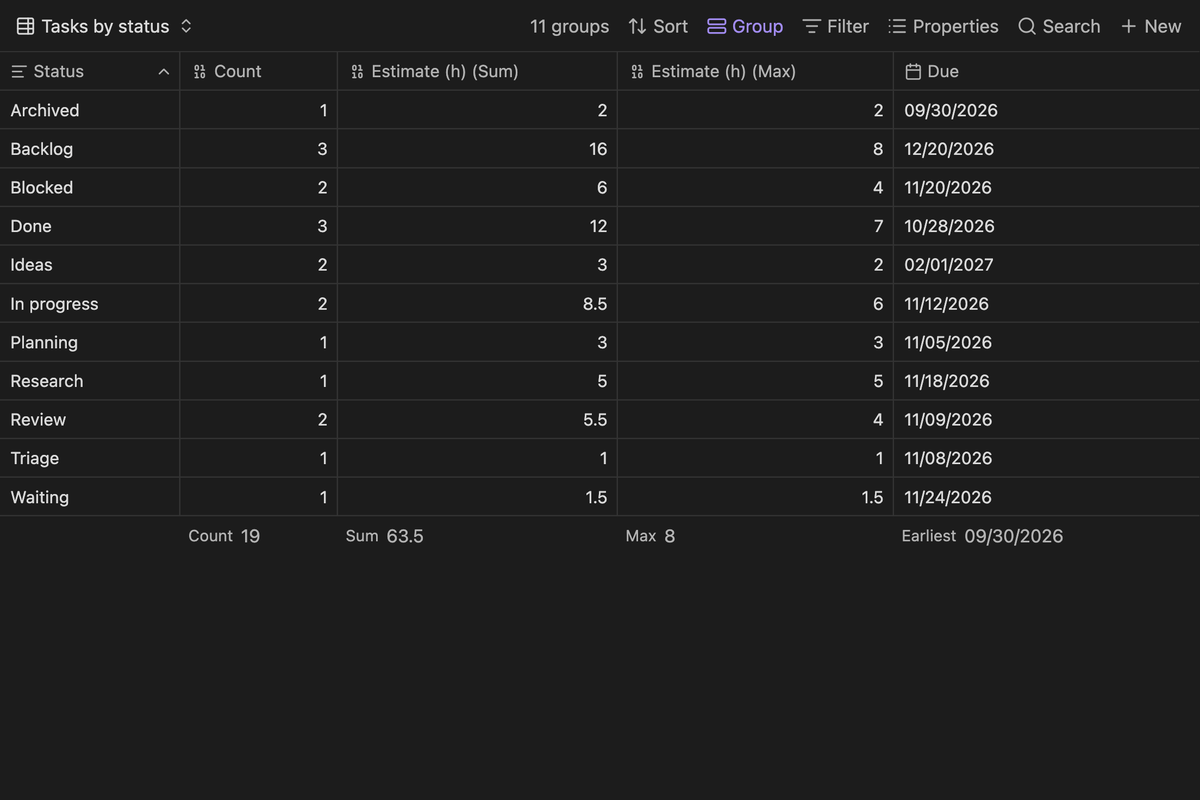
| Tasks by status | Count and estimated hours |
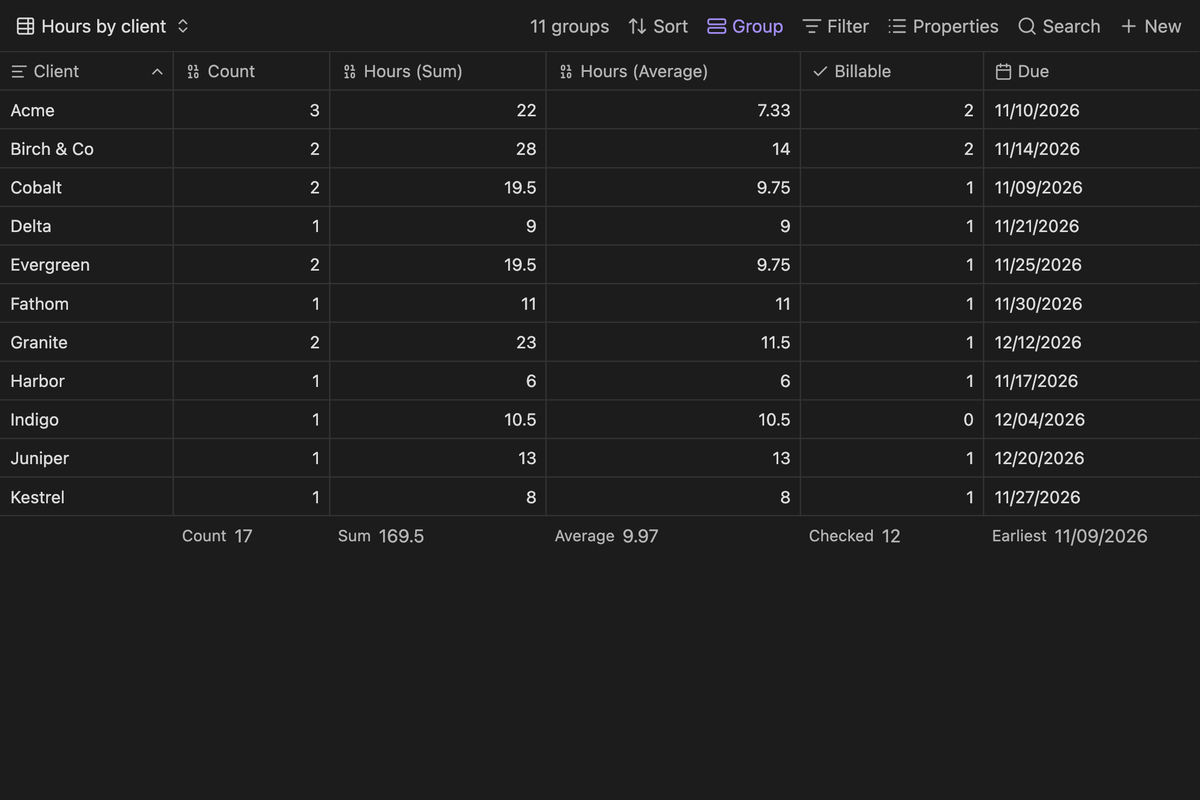
| Client work by client | Hours, billable entries and next due date |
- Reuses your existing Base filters, properties and formulas. Nothing to rebuild.
- Works anywhere a Base works, including embeds in notes.
- Count, Sum, Average, Min, Max, Earliest, Latest, Date range, and your own formulas.
- Sort, resize columns and copy as CSV or as a Markdown table, or export CSV, like the native table.
How to use
1. Create a Base and select the custom view
Example .base file:
filters:
  and:
    - file.inFolder("Media")
views:
  - type: summary-base-view
    name: Summary
    groupBy:
      property: note.media
      direction: ASC
    order:
      - amount
      - released
    summaryColumns:
      - type: count
      - property: note.amount
        summary: Sum
      - property: note.amount
        summary: Average
      - property: note.released
        summary: Earliest
View settings:
groupBy: the property to group by, edited with the Base's Group menuorder: the properties that get summary columns, edited with the Base's Properties menusort: header sorting, edited with the Base's Sort menusummaryColumns: the list of summary columns. Usetype: countfor the note count, or apropertywith asummarycolumnSize: saved column widths
2. Add and remove summary columns
- Right-click a column header and choose Add summary column to summarize the same property a second way, such as Sum and Average of
amount. - Right-click a header and choose Remove column to remove any column, including Count. Use the group header menu to add Count back.
- Click a footer cell to choose a native summary (Sum, Average, Earliest, Unique, and so on).
- Dates also get a Date range summary that shows
YYYY-MM-DD ~ YYYY-MM-DD. - Durations (for example a formula like
done - started) get Total hours/days/minutes, Average hours/days, and Longest/Shortest (hours). - Click the arrow beside any summary to view or edit its formula. Editing a built-in summary saves your version in the Base.
- Turn off Show summary row in the view settings to hide the bottom row and show only the table.
- Choose Add summary in that picker to write your own formula. The formula editor suggests
valuesmethods (sum(),mean(),filter(), ...), chained helpers such asround(), and the built-in summaries as you type. The result is saved as a custom summary in the Base and can be reused. - Summaries respect the property type. A date-only property stays date-only for Earliest and Latest.
3. Sort, resize, and export
- Click a header, including the group header, to sort. The Base's Sort and Group menus reflect the change.
- Drag the edge of a header to resize a column.
- Use the results button to copy the summary as CSV or as a Markdown table, or export it as CSV.
Settings
- Excluded folders: notes in these folders are left out of group counts and summaries. The default is
Templates. Enter one folder name per line. A name matches a folder with that name anywhere. A path such asArchive/Oldmatches that folder and its subfolders. Leave it empty to include everything.
Clipboard access
The plugin writes to your clipboard only when you choose Copy as CSV or Copy as Markdown table from the results menu. It never reads the clipboard.
Screenshots
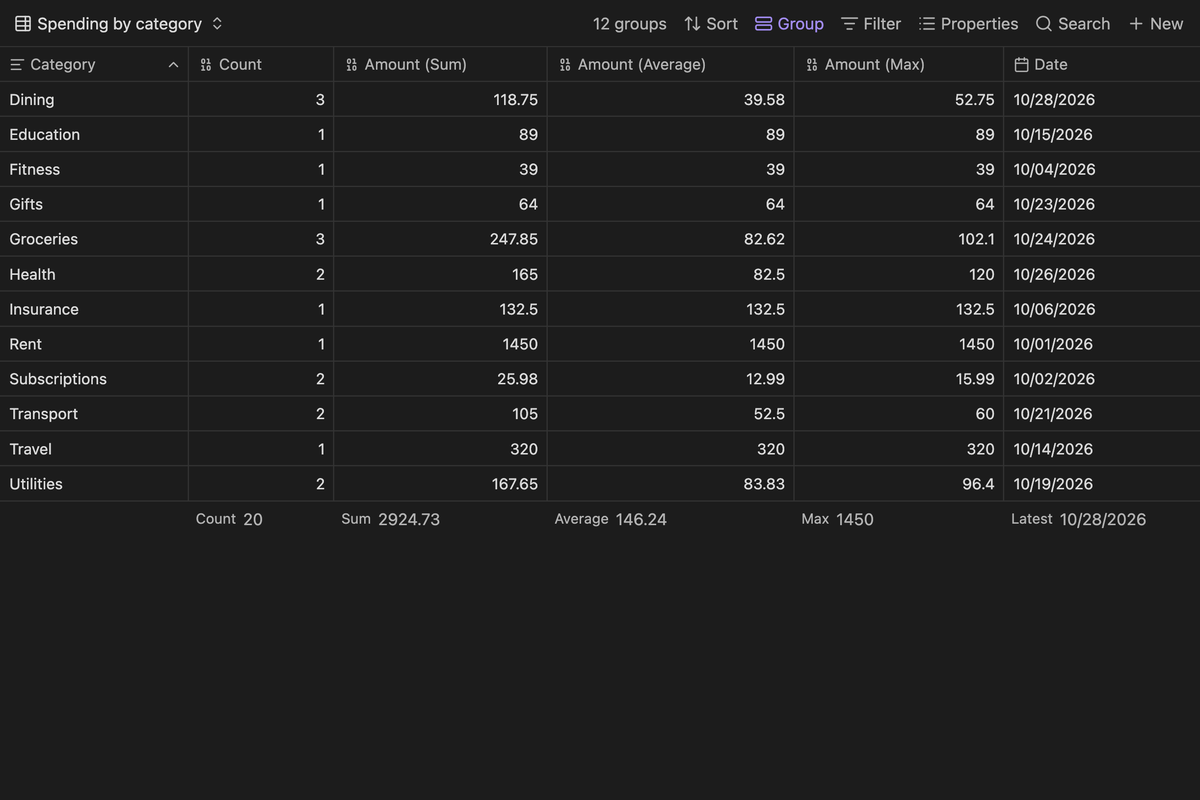
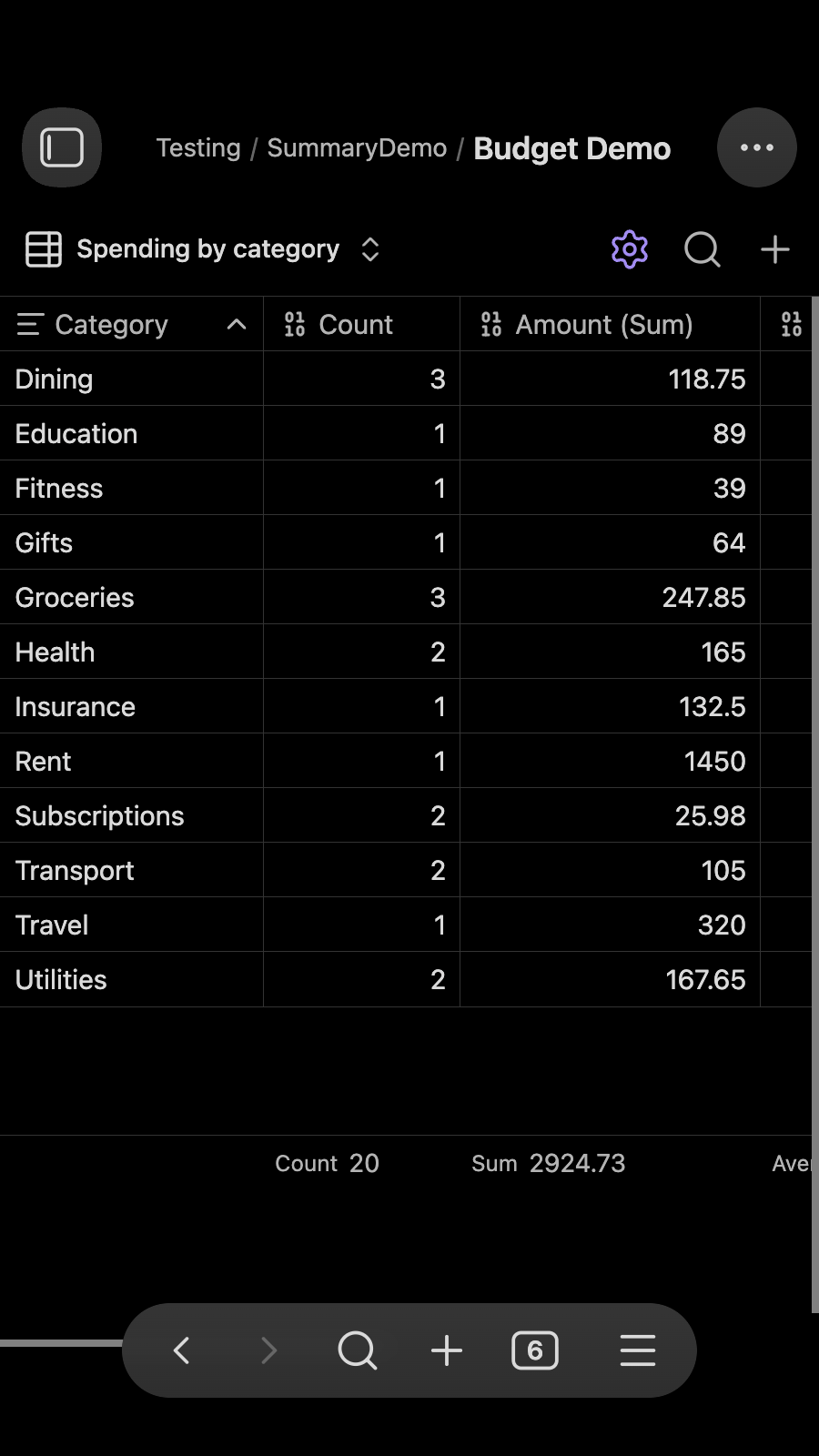
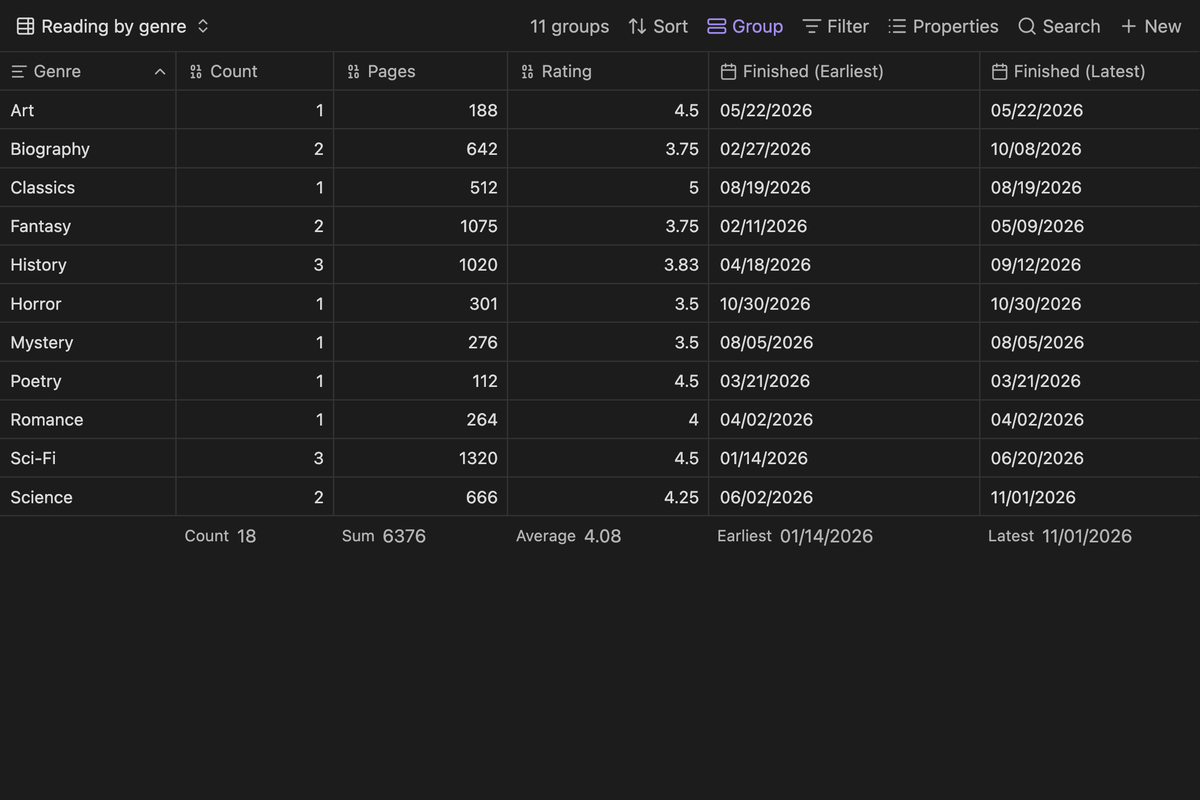
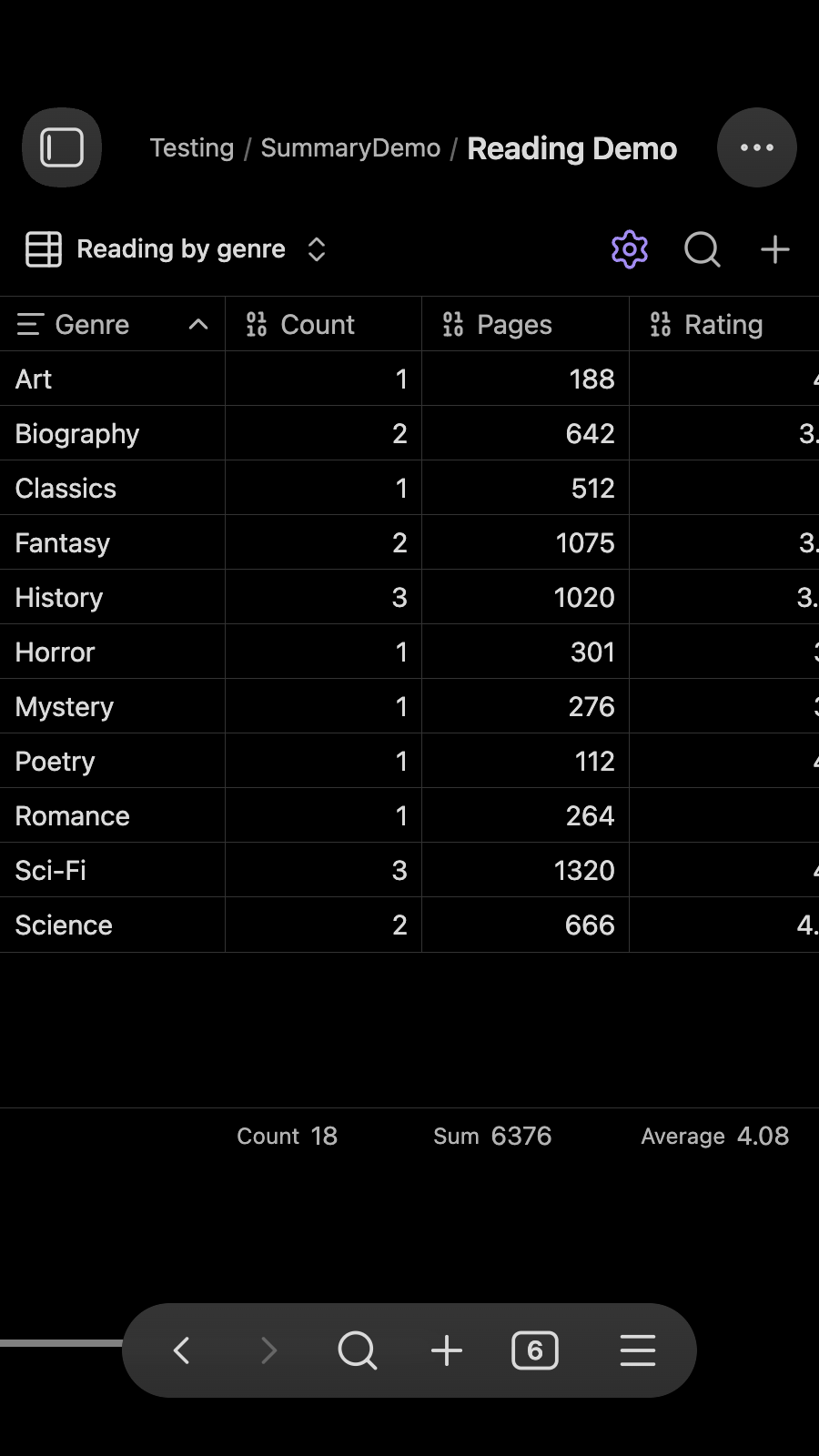
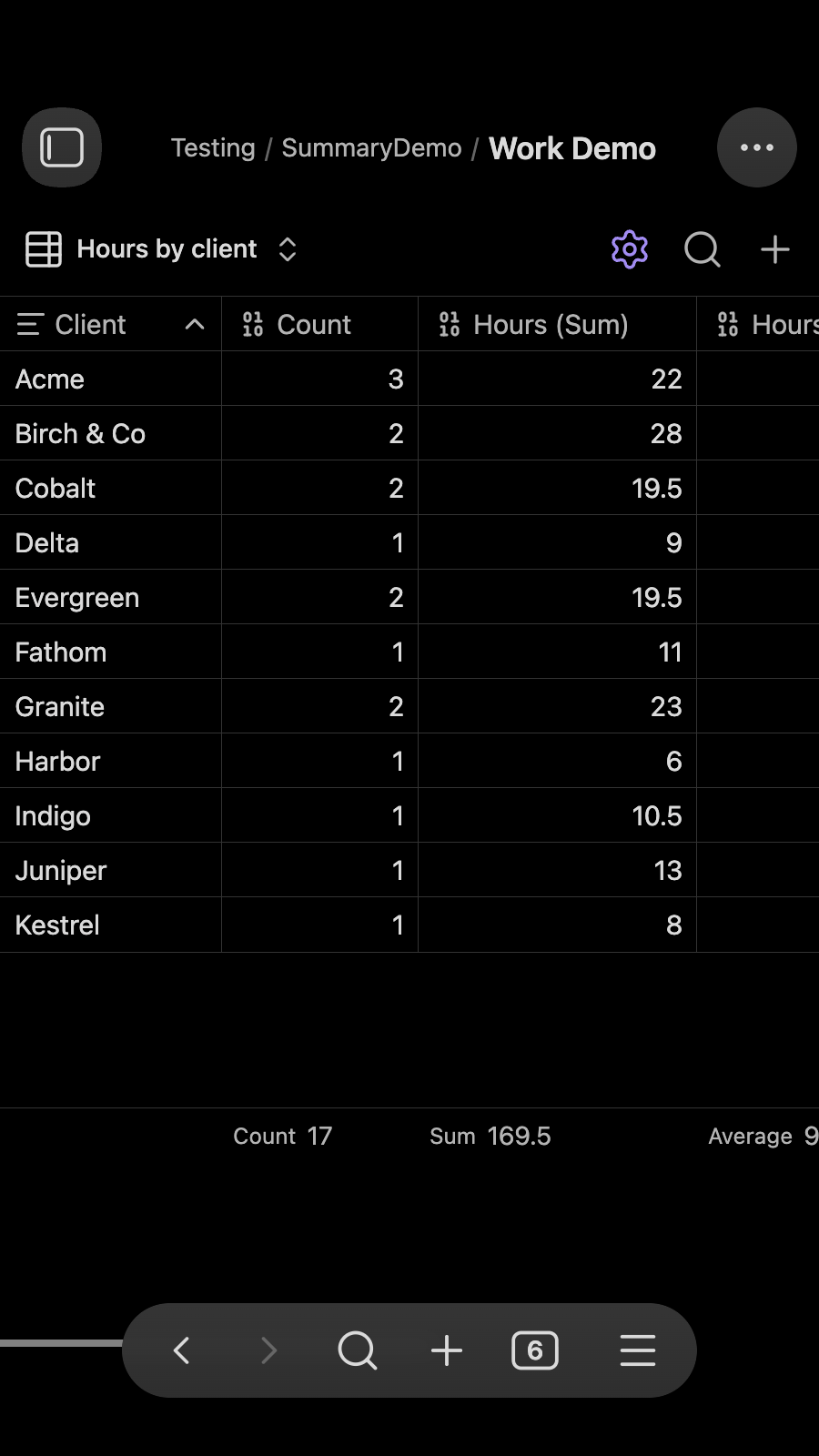
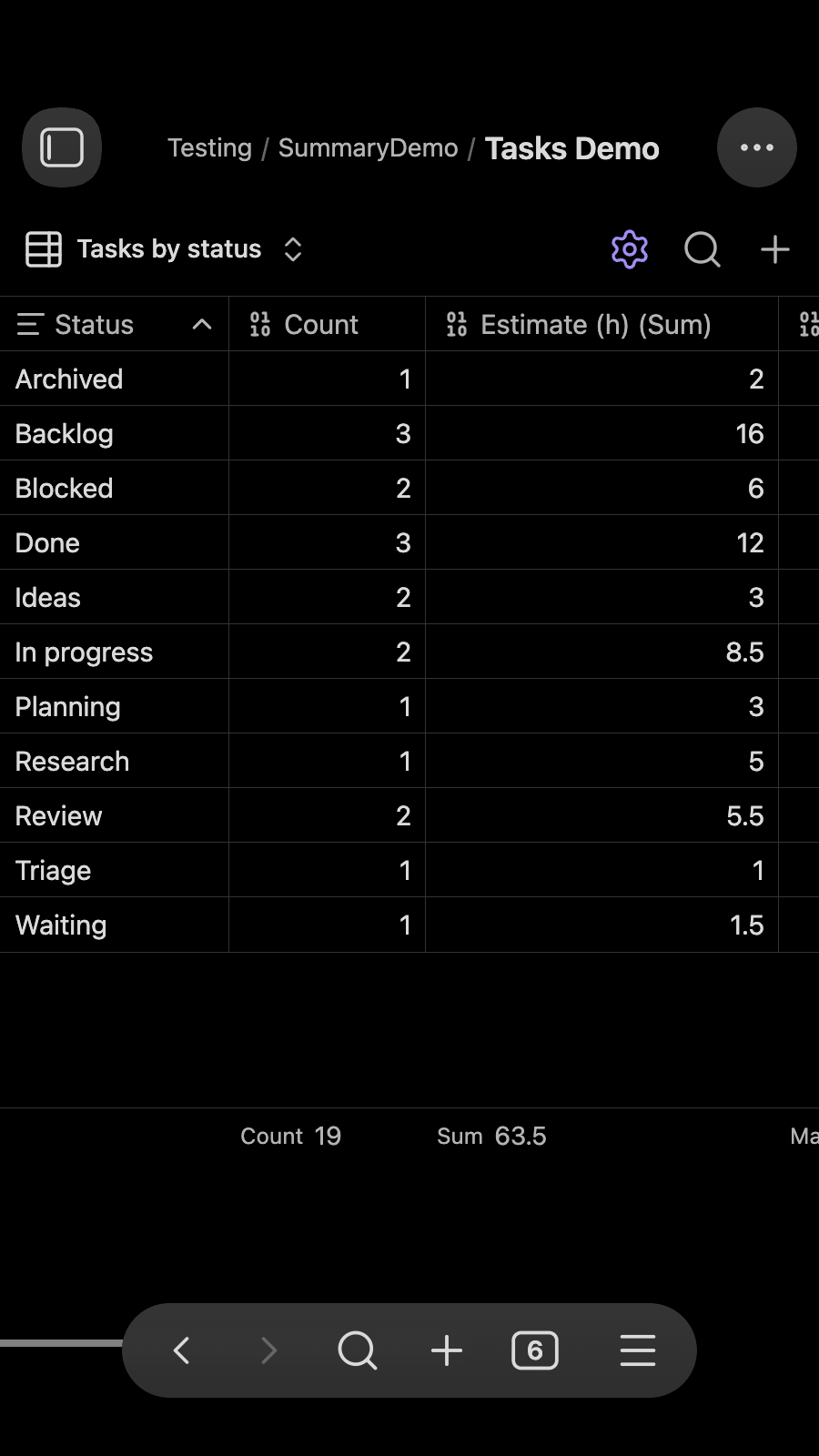
Captured from small demo Bases in Obsidian's default theme. Each example shows desktop, then phone width.
Budget: spending by category (Count, Sum, Average, Max, Latest date)
Reading log: pages and ratings by genre
Project hours: billable hours by client
Tasks: estimates and earliest due date by status
Quick compile and test
npm run verify
That command builds the plugin, type-checks it, runs the Obsidian community scanner lint, and runs a smoke test against the summary core.
Support
If this plugin is useful to you, you can support its development on Ko-fi.
For plugin developers
Search results and similarity scores are powered by semantic analysis of your plugin's README. If your plugin isn't appearing for searches you'd expect, try updating your README to clearly describe your plugin's purpose, features, and use cases.