by King
Create database-like tables directly in Markdown notes, with typed fields, filtering, sorting, grouping, and multiple named views over shared records.
Super Table
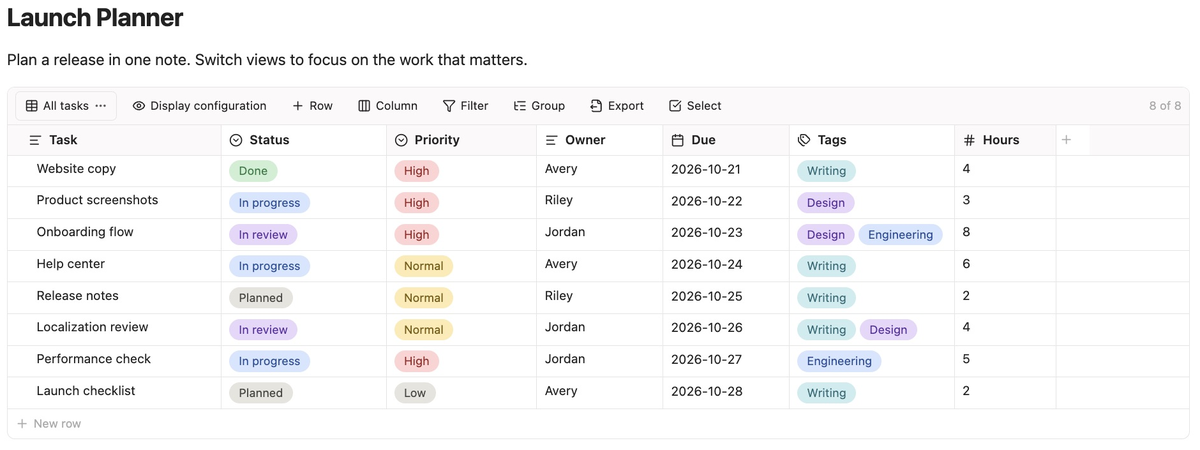
Super Table adds editable data tables to your Obsidian notes, with typed fields, filtering, sorting, grouping, and multiple views. Table data and view settings stay in the current Markdown note.
Features
- Filtering, sorting, and grouping: Combine conditions with AND/OR, sort by field, and organize records into collapsible groups.
- Multiple named views: Save different filter, sort, and grouping configurations for the same records, and switch between them as needed.
- Common field types: Text, links, numbers, dates, checkboxes, single select, multi-select, and attachments.
- Markdown and attachments: Format text, use lists and internal links, and toggle tasks. Attach files in a dedicated column with image previews.
- Convenient editing: Reorder rows and columns, choose which fields appear in each view, copy and paste records in bulk, and fetch page titles for links on demand.
- Import and export: Import Smart Table data and Markdown tables, and export CSV or Markdown.
- Local storage and a bilingual interface: Table data stays in the current note and attachment files stay in the vault, with no accounts, plugin-hosted service, or telemetry. Supports English and Simplified Chinese.
Quick start
- Insert a table: Open a note in editing mode and run Super Table: Insert table from the command palette, or click the table button in the ribbon.
- Add rows and columns, and enter data: Use the toolbar or context menu to add fields and records, then click a cell to enter or edit its value.
- Edit columns: Open a column heading's menu and choose Edit column to set its name, type, and the applicable date format or options.
- Create and configure views: Click the current view name at the left of the toolbar and choose Create view. Set sorting in a column menu, and use Filter and Group to find the records you need.
You can also type this empty code block to display a default table in Live Preview or Reading view:
Tables are editable in both Live Preview and Reading view. Source mode shows the table's JSON data.
See the user guide for detailed controls, saving behavior, and compatibility notes, or try the example tables in your vault.
Editing with AI
Before AI edits note files, provide the Super Table editing skill so it can follow the format and validation instructions. Supply the skill separately to your AI; see the user guide for how to provide it and saving precautions.
Installation
Version 1.0.1 and later require Obsidian 1.8.7 or newer.
Open the Obsidian Community listing, select Add to Obsidian, then follow the prompts in Obsidian to install and enable Super Table.
To install it manually:
- Download
main.js,manifest.json, andstyles.cssfrom the latest release. - Create
.obsidian/plugins/super-table/in your vault and copymain.js,manifest.json, andstyles.cssinto it. If your vault uses a custom configuration folder, replace.obsidianaccordingly. - Restart Obsidian, open Settings → Community plugins, turn off Restricted mode if needed, and enable Super Table.
To build from source instead, clone or download this repository. With Node.js installed, run npm ci and npm run build in the repository root, then use the generated files in step 2.
Network use
The plugin requests a linked webpage to read its title only when the user explicitly clicks Fetch link title.
License
Copyright (c) 2026 kingbeyond.
Super Table is licensed under the GNU General Public License, version 3 only (GPL-3.0-only).
For plugin developers
Search results and similarity scores are powered by semantic analysis of your plugin's README. If your plugin isn't appearing for searches you'd expect, try updating your README to clearly describe your plugin's purpose, features, and use cases.