by Fan Shen
Requires the Tasks plugin. Visualizes Tasks' id/dependsOn dependencies as an interactive, drag-and-drop node graph, so you can see task blockers, dependency chains, and what's ready to work.
Tasks Flowchart



Tasks Flowchart is a plugin for Obsidian that draws your Tasks as a flowchart. Follow the flow of work along dependency chains, spot the tasks holding others up, and link or create tasks by dragging. Every link is saved as a field on the task line in your note.
Watch the four minute walkthrough on YouTube
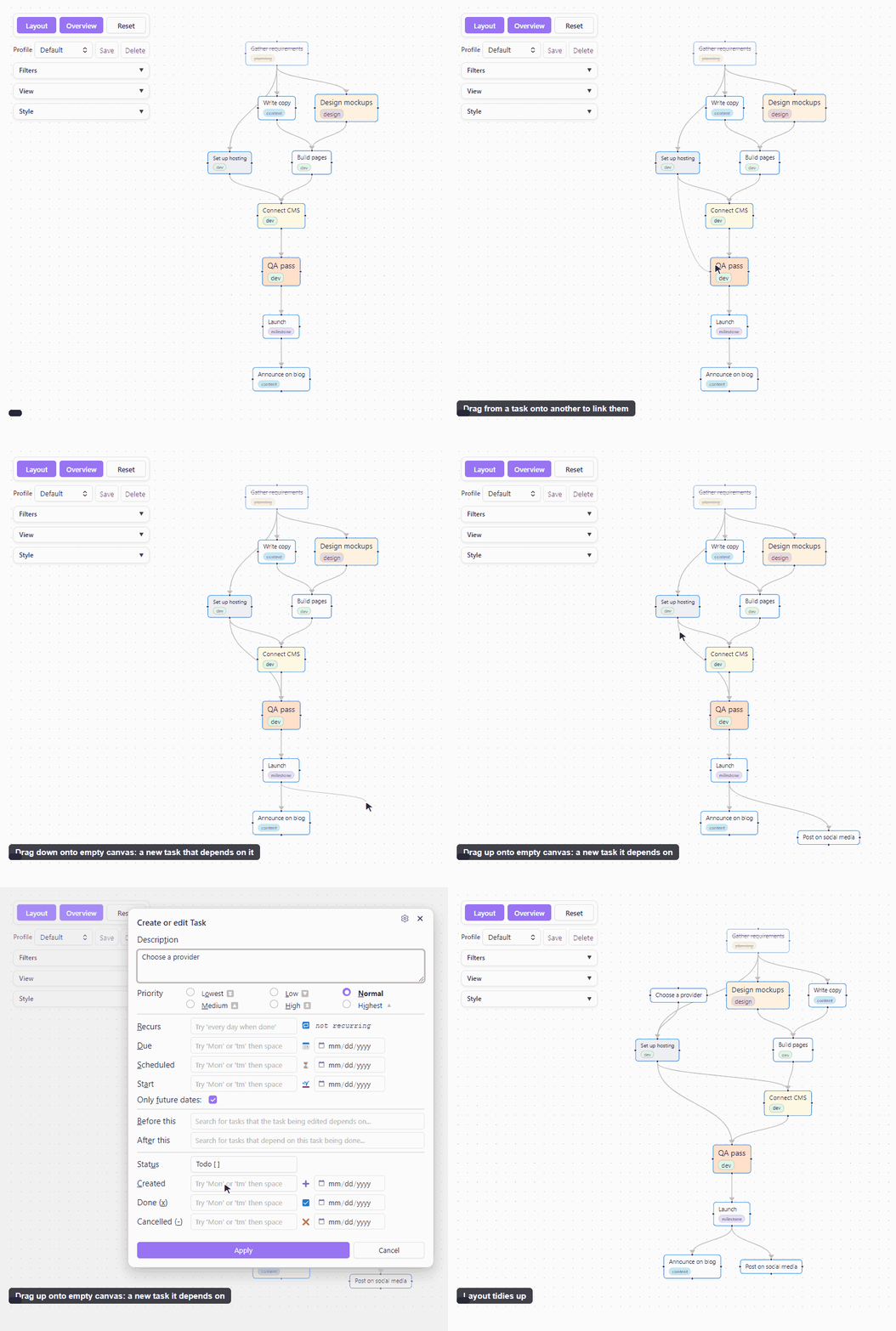
Drag onto another task to link them. Drag onto empty canvas to create a task, downstream if you start from the bottom and upstream if you start from the top.
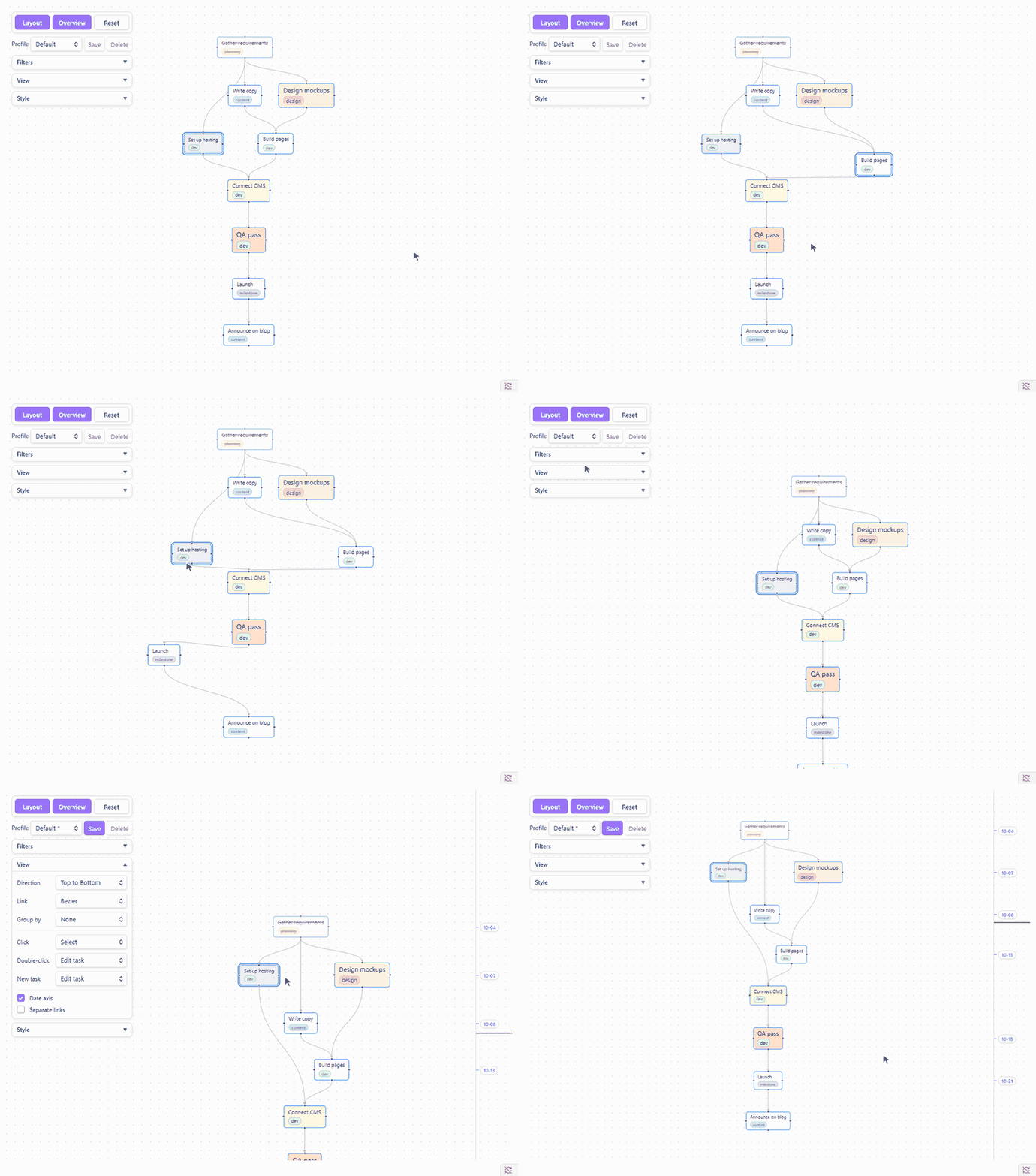
Layout puts every task in order, and the date axis stretches the flow along real dates.
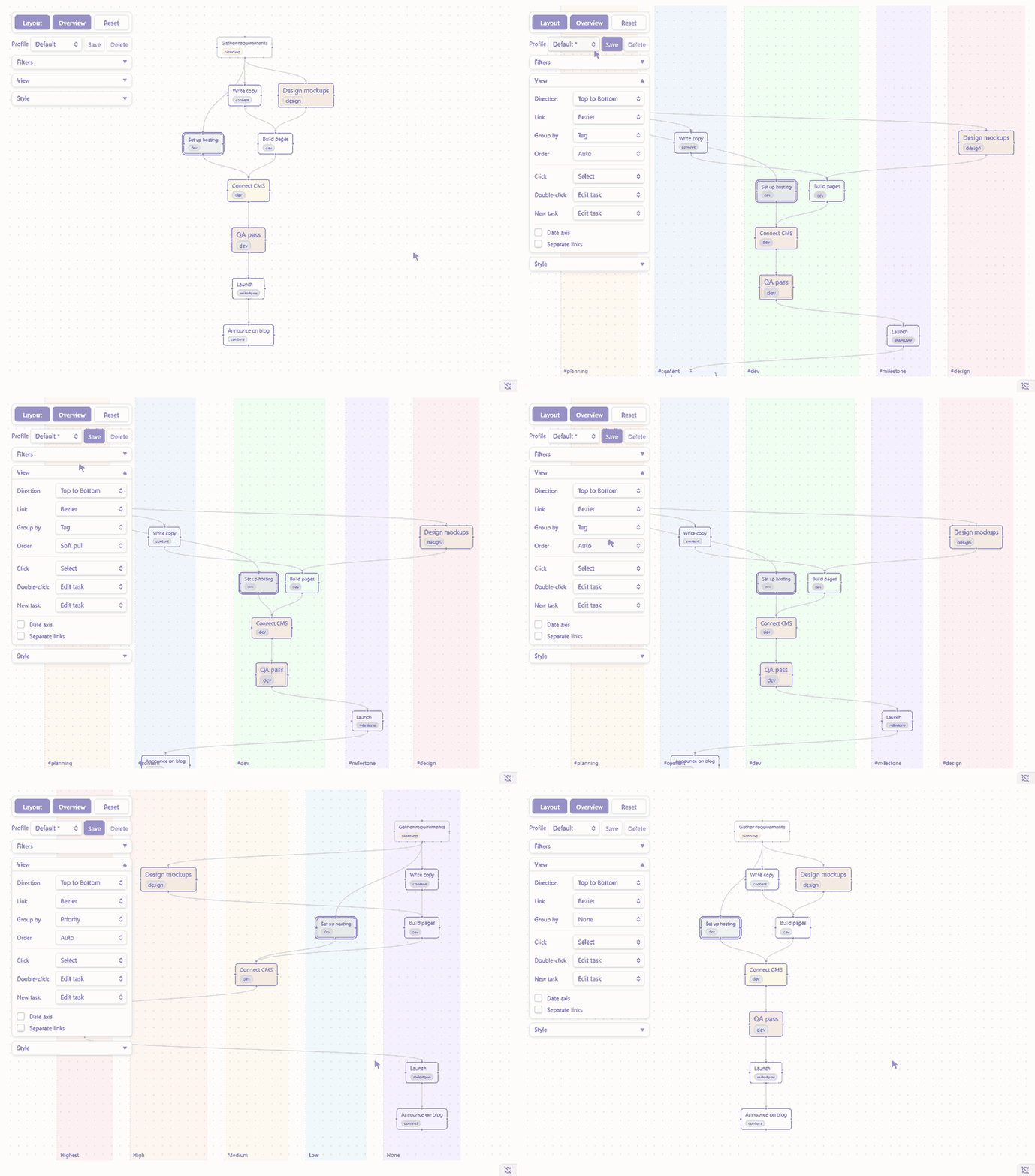
Group tasks by tag, note or priority into lanes.
Why Tasks Flowchart
- Your plan lives in your notes. Every node is a task line in your notes and every arrow is a field on that line. There is no database and no hidden file format, so the plan works in any editor, with git and sync, with Dataview and the Tasks plugin's own queries, and it is all still there if you uninstall Tasks Flowchart.
- See which tasks hold others up. Upstream tasks come before the tasks that wait on them, and a task with nothing left above it is one you can start now.
Three lines like these become three connected nodes:
- [ ] Write copy  [id:: copy]
- [ ] Design mockups  [id:: design]
- [ ] Build pages  [dependsOn:: design,copy]
Getting started
- Install and enable the Tasks plugin. Tasks Flowchart reads ids and dependencies in either of its formats, the emoji format
🆔and⛔or the Dataview format[id:: ]and[dependsOn:: ], and writes the one you pick under Task format in Style. - Install Tasks Flowchart from Settings → Community plugins → Browse. To install manually, copy
main.js,manifest.jsonandstyles.cssfrom the latest release into<your-vault>/.obsidian/plugins/task-flow/. - Click Open tasks flowchart in the left ribbon, or run Tasks Flowchart: Open flowchart. Click Layout at the top left, then Overview.
- New to linking tasks? Click Create sample note on the empty canvas, or run Tasks Flowchart: Create sample note, for a small linked plan to try things on.
At the top left of the view are the Layout, Overview and Reset buttons and, below them, the Profile row. The other settings live in the folded cards under them, View, Filters and Style; click a card's title to open it.
What you can do
Each item links to its page in the manual.
- Link and create: drag between tasks to link them, onto empty canvas to add a linked task. See Links and new tasks.
- Edit in place: double-click a task to change its name, dates, priority and tags without leaving the graph. See Editing tasks.
- Highlight and focus: mark the tasks that matter, or fade everything but one task's whole chain. See Highlight and focus.
- Arrange: one click of Layout orders the graph, the date axis places tasks by date, and Separate links keeps overlapping links apart. See Arranging the graph and How Layout arranges nodes.
- Lanes: group tasks by tag, note or priority. See Lanes.
- Filters, profiles and style: hide what you do not need, save a setup as a profile, and size and color the nodes. See Filters, profiles and style.
Troubleshooting
A task missing from the graph usually has no dependency link, and Only show tasks with a relation hides such tasks by default. Otherwise check the keyword, status, tag, priority and folder filters, and check that the Tasks plugin indexes the line, which requires the Tasks global filter tag if you set one.
Tasks Flowchart reads ids, dependencies and dates in both formats anywhere on the line, so links survive text that archiving plugins append after them. The Tasks plugin only reads fields at the end of a line, and only in the format it is set to, so its own queries see no id, dependencies or dates on such a task, or on a line that mixes the two formats.
Feedback
Found a bug or have an idea? Please open an issue on GitHub. For a bug, include your Obsidian and Tasks versions and a few task lines that show the problem. Keywords in Filters search the task text and tags only, not fields such as [id:: ] or dates. If you need to filter by those, open an issue and describe what you are trying to do.
Data
Dependencies live only in your notes. Node positions, the pan and zoom of the canvas, filters, profiles, view settings, highlights and focus are saved in .obsidian/plugins/task-flow/data.json. Deleting that file resets the layout and settings without touching any task.
Your notes
Tasks Flowchart edits your notes directly. Linking two tasks adds an id field to one task line and a dependency field to the other, 🆔 and ⛔ or [id:: ] and [dependsOn:: ] depending on Task format, unlinking removes that entry from the dependency list, and dropping a connection on empty canvas inserts a new - [ ] untitled line below the task it started from. It changes only the task lines involved and leaves the rest of the note as it is. There is no undo inside the flowchart: Obsidian's own undo works while the note is open in an editor, and the core File recovery plugin keeps snapshots you can go back to. Keep your vault backed up or under version control, such as git or Obsidian Sync version history, before using it on notes that matter.
The plugin is provided as is, without warranty of any kind, as set out in the MIT license.
Development
The project requires Node.js 22 or later. npm install and npm run build write main.js, manifest.json and styles.css to dist/. Releases are built and published by GitHub Actions from a version tag, and the steps are described at the top of .github/workflows/release.yml.
Acknowledgments
This project was developed with AI coding assistance for code generation, automated testing, and documentation.
License
MIT, see LICENSE.
For plugin developers
Search results and similarity scores are powered by semantic analysis of your plugin's README. If your plugin isn't appearing for searches you'd expect, try updating your README to clearly describe your plugin's purpose, features, and use cases.