Timeline for Bases
unlistedby TfTHacker
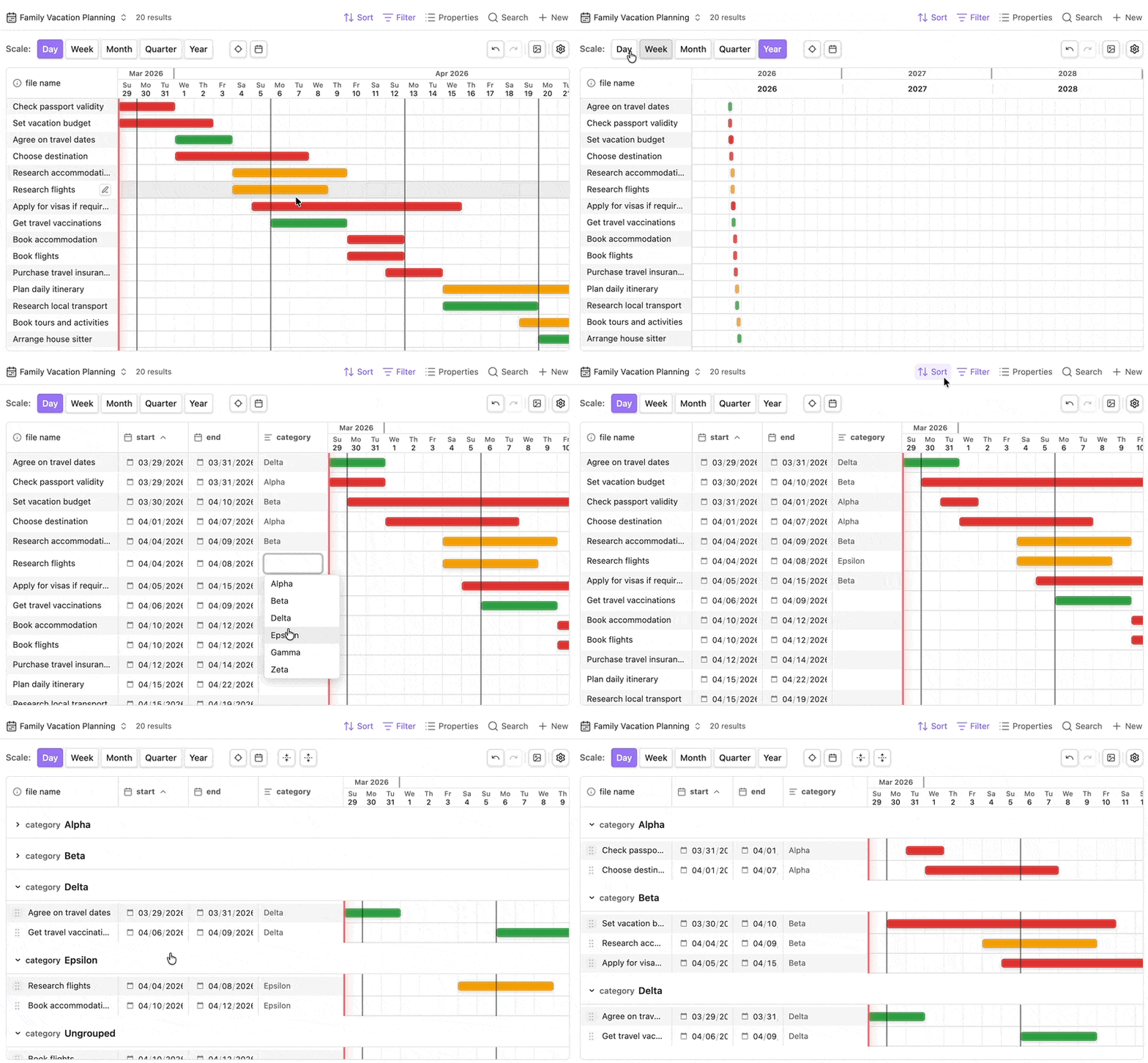
A Gantt-style timeline view for Bases. Visualize, drag, resize, and edit task dates directly on the grid.
Timeline for Bases
A Gantt-style timeline view for Obsidian Bases.
Install
This plugin is not in the official Obsidian community plugin list, so you need to install it with the BRAT plugin:
- In Obsidian, install and enable BRAT ("Beta Reviewers Auto-update Tester").
- Open Settings -> BRAT.
- Choose Add Beta plugin.
- Paste this repository URL:
https://github.com/TfTHacker/timeline-for-bases - Confirm the install and let BRAT download the latest release.
- Enable Timeline for Bases in Settings -> Community plugins.
The Story
This plugin was 100% vibe coded.
Not in the "throw a prompt at ChatGPT and paste the result" sense — but in the real spirit of it: a casual, back-and-forth conversation over two days between TfTHacker and his OpenClaw, an AI assistant he has named Nexus.
No design docs written in advance. No architecture meetings. Just a conversation that started with "I want a timeline view for Bases" and evolved, one idea at a time, into something genuinely useful.
The plugin was revised continuously throughout a number of work sessions — visual polish, UX tweaks, new features, bug fixes — all through natural conversation. TfTHacker would open Obsidian, look at the result, say what felt off, and the next iteration would appear minutes later.
It's what vibe coding looks like when the goal is something real.
What It Does
Timeline for Bases adds a Gantt-style timeline view to Obsidian Bases. Point your base at any folder of notes with date frontmatter and you get a horizontal timeline — by day, week, month, quarter, or year.
Features
View & Navigation
- 5 time scales — Day, Week, Month, Quarter, Year; switch instantly
- Today button — scrolls the timeline to center today in view
- Jump to date — date picker popover to scroll directly to any date
- Today marker — highlighted line for the current date (all time scales: Day, Week, Month, Quarter, Year)
- Adaptive day headers — day view shows weekday and date with compact formatting based on available width
- Day separator lines — faint vertical grid lines mark each day column boundary
- Week start — Monday or Sunday, set in plugin settings
Task Bars
- Dual property styling — map one property to bar fill and another to the bar border
- Drag to move — drag a bar to shift start and end dates; writes back to frontmatter on release
- Resize — drag the left or right edge of a bar to adjust start or end date independently
- Multi-select — Shift+click to select multiple bars; drag any selected bar to move them all together
- Right-click context menu — Open, Edit dates, Duplicate, or Delete directly from the bar
- Hover preview — hovering a bar or label shows Obsidian's native page preview popup
- Double-click bar — opens the note; single-click the label also opens it
Groups
- Collapsible groups — grouped sections can be collapsed or expanded individually
- Collapse all / expand all — grouped views expose header actions to toggle every section at once
- Drag between groups — grab the grip handle on any row and drop it into another group to reassign it; the note's frontmatter is updated automatically
- Persistent group state — collapsed groups are remembered per base view
- Undo support — group changes are undoable like any other edit
Working with dates
- Draw to create — on rows with no dates, click and drag in the track area to draw a bar; start and end dates are written to the note on release
- Clear dates — right-click any bar → "Clear dates" to remove the dates from the note; the row goes back to dateless state
Editing
- Click-to-edit cells — editable property cells open inline on click, more like native Bases
- Inline property editing — visible property columns support type-aware editing for dates, numbers, checkboxes, text, multitext, and tags
- Undo / redo — Ctrl+Z / Ctrl+Y (also toolbar buttons); 50-step history covers all edits including group changes
Display
- Color by property — map any frontmatter value to a color from a theme-adaptive palette
- Sticky property columns — any property visible in Bases can appear as its own frozen column to the right of the primary column
- Primary column from Bases order — the first ordered Bases property becomes the primary frozen column automatically
- Resizable frozen columns — primary and property columns can be resized and their widths persist per view
- Theme-adaptive colors — all palette colors are Obsidian CSS variables; they shift with your theme automatically
- Point tasks — notes with only a start date render as a single-day marker
Other
- Export PNG — captures the current timeline view and saves it to the vault root
- Create Sample Base — settings button that generates a "Timeline Sample" folder with 20 vacation-planning tasks assigned across Patrick, Maya, and Ethan, plus a ready-to-use base with
assignedvisible in the frozen property columns
Configuration (per view)
Set in the Bases Configure View panel:
- Start date — frontmatter property for the bar start
- End date — frontmatter property for the bar end
- Visible properties / order — the first ordered property becomes the primary frozen column; remaining visible properties become sticky property columns
- Grouping / sorting — native Bases grouping and sorting are reflected by the timeline
Set in the Config panel (gear icon in the timeline header):
- Color by — property to drive color mapping
- Color map — assign colors per unique value
Plugin-wide setting (Settings → Timeline for Bases):
- Week starts on — Monday or Sunday
Development
Build, test, release, and agent workflow notes live in AGENT.md.
For plugin developers
Search results and similarity scores are powered by semantic analysis of your plugin's README. If your plugin isn't appearing for searches you'd expect, try updating your README to clearly describe your plugin's purpose, features, and use cases.