Taskgregator
approvedby Phil Palmieri
Aggregate your native markdown tasks into one fast dashboard, organized by their Projects, People, and Areas context. No separate database, no special files, no rules to adopt. - This plugin has not been manually reviewed by Obsidian staff.
Taskgregator
Task management that works the way you already work.
Taskgregator isn't another task system to adopt. It reads the plain markdown checkboxes you already write, wherever you already write them, and gives you fast, focused views of your work without asking you to change a thing.
No separate database. No special task files. No syntax to learn. No rules to follow. Your notes stay exactly as they are, and your tasks stay on the lines where you typed them. Taskgregator just aggregates, organizes, and surfaces them so you can see everything from different angles and act on it in place.
Think Things, Todoist, or TickTick, but pointed at the notes you already have instead of a silo you have to feed.
Why it's different
Most task plugins make you pick a side: adopt a whole new system, or scatter each task into its own document with its own metadata block. Both make your notes serve the tool.
Taskgregator flips that. The tool serves your notes.
- Zero adoption cost. A task is just a markdown checkbox. If you can write
- [ ] thing, you're already using it. - No enforced structure. There's nothing you have to do. No required fields, no mandatory tags, no folder layout you must follow. Use as much or as little as you want.
- No separate store. Nothing is duplicated into a database or a task vault. The markdown line is the single source of truth, and every edit writes straight back to it.
- Context comes from where things already live. A task in
Projects/Website Redesign.mdbelongs to that project. A task that mentions[[People/Alex]]belongs to Alex too. You don't tag it; the location and links already say it. - See it from any angle. The same task shows up under its project, under the people it links to, and in your date-based smart lists, all at once, with no copies to keep in sync.

The three surfaces
Everything reads from one shared index, so a selection you make in one place is reflected everywhere.
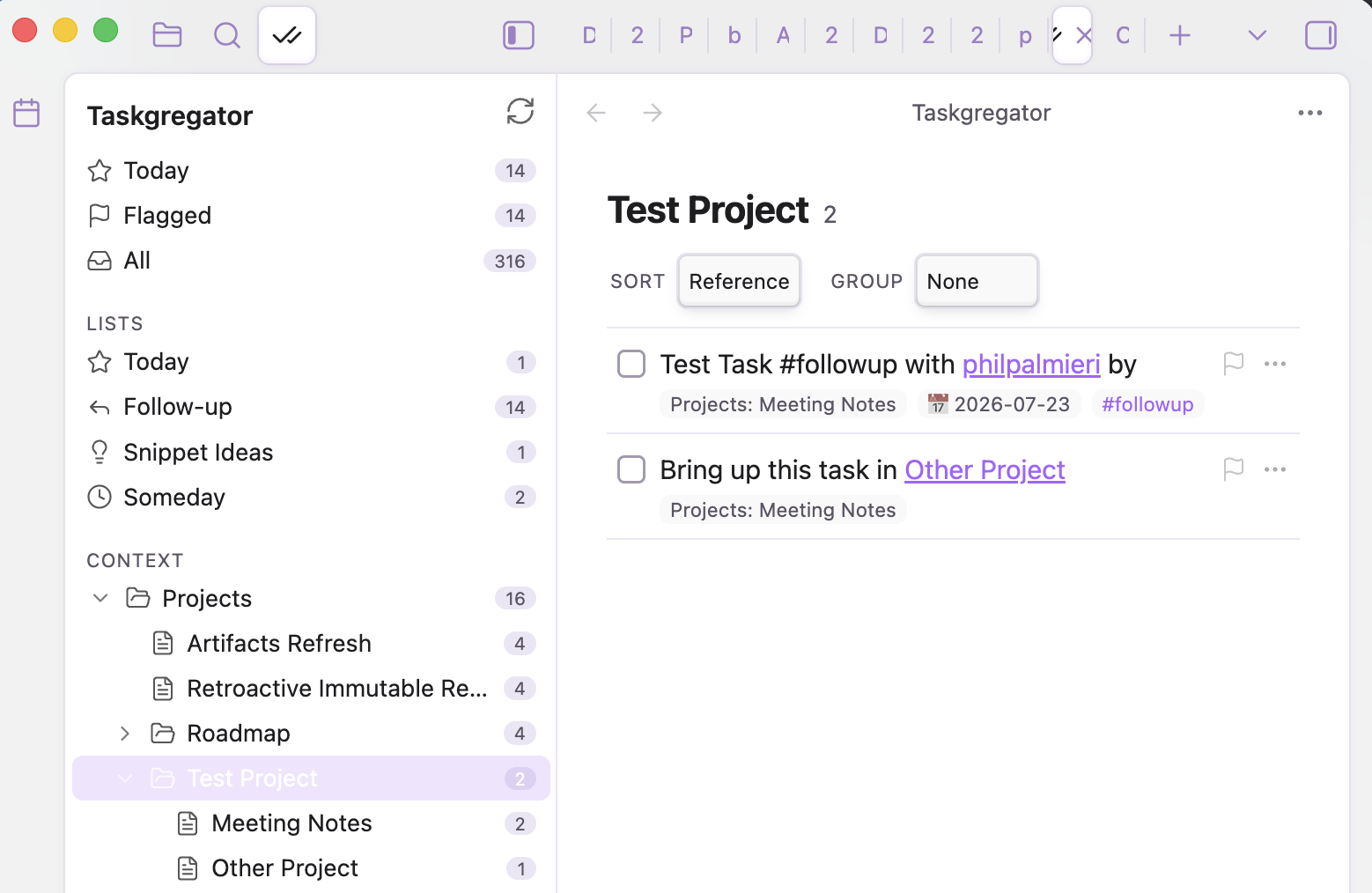
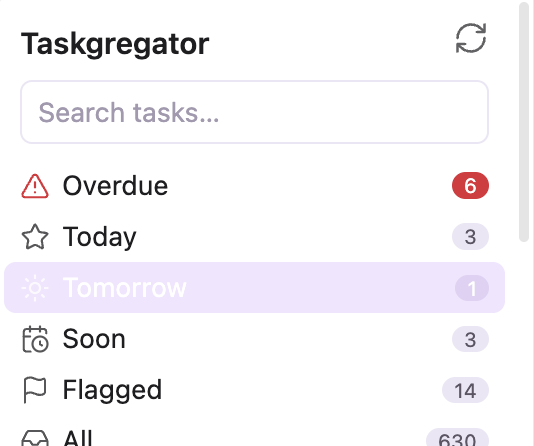
- Navigator (left sidebar): a search box, smart lists, plus a roll-up tree of your context folders, docked right next to Files and Search. Pick one to drive the list.
- Task list (main area): the tasks for the current selection, with sort and grouping controls.
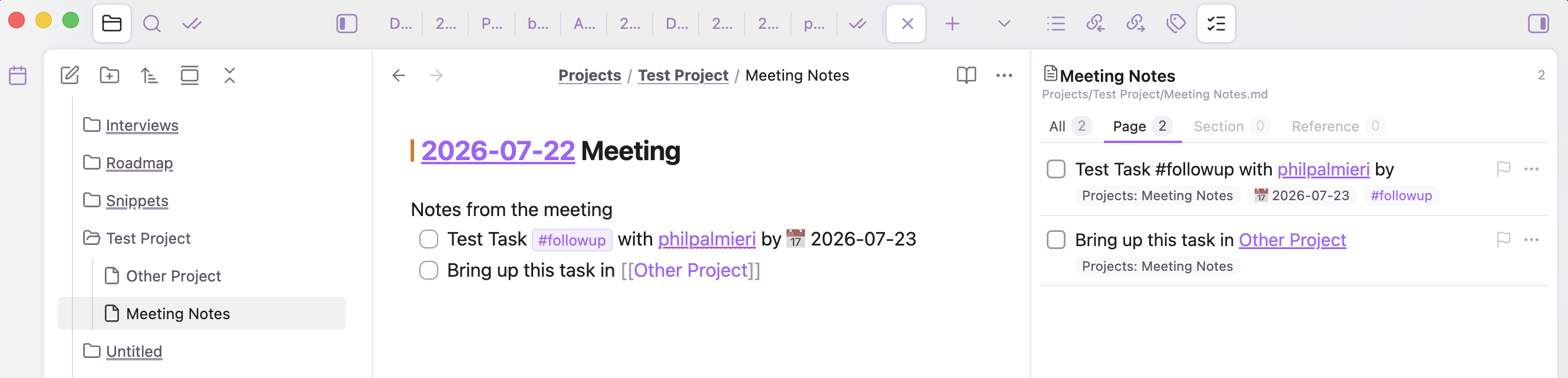
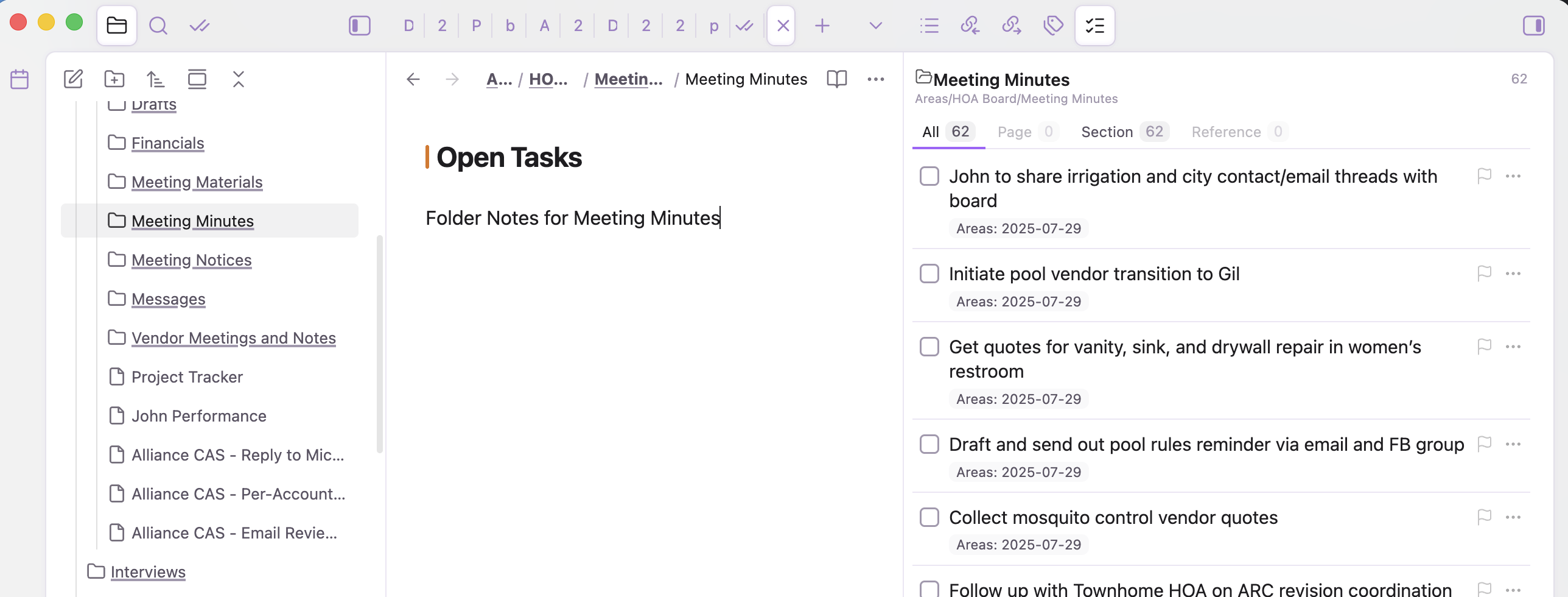
- Context sidebar (right sidebar): follows the note you're editing and shows its tasks, filtered by Page / Section / Reference / All.
Search
A search box at the top of the navigator filters tasks as you type. It scopes to whatever is selected, so you can search within a single project or across everything by picking All first. A Searching 'foo' in callout with a clear action stays on the list, and the filter persists as you switch between lists so you can carry the same query around. Clear it with the × in the field or Esc.
The task list
Group by project, sort by whatever you care about, and jump straight back to the source note from any card (shown above). Sort and Group are two rows of small pills; Sort pills are tri-state (click to cycle ascending → descending → off, back to the default priority order), and Group is single-select. Right-click any row for the same quick actions you get in the editor: priority, dates, #today, detail note, or cancel.

The context sidebar
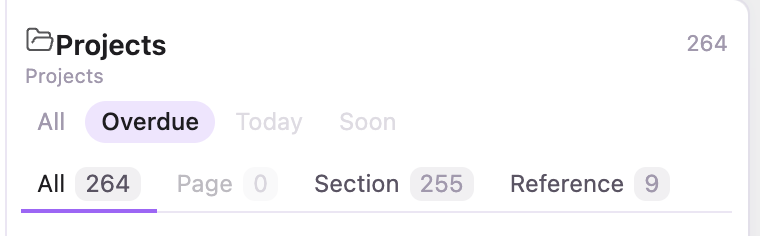
While you're writing a note, the right sidebar shows that note's tasks, so you never lose track of what a page owns. A subtle All · Overdue · Today · Soon due filter sits above the scope tabs and narrows the current scope by due window (windows with nothing in them are dimmed). Your scope and filter choices stick for the session.
Page shows the tasks written on the note in front of you.
Reference shows tasks living elsewhere that link to this note, so inbound work surfaces too.
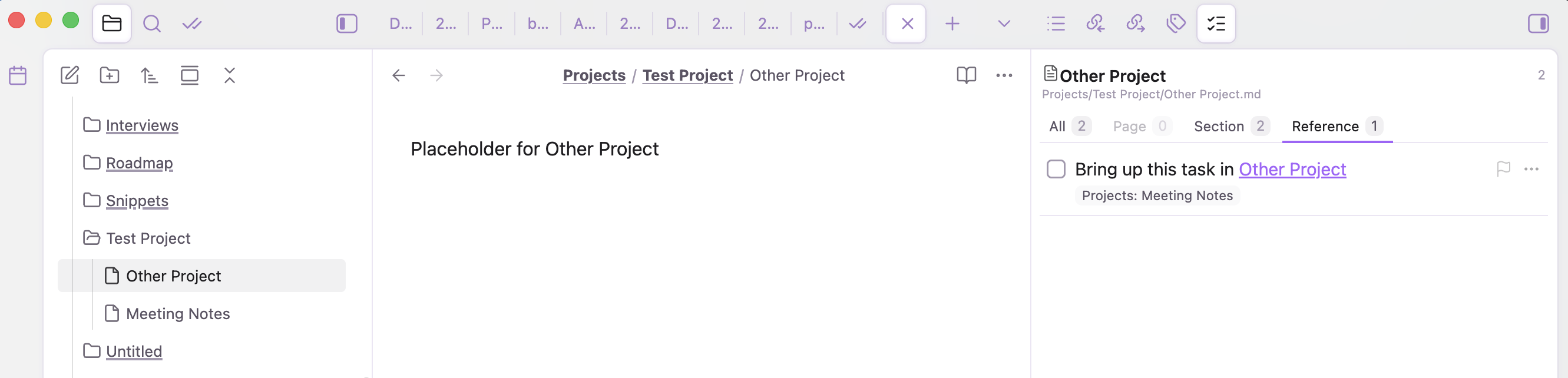
Section rolls up a whole subtree. On a folder note (a file named after its folder), you get every open task beneath it in one list.
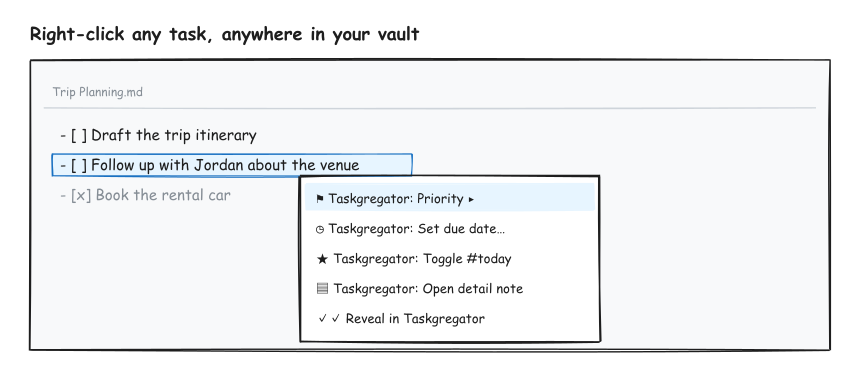
Right-click anywhere
Because Taskgregator understands your task lines, you get a context menu on any task line in the normal editor, not just inside the plugin panel. Set priority, add a due date, toggle #today, open a detail note, or reveal the task in the task list.
Features
- Context tree with roll-up counts. Configure which top-level folders become buckets (default:
Projects,People,Areas). Files become sub-nodes; parent nodes aggregate everything beneath them. - Search across the current scope. Type in the navigator's search box to filter the selected list; the filter follows you as you switch lists so you can search the same term anywhere.
- Cross-indexing by wikilink. A task that links
[[People/Alex]]appears under Alex's node even though it was authored elsewhere. - Context sidebar that follows the active note and scopes its tasks by Page, Section (folder subtree / folder note), or Reference.
- Date smart lists: Overdue (past due, auto-hides when empty), Today (due exactly today), Tomorrow, and Soon (due within a configurable window, default 7 days). Plus Flagged (by priority) and All.
- Tag smart lists driven by tags: Follow-up, Snippet Ideas, Someday, and any others you configure.
- Inline editing from the panel: toggle done/cancelled, cycle priority, set due/start dates, add tags, jump to source, all written back to the original markdown line. Right-click a row for the full menu.
- Priority using Tasks-plugin emoji signifiers (🔺 ⏫ 🔼) or Dataview
[priority:: high]fields, so it stays compatible with whatever you already use. - Reads both task dialects. Understands Tasks-plugin emoji metadata and Dataview inline fields (
[due:: ],[priority:: ], etc.), so every smart list, filter, sort, and grouping works no matter how a task was written. When it writes back it follows your Task metadata format setting (Auto follows the Tasks plugin) and keeps each existing line in its own format. - Per-task detail notes (sidecars). Optionally attach a full markdown note to any task for extended context, links, and history. The task gets a lightweight block id (
^id) only when you enrich it, and the sidecar backlinks to the source line. The raw id is hidden on the page: it shows as a small 📝 note icon in both Reading view and Live Preview (click to open; put your cursor on the line to reveal the id). A 📝 chip on the card opens it too. - Native right-click menu on task lines across your whole vault, and on rows inside the panel.
- Self-contained. Reads and writes markdown directly, with no runtime dependency on Dataview or the Tasks plugin (when you pick Auto it only reads the Tasks plugin's saved format preference). Works on desktop and mobile.
Task format
Taskgregator reads standard markdown checkboxes and Tasks-plugin emoji metadata. Nothing here is required; add only what's useful to you:
- [ ] Open task
- [/] In progress
- [x] Done ✅ 2026-06-30
- [-] Cancelled ❌ 2026-06-30

- [ ] With metadata 📅 2026-07-01 🛫 2026-06-25 🔼 #followup
- [ ] Linked to a person [[People/Alex]] and a project [[Projects/Website Redesign]]
Recognized signifiers:
| Signifier | Meaning |
|---|---|
📅 YYYY-MM-DD | Due date |
🛫 YYYY-MM-DD | Start date |
⏳ YYYY-MM-DD | Scheduled |
➕ YYYY-MM-DD | Created |
✅ YYYY-MM-DD | Completed |
❌ YYYY-MM-DD | Cancelled |
🔺 ⏫ 🔼 🔽 ⏬ | Priority (highest → lowest) |
#tag | Smart-list membership |
[[link]] | Cross-index target |
^blockid | Stable identity, added lazily when you attach a note (hidden on the page, shown as a 📝 icon) |
Dataview inline fields
If you (or the Tasks plugin) write metadata as Dataview inline fields instead of emoji, Taskgregator reads those too, so both styles work interchangeably in every list, filter, sort, and grouping:
- [ ] With dataview metadata [due:: 2026-07-01] [start:: 2026-06-25] [priority:: medium] #followup
- [x] Done [completion:: 2026-06-30]
Recognized fields: [due:: ], [start:: ], [scheduled:: ], [created:: ], [completion:: ] (done date), [cancelled:: ], [repeat:: ], and [priority:: highest|high|medium|low|lowest].
When Taskgregator writes a date or priority, the Task metadata format setting decides the style: Auto (default) follows the Tasks plugin's own configured format, falling back to emoji when Tasks isn't installed; you can also force Emoji or Dataview. Either way, a line that already carries metadata keeps its existing format, so the two styles never get mixed on one line.
Usage
- The navigator opens in the left sidebar (its ✓✓ tab sits next to Files and Search). You can also run Taskgregator: Open panel from the command palette.
- Search from the box at the top of the navigator to filter the current list; it keeps filtering as you switch lists. Clear with the × or Esc.
- Click a smart list or a tree node to load its tasks in the main list.
- On a task card: click the checkbox to complete, the flag to cycle priority, the
⋯menu (or right-click) for dates/detail-note/cancel, a chip to jump to its source, or the 📝 chip to open its detail note. - The context sidebar (right) tracks the note you're editing; use the Page / Section / Reference tabs to change scope.
- Right-click any task line in the editor for the same actions inline.
Settings
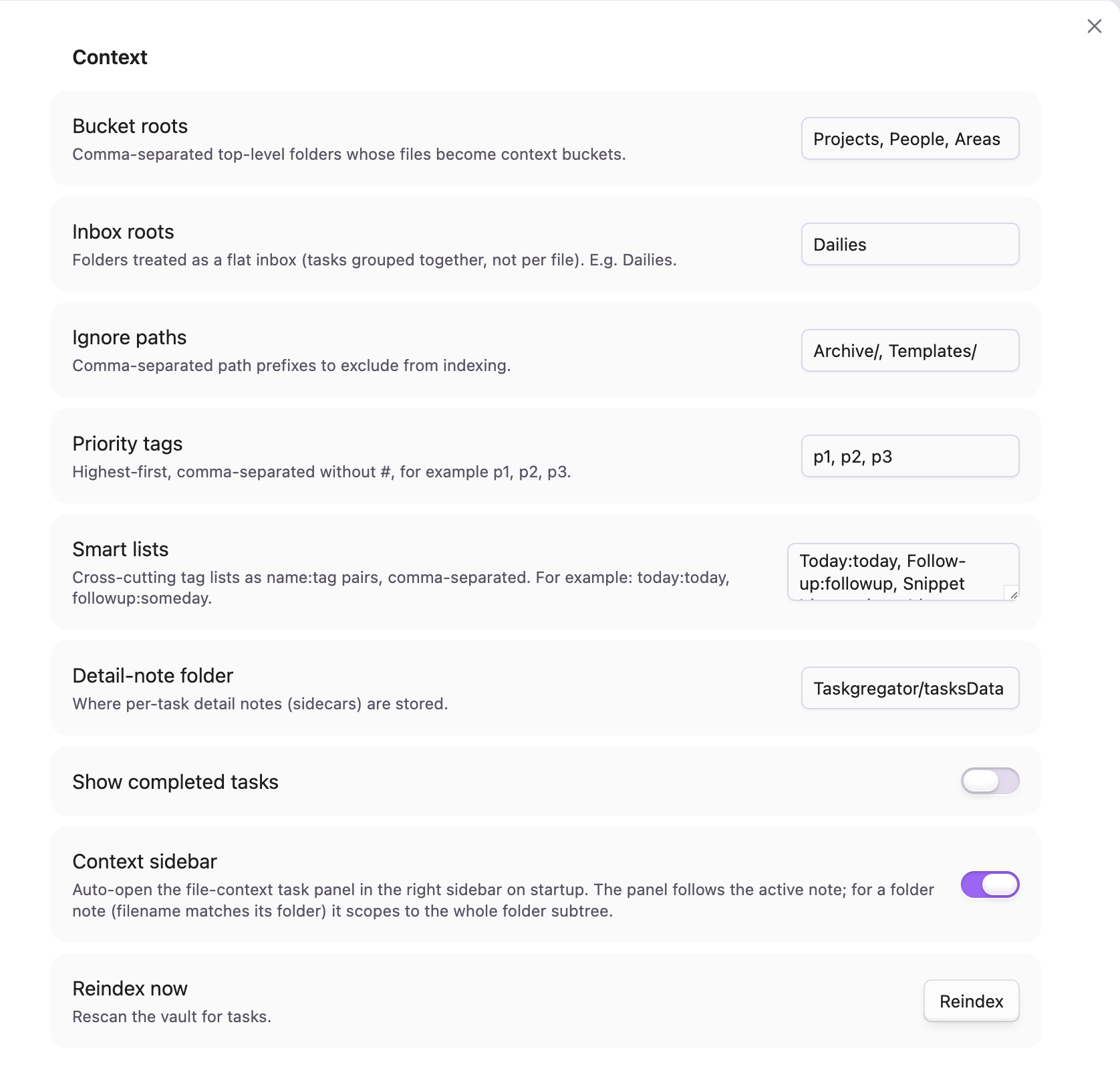
- Bucket roots: folders that become top-level context buckets (default
Projects, People, Areas). - Inbox roots: folders treated as a flat inbox instead of per-file (default
Dailies). - Ignore paths: path prefixes to exclude from indexing.
- Priority tags: fallback priority tags (default
p1, p2, p3). - Smart lists: cross-cutting tag lists (
Name:tagpairs). - Detail-note folder: where sidecars are stored (default
Taskgregator/tasksData). - Soon window (days): how many days ahead the Soon smart list looks (default 7).
- Task metadata format: how Taskgregator writes dates and priority: Auto (follow the Tasks plugin, emoji if it isn't installed), Emoji, or Dataview. Reading always understands both.
- Show completed tasks: include done/cancelled tasks in the index.
- Context sidebar: enable the right-sidebar panel that follows the active note.
What data it touches
Taskgregator only reads markdown files inside the folders you configure as bucket roots and inbox roots (by default Projects, People, Areas, and Dailies). It walks those folders directly rather than enumerating your whole vault, so files outside your configured roots are never opened. It does not make network requests, and it only writes back to the specific task lines and optional per-task detail notes you act on.
License
MIT © Phil Palmieri
For plugin developers
Search results and similarity scores are powered by semantic analysis of your plugin's README. If your plugin isn't appearing for searches you'd expect, try updating your README to clearly describe your plugin's purpose, features, and use cases.