by minorchange
Automatically colors TaskNotes task cards by project using a deterministic hash-based color scheme.
TaskNotes Project Colors
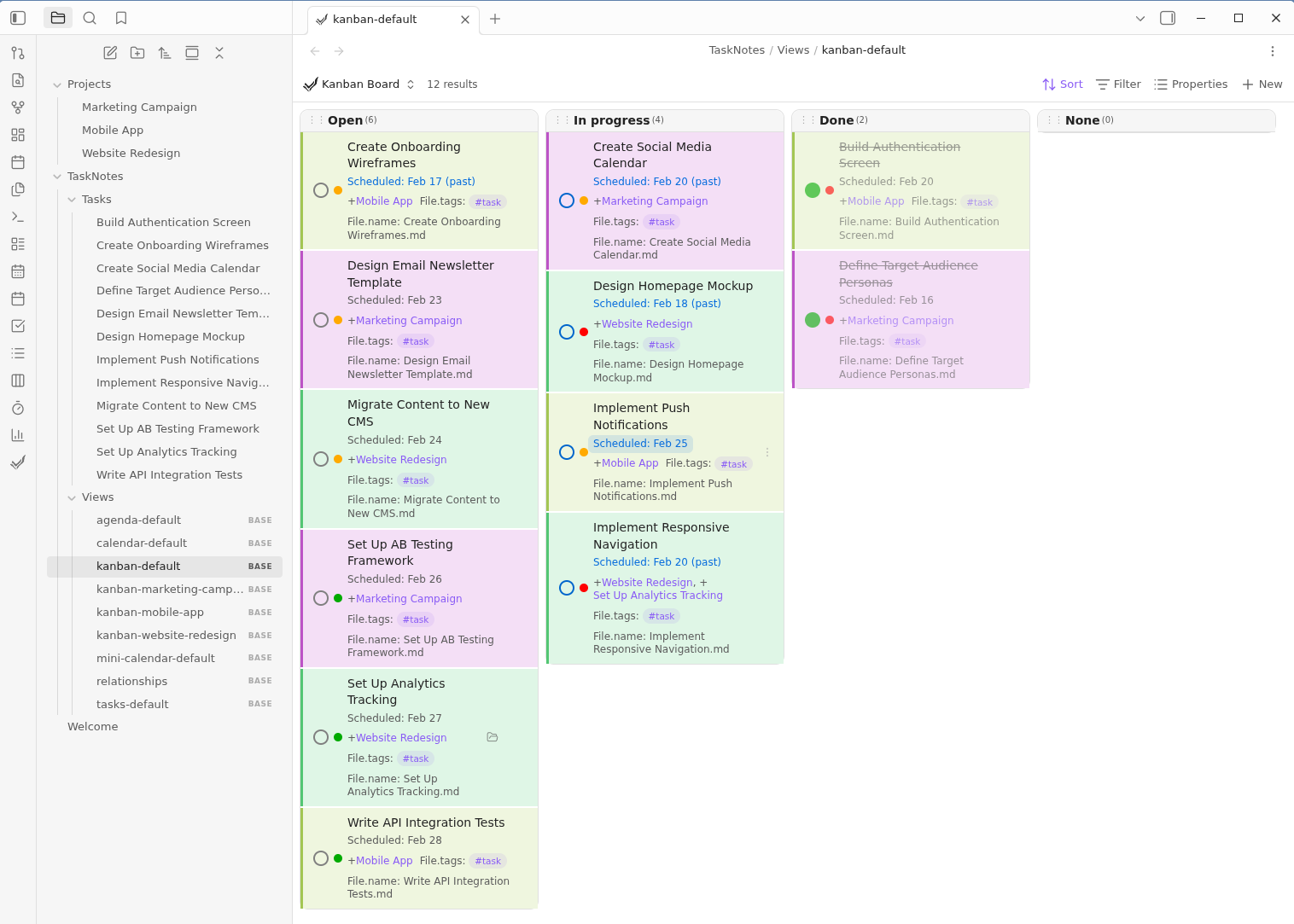
Automatically colors TaskNotes task cards by project. Each project gets a distinct background color and left border, computed from a hash of the project name. Adding a new project requires zero configuration — the color is assigned automatically.
How it works
The plugin watches the DOM for TaskNotes task cards. When a card contains a project link, it:
- Reads the project name from the link's
data-hrefattribute - Computes a DJB2 hash of the name
- Maps the hash to a hue value (0–359)
- Sets a
--project-hueCSS custom property on the card
The plugin's stylesheet then applies a tinted background and colored left border using that hue. Both light and dark themes are supported.
Colors appear in all TaskNotes views that render task cards (kanban, task list, agenda).
Customization
To tweak the saturation or lightness of the colors, create a CSS snippet in your vault (Settings → Appearance → CSS snippets) that overrides the defaults:
/* Example: more saturated, slightly darker backgrounds */
.tasknotes-plugin .task-card[style*="--project-hue"] {
    background-color: hsl(var(--project-hue), 70%, 88%);
    border-left: 3px solid hsl(var(--project-hue), 60%, 50%);
}
.theme-dark .tasknotes-plugin .task-card[style*="--project-hue"] {
    background-color: hsl(var(--project-hue), 40%, 15%);
    border-left: 3px solid hsl(var(--project-hue), 50%, 35%);
}
Installation
From Obsidian Community Plugins
- Open Settings → Community Plugins → Browse
- Search for "TaskNotes Project Colors"
- Click Install, then Enable
Manual
- Download
main.js,manifest.json, andstyles.cssfrom the latest release - Create a folder
your-vault/.obsidian/plugins/tasknotes-project-colors/ - Place the three files in that folder
- Restart Obsidian and enable the plugin in Settings → Community Plugins
For plugin developers
Search results and similarity scores are powered by semantic analysis of your plugin's README. If your plugin isn't appearing for searches you'd expect, try updating your README to clearly describe your plugin's purpose, features, and use cases.