Tasks CalDAV Sync
approvedby josecoelho
Bidirectional sync between tasks and CalDAV servers. - This plugin has not been manually reviewed by Obsidian staff.
Tasks CalDAV Sync
Bidirectional sync between obsidian-tasks and any CalDAV server (Nextcloud, Radicale, Baïkal, Fastmail, etc.).
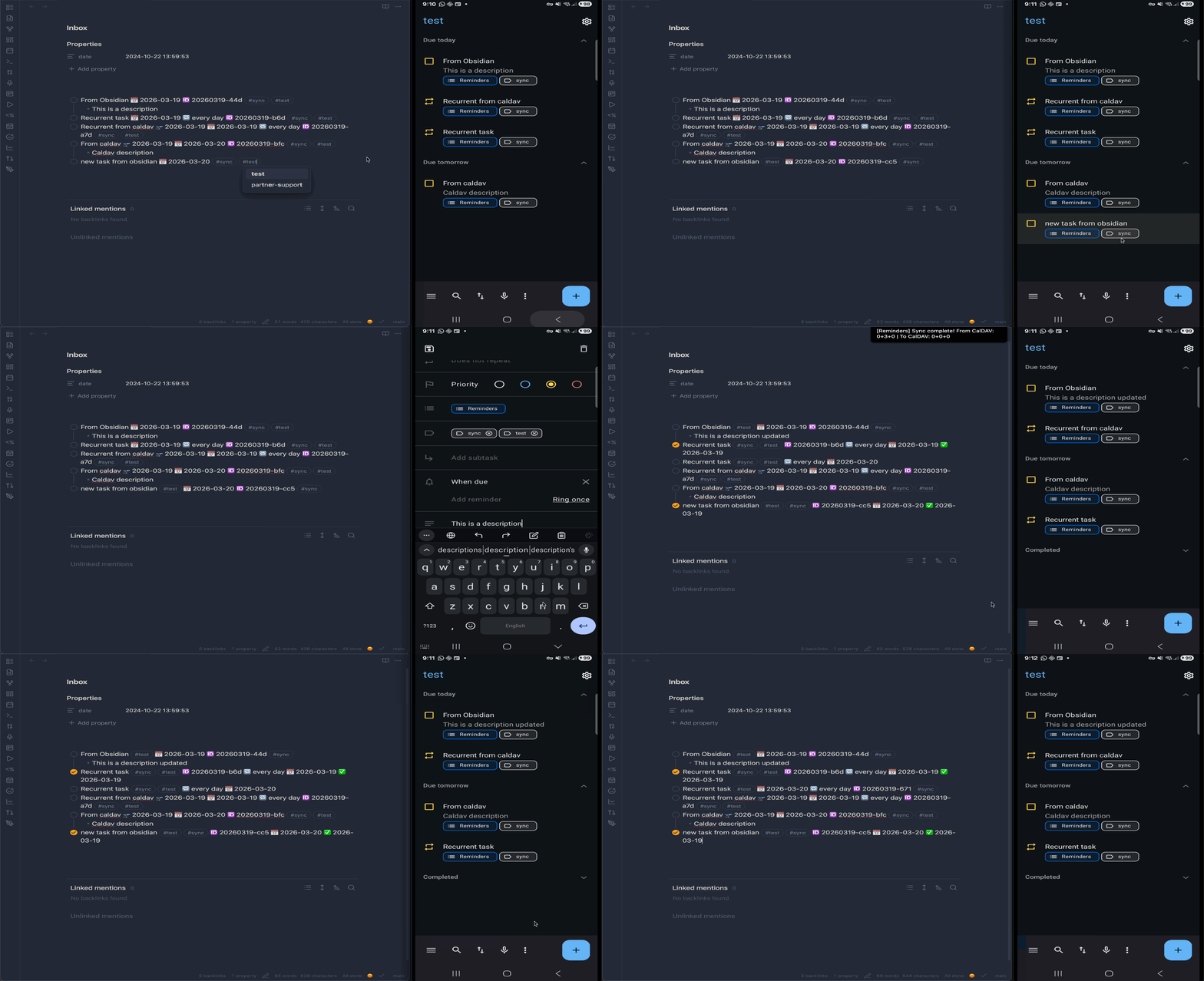
Works with the obsidian-tasks plugin — syncs task status, dates, priorities, recurrence, tags, and notes as standard VTODO items.
Features
- Multi-calendar support — sync different tags to different calendars and servers, with independent identifiers per side (Obsidian tag and CalDAV category)
- Bidirectional sync — push tasks to CalDAV servers and pull changes back
- Per-calendar sync direction — bidirectional, pull-only (server → Obsidian), or push-only (Obsidian → server)
- Auto-sync — configurable interval (default: 5 minutes)
- Dry-run mode — preview what will sync before committing changes
- Conflict detection — manual resolution or auto-resolve with Obsidian wins
- Task notes — indented bullet points below a task round-trip as VTODO DESCRIPTION
- Recurrence —
RRULEround-trips between CalDAV and obsidian-tasks format - Delete detection — three-way diff detects deletions on either side
- Reconciliation — automatically matches identical tasks when switching calendars or after lost sync data, preventing duplicates
- Mobile support — runs on Obsidian mobile; a per-device switch decides which device talks to the server
Requirements
- Obsidian v1.8.7+
- obsidian-tasks plugin (must be installed and enabled)
- A CalDAV server with VTODO support
Installation
From Community Plugins (recommended)
Available in the Obsidian community plugin directory:
- Open Settings → Community plugins → Browse
- Search for "Tasks CalDAV Sync"
- Click Install, then Enable
Using BRAT (for beta releases)
- Install the BRAT plugin
- Open BRAT settings → Add Beta Plugin
- Enter
josecoelho/obsidian-tasks-caldavand click Add Plugin - Enable "Tasks CalDAV Sync" in Settings → Community Plugins
BRAT will also handle future updates automatically.
Manual
- Download
main.js,manifest.json, andstyles.css(if present) from the latest release - Create
VaultFolder/.obsidian/plugins/obsidian-tasks-caldav/ - Copy the downloaded files into that folder
- Restart Obsidian and enable the plugin in Settings → Community Plugins
Configuration
Open Settings → Tasks CalDAV Sync. Add one or more calendars, each with:
| Setting | Description |
|---|---|
| Sync direction | Bidirectional (default), pull from server only, or push to server only — see Sync direction below. |
| Obsidian tag | Only Obsidian tasks with this tag are pushed to the server. Leave empty to push every task. |
| Server category | Only server tasks with this CATEGORIES value are pulled into Obsidian. Leave empty to pull every task (useful when some clients — such as the iOS Reminders app — can't set categories). |
| Calendar URL | The CalDAV collection URL. Paste it directly, or use Browse calendars to discover and pick one. |
| Username / Password | CalDAV credentials |
The two fields are independent. Set them to the same value for a symmetric sync (every synced task has that identifier on both sides), or use different values when your Obsidian tag and server category naming conventions differ. Leaving either side empty disables filtering on that side only.
Global settings:
| Setting | Description | Default |
|---|---|---|
| Sync from this device | Whether this device talks to the CalDAV server — see Mobile and multiple devices | on (desktop), off (mobile) |
| Sync interval | Auto-sync period in minutes | 5 |
| New tasks destination | File where incoming CalDAV tasks are created | Inbox.md |
| New tasks section | Optional heading within the destination file | — |
| Sync completed tasks | Include completed tasks in sync | off |
| Delete behavior | What happens when a task is deleted on one side | ask |
Sync direction
Each calendar syncs in one of three directions:
- Bidirectional (default) — changes flow both ways; Obsidian and the server stay in sync.
- Pull from server only — server changes are brought into Obsidian; nothing is ever written to the server. Useful for mirroring a read-only or shared calendar — for example, to report on completed tasks per category with Dataview.
- Push to server only — Obsidian changes are sent to the server; server changes are never pulled back. A sync ID is still written into each task that is pushed, so it can be matched on later syncs.
In one-way modes, deletions mirror in the sync direction only (a deletion on the source side propagates; a deletion on the target side is not sent back), and conflicts resolve automatically toward the source side.
Mobile and multiple devices
The plugin runs on Obsidian mobile, but only one device should talk to the CalDAV server: if several devices sync the same calendars, they race each other's sync state and can duplicate tasks.
The Sync from this device switch controls this per device. It is stored on the device itself — not in the vault — so it does not travel with your settings:
- Defaults to on for desktop and off for mobile.
- Leave it on for exactly one device. Every other device still receives synced tasks through your regular vault sync (Obsidian Sync, Syncthing, etc.).
- To sync from your phone instead, turn the switch off on the desktop and on on the phone.
Conflict resolution
Two modes:
- Manual (default) — sync pauses when conflicts are detected, requiring review
- Auto-resolve Obsidian wins — automatically keeps the Obsidian version on conflict
Usage
Commands
Open the command palette (Ctrl/Cmd + P) to access:
| Command | Description |
|---|---|
| Sync with CalDAV now | Run an immediate sync |
| Preview sync (dry run) | See what would change without applying |
| View sync status | Show last sync time and any conflicts |
| Inject task IDs | Add unique IDs to selected tasks |
| Validate task IDs | Check document for valid/invalid task IDs |
Task IDs
Each synced task needs a unique ID. The plugin uses the obsidian-tasks native format:
- [ ] Buy groceries 🆔 20260213-a1b
Use the "Inject task IDs" command to add IDs to existing tasks, or the plugin will assign them automatically during sync.
Metadata mapping
| Obsidian | CalDAV | Direction |
|---|---|---|
| Task text | SUMMARY | ↔ |
| Indented bullets | DESCRIPTION | ↔ |
📅 due date | DUE | ↔ |
⏳ scheduled date | DTSTART | ↔ |
✅ done date | COMPLETED | ↔ |
🔁 recurrence | RRULE | ↔ |
| Priority emoji | PRIORITY (1-9) | ↔ |
| Tags | CATEGORIES | ↔ |
| Status (done/cancelled) | STATUS | ↔ |
Task notes
Indented bullet points below a task are synced as the VTODO DESCRIPTION field:
- [ ] Plan vacation 🆔 20260213-x2c
    - Research flights
    - Book hotel
    - Pack list
These notes round-trip to/from CalDAV clients like Thunderbird or Tasks.org.
Troubleshooting
Sync reports success but nothing changes
The Obsidian tag and Server category settings are hard filters, not just routing — each side independently decides what gets sent across:
- Obsidian → CalDAV — only tasks carrying the Obsidian tag are pushed (skipped if Obsidian tag is empty: every task is pushed).
- CalDAV → Obsidian — only server VTODOs whose
CATEGORIESinclude the configured category are pulled (skipped if Server category is empty: every task is pulled).
If your server tasks have no matching CATEGORIES (for example, tasks created from the iOS Reminders app, which can't set categories), leave Server category empty to pull them anyway.
Known limitations
- Priority round-trip is lossy — obsidian-tasks uses emoji-based priorities (⏫🔼🔽) while CalDAV uses numeric PRIORITY (1-9). Obsidian→CalDAV maps correctly, but CalDAV→Obsidian does not write priority emojis back into the task markdown.
- Internal obsidian-tasks API — This plugin accesses obsidian-tasks' internal
getTasks()method, which is not part of the official public API. Future obsidian-tasks updates could break this integration.
Tested CalDAV servers
| Server | Coverage |
|---|---|
| Radicale | Automated E2E suite |
| Nextcloud | Automated E2E suite |
| Vikunja | Automated E2E suite |
| Baïkal (SabreDAV) | Automated E2E suite |
| Fastmail | Manually verified |
Should work with any CalDAV server that supports VTODO, such as Synology.
iCloud
iCloud Reminders is not supported directly — Apple does not expose it as a standard CalDAV/VTODO backend, so sync fails at later steps even with the correct server URL (#74).
Workaround: sync Obsidian with a standards-compliant CalDAV account (e.g. fruux) and add that same account to the iOS Reminders app. Reported working by @Jane2100117.
Development
npm i            # install dependencies
npm run dev      # watch mode
npm run build    # production build with type checking
npm test         # run all tests (unit + E2E, requires Docker for Radicale)
npm run test:wdio  # run Obsidian smoke tests (requires Docker + downloads Obsidian binary on first run)
See CLAUDE.md for architecture details and testing guidelines.
License
MIT
For plugin developers
Search results and similarity scores are powered by semantic analysis of your plugin's README. If your plugin isn't appearing for searches you'd expect, try updating your README to clearly describe your plugin's purpose, features, and use cases.