Teleprompter Plus
approvedby Americo
Scroll notes as a teleprompter with mobile remote control, Stream Deck integration, countdown timer, and voice tracking. - This plugin has not been manually reviewed by Obsidian staff.

Teleprompter Plus
Professional teleprompter for Obsidian — Stream Deck hardware control, mobile remote, neural text-to-speech, and full Markdown support.




Built for video recording, presentations, podcasts, speeches, and content creation.
What it does
Teleprompter Plus turns any Obsidian note into a professional teleprompter. Auto-scroll at adjustable speed, highlight your reading position, control playback from the keyboard, an Elgato Stream Deck, or a phone, and optionally read your script aloud with high-quality neural voices. Designed for creators who already live in Obsidian and want a teleprompter that speaks the same Markdown they write in.
Key features
- Smooth auto-scroll — variable speed (0.5×–10×), countdown timer, manual scroll, horizontal/vertical flip for camera-rig mirrors
- Voice-tracked scrolling — read aloud and the prompter follows your voice, scrolling and highlighting to keep your place, using on-device speech recognition (no cloud)
- Hierarchical navigation — collapsible header tree, abstract-scrollbar minimap, click-to-jump, active-section highlighting
- Stream Deck integration — 55+ actions across 8 categories with real-time bidirectional state sync (catalog)
- Mobile remote control — touch-friendly web interface, control from any device on your network
- Neural text-to-speech — ElevenLabs (cloud, opt-in, bring-your-own-key), Kokoro MLX (22 local voices, Apple Silicon), macOS
say, Web Speech fallback, sentence-by-sentence highlighting - Citation resolution —
[@ries2011]spoken as "(Ries, 2011)" using your.bibfiles - Full Markdown support — Obsidian syntax, math, callouts, code with syntax highlighting, tables, images, internal links
- 6 built-in profiles — Professional, Broadcast, Stream, Practice, Accessibility, Cinema, plus custom colors and fonts
- OBS integration — start/stop recording synced with teleprompter playback
- Local WebSocket API — build custom integrations in any language (API reference)
Screenshots
Main interface
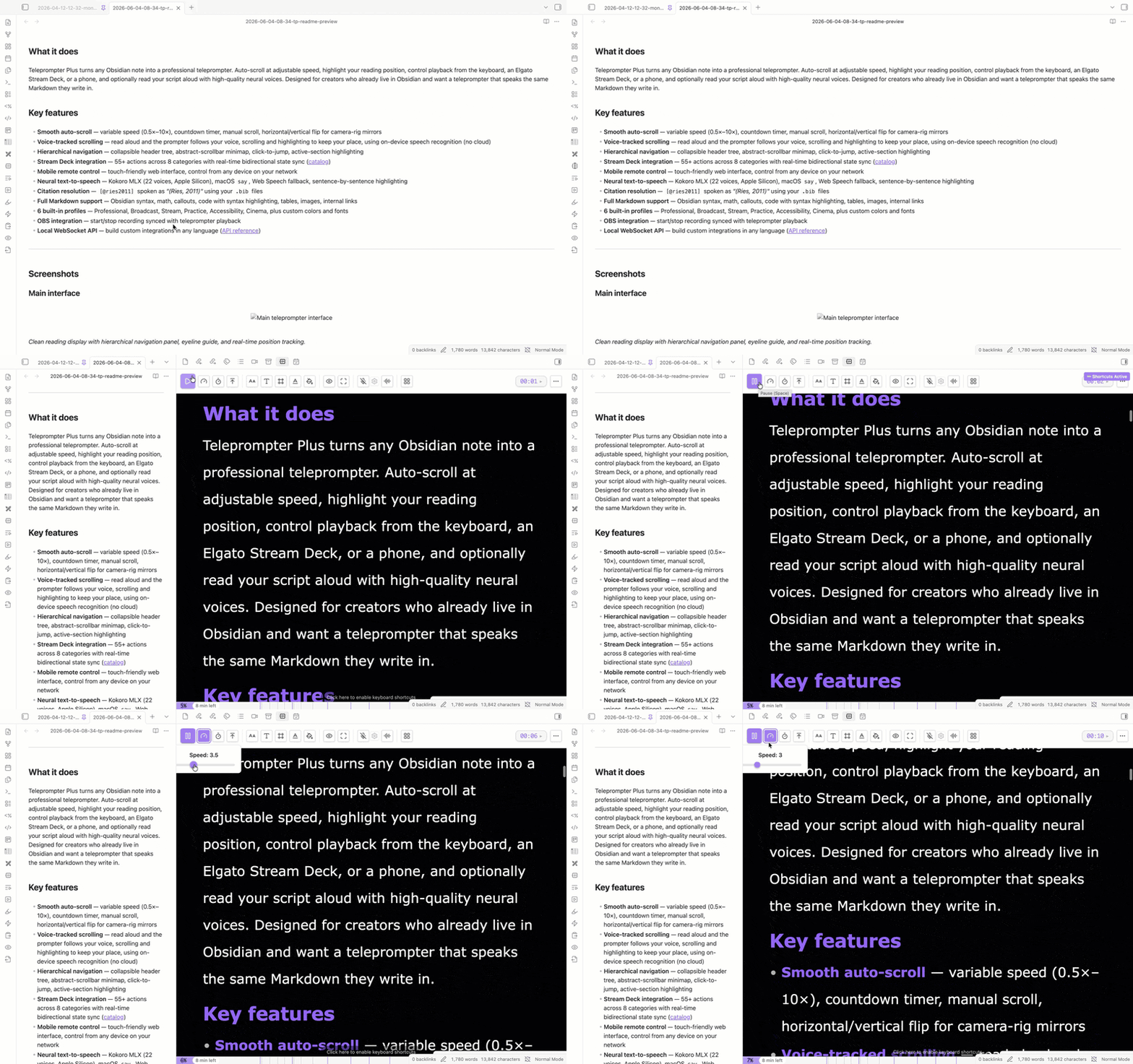
Clean reading display with hierarchical navigation panel, eyeline guide, and real-time position tracking.
Mobile remote
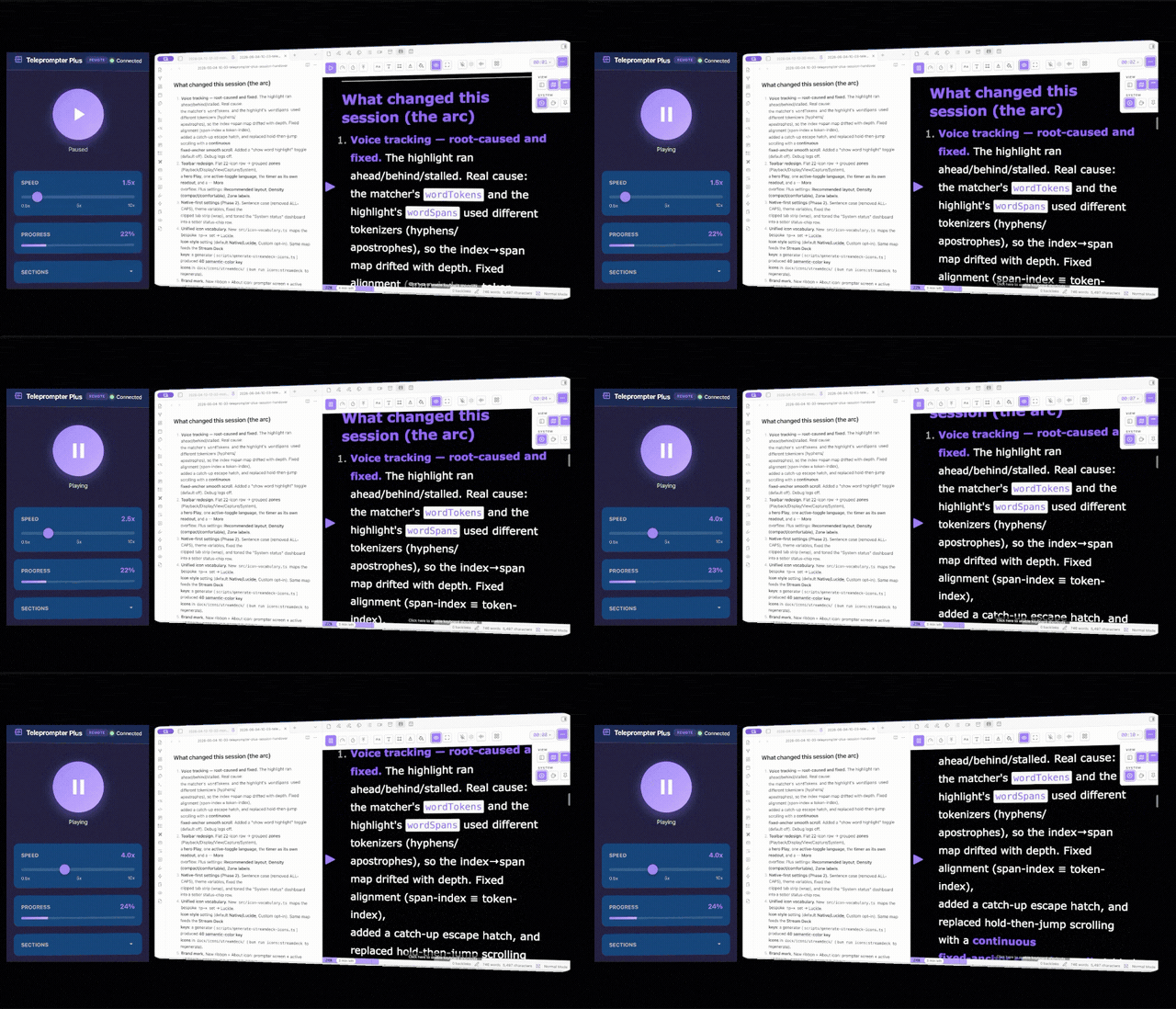
Touch-friendly remote — phone, tablet, or second computer on the same network.
Stream Deck
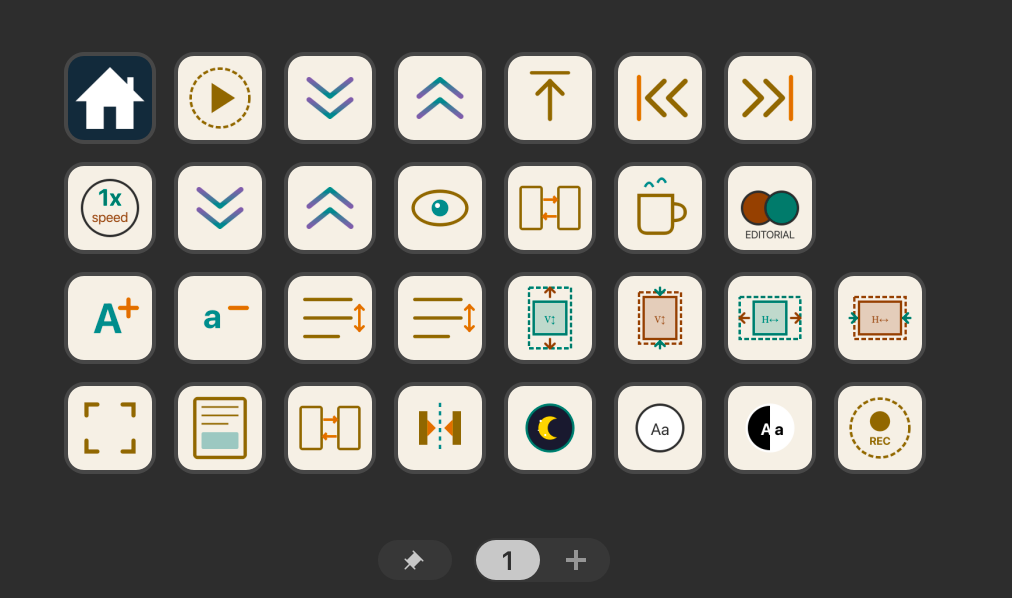
55+ hardware actions with live state synchronization across all controls.
Settings
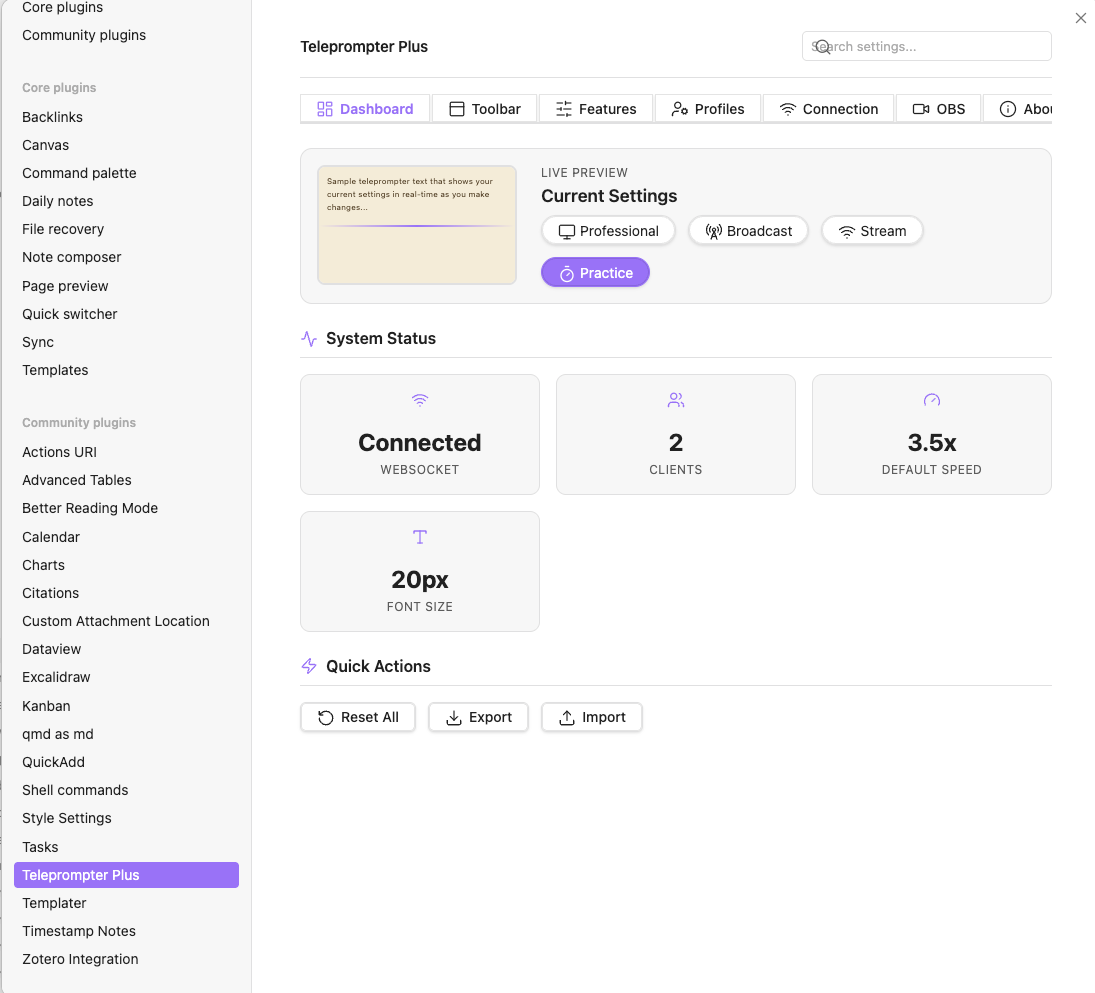
Six-tab settings: Dashboard, Toolbar, Features, Profiles, Connection, About.
Installation
Community Plugin browser (recommended once published)
Obsidian → Settings → Community plugins → Browse → search Teleprompter Plus → Install → Enable.
Manual install
- Download
main.js,styles.css, andmanifest.jsonfrom the latest release. - Place them in
<your-vault>/.obsidian/plugins/teleprompter-plus/(create the folder if needed). - Obsidian → Settings → Community plugins → Reload → enable Teleprompter Plus.
Build from source
git clone https://github.com/JuracyAmerico/obsidian-teleprompter-plus.git
cd obsidian-teleprompter-plus
bun install
bun run build
# copy dist/main.js, dist/styles.css, and manifest.json into your vault's plugins folder
See CONTRIBUTING.md for the full development setup.
Quick start
- Open — click the teleprompter ribbon icon, or run Open Teleprompter Plus from the command palette (
Cmd/Ctrl + P). - Pick a note — the active note loads automatically and updates live as you edit.
- Play — click Play (or press your hotkey). Adjust speed with
+/−, font size withAa+/Aa−. - Navigate — click any header in the side panel to jump there. Click the minimap on the right to scrub.
- Reset — Reset returns to the top.
For 25+ keyboard commands, see Obsidian → Settings → Hotkeys → Teleprompter Plus.
Settings overview
| Tab | What's there |
|---|---|
| Dashboard | Live preview, quick profile picker, health status |
| Toolbar | Choose which controls appear in the teleprompter toolbar |
| Features | Collapsible cards by category — appearance, playback, navigation, voice, OBS, WebSocket |
| Profiles | 6 built-in profiles + your own saved configurations |
| Connection | Optional local WebSocket server for Stream Deck + mobile remote |
| About | Plugin info, shortcuts, credits |
Stream Deck
55+ actions across 8 categories — Playback, Speed, Font, Navigation, Display, Utility, Countdown, Flip. Real-time bidirectional state sync: the Stream Deck button updates live when you change the teleprompter from any source.
{ "command": "toggle-play" }
{ "command": "set-speed", "value": 3 }
{ "command": "jump-to-header", "value": 1 }
Full action catalog, configuration steps, and Stream Deck plugin setup: docs/stream-deck-actions.md.
WebSocket API
A local-only WebSocket server (default ws://127.0.0.1:8765) lets you build custom controls in any language.
const ws = new WebSocket('ws://127.0.0.1:8765')

ws.onopen = () => ws.send(JSON.stringify({ command: 'play' }))

ws.onmessage = (e) => {
  const msg = JSON.parse(e.data as string)
  if (msg.type === 'state') console.log('speed:', msg.data.speed)
}
Full command list, state shape, and integration examples: docs/websocket-api.md.
Privacy — the server binds to
127.0.0.1only. No LAN or internet exposure by default. The mobile remote piggy-backs on your existing Obsidian session over the same loopback bridge.
Text-to-Speech
Three offline engines, selected automatically based on availability, plus one optional cloud engine:
- Kokoro MLX (best quality, Apple Silicon) — 22 voice presets (male/female, American/British English), audio-synced scrolling, sentence-by-sentence highlighting. See docs/tts-setup.md for the one-time Python venv install.
- macOS
say— built-in system voices (Samantha, Daniel, etc.). No setup. - Web Speech API — universal fallback. Quality varies by OS and browser engine.
- ElevenLabs (optional, cloud, paid — bring your own key) — high-quality neural voices via the ElevenLabs API. Off by default and never auto-selected; choose it explicitly in settings and paste your own API key. See the privacy note below.
Pause/resume from the toolbar or keyboard. Citations are resolved from your bibliography (Quarto/Pandoc .bib files).
Network use & privacy
All default engines run fully offline — no audio or text leaves your machine. The ElevenLabs engine is the one exception and is strictly opt-in: when you explicitly select it and provide your own API key, the text of the script you are reading is sent to ElevenLabs' servers to synthesize audio, and playback consumes credits on your ElevenLabs account. No key is bundled with the plugin, and nothing is sent to ElevenLabs unless you turn the engine on. Prefer to keep everything local and free? Use Kokoro, macOS say, or Web Speech.
Troubleshooting
Most common issues:
| Issue | Fix |
|---|---|
| WebSocket port already in use | Settings → Connection → change port (default 8765). Click Restart server. |
| Stream Deck not connecting | Settings → Connection → Restart server. Confirm the Stream Deck plugin is installed and points at the same port. |
| Plugin doesn't appear after install | Verify <vault>/.obsidian/plugins/teleprompter-plus/ contains main.js, styles.css, manifest.json. Reload Obsidian (Cmd/Ctrl + R). |
| Content not updating when switching notes | Close and reopen the teleprompter view. |
| Fullscreen looks wrong | Plugin fullscreen is in-window. For true OS fullscreen, use Obsidian's View → Toggle Fullscreen first. |
| Pin window does nothing | macOS and Windows only. Some Linux window managers override this. |
Full troubleshooting guide: docs/troubleshooting.md.
Architecture
%%{init: {'theme':'base', 'themeVariables': {
  'background':'#0a0a0a',
  'primaryColor':'#001a26',
  'primaryTextColor':'#e0fbff',
  'primaryBorderColor':'#00d4ff',
  'secondaryColor':'#1a0a02',
  'tertiaryColor':'#001824',
  'lineColor':'#00d4ff',
  'fontFamily':'Inter, sans-serif'
}}}%%
flowchart LR
    subgraph Clients["🎮 EXTERNAL CLIENTS"]
        direction TB
        StreamDeck["Stream Deck<br/>55+ actions"]
        Mobile["Mobile Remote<br/>touch web UI"]
        Custom["Custom Scripts<br/>TS · Node · Python"]
    end

    subgraph Bridge["🔌 WEBSOCKET BRIDGE"]
        direction TB
        WS["ws://127.0.0.1:8765<br/><i>loopback only</i>"]
        Commands["Command Router"]
        Broadcast["State Broadcaster"]
        WS --> Commands
        WS --> Broadcast
    end

    subgraph Obsidian["📔 OBSIDIAN PLUGIN"]
        direction TB
        Plugin["Plugin Entry<br/>main.ts"]
        View["Teleprompter View<br/>ItemView"]
        Settings["Settings Manager"]
        Plugin --> View
        Plugin --> Settings

        subgraph Core["Core Components"]
            direction LR
            Svelte["Svelte 5 UI"]
            Markdown["Markdown<br/>marked + hljs"]
            State["State<br/>$state · $effect"]
        end
        View --> Core
    end

    subgraph Branches["⚡ SIDE BRANCHES"]
        direction TB
        TTS["TTS Engines<br/>Kokoro · say · Web Speech"]
        Cite["Citation Resolver<br/>[@key] → (Author, Year)"]
        OBS["OBS Service<br/>recording sync"]
    end

    StreamDeck <-->|"commands ⇄ state"| WS
    Mobile <--> WS
    Custom <--> WS
    Bridge <-->|"local IPC"| Plugin
    View --> TTS
    View --> Cite
    Plugin --> OBS

    classDef client fill:#1a0a02,stroke:#FF6B00,stroke-width:2px,color:#FF6B00
    classDef bridge fill:#001824,stroke:#00d4ff,stroke-width:3px,color:#00d4ff
    classDef obs fill:#001a26,stroke:#00d4ff,stroke-width:2px,color:#00d4ff
    classDef branch fill:#001824,stroke:#00d4ff,stroke-width:2px,stroke-dasharray: 5 5,color:#e0fbff

    class StreamDeck,Mobile,Custom client
    class WS,Commands,Broadcast bridge
    class Plugin,View,Settings,Svelte,Markdown,State obs
    class TTS,Cite,OBS branch
Orange = command sent from a client. Cyan = state update broadcast back. All traffic stays on
127.0.0.1— never on LAN.
A richer Excalidraw version of this diagram is in docs/architecture.excalidraw — open it in Obsidian (with the Excalidraw plugin) to view, edit, or export to PNG/SVG for slides and presentations.
Design system, component reference, and icon catalog: docs/.
Contributing
Pull requests welcome. See CONTRIBUTING.md for the tech stack, project structure, build workflow, code style, and contribution guidelines.
Changelog & roadmap
Full version history in CHANGELOG.md. Latest release: see the Releases page.
Have an idea? Open a discussion or submit an issue.
Credits & license
Created by Americo (@JuracyAmerico).
Built with Obsidian, Svelte 5, TypeScript, Vite, marked.js, highlight.js, and ws.
Acknowledgements
The voice-tracking matcher (speech-to-script alignment) is ported from
jlecomte/voice-activated-teleprompter
(MIT) — its Levenshtein look-ahead algorithm and tokenizer are the basis for
src/voice/speech-matcher.ts, word-tokenizer.ts, and levenshtein.ts, with the
edit-distance core from js-levenshtein (MIT).
Thank you to those projects.
MIT License. Copyright © 2024–2026 Juracy Américo. See LICENSE.
Support
If this plugin saves you time, you can support continued development:

For plugin developers
Search results and similarity scores are powered by semantic analysis of your plugin's README. If your plugin isn't appearing for searches you'd expect, try updating your README to clearly describe your plugin's purpose, features, and use cases.