by thejaz
Quick daily planning, accurate credits, and compact reviews using your existing plain Markdown.
THEJAZ Planner
Plan your day, log what you actually did, and review where your time went, all in ordinary Markdown daily notes that stay readable and editable without the plugin.
- Quick daily planning. Type
14:30 30 prjand Planner writes- [ ] 14:30 (30) : prjinto today's note. End times, durations and split credit (20-30/50 wrk & party) are calculated for you;nowandfillstand for the current time and the gap before the next activity. - Accurate totals. Each day keeps plain
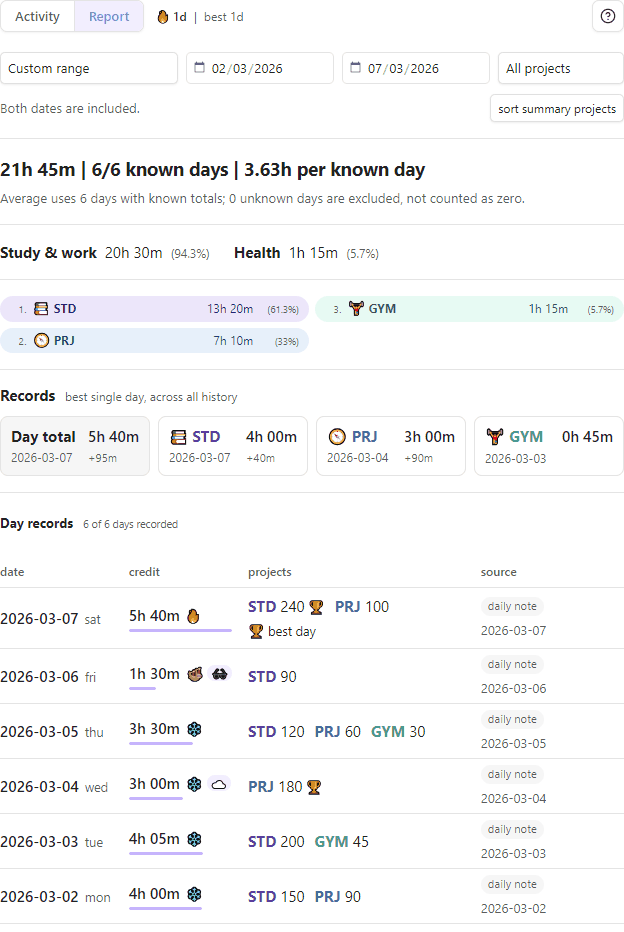
PRJ = 60…SUM = 60totals, and summary notes collect per-day minutes and markers across a period. Planner never silently rewrites figures it cannot verify. - Reviews and records. The Report view shows totals, group shares, ranges,
streaks, your best day per project, and a day-by-day list with each day's
markers and source note. A day that beats every earlier day is marked
==new record==in its summary. - Tidy logs. Correct times, shift plans, and combine repeated rows such as
nve,org,nveinto onenve & orgrow. Advisory warnings read once, link to their lines and can be ignored. - Keyboard first. Single-key row actions, Undo/Redo, and a built-in keyboard
reference (
?). - Safe by design. Every change previews or can be undone, a concurrent edit blocks the write, and interrupted operations can be recovered.
Screenshots
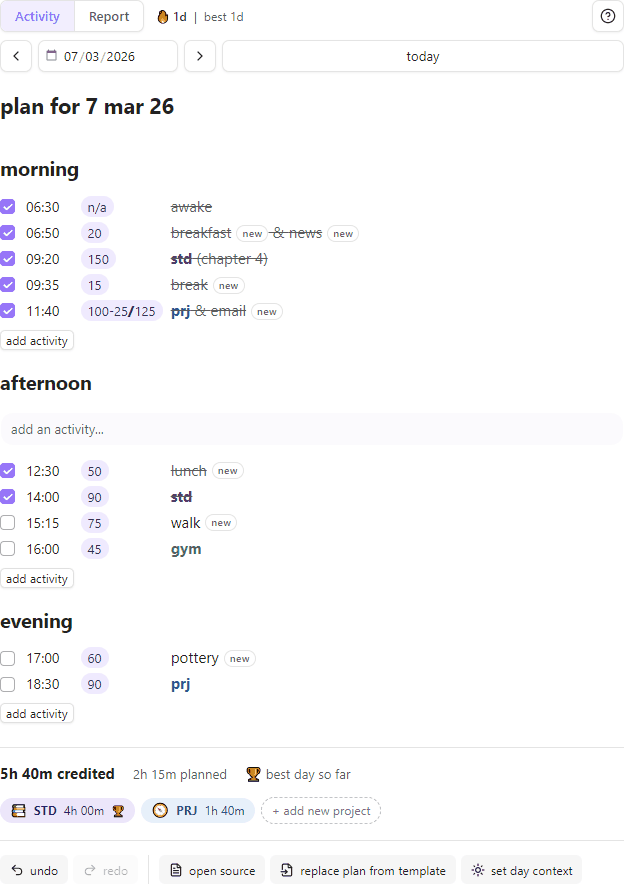
Activity. Plan the day, check off what you did, and see credited time per project.
Report. Totals, group shares, records, and a day-by-day list for any range.
Getting started
- Install and enable THEJAZ Planner in Settings → Community plugins.
- Run THEJAZ Planner: Open planner from the command palette, or click the sun icon in the ribbon.
- Pick a day and choose Create day: start blank, from your own routine
notes, or from 🌞 ordinary day, which Planner then adds to your routines
folder (
THEJAZby default) as a note you can edit. Planner creates the daily noteYYYY-MM-DD.md, which starts with## plan for 5 oct 26. If you already keep dated notes, choose a prefix or suffix in Settings > Daily setup (for exampleplan 2026-10-05.md) so they are left alone. - Optionally create
thejaz-summary-now.mdfor period totals andthejaz-criteria.mdfor marker rules. See the user guide.
A minimal daily note looks like this. Each time is when that activity ended, and the number in parentheses is its minutes:
## plan for 5 oct 26

### morning
- [x] 08:00 (n/a) : awake
- [x] 09:30 (90) : prj
- [ ] 10:00 (30) : std

---

PRJ = 90
SUM = 90
A dated note without a plan heading is never changed. Creating a day whose name such a note already uses asks before adding a plan above its text.
Quick entry
Fields follow the order of a source row: end time, minutes, activity. Time and minutes are optional.
| You type | Planner saves |
|---|---|
prj | the default block (40 minutes) after the selected row |
50 prj | 50 minutes after the selected row |
14:30 prj | ends 14:30; minutes calculated from the previous end time |
now prj | ends now, in your configured time zone |
fill : prj | ends where the next activity starts, filling the gap |
14:30 70/120 prj | 70 minutes of credit out of 120 elapsed |
22:25 35-35/70 prj & std | 35 minutes for each project |
14:30; 30; read 2 chapters | semicolons separate fields, so names may hold numbers |
... or 14:00 > | a gap, or a restart anchor after one |
Only registered project codes earn credit; other words are ordinary activities. A name no earlier day has used carries a small new tag.
Keyboard
| Key | Action |
|---|---|
| Up / Down, Shift + Up / Down | Select an activity, or extend the selection |
A / E / Space | Add below, edit, toggle completion |
S / R / M | Shift, correct, or combine the selected activities |
D / K / J / X | Duplicate, move up, move down, delete |
V / C / , / ? | Activity/Report, day context, settings, help |
| Ctrl + Z / Ctrl + Shift + Z | Undo / redo the last planner change |
Keys work while the planner has focus and never while you type in a field.
Privacy and data
- Planner makes no network requests and collects no telemetry. Its only web address is a link to the author's GitHub page in Settings, which opens in your browser when you click it.
- It reads candidate daily notes, summary notes, the shared criteria note and routine templates in your vault to recognize planner content. It changes planner notes through the actions and automatic totals described in the user guide.
- Settings and local working data live in its plugin folder, normally
.obsidian/plugins/thejaz-planner/(under your configured vault config folder).index.jsoncaches the full text of indexed planner days and summaries. Recovery snapshots can contain full daily-note text, other small-note text, changed text and settings checkpoints for undo and crash recovery. - Finished recovery history is pruned when saved: at most 30 days, 100 resolved operations and about one million stored characters. Pending/interrupted operations and unfinished summary updates remain until resolved, even beyond those limits. Two alternating recovery snapshots protect against failed saves; an older copy can remain until replaced. These limits are not secure deletion.
- Cache and recovery files are readable local data, not encrypted by Planner. Treat them like your notes: exclude them from public repositories and support uploads. Planner does not transmit them; your sync or backup tools may include them according to your configuration.
- No plugin-specific metadata is added to your notes. Settings, project groups and ignored warnings are kept in the plugin folder; record marks and totals are ordinary Markdown you can edit or remove.
Desktop only. Windows is the tested platform.
Install
Install THEJAZ Planner from Settings → Community plugins → Browse. To update an existing installation, check for updates in Community plugins.
For a manual install or update, download main.js, manifest.json, and
styles.css from the latest GitHub release.
Disable Planner if it is running. Copy those three files into
.obsidian/plugins/thejaz-planner/ in your vault, creating the folder on first
install. Keep the other files in that folder to preserve settings and Undo
history. Reload Obsidian and enable THEJAZ Planner.
The user guide covers everything else: moving from the old
plain-planner ID, plans, summaries, markers, project management, review, and
recovery. Developer notes: Maintaining Planner.
Created by THEJAZ.
For plugin developers
Search results and similarity scores are powered by semantic analysis of your plugin's README. If your plugin isn't appearing for searches you'd expect, try updating your README to clearly describe your plugin's purpose, features, and use cases.