by paipa03
View 3D models in notes and flip through every model in a folder. Plays animations with skeleton view, studio lighting, transparent or colored background and screenshots. FBX, glTF, OBJ, STL and more.
3D Model Gallery
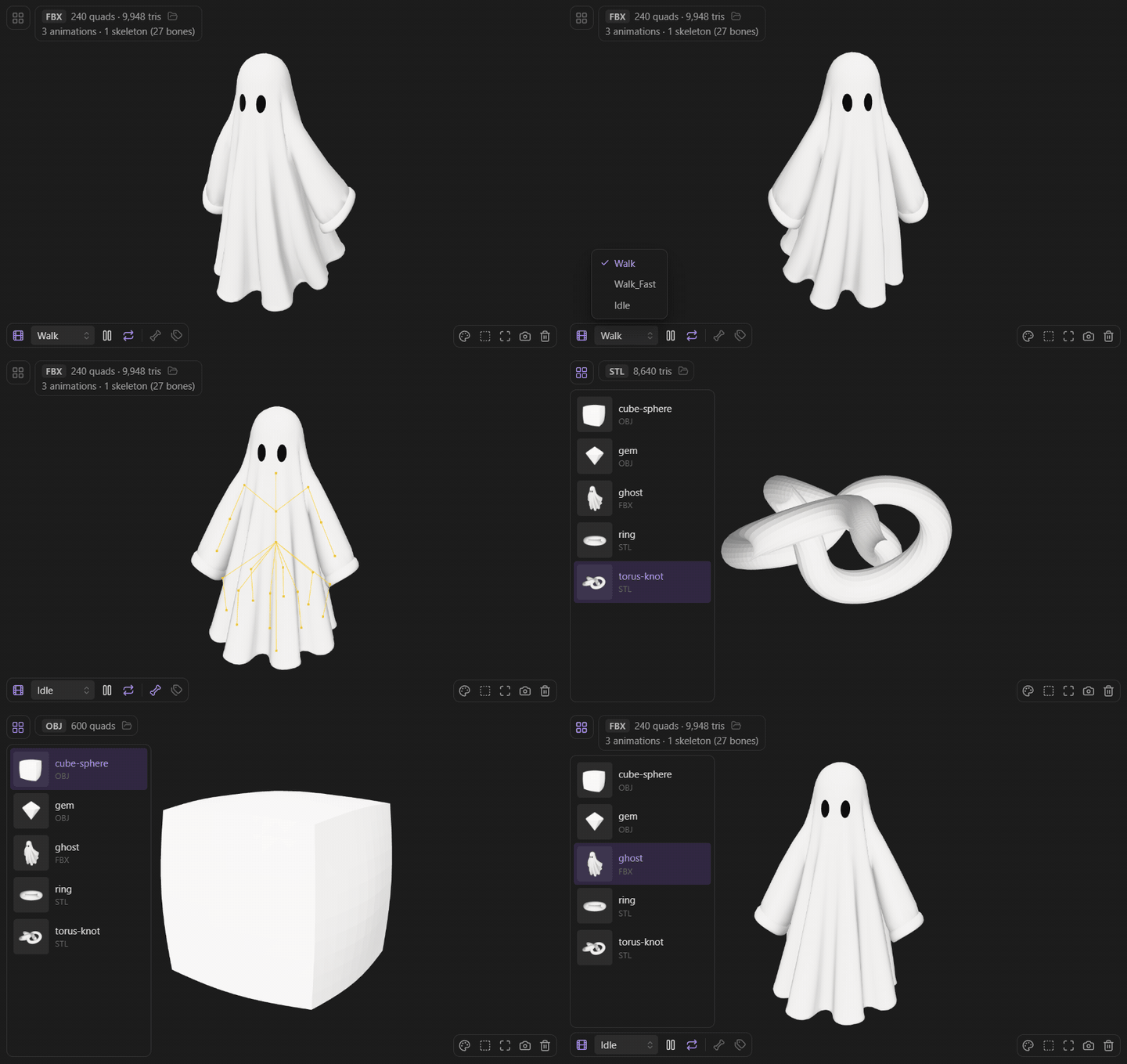
Look at 3D models right inside your notes — flip through every model in a folder and play their animations.
Features
- Drop a model into a note — from your file manager or from Obsidian's file list — and it becomes a viewer. Textures the model uses are found next to the original file and copied along.
- 3D gallery: the button at the top left lists every 3D file in the same folder with a preview, name and format. Click one to switch the viewer to it.
- Animations: animated models start looping their first clip. The bar at the bottom left turns animation on / off, picks the clip, plays / pauses, toggles looping, and shows the skeleton and bone names.
- Model info: format, face count (quads / tris / n-gons for FBX and OBJ), number of animations, skeletons and bones, and a button to show the file in your file manager.
- Soft studio lighting that turns with the camera, on a transparent or any color background.
- Screenshots at 1–4× the on-screen size, transparent when the background is. Saved where you choose (or next to the model), and copied to the clipboard.
- Remembers each view: camera angle, chosen model, clip, loop, skeleton — still there after closing the note or restarting Obsidian.
- Fast: every block shares one renderer and parsed models are cached, so reopening a note doesn't reload anything.
- Loads only what you can see: a viewer folded inside a collapsed Editor Enhancer toggle list doesn't load its model until you open the toggle, so notes full of models open without a wait.
Formats: FBX, glTF / GLB, OBJ (+MTL), STL, PLY, 3DS, DAE, 3MF, AMF.
Quick start
- Drag a model file into a note.
- Drag to rotate, scroll to zoom, right-drag or Shift-drag to pan.
- Click the grid button (top left) to browse the other models in the folder.
- Hover the viewer for the toolbar (bottom right): background color, transparent, fit, screenshot, remove.
Or run the command Insert 3D model to pick a model already in your vault.
Settings
| Setting | What it does |
|---|---|
| Default background | Transparent or a color for new blocks. The palette button in a block overrides it for that block. |
| Default height | Height of a block in pixels. |
| Light brightness | Overall strength of the lighting. |
| Render quality | Auto, Fast (lower resolution and smaller textures) or Sharp. Shows which device renders the models. |
| Show model info | The info box at the top left. |
| Screenshot size | 1–4× the on-screen size. |
| Save screenshots next to the model | Off: asks where to save. On: saves in the model's folder without asking. |
| Copy screenshots to the clipboard | On by default. A short note appears in the viewer when it's done. |
| Language | Follow Obsidian, English or 中文. |
3D runs on your graphics card only when Obsidian's Settings → Appearance → Hardware acceleration is on; with it off, models still show but moving them is slower.
Your data
A viewer is a small fenced code block:
```3d-model
file: Models/ghost.fbx
background: transparent
height: 420
```
Only file is required. Models dropped in from outside the vault also get source: (their original path), which the gallery uses to list that folder. Models and textures stay ordinary files in your vault. Without the plugin you just see the code block.
For scripts
const api = app.plugins.plugins["three-d-model-gallery"].api;
api.blockText({ file: "Models/ghost.fbx" });          // the Markdown for a block
await api.insert({ file: "Models/ghost.fbx", line: 3 }); // insert into the active note
api.viewers();                                         // rendered blocks with stats, clips, screenshot()
Works on
Desktop (Windows, macOS, Linux). Importing from your file manager and galleries of folders outside the vault are desktop-only.
Works well with (optional)
- Editor Enhancer: drag the whole viewer like any other block, and fold viewers into toggle lists that load only when opened.
- Section Blocks: dropped models go to a
<note name> mediafolder next to the note.
Install
Settings → Community plugins → Browse, search 3D Model Gallery, Install, Enable.
For plugin developers
Search results and similarity scores are powered by semantic analysis of your plugin's README. If your plugin isn't appearing for searches you'd expect, try updating your README to clearly describe your plugin's purpose, features, and use cases.