Engineering 3D Viewer
unlistedby Abdulrahman S. Al-Batati
View STL, OBJ, PLY, 3MF, glTF and DAE meshes, PCL point clouds, URDF and xacro robots with their joints, and STEP and IGES CAD parts, in a tab or in a note.
Engineering 3D Viewer
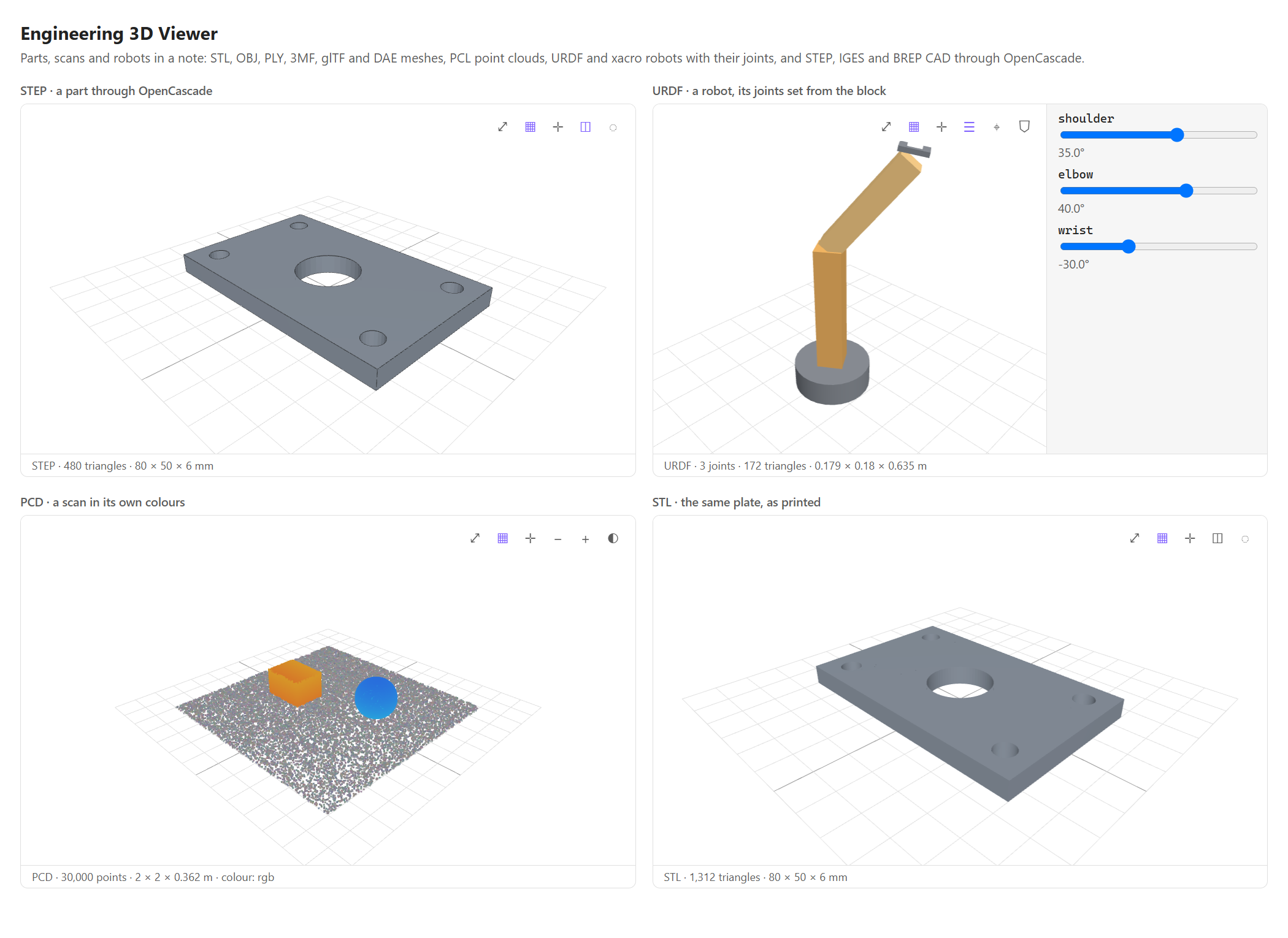
Parts, scans and robots inside Obsidian: open a 3D file in a tab, embed it in a note like an image, or draw it in a
```3d block with its own options. Meshes from CAD and 3D printing, point clouds from PCL, URDF and xacro robots
with a slider for every joint, and STEP, IGES and BREP parts through OpenCascade.
What it opens
| Kind | Extensions | Read as |
|---|---|---|
| Meshes | .stl .obj .ply .3mf .glb .gltf .dae | three.js's own loaders. STL and 3MF in millimetres with Z up, as 3D printing writes them; OBJ, glTF and Collada in metres with Y up. A file's own colours are kept. |
| Point clouds | .pcd .xyz | PCL's PCD (ASCII, binary and compressed binary) and plain XYZ, with or without colours. |
| Robots | .urdf .xacro | The links, the joints and their limits. Meshes named package://<pkg>/… or by a relative path are found for you (see Robots). |
| CAD parts | .step .stp .iges .igs .brep | OpenCascade, compiled to WebAssembly by occt-import-js: the exact geometry, tessellated in the viewer, with the colours the file gives its faces. |
Sizes are shown in the file's unit (millimetres for CAD and STL, metres otherwise) unless a setting or the block names another; Z points up for CAD, printing and ROS files and Y for glTF and its kin, unless you say otherwise.
Three ways to see a model
Open the file. A click on bracket.step in the file explorer opens it in a tab of its own.
Embed it, the way you embed an image: ![[bracket.step]]. Options go after #, joined by &:
![[arm.urdf#height=500&joints=shoulder=30,elbow=-45]]
Draw it in a block, with as many options as you like, one per line:
```3d
file: robots/arm_description/urdf/arm.urdf
height: 520
joints: shoulder=35, elbow=40, wrist=-30
collision: off
```
The file may be a vault path, a [[wikilink]], a name Obsidian can resolve, or on a computer a path outside the vault:
C:\Parts\bracket.step or file:///home/me/scans/room.pcd. The command Open a 3D file from this computer opens
one in a tab without copying it into the vault.
| Option | Values | |
|---|---|---|
file | a path, a link or a name | The first line may be the path alone. |
height | 120 to 2000 | In pixels. |
background | theme, transparent, #rrggbb or a colour name | |
up | y or z | The axis that points up. |
units | mm, m or in | The unit sizes are shown in. |
grid, axes, edges, wireframe, collision | on or off | |
color | #rrggbb or a colour name | For a model whose file gives it no colour. |
points | 1 to 10 | Point size, in pixels. |
color by | auto, rgb, height or solid | How a point cloud is coloured. |
joints | name=degrees, … | A robot's pose. Prismatic joints take metres. |
An option it cannot read is named under the model, and the rest still apply.
In the viewer
Drag to turn the model, drag with the right button to move it, and scroll to zoom; on a touch screen, one finger turns and two fingers zoom and move. The buttons in the corner fit the view, show the grid and the axes, draw the edges or the wireframe, change a cloud's point size and colouring, and open a robot's joints and frames. The line under the model says what it is: the format, its joints, points or triangles, and its size.
A model draws only once it is on screen, at most six at a time (a setting), and gives its graphics context back when its note closes, so a long note full of parts stays light.
Robots
A URDF's meshes are looked for in this order: beside the URDF and in the folders above it (a ROS package keeps
urdf/ and meshes/ side by side), in the package folders the settings name, and then anywhere in the vault, the
folder nearest to the URDF first. A xacro file is expanded before it is drawn: its properties, arguments with their
defaults, macros, conditions, includes and $(find <pkg>).
Every movable joint gets a slider within its limits; a continuous joint turns all the way round. Link frames puts each link's axes on the robot (X red, Y green, Z blue), drawn over the geometry so a frame inside a link still shows. A robot whose links have collision shapes gets a Collision geometry button, which shows what the robot collides with instead of what it looks like. The shapes are read with the robot, and a missing collision mesh is named under it like any other.
CAD parts and the engine file
STEP, IGES and BREP need OpenCascade, which comes as a separate file, occt-import-js.wasm (about 7.6 MB), beside the
plugin's main.js. It is read once, when the first CAD file opens, and kept while Obsidian runs. Obsidian's installer
downloads only main.js, manifest.json and styles.css, so take the engine file from the same release and put it in
<your vault>/.obsidian/plugins/engineering-3d-viewer/. The settings tab says whether it is there. Everything else
works without it.
Settings
| Setting | Default | |
|---|---|---|
| Height | 420 | Of an embed or a block, in pixels. |
| Background | theme | The theme's own, transparent, or a colour. |
| Grid, Axes, Edges | on, off, off | What is drawn with every model. |
| Up axis | Automatic | Each format's own, or always Y, or always Z. |
| Sizes shown in | Automatic | The file's unit, or millimetres, metres or inches. |
| Model colour | grey | For a model whose file gives it no colour. |
| Point size, Colour points by | 2, Automatic | For point clouds. |
| Package folders | none | Folders that hold ROS packages, one per line: vault paths, or paths on this computer. |
| Models drawn at once | 6 | The others wait until they are scrolled to. |
A file type that another plugin already opens is left to that plugin; the settings tab lists any such.
What it reads, and network use
It reads only the files you show it: the vault's, and on a computer the files outside the vault you name in a block, in the command, or as package folders. It writes no file except its own settings. It makes no network request.
Installing
From Settings → Community plugins, once it is listed there, then add the engine file for CAD parts as said
above. Until then, download main.js, manifest.json, styles.css and, for CAD parts, occt-import-js.wasm from
the latest release into
<your vault>/.obsidian/plugins/engineering-3d-viewer/, then turn it on under Settings → Community plugins. It
needs Obsidian 1.13 or later. Files outside the vault open only on a computer.
Developing
npm ci
npm test          # the formats, the options, the parsers (OpenCascade included) and the plugin, in Node
npm run lint      # eslint with eslint-plugin-obsidianmd
npm run build     # type-check, bundle main.js and copy the engine file beside it
npm run samples   # rewrite samples/: a plate as STEP and STL, a scan as PCD and XYZ, an arm as URDF and xacro
node docs/demo/build.mjs --shots   # the demo page and the two screenshots, with headless Edge or Chrome
The samples are written by scripts/, the STEP plate by a small writer of its own, so the repository holds no file
from elsewhere.
Third-party code
The viewer is built on three.js (MIT), urdf-loader
(Apache 2.0), xacro-parser (MIT) and
occt-import-js, which carries
Open CASCADE Technology (LGPL 2.1). All of them are bundled into main.js except the
engine's WebAssembly, which stays a file of its own and may be replaced by another build of the same version. Every
package in the bundle, with its licence text, is in THIRD-PARTY-NOTICES.md, which
npm run notices writes and a test keeps current.
License
MIT © 2026 Abdulrahman S. Al-Batati, for this plugin's own code.
For plugin developers
Search results and similarity scores are powered by semantic analysis of your plugin's README. If your plugin isn't appearing for searches you'd expect, try updating your README to clearly describe your plugin's purpose, features, and use cases.