by Jiwoo Roh
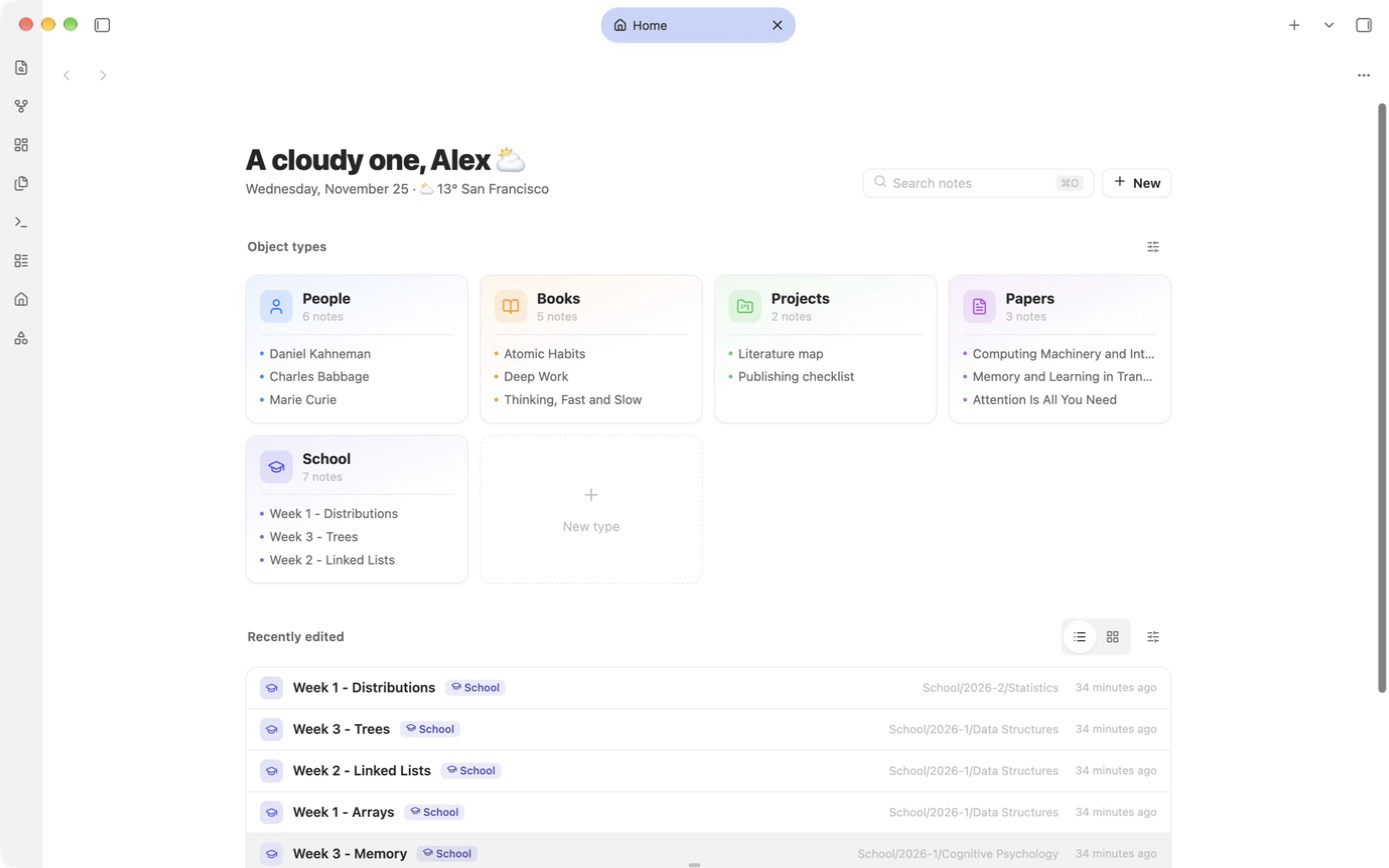
Folders become object types: a sidebar navigator with type pages and folder boards, a Home dashboard, a new-tab search panel and built-in view tabs for Bases.
Typefold
Folders become object types in Obsidian. Inspired by object-based note apps.
Register a folder as a type (People, Books, Projects, School…) and Typefold gives it a home in the sidebar, a page with a live board of everything in it, a banner and chips on every note, a Home dashboard, and a Notion-like search panel in every new tab. No frontmatter required: a note's type is the folder it lives in, and nested folders mean a note can belong to more than one type.
Features
Sidebar navigator
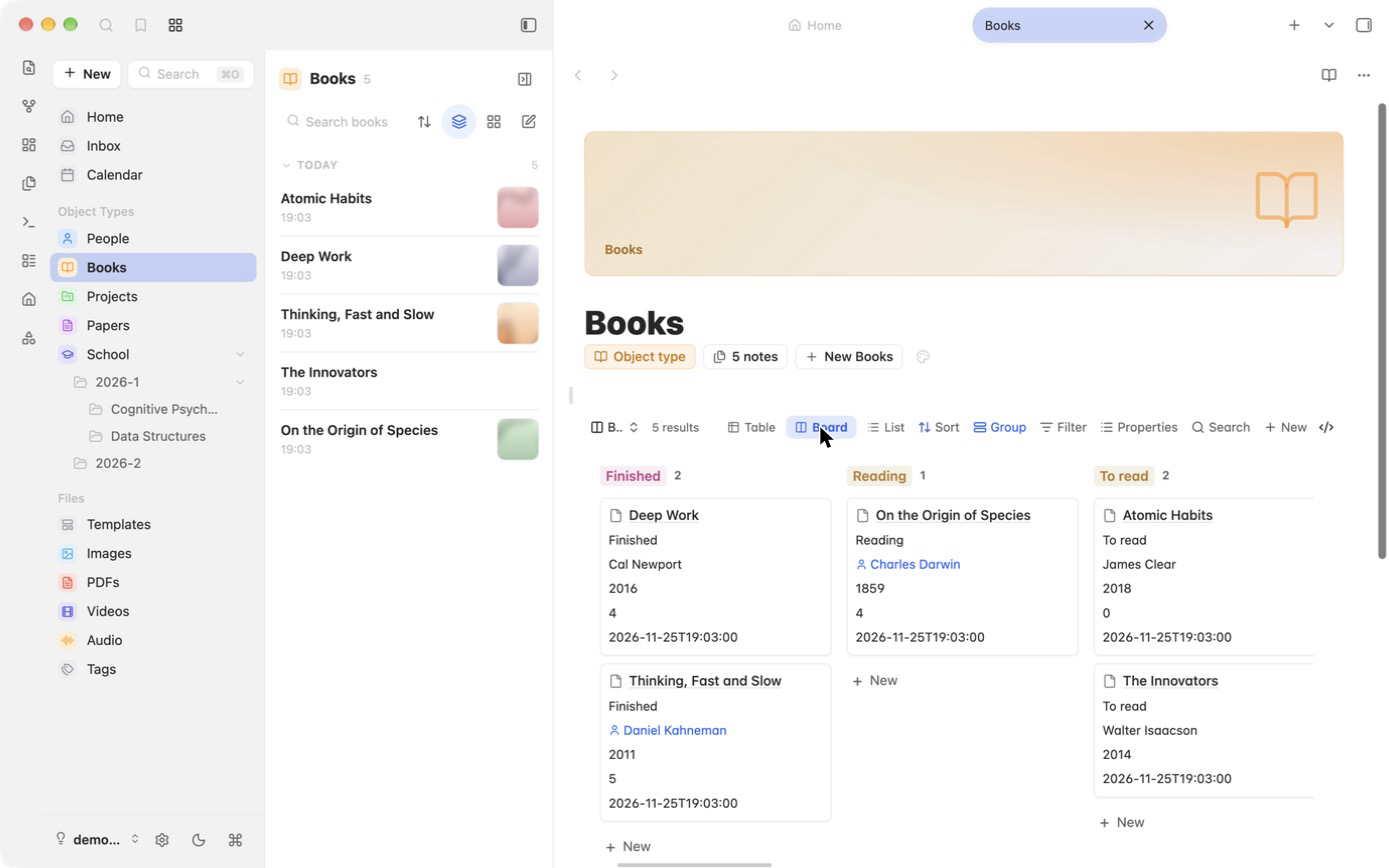
- Your types, each with its own icon and colour, and the full folder tree under each — subfolders, sub-subfolders and the files in them.
- An optional second panel lists the selected type or folder: sort by title / created / edited, group by date, folder (nested) or any property.
- Expand / collapse everything in one click, drag to reorder types, archive what you don't need to see.
- Can replace the core File explorer (breadcrumbs and "Reveal file" open here too).
Type pages and folder boards
- Clicking a type opens its page: a banner in the type's colour, chips, and an embedded Bases board of all its notes.
- With Folder notes, clicking a folder opens its folder note, and new folders get a board automatically.
- Each type can fill properties from its folder levels (e.g.
School/2026-1/Statistics→semester: 2026-1,course: Statistics) and give new notes default properties.
Notes
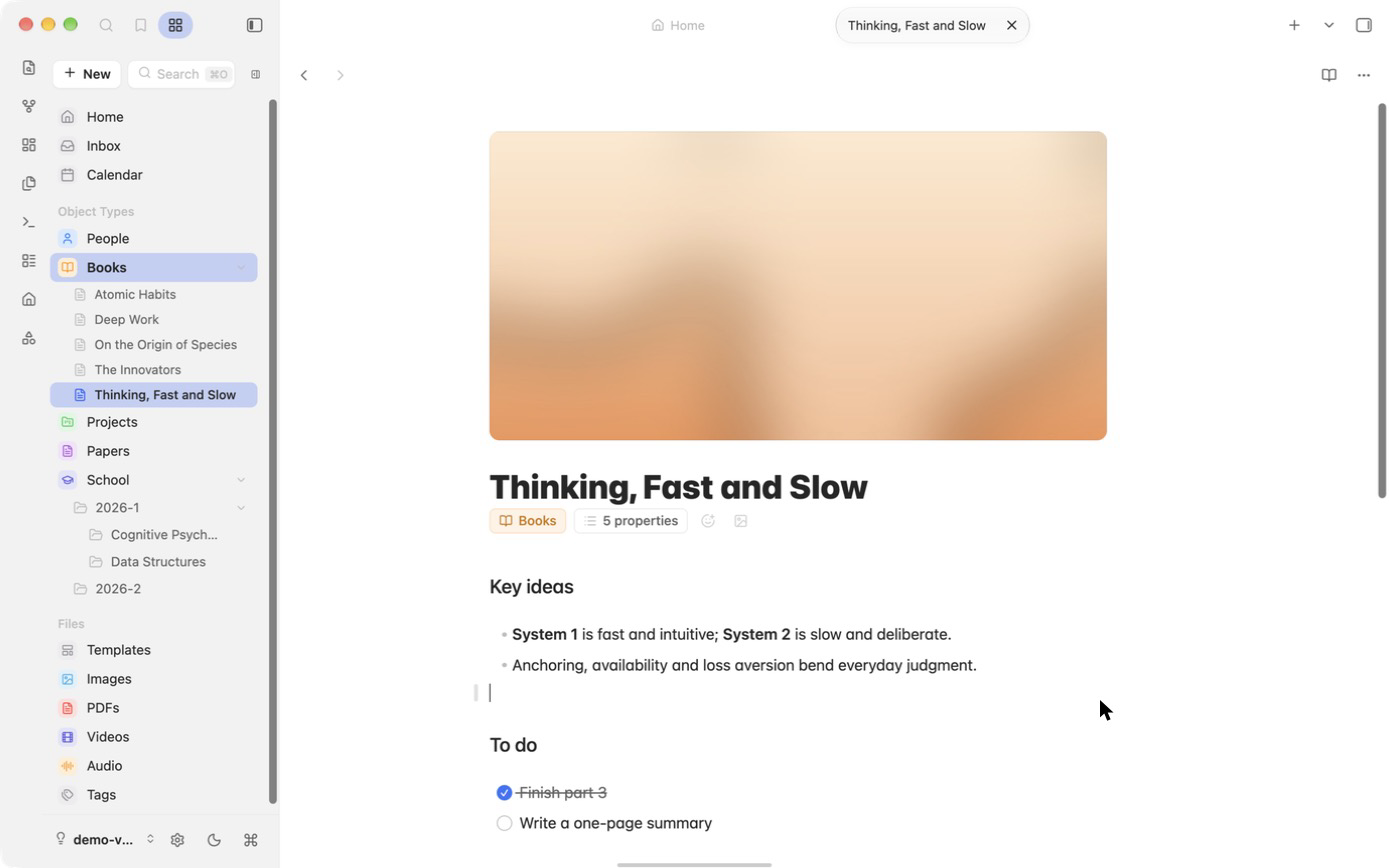
- Banner, icon and title, then type chips, a properties toggle, and buttons to set an icon or a banner.
- Links get a small icon of the linked note's type.
- Notes that link here, grouped by type, as cards at the bottom.
Home dashboard and new-tab search
- Home: a greeting that changes with the time, the day and the weather, every type as a card, and recently edited notes as a list or cards.
- Calendar: a month calendar at the top of the note list, with your daily notes listed newest first underneath. Days with a note get a dot; click a day to open its note or create it from your core Daily notes folder, format and template.
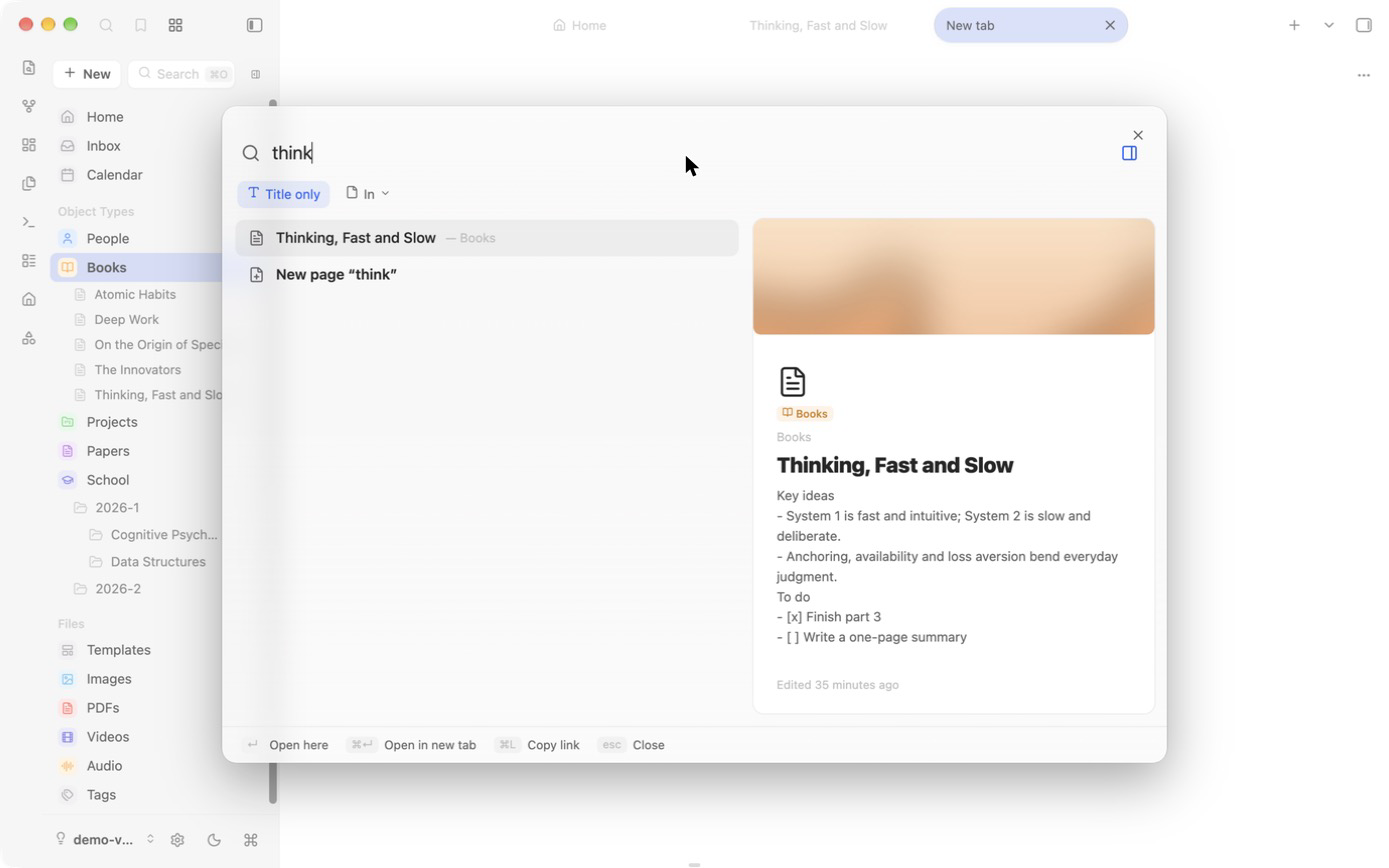
- New tab (⌘T): a search panel — recent notes grouped by date, fuzzy search, filter by type, preview on the right.
↵open ·⌘↵new tab ·⌘Lcopy link.
Built-in view tabs for Bases
Every base — opened on its own or embedded in a note — shows its views as tabs right after the result count. Right-click a tab to give it an icon and colour.
Works on mobile
Touch-sized rows and buttons, one pane at a time on phones, and the sidebar closes when you open a note.
Companion plugins (optional)
Typefold works on its own. These add to it, and Typefold's settings show each one with an Install / Enable button:
| Plugin | What it adds |
|---|---|
| Extended Base ✦ | Notion-style Board / List / Feed views for type pages and boards (otherwise core Table and Cards are used) |
| Folder notes | Folder pages and automatic boards for new folders |
| Iconize | Use and sync Iconize's icon packs and emoji |
| Notion-style Comments ✦ | Margin comments in the same style |
| Notion Selection Toolbar ✦ | A floating formatting toolbar in the same style |
✦ by the same author. The core Bases plugin should be enabled for type pages, boards and view tabs.
Getting started
- Install and enable Typefold.
- Right-click a folder in the file explorer → Register as object type… (or the + next to Object Types in the Typefold panel). Pick a name, icon and colour.
- Open Home from the sidebar, or press ⌘T to search.
A demo vault with sample People, Books, Projects, Papers and School notes is in demo-vault/. Open it with Open folder as vault, then install the companion plugins from the plugin's settings.
Settings worth knowing
- Use as default file explorer — hide the core File explorer and route its commands here.
- Open Home on startup, Search panel in new tabs, View tabs for Bases.
- Iconize icons — Use & sync or Ignore.
- Weather on Home — needs a place and latitude/longitude.
Privacy and network use
- The Home greeting can show the weather. This is off by default; when you turn it on, the plugin requests the current weather for the latitude/longitude you enter from open-meteo.com (no account, no key, nothing else is sent).
- No other network requests, analytics or telemetry.
Compatibility notes
Typefold reaches into a few Obsidian internals so it can feel built-in: it wraps the embed factory for .base files (view tabs in embedded bases), redirects the File explorer's reveal and the New tab command when you turn those options on, and reads Folder notes', Iconize's and Extended Base's settings when they are installed. All of this is undone when the plugin is disabled.
License
MIT © Jiwoo Roh
For plugin developers
Search results and similarity scores are powered by semantic analysis of your plugin's README. If your plugin isn't appearing for searches you'd expect, try updating your README to clearly describe your plugin's purpose, features, and use cases.