Typing Interface Hider
approvedby Sergey Bychkov
Hides Obsidian chrome while you type, then optionally restores it after idle delay or mouse movement. - This plugin has not been manually reviewed by Obsidian staff.
Typing Interface Hider
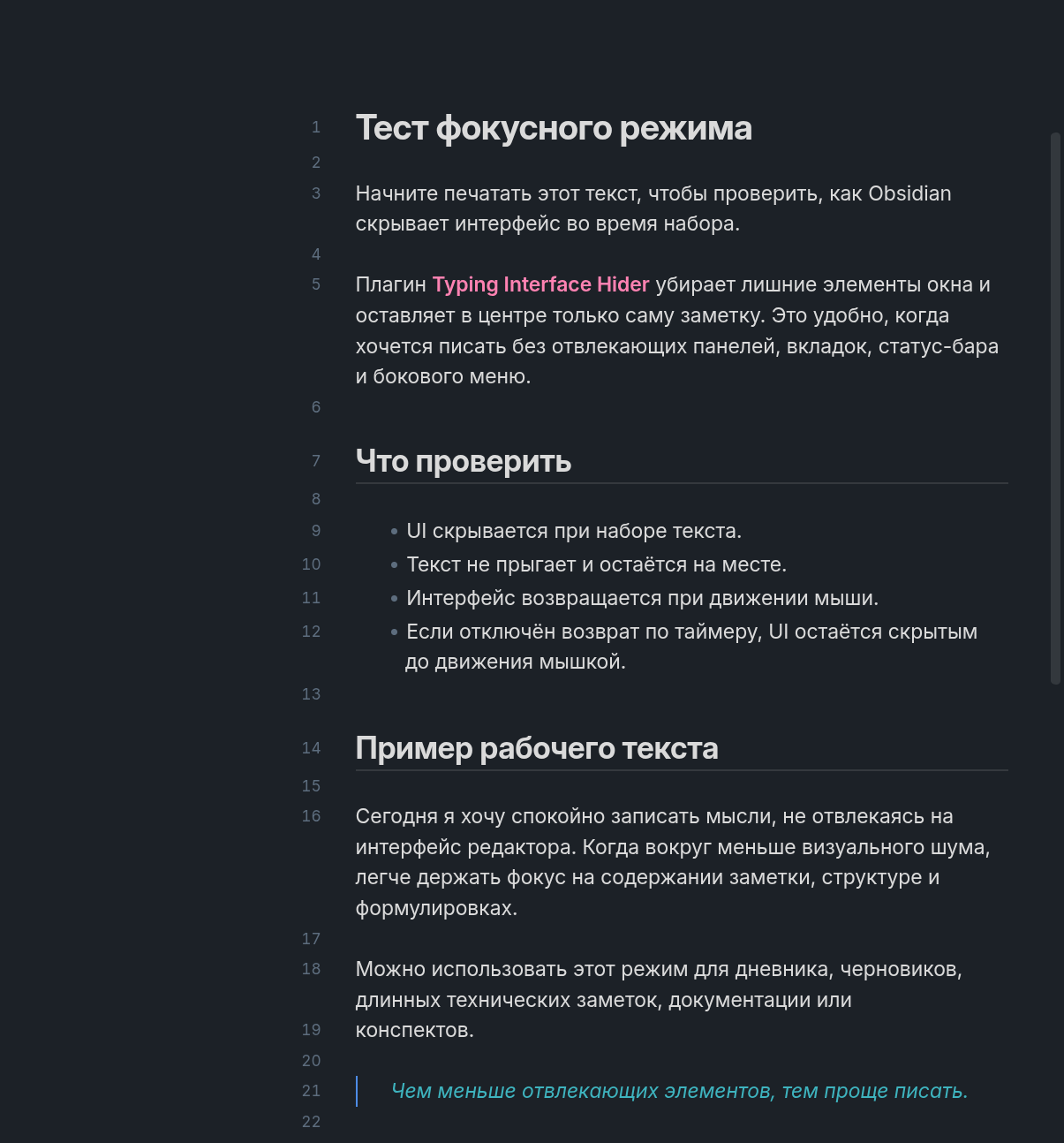
Typing Interface Hider is an Obsidian plugin that hides selected parts of the Obsidian interface while you type or optionally while you scroll, then brings them back when you stop typing/scrolling or move the mouse.
It is useful for a lightweight focus/zen typing mode without changing the note layout.
Screenshots
Typing focus mode:
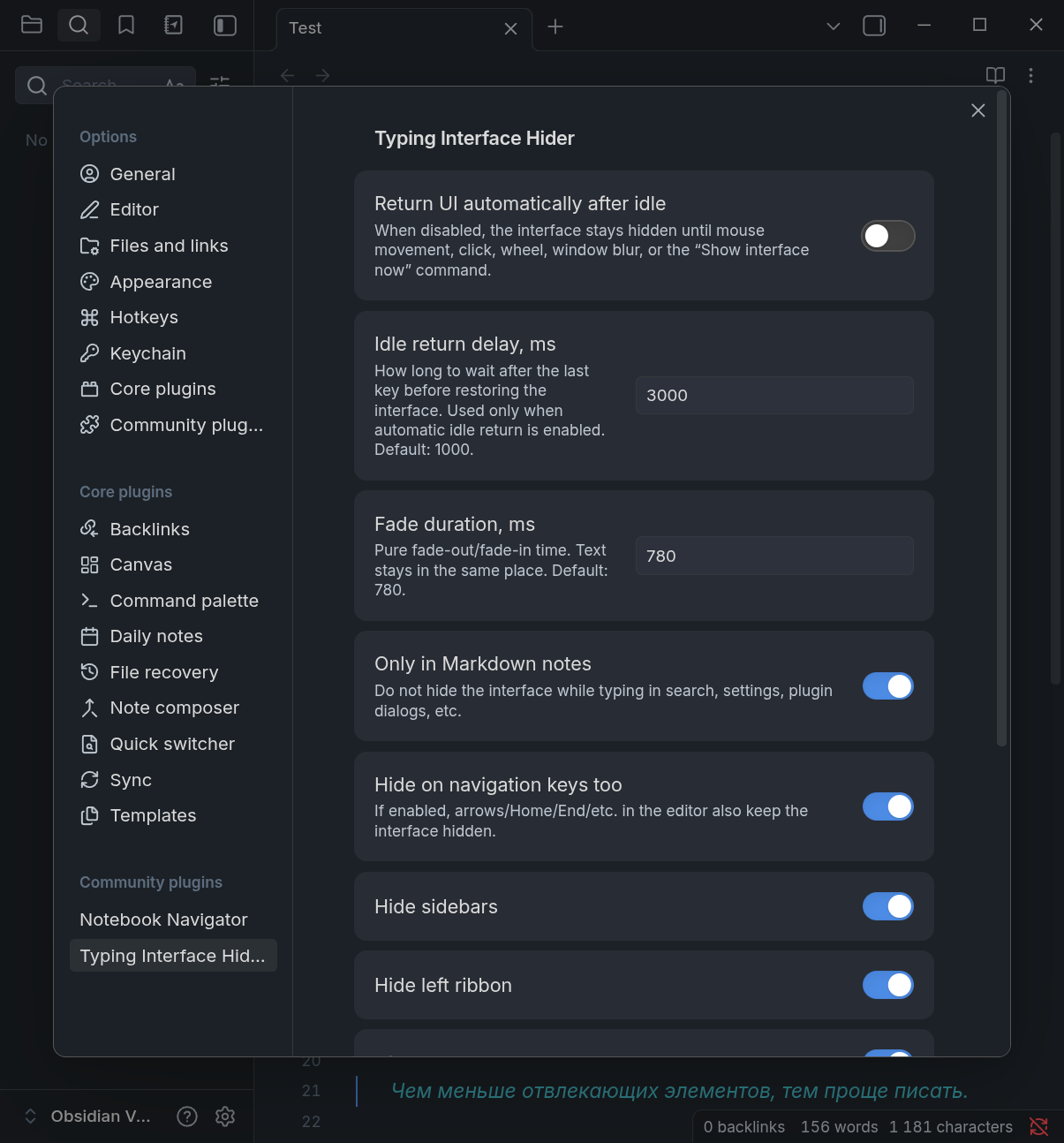
Settings:
Features
- Hide UI chrome while typing in Markdown notes.
- Optionally hide UI chrome while scrolling Markdown notes, including reading view.
- When hidden by scrolling, keep the UI hidden until intentional mouse movement, click, or window blur.
- Restore the UI on configurable mouse movement, click, scroll (when scroll hiding is disabled), or window blur.
- Optional automatic restore after an idle delay.
- Optional mouse-only restore mode: disable the idle timer and keep the UI hidden until you move the mouse.
- Configurable fade duration.
- Choose which UI areas to hide:
- sidebars
- left ribbon
- tab headers
- note header
- status bar
- window title bar
- scrollbars
Settings
- Return UI automatically after idle: controls automatic restore after typing/keyboard activity. Scroll hiding is separate and keeps the UI hidden for reading until mouse movement, click, window blur, or the command below.
- Idle return delay, ms: delay before restoring the UI after typing/keyboard activity stops.
- Mouse movement needed to restore, px: distance the mouse must move before the hidden UI returns. Raise it to ignore accidental small bumps while scrolling; set
0for immediate restore. - Fade duration, ms: fade-out/fade-in animation duration.
- Only in Markdown notes: avoid hiding the UI while typing in search, settings, plugin dialogs, and other Obsidian UI fields.
- Hide on navigation keys too: keep the UI hidden when using arrow/Home/End/Page keys in the editor.
- Hide while scrolling: hide the UI when scrolling a Markdown note, including in reading view. After scroll hiding, the UI stays hidden until intentional mouse movement, click, window blur, or the command below.
Commands
- Show interface now
- Hide interface now
Manual installation
-
Download
main.js,manifest.json, andstyles.cssfrom the latest release. -
Create this directory in your vault:
<vault>/.obsidian/plugins/typing-interface-hider/ -
Copy the files into that directory.
-
Reload Obsidian.
-
Enable Typing Interface Hider in Settings → Community plugins.
Development
This plugin is currently distributed as plain JavaScript without a build step.
To test locally, copy these files into an Obsidian vault plugin directory:
.obsidian/plugins/typing-interface-hider/
├── main.js
├── manifest.json
└── styles.css
License
MIT
For plugin developers
Search results and similarity scores are powered by semantic analysis of your plugin's README. If your plugin isn't appearing for searches you'd expect, try updating your README to clearly describe your plugin's purpose, features, and use cases.