Unicode Search
approvedby bambuscontrol
Search and insert Unicode characters into your editor.
Obsidian Unicode Search

See what's new!
Search the Unicode Character Database index and insert any character into your editor. Mobile is also supported!
This is a plugin for Obsidian: unicode-search.
Usage
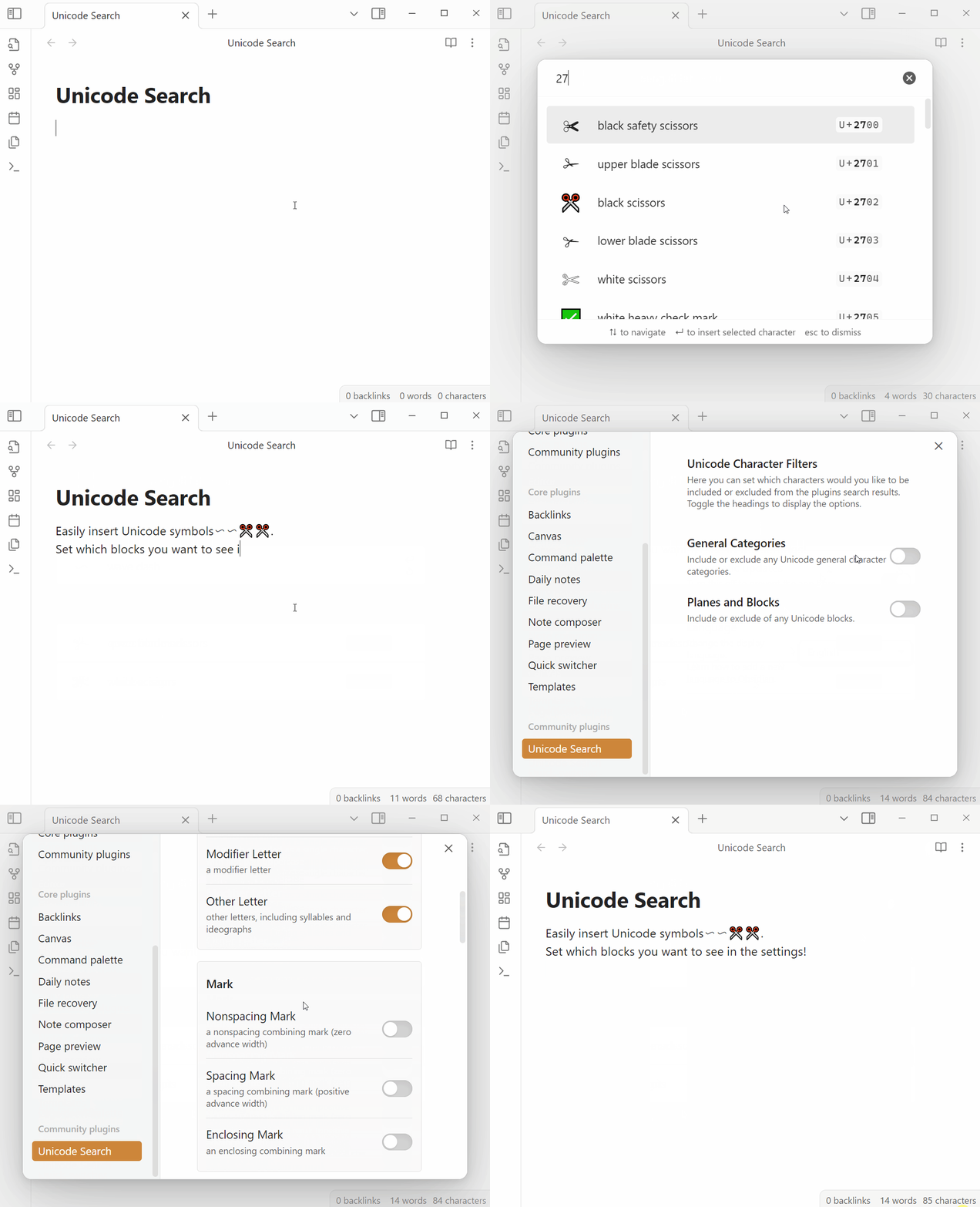
The plugin adds a command for searching Unicode characters. Make sure to assign a keyboard shortcut, like Ctrl + Shift + O for the command in the settings for Obsidian.
Just describe the character you're searching for and press ↵ to insert it into the editor. You can also search by Unicode codepoints!
Features
- Fuzzy Search: Find Unicode characters by name, codepoint, or keywords.
- Direct Insert: Insert characters directly into your editor.
- Favourites & Quick Insert: Mark frequently used characters as favourites and enable Quick Insert for keyboard shortcuts.
- Character Pool: Configure and save filters for planes, blocks, and categories to refine your searches.
- Use History: Quickly access recently used and frequently used symbols.
- Configurable: All settings are managed within Obsidian's settings pane.
Using the Plugin
To begin using the plugin, launch the search by executing the Search Unicode characters command. For more convenient access, consider assigning a keyboard shortcut:
- Navigate to Settings → Hotkeys.
- Find Search Unicode characters and assign your preferred keyboard shortcut (e.g.,
Ctrl+Shift+O).
Searching for Characters
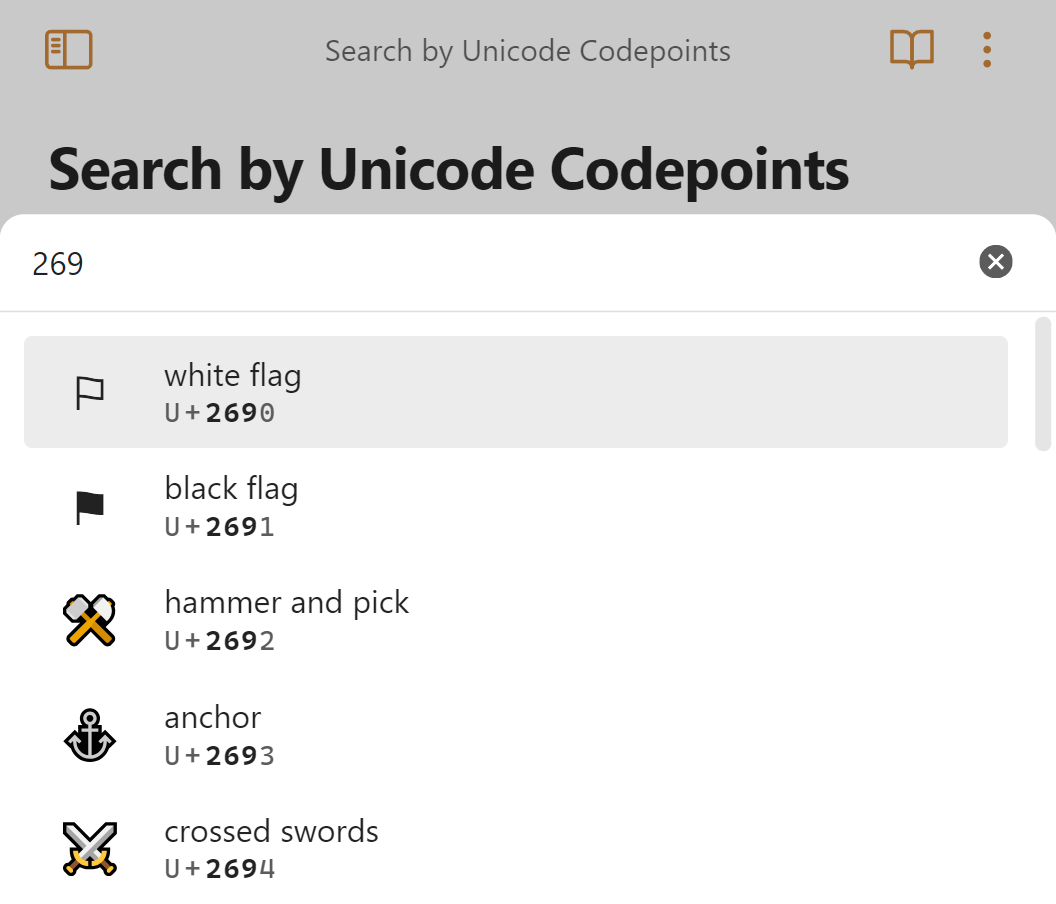
Once the search modal is open, you can find characters by typing your query. This can be a descriptive term like arrow or heart, or a specific codepoint such as 269.
- Use the
↑and↓arrow keys to navigate through the search results. - Press
Enterto insert the selected character directly into your document.
Managing Favourites
You can manage your favourite characters from the search modal by adding them in the plugin settings.
- View and manage all your favourites in Settings → Unicode Search → Favourites.
- Enable Quick Insert for any favourite character via the plugin's settings tab. This creates a new command, "Insert '<character>'", which can then have a keyboard shortcut assigned under Settings → Hotkeys → Insert '<character>'.
Character Pool
The Character Pool helps you refine which Unicode characters appear in your search results. These are configured in Settings → Unicode Search.
- Toggle filters for various Unicode planes and categories.
- Define custom filters to tailor the search to your needs.
- Be aware that a default set of filters is active. If you're unable to find a specific character, it might be excluded from your pool.
- Search for your character to find out its plane/block/category, if it's missing here: https://www.compart.com/en/unicode
For plugin developers
Search results and similarity scores are powered by semantic analysis of your plugin's README. If your plugin isn't appearing for searches you'd expect, try updating your README to clearly describe your plugin's purpose, features, and use cases.