Epochgram
unlistedby Andriy Babets
An AI-powered timemap of your mind (Closed source).

A Timemap of Your Mind


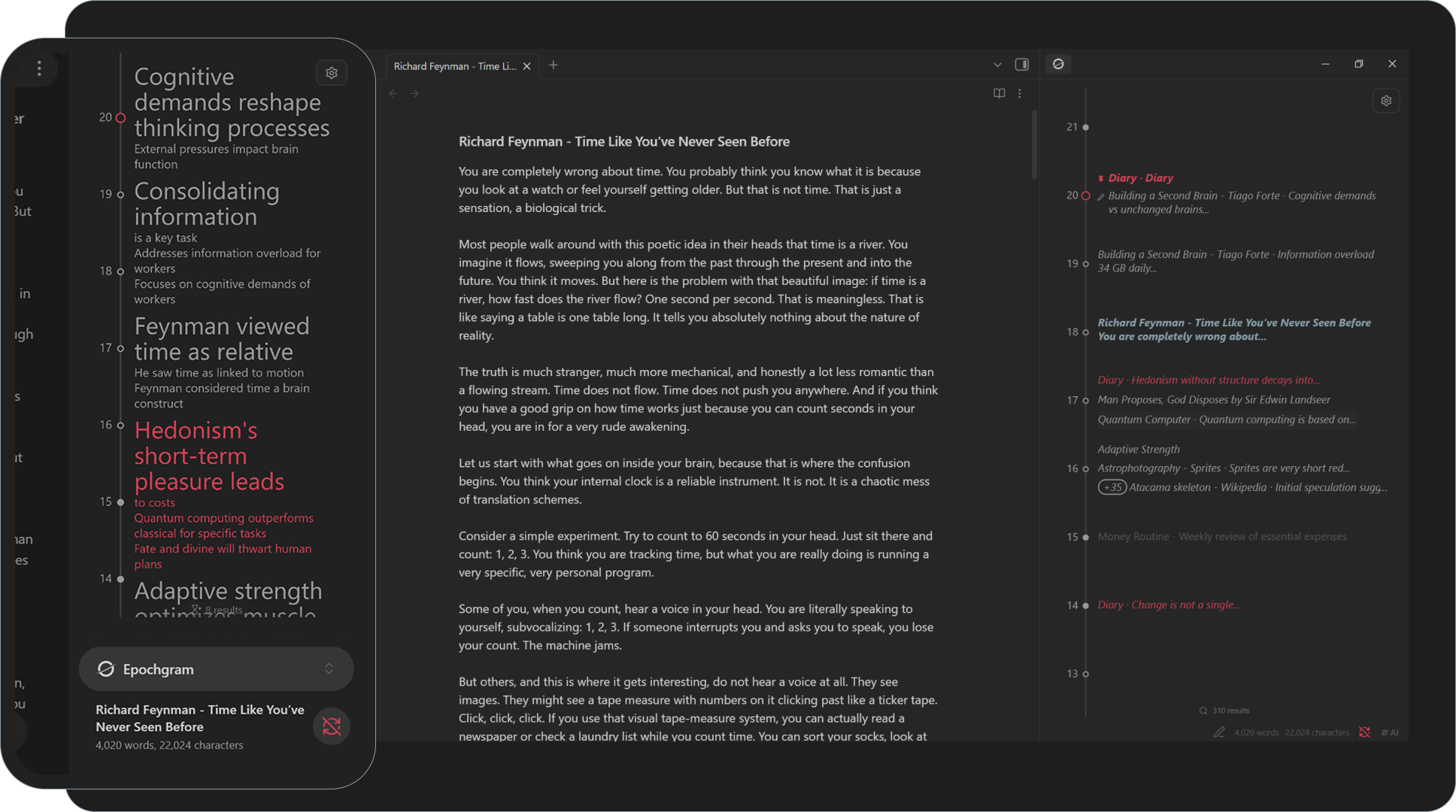
[!CAUTION] Pain: Your vault fills up with quick capture notes. A week later, you've lost the thread. A month later, you can't reconstruct the story — and you don't see the themes, the slow stretches, or the bursts of activity.
[!TIP] Solution: Epochgram turns your vault into a scalable timeline retrospective. Browse day by day to scan changes in order, spot bigger patterns across unsorted notes, and edit directly on the timeline — so you can focus on what really matters.
[!IMPORTANT] Epochgram Pro adds even more overview:
- On-device AI summarization (via Google Chrome)
- Epochs: a zoomable time map, from day details to big-picture overview, with support for standalone HTML export
- Similarity: find related notes via links, tags, titles, and semantic matching
- Topic clusters with auto detection
- Content change history with tracked edits
- Recurring events
Table of Contents
- Get Started
- Timeline
- Filters & Search
- Actions
- Review State
- Recurring (Pro)
- Similarity (Pro)
- AI Bridge (Pro, desktop-only)
- AI Summaries & Epochs (Pro, desktop-only)
- Custom YAML
- Settings & Data
- FAQ
- Disclosures
Get Started
- Install via the Obsidian Community plugins.
- Or use BRAT to get releases from the Epochgram GitHub.
- Click the
 ribbon icon or run ⌘ Epochgram: Open timeline to show the timeline in the right panel.
 - To open it automatically on launch, enable ⛭ Open timeline on startup.
[!TIP]
- Click (tap) record → open file; click date → open daily note
- Ctrl + click record → open file in a new tab
- Right-click (long-tap) record/date → open context menu
- Right-click (long-tap) empty space → toggle Epochs view (Pro)
- Double-click (double-tap) empty space → scroll to Today
- Double-click (double-tap) date → create new Daily note
- Wheel (pan) → scroll
- Ctrl + wheel (pinch) → zoom
- Alt + wheel or Alt + up/down (two-finger tap) → scroll to next/previous similar record
- Shift + wheel → zoom around the current record
- Alt + hover cursor → show preview of the file
Activating Pro
- Follow the instructions on epochgram.com/pro to get your activation key by email.
- Follow the link in the email or paste the activation key into ⛭ License key to activate.
- Epochgram may periodically connect to the cloud service to verify your license.
Timeline
The timeline is a scrollable, zoomable surface that collects records from all files in the vault, excluding folders ignored in Obsidian settings. It detects dates and date ranges in different formats and renders one record per file per day, in the following priority order:
- Tracked edits (Pro) → per-block edit history (
 added/modified,
  removed); only when ⛭ Track changes is enabled
 - Content dates → a date (range) parsed from note content
- Filename dates → a date (range) parsed from the filename
- Frontmatter date → a date from YAML property
date - Created dates → file creation date
[!NOTE] my_note.md → placed by its file creation date.
01.01.2026.md → January 1, 2026.--- date: 2026-02-02 # → override date ---May 1, 2026 in content → adds another timeline record.
Track changes (Pro) enabled → edits appear on the timeline day by day.
Each record appears as note name ⸱ summary (if ⛭ Show note name is enabled), summary, or image.jpg for non-text files. The summary is either the first N words, markdown-aware (⛭ Summary length setting) or an AI summary (Pro). A custom summary can be set with YAML (description: ...) or from the context menu; manual summaries are never overwritten by AI, and clearing the field removes the override.
Timeline draws today as  , weekdays as
  and weekends as
  . Entries are shown stacked or side by side when space allows. Long entries are truncated with ..., and if even that does not fit, the day collapses into a single interactive placeholder line
  , with extra hidden entries shown as
 (+n). When zoomed out, records collapse into placeholder bars  , with height based on record count.
[!TIP] A top label shows the current date, and a vertical red line marks the distance from Today — at the default zoom, each day of redshift represents one month.
Filters & Search
There are collapsible filters under the  button.
-
 → drafts & reviewed;
  → drafts;
  → drafts & reviewed & hidden
 -
 → show tracked edits (Pro); only when ⛭ Track changes is On
 -
 → show content dates;
  → including YAML
 -
 → show non-text files
 -
 → toggle epochs view (Pro)
A search bar at the bottom lets you search timeline records and shows the number of matches. Click it or run ⌘ Epochgram: Search timeline. Search covers file names, content, AI summaries, epochs, and more, with support for fuzzy search and "exact text" matching.
[!TIP]
- Enter → open the matched file
- Alt + Enter → filter timeline records by the current search
- Marked → show only marked records
Actions
[!TIP] Enable ⛭ Simple mode for a minimal UI: red marks, hide/show review, toggle filters, and fewer controls.
Files in the vault are never modified unless you run an explicit file action. All attributes are stored in Epochgram data files, not in vault files.
Record context menu:
-
 MyNote.md → open the file
 -
 Edit summary → edit the record summary
 -
 Summarize AI → generate an on-device summary of the record using Google Chrome AI Bridge (Pro, desktop-only)
 -
 Edit topic… → open the topics assignment popup; to remove topics, clear the input (Pro)
 -
 Pin → pin the file at the Today position in addition to its date; also available via ⌘ Epochgram: Toggle pin for current file
 -
 Mark → highlight a record or similar records with a palette color; also available via ⌘ Epochgram: Toggle mark for current file
 -
Draft → Reviewed →
 Hidden → change the file review state
 -
Rename… → rename the file in the vault
-
 Move to… → move the file to another folder
 -
 Delete → move the file to trash or permanently delete it (depending on Obsidian settings)
[!TIP] ⌘ Epochgram: Clear tracked changes for current file → clear all file history at once.
Review State
Epochgram is designed around the C.O.D.E. process (capture → organize → distill → express). New or indexed files appear as Draft. After organizing the file and extracting the key points, the record can be marked as Reviewed. If the file changes later, the record returns to Draft, indicating it may need review again.
Not every record deserves space on the timeline. Some, such as minor tracked changes, can be marked Hidden. Hidden records either disappear from the timeline or are muted when the corresponding filter is on.
[!TIP] ⌘ Epochgram: Review all → mark all records across the vault as reviewed. ⌘ Epochgram: Toggle visibility for current file → hide or show all records from the current file.
Recurring (Pro)
You can create recurring records, which will appear on the timeline. To add one, set the repeat or recur property in YAML. Supported formats (see RRULE):
---
repeat: every day
repeat: every N days
repeat: every week on mon,tue
repeat: every N weeks on mon,tue
repeat: every month on D
repeat: every year on MM-DD
repeat: FREQ=DAILY;COUNT=5 # RRULE
---
Similarity (Pro)
Once you have a few solid notes, Similarity helps connect them to related records. It is used for record highlighting and mark inheritance.
Epochgram includes multiple intelligent similarity settings that work on all platforms, including iOS and Android:
-
⛭ Links → treat notes as related through inbound and outbound links.
-
⛭ Tags → treat notes as related when they share tags.
-
⛭ Title threshold → use Jaro–Winkler matching to group notes with similar names or paths (higher values match more, 0 disables it).
-
⛭ Semantic threshold → semantic similarity uses an embedding default model to find notes with similar meaning across the vault. This is useful for notes that describe the same idea in different words.
-
⛭ Topic threshold → topics use a zero-shot default model for similarity grouping. When you assign a topic to a note, Epochgram finds related records across the vault. This is useful for broad themes like travel, projects, health, or astrophotography, where notes may share meaning without direct links or tags.
[!TIP] Model picker: use ⛭ next to Semantic threshold or Topic threshold to set a Hugging Face model ID, or
to browse models in your browser. On first use, similarity models/runtime may be downloaded.
[!NOTE] Building semantic vectors and running topic classification can take a long time on slower machines. Long-running jobs show their progress in the status bar; hover over the progress item to see all jobs, or click it to cancel.
When you open a record, all related records on the timeline are highlighted using the current theme color.
[!TIP] Alt + scroll → move through related records.
Similarity also groups related records automatically: when you mark one record, related records inherit the same color. These records behave as one group, so changing or removing the color updates the whole group, and inherited marks are recalculated automatically if the relation later disappears.
[!TIP]
- ⌘ Epochgram: Toggle mark for current file or the file context menu → assign the next unique color from the palette.
- In addition to the standard red-to-violet palette, an extended palette is available in the submenu. This makes it easy to choose colors by activity. For example, I use glacier for ski trip reports.
AI Bridge (Pro, desktop-only)
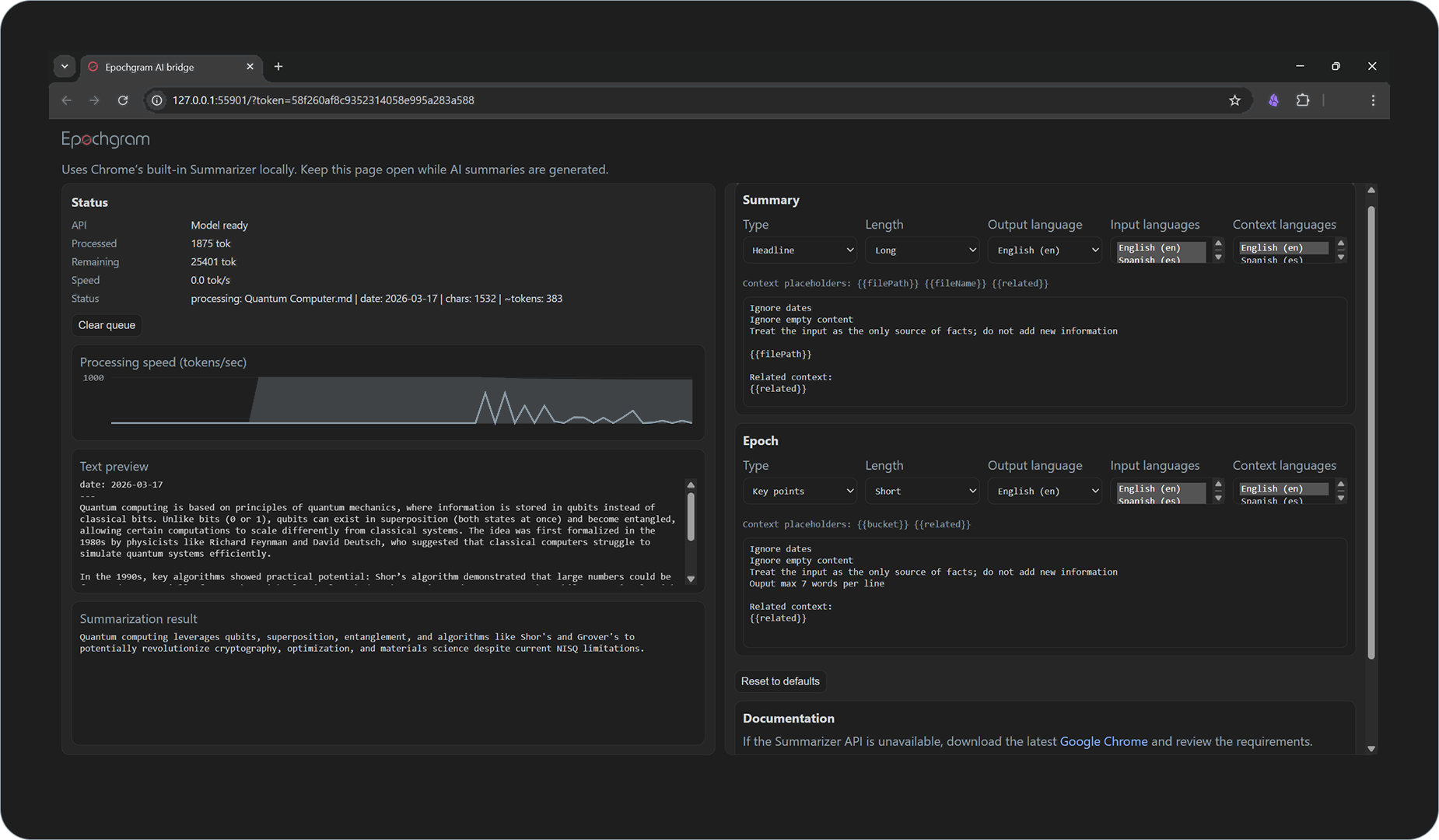
Epochgram Pro includes an AI Bridge that uses Google Chrome's on-device AI APIs for local summarization. When started, it runs a small local server on an available port at http://127.0.0.1. The bridge page can be opened from ⌘ Epochgram: Open AI bridge, from the ⌀ AI status bar button (red = disconnected), or automatically on startup if ⛭ Open Bridge AI on startup is enabled. This page processes summary jobs in Chrome and returns the results to the plugin. All summarization data stays only on your device and is not sent to external services.
On first use, Chrome may need a user gesture to download the built-in Gemini Nano model, and the drive with your Chrome profile should have at least 22 GB of free space. The bridge page also serves as a control panel, showing connection and model status, queue progress, the current text preview, the latest result, and a chart with progress in gray and processing speed in blue. Keep it open while summaries are running. You can also adjust API settings and prompt/context texts. For larger notes, Epochgram can split input into chunks, summarize them separately, then merge the results.
You can use context placeholders. File summaries support {{filePath}} (full file path), {{fileName}} (file name), and {{related}} (summaries of related records). Epoch summaries support {{bucket}} (day, 2days, 4days, week, 2weeks, month, 3months, 6months, year) and {{related}}.
[!TIP] Chrome's built-in Gemini Nano currently officially supports English, Spanish, and Japanese for input and output text. You can still try forcing another output language in the prompt context; for example, I used this context for Ukrainian:
OUTPUT ONLY IN UKRAINIAN!.
AI Summaries & Epochs (Pro, desktop-only)
⛭ Auto summarize → when enabled, Epochgram automatically summarizes a record through the AI Bridge each time the file changes. Even when disabled, you can still run summarization for a specific record from its context menu.
⛭ Generate epochs → when enabled, Epochgram creates a zoomable time map that groups many days into larger period summaries, helping you see the bigger picture and spot patterns without reading the timeline day by day. Epochs are generated hierarchically from day up to year, in essence, summaries of summaries. If highlighted records are present, epochs are colored by the most common highlight color in that range. You can also edit or regenerate epochs from the context menu.
[!TIP]
- ⌘ Epochgram: Summarize all → generate all missing AI summaries and epochs.
- ⌘ Epochgram: Export epochs → export as standalone HTML to your daily notes folder.
Custom YAML
Epochgram supports the following custom YAML properties:
---
date: 2026-01-01 # override the anchor date
description: my summary # override the summary
noindex: # exclude this file from all indexing
notracked: # don't use tracked edits for this file
noparsed: # don't parse dates from this file's content
nosimilar: # don't match this file by similarity
similar: [links, tags, title, semantics, topics] # match similarity only by these relations
repeat: every day # create recurring records
---
Settings & Data
Plugin data is mostly stored in the vault config directory, usually .obsidian/.
epochgram-index.json→ timeline/index dataepochgram-search.json→ search cacheepochgram-summaries.json→ AI summaries and epochsepochgram-semantics.json→ embeddings storeepochgram-topics.json→ topic similarity storeplugins/epochgram/data.json→ settings and view state
If Obsidian Sync is enabled, this data should synchronize between devices as long as ⛭ Sync → Vault configuration sync → Other file types is turned on. License data is stored separately in localStorage and is not synced through the vault config.
[!TIP] Double-click a setting name/description → reset it to default.
Epochgram also provides Rebuild and Reset popups for rebuilding or clearing stored data:
- ⛭ Rebuild
- ⛭ All → rebuild all data
- ⛭ Index → rebuild the index; useful if something is broken or after an update
- ⛭ Search → rebuild the MiniSearch cache
- ⛭ Semantics → rebuild embedding vectors
- ⛭ Topics → reclassify topics
- ⛭ AI summaries → queue all files for AI summary generation
- ⛭ Epochs → queue all epochs for regeneration
- ⛭ Reset
- ⛭ All → reset all data and settings to defaults, keep license data, then rerun indexing
- ⛭ Settings → reset all settings to defaults
- ⛭ Data files → clear data files and schedule regeneration
- ⛭ Search → clear the search cache
- ⛭ Pinned → unpin all items
- ⛭ Marks → remove all marks
- ⛭ Reviews → set all records to draft
- ⛭ Semantics → remove all embedding vectors
- ⛭ Topics → remove all topics and classification data
- ⛭ Tracked changes → remove all tracked changes
- ⛭ Manual summaries → remove all manual summaries in the index
- ⛭ AI summaries → remove all AI summaries and use default "first N words"
- ⛭ Epochs → remove all epochs
FAQ
How do I get support?
Check the docs first. If you still cannot find relevant information, feel free to open an issue on GitHub. For private matters such as license or account issues, email me at hi@epochgram.com.
What should I do if Epochgram feels slow?
On huge vaults or slower machines, performance may degrade. Try setting ⛭ Semantic threshold and ⛭ Topic threshold to0, and uncheck ⛭ Auto summarize and ⛭ Generate epochs. You can also uncheck ⛭ Enable animation or reset plugin data.
What should I do if some dates are missing?
Try rebuilding the index.
Disclosures
- Epochgram Pro:
- Requires an account, payment, and internet access for license validation; your email address, license key, and basic server-side telemetry may be processed (see TERMS).
- Is not affiliated with Obsidian Sync, Publish, or other Obsidian paid services.
- AI Bridge: Epochgram starts a local server on
http://127.0.0.1and opens a local bridge page in Google Chrome to use Chrome's on-device Summarizer API. The bridge communication stays on your device. Chrome may download its built-in model(s) (Gemini Nano) the first time you use these APIs. Epochgram may check common OS install paths to locate the Google Chrome executable and open the AI Bridge automatically.
- AI Bridge: Epochgram starts a local server on
- Similarity: embeddings/topic models and runtime files may be downloaded on first use via
@xenova/transformers(for example from Hugging Face) and ONNX Runtime Web WASM from jsDelivr.
- All vault data is processed locally on your device and is NEVER sent over the internet.
- Source code is closed.
- License: MIT (see LICENSE).
For plugin developers
Search results and similarity scores are powered by semantic analysis of your plugin's README. If your plugin isn't appearing for searches you'd expect, try updating your README to clearly describe your plugin's purpose, features, and use cases.