Milestone Timeline
pendingby Brandon Lavigne, Claude, & Co-Pilot Agent
Visual timeline of milestones extracted from your notes.
Milestone Timeline 2.0
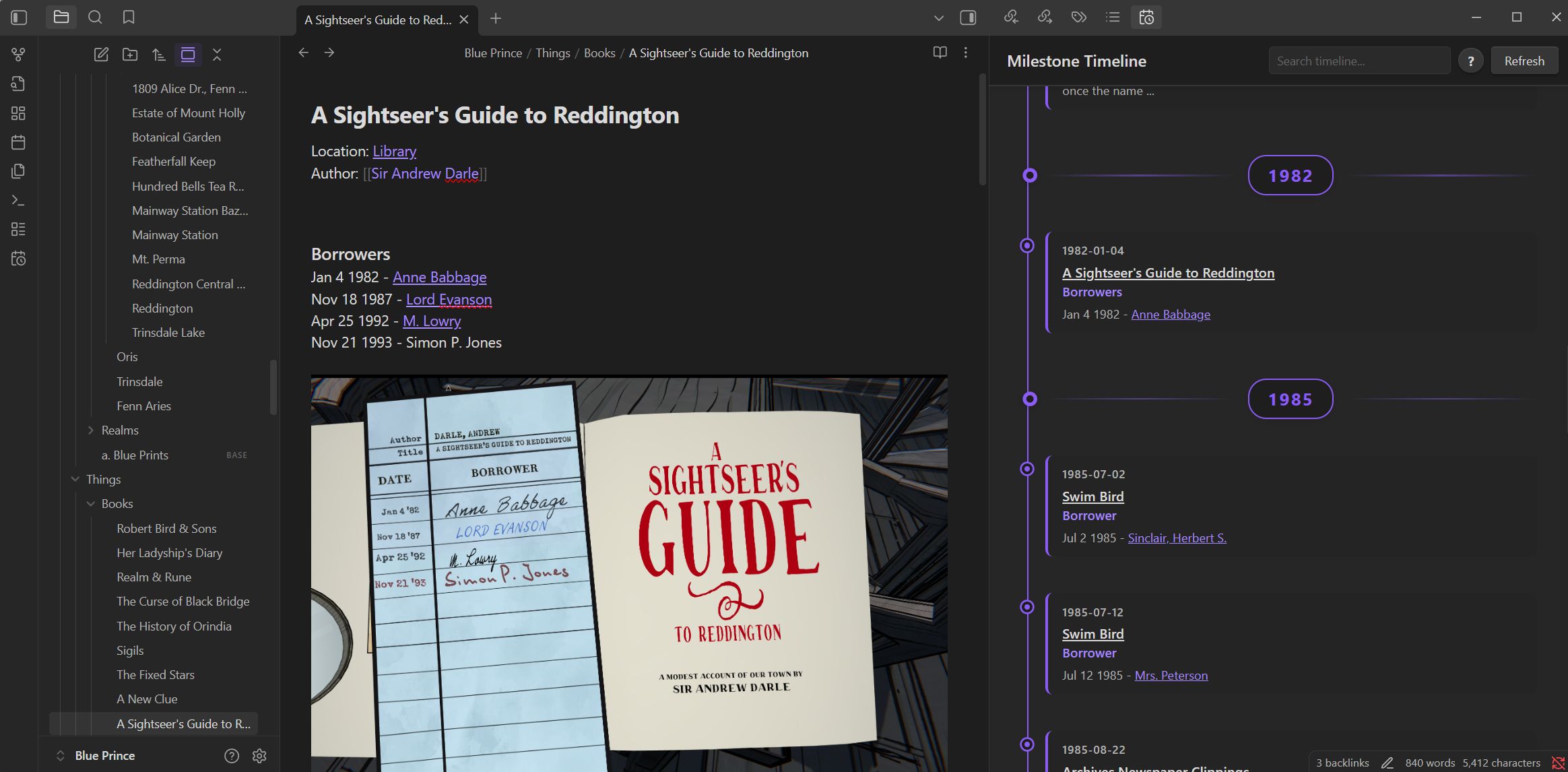
An intelligent Obsidian plugin that automatically extracts dates from your notes and displays them on a beautiful, interactive vertical timeline. Perfect for tracking project milestones, historical events, personal journals, or any time-based information in your vault.
✨ Features
🔍 Smart Date Detection
Automatically finds and extracts dates from multiple sources:
- Frontmatter fields:
date,created,modified,milestone,deadline,due - Inline dates: YYYY-MM-DD format (e.g., 2024-03-15)
- Natural language dates: "March 31, 2001", "Aug 23 1931", "May 1985"
- Numeric dates: "5-3-1918", "12/31/2024" (format configurable: US or International)
- Partial dates: "1985" (year only), "1985-05" (year-month) for uncertain dates
- Obsidian incomplete dates: "05/dd/1985" (from Properties date picker with unknown day)
- Wiki-link dates:
[[2024-03-15]],[[May 1985]],[[1985]] - Tag-based dates:
#date/1987/02/18
📅 Intelligent Timeline Organization
- Year markers: Prominent badges marking year transitions
- Month markers: Automatically appear for years with many milestones (configurable threshold)
- Visual hierarchy: Clear distinction between years, months, and individual dates
- Smooth navigation: Timeline markers connected to vertical bar with distinctive icons
🎯 Rich Context Display
- Heading context: Shows the nearest heading above each date
- Content preview: Displays the line containing the date
- File links: Click to jump directly to the source note and specific line
- Tag indicators: Visual icon shows dates extracted from tags
- Uncertainty indicators: ~ symbol marks approximate or partial dates
⚙️ Customizable Settings
- Sort order: Ascending (oldest first) or descending (newest first)
- File links: Toggle clickable note titles
- Month threshold: Control when months appear (default: 10 milestones)
- Screenshot filtering: Exclude dates from image filenames (enabled by default)
- Tag dates: Enable/disable tag-based date extraction
- Date format preference: Choose between US (M/D/YYYY) or International (D/M/YYYY) for ambiguous numeric dates
- Language: Select language for month names and natural language parsing (English, Spanish, French, Japanese)
📥 Installation
From Obsidian Community Plugins (Recommended)
- Open Settings → Community Plugins
- Click "Browse" and search for "Milestone Timeline"
- Click "Install" then "Enable"
Manual Installation
- Download the latest release from GitHub
- Extract files to your vault's plugins folder:
VaultFolder/.obsidian/plugins/milestone-timeline/ - Files needed:
main.js,manifest.json,styles.css - Reload Obsidian
- Enable the plugin in Settings → Community Plugins
🚀 Quick Start
Try the Example First!
New to the plugin? Try the built-in example to see internationalization in action:
- Open Command Palette (
Ctrl/Cmd + P) - Search for "Create Example Correspondence"
- Run the command
- Explore authentic multilingual letters (1947-1975)
This creates sample letters in their original languages:
- 🇫🇷 French: "Mars 1947", "Mai 1968"
- 🇩🇪 German: "Mai 1952", "Juli 1952"
- 🇯🇵 Japanese: "8月 1958" (August)
- 🇪🇸 Spanish: "Marzo 1963"
Then try this magic: Change Settings → Language, and watch the same letters appear correctly in Spanish, French, Japanese, or English timeline! The plugin parses native dates automatically.
Opening the Timeline
- Ribbon Icon: Click the calendar-clock icon in the left sidebar
- Command Palette: Press
Ctrl/Cmd+Pand search for "Open milestone timeline" - The timeline opens in the right sidebar by default
Adding Dates to Your Notes
1. Frontmatter (Recommended for Primary Dates)
Use frontmatter when you want to specify an exact date for a note, especially when the date isn't explicitly mentioned in the text:
---
date: 1985-03-20
deadline: March 31, 2001
milestone: Aug 23 1931
---

Please vacate the premise by March 20th
⚠️ Obsidian Properties UI Note: If using partial dates like "May 1985" in Obsidian's Properties panel:
- Click the property type icon (📅) next to the "date" field
- Select Property Type → Text
- Now you can type "May 1985" or other partial formats
- The Date property type doesn't persist incomplete dates to the markdown file
Supported frontmatter fields:
date: General date for the notecreated: Creation datemodified: Last modified datemilestone: Important milestone datedeadline: Due datedue: Alternative for deadline
2. Inline Dates
Simply write dates naturally in your notes:
The project launched on 2024-01-15 and exceeded expectations.

Historical event occurred on March 31, 2001.

Birthday celebration: Aug 23 1931
Supported formats:
- ISO format:
2024-03-15 - Month DD, YYYY:
March 15, 2024orMar 15, 2024 - Month DD YYYY:
March 15 2024(comma optional) - Month YYYY:
May 1985orMarch 2001(partial date, defaults to 15th) - Obsidian incomplete:
05/dd/1985(day unknown),dd/05/1985(day unknown) - Numeric format:
5-3-1918or12/31/2024(see Date Format Preference below) - Partial dates:
1985(year only) or1985-05(year-month) for uncertain dates
Partial & Uncertain Dates
When you don't know the exact date but know the year or approximate month:
---
date: May 1985
dateUncertain: true
---

# Letter from Ralph

Received sometime in May 1985, exact date unknown.
I know it was after March 1985 when I moved in.
💡 Tip for Obsidian Properties Panel:
- Obsidian's Date property type doesn't save incomplete dates like "05/dd/1985" to the file
- Solution: Change the property type to Text (click 📅 icon → Property Type → Text)
- Then type "May 1985" directly - this will be saved and detected by the plugin
How it works:
- Year only (
1985): Defaults to July 1, 1985 (mid-year) - Year-month (
1985-05): Defaults to May 15, 1985 (mid-month) - Month Year (
May 1985): Defaults to May 15, 1985 (mid-month) - Obsidian incomplete (
05/dd/1985): When day is unknown, defaults to 15th (mid-month) - Mark as uncertain: Add
dateUncertain: truein frontmatter - Visual indicator: Shows ~ symbol on timeline for approximate dates
Use cases:
- Historical letters with unknown exact dates
- Memories where you remember the year but not the day
- "After [date]" situations - use next month/year with
dateUncertain: true
Understanding Date Format Preference
Numeric dates like 1/2/1953 are ambiguous:
- US format (M/D/YYYY):
1/2/1953= January 2, 1953 - International format (D/M/YYYY):
1/2/1953= February 1, 1953
Global Setting: Set your preference in Settings → Milestone Timeline → Date format preference
Per-Note Override: Add dateFormat to frontmatter to override for specific notes:
---
date: 1/2/1953
dateFormat: International
---

Letter from my pen pal in London dated 1/2/1953 (Feb 1, 1953)
Supported values: US, International, M/D/YYYY, D/M/YYYY, MDY, DMY
Note: ISO dates (2024-03-15) and natural language dates (March 31, 2001) are always unambiguous regardless of this setting.
Localization Support
The plugin supports multiple languages for month names and natural language date parsing:
Supported Languages:
- English (en): January, Feb, May 1985
- Spanish (es): Enero, Feb, Mayo 1985
- French (fr): Janvier, Fév, Mai 1985
- Japanese (ja): 1月, 5月, 5月 1985
How to use:
- Go to Settings → Milestone Timeline → Language
- Select your language
- Write dates using month names in that language
Examples:
---
date: Mayo 1985
---
# Carta de Madrid

Recibida en Mayo 1985...
---
date: Mai 1985
---
# Lettre de Paris

Reçue en Mai 1985...
Note: Numeric dates (like 3-1-1917) work in all languages. The language setting only affects month names.
3. Wiki-Link Dates
Link to date-based pages:
Important meeting: [[2024-03-15]]
See notes from [[2024-01-20]]
4. Tag-Based Dates
Use tags to mark dates (great for events or categorized dates):
The signing ceremony #date/1987/02/18 changed everything.
Contract expires #date/2025/12/31
Tag format: #date/YYYY/MM/DD
📖 Usage Examples
Example 1: Project Timeline
---
date: 2024-01-15
---
# Project Alpha

## Planning Phase
Started planning on Jan 15 2024

## Development
- Kickoff meeting: [[2024-02-01]]
- First prototype: March 15, 2024
- Beta release: #date/2024/05/20

## Launch
Final launch scheduled for 2024-07-01
Timeline will show:
- 2024-01-15 (from frontmatter)
- 2024-02-01 (from wiki-link)
- 2024-03-15 (from natural language)
- 2024-05-20 (from tag)
- 2024-07-01 (from inline ISO date)
Example 2: Historical Research
---
milestone: 1931-08-23
---
# Historical Events

## Early 20th Century
- World War I ended: Nov 11 1918
- Great Depression began: [[1929-10-29]]
- Major discovery: Aug 23 1931

Research findings from #date/1945/05/08
Example 3: Personal Journal
---
date: 2024-03-20
---
# Daily Notes

Visited museum on March 20, 2024
Met with advisor: [[2024-03-21]]
Deadline for submission: #date/2024/04/15
Example 4: Letters with Uncertain Dates
---
date: 1985-05
dateUncertain: true
---
# Letter from Ralph

Received correspondence from Ralph sometime in May 1985.
I moved into the house in March 1985, and this letter arrived
a couple months after that. Exact date unknown.

## Earlier Letter
Another letter from Ralph in [[1984]] - year uncertain too.
Timeline will show:
- 1984-07-01 ~ (year-only, mid-year default, uncertain)
- 1985-05-15 ~ (year-month, mid-month default, uncertain)
⚙️ Settings Guide
Access settings via Settings → Milestone Timeline 2.0
Sort Order
- Ascending (oldest first): Timeline starts with earliest dates
- Descending (newest first): Timeline starts with most recent dates
Show File Links
- Enabled: Note titles are clickable and jump to source
- Disabled: Note titles are plain text
Month Marker Threshold
- Default: 10 milestones
- Years with fewer milestones show only the year marker
- Years with many milestones get month subdivisions
- Example: Set to 5 for more month markers, 20 for fewer
Exclude Screenshot Dates
- Enabled (recommended): Ignores dates in image filenames
- Disabled: Includes all dates, even from
![[Screenshot 2024-11-07.png]]
Include Tag Dates
- Enabled (default): Extracts dates from
#date/YYYY/MM/DDtags - Disabled: Ignores tag-based dates
Date Format Preference
- US (M/D/YYYY): Interprets
1/2/1953as January 2, 1953 - International (D/M/YYYY): Interprets
1/2/1953as February 1, 1953 - Only affects ambiguous numeric dates - ISO and natural language dates are always correct
- Can be overridden per-note with
dateFormatin frontmatter
Example use case: Managing notes about international correspondence
---
dateFormat: International
---
# Letters from European Pen Pals

Letter from Paris dated 15/3/1952 (March 15, 1952)
Response sent 1/4/1952 (April 1, 1952)
- Tag dates show a special 📌 icon in the timeline
🎨 Timeline Features Explained
Year Markers
Large prominent badges with decorative lines marking each new year:
━━━━━ 1985 ━━━━━
Month Markers
Smaller badges appearing within years that have many dates:
━━━━━ 1985 ━━━━━
■ JANUARY
● 1985-01-15
● 1985-01-22
■ MARCH
● 1985-03-20
Milestone Cards
Each date appears in a card showing:
- Date: YYYY-MM-DD format with optional tag icon
- File name: Clickable link to source note
- Heading: Nearest section heading (if available)
- Context: The line containing the date
Interactive Features
- Hover effects: Cards highlight on hover
- Click to jump: Opens note at the exact line
- Refresh button: Manually reload timeline
- Auto-refresh: Updates when settings change
💡 Tips & Best Practices
1. Use Frontmatter for Primary Dates
When a note has a primary date, use frontmatter:
---
date: 2024-03-15
---
2. Combine Multiple Date Sources
Use different formats for different purposes:
- Frontmatter: Main event date
- Inline dates: Related dates mentioned in text
- Tags: Categorized events
- Wiki-links: References to other dated notes
3. Avoid Date Clutter
- Screenshots are filtered by default
- Use specific date formats to avoid false matches
- Add dates purposefully rather than casually mentioning years
4. Organize Dense Timelines
- Lower month threshold for detailed navigation
- Use headings to provide context
- Consider separate notes for different time periods
5. Navigation Workflow
- Scan timeline for date of interest
- Click file name to open note
- Automatically jumps to the relevant line
- Read context with heading and surrounding content
🔧 Development
Building from Source
# Install dependencies
npm install

# Build for production
npm run build

# Development mode (auto-rebuild)
npm run dev
Deploying to Your Vault
If your vault is in cloud storage (iCloud, Dropbox, etc.) and you want to avoid syncing node_modules:
-
Copy the example config:
cp deploy-config.example.json deploy-config.json -
Edit
deploy-config.jsonwith your vault path:{ "vaultPath": "C:/Users/YourUsername/iCloudDrive/Documents/YourVault", "pluginName": "milestone-timeline" } -
Deploy the plugin:
npm run deploy
This copies only the built files (main.js, manifest.json, styles.css) to your vault's .obsidian/plugins/milestone-timeline folder, keeping your git repo and development files separate from your synced vault.
Project Structure
milestone-timeline/
├── main.ts          # Core plugin logic
├── styles.css       # Timeline styling
├── manifest.json    # Plugin metadata
├── package.json     # Dependencies
├── tsconfig.json    # TypeScript config
└── esbuild.config.mjs  # Build configuration
Tech Stack
- TypeScript
- Obsidian API
- esbuild for bundling
- CSS with CSS variables for theming
🐛 Troubleshooting
Timeline is Empty
- Check that you have dates in supported formats
- Try clicking the Refresh button
- Verify date formats are correct (YYYY-MM-DD, etc.)
- Check settings haven't disabled date sources
Dates Not Appearing
- Ensure "Include tag dates" is enabled if using tags
- Check "Exclude screenshot dates" if dates are in image names
- Verify frontmatter field names match supported fields
- Dates must be between 1900-2100
Timeline Not Updating
- Click the Refresh button
- Settings changes now auto-refresh
- Try closing and reopening the timeline panel
- Restart Obsidian if issues persist
Duplicate Dates
- Plugin automatically deduplicates
- Each date+context combination appears once
- If seeing duplicates, report as a bug
📝 Changelog
Version 2.0.0
- Complete rewrite with improved architecture
- Multiple date format support
- Year and month markers
- Tag-based dates with visual indicators
- Screenshot filtering
- Line-specific navigation
- Heading context display
- Auto-refresh on settings change
- Enhanced visual design
🤝 Contributing
Contributions are welcome! Please:
- Fork the repository
- Create a feature branch
- Make your changes
- Test thoroughly
- Submit a pull request
📄 License
MIT License - feel free to use and modify as needed.
👏 Credits
Developed by Brandon Lavigne with AI assistance from Claude and GitHub Copilot.
Special thanks to the Obsidian community for feedback and inspiration.
🔗 Links
- GitHub Repository: [Link to your repo]
- Report Issues: [Link to issues page]
- Obsidian Forum: [Link to forum thread]
Enjoy tracking your milestones! 📅✨
For plugin developers
Search results and similarity scores are powered by semantic analysis of your plugin's README. If your plugin isn't appearing for searches you'd expect, try updating your README to clearly describe your plugin's purpose, features, and use cases.