Pane Search
unlistedby Hugo Haas
Search in a floating modal, split, tab or window, with a quick switcher, filters and saved searches. A fork of Floating Search by Boninall.
Search & Open
Work in progress. The scope and the name may still change. It is not available in the Obsidian Community plugin store yet.
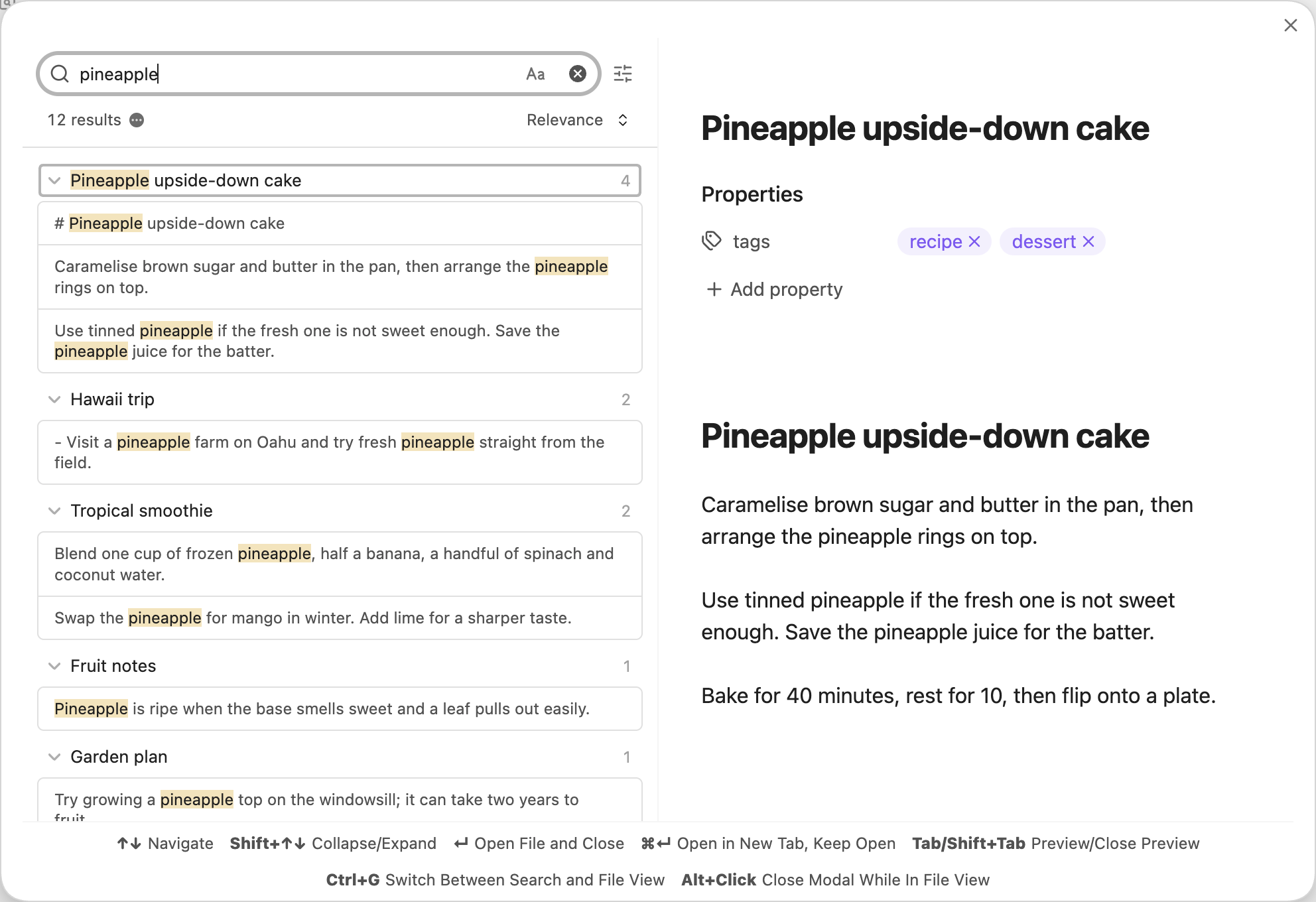
Search your vault with Obsidian's own search in a floating modal, then open the match you want. A preview pane lets you check a result before opening it.
About this plugin
Search & Open is a simplified fork of Floating Search by Boninall (Quorafind). The floating modal, the embedded search view and preview, and most of the keyboard handling are theirs. Credit for the idea and for much of the code that remains goes to them.
It also keeps pieces of two other forks of Floating Search: Float Search Window by AiurArtanis and Obsidian Float Search by Peingxious. See Credits and licensing for what came from where.
What is different
This version does one thing: open a floating search and open the file that matches. It keeps to Obsidian's own search and avoids re-implementing what Obsidian already does. The query syntax, results, ranking and highlighting all come from Obsidian.
Floating Search and its forks added their own quick switcher with a hand-written query engine, saved searches, hidden folders, a filter bar with a regex mode, quick note creation, split, tab, window and sidebar views, and more commands. Those are not included here. If you need them, use Floating Search or one of the forks.
Installation
Until the plugin is available in the Community plugin store, install it with BRAT:
- Install and enable BRAT from Settings → Community plugins.
- Open the command palette and run BRAT: Add a beta plugin for testing.
- Enter
hugoh/obsidian-search-openand confirm. - Enable Search & Open under Settings → Community plugins.
BRAT also keeps the plugin up to date.
Do not install Floating Search, or any of its forks, at the same time. Both plugins change the same parts of Obsidian and answer
obsidian://fslinks, so running them together breaks both. Disable or uninstall the other one first.
Usage
- Two commands:
Search Obsidian globally: opens an empty search;Search Obsidian globally (with last state): reopens with the last query and the cursor where you left it, for 30 seconds after each search.
- When the cursor is in the search box:
- Use the up and down arrow keys (or Ctrl+N and Ctrl+P) to move between results; after a short pause (150 ms) the selected result is previewed on the right;
- With a result selected, hold Shift and press up or down to expand the results above or below it; on a file name, collapse the results under it;
- With a result selected:
- Press Enter to open the file and close the popup;
- Press Ctrl+Enter (Cmd+Enter on macOS) to open the file in a new tab and keep the popup open;
- Press Ctrl+Shift+Alt+Enter to open the file in a new window and close the popup;
- Press Tab to preview the selected result straight away, and Shift+Tab to close the preview;
- Press Ctrl+Shift+C to copy the selected result;
- While a file is previewed, press Ctrl+E to toggle its reading mode;
- While a file is previewed, press Ctrl+G to jump from the search box into the preview, or from the preview back to the search box;
- On a match line, press Tab again to jump into its preview, and Ctrl+Tab to come back to the search box.
- Mouse:
- While a file is previewed, clicking another result switches the preview instead of closing the popup; Alt+click opens the file and closes the popup;
- With no preview, clicking a result closes the popup and navigates to the file, as in Obsidian's own search.
obsidian://fs?query=xxxxxxopens the popup with that query, so you can start a search from outside Obsidian.- Clicking a link inside the preview replaces the previewed file.
Settings
- Show instructions shows the key hints under the modal.
- Obsidian's own sort order (relevance by default), collapse, extra context, explain and match-case toggles are remembered between sessions. The query itself is never saved.
Recent files
Previewing is not opening. A file you only preview in the modal is not added to Obsidian's recent files (which the quick switcher uses), nor to the list of the Recent Files plugin if you use it. A file you open with Enter, or Cmd/Ctrl+Enter, is recorded as usual.
Requires Obsidian 1.15.1 or later.
Development
bun install
bun run build        # type-check and bundle to main.js
bun run lint         # eslint-plugin-obsidianmd
bun run test         # unit tests (bun) + regression tests (node)
bun run test:e2e     # runs the plugin in a real Obsidian (wdio-obsidian-service)
Credits and licensing
This project is licensed under the GNU General Public License v3.0 (see LICENSE). Floating Search and the forks it draws on are all GPL-3.0, so their code can be combined here. docs/consolidation.md records where each feature came from and every fix made while merging, including features that were later removed.
| Source | What this plugin took from it | License |
|---|---|---|
| Quorafind/Obsidian-Float-Search (Boninall) and its contributors | The original plugin: the floating modal, the embedded search view and preview, the keyboard navigation and the obsidian://fs handler | GPL-3.0 |
| AiurArtanis/Obsidian-Float-Search-Window | The composition (IME) guard, the typed localization and its Chinese translation, preview and file-opening lifecycle fixes, and the regression test harness | GPL-3.0 |
| Peingxious/Obsidian-Float-Search | The crash guard for highlights in embedded previews, and applying the patches on first use | GPL-3.0 |
| nothingislost/obsidian-hover-editor | The embedded leaf implementation (src/leafView.ts) and the getRoot patch in src/main.ts, both reached through Floating Search | MIT |
| pjeby/monkey-around | Method patching (bundled dependency) | ISC |
| Phosphor Icons | The ribbon icon | MIT |
smilingpoplar/Obsidian-Float-Search (GPL-3.0) was reviewed; no code was taken from it. See NOTICE for the full third-party notices.
For plugin developers
Search results and similarity scores are powered by semantic analysis of your plugin's README. If your plugin isn't appearing for searches you'd expect, try updating your README to clearly describe your plugin's purpose, features, and use cases.