Meetings Plus
approvedby jabaho9523
Subscribe to calendars and create pre-filled meeting notes in one click. No drag-and-drop, no Outlook required. ICS-based, privacy-first - This plugin has not been manually reviewed by Obsidian staff.
Meetings Plus
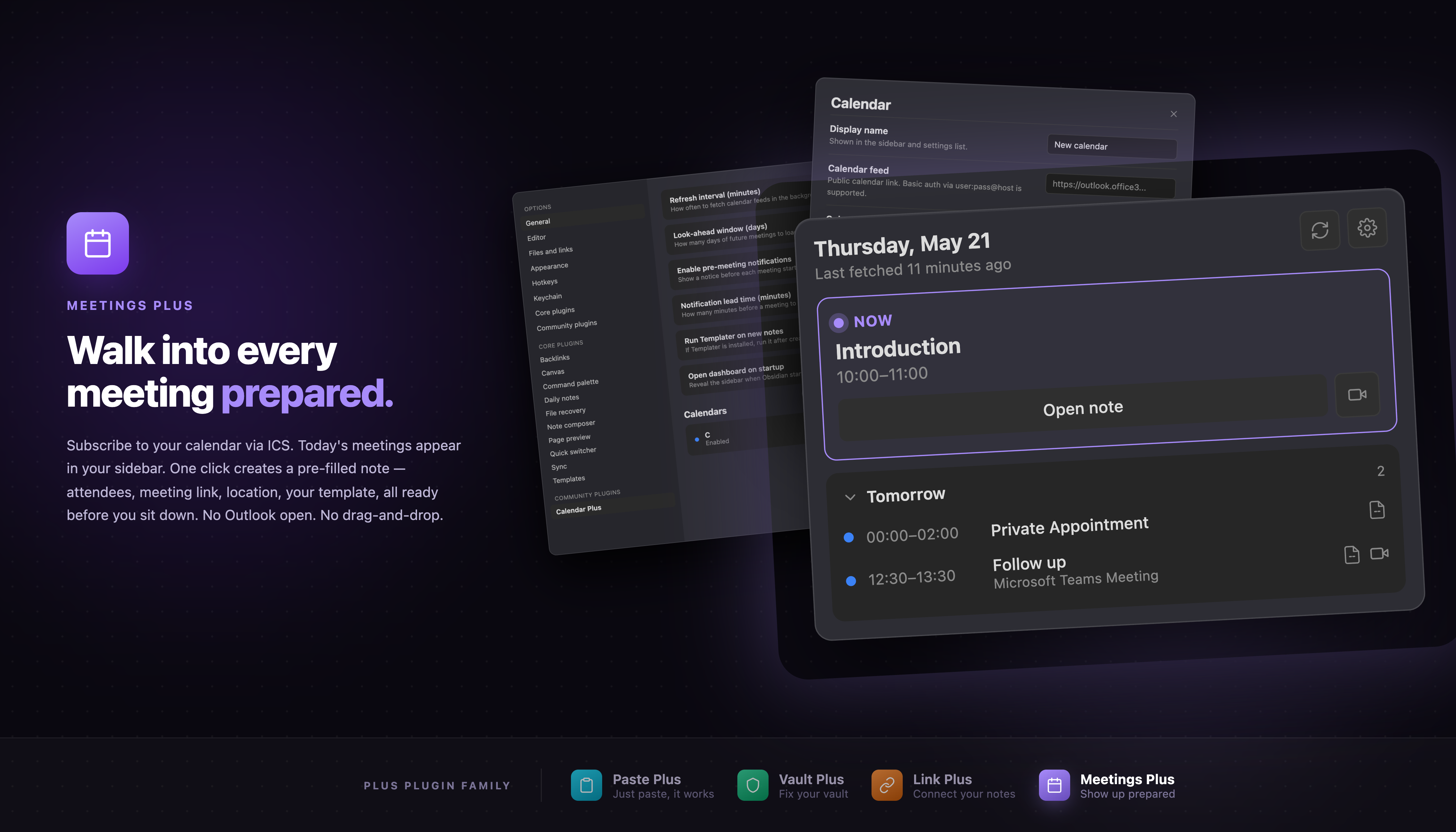
Subscribe to your calendar, click a meeting, get a pre-filled note. No drag-and-drop, no Outlook open in the background, no export. Your calendar sits next to your notes, and every event is one click from a ready-to-type meeting note in your own vault.
How it works — 10 seconds
-
Subscribe to a calendar. Paste an ICS link from Outlook, Google, iCloud, Proton, or Fastmail. No new account, no migration.
-
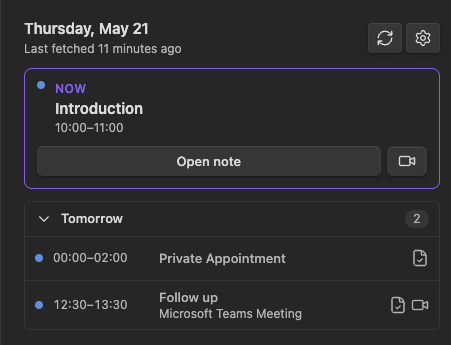
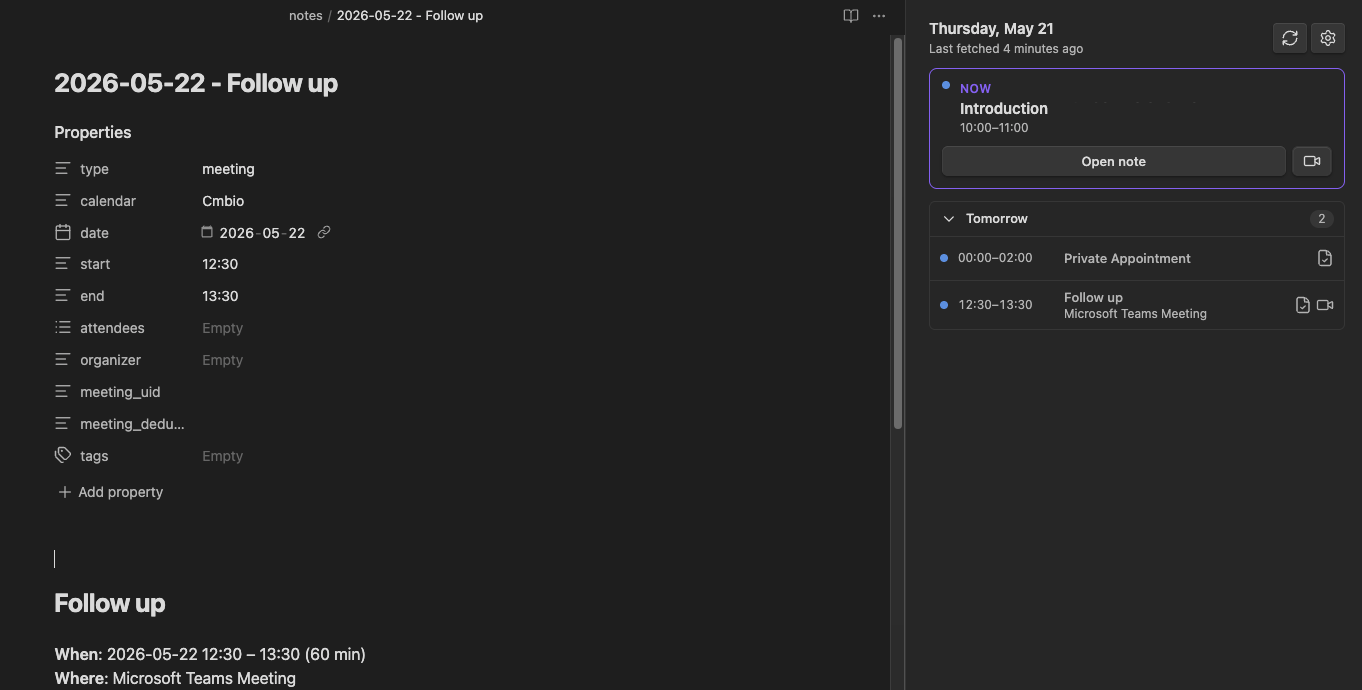
Today's meetings appear in the sidebar, sorted by time — with a marker on the ones that already have notes.
-
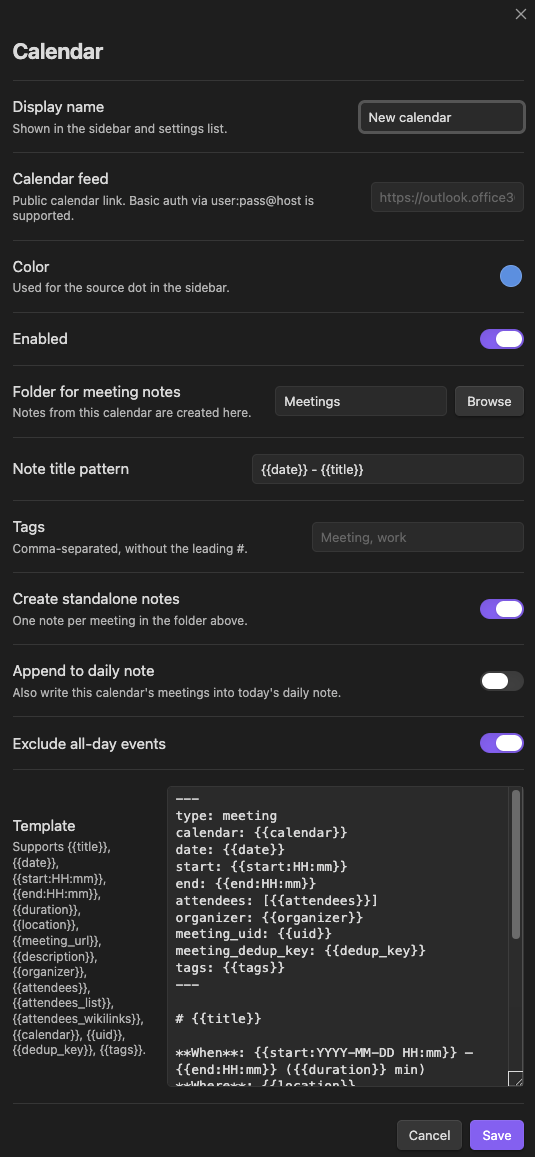
Click a meeting → a pre-filled note opens in your chosen folder, with attendees, time, location, and agenda already filled in. Start typing.
That's the whole loop. Everything below is detail.
Coming from Notion?
You ran meetings out of Notion, but you always wanted your calendar and your notes in the same place — without exporting to a separate calendar app, and without your meeting history living on someone else's server.
Meetings Plus subscribes to the calendar you already use (Outlook, Google, iCloud, and any standards-compliant ICS feed) and turns any event into a structured note in your own local markdown vault with one click. Attendees come in as [[wikilinks]], so every meeting connects to the people and projects it touches — the relations muscle you had in Notion, now as plain-text links you own. No telemetry, no third-party services, no lock-in.
What it does
- Subscribe to one or more ICS calendar feeds (Outlook, Google, iCloud, Proton, Fastmail — any standards-compliant ICS source)
- Today's meetings appear in a sidebar, sorted by time
- Multi-day agenda: flat per-day list with empty days collapsed into a one-line "N days without events" hint. Jump to any future date with the built-in date picker; quick-set how many days to show from the sidebar header
- Catch up on past meetings: navigate back up to 30 days (configurable, off by setting 0) and click a past meeting to write up its note after the fact — handy for transposing paper notes
- One click on a meeting → fully pre-filled meeting note in your configured folder, with attendees, time, location, agenda — ready to take notes
- Already prepared? The sidebar shows which meetings already have notes; clicking opens the existing one
- Optional pre-meeting notifications with a configurable lead time
- Optional daily-note integration — write today's schedule into your daily note as a managed block
- Templater-friendly — if Templater is installed and enabled, your
<% %>tokens run after Meetings Plus substitutes its own{{variables}} - Privacy-first: only network calls are to your calendar URLs, no telemetry, no third-party services
- Works on mobile: pure ICS over HTTPS, no native bindings
Why not just drag events from Outlook?
The existing Outlook Meeting Notes plugin requires Outlook and Obsidian to be open simultaneously, and you drag calendar events between them. That's fragile and slow. Meetings Plus reads your calendar directly via ICS, so Outlook doesn't need to be open and nothing needs to be dragged — your meetings are just there in the sidebar, on desktop and mobile alike.
Installation
From the Obsidian community plugins directory
- Open Obsidian → Settings → Community plugins
- Search for Meetings Plus
- Select Install, then Enable
Manual install
- Download
main.js,manifest.json, andstyles.cssfrom the latest release - Copy them into your vault at
.obsidian/plugins/meetings-plus/ - Reload Obsidian and enable the plugin under Settings → Community plugins
Getting started
- Get your calendar's ICS URL (see the next section)
- Open Settings → Community plugins → Meetings Plus → Add calendar
- Paste the URL, give the calendar a name, optionally pick a color and folder
- Save — the sidebar opens automatically with today's meetings
How to get the ICS URL
Outlook / Microsoft 365
- Open Outlook on the web → Calendar
- Right-click the calendar → Sharing and permissions → Publish a calendar
- Set permissions, then copy the ICS link
Google Calendar
- Open Google Calendar → Settings (gear icon) → click the calendar you want under Settings for my calendars
- Scroll to Integrate calendar
- Copy Secret address in iCal format
iCloud
- Open Calendar.app → right-click the calendar → Share Calendar
- Enable Public Calendar → copy the URL
Proton Calendar
- Open Proton Calendar settings → Share → Public link
- Copy the URL
Meetings Plus also supports HTTP Basic auth:
https://user:pass@host/cal.ics
Usage
- Click the ribbon icon to open the sidebar, or run Meetings Plus: Open dashboard
- Single click on a meeting row → create or open the meeting note
- Right-click for a context menu: open meeting link, copy link, or hide for today
- Commands (via the command palette):
- Meetings Plus: Open dashboard
- Meetings Plus: Refresh all calendars
- Meetings Plus: Create note for next meeting
- Meetings Plus: Open next meeting link
Templates
Each calendar has its own editable template. Variables are written as {{name}}; date variables accept a moment.js format string after a colon, e.g. {{start:HH:mm}}.
| Variable | Output |
|---|---|
{{title}} | Meeting title |
{{date}} | Meeting date in YYYY-MM-DD |
{{start}}, {{start:HH:mm}} | Start datetime |
{{end}}, {{end:HH:mm}} | End datetime |
{{duration}} | Duration in minutes |
{{location}} | Location string |
{{meeting_url}} | First detected meeting URL |
{{description}} | Full description, stripped of HTML |
{{organizer}} | Organizer name |
{{attendees}} | Comma-separated attendee names |
{{attendees_list}} | Bulleted list of attendees |
{{attendees_wikilinks}} | Comma-separated [[Name]] wikilinks |
{{calendar}} | Calendar display name |
{{uid}} | ICS UID |
{{dedup_key}} | Internal dedup key (used in frontmatter) |
{{tags}} | Calendar's tags as YAML list |
Templater compatibility: keep your <% tp.* %> tokens in the template. Meetings Plus does its {{ }} substitution first; Templater runs second if you enable "Run Templater on new notes".
Settings
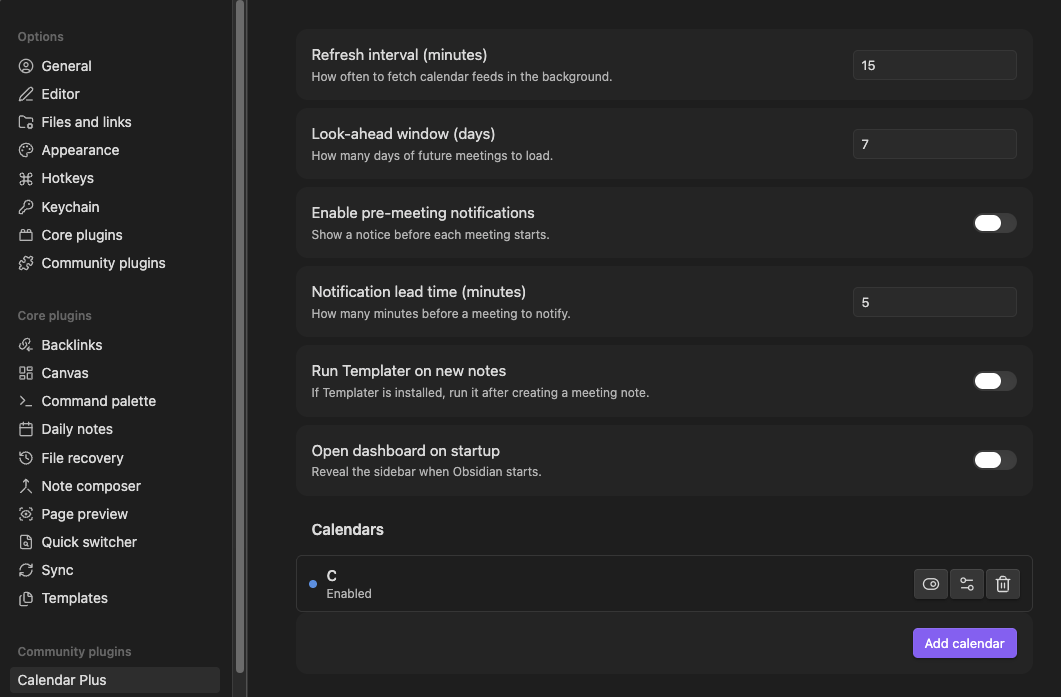
Global options:
- Refresh interval (minutes) — how often calendars are fetched in the background
- Look-ahead window (days) — how many days of future meetings to load
- Enable pre-meeting notifications — show a notice before each meeting starts
- Notification lead time (minutes) — how far in advance to notify
- Run Templater on new notes — post-process meeting notes through Templater if installed
- Open dashboard on startup — auto-open the sidebar when Obsidian loads
Per-calendar options live in the calendar editor and cover URL, color, folder, title pattern, tags, template, and which features (standalone notes, daily-note append, all-day filtering) apply.
How it works (under the hood)
- Fetches each ICS feed with Obsidian's
requestUrl(so it works on mobile and bypasses CORS) - Parses with ical.js — handles timezones, recurrence rules, and the messy real-world ICS variants
- Caches parsed meetings on disk so the sidebar loads instantly on cold start
- Detects Teams / Zoom / Meet / Webex links in the description, location, and Microsoft-specific properties
- Looks up existing meeting notes via the metadata cache (
meeting_dedup_keyin frontmatter) so re-clicking a meeting opens the existing note instead of creating a duplicate
Everything is local and offline except the ICS fetches themselves. There are no third-party services, no analytics, no telemetry.
Privacy
Meetings Plus only talks to the calendar URLs you configure. It does not collect, log, or transmit calendar contents, attendee names, meeting titles, or fetch URLs anywhere else. There is no analytics layer.
Performance notes
Background refresh runs at your configured interval (default 15 min); on each refresh, all calendars fetch in parallel. Parsed meetings are cached per calendar so reloads are instant. Pre-meeting setTimeouts are cancelled and re-scheduled on every refresh so the schedule stays current.
Plus Plugin Family
Meetings Plus is part of the Plus Plugin Family for Obsidian:
- Paste Plus — Smart paste: URLs become titled links, images get clean filenames, HTML converts to markdown, YouTube and Twitter links resolve to titles.
- Vault Plus — Vault health dashboard: find and fix orphans, broken links, empty notes, duplicates, and more.
- Link Plus — Unlinked mention scanner: find and convert unlinked mentions vault-wide with one-click or batch operations.
- Meetings Plus — Subscribe to calendars and create pre-filled meeting notes in one click.
Support
If Meetings Plus saves you time, you can support development here:

License
0BSD — copy, paste, ship. Less drag-and-drop, more note-taking.
For plugin developers
Search results and similarity scores are powered by semantic analysis of your plugin's README. If your plugin isn't appearing for searches you'd expect, try updating your README to clearly describe your plugin's purpose, features, and use cases.