Day Grid
unlistedby Day Grid contributors
Your Jira tickets as a weekly grid in Obsidian. Built on top of the Jira Issue plugin.
Day Grid
A table at the top of your weekly note that lists your Jira tickets with one dot per weekday. Click a dot to log the ticket under that day, then copy a whole day's notes for your stand-up or timesheet.
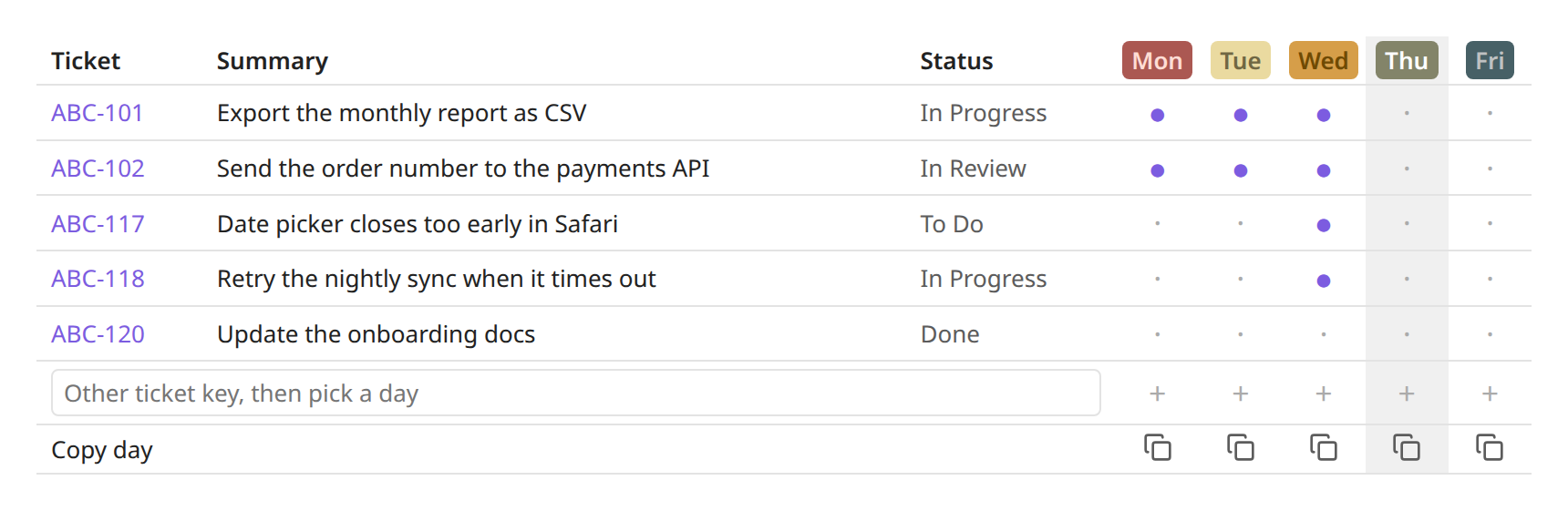
The grid for example.md, a sample weekly note with made-up tickets.
Draft README.
Prerequisites
Coming from Jira Issue? To migrate from Jira Issue, simply change the block type to
day-grid, like this:
Jira Issue Day Grid ```jira-search type: TABLE query: assignee = currentUser() AND updated >= startOfWeek() ORDER BY key columns: KEY, SUMMARY, STATUS limit: 40 ``````day-grid type: TABLE query: assignee = currentUser() AND updated >= startOfWeek() ORDER BY key columns: KEY, SUMMARY, STATUS limit: 40 ```
- Obsidian 1.5 or later.
- Jira Issue community plugin, installed, enabled and connected to your Jira account. Day Grid uses it to search Jira and to show
JIRA:ABC-123links. Its inline issue prefix must beJIRA:(the default). - Daily notes core plugin, set up to make one note per week from a template (see below).
Install
With BRAT (updates automatically):
- Install the BRAT plugin (web page).
- Go to Settings → BRAT → Beta plugins and click Add beta plugin.
- Enter
MKrabs/obsidian-day-grid, pick the latest version and click Add plugin. Day Grid shows up in the list.
By hand: download main.js, manifest.json and styles.css from the latest release into <vault>/.obsidian/plugins/day-grid/, then turn on Day Grid under Settings → Community plugins.
Setup
1. Weekly notes
-
Settings → Daily notes → Date format: use one with a week in it, like
YYYY - [Week] WW - MMM(gives2026 - Week 45 - Nov). -
Create an empty note in any folder, for example
templates/Weekly.md, and pick it as the Template file location. -
Settings → Day Grid → Copy template, then paste it into that note. Write whatever you like above the grid or after the last day. Start the part after the last day with a heading or
---, or it counts as part of that day. -
Try it: click Open today's daily note in the ribbon, or run the command with the same name.
If you want, Settings → Day Grid → Daily notes checks the setup.
2. Settings → Day Grid
Jira
-
Query: the JQL for grids whose block has no
query. The default lists your tickets updated that week, on any Jira:assignee = currentUser() AND updated >= startOfWeek() AND updated <= endOfWeek() ORDER BY keyNarrow it as you like, for example with
project = ABC AND …. ↺ brings the default back. Atlassian explains how to write JQL and the JQL functions.If you'd like to copy my query, here it is. It also finds tickets where I'm the implementer, which is a custom field in our Jira:
project = ABC AND (assignee = currentUser() OR Implementer = currentUser()) AND updated >= startOfWeek() AND updated <= endOfWeek() ORDER BY key -
Account: an account alias from the Jira Issue plugin. Leave it empty to use its default account, which the placeholder shows.
The grid loads as many tickets as the Jira Issue plugin's Default search results limit allows. Raise it there if tickets are missing.
Days
A day is a heading with a <mark> whose class is in this list. Each row has:
| Field | What it does | Default for Monday |
|---|---|---|
| Class | The class in <mark class="…"> | monday |
| Title | The column name in the grid, and the text shown in an empty mark | Mon |
| Background, Text | The mark's colors, in your notes and in the grid | #ab5852, #ffddd5 |
Monday to Friday come preset, with classes monday … friday and titles Mon … Fri. Change any field, remove a day, or add your own: other languages (pon), weekends, or anything else you want a column for. Each row shows a preview of the mark. Copy template, below the list, copies a Daily notes template with one empty-marked heading per day.
Usage
- Empty dot: adds
- JIRA:KEYunder that day's heading. - Filled dot: jumps to the ticket's entry for that day.
- Bottom row: type a ticket key that isn't in the list, then click
+under a day. - Copy day: copies that day's notes, with each ticket line written as
- KEY: Summary.
Rows follow the order of the query's results. Tickets you logged by hand that the query didn't return come last.
The grid block
The block reads the same lines as a Jira Issue jira-search block: key: value lines, # comments, or a single line that is only the JQL. Day Grid uses these keys and ignores the rest, such as type and columns:
query,limitandaccountwork as injira-search. Leave any of them out, or leave the block empty, to use the settings.weeksets the ISO week the grid covers.startOfWeek()andendOfWeek()in the query then mean that week's Monday 00:00 and Sunday 23:59, so old notes keep showing their own tickets. Without it, the grid follows the current week.
Day headings
- Any heading level works, and the text inside or after the mark is up to you:
# <mark class="thursday">Donnerstag</mark> 05.11is a Thursday column titledThu. - An empty mark,
<mark class="thursday"></mark>, shows the day's title without it being written into the note. It must be truly empty: even a space inside shows nothing. The title is only displayed, so it isn't searchable and the Outline pane lists the heading as blank. - Headings without a mark, or with a class that isn't in your list, are ignored.
# Noteswon't become a column. - A day ends at the next heading, a
---line or a code fence. Days can be in any order. - Today's column is highlighted when the grid shows the current week and the day's class is a weekday name, in full or short (
mondayormon…sundayorsun). - A note can hold several weeks: each grid only reads the days between its block and the next
day-gridblock.
Development
node test.js runs the self-checks for the note parsing, grid scopes, day list, colors, Daily notes check and week calculation.
For plugin developers
Search results and similarity scores are powered by semantic analysis of your plugin's README. If your plugin isn't appearing for searches you'd expect, try updating your README to clearly describe your plugin's purpose, features, and use cases.