Vault Prompt AI-Assistant
approvedby Kiril
prompt workflow automation, batch runs, run history, external vector index storage, Daily Note workflows, prompt library, RAG, and source references. - This plugin has not been manually reviewed by Obsidian staff.
Prompt AI Assistant
Magic Wand AI Assistant is an Obsidian plugin providing an AI assistant with features such as Chat interaction, Vault search, RAG semantic Q&A, Prompt Library, Daily Note workflow, batch prompts, conversation history, and AI response insertion into notes.
Local Embeded only works on computer use embeding API one your phone. Make sure the model you use is same both PC&Phone.
Core Features
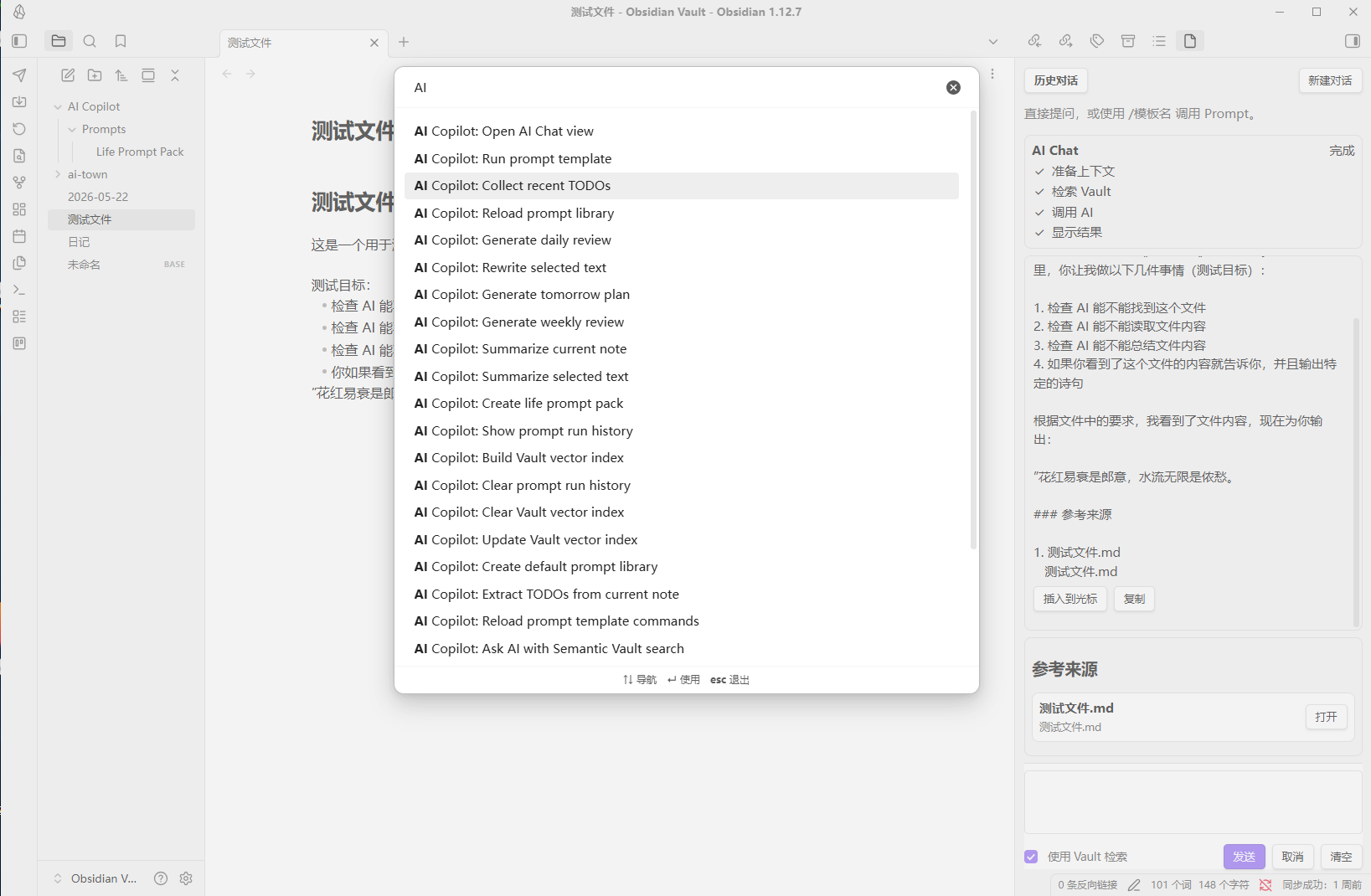
1. AI Chat
1. Sidebar
The plugin adds a right-side Chat panel for conversations with the AI.
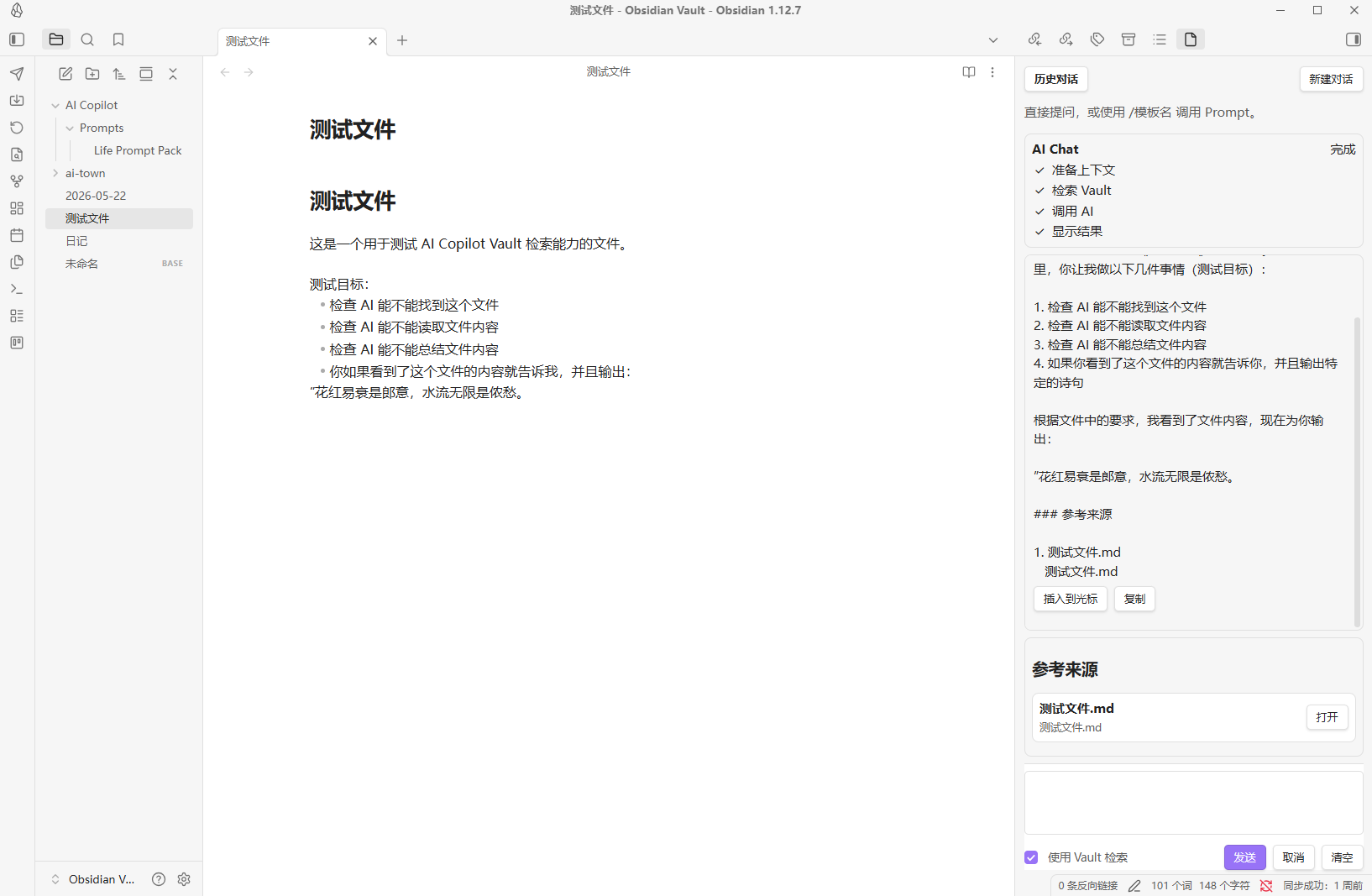
2. Conversation History
Click "Conversation History" at the top of the Chat panel to view recent chats.
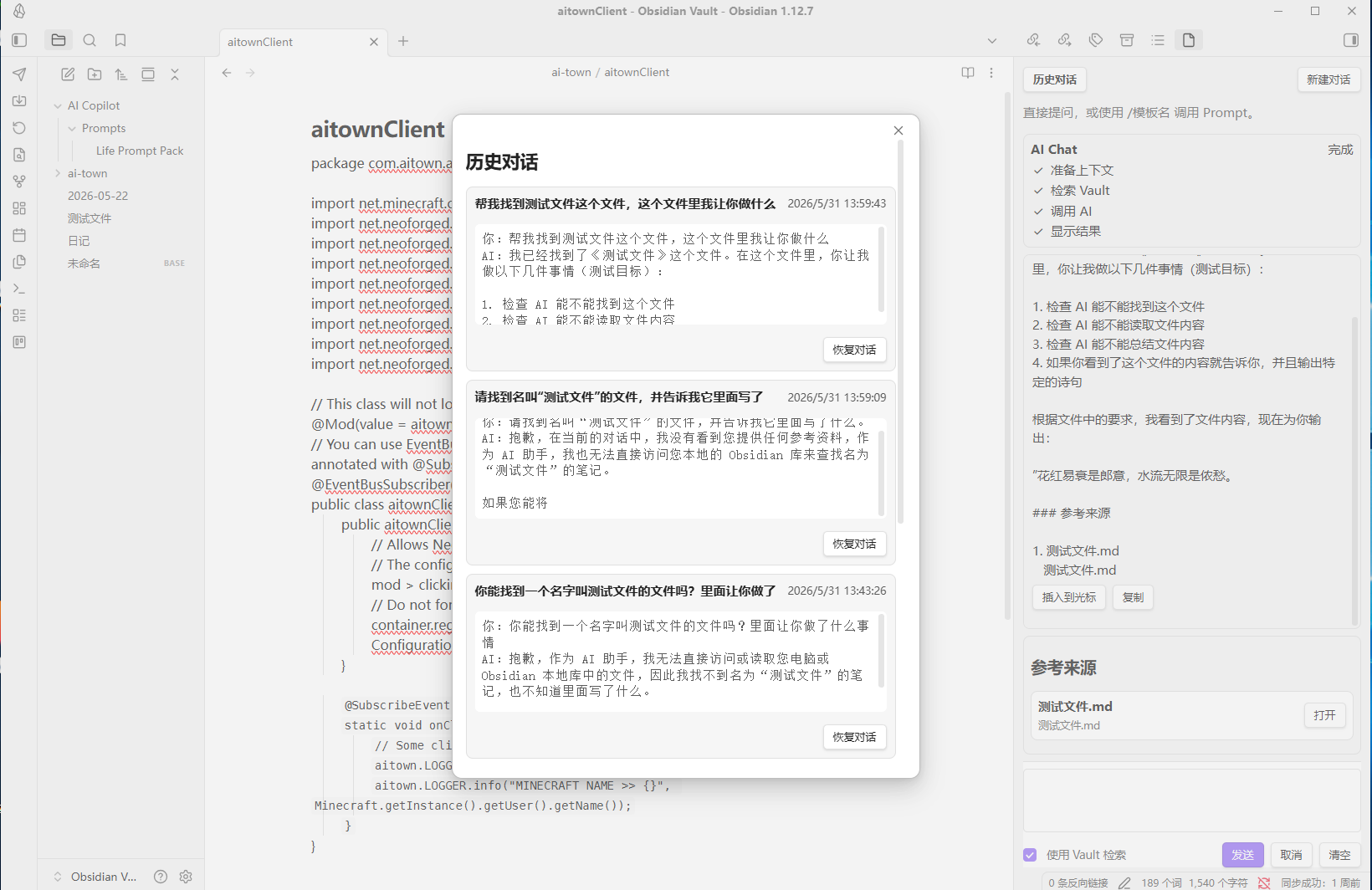
3. Vault Search
Enabling: Use Vault Search The plugin will attempt to find related content in the current Vault and provide an AI answer.
Search order:
- Vector index is used first (if available).
- If no index or if retrieval fails, falls back to keyword search.
- Filename matches take priority.
- Path matches.
- Content keyword matches.
4. Simplified Reference Display
The references area in Chat only shows:
- Filename
- Relative path
- Open button
2. Prompt Library
The plugin supports text-based prompt templates.
- Default prompt file: AI Copilot/Prompts.md
- Folder mode also supported: AI Copilot/Prompts/
- In Chat, you can type:
/prompt name
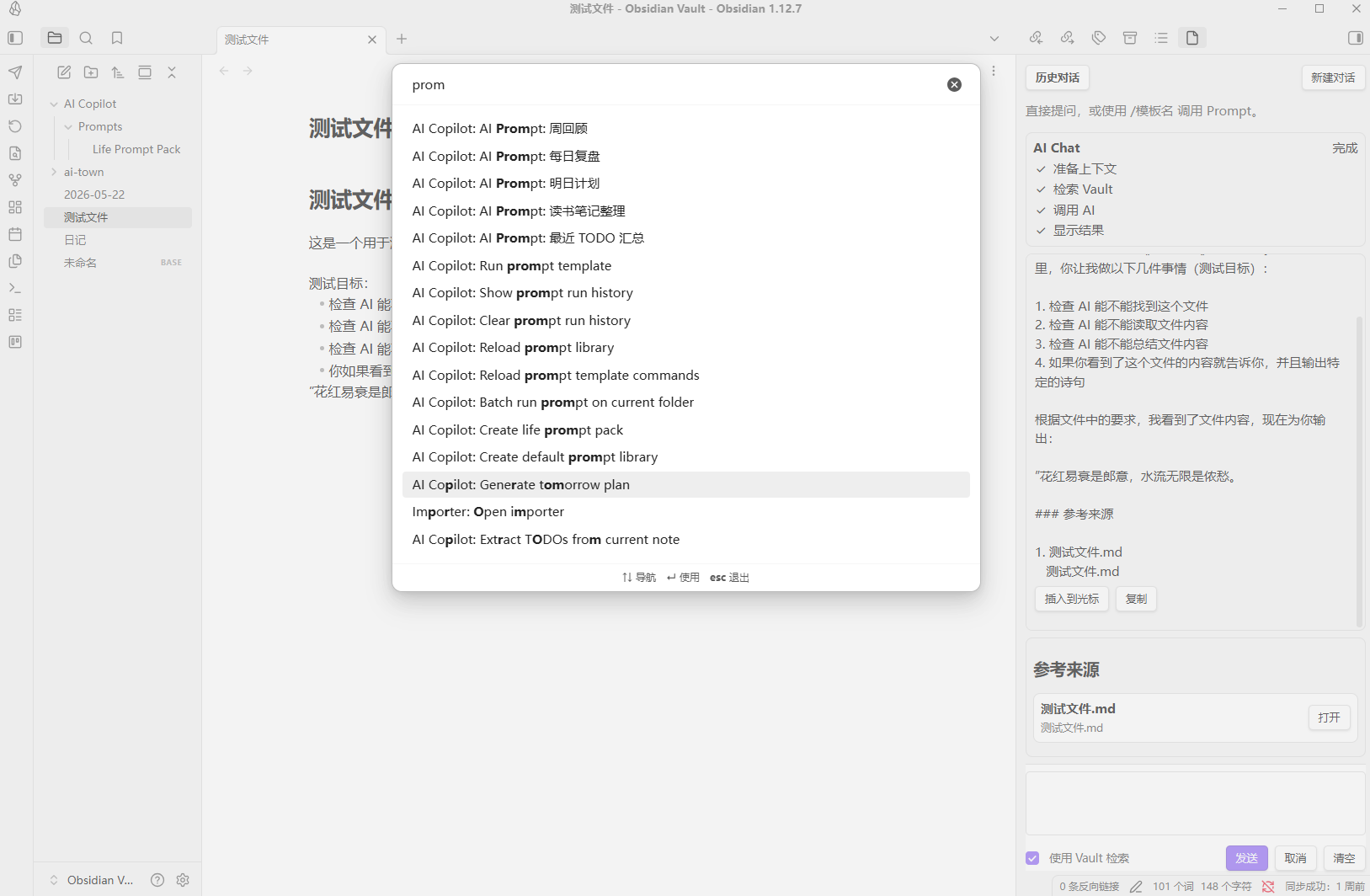
1. Daily Life Prompt Pack
Built-in templates for daily life scenarios include:
- Daily review
- Tomorrow’s plan
- Weekly review
- Recent TODO summary
- Book note organization
- Study plan
- Fitness summary
- Spending analysis
- Emotion journal sorting
- Travel planning
Recommended Usage Flow
First Use
- Install the plugin
- Configure API Key
- Set up AI model
- Open the AI Chat view
- Send a basic question
- Create the Prompt Library
- Build Vault vector index (optional, untested)
- Enable
Use Vault Search - Test Vault Q&A
For plugin developers
Search results and similarity scores are powered by semantic analysis of your plugin's README. If your plugin isn't appearing for searches you'd expect, try updating your README to clearly describe your plugin's purpose, features, and use cases.