by wing-zlatan
Make PDF and document attachments easy to spot with compact file cards, using your existing embeds.
Attachment Cards
Keep supporting files close without letting them take over your notes.
Turn PDF, Word, Excel and other document embeds into compact, recognizable file cards. Your existing ![[file]] embeds work immediately—no new syntax, conversion or setup. Click a card to open its file.
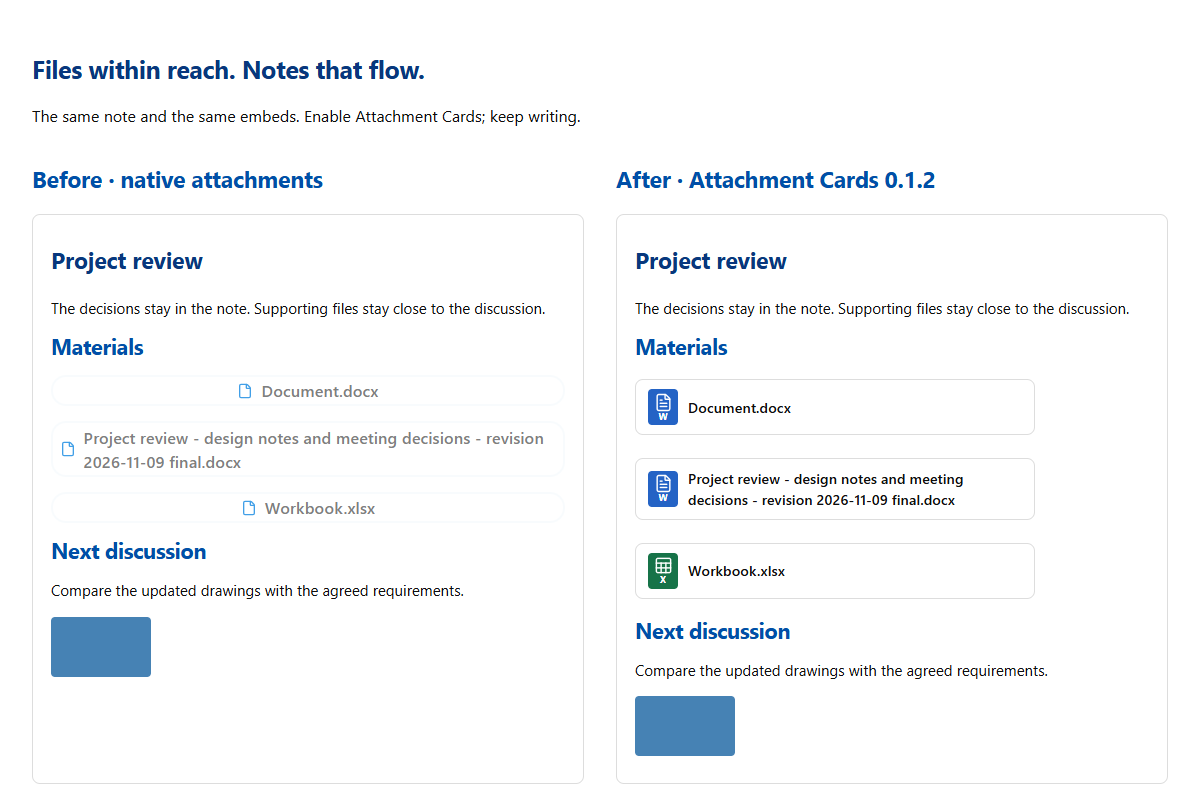
Meeting notes with shared materials. Course notes with handouts. Project notes with deliverables. Keep the discussion readable and its files easy to find.
Install
In Obsidian, open Settings → Community plugins → Browse, search for Attachment Cards, then select Install and Enable.
Open in Obsidian · Community listing
Open a note containing a document embed. It becomes a card automatically. Disable the plugin to restore native embeds; the Markdown is unchanged.
Features
- File-type icons for PDF, Word, Excel, PowerPoint and plain text, plus a generic icon for other attachments.
- Click a card to open the file using Obsidian's normal link handling.
- Works in Reading view and Live Preview. Source mode keeps the original Markdown.
- Short names fit a compact row. Long names wrap in full, keeping dates, revision labels and extensions visible.
- Images, embedded notes, audio and video keep their native display and players.
- File name and type icon only, with no settings to configure.
- No network requests, telemetry or changes to note contents.
| Type | Extensions | Icon color |
|---|---|---|
.pdf | Red | |
| Word | .doc, .docx | Blue |
| Excel | .xls, .xlsx | Green |
| PowerPoint | .ppt, .pptx | Orange |
| Plain text | .txt | Slate blue |
| Other attachments | Other non-image, non-note, non-media files | Gray |
Manual installation
- Download
main.js,manifest.jsonandstyles.cssfrom this repository's Releases page. - Create an
attachment-cardsfolder inside your vault's.obsidian/plugins/folder. - Place the three files directly inside that folder.
- Reload Obsidian, then enable Attachment Cards under Settings → Community plugins.
The three release files are ready to run and require no build step. The ZIP generated by the packaging script also contains these files inside an attachment-cards/ folder.
Usage
Use ordinary embeds that point to files in your vault:
![[Report.pdf]]
![[Document.docx]]
![[Workbook.xlsx]]
![[Slides.pptx]]
![[Notes.txt]]
![[Archive.zip]]
Markdown embeds such as  also work. Ordinary links such as [[Report.pdf]] stay unchanged. Long names wrap without truncation; hover also shows the complete filename. Cards can be opened with Enter or Space when focused. Selecting text across a card does not activate it.
PDF embeds become cards and open through Obsidian; Office files use the system's associated application. Images, audio, video and embedded notes remain native. The plugin does not add file previews, move attachments or rewrite your notes.
Compatibility
The manifest declares Obsidian 1.5.0 or later. Runtime checks were performed on Windows with Obsidian 1.15.0 and the Blue Topaz theme. Older versions and mobile devices have not been verified. The plugin decorates native embed elements, so future changes to Obsidian's embed markup may require an update.
Development and packaging
main.js is both the source and the runtime entry point. styles.css contains the scoped card styles. There are no npm dependencies or compilation steps.
node --check main.js
python scripts/package_release.py
Packaging requires Python 3.10+, Node.js and Git. It verifies the version metadata, creates an install ZIP and standalone release assets under dist/0.1.3/, and exports the committed source with git archive. Commit the finished changes before packaging; the script refuses a dirty repository.
License
MIT. File icons are provided by Obsidian's built-in Lucide icon API; no icon assets are bundled.
Maintained by wing-zlatan.
For plugin developers
Search results and similarity scores are powered by semantic analysis of your plugin's README. If your plugin isn't appearing for searches you'd expect, try updating your README to clearly describe your plugin's purpose, features, and use cases.