Mindmark
unlistedby 0xE8551CCB
Render markdown lists as interactive mind maps with expand/collapse functionality
★ 2 starsUpdated 8mo ago
Mindmark - Obsidian Mind Map Plugin
A powerful Obsidian plugin that renders Markdown lists and multi-level headings into interactive mind maps.
✨ Features
🎨 Dual Render Modes
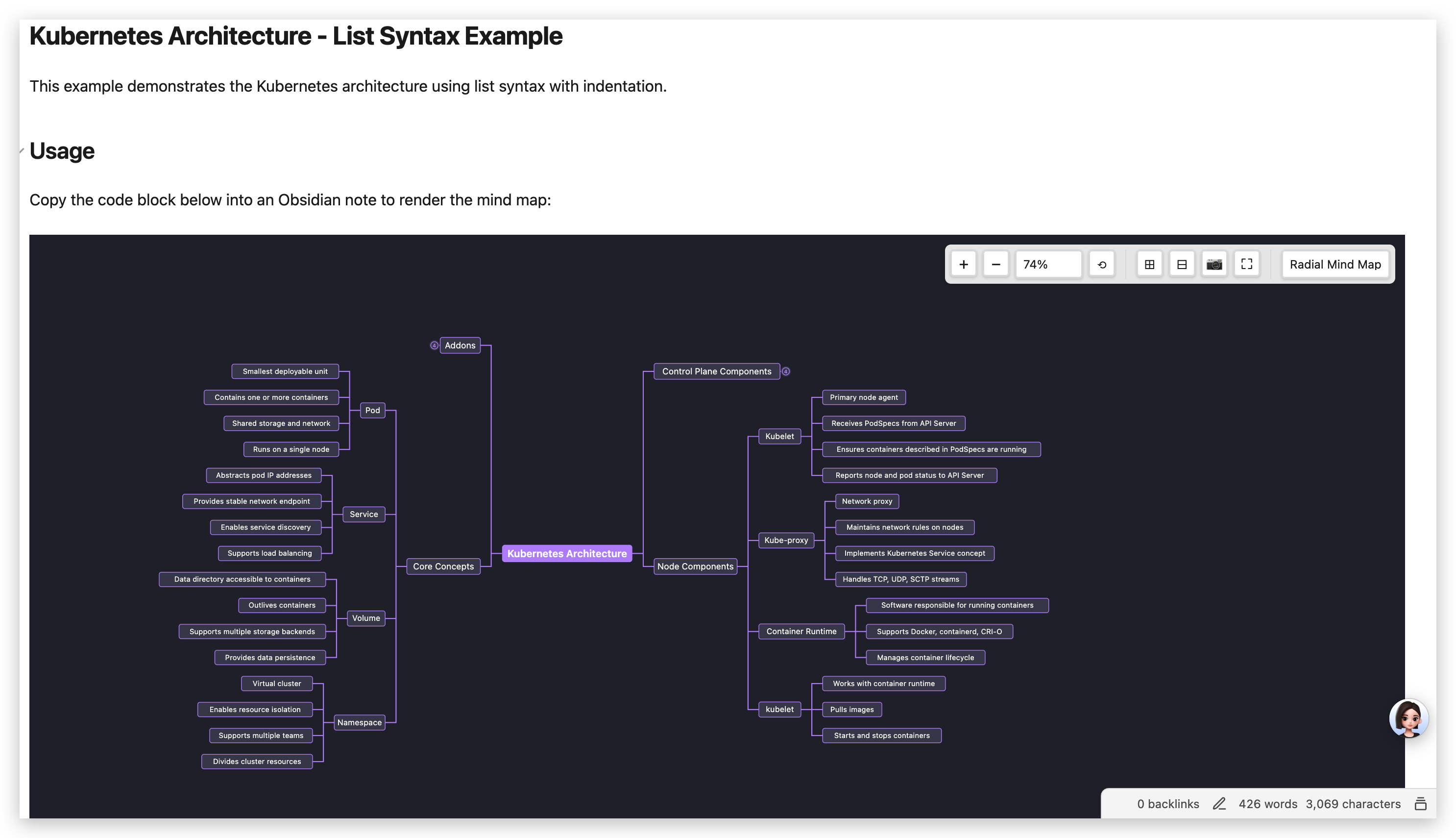
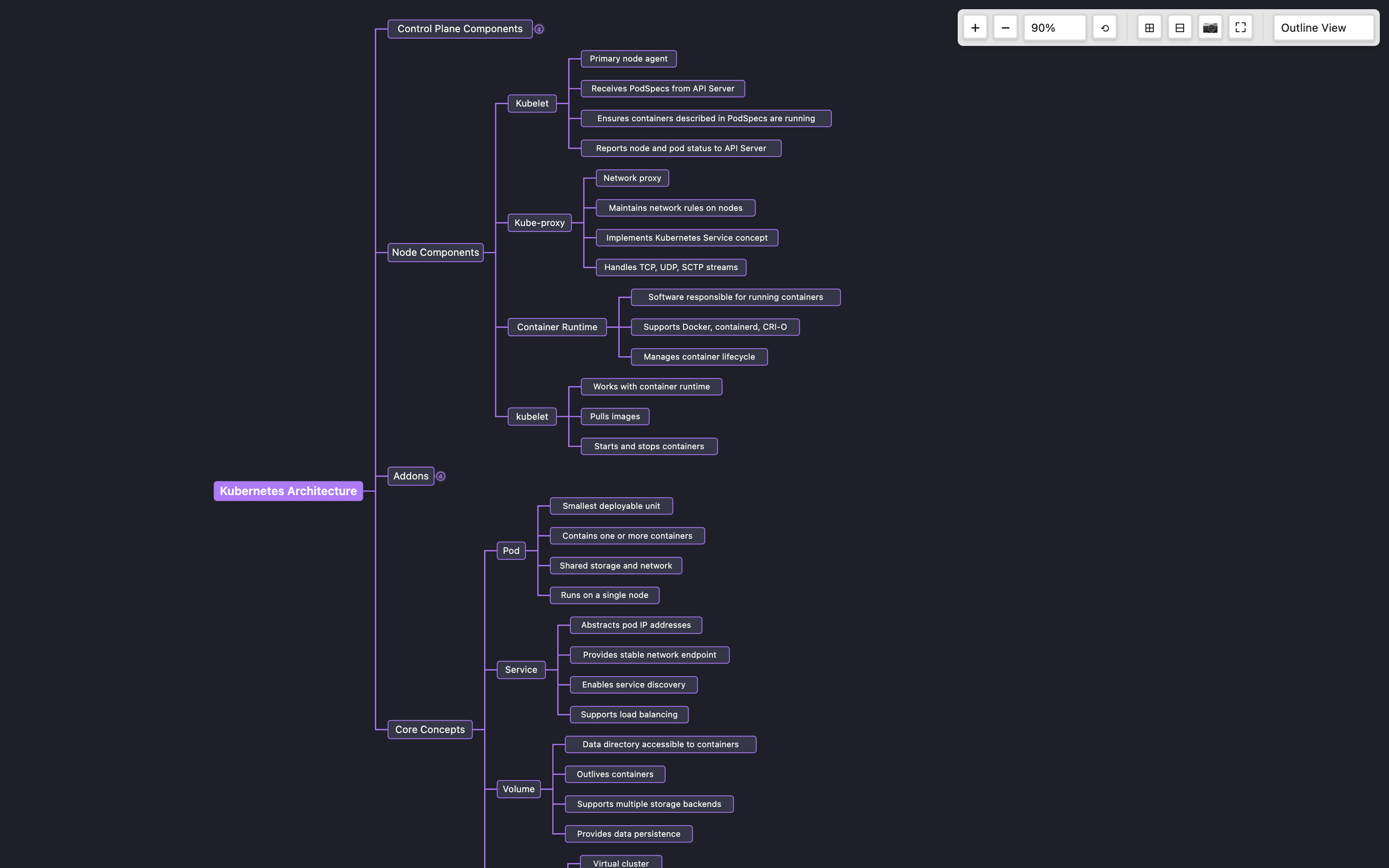
- Outline View: Horizontal left-to-right layout, perfect for hierarchical structures
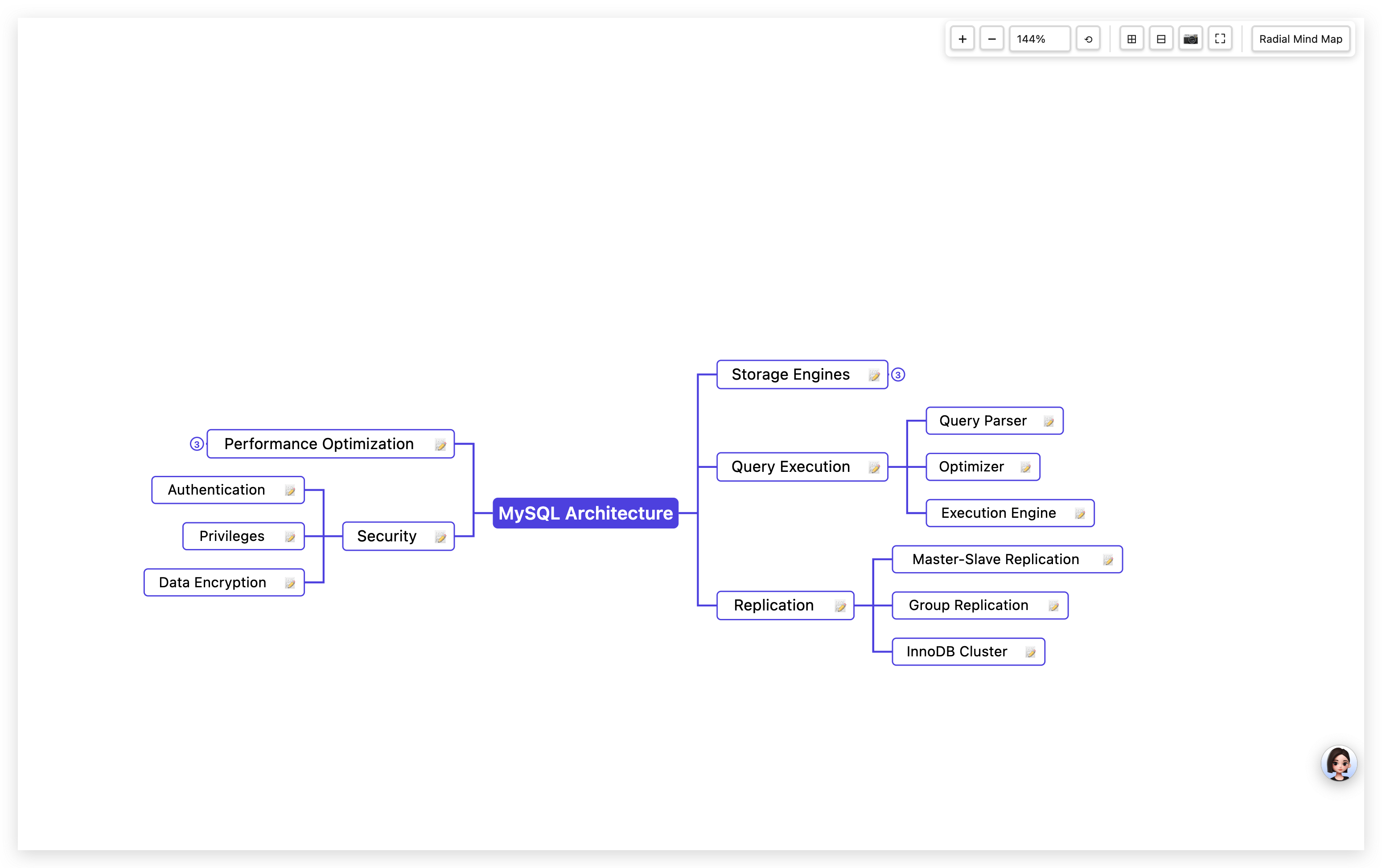
- Radial Mind Map: Symmetrical left-right layout, ideal for central themes
🎨 Rich Theme System
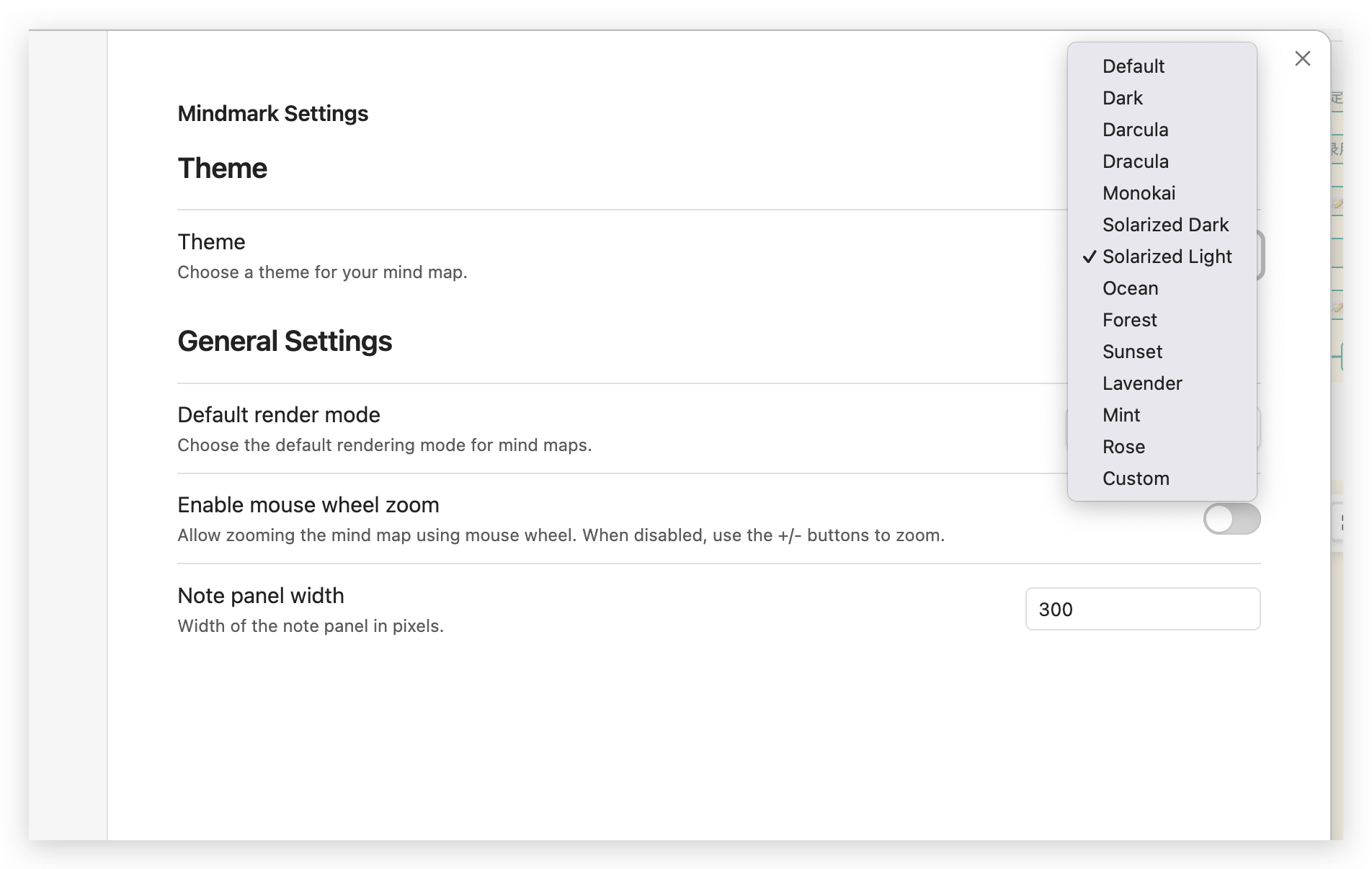
- 13 Preset Themes: Default, Dark, Darcula, Dracula, Monokai, Solarized Dark/Light, Ocean, Forest, Sunset, Lavender, Mint, Rose
- Custom Themes: Create and save your own color schemes
- 5 Color Configurations: Canvas background, font color, node background, line color, connection color
- Real-time Preview: Color changes apply immediately to all mind maps
📝 Smart Content Recognition
- Multi-level Heading Mode: Automatically recognizes
##,###etc. Headings, with content below as notes - List Mode: Supports indented lists starting with
-or*, with#as root heading
🎯 Interactive Experience
- Click to Expand/Collapse: Click nodes or circles to expand or collapse child nodes
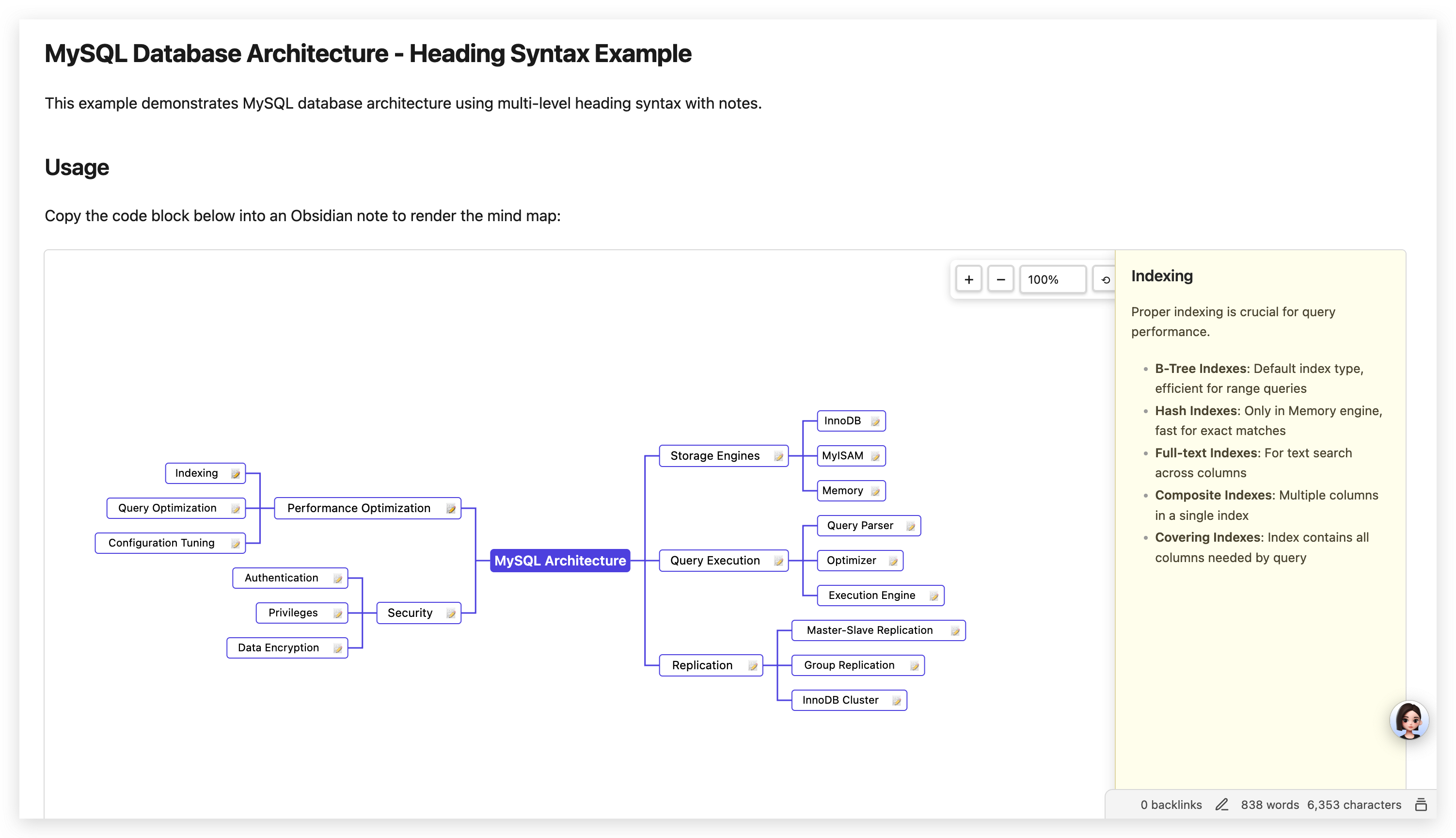
- Notes Display: Supports Markdown-formatted notes, click 📝 icon to view in right panel
- Zoom Controls:
- Zoom percentage selector (25%, 50%, 75%, 100%, 125%, 150%, 200%, 300%, 400%)
- +/- button zoom
- Mouse wheel zoom (configurable)
- Trackpad pinch zoom (macOS) and touch screen pinch zoom (configurable)
- Reset zoom button
- Pan Support: Mouse drag to pan the canvas
- Fullscreen Mode: Click fullscreen button for immersive viewing, theme color auto-syncs
- One-click Copy: Click 📷 button to copy mind map as high-definition PNG image
- Expand/Collapse All: One-click expand (⊞) or collapse (⊟) all nodes
🎨 Visual Design
- Professional Color Schemes: Multiple themes for different scenarios
- Adaptive Layout: Auto-center display, supports any size
- Smooth Animations: Panel slide-in/out, smooth operations
- Preview Mode Optimization: Correct display in preview mode, no horizontal scrolling issues
📦 Installation
Manual Installation
- Download and extract the plugin
- Rename folder to
obsidian-mindmap - Copy to Obsidian plugins directory:
- macOS:
~/Library/Application Support/obsidian/plugins/ - Windows:
%APPDATA%\obsidian/plugins/ - Linux:
~/.config/obsidian/plugins/
- macOS:
- Enable "Mindmark" in Obsidian Settings → Community Plugins
Development Installation
git clone https://github.com/iFaceless/obsidian-mindmap.git
cd obsidian-mindmap
npm install
npm run build
🚀 Usage
Basic Usage
Create a code block in Obsidian notes using mindmap as the language identifier:
```mindmap
- Core Architecture
  - Model (Brain)
    - Selection Principle: Business-driven
    - Multi-model Strategy
  - Tools (Arms)
    - Retrieve Real-world Information
    - Execute Actions
  - Orchestration Layer
    - Planning
    - Memory Management
```
Multi-level Heading Mode
Use Markdown multi-level headings to create mind maps. Content below headings is automatically recognized as notes:
```mindmap
## Technology
### Fundamentals
Fundamentals are a **long-term investment**. Short-term gains may not be obvious, but they determine your career ceiling.

#### Algorithms
Problem-solving strategies and insights:
- **LeetCode Hot 100** is the most core question bank, prioritize it
- Common question types: `*` indicates high frequency
  - 1. Linked List: `Reverse Linked List`, `Linked List Cycle`, `Merge K Sorted Lists`
  - 2. Binary Tree: `Level Order Traversal`, `Path Sum`, `Lowest Common Ancestor`
  - 3. Dynamic Programming: `Knapsack Problem`, `Longest Increasing Subsequence`, `Edit Distance`
  - 4. DFS/BFS: `Number of Islands`, `Course Schedule`, `Matrix Shortest Path`
- Interview tips: **Explain approach first, then write code, finally analyze complexity**
```
List Mode with Root Heading
Use # heading as root node, child nodes use - or *:
```mindmap
# Day_1_v4

## Introduction
- Definition: AI system combining model, tools, orchestration layer
- Goal: Transition from predictive AI to autonomous agents

## Core Architecture
- Model (Brain)
  - Selection Principle: Business-driven
  - Multi-model Strategy: Choose different models based on task characteristics
- Tools (Arms)
  - Function Categories: Retrieve real-world information, execute actions
- Orchestration Layer (Neural Network)
  - Role: Planning, memory management, decision execution
```
🎮 Interactive Operations
| Operation | Function |
|---|---|
| Click node text | Expand or collapse child nodes |
| Click hollow circle | Expand or collapse child nodes |
| Click 📝 icon | Display notes in right panel |
| Click canvas blank area | Hide notes panel |
| Mouse drag | Pan canvas |
| Mouse wheel | Zoom canvas (enable in settings) |
| Trackpad pinch | Zoom canvas (macOS, enable in settings) |
| Touch screen pinch | Zoom canvas (enable in settings) |
| Click +/- buttons | Zoom in/out |
| Select zoom level | Choose common zoom levels from dropdown |
| Click 🎯 button | Reset zoom and position |
| Click 📷 button | Copy as PNG image |
| Click ⛶ button | Toggle fullscreen mode |
| Click ⊞ button | Expand all nodes |
| Click ⊟ button | Collapse all nodes |
| Dropdown selection | Switch render mode |
⚙️ Settings
Theme Settings
- Theme: Select preset theme or Custom mode
- Save current settings as custom theme: Save current color settings as custom theme (only in Custom mode)
- Delete custom theme: Delete custom theme (only in Custom mode)
Color Settings (Custom mode only)
- Canvas background color: Canvas background color
- Font color: Node text color
- Node background color: Node background color
- Line color: Node border and outline color
- Connection color: Connection line color between nodes
General Settings
- Default render mode: Select default render mode (Outline View / Radial Mind Map)
- Enable mouse wheel zoom: Enable mouse wheel zoom (default: disabled)
- Enable pinch zoom: Enable trackpad pinch zoom and touch screen pinch zoom (default: disabled)
- Note panel width: Notes panel width (200-800px)
Preset Themes
| Theme Name | Style | Use Case |
|---|---|---|
| Default | White background, black text, purple lines | General purpose |
| Dark | Dark theme | Dark mode |
| Darcula | IntelliJ IDEA classic dark | Developers |
| Dracula | Popular dark theme | Developers |
| Monokai | Classic code editor theme | Developers |
| Solarized Dark | Solarized dark | Developers |
| Solarized Light | Solarized light | Developers |
| Ocean | Ocean blue tones | Fresh style |
| Forest | Forest green tones | Natural style |
| Sunset | Sunset orange-red tones | Warm style |
| Lavender | Lavender purple tones | Elegant style |
| Mint | Mint cyan tones | Fresh style |
| Rose | Rose pink tones | Soft style |
📸 Render Examples
List Syntax Example
List Syntax Example (Expanded)
Multi-level Heading Syntax Example
Multi-level Heading Syntax Example (with Notes)
Settings Interface
💡 Tips
- Quick Mode Switch: Use dropdown menu in control panel to quickly switch render modes
- Theme Switching: Choose appropriate theme for your scenario, or create custom theme
- Precise Zoom: Use zoom percentage selector to quickly jump to common zoom levels
- Fullscreen Viewing: Click fullscreen button for immersive viewing, theme color auto-syncs
- Export Image: Click 📷 button to copy mind map as HD PNG, paste directly into documents
- Notes Management: In multi-level heading mode, all content below headings becomes notes, supports full Markdown format
- Smart Recognition: Plugin automatically recognizes content type, no manual mode selection needed
- Custom Themes: Adjust colors and save as custom theme for future use
- Expand/Collapse All: Use ⊞ to expand all nodes or ⊟ to collapse all nodes for quick navigation
🔧 Development
# Install dependencies
npm install

# Development mode (auto-rebuild)
npm run dev

# Production build
npm run build
📝 Changelog
v1.2.0
- ✨ Add expand all (⊞) and collapse all (⊟) buttons to control panel
- ✨ Add trackpad pinch zoom support for macOS (wheel + ctrlKey)
- ✨ Add Safari gesture event support for pinch zoom
- ✨ Add touch screen pinch zoom support
- 🐛 Fix extra line segments on leaf node rectangles
- 🎨 Optimize connection line endpoints for consistent 3px spacing
- 🎨 Unify circle radius to 5 for both left and right sides
v1.1.0
- ✨ Add complete theme system with 13 preset themes
- ✨ Support custom theme creation, saving, and deletion
- ✨ Add zoom percentage selector (25%-400%)
- ✨ Add fullscreen mode with theme color auto-sync
- 🐛 Fix notes panel display in preview mode
- 🐛 Fix canvas width overflow in preview mode
- 🐛 Fix background color flicker when toggling fullscreen
- 🎨 Rename settings page to "Mindmark Settings"
v1.0.0
- ✨ Support two render modes: Outline View and Radial Mind Map
- ✨ Smart content recognition: multi-level heading mode and list mode
- ✨ Right-side notes panel with Markdown rendering
- ✨ One-click copy as HD PNG image
- ✨ Click node to expand/collapse
- ✨ Zoom and pan support
- 🎨 Professional visual design
📄 License
MIT License
🤝 Contributing
Issues and Pull Requests are welcome!
📧 Contact
- GitHub: iFaceless/obsidian-mindmap
For plugin developers
Search results and similarity scores are powered by semantic analysis of your plugin's README. If your plugin isn't appearing for searches you'd expect, try updating your README to clearly describe your plugin's purpose, features, and use cases.