by slow
Your vault as a black hole: every folder is an orbit in the accretion disc, every note a star. Eight looks: Gargantua, Quasar, Interstellar, Polarized, Maelstrom, Galaxy, Eclipse and Binary.
Black Hole Graph
Turns your Obsidian graph view into a black hole. Every top-level folder becomes an orbit in the accretion disc; every note becomes a star in that orbit. Notes that link to each other are pulled visually closer within the disc.
Pan and zoom the scene, click a folder's orbit to focus on it, and click any star to open its note.
Looks
The plugin ships with eight visual modes you can switch between from the toolbar, each restyling the same underlying data:
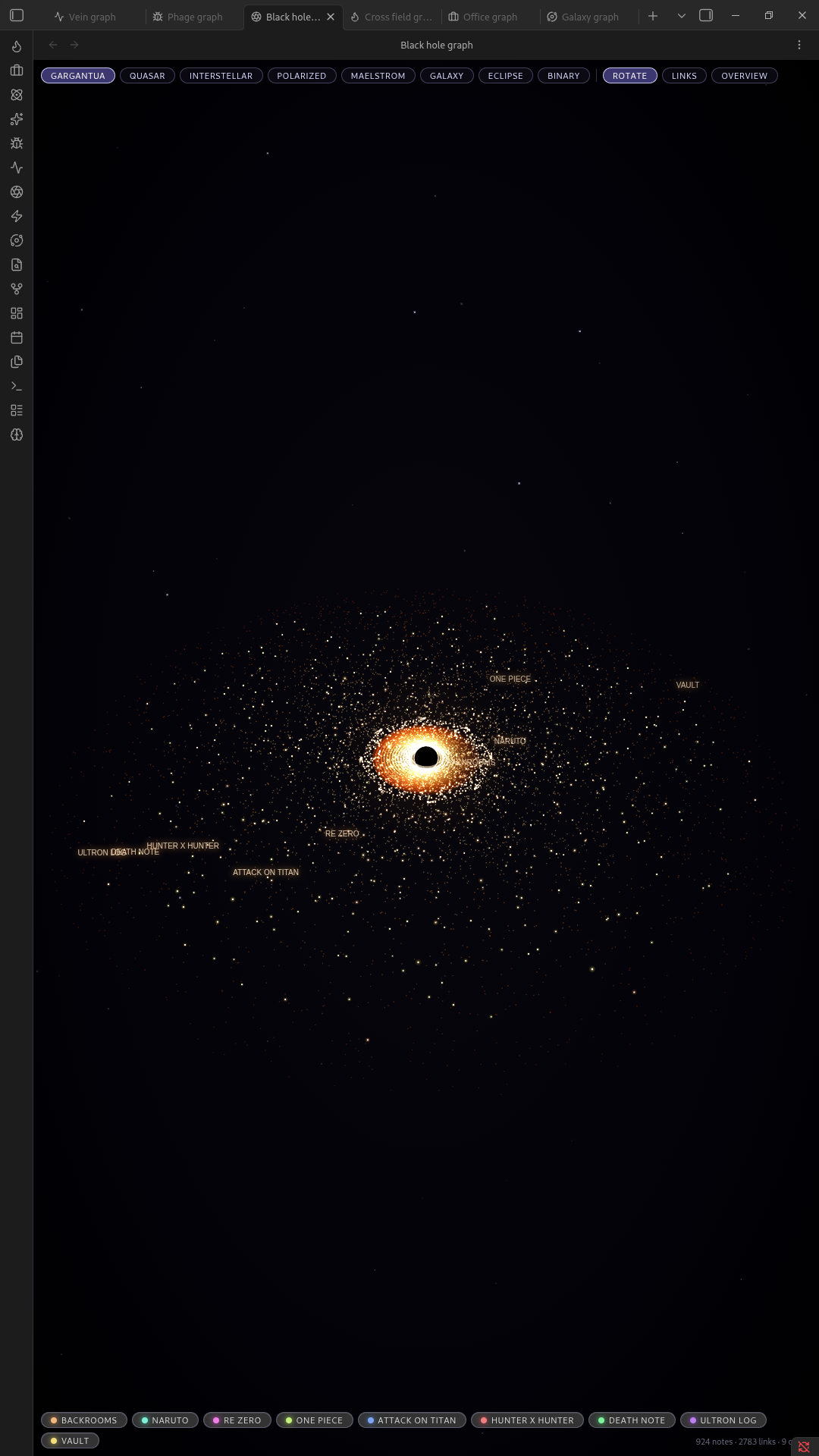
Gargantua
The warped, lensed ring look of the black hole from Interstellar.
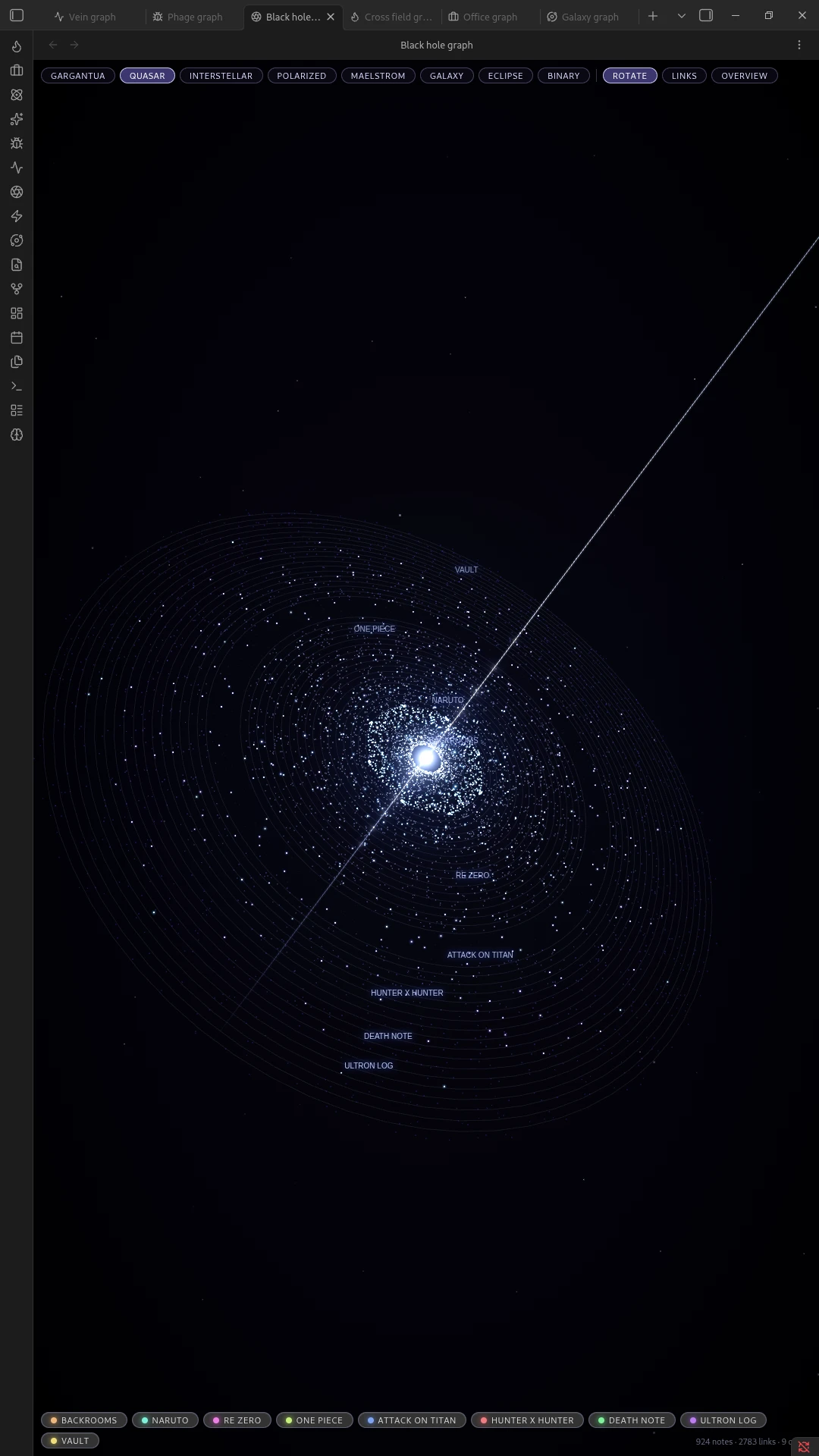
Quasar
A bright, energetic core with jets.
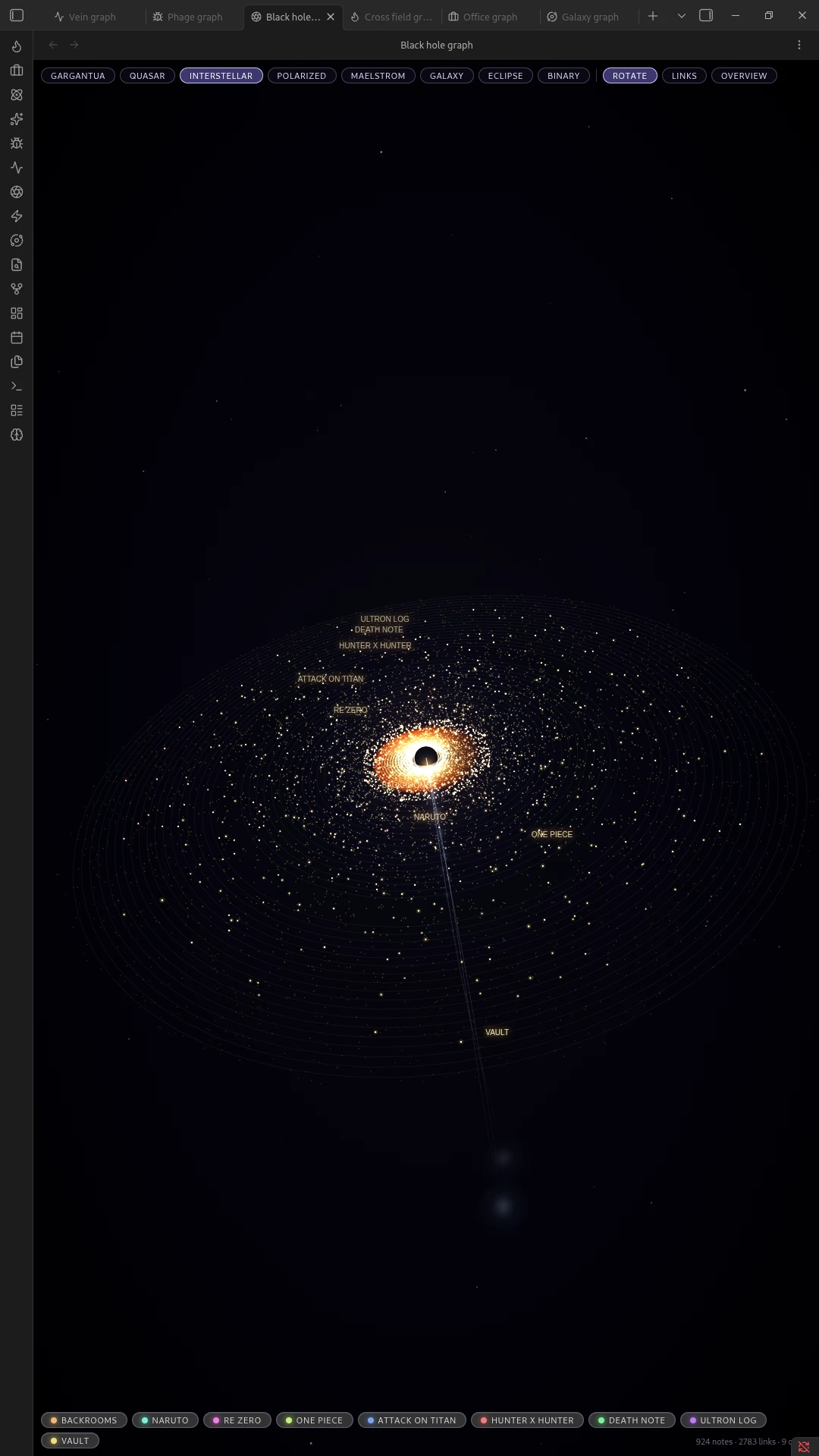
Interstellar
A softer, more naturalistic version of Gargantua.
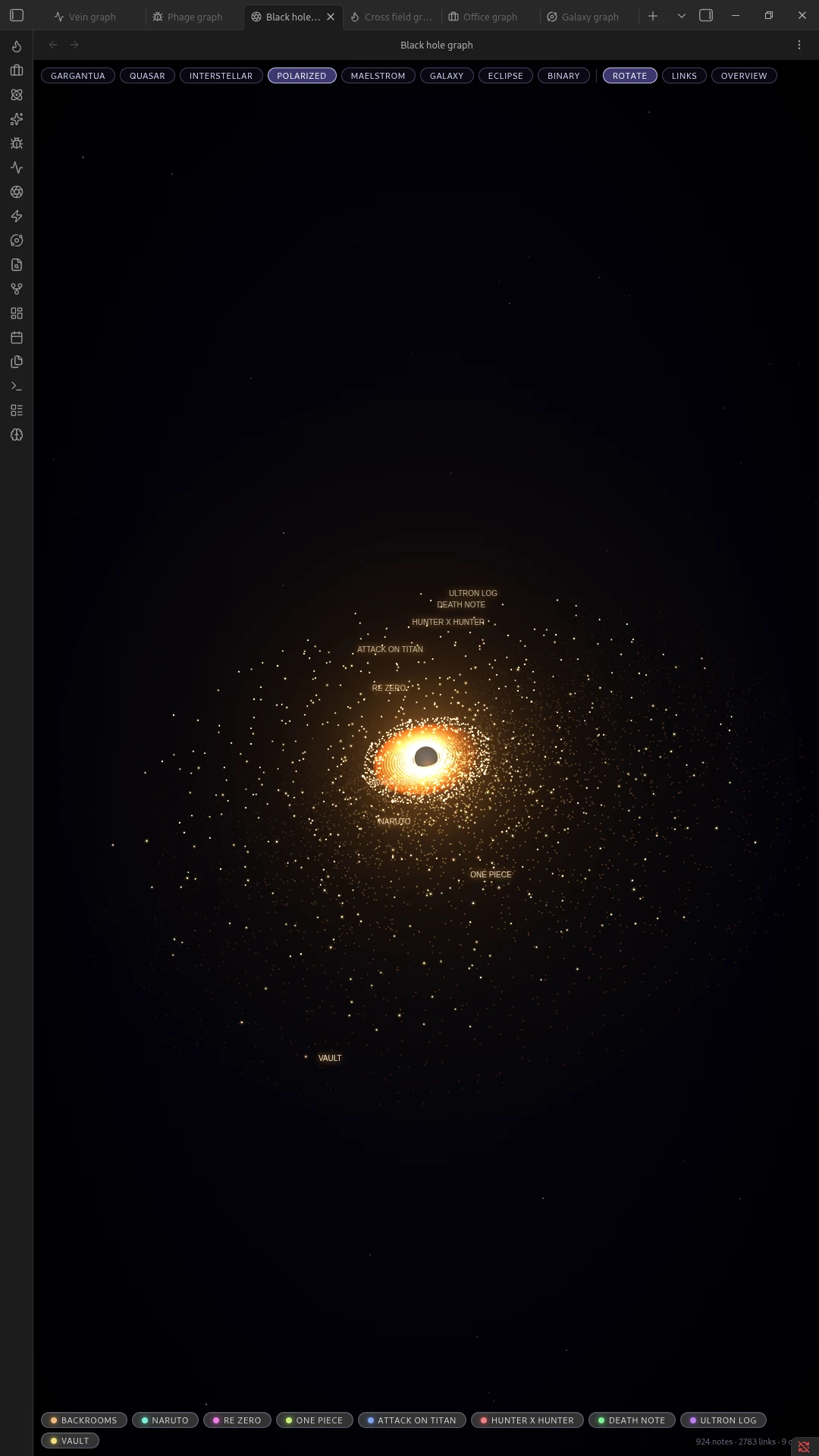
Polarized
A high-contrast, sharply banded disc.
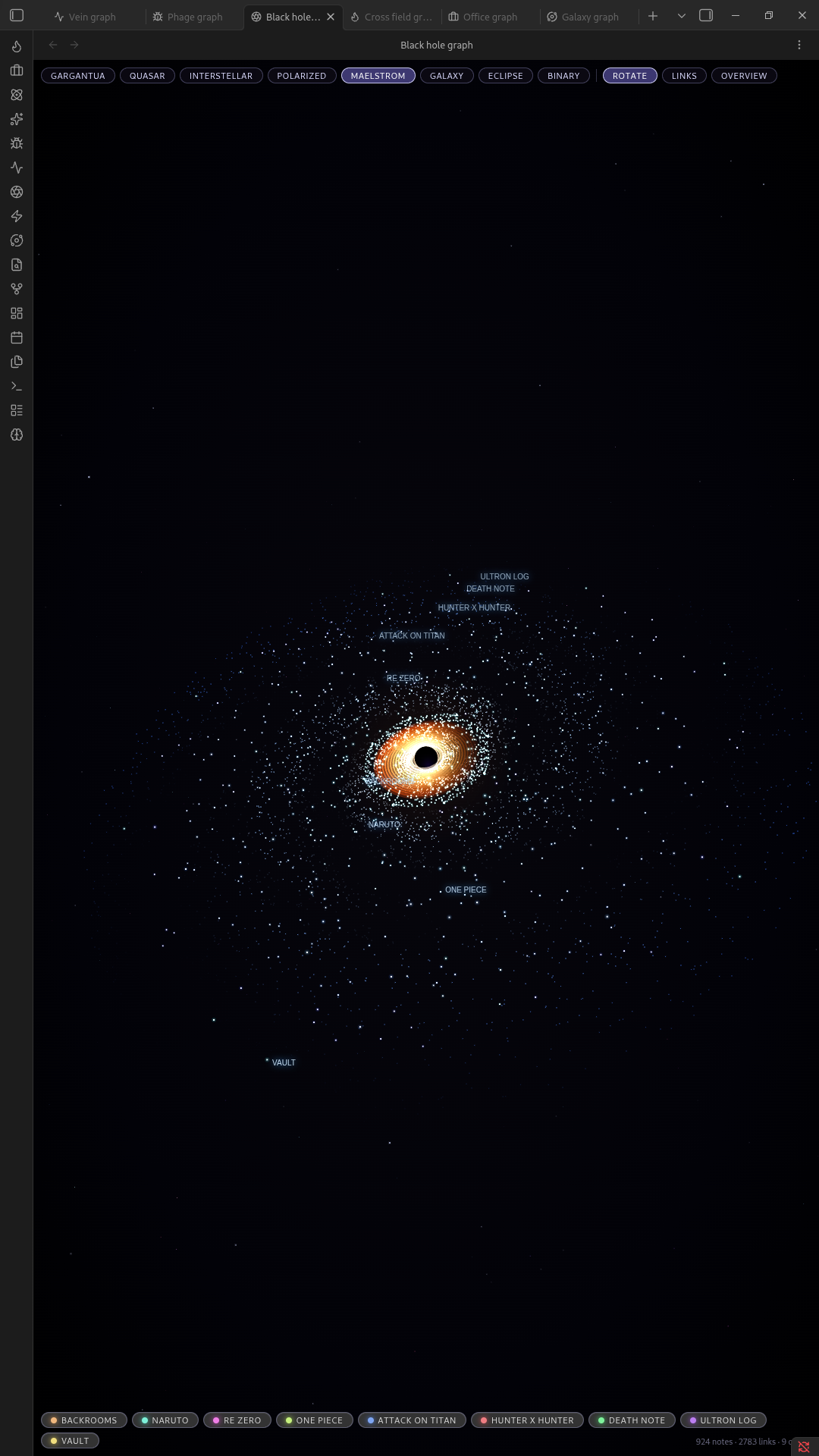
Maelstrom
A swirling, turbulent disc with heavy motion.
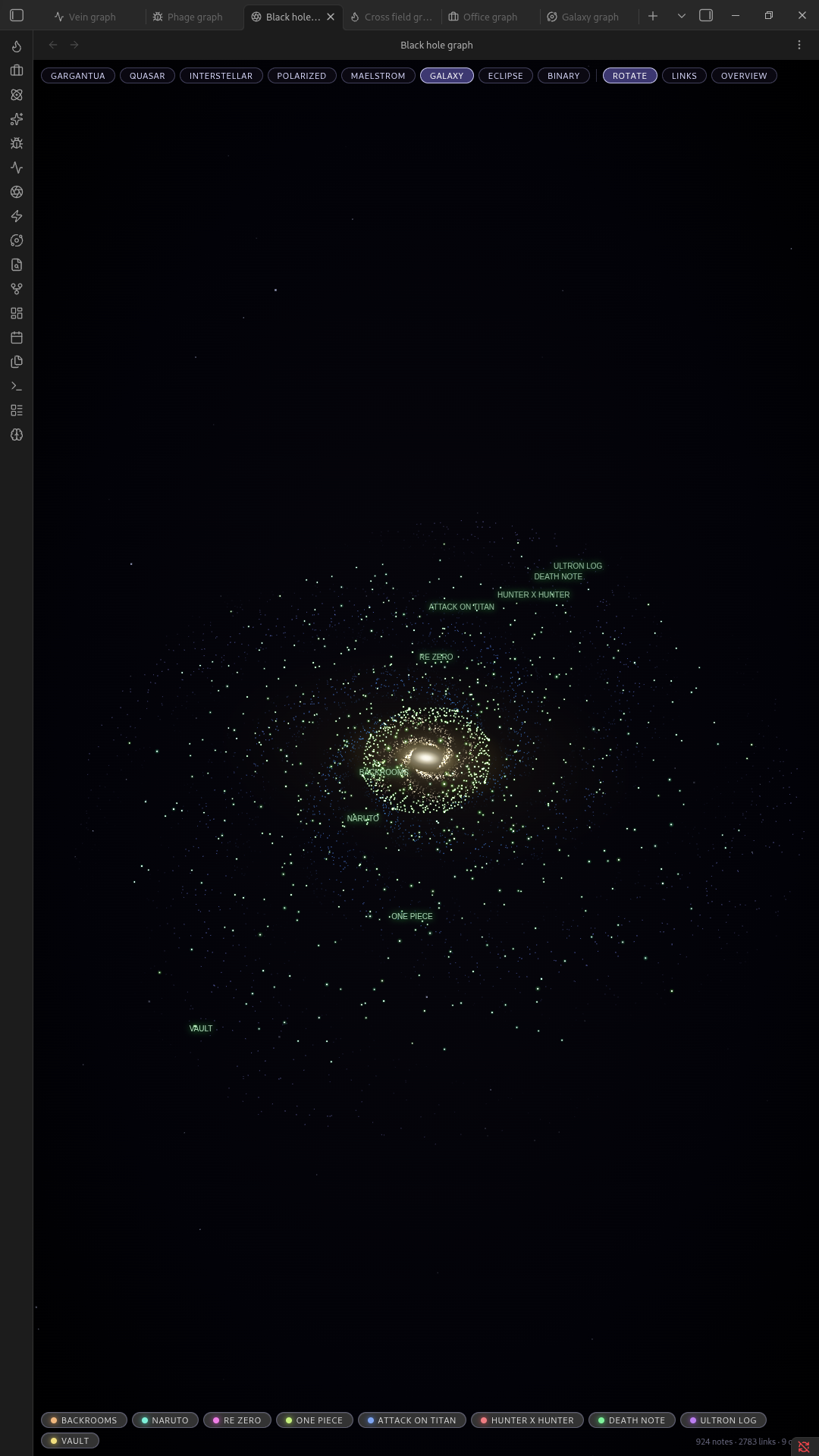
Galaxy
A spiral-armed galaxy instead of a single hole.
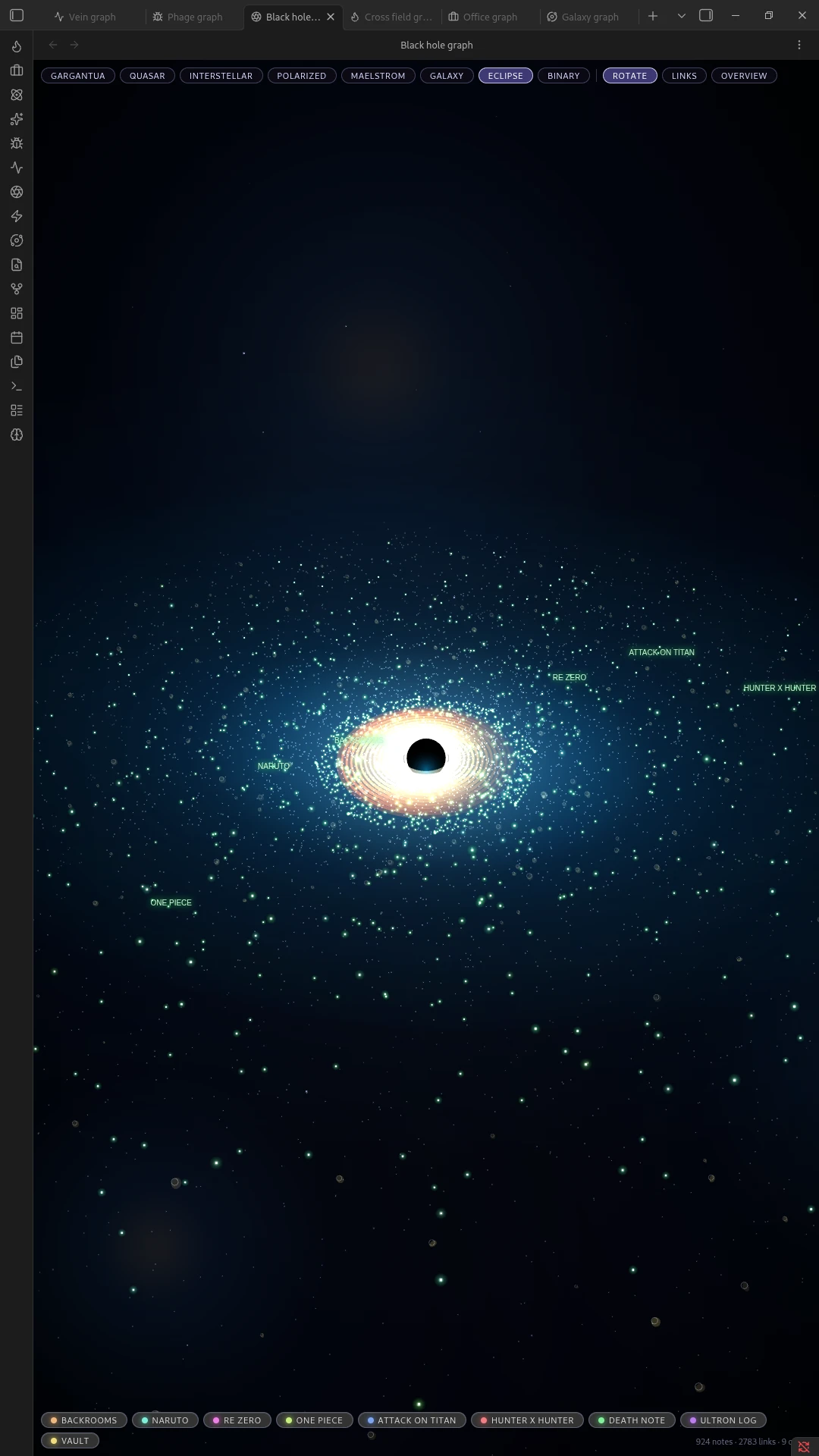
Eclipse
A silvery, backlit ring.
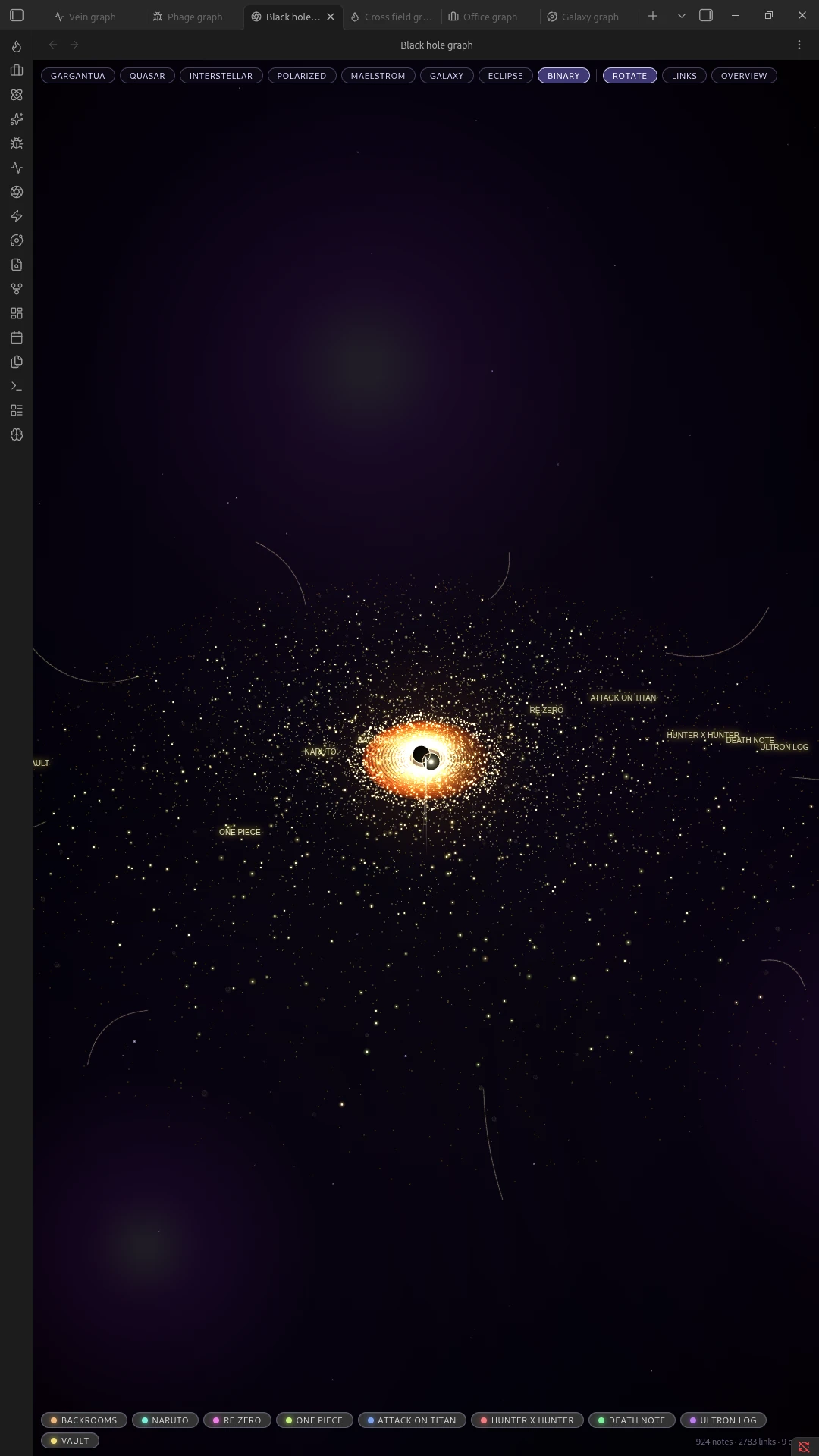
Binary
Two black holes orbiting each other.
Installation
Manual
- Download
main.js,manifest.json, andstyles.cssfrom the latest release. - Create a folder named
black-hole-graphinside your vault's.obsidian/plugins/directory. - Place the three downloaded files in that folder.
- Reload Obsidian and enable Black Hole Graph under Settings → Community plugins.
Community Plugins browser
Once accepted into Obsidian's directory, search for "Black Hole Graph" under Settings → Community plugins → Browse, and install it from there.
Usage
- Open the graph with the ribbon icon, the command palette (
Open black hole graph), or the toolbar. - Drag to pan, scroll or pinch to zoom.
- Click a star to open its note.
- Click a folder label / orbit to focus the camera on that folder.
- Switch looks and toggle effects (links, motion, etc.) from the in-view toolbar.
License
MIT, see LICENSE.
For plugin developers
Search results and similarity scores are powered by semantic analysis of your plugin's README. If your plugin isn't appearing for searches you'd expect, try updating your README to clearly describe your plugin's purpose, features, and use cases.