Bulk Exporter
approvedby symunona
Filter, export notes from your vault using metadata into a customizable new structure.
Bulk Exporter plugin
This is a plugin for Obsidian (https://obsidian.md).
Bugs and Feature Requests
What it does
Output and restructure your notes based on metadata!
Simply:
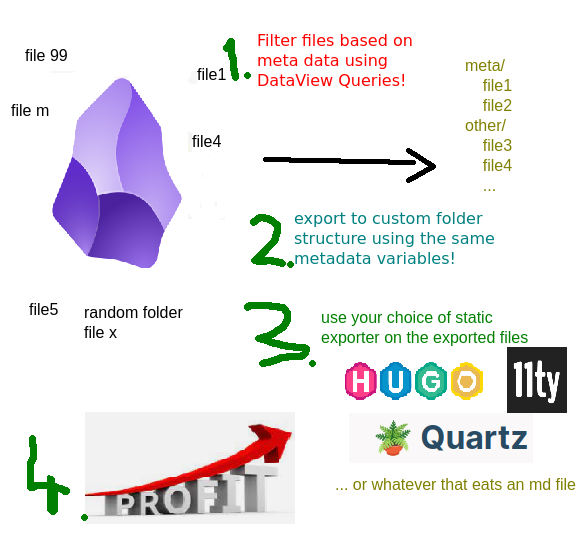
So from your random structure like this:
- root
  - projects
    - some active project
      - note 1 i want to publish [*] -> tech blog
      - another side topic that belongs here but not ready
    - another active project
      - pacal recepie to publish [*] -> recepies
      - some private note
  - areas
   - photo stream
      - collection of photos [*] -> photo blog
  - archive
    - old recepies
      - soup recepie [*] -> recepies
      - ...
Makes something like this:
- blogs (output folder anywhere on your drive)
  - recepies
    - pacal-recepie-to-publish.md
    - soup-recepie.md
    - ...
  - tech
    - note-1-i-want-to-publish.md
    - another-archived-tech-blog-entry.md
  - photo-blog
    - collection-of-photos.md
  - ...
... so that you can run your custom static site generators on a subset of your notes, like 11ty, Hugo, Jekyll...
Uses the powerful Obsidian Dataview plugin's language to find the files you want to export.
Shows the latest exported file status in the sidebar.
Why?
I use static generators (11ty) for my blogs, they are the outlets of my thoughts.
Some of the blog posts I am working on, are part of a bigger topic, and I wanted to keep them around to their respective PARA project folders (Building a Second Brain). I needed a folder-independent structure. One source of truth: wherever the file might be, independent from where it is into a structured output format.
Filter
The plugin uses a full fetched DataView query without the results type of course, as it's always a table.
Examples:
Select all the notes that contain the tech tag:
FROM #tech
Notes modified last week:
file.ctime > date(today) - dur(1 week)
Select all notes that have the publishDate metadata key:
publishDate
Select all notes that have publishDate or blog among the metadata keys:
publishDate OR blog
Output File Path and Name
It's a standard JS string literal, that gets the file metadata and some extras into it's context.
This is great for grouping your output files: you can create conditional sorting parameters, any folder structures you want.
The following is an example:
If file metadata is like this:
{
  blog: 'diary',
  publishDate: '...'
  title: 'Another day at the office',
  tags: ['running', 'some']
}
it will be extended with the following:
{
  created: {
    // moment style object with keys:
    YYYY: '2023',
    MM: '05',
    ...
    date: '2023-05-14',
    time: '17-54'
  },
  modified { ... } // date like above

  fileName: 'Another Day At The Office'

  // if there is a slug property set, uses that, if there is not, falls back to the normalized
  // version of the title property, if again not present, falls back to the normalized version of the file name.
  slug: 'another-day-at-the-office'

  d: function (dateLikeParam){
    // Use it like this: ${d(someDateMetaData).date} // will return the date value parsed and reformatted.
   }
   norm: function(string){
    // Will remove any special characters from the string and replaces spaces and separators with dash (-) so it's url safe.
   }
}
Examples
Want separate folders for different blogs?
${blog}/${created.date}-${slug}
Want to group different years into different folders?
${blog}/${created.YYYY}/${created.MM}-${created.DD}-${slug}
Want to keep the original filename and just dump everything in a flat structure?
${fileName}
Convert any field to a date:
${d(date_published).date}
Use a custom metadata field as formatted date in the output name:
${blog}/${d(date_published).date}-${slug}
Conditions and ternary operators
For conditional placement of a file, you can use ternary operators
The following will put all values that have a same blogname/post/some-entry meta value into the same folder, except if the file has an index key, then it will go to blogname/indexslug:
${blog}/${index?'':'posts/'}${slug}
Assets and internal links
If a document references images from your vault, it will be exported into an assets folder, relative to the markdown file! If obsidian shows it, it will be copied.
- assets/
   - attachment1.jpg
   - image.webp
   - pic.gif
- markdown.md <- referenced in the content or even in metadata!
Also, the plugin parses the internal links that point to other notes. If the referenced obsidian file is exported in the process, the links will be re-pointed to the appropriate output file name.
If the link is to a non-exported note, it is removed (the text is left in).
Magic Metadata Key copy
If you want other files to be exported with your markdown, just add a copy metadata parameter.
It eats any glob formatted regular expression you give it, using relative paths compared to where your markdown file is.
Security notes (review warnings explained)
The automated community review flags a few things. All of them are deliberate, and here is why:
- Direct filesystem access (
fs) — the whole point of the plugin is to write the exported files outside your vault, to a folder you pick. The Obsidian vault API cannot do that, so plainfsdoes. - Shell execution (
child_process) — only used for the optional post-export shell script setting: a command you type in yourself, run after an export finishes. Nothing is executed otherwise. - Dynamic code execution (
eval) — the output path template (${blog}/${slug}) is a tiny JS expression evaluated against your note's metadata. Cheap and generic: any metadata key, any ternary, any folder structure, with no special templating language to learn. It only ever runs on your own format string — only paste here things you understand! - Clipboard access — one convenience button in the export preview: when a metadata value is a nested object, clicking its cell copies the raw JSON so you can inspect it. Nothing is read from the clipboard.
Moving settings to another vault
The top of the settings page has Export and Import buttons. Export writes every export set to a JSON file (without the export cache, so it stays small and vault independent). Import asks whether to overwrite the export sets of the current vault, or to add the incoming ones next to them.
Manually installing the plugin
- Copy over
main.js,styles.css,manifest.jsonto your vaultVaultFolder/.obsidian/plugins/obsidian-bulk-exporter/. - Or just simlink it with
ln -s /path/to/your/dev/folder/ /path/to/your/vault/.obsidian/plugins/obsidian-bulk-exporter/
Development
The repo ships a small vault in test-vault/ with the tricky cases (spaces in file
names, wiki links, embedded assets, external links). One script wires it up as a real
Obsidian vault with this repo symlinked in as the plugin:
./scripts/setup-dev-vault.sh
pnpm run dev
The script symlinks the repo to test-vault/.obsidian/plugins/bulk-exporter, downloads
Dataview (a hard runtime
dependency) and Hot Reload, and drops a
.hotreload marker so every esbuild rebuild reloads the plugin without restarting
Obsidian.
Then in Obsidian: Open folder as vault → test-vault, trust the author, and enable the
three community plugins. Point the export target at a scratch folder like
/tmp/bulk-export-out.
Use a separate vault for development — Obsidian keys plugins by id, so a dev checkout and the store-installed copy cannot both live in the same vault.
To develop against your own vault instead, do the same by hand:
ln -s /path/to/this/repo \
  /path/to/vault/.obsidian/plugins/bulk-exporter
The repo root doubles as a plugin folder: manifest.json and styles.css are checked in,
and pnpm run dev writes main.js next to them.
Unit tests (no Obsidian needed) run with pnpm test.
Bugs and Feature requests
Open an Issue on github, or add a PR!
Thanks
Marcus Olson for the Dataview plugin and the developer docs!
Till Friebe for the Diff Tool code
jspaint.app - for the marketing image.
For plugin developers
Search results and similarity scores are powered by semantic analysis of your plugin's README. If your plugin isn't appearing for searches you'd expect, try updating your README to clearly describe your plugin's purpose, features, and use cases.