CAD-Lab




CAD-Lab brings deterministic, millimeter-precision vector CAD directly into Obsidian—designed for P&ID (Process and Instrumentation Diagrams) and electrical single-line & multi-line schematics. Drawings live as human-readable .cad.md Markdown notes inside your vault with an automatically synchronized Bill of Materials (BOM) table, native AutoCAD R2010 DXF workflows, and true-scale Vector PDF export.
100% Local-First & Offline: Zero runtime dependencies outside Obsidian and standard Web APIs—no telemetry, no cloud servers, and no Node/Electron-only requirements. The exact same plugin bundle runs smoothly on macOS / Windows / Linux and iPadOS (Apple Pencil + touch gestures).
Preview
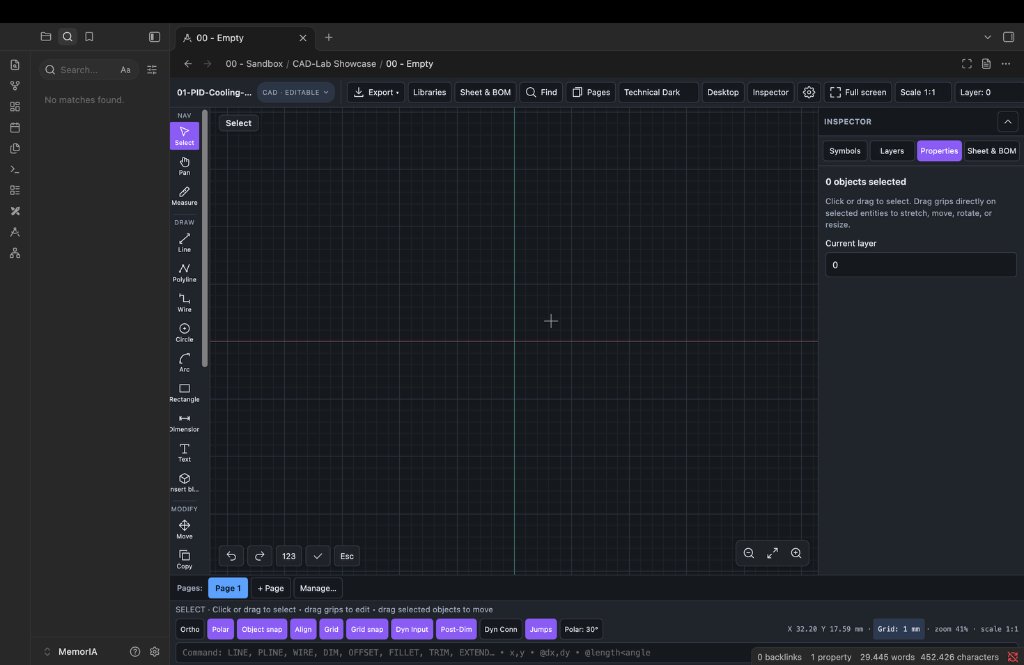
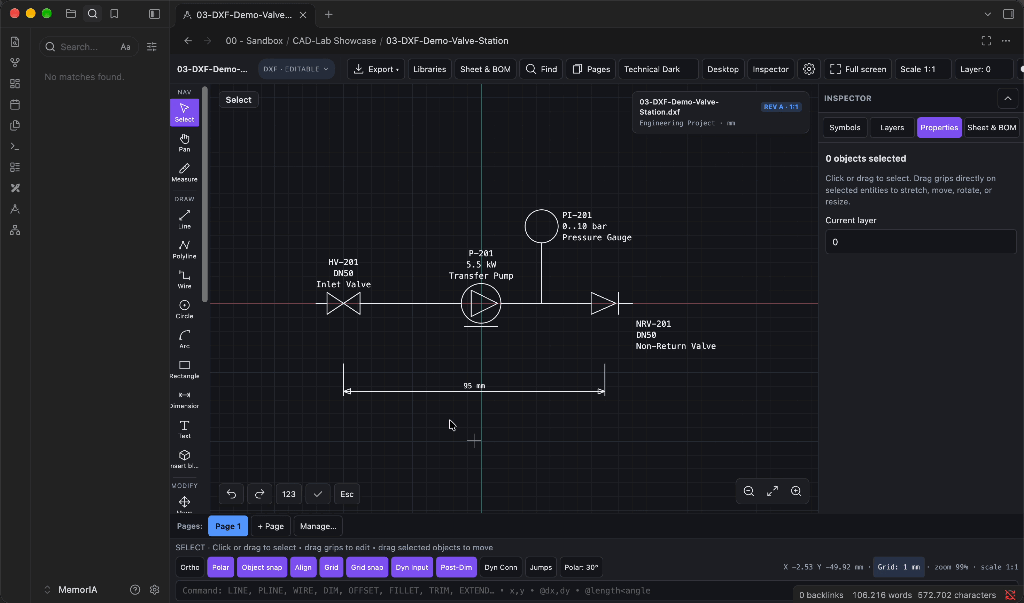
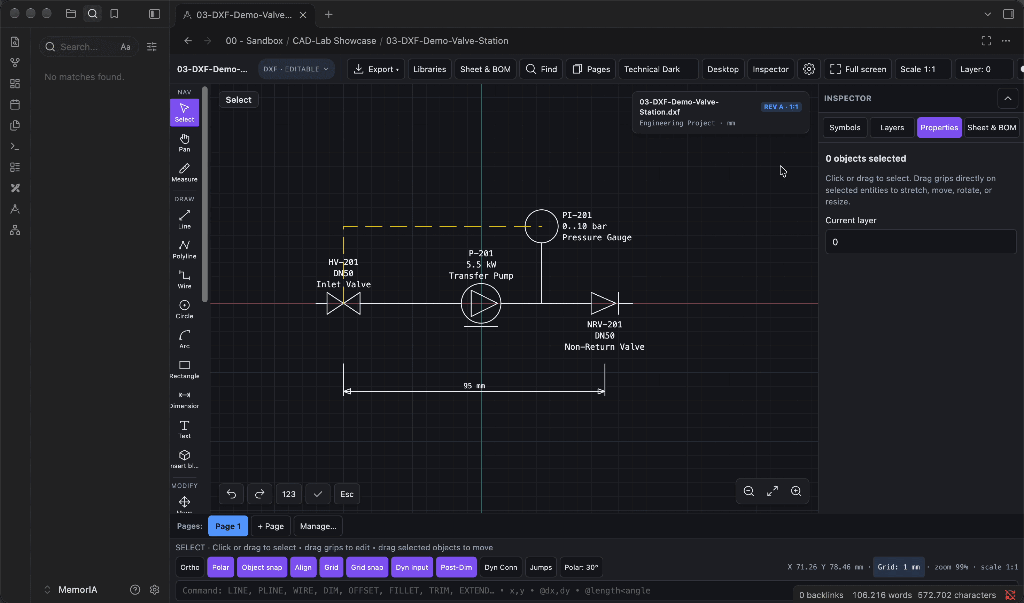
Key Features
- Millimeter Vector Engine (
mm): Exactfloat64world coordinates, analytic OSNAP (Endpoint,Midpoint,Center,Intersection,Port), Polar Tracking, Ortho, Grid Snap (F9), and zoom-independent precision. - 231 Built-in Standards Symbols & Library Manager: Organized across P&ID (
ANSI/ISA-5.1,BS 1646,DIN 28004,ISO 10628,ISO 14617), Electrical Single-Line & Multi-Line (IEC 60617,IEC 62271-1 / EN 62271-200,ANSI Y32,NFPA 79), and General (ISO 128), plus custom.cad-library.jsoncreation and.dxfsymbol import. - Intelligent Wires & Flow Humps: Orthogonal wires attached to symbol ports auto-reroute when blocks move or rotate; configurable Visio-style cross-over jumps, arrow placements (
Start,End,Both,Middle,Every L/N), and custom dash spacing. - Direct DXF Editing & Duplicate-Free Conversion: Open
.dxffiles in Obsidian and choose directly from the top badge dropdown (DXF · READ ONLY ▾) whether to Edit DXF directly in place (R2010), Convert to.cad.md(with the option to trash the source.dxfcleanly), or switch back to Read Only. - Unidirectional Bill of Materials (BOM): Every
.cad.mdnote embeds a Markdown BOM table (Tag,Symbol,Brand,Model,Standard,Value,Description,Layer,Notes) automatically synced from the canvas (Graphic → Table). - Multi-Page Sheets, ISO/ANSI Title Blocks & Vector PDF: Standard
A4–A0/ANSI A–Dborders, ISO 7200 / ANSI Y14.1 title blocks, multi-page tabs, search with layer highlighting (FIND), and true-scale multi-page Vector PDF 1.4 output. - Tablet & Apple Pencil Native Ergonomics: Dedicated
Pen draws · fingers navigatemode with 1-finger pan, 2-finger pinch-zoom, 2-finger tap Undo, 3-finger tap Redo, configurable Apple Pencil hold-loupe, and floating 123 precision numpad.
Installation
From Obsidian Community Plugins (once listed)
- Open Settings → Community plugins → Browse.
- Search for CAD-Lab, click Install, then Enable.
Manual Installation (GitHub Release)
- Download
main.js,manifest.json, andstyles.cssfrom the latest GitHub Release. - Copy them into
<your-vault>/.obsidian/plugins/cad-lab/. - Reload Community Plugins in Obsidian and enable CAD-Lab.
(For development builds into local vaults, npm run deploy compiles production main.js and updates configured vaults while creating automatic backups.)
Getting Started & Mode Switcher
Click the drafting compass ribbon icon or run CAD-Lab: Create new CAD / P&ID drawing from the Command Palette.
Use the interactive status pill in the top bar at any time:
CAD · EDITABLE ▾: Full editing enabled on.cad.mdnotes. Click the badge to temporarily lock the view (Switch to Read Only) and prevent accidental edits.CAD · READ ONLY ▾: Safe inspection mode for.cad.mdnotes. Click the badge and choose Edit CAD drawing to resume editing.DXF · READ ONLY ▾: Source.dxf/ binary.dwgsafe view. For ASCII.dxffiles, click the badge (or banner buttons) to choose Edit DXF directly (saves straight back into the.dxffile in R2010 without creating duplicates) or Convert to.cad.md…(creates a full Markdown CAD note with YAML, BOM & multi-page tabs, optionally trashing the original.dxf).DXF · EDITABLE ▾: Direct R2010.dxfediting active. Click the badge to Convert to.cad.md…or Switch to Read Only.
Commands, Shortcuts & Exact Input
Most tools accept both toolbar/ribbon clicks and AutoCAD-style keyboard commands (dx,dy, @dx,dy, @length<angle), with customizable keyboard shortcuts (F3 OSNAP, F8 ORTHO, F9 Grid Snap) and mouse button/wheel bindings in Settings.
| Tool | Command / alias | Usage |
|---|---|---|
| Line | LINE, L | First point, next endpoint; Enter finishes (single or chained) |
| Polyline | PLINE, PL | Pick vertices; CLOSE closes loop; U undoes last vertex; Enter finishes |
| Intelligent wire | WIRE, W | Connect block port to port/point with automatic orthogonal rerouting |
| Dimension (mm) | DIM, DIMENSION, D | First & second extension point (aligned, horizontal, vertical, Ø, R) |
| Circle / Arc / Rectangle | C / A / REC | Center & radius, center/start/end angle, or opposite corners |
| Text | T | Insertion point, text content, millimeter height, and rotation |
| Insert symbol | I | Pick symbol from standard hierarchy, then place on canvas |
| Move / Copy | M / CO | Grab & drag directly; Copy places at pointer and auto-increments BOM TAG (XV4 → XV5) |
| Rotate / Scale / Mirror | RO / SC / MI | Rotate around base point, scale uniformly, or mirror across two axis points |
| Match Properties | MA, MATCHPROP | Pick source object, then apply layer, color, linetype, and styles to targets |
| Offset | O, OFFSET | Offset inside, outside, or both sides simultaneously with live preview |
| Trim / Extend | TR / EX | Select cutting boundary line, then click segment to trim or extend |
| Fillet / Join / Bridge | F / J | Corner fillet between lines, join chains, or toggle individual cross-over bridges |
| Find / Print | FIND / PRINT | Search objects/BOM tags highlighting Layer, or rescale & print standard sheets |
File Formats & Unidirectional BOM
Every .cad.md note follows a clean, inspectable Markdown layout:
- Minimal YAML Frontmatter:
cad-lab: true(drawing scale, units, and component tags are kept clean unless you opt into project preset properties). - Markdown Prose & Unidirectional BOM Table: Between
<!-- cad-bom:start -->and<!-- cad-bom:end -->, CAD-Lab generates a structured BOM table (#,Tag,Component / Symbol,Brand,Model,Standard,Category,Value / Rating,Description,Attributes,Layer,Notes) strictly synchronized from the schematic (Graphic → Table). - Fenced
cad-dataBlock: Validated millimeter JSON model storing layers, custom linetypes, symbols, multi-page sheets, dimensions, and title blocks.
DXF / DWG & True-Scale Vector PDF Export
- Vector PDF: Export Vector PDF (in scale) or Print / Fit to Standard Paper… via Export ▾ to generate native multi-page PDF 1.4 files with exact millimeter scaling, dash patterns, flow jumps, arrowheads, borders, and title blocks.
- DXF & DWG: Export standards-compliant ASCII AutoCAD R2010 (
AC1024) withTABLES,BLOCKS,ATTRIB/ATTDEF,DIMENSION, linetypes, andOBSIDIAN_CADXDATA. Import supports.dxfand ASCII.dwg; binary AutoCAD.dwgcontainers (AC1009–AC1032) are inspected losslessly to show DWG release metadata, binary sections, and embedded preview thumbnails.
Support
If you find CAD-Lab useful for your engineering schematics, P&ID documentation, or field work in Obsidian, you can support ongoing development on Ko-fi:

Author & License
Written and maintained by Alessandro Abrami (github.com/ide-ale/obsidian-cad-lab).
Released under the GNU Affero General Public License v3.0 (AGPL-3.0).
For plugin developers
Search results and similarity scores are powered by semantic analysis of your plugin's README. If your plugin isn't appearing for searches you'd expect, try updating your README to clearly describe your plugin's purpose, features, and use cases.