Drawio
approvedby doge-liang
Embed, preview, and edit draw.io diagrams directly in your notes. - This plugin has not been manually reviewed by Obsidian staff.
English | 中文
Drawio for Obsidian


Embed, preview, and edit draw.io (diagrams.net) diagrams directly in your notes. Previews render fully offline on every platform, and diagrams are stored as readable, diff-friendly XML.
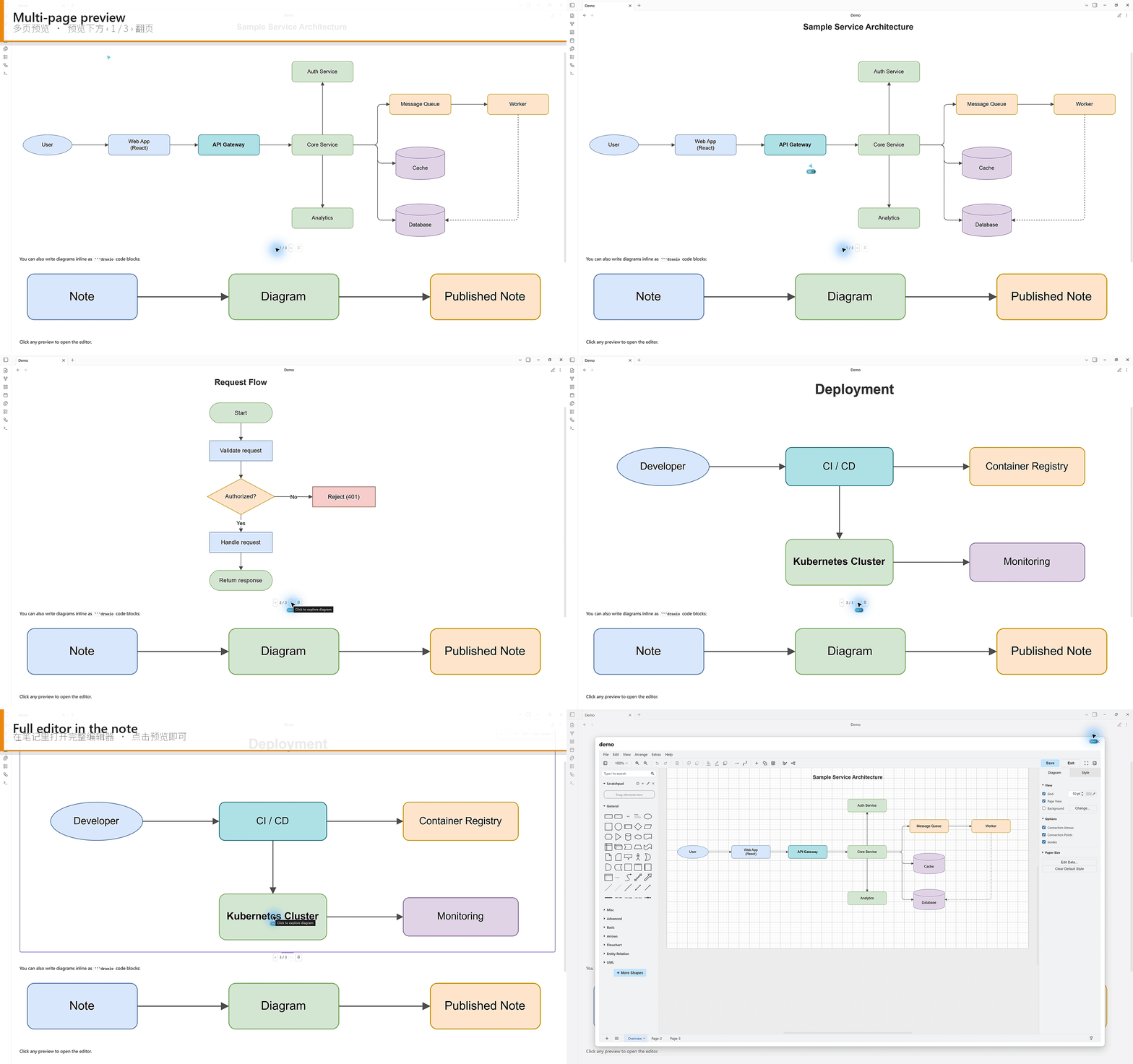
Highlights
- Three surfaces, one plugin — inline
```drawiocode blocks, standalone.drawiofiles (Excalidraw-style: the editor lives right in the file's tab), and![[file.drawio]]embeds. Code blocks and.drawioembeds render live SVG previews in both editing and reading views. On desktop, clicking a preview follows Preview click action (open the editor by default). Dual-format.drawio.svg/.drawio.pngfiles display as ordinary images and stay editable here. - Migrate from the old Diagrams plugin — scan the vault for ordinary
.svgfiles with embedded drawio data and rename them to.drawio.svgin one step (desktop). - Offline previews, always — previews are produced by drawio's own viewer bundled into the plugin: no iframe, no network, on desktop and mobile alike.
- Offline editor, optionally — the editor defaults to a bundled, fully offline drawio build served from a local server. Store installs don't include the bundle (~145 MB); install it with one click from the plugin settings, or switch the editor source to Online.
- Readable, git-friendly storage — diagrams are saved as uncompressed, pretty-printed XML rather than a compressed blob, so diffs, sync, and version history stay meaningful.
- Multi-page aware — multi-page diagrams get a compact page switcher (‹ 2 / 5 ›) under the preview, and
![[file.drawio#Page-2]]opens the embed on the page named "Page-2". - Interactive viewer (desktop) — optionally click a preview to explore it in place: wheel/trackpad zoom, drag panning, Fit, and Full screen, with an Edit button when you want to change the diagram. Off by default — set Preview click action to Interactive viewer.
- Fits into Obsidian — follows your light/dark theme, keeps working in popped-out windows, sanitizes rendered SVG before insertion, and supports phones and tablets (preview-only there — see Platform support).
Quick start
- Install Drawio from the community plugin store and enable it (requires Obsidian 1.4.0+).
- Click the ribbon button, run the Create new diagram command, or right-click a folder in the file explorer and choose New drawio diagram.
- A new
.drawiofile opens with the editor embedded in its tab. Draw — changes autosave back to the file.
The editor needs one of: the offline editor installed (one click in settings, ~53 MB download), or Editor source → Online in the plugin settings. See Offline editor.
Usage
| Surface | Create | Edit |
|---|---|---|
| Code block | Add a ```drawio block in any note (start empty, or paste drawio XML) | Click the preview (see Preview click action; default: full-screen editor) |
.drawio file | Ribbon button / Create new diagram command / folder context menu | Editor embedded directly in the file's tab |
| Embed | ![[your-diagram.drawio]] in any note | Click the preview (see Preview click action; default: quick-edit modal) |
.drawio.svg / .drawio.png file | Same entry points, after setting New diagram format | Click the embed, the Edit button on the image tab, or right-click → Edit drawio diagram |
Code blocks and .drawio embeds render as SVG previews in both editing and reading views. Dual-format files display as native images. Every edit autosaves back to its source — the code block's XML or the diagram file. File-backed embeds re-render automatically when the underlying file changes.
Clicking a preview (desktop): Settings → Drawio → Preview click action chooses what a click does:
- Open built-in editor (default) — a code-block preview opens the full-screen editor; an embed opens the quick-edit modal.
- Open in system default app — opens the underlying
.drawiofile in the OS default application. Code blocks have no file, so they still open the built-in editor. - Interactive viewer — explore the diagram in place (wheel/trackpad zoom, drag to pan, Fit, Full screen). Use Edit when you want to change it; Edit button action chooses whether that opens the built-in editor or the system default app (code blocks always use the built-in editor). Drag the handle under a code-block or embed preview to set its height — remembered per insertion in the note (a
<!-- drawio-viewer: height=N -->comment above that block or embed), and kept in sync between Live Preview and Reading view. - Do nothing — the preview is not clickable.
The interactive viewer works on ```drawio blocks, ![[file.drawio]] embeds, and the read-only .drawio file tab. Opening a .drawio file still uses the embedded editor unless Open diagram files read-only is on. ![[file.drawio.svg]] / ![[file.drawio.png]] embeds follow the same setting in both Live Preview and Reading view, except Interactive viewer falls back to the editor — they display as a native image, with nothing to zoom.
Dual-format files (.drawio.svg / .drawio.png): the file is a standard SVG or PNG image with the diagram embedded inside — it displays as a plain image everywhere (GitHub, exports, other tools, Obsidian's own image view and embeds) while staying fully editable here. Set New diagram format in the settings to create them by default. On desktop, click an embed, use the Edit button on the image tab, the file context menu (Edit drawio diagram), or the Edit diagram in the current image file command. Each save re-exports the image part, keeping picture and diagram in sync. Same format as the VS Code drawio extension, so the files are interchangeable.
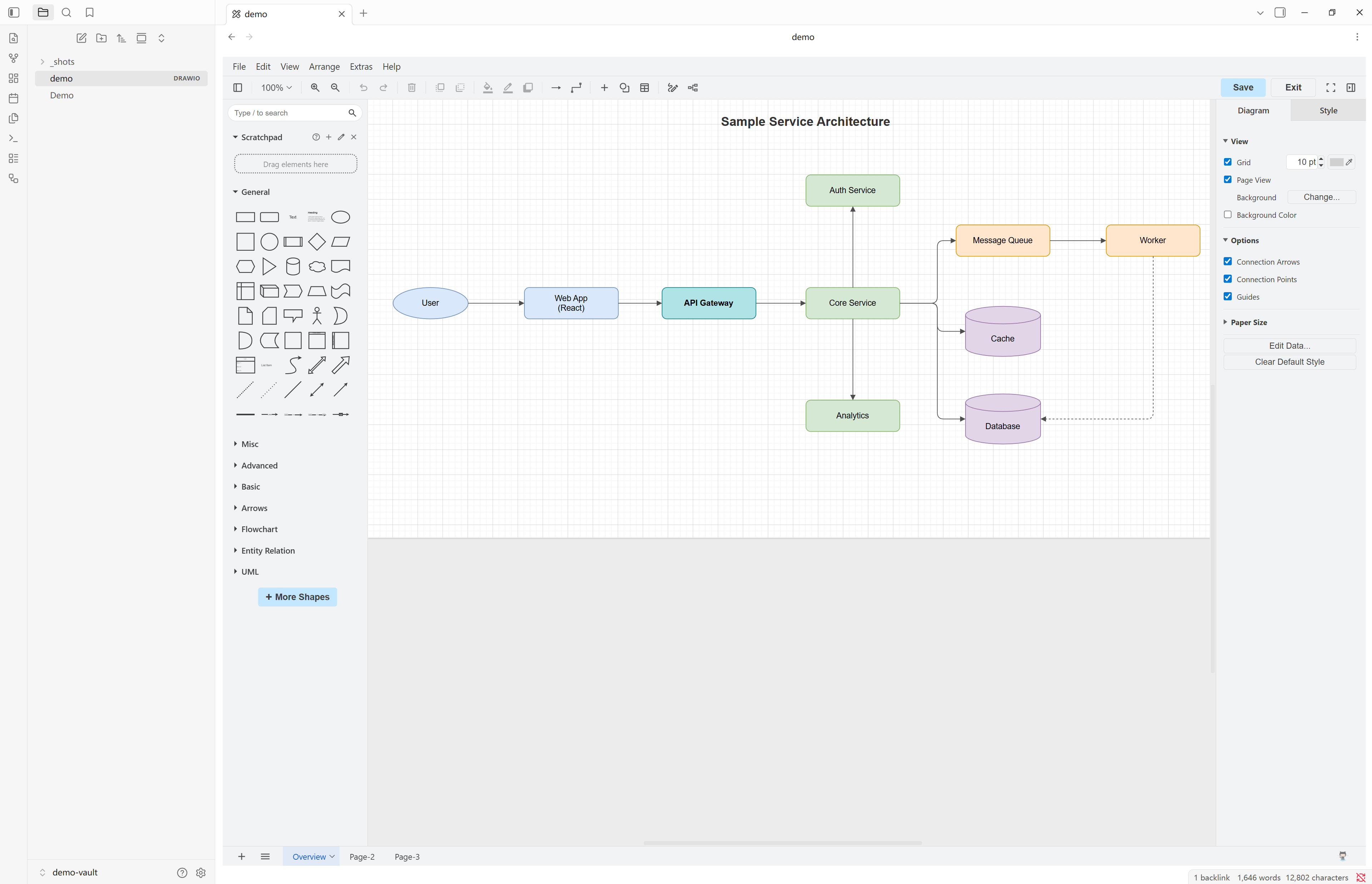
Multi-page diagrams: previews show a page switcher (‹ N / M ›) below the diagram when it has more than one page. ![[file.drawio#Page-2]] selects the initial page by its name (falling back to the first page if no page matches). Opening the editor always shows all page tabs.
Converting between code blocks and files: two palette commands switch a diagram between its two source forms (they work on mobile too). Extract diagram code block to file — with the cursor inside a ```drawio block — moves the block's XML into a new <note name> diagram.drawio file next to the note (numbered 2, 3, … if that name is taken) and replaces the block with an embed. Convert diagram embed to code block — with the cursor on a line containing a ![[….drawio]] embed — replaces the embed with a ```drawio block holding the file's XML; the file itself is kept, and any #Page-… or |alias part of the link is dropped.
Exporting plain images (desktop): the Export diagram as SVG and Export diagram as PNG commands — also on the context menu of .drawio and .drawio.svg/.drawio.png files — write a plain .svg/.png image of the diagram (without the embedded diagram data) next to the source file, numbered 2, 3, … if the name is taken.
Migrating from the old Diagrams plugin (desktop): that plugin saved diagrams as ordinary .svg files with the drawio XML in the SVG content attribute. Run Migrate diagrams from the old Diagrams plugin (command palette, or Settings → Drawio → Scan vault…) to preview the matches and rename them to .drawio.svg. Obsidian then asks whether to update internal links — choose Just once or Always update so ![[diagram.svg]] becomes ![[diagram.drawio.svg]]. Plain .drawio files open here as-is; you can disable the old plugin afterwards.
Platform support
| Feature | Desktop | Tablet | Phone |
|---|---|---|---|
| Code block & embed previews (editing and reading views) | Yes | Yes | Yes |
Standalone .drawio file tab | Inline editor (or read-only preview, opt-in) | Read-only preview | Read-only preview |
Multi-page page switcher & #Page-N embeds | Yes | Yes | Yes |
| Light/dark theme following | Yes | Yes | Yes |
| Interactive viewer (zoom / pan / full screen) | Yes | — | — |
| Editing diagrams (modal / inline editor) | Yes | — | — |
| Creating diagrams (ribbon, command, folder menu) | Yes | — | — |
| Offline editor (bundled webapp + local server) | Yes | — | — |
Migrate old Diagrams-plugin .svg files | Yes | — | — |
Phones and tablets behave identically: previews everywhere, no editing. Tapping a preview there shows a notice that editing needs desktop; the creation entry points are hidden as well, since their sole purpose is opening the editor.
Settings
| Setting | Description |
|---|---|
| Editor source | Offline (bundled webapp, default), Online (diagrams.net), or a Custom URL. Offline requires the one-time install below — there is no automatic fallback. |
| Custom drawio URL | Used when Editor source is "Custom URL" (e.g. https://embed.diagrams.net/). |
| New diagram location | Where the command and ribbon button create diagrams: vault root (default), the current note's folder, or a fixed folder (created if missing). The folder context menu always creates in the clicked folder. |
| New diagram format | .drawio (plain XML, default), .drawio.svg, or .drawio.png — the latter two are standard images with the diagram embedded, viewable anywhere and editable here. |
| Open diagram files read-only | Desktop: show a static preview instead of the embedded editor when opening .drawio files — for workflows centred on drawio-desktop. Applies to newly opened tabs. |
| Preview click action | Desktop: what clicking a preview does — Open built-in editor (default), Open in system default app, Interactive viewer, or Do nothing. Code blocks have no file, so opening the system default app falls back to the built-in editor. |
| Edit button action | Desktop: shown only when Preview click action is Interactive viewer. What the viewer's Edit button does for file-backed diagrams — the built-in editor or the system default app. Code blocks always use the built-in editor. |
| Preview alignment | Center (default) or left-align rendered previews. |
| Follow Obsidian theme | Match the editor to Obsidian's light/dark theme. |
| Show shape libraries | Toggle the editor's shape panel. |
| Server idle timeout | Stop the local server after this idle period (minimum 5 s). Only relevant in Offline mode. |
| Migrate from the old Diagrams plugin | Desktop: Scan vault… lists ordinary .svg files with embedded drawio data and, after confirmation, renames them to .drawio.svg. |
On mobile, only Preview alignment and Follow Obsidian theme are shown — the other settings configure the desktop editor.
Network use
- Previews never use the network. They are rendered by drawio's
viewer.min.js, which is bundled into the plugin. - With the bundled offline editor, the plugin makes no network requests at all — the editor is served from a local
127.0.0.1HTTP server. - When the bundle isn't installed, Offline mode shows an install prompt instead of silently going online. If you choose Online (or a Custom URL), the editor UI is loaded from that origin. Your diagram content still stays on your device — it is passed to the editor in the page and is not uploaded; only the editor's assets are fetched.
Offline editor (optional)
A store install ships without the offline drawio webapp (it is ~145 MB, beyond store limits). To install it, open Settings → Drawio, select Editor source → Offline (bundled webapp), and click Install — a one-time ~53 MB download from GitHub; editing is fully offline afterwards. After a plugin update that bumps the bundled drawio version, the same row shows Update until the installed webapp matches again.
No network on the vault machine? Every release also ships drawio-editor-<version>-offline.zip — the complete plugin folder with the webapp already inside. Download it from the releases page on a connected machine and, with Obsidian closed, extract it into <vault>/.obsidian/plugins/ (it contains a single drawio-editor/ folder; extracting over an existing install is fine). Then enable the plugin and select Editor source → Offline (bundled webapp).
Building from source also works and produces the same layout: run npm run fetch-drawio before npm run build and copy the webapp/ folder alongside main.js (see Development below).
Troubleshooting
Clicking a diagram does nothing / the editor won't open. Editing is desktop-only. On mobile you get previews only. On desktop, check Settings → Drawio → Preview click action: Do nothing makes previews not clickable; Interactive viewer explores the diagram in place instead of opening the editor (use Edit to edit); Open in system default app opens the file outside Obsidian.
I don't see the interactive viewer. It is not the default. On desktop, set Settings → Drawio → Preview click action to Interactive viewer, then click a ```drawio preview or a .drawio embed. Opening a .drawio file still shows the embedded editor unless Open diagram files read-only is enabled. .drawio.svg / .drawio.png embeds fall back to the editor (they render as a native image).
"The offline editor isn't installed" — or the editor opens blank in Offline mode. A store install ships without the ~145 MB offline webapp. Open Settings → Drawio, keep Editor source → Offline (bundled webapp), and click Install (a one-time ~53 MB download). Alternatively switch Editor source to Online to load the editor from diagrams.net. See Offline editor for a fully-offline install without downloading in-app.
The editor is blank after a plugin update. A plugin update can bump the bundled drawio version. Open Settings → Drawio and click Update on the Offline row to bring the installed editor in step; until then it keeps working on the previous version.
The editor stays blank in a pop-out window. This should work — if a diagram opened in a pop-out window renders blank, please file a bug with your Obsidian version. As a workaround, edit the diagram in the main window.
A preview shows "Invalid drawio diagram". The block or file doesn't contain a valid drawio diagram. For a ```drawio block, the content must be drawio/mxGraph XML (an <mxfile> / <mxGraphModel>, or a full diagram exported from draw.io). Pasting AI-generated draw.io XML into the block should just render.
A .drawio.svg / .drawio.png image looks stale after I edited the diagram elsewhere. Dual-format files keep the editable XML inside the image. If the XML is changed without re-exporting (for example by a fallback save), the picture can lag behind the data. Open the file here and save once — the editor re-exports the image to match.
Nothing renders on mobile, or I can't edit on mobile. Mobile is preview-only by design (code blocks, embeds, and a read-only view for .drawio files, including multi-page navigation). Open the vault on a desktop to edit.
Migrate found no files. Only ordinary .svg files whose SVG content attribute holds drawio XML are listed. Plain pictures, files already named .drawio.svg, and .drawio files are skipped. Disable the old Diagrams plugin after migrating so it no longer claims every .svg.
I migrated, but my ![[….svg]] embeds are broken. Obsidian asks whether to update internal links after the rename. Choose Just once or Always update — Do not update leaves the old paths in the note.
Still stuck? Open the developer console (Ctrl/Cmd+Shift+I → Console), reproduce the problem, and include any red errors when you file an issue.
Notes & limitations
- Editing is desktop-only — it needs the iframe-based drawio editor and, in Offline mode, a local HTTP server. Mobile gets previews (see Platform support).
- Bundle size:
main.jsis ~2.5 MB because drawio's viewer (~2.4 MB) is inlined for offline previews. This is expected. - Security: rendered SVG previews are sanitized before insertion — script/embedding elements, inline event handlers, script-bearing URL schemes, external
<use>references, SMIL injection, and dangerous CSS are removed, while drawio'sforeignObjecttext labels are preserved. The bundled viewer runs without injecting any<script>element, and its one external-script loader (an unused MathJax-from-CDN helper) is stripped at build time, so previews fetch and execute no external code. In Offline mode the local server binds to127.0.0.1only and serves solely the bundledwebapp/directory.
Development
npm install
npm run fetch-drawio   # once per clone: fetch the drawio webapp + preview viewer
npm run dev            # watch build
npm test               # unit tests (vitest)
npm run build          # type-check + production bundle
Bug reports and pull requests are welcome — please open an issue first for larger changes.
License
For plugin developers
Search results and similarity scores are powered by semantic analysis of your plugin's README. If your plugin isn't appearing for searches you'd expect, try updating your README to clearly describe your plugin's purpose, features, and use cases.