Canvas Markdown Side Editor
approvedby shawnswu
This plugin has not been manually reviewed by Obsidian staff. Open a Canvas card's linked Markdown file in a right-side editor pane with one click.
Canvas Markdown Side Editor




Edit Canvas Markdown cards from a side panel — live preview, autosave, and no zooming in and out of cramped cards.
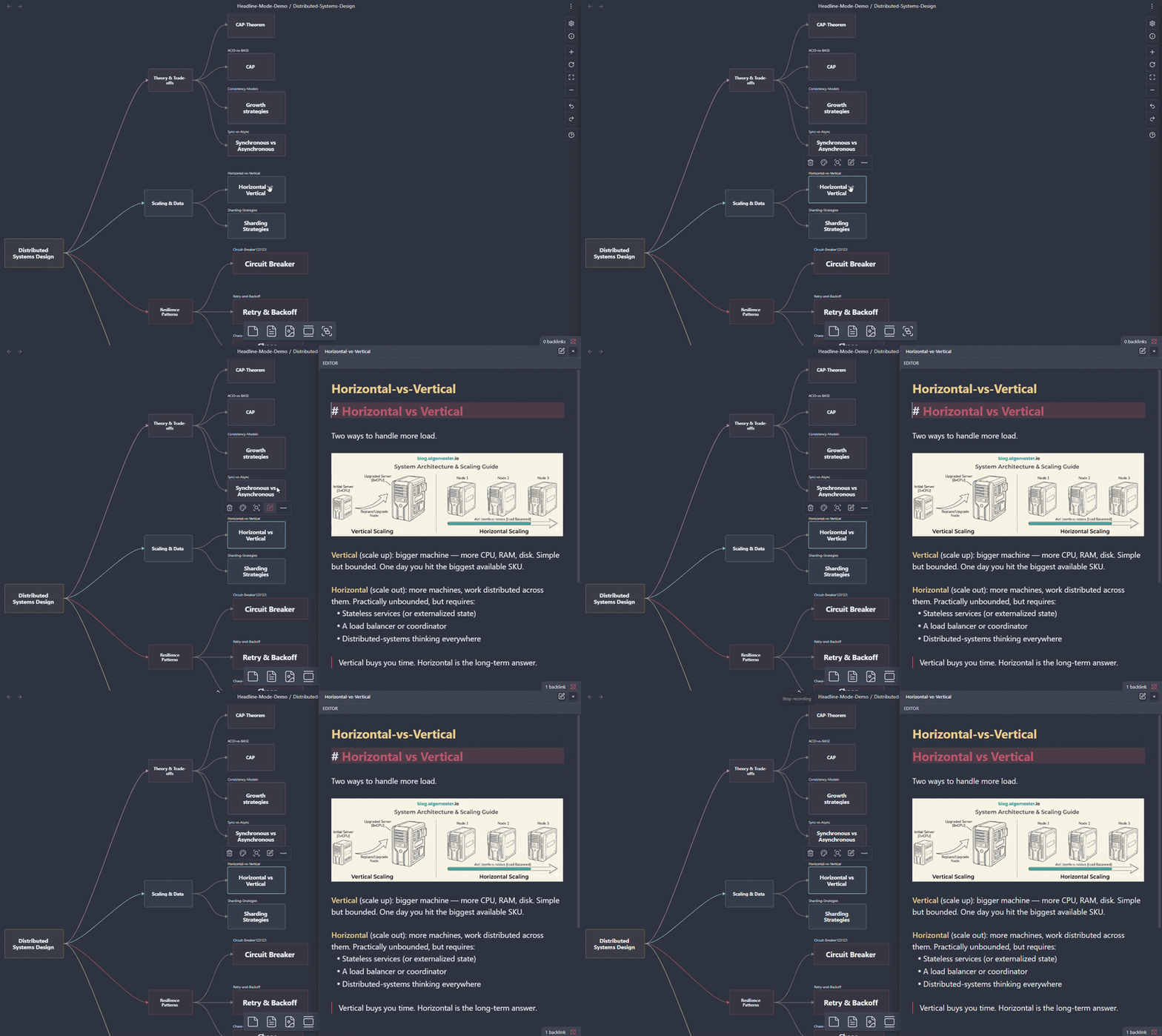
Demo
Side editor — open, edit, autosave
https://github.com/user-attachments/assets/b2075ff8-2327-440d-970a-5ca29423bcf1
Click any Canvas card and start typing. Switching cards autosaves. The panel can dock right, left, top, bottom, or float.
Headline mode — turn the canvas into a board of titles
https://github.com/user-attachments/assets/48b1fe0d-a91f-469d-9d64-2fa90e4013ab
Toggle Headline mode in settings to collapse every card to its first
# H1. Cards without a title show a faint "No headline" placeholder so you can spot what's missing.
Why this plugin?
Obsidian Canvas is great for visual thinking, but editing Markdown cards directly inside Canvas is cramped — zoom in, double-click a small card, lose context, repeat. Canvas Markdown Side Editor brings a full Obsidian editor next to the Canvas so you can write comfortably without leaving the big-picture view.
Write Markdown with the comfort of a full editor, while keeping the big picture in sight.
Features
- Flexible docking & floating panel — dock the side editor on the right, left, top, or bottom of the Canvas, or detach it as a floating panel you can drag and resize. Position and size persist per dock.
- Headline mode (issue #13) — vault-wide toggle that collapses every Canvas card to its first
# H1. Get a clean "table of contents" view; full content stays editable through the side editor. Headline size is tunable as a percentage of card width (5–60%). - Open-and-edit instantly — clicking a Canvas Text card, or a File card pointing to a
.mdfile, opens the side editor automatically. - Auto-save — saves on card switch or when you click the Canvas background.
- Auto-close while editing inside Canvas — if you focus a Canvas card's own editor, pending changes save and the side panel closes to avoid edit conflicts.
- Paste images — paste screenshots into the side editor; files land in your configured attachment folder and are linked according to your Obsidian settings.
- Live preview — built-in MarkdownRenderer, themed by Obsidian. Toggle preview on/off; resize panes by dragging.
- Read-only mode — preview-only view with the editor hidden. Useful for a clean reading panel.
- Command palette —
Canvas Side Editor: Toggle Previewis bindable to a hotkey.
Quick Start
- Install via BRAT.
- Open a Canvas in Obsidian.
- Click any Canvas Text card, or a File card linking to a
.mdfile. The side editor opens. - Type. Click another card, or the Canvas background, to autosave.
Installation
Option 1 — BRAT (recommended while awaiting Obsidian approval)
This plugin is currently awaiting approval in the Obsidian Community Plugins directory. Until that lands, install via BRAT — it auto-fetches future updates.
https://github.com/user-attachments/assets/82719127-f450-49e9-b99e-b0700451615d
- In Obsidian: Settings → Community Plugins → enable third-party plugins.
- Settings → Community Plugins → Browse → search "BRAT" → Install and enable.
- Settings → BRAT → Add Beta plugin.
- Paste the repo URL:
https://github.com/ShawnSWu/Obsidian-Canvas-Markdown-Side-Editor - Confirm. BRAT installs the plugin and pulls updates automatically.
Option 2 — Community Plugins (once approved)
Settings → Community Plugins → Browse → search "Canvas Markdown Side Editor" → Install → Enable.
Pending Obsidian directory approval.
Option 3 — Manual
Download main.js, styles.css, and manifest.json from the latest Release and drop them into <vault>/.obsidian/plugins/canvas-markdown-side-editor/. Reload Obsidian and enable the plugin.
Configuration
Open Settings → Community Plugins → Canvas Markdown Side Editor.
| Setting | Default | What it does |
|---|---|---|
| Dock position (issue #11) | Right | Right / Left / Top / Bottom / Floating. Floating panels remember position and size. |
| Default panel width | 480 px | Initial width when docked left or right. Drag the panel edge to resize; the width is remembered. |
| Default panel height | 360 px | Initial height when docked top or bottom. Drag the panel edge to resize; the height is remembered. |
| Preview debounce | 80 ms | Delay before the preview re-renders on edits. Increase for very large notes. |
| Read only | off | Hide the editor; show the preview pane only. |
| Headline mode (issue #13) | off | Collapse every Canvas card to its first # H1. |
| Headline title size | 22 | H1 size as a percentage of card width (5–60). Bigger value → bigger text. |
| Editor font size (px) | theme | Override editor font size. Leave blank to follow your theme. |
| Preview font size (px) | theme | Override preview font size. Leave blank to follow your theme. |
Commands
| Command | Default hotkey | Description |
|---|---|---|
Canvas Side Editor: Toggle Preview | unbound | Flip the preview pane on or off. |
Bind any command to a hotkey from Settings → Hotkeys.
Compatibility
- Requires Obsidian
1.1.0or later. - Desktop only (
isDesktopOnly: true).
Troubleshooting
- Side editor doesn't open — confirm the card is a Text card, or a File card linking to a
.mdfile. Image, PDF, and link cards aren't supported. - Headline mode shows an empty card — that card has no
# H1. A faint "No headline" placeholder appears so you can spot which cards still need a title. - Floating panel opens off-screen after a monitor change — Settings → reset Dock position to Right, then switch back to Floating.
Changelog
See GitHub Releases for version-by-version notes.
Contributing
Issues and pull requests welcome at github.com/ShawnSWu/Obsidian-Canvas-Markdown-Side-Editor/issues.
Local development:
npm install
npm run dev    # esbuild watch
npm test       # vitest
License
MIT — see LICENSE.
For plugin developers
Search results and similarity scores are powered by semantic analysis of your plugin's README. If your plugin isn't appearing for searches you'd expect, try updating your README to clearly describe your plugin's purpose, features, and use cases.