by Anthirayas
Browse your vault in a dedicated tab with Finder-style columns, list, icon and gallery views, a preview column and platform-exact keyboard shortcuts.
Cascade View



A dedicated macOS Finder and Windows File Explorer-style folder browser tab for your Obsidian vault.
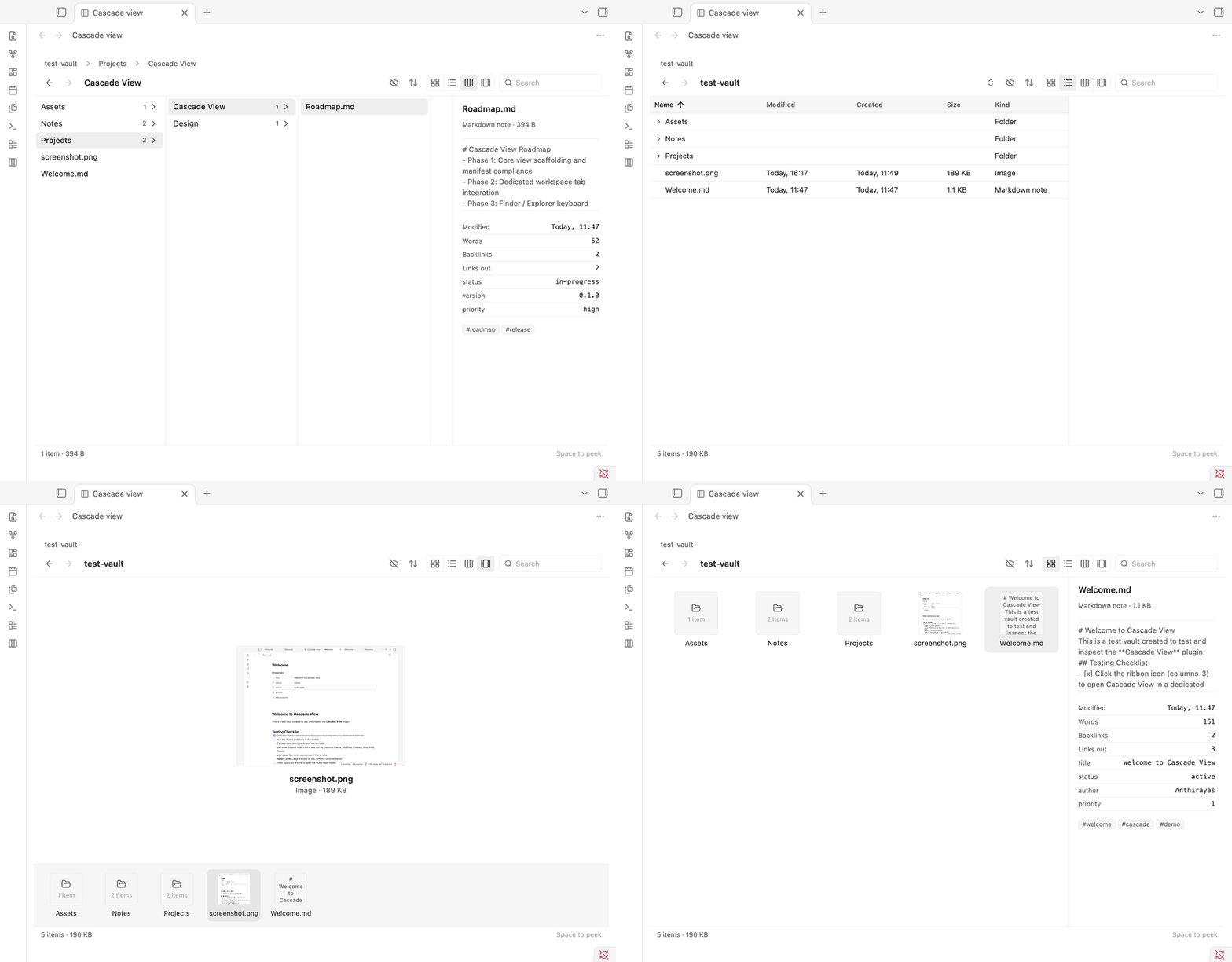
Cascade View replaces cluttered sidebar trees with a responsive, keyboard-driven folder browser opened in a dedicated workspace tab. Browse nested folders with Miller columns, inspect live metadata in a rich preview column, expand subdirectories in an interactive list, or scan through media in a filmstrip gallery.
Why Cascade View?
As vaults grow, navigating deep folder hierarchies in the narrow sidebar becomes tedious—requiring constant vertical scrolling, squinting at indented filenames, and twisting tiny triangle disclosure arrows.
Cascade View solves this by giving you:
- Spatial clarity: Navigate left-to-right through folder levels without losing your path.
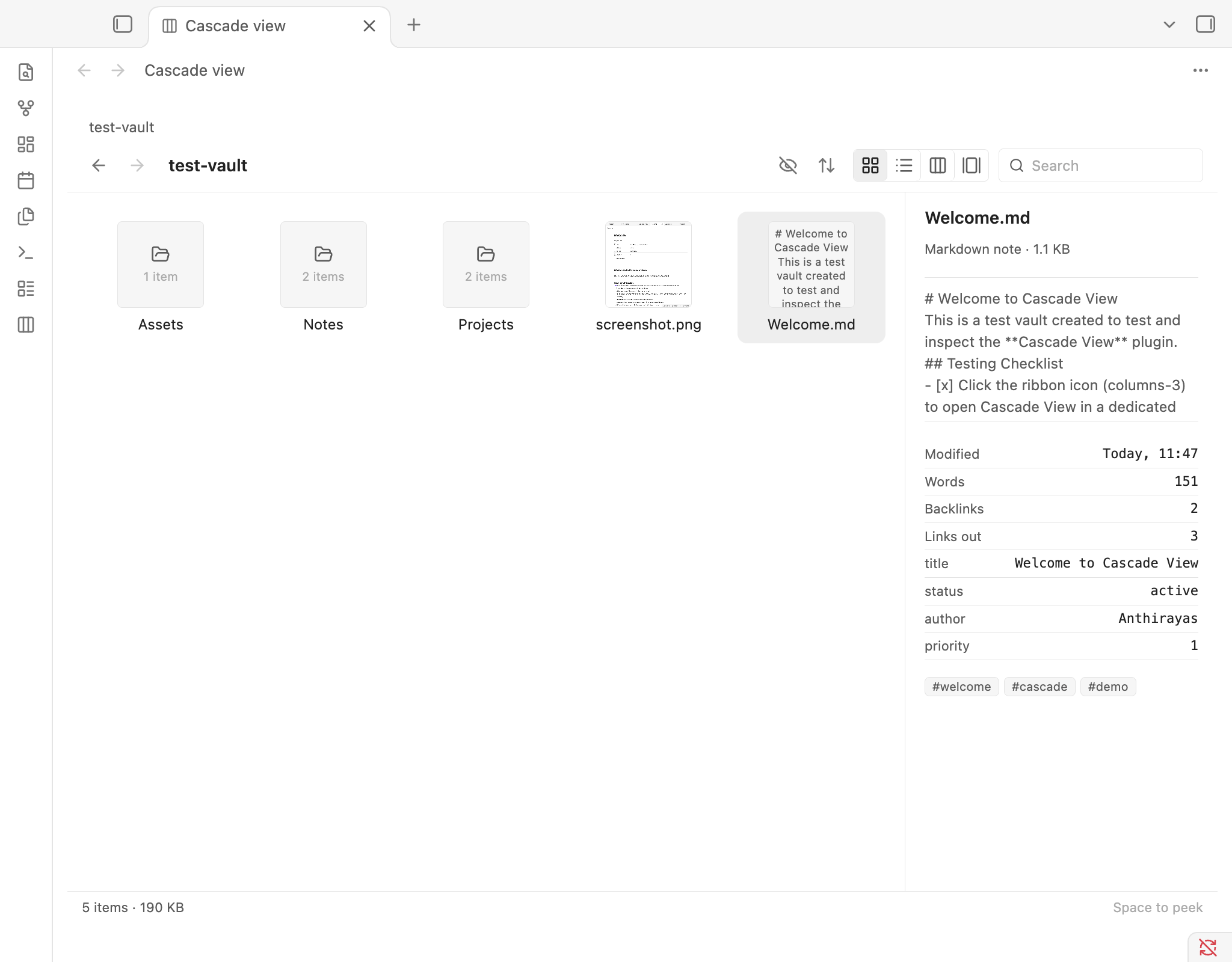
- Rich context without opening: Instantly preview note contents, frontmatter properties, word counts, backlinks, and image thumbnails before you navigate.
- Familiar desktop reflexes: Seamlessly switch between Finder (macOS) and File Explorer (Windows/Linux) keybindings, complete with instant undo, type-to-jump, and inline renaming.
- Same-tab and new-tab navigation: Regular click or Enter opens files in the active tab with full back-history; ⌘ / Ctrl + click opens in a new tab.
Four Viewing Modes
Switch between views at any time using the toolbar switcher or shortcuts (⌘1–4 / Ctrl+1–4). View mode and sort order are remembered per folder automatically.
1. Column View (Miller Columns)
The signature macOS Finder experience inside Obsidian.
Selecting any folder immediately slides open its contents in the next column to the right, keeping your full breadcrumb visible at all times. Selecting a note or image renders the full preview column on the far right.
2. List View
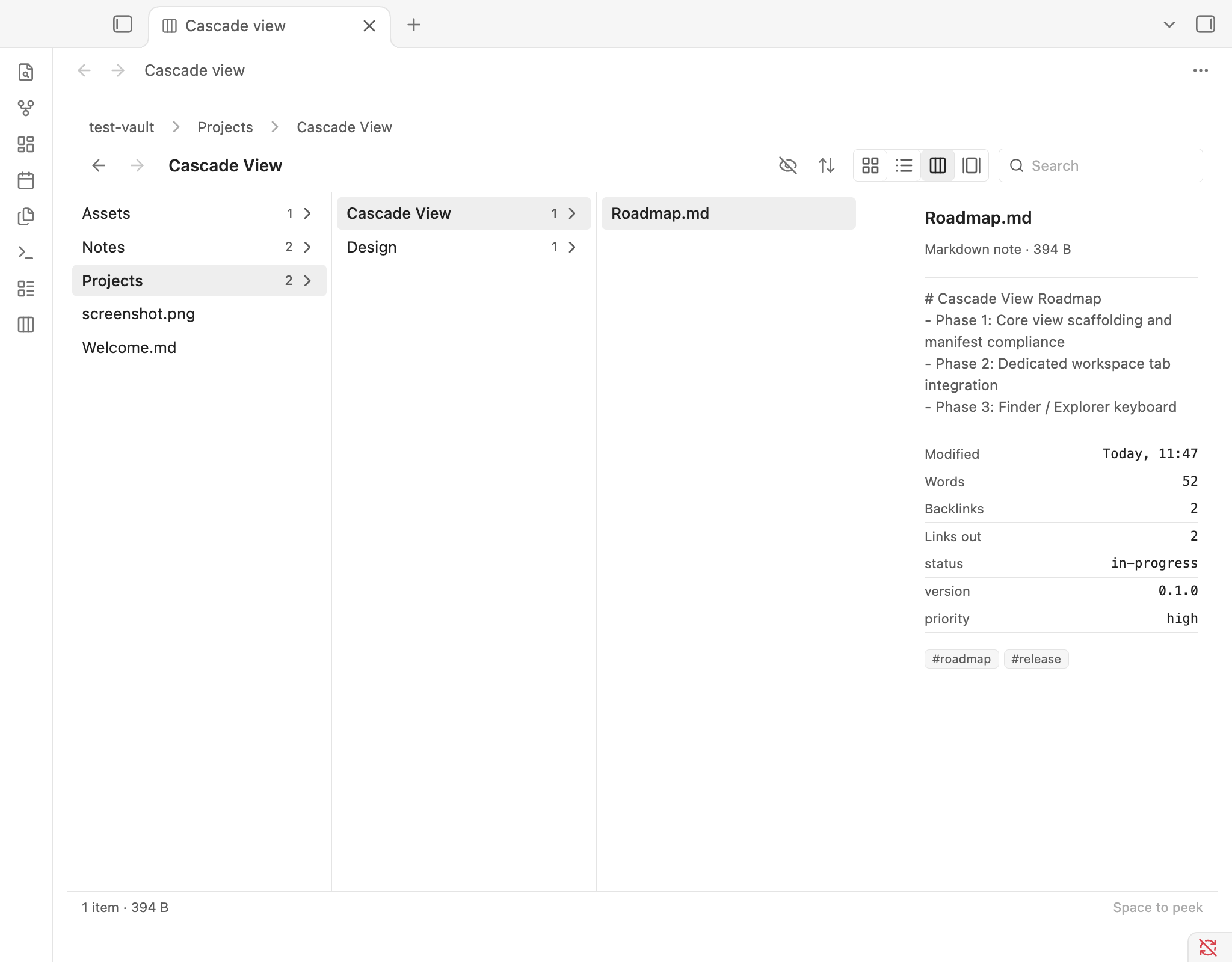
A multi-column detailed table with inline folder disclosure.
Displays Name, Modified date, Created date, File size, Kind, and custom frontmatter properties. Expand subfolders directly inline, sort by clicking any table header, or use the Expand all / Collapse all toolbar button to inspect entire directories at once.
3. Gallery View
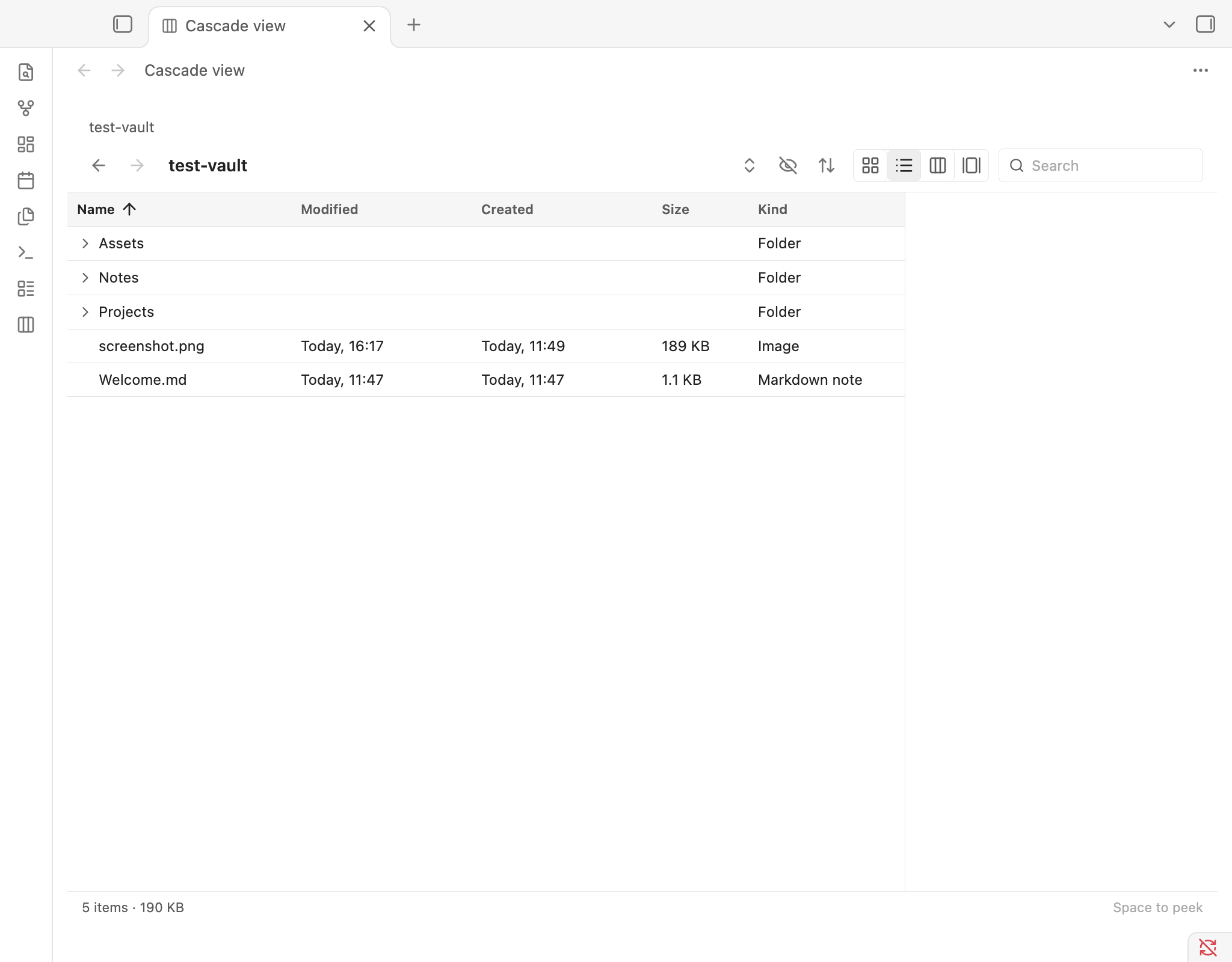
An asset and media manager with an interactive stage and filmstrip.
Features a large focused stage preview on top with a smooth horizontal filmstrip carousel below. Notes render their live markdown excerpt, while images and graphics display full-scale responsive artwork. Click the stage preview to open the file.
4. Icon View
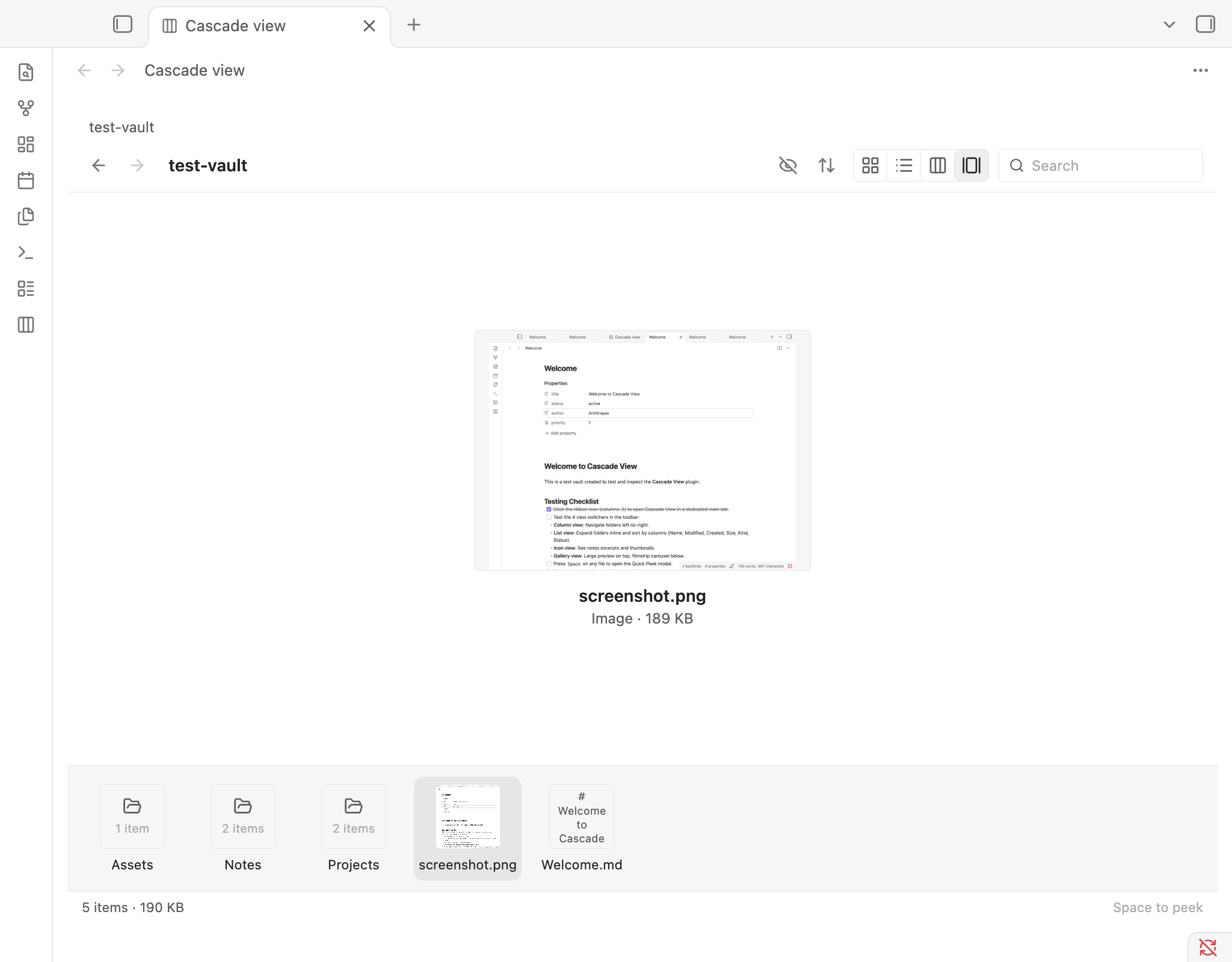
A visual card grid for quick browsing.
Displays note cards featuring excerpt text, word count tags, and image thumbnails.
Features
- Dedicated Main-Tab View: Opens in the main workspace as a first-class tab—not squeezed into a sidebar. Focuses the existing tab if already open.
- Integrated Preview Column:
- File kind, size, and word count.
- Live note body excerpt (excluding frontmatter).
- Clean metadata table showing modification/creation dates, backlinks, outgoing links, and frontmatter properties.
- Pill-style tag cloud and thumbnail preview.
- Quick Peek Modal: Press Space on any selected note, image, or folder to pop open an instant preview dialog without leaving your workflow.
- Native File Operations:
- Inline Rename: Seamlessly rename files with extension protection (Return on macOS, F2 on Windows/Linux).
- Bin with Instant Undo: Send items to Obsidian trash with ⌘⌫ / Delete, with a snapshot undo buffer (⌘Z / Ctrl+Z).
- Drag-and-Drop: Drag any file or note directly onto folders to organize your vault.
- In-place Creation: Create notes (⌘N) and folders (⇧⌘N) directly inside the current folder.
- Keyboard-Driven & Accessible:
- Full arrow-key navigation (↑, ↓, →, ←).
- Type-to-jump (type any sequence of characters to jump directly to matching files).
- Platform detection ensures macOS users get Finder keys and Windows/Linux users get Explorer keys.
- Fully rebindable in plugin settings.
- Pure Obsidian Aesthetics:
- Strictly built with native Obsidian CSS design variables.
- 0.5px hairline borders, zero shadows, no outer frame clutter, and flawless dark/light theme matching.
Keyboard Shortcuts
Navigation & Opening
| Action | macOS (Finder) | Windows & Linux (Explorer) |
|---|---|---|
| Move selection | ↑ / ↓ | ↑ / ↓ |
| Enter folder / Next column | → | → |
| Parent column / Back | ← | ← |
| Open in same tab | Enter / ⌘↓ / ⌘O | Enter |
| Open in new tab | ⌘ + Enter or ⌘ + Click | Ctrl + Enter or Ctrl + Click |
| Go up one level | ⌘↑ | Alt+↑ |
| History back / forward | ⌘[ / ⌘] | Alt+← / Alt+→ |
| Go to folder | ⇧⌘G | Ctrl+L or Alt+D |
| Search current folder | ⌘F | Ctrl+F or Ctrl+E |
| Type to jump | Type name | Type name |
File Actions
| Action | macOS | Windows & Linux |
|---|---|---|
| Rename item | F2 (or click name) | F2 |
| Move to bin | ⌘⌫ | Delete |
| Undo last action | ⌘Z | Ctrl+Z |
| New folder | ⇧⌘N | Ctrl+Shift+N |
| New note | ⌘N | Ctrl+N |
| Copy path | ⌥⌘C | Ctrl+Shift+C |
View Modes & Toggles
| Action | macOS | Windows & Linux |
|---|---|---|
| Icon / List / Column / Gallery | ⌘1 / ⌘2 / ⌘3 / ⌘4 | Ctrl+1 / Ctrl+2 / Ctrl+3 / Ctrl+4 |
| Quick peek | Space | Space |
| Toggle preview pane | — | Alt+P |
Show/hide hidden items (.) | ⇧⌘. | Ctrl+H |
Installation
From Obsidian Community Plugins
(Available once approved in the community directory)
- Open Obsidian Settings > Community plugins.
- Turn off Restricted mode.
- Click Browse and search for
Cascade View. - Click Install, then Enable.
- Click the columns-3 icon in the ribbon to open Cascade View.
Via BRAT (Beta Testing)
- Install the Obsidian42 - BRAT community plugin.
- In BRAT settings, choose Add Beta plugin.
- Enter
jrayas/cascade-view. - BRAT will download and enable the latest pre-release build.
Manual Installation
- Download
main.js,manifest.json, andstyles.cssfrom the Latest Release. - Inside your vault folder, navigate to
.obsidian/plugins/(create the directory if it does not exist). - Create a new folder named
cascade-viewand place the downloaded files inside. - Restart Obsidian (or reload with ⌘R / Ctrl+R) and enable Cascade View in Settings > Community plugins.
Configuration & Settings
Cascade View includes declarative settings (Obsidian 1.13+) accessible under Settings > Cascade View:
- Default view: Choose which view mode (Column, List, Icon, Gallery) new folders open in by default.
- Show hidden items: Configure whether dotfiles and dotfolders (
.git,.obsidian) are displayed by default. - Row density: Switch between Compact (24px rows), Comfortable (30px rows), and Spacious (36px rows).
- Show preview column: Enable or disable the preview column by default.
- Frontmatter columns: Add custom YAML frontmatter keys (e.g.
status, author, priority) to display as dedicated sortable columns in List view. - Key bindings editor: Fully rebind any navigation or file management action to your preferred shortcut.
- Read-only mode: Safety lock that disables inline renaming, trashing, file creation, and drag-and-drop.
Safety & Privacy Disclosures
- 100% Offline & Private: Cascade View makes zero network requests, uses no third-party telemetry, tracking, or analytics, and requires no external accounts. All indexing and rendering occur strictly on your local device.
- Obsidian Vault Safety: All deletions respect your configured Obsidian trash setting (System bin or
.trash/folder). No files outside the vault boundary are ever accessed. - No Remote Code: Built exclusively with TypeScript bundled into standard static assets (
main.js,styles.css,manifest.json).
License
MIT License © 2026 Anthirayas.
For plugin developers
Search results and similarity scores are powered by semantic analysis of your plugin's README. If your plugin isn't appearing for searches you'd expect, try updating your README to clearly describe your plugin's purpose, features, and use cases.