by ianunjay
A dashboard for your vault: capture, write, finish tasks, see links and habits, with a bring-your-own-key assistant that proposes changes you approve.
Chartroom
A dashboard for your Obsidian vault. It reads the notes you already have, using their properties, folders and dates, and shows them as a board, a calendar, a task list, a daily log and a weekly review.
- No database, no account, no telemetry. Your notes stay plain Markdown.
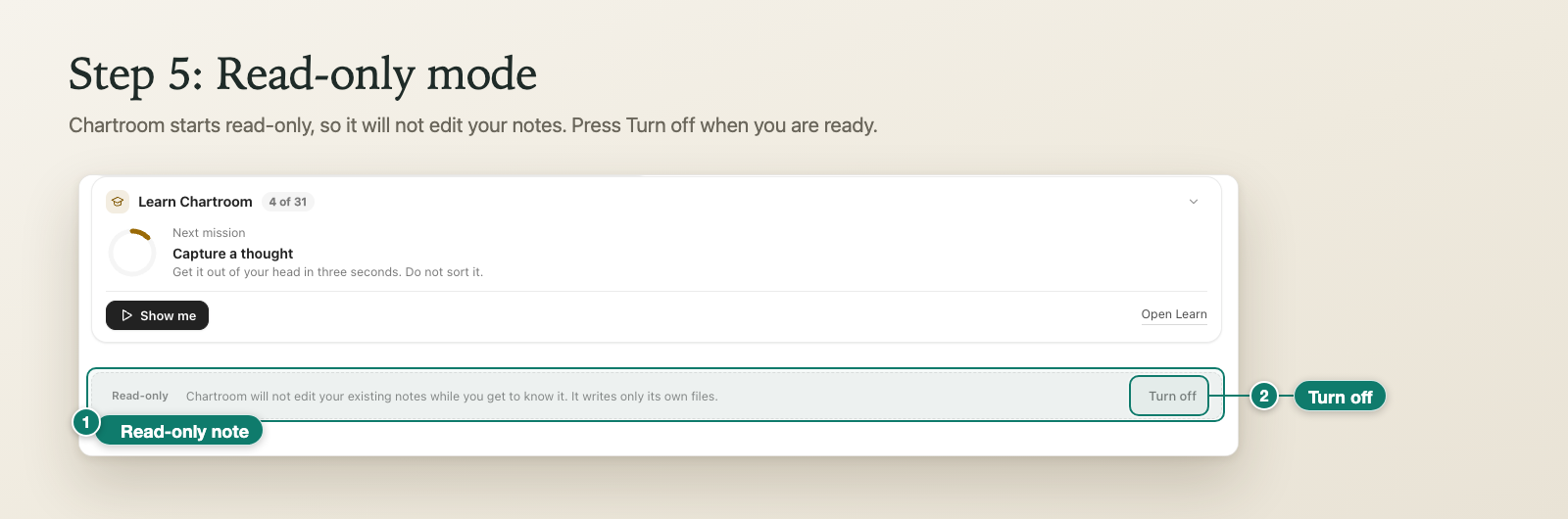
- Read-only mode is on by default, so nothing in your notes changes until you turn it off.
- Optional assistant with your own API key. It only proposes changes, and you approve each one.
What you get · Install · Quick start · Privacy · Help
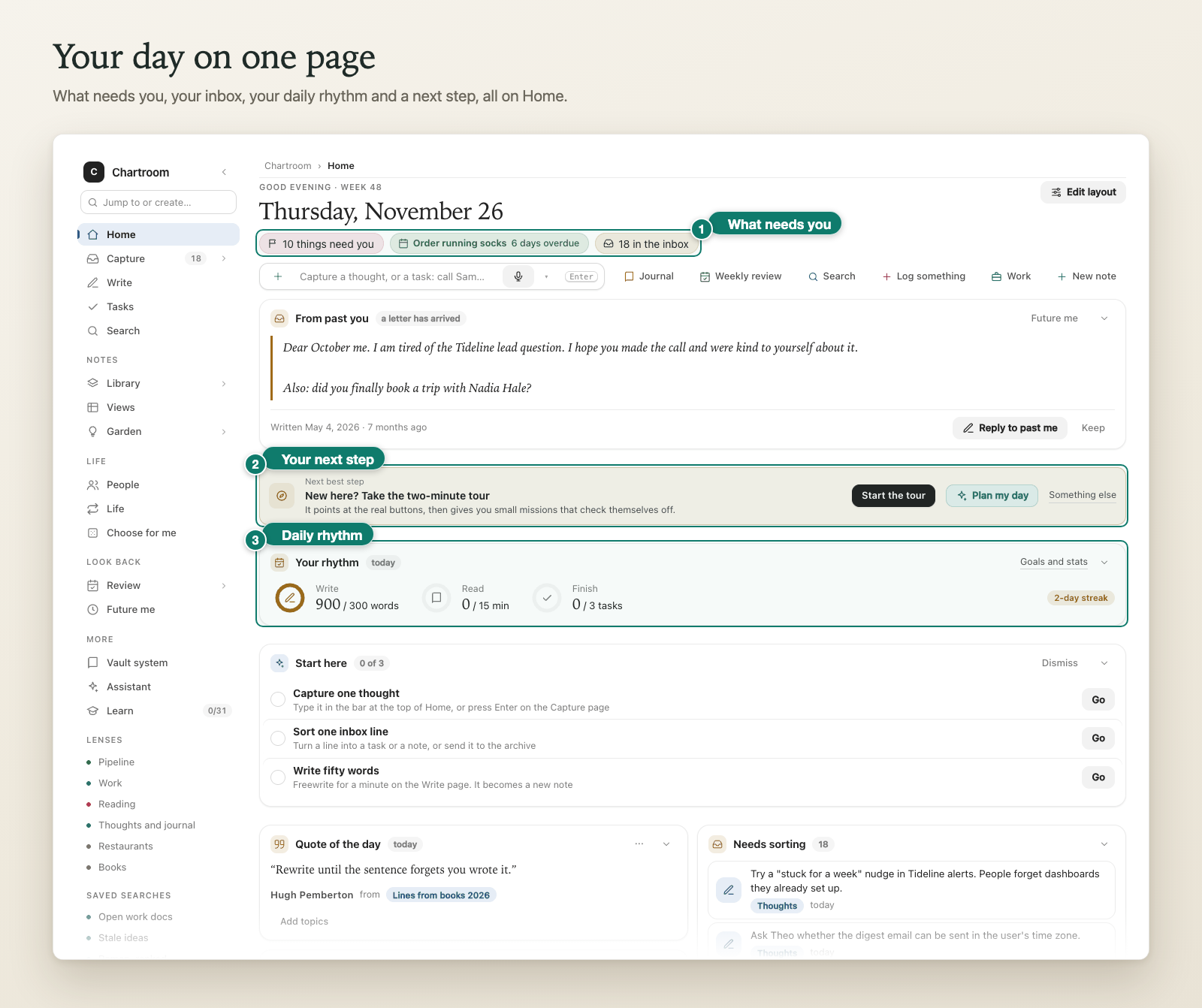
Back up your vault before you first enable it. You can also try the included
demo-vault/first.
What you get
| Page | What it does |
|---|---|
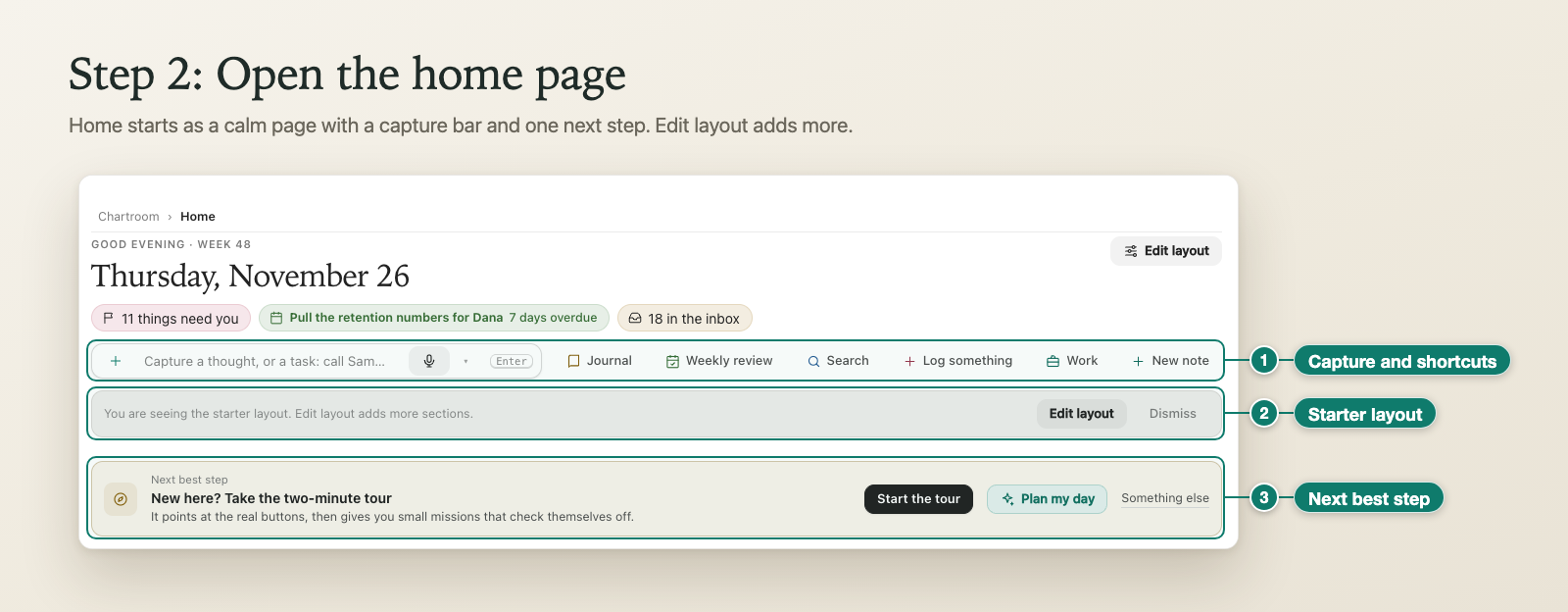
| Home | The next best step, what needs you today, your inbox, a calendar and weekly outcomes. It starts with a calm layout; Edit layout adds more. |
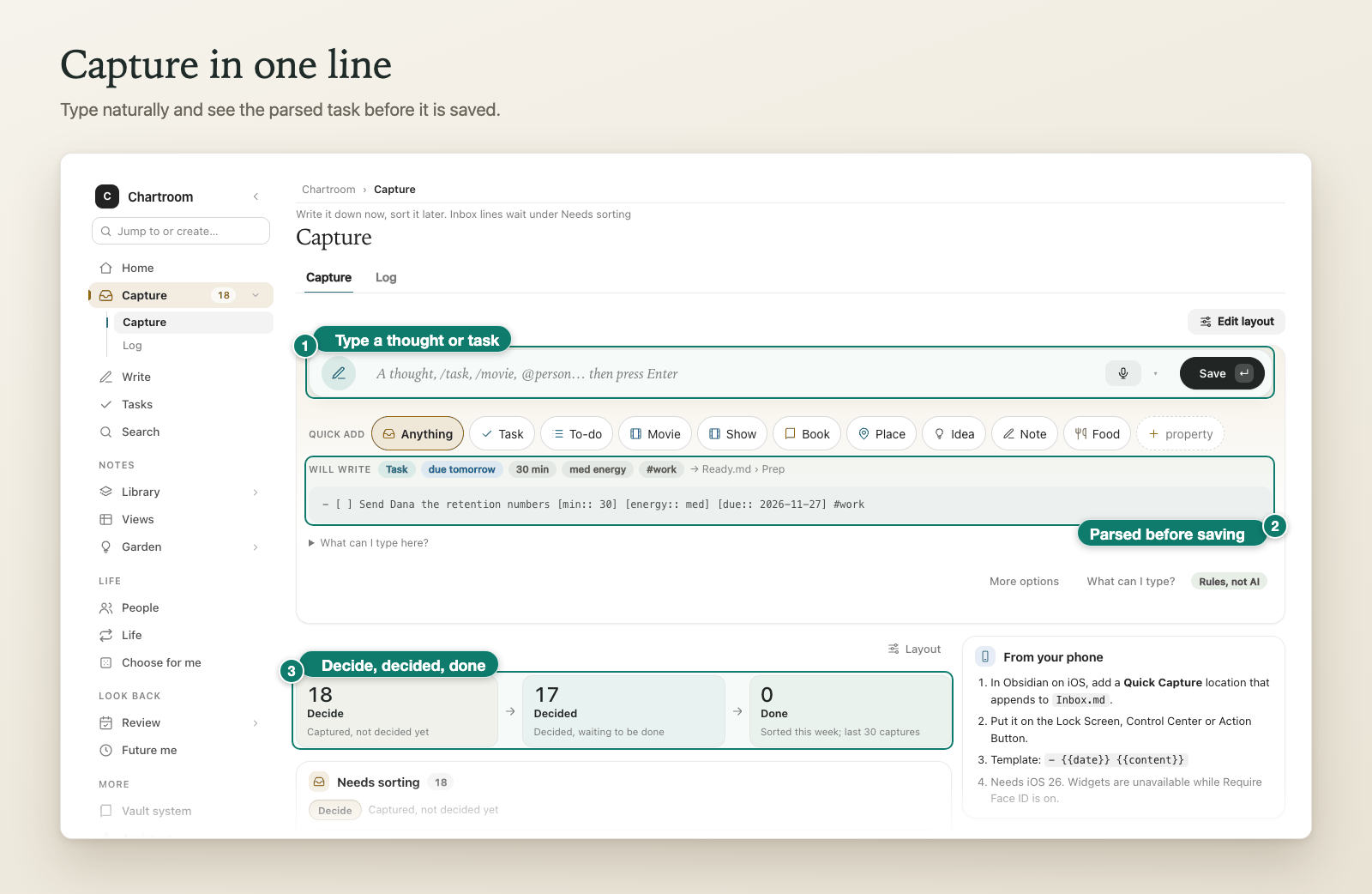
| Capture | One box for thoughts and tasks, such as Order seeds ~15m !low @fri. Also /task, /movie, /book, @person and due: dates. It shows the exact line before it is saved. |
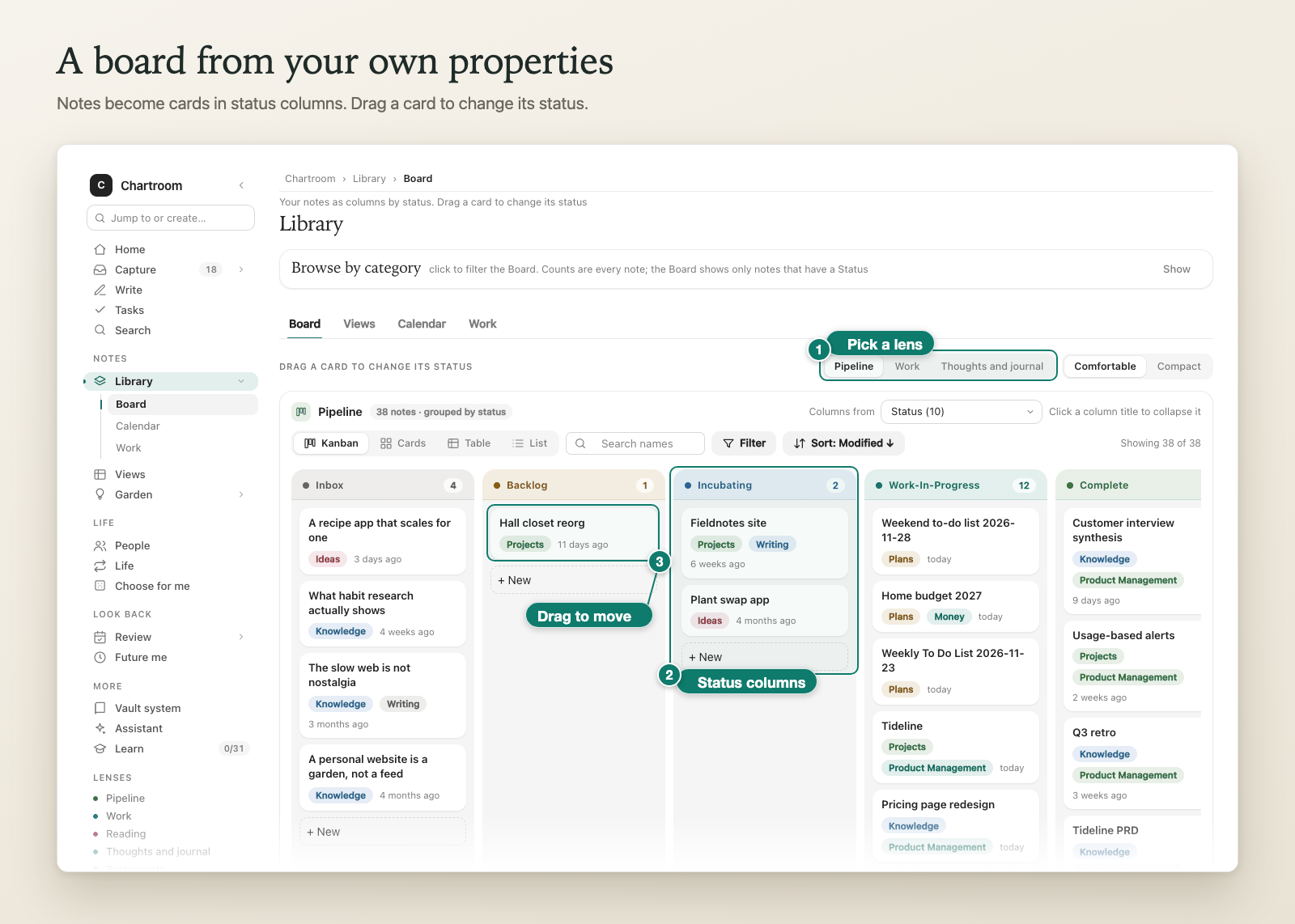
| Library | A board with columns from any property, plus views, a calendar and a work page. |
| Tasks | Every task from every note, filtered, sorted and grouped by any property. |
| Write | Freewrite, then distill a selection into a note of its own. |
| Garden | Old notes and ideas come back a few at a time, so good ones are not lost. |
| Review | Stats and a five-step weekly review. |
| People | Who to see next, birthdays, and a page for each person. |
| Life | Habits, upkeep, reminders, lists and where things are. The Money, Gym and Weight tabs are experimental: they work, but they are newer and may change. |
| Weave and Search | Notes that mention each other without a link, and typo-tolerant ranked search. |
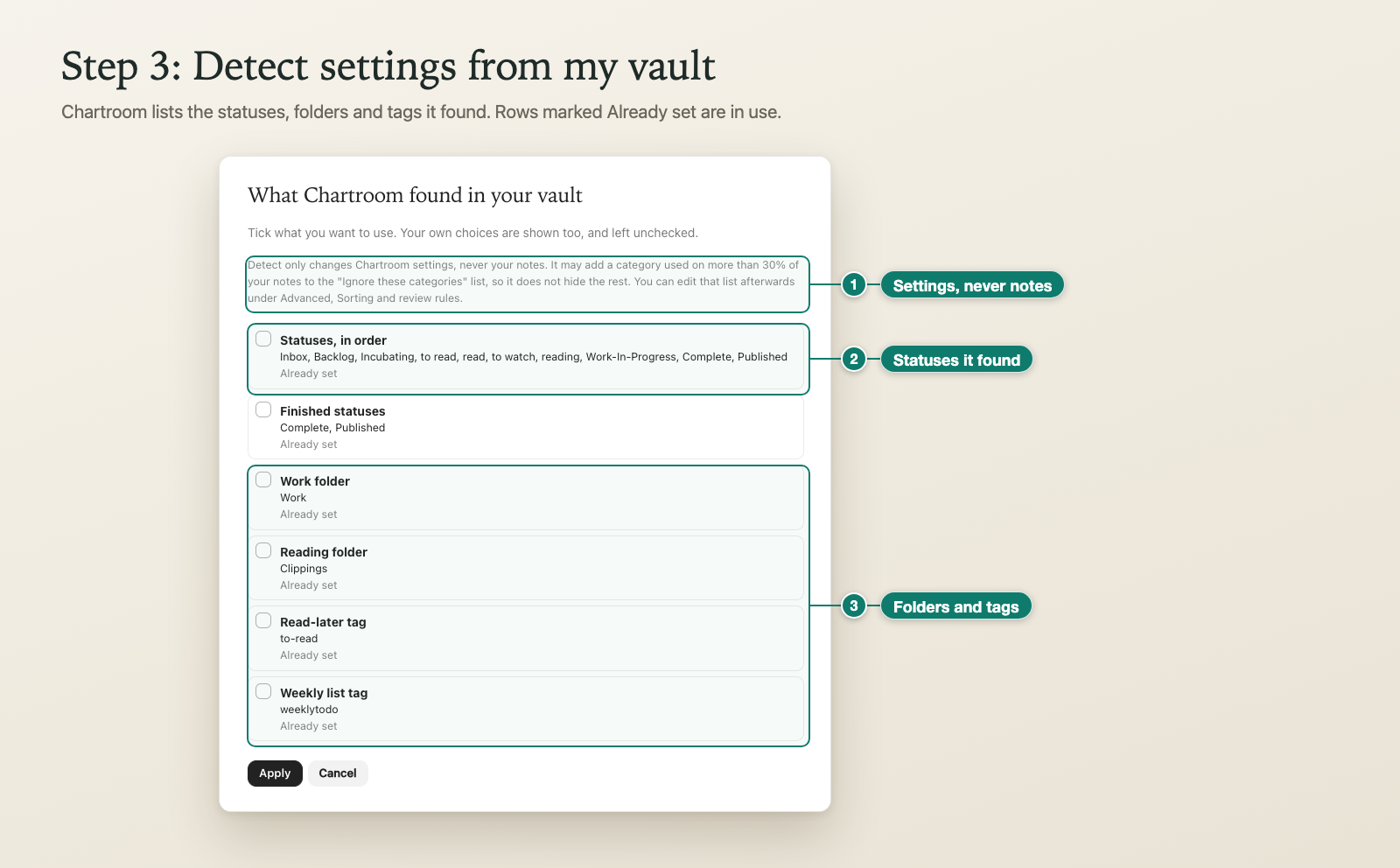
| Vault system | How your notes are labelled, and which of your properties Chartroom found. |
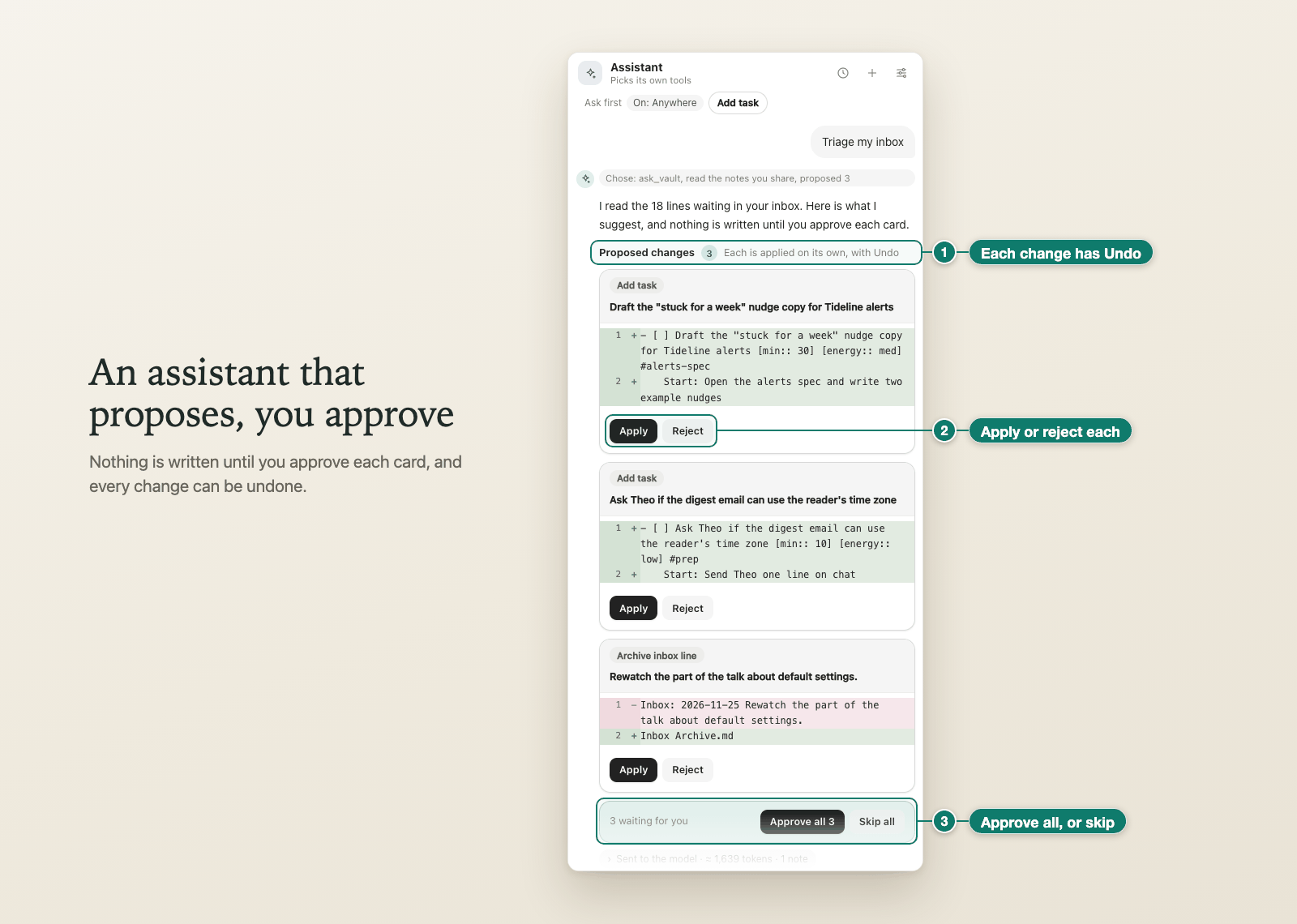
| Assistant | Optional. Proposes properties, tasks, notes and reminders as approve cards. It never edits by itself. |
More screenshots
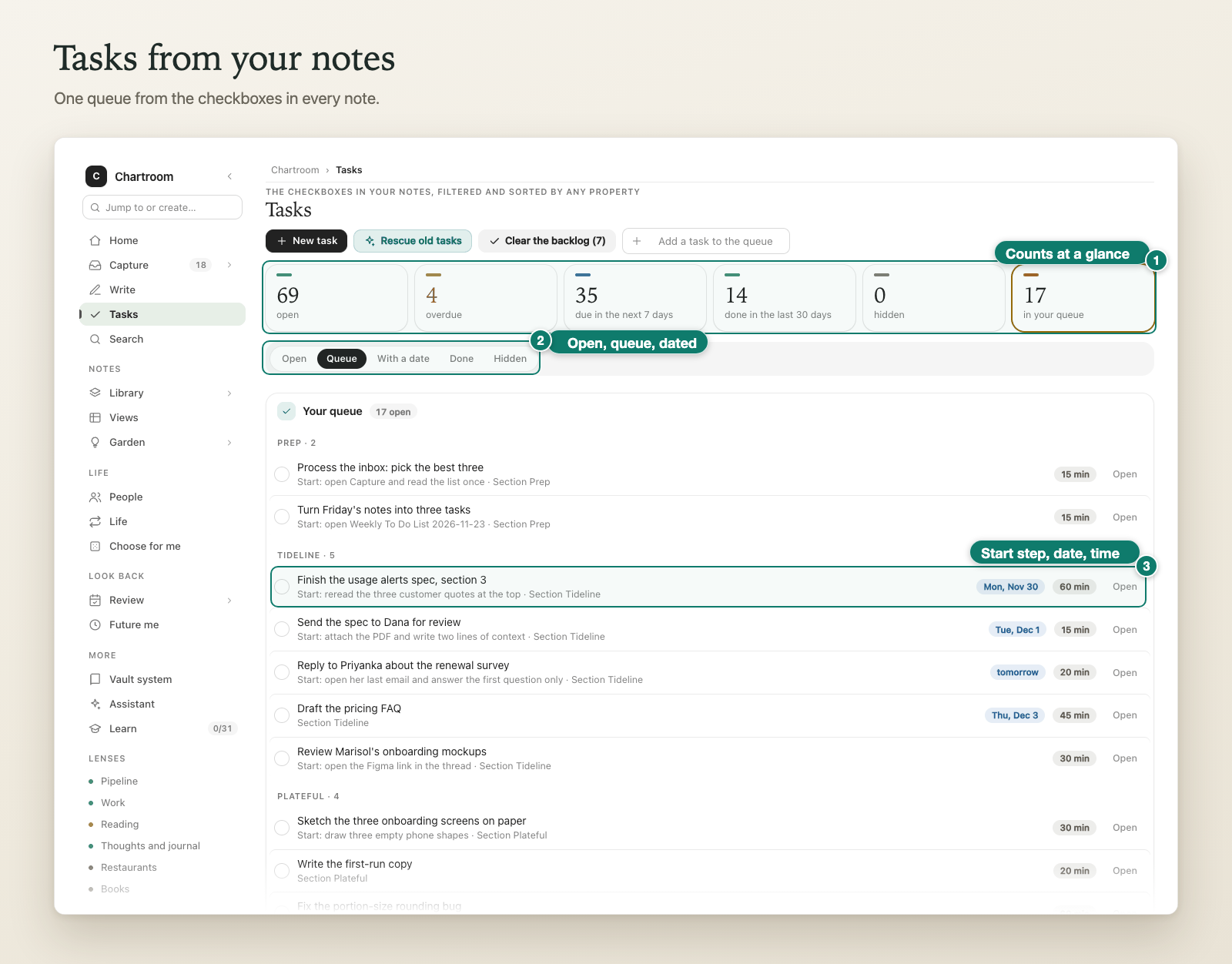
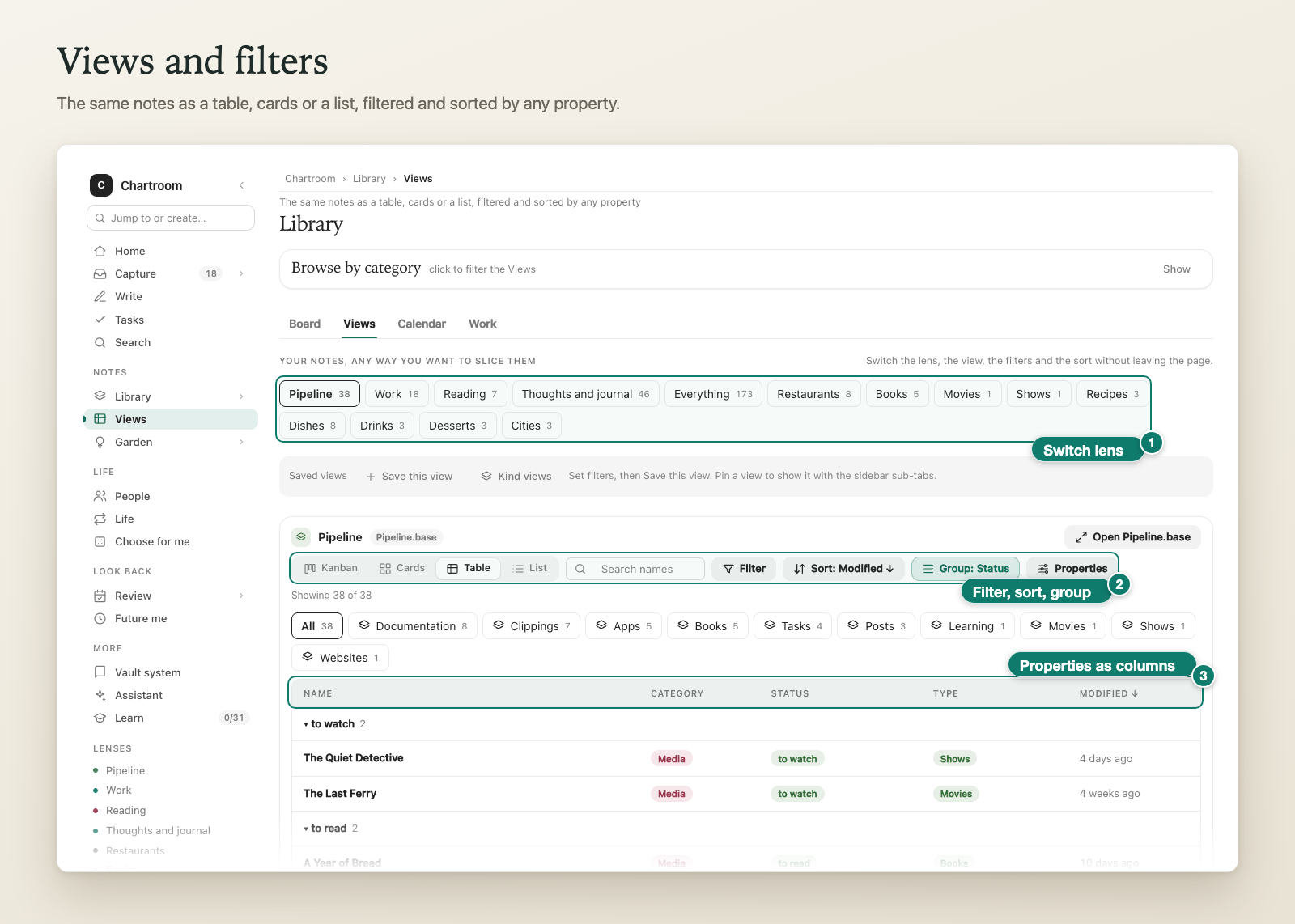
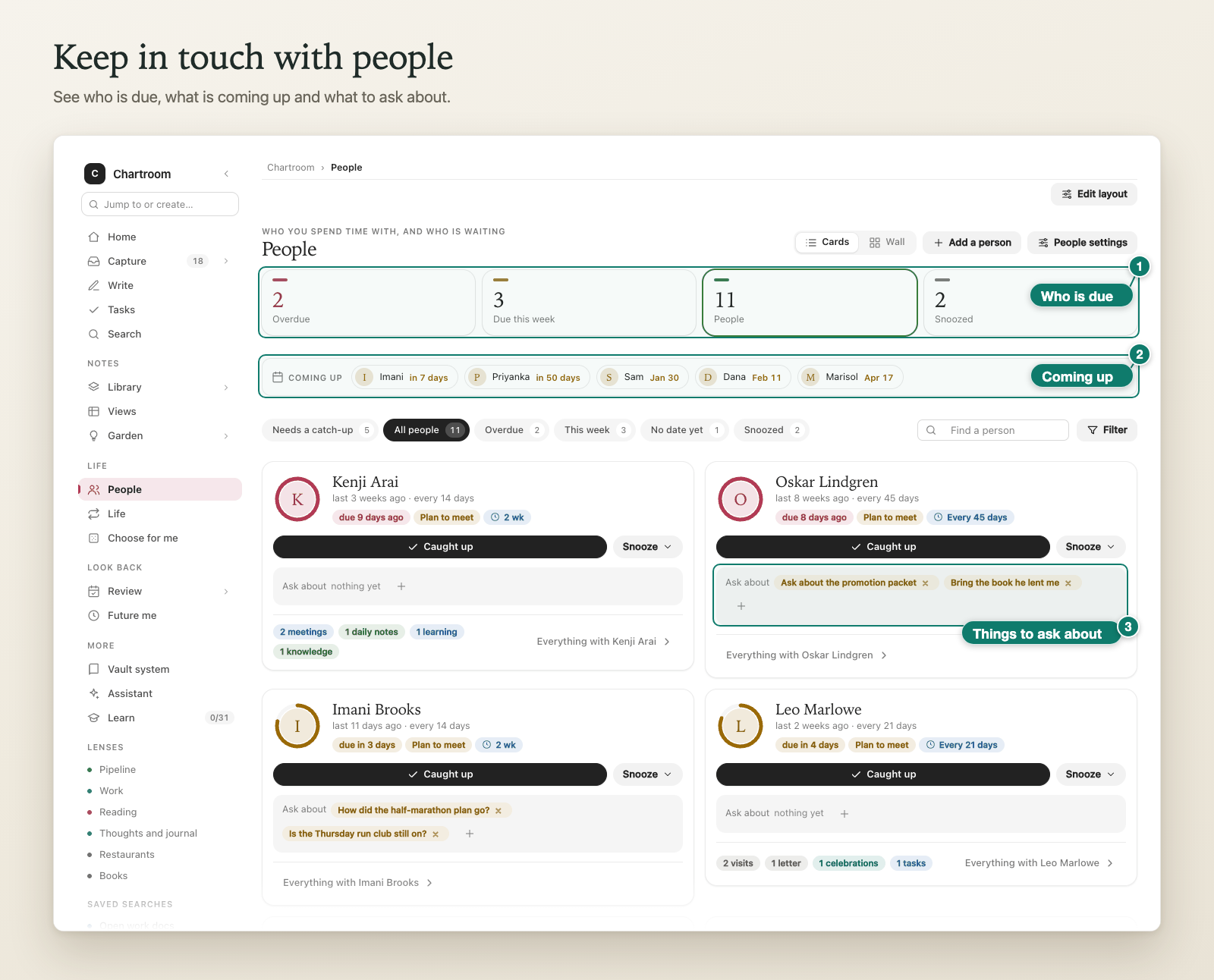
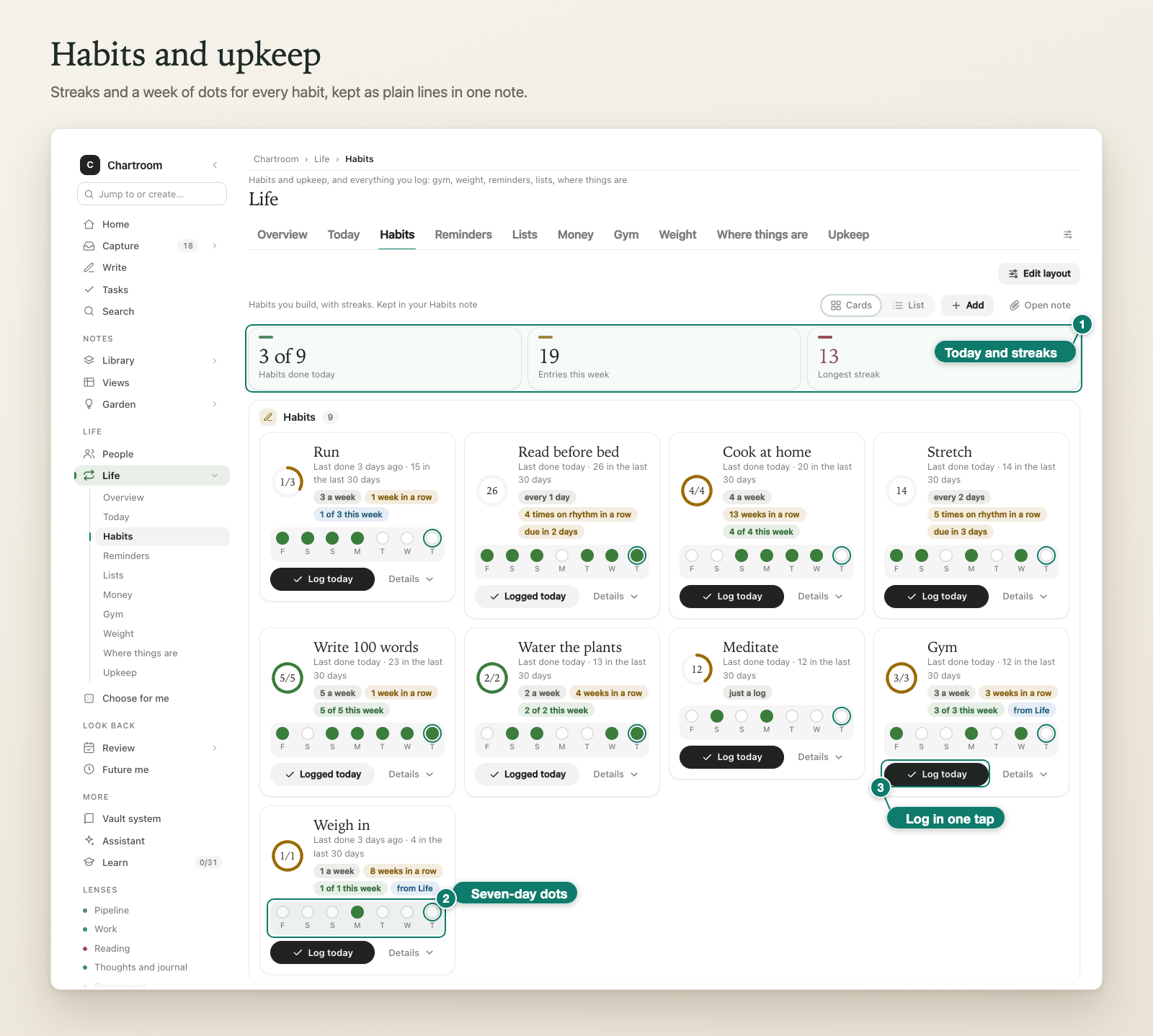
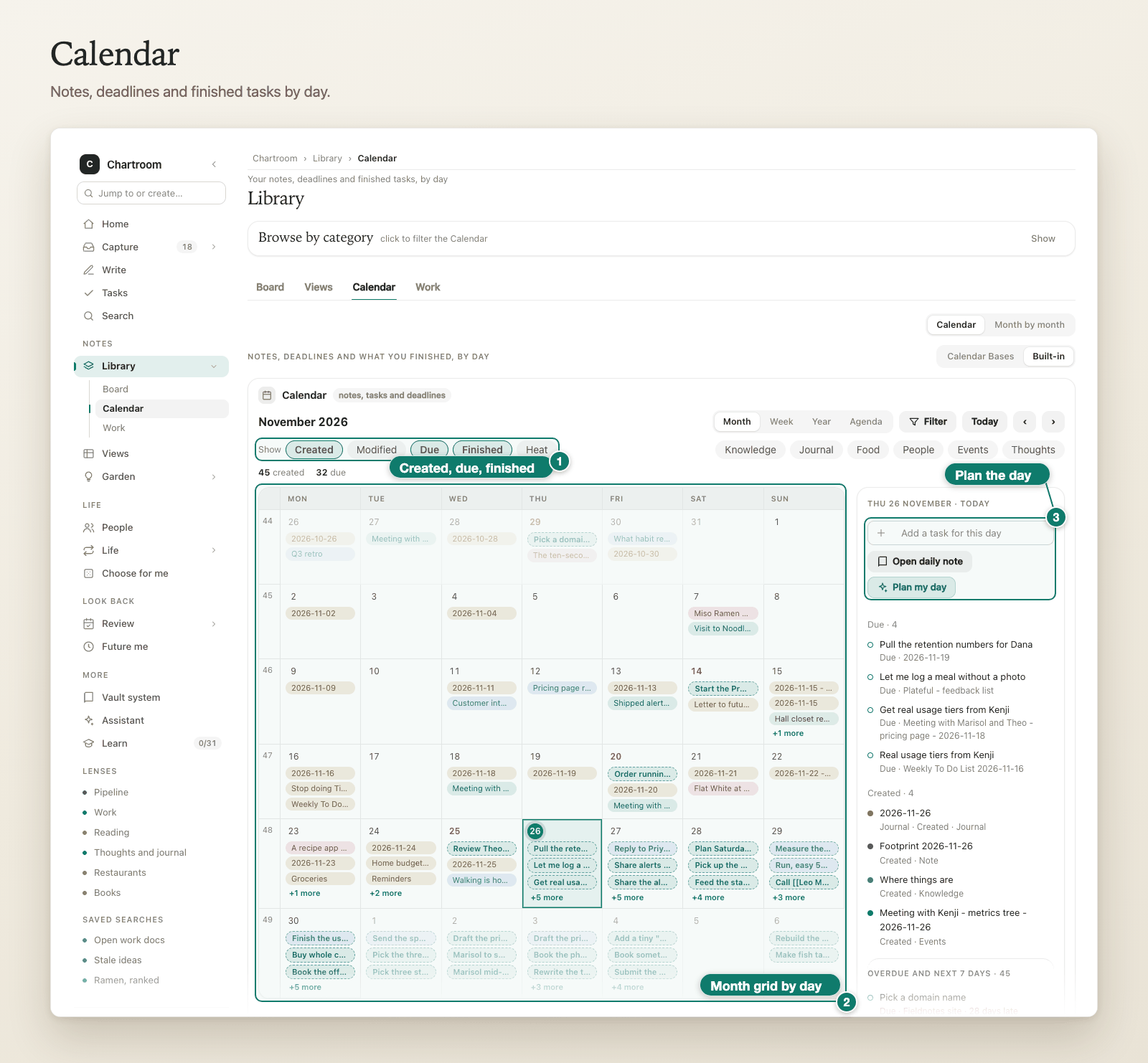
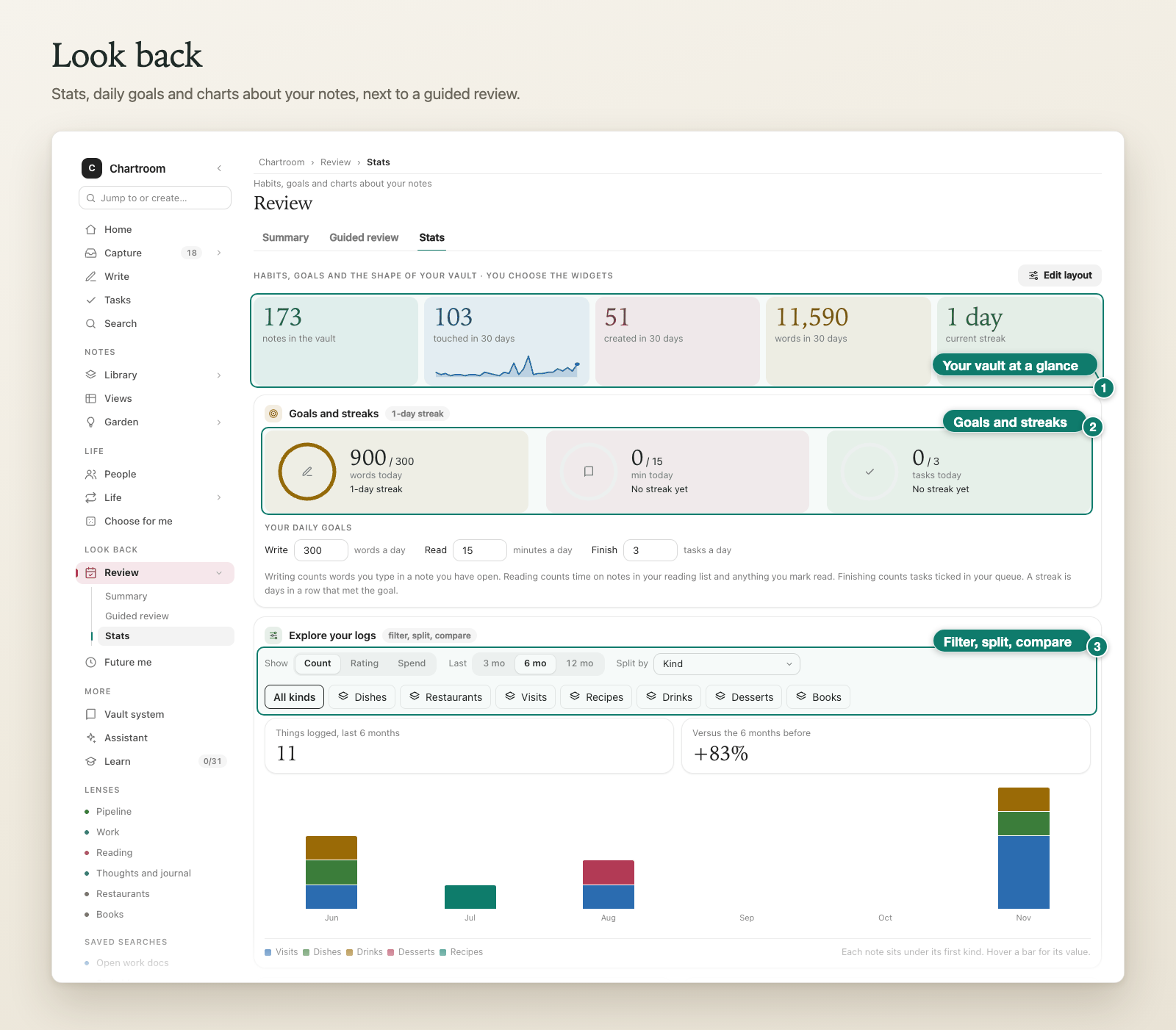
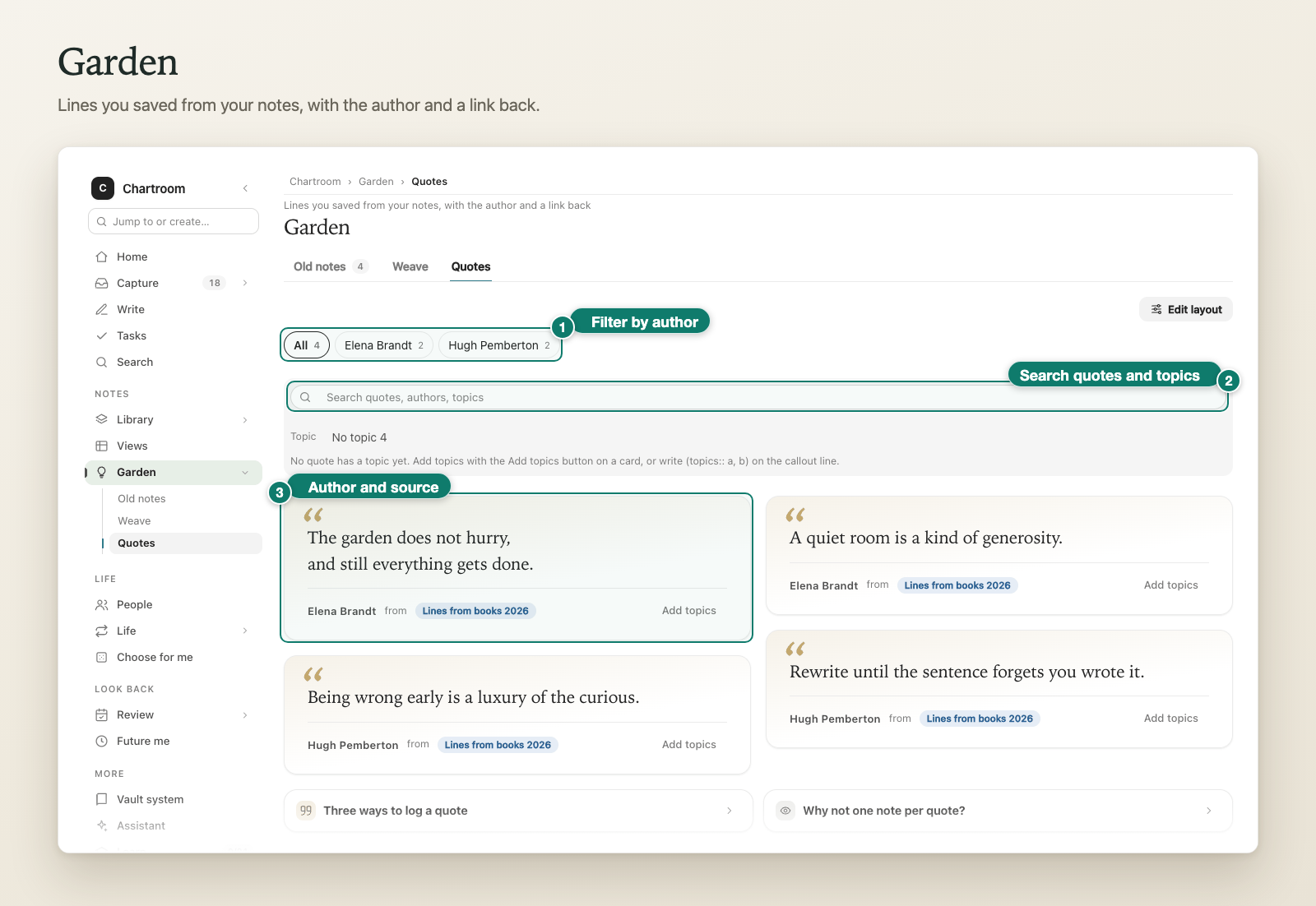
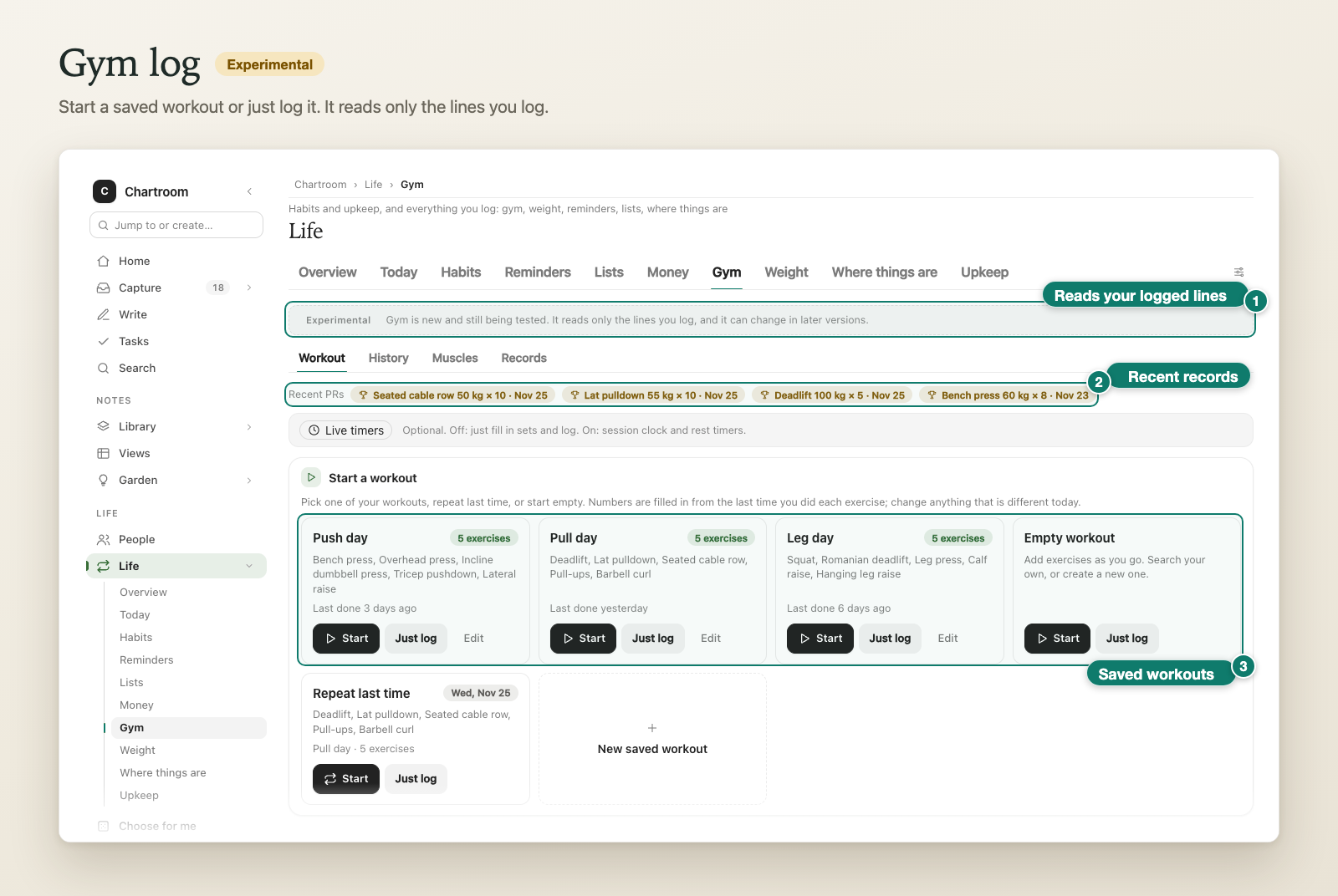
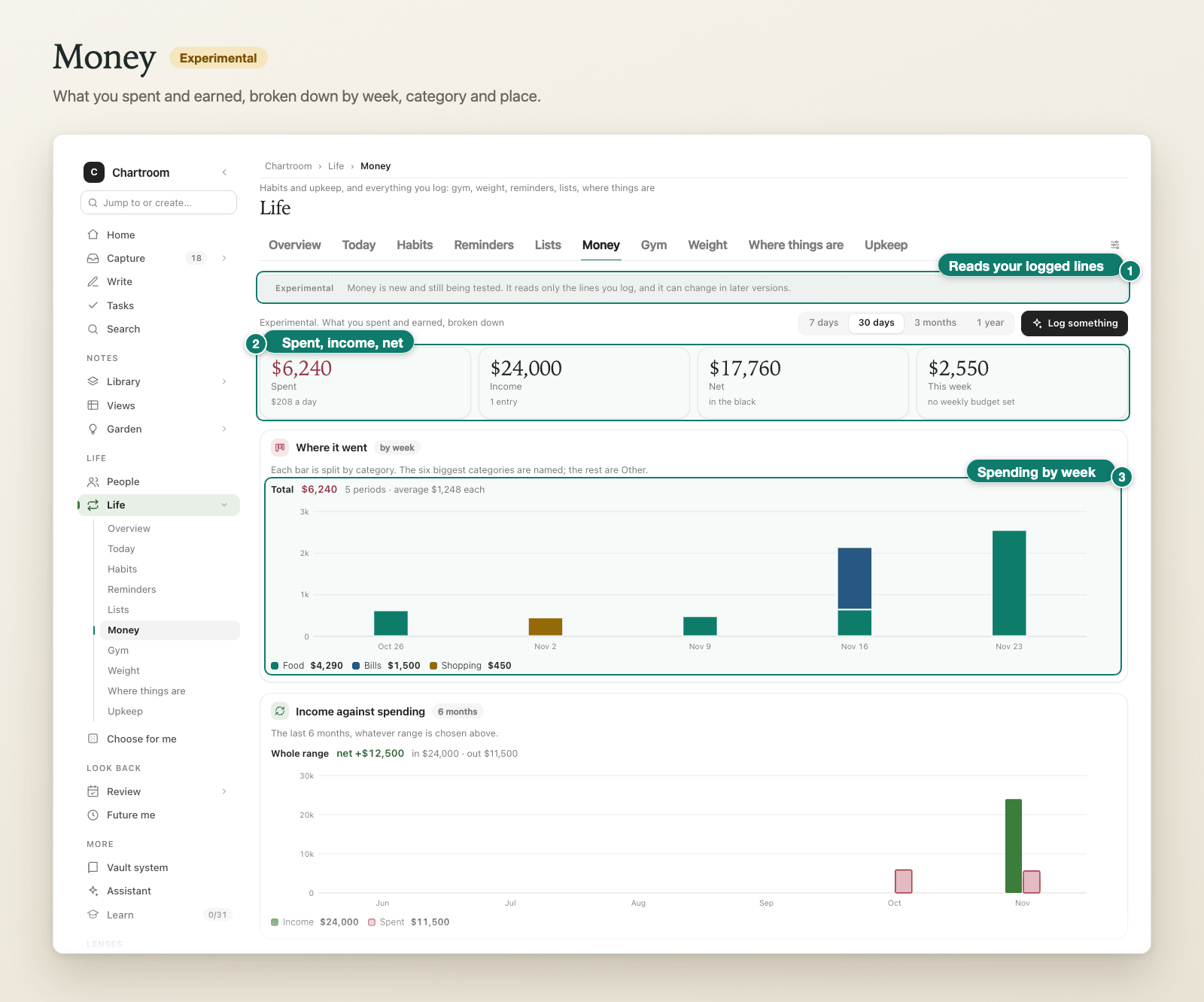
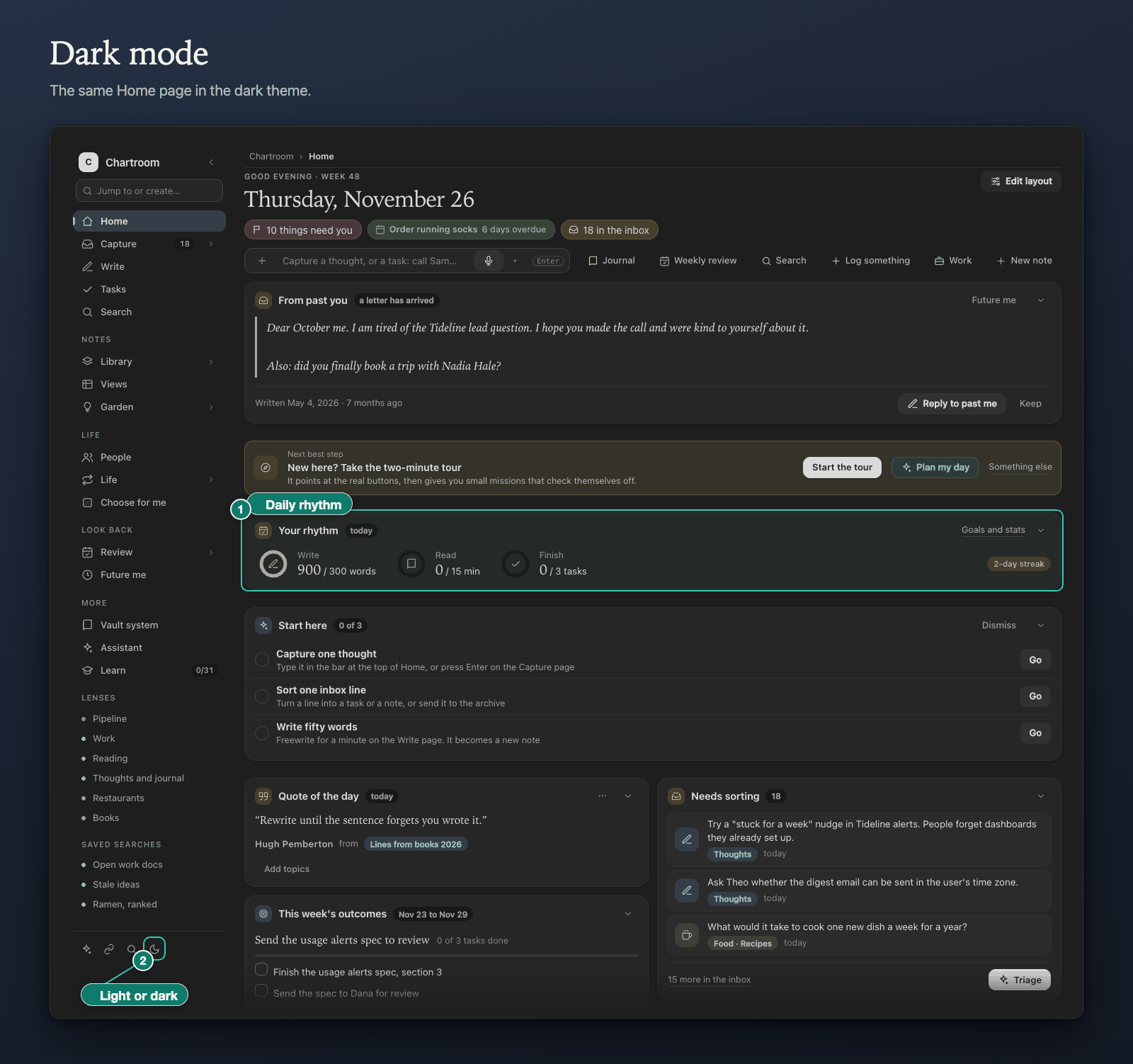
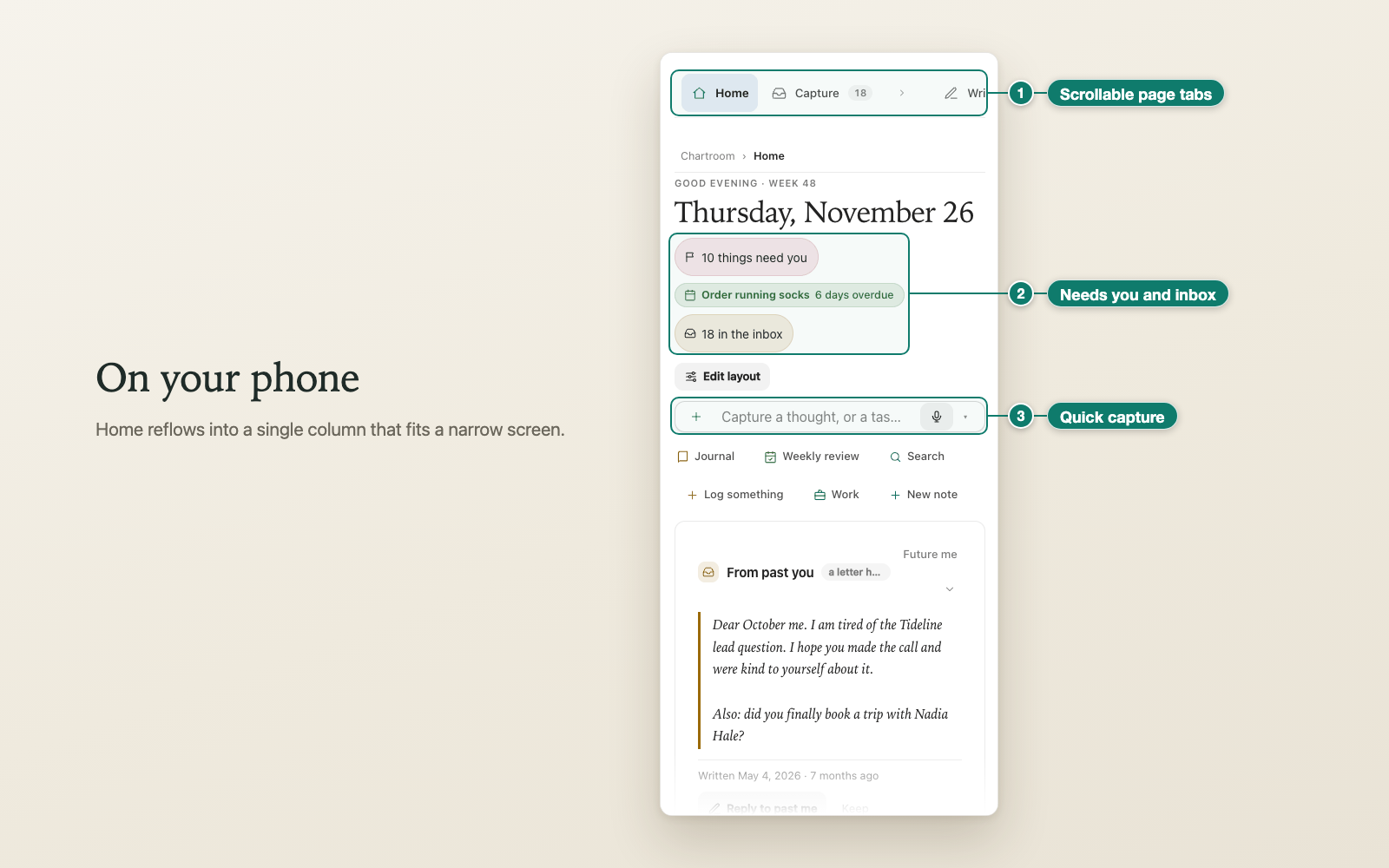
The screenshots show the invented demo vault.
Install
- From Obsidian: Settings, Community plugins, Browse, search for "Chartroom", then Install and Enable. Listing: community.obsidian.md/plugins/chartroom.
- Manually: download
main.js,manifest.jsonandstyles.cssfrom the latest release into<your vault>/.obsidian/plugins/chartroom/(the folder must be namedchartroom), then enable it under Community plugins. - Needs: Obsidian 1.11.4 or newer (for secret storage). Works on desktop and mobile; the phone layout is newer and less tested than desktop.
Optional extras (Chartroom works without them)
- Daily notes (core plugin, or the Periodic Notes community plugin). Turn it on and set your folder and format. The Life page logs your day into today's daily note, so it needs to know where your daily notes live. Without it, Chartroom uses
Daily/YYYY-MM-DD.md. - Calendar Bases (community plugin). If you already use it, Home shows it as the calendar. Without it, Chartroom draws its own calendar from your dates and due dates.
- Templates (core plugin). Set a templates folder and Chartroom offers those templates when you start a new note.
- Bases (core plugin). Chartroom's starter notes include a few
.basefiles, such as a board of notes by status. Turn Bases on to open them as Obsidian's own tables and boards; with it off they just do not render.
Quick start
Try the demo vault (2 minutes)
A made-up vault of 279 notes with data for every page.
- Download or clone this repository. In Obsidian choose Open folder as vault and pick
demo-vault. Turn on community plugins. Chartroom is already inside, with read-only mode off so ticking and dragging work. - Open
START HERE. It lists six things to try, such as ticking a task, capturing a line and logging a workout. - Open
Chartroom Hub/Home. - Optional: press Detect settings from my vault (Settings, Chartroom). See what it finds in
docs/DEMO-VAULT.md. - Read
Vault Guide - How to write your notes for Chartroomto see which properties fill which pages.
On your own vault
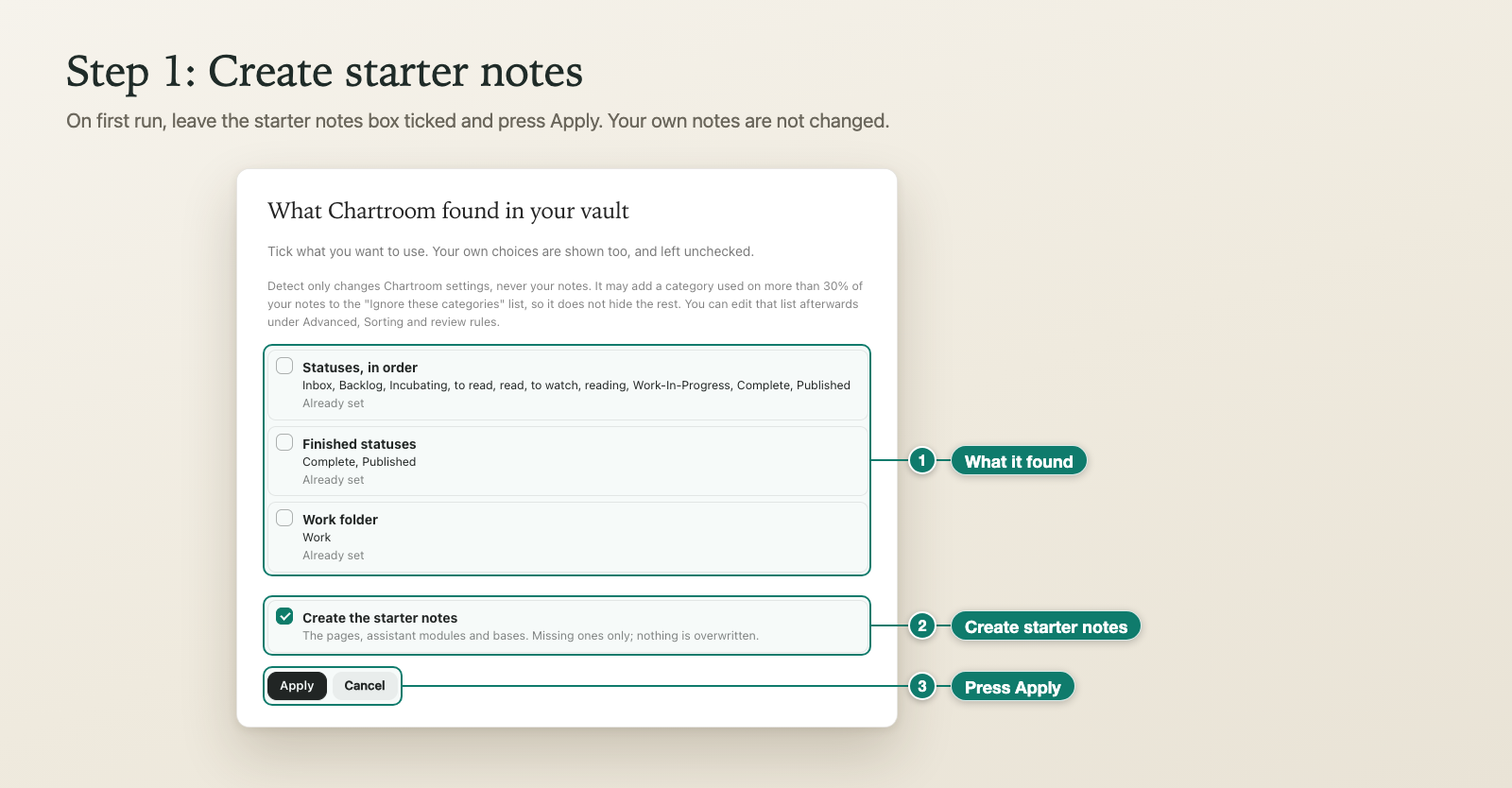
- Enable Chartroom. In the welcome window press Set up from my vault, keep Create the starter notes ticked and press Apply. This adds a
Chartroom Hubfolder with only the missing page notes and changes none of your own notes. You can run Create starter notes from the command palette at any time. - Open the home page. Run the command Open home page. Each Chartroom page is a note with a small code block; if you see the code instead of the page, press Cmd/Ctrl+E to switch to Reading view.
- Check the detected settings. Chartroom fills in every setting you have not set yourself by looking at your statuses, folders and tags, and checks again each time it loads. Detect settings from my vault (Settings, Chartroom, or the command palette) shows what it found. Your own choices stay unticked; tick one to use the detected value instead.
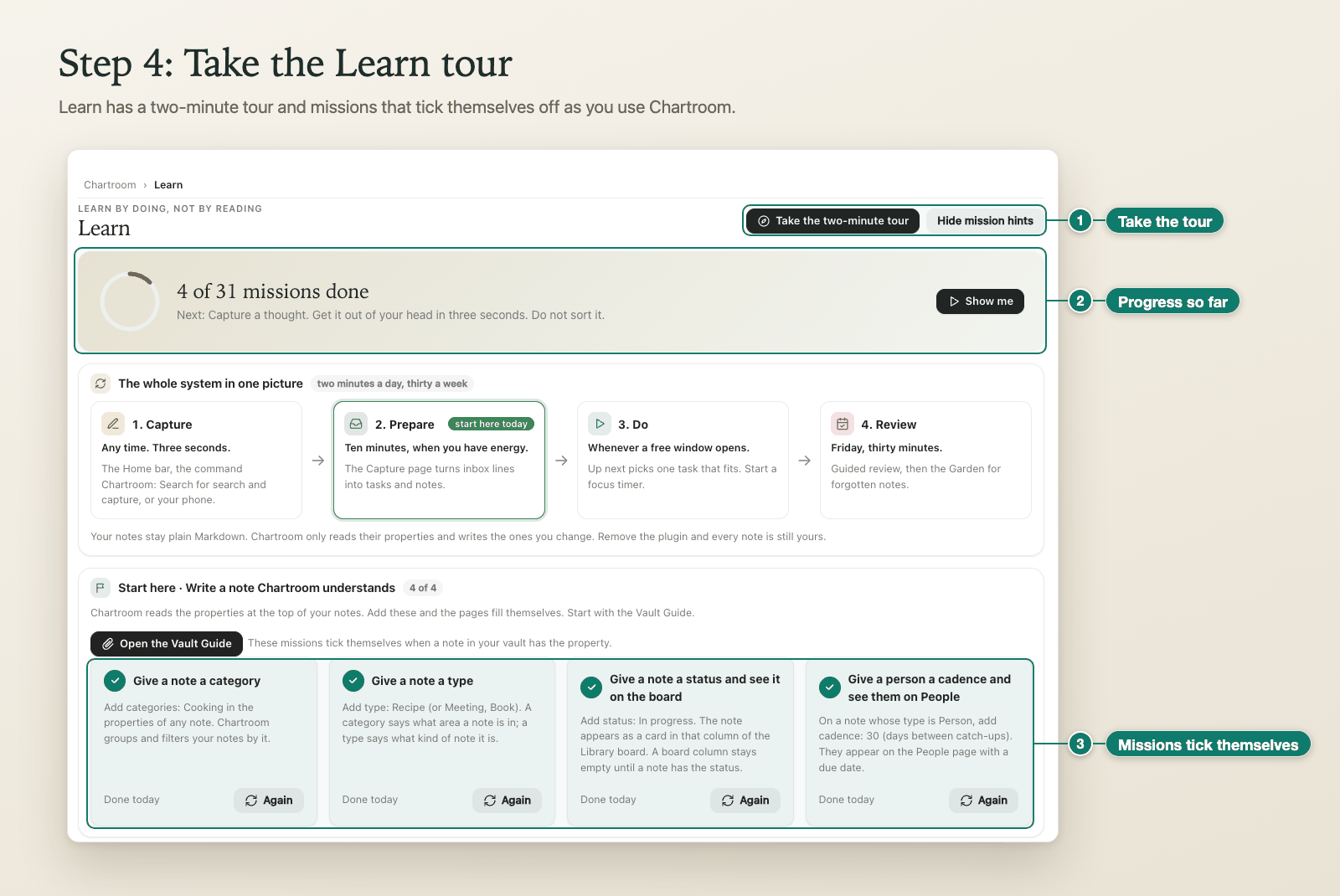
- Take the tour. Open Learn for a two-minute tour and missions that tick themselves off.
- Turn off read-only mode when you are ready. Chartroom starts read-only, so it will not edit your notes while you look around. To tick tasks, drag cards or log things, press Turn off in the note at the top of Home (or Settings, Chartroom, Read-only mode).
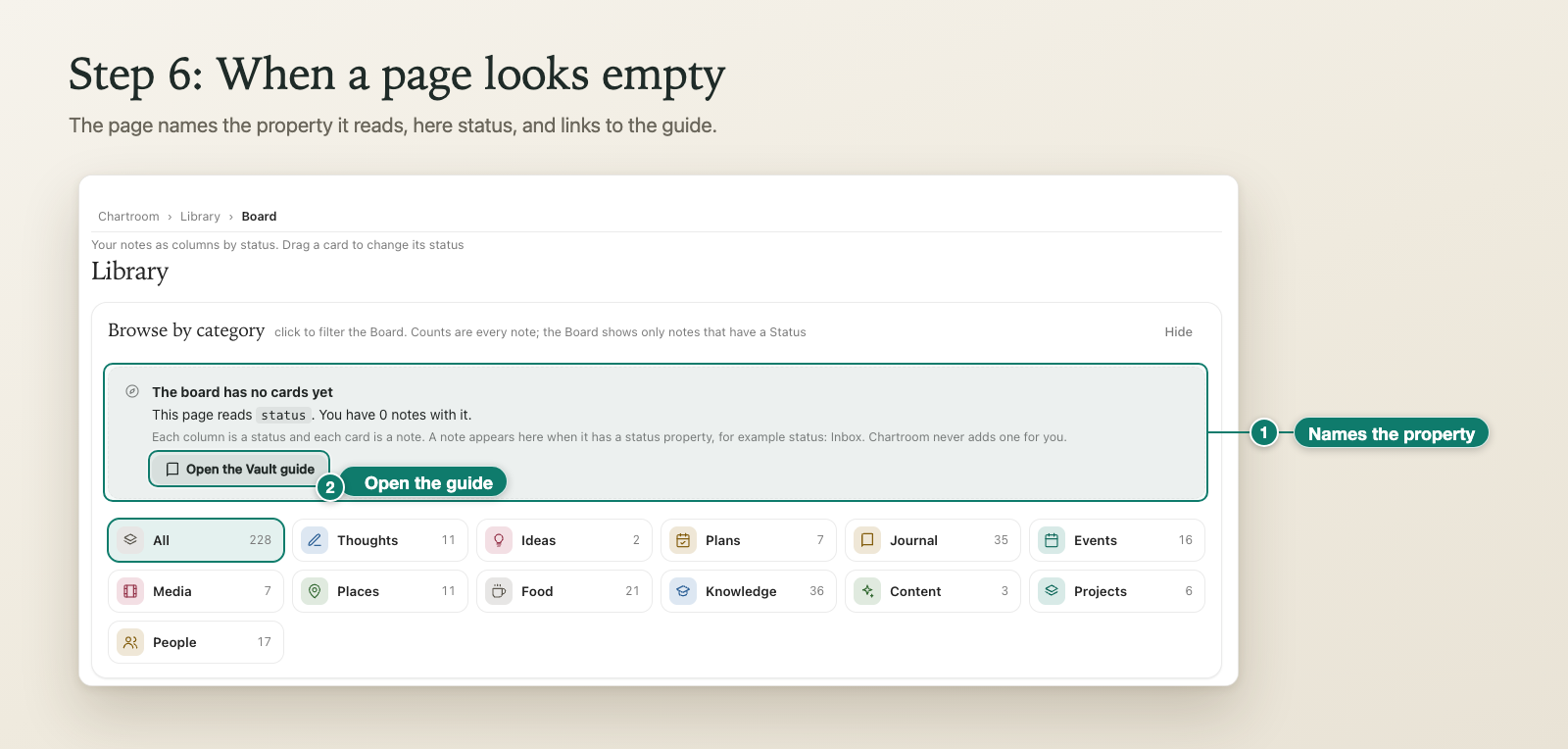
- Page looks empty? It is usually missing a property to read, such as a status for the board or a date for the calendar. The page says which one, and
docs/VAULT-GUIDE.mdshows how to add it.
Optional: add an API key under Assistant, Connection to turn on the assistant.
Show pictures of these steps
Where to read more
docs/VAULT-GUIDE.md: how to write notes so the pages fill up (categories, type, topics, status, dates, tasks).docs/USER-GUIDE.md: a short tour of every page.docs/DEMO-VAULT.md: what each demo note shows, and how to refresh its dates.CHANGELOG.md: what changed in each version.
Words you will see
Chartroom uses a few words of its own. The same list is on the Learn page inside the plugin.
| Word | What it means |
|---|---|
| Capture | Type a thought or a task in one box. The line under it shows what Enter will do before you press it. |
| Needs sorting | New captures waiting for you to decide: a task, a note or the archive. |
| Queue | Your task list, kept in an ordinary note called Ready. Tasks from every note also appear on the Tasks page. |
| Next best step | The one thing Home suggests you do next. |
| Needs you today | A short ranked list of people to see, routines due, the inbox and your next task. |
| Starter layout / Edit layout | A new install shows a calm Home. Edit layout adds the other sections. |
| Library | Your notes laid out as a board, views, a calendar and a work page. |
| Lens | A saved way of picking notes, such as everything in a folder or with a status. Views shows a lens as a board, table or list. |
| Garden | Where old notes and ideas come back a few at a time. Answer Still true, Revise or Retire for each. |
| Weave | Notes that mention each other by name without a link between them, so you can connect them. |
| Digest / Mark read | Digest turns a clipping into a new note linked to it. Mark read asks for one takeaway and adds it to your reading log. |
| Distill selection | On the Write page, turns the text you selected into a new note titled as one idea, linked to where it came from. |
| Park it | Stop a task halfway and keep the very next step, so it is easy to restart. |
| Weekly outcomes | Up to three things that matter this week. Tag a task with the same tag and the bar fills as you tick them. |
| Routines | Habits and upkeep that come round again, such as a haircut every 45 days. |
| Footprints | Small notes Chartroom saves when you close the day: what you wrote, finished and logged. |
| Future me | Letters, decisions and a line for each month, written for the person you will be. |
| Brag sheet | A list of what you got done over a period, built from your finished work. |
| Approve card | A change the assistant proposes. Nothing is written until you approve it, and each one has Undo. |
| Read-only mode | On by default. Chartroom writes only its own files until you turn it off. |
A week with Chartroom (invented examples from the demo vault)
- Monday: decide what matters. On Home, under This week's outcomes, type up to three outcomes. Each gets a tag such as
#filter-sheet. Put that tag on any task inReady.mdand the bar fills as you tick them. - Every day: capture, then do. Type
Order seeds ~15m !low @fri, orcall Sam tomorrow, on Capture and it becomes a task; the row under the box shows how it was understood. On Home, Up next (add it in Edit layout) picks one task that fits the minutes and energy you have. Start a timer or a pomodoro, and if you must stop halfway, Park it with the very next step. - When you read: open a clipping and press Digest. Chartroom creates a new note linked to the clipping with three sentences to fill in. When you finish, Mark read asks for one takeaway and appends it to
Reading log. - When you write: open the Write page and type in the Freewrite box. Select the sentence that holds the idea and press Distill selection (next to Save as a new note and Clear). In any other note, select text and run the command Distill the selection into a new note. Add one sentence of your own so the note is yours, not only a quote. You get a new note titled as a claim ("Small tools beat big plans"), with a quote and a link back.
- A few minutes a day in the Garden: open Old notes and answer Still true, Revise or Retire for a few old notes.
- End of day: Close the day asks what finished, what tomorrow starts with (written to your queue) and one line for the record. Undo removes both the note and the task.
- Friday: Review, Guided review. Clear the inbox, set outcomes (on Friday to Sunday they are saved for next week), triage tasks, revisit a note, write three sentences. One new note is saved. Stats then show whether the habits are holding.
Your notes stay yours
- No bulk changes. Chartroom changes an existing note only when you act on that one note: dragging a card, choosing a status, ticking a box, approving one rename or approving an assistant proposal. Every change has an Undo.
- Read-only mode is on by default, so a new install never edits an existing note. It writes only its own files (the queue note, the inbox, the reading log) and brand-new notes it creates (a digest, a distilled note, a review).
- Plain notes you can edit. Habits are lines in
Chartroom Hub/Habits.mdand weekly outcomes are inChartroom Hub/Outcomes.md. Revisit schedules and the content pipeline live in the plugin's own data, not in your notes. - No links added behind your back. Links and Connections copy the link for you to paste.
- Written through Obsidian's own file and property APIs.
How Chartroom reads your notes (properties and tasks)
| Chartroom | Your note |
|---|---|
| Category | the first categories value |
| Status | status, shown as board columns in the order you set |
| Type, Topics, Org, People | type, topics, org, people |
| Created, Modified | created, modified, or file dates |
| Any other property | available in every filter, sort and group menu, including on Tasks |
The inbox and the task queue are ordinary notes. Tasks look like this:
- [ ] Sketch the filter sheet [min:: 30] [energy:: med] [due:: 2026-11-02] #filter-sheet
	- Start: draw three boxes on paper
Assistant (optional)
- Bring your own key: Anthropic, OpenAI, Gemini, or a local model such as Ollama or LM Studio.
- Your key stays private. It is stored in Obsidian's secret storage, not saved in your vault, not synced and not committed to git.
- It only proposes. The assistant lists changes as approve cards, you tick the ones you want, and you can undo them. It never writes on its own.
- Modules. A module is a note with a prompt and a few properties: what it may read, what it may propose to change, and which model to use. Starter modules include inbox triage, weekly review, ask my vault, idea sharpener, classify notes, meeting prep and plan my day, plus those used by the buttons on each page.
Providers, models and the Assistant page
| Provider | Models listed (read from the provider's docs on 2026-10-31) |
|---|---|
| Anthropic | Claude Fable 5.1, Opus 5.5, Sonnet 5.5, Haiku 5.5 |
| OpenAI | GPT-6 Astra, GPT-6.1 Sol, GPT-6.1 Terra, GPT-6 Luna |
| Gemini | Gemini 4 Argon, Gemini 3.8 Flash, Gemini 3.5 Flash-Lite |
Model names change often. Refresh from my account asks your provider which models your key can use, and Custom model ID accepts any model not yet listed.
The Assistant page is a configuration window:
| Tab | What you set |
|---|---|
| Connection | Provider, key, model, a test button |
| What it can do | One switch per kind of change it may propose (tasks, notes, archive, status, properties), answer style, privacy, and a plain summary of the result |
| Page buttons | A master switch, then one switch per button (where it shows, and which module it uses) |
| Modules | The library of modules (notes in the Assistant folder), duplicate, edit or create one |
| Prompt notes | Your own prompts |
Privacy and network use
Stays on your device
- Chartroom has no telemetry, no ads, no account and no server of its own.
- It lists the notes in your vault (names, properties, dates and text) on your device to build its pages. Notes are written back only when you act.
- Copy buttons (for a link, a summary or an error report) write to your clipboard when you press them. Chartroom never reads the clipboard.
Sent only when you use the assistant
- It connects to the internet only when you use the assistant, press Refresh from my account, or press Test. Requests go to the provider you chose: Anthropic (
api.anthropic.com), OpenAI (api.openai.com) or Google (generativelanguage.googleapis.com). - What is sent: your message, the module's prompt, and the notes the module is allowed to read. Check a module's
readsproperty to see exactly what it sends. The estimate under the message box shows the size. In titles-only privacy mode, note text is left out, but inbox lines and task text are still sent, and the settings say so. - Your API key is sent only to the matching provider.
- Providers you add yourself (any OpenAI-style address) ask for confirmation the first time notes would be sent to that address. Local models (Ollama, LM Studio) keep everything on your machine.
- Nothing is sent until you add a key (or a local address) and use an assistant feature yourself.
Voice (optional)
- Capture has an optional microphone button. In some builds it uses your device's built-in speech recognition (which your operating system or browser may process on its own servers), and when an assistant provider is set, a recording can be sent to that provider for transcription.
- Nothing is recorded until you press the button, and Obsidian will ask for microphone permission.
Commands
- Search, Open search page, Open assistant, Open connections for this note
- Quick capture to inbox
- Start a focus session on the next task, Start a pomodoro
- Distill the selection into a new note
- Close the day, Start the guided weekly review, Move weekly outcomes into a note, Revisit a few old notes
- Start the tour, Open the Learn page
- Detect settings from my vault, Open home page, Create starter notes
Chartroom ships no default hotkeys. To bind one, open Obsidian's Settings, Hotkeys and search for Chartroom.
Limits
- Filters match the values you tick (including "empty"); sorting compares dates and text. They combine with "and". For computed properties and complex logic, use Obsidian's own Bases.
- Board on a phone: drag and drop needs a mouse. Use the note details dialog to change a status. Hover explanations are off on touch screens.
- Home's Rediscover section is off by default because Garden's Revisit does the same job on a schedule; turn it on in Customize if you like it.
- Habit tracking (words written, time read) is approximate and stays on your device. Turn it off in the settings.
- The assistant sends requests as a single reply, not a stream.
- Where some data lives: revisit schedules, retired notes and the content pipeline are stored in the plugin's data file, not in your notes. They travel with your vault only if you sync the
.obsidianfolder. - Obsidian internals: Chartroom uses a few that are not in the public API. It opens its settings tab, runs commands such as the quick switcher, and reads whether Calendar Bases is enabled. If one is unavailable the related button shows a notice instead of failing.
Questions or issues?
Open an issue at github.com/ianunjay/chartroom/issues. The bug report form asks for your Chartroom and Obsidian versions and your platform, which helps a lot. Please do not paste API keys or private notes.
To build Chartroom from source or send a change, see CONTRIBUTING.md.
License
MIT. See LICENSE.
A note from the author
Chartroom began as a tool for my own vault, shaped around how I plan, write and look back. I have since adapted it to work for other people's vaults too, and I have tried to make it as usable as I can for everyone.
I am still learning, so please be kind. There will be bugs, rough edges and better ways of doing things that I have not found yet. If you spot one, I would be grateful if you told me, through the issue tracker. Bug reports, ideas and gentle suggestions are all welcome.
Thank you for trying it.
For plugin developers
Search results and similarity scores are powered by semantic analysis of your plugin's README. If your plugin isn't appearing for searches you'd expect, try updating your README to clearly describe your plugin's purpose, features, and use cases.