Floor notes
approvedby Aluxes
Presents a dedicated Markdown file as a threaded record flow. - This plugin has not been manually reviewed by Obsidian staff.
Floor notes
Turn an ordinary Markdown note into a readable, editable thread while keeping every floor and reply in the vault as human-readable Markdown.
Floor notes is an Obsidian plugin for forum-style notes, project discussions, decision logs, meeting follow-ups, Q&A pages, and any other content that naturally grows as a sequence of floors and replies. It provides a dedicated thread view, inline actions, favorites, four presentation layouts, Markdown editing and preview, and configurable themes without introducing a separate database or an opaque storage format.
Features
- Convert a qualifying Markdown note into a Floor / Reply thread.
- Add, edit, delete, sort, and favorite floors; add, edit, and delete replies.
- Open all favorite floors from a dedicated sidebar and jump back to the source record.
- Choose one of four layouts: Bubble, Glass, Paper, or Timeline.
- Render record bodies as normal Markdown, including headings, lists, links, code blocks, tables, blockquotes, and internal links.
- Conditionally show an existing lowercase
authorlabel on a reply when it differs from its parent floor. - Resize direct images by dragging their corner in desktop floor view, with the width saved in Obsidian-compatible Markdown.
- Optionally show author-supplied image descriptions beneath images in floor view.
- Switch between Write and Preview while composing; drafts are saved locally and can be restored or discarded.
- Follow the Obsidian theme or choose a bundled palette such as Nord, Monokai, VS Code, Material, Claude, Dracula, Gruvbox, or Solarized.
- Choose automatic, light, or dark mode for bundled palettes.
Four thread layouts
The active layout is saved per note with floor-notes-view-style. The settings page provides the default for new or otherwise unspecified notes, while the palette button in the thread header changes the current note directly.
The screenshots below come from the matching demo pages in this repository. At runtime, colors, spacing, typography, and column count adapt to the selected theme and the available pane width.
1. Bubble — forum-style grouped cards
Each floor is a rounded card. Its replies form a contained lower panel separated from the parent floor, making the relationship between a post and its replies immediately obvious.

Best for: discussions, Q&A, issue notes, and chat-like records where grouping matters more than density.
2. Glass — responsive card grid
Floor groups become translucent cards in a responsive grid. The layout uses a blurred background mesh and a measured masonry-like arrangement so cards with different content lengths can sit together efficiently.

Best for: overview pages, idea collections, visual dashboards, and threads with many independent floor groups.
3. Paper — quiet editorial column
The thread is presented as a narrow article column with serif typography, hanging floor numbers, restrained metadata, and a vertical rule for replies. It is intentionally calm and suitable for long-form reading.
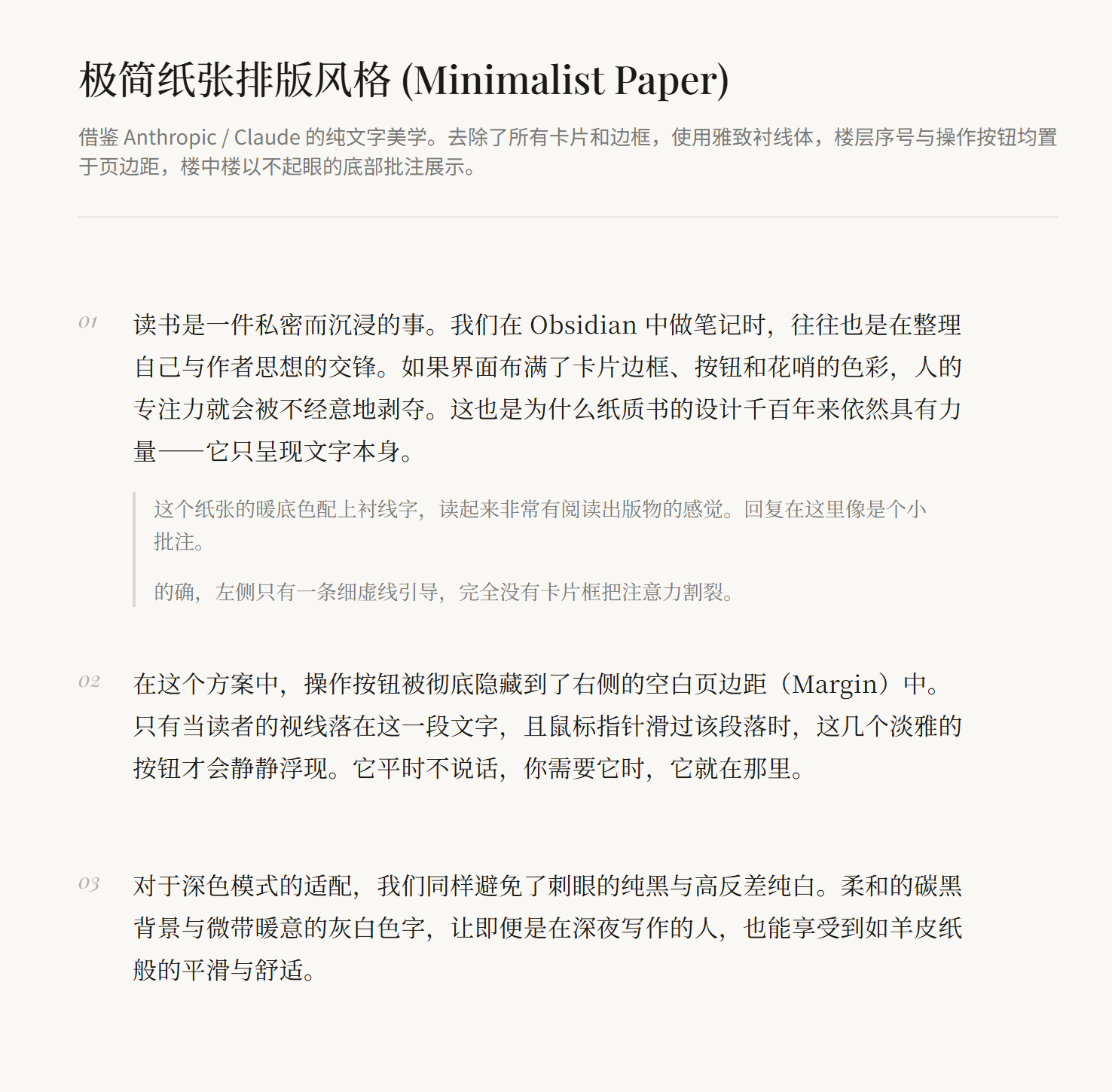
Best for: meeting minutes, essays, reading notes, decisions, and archival documents.
4. Timeline — chronological archive axis
Floors are arranged along a vertical axis with nodes and reply ticks. Dates remain prominent, while actions stay close to each record and appear progressively on hover or focus.
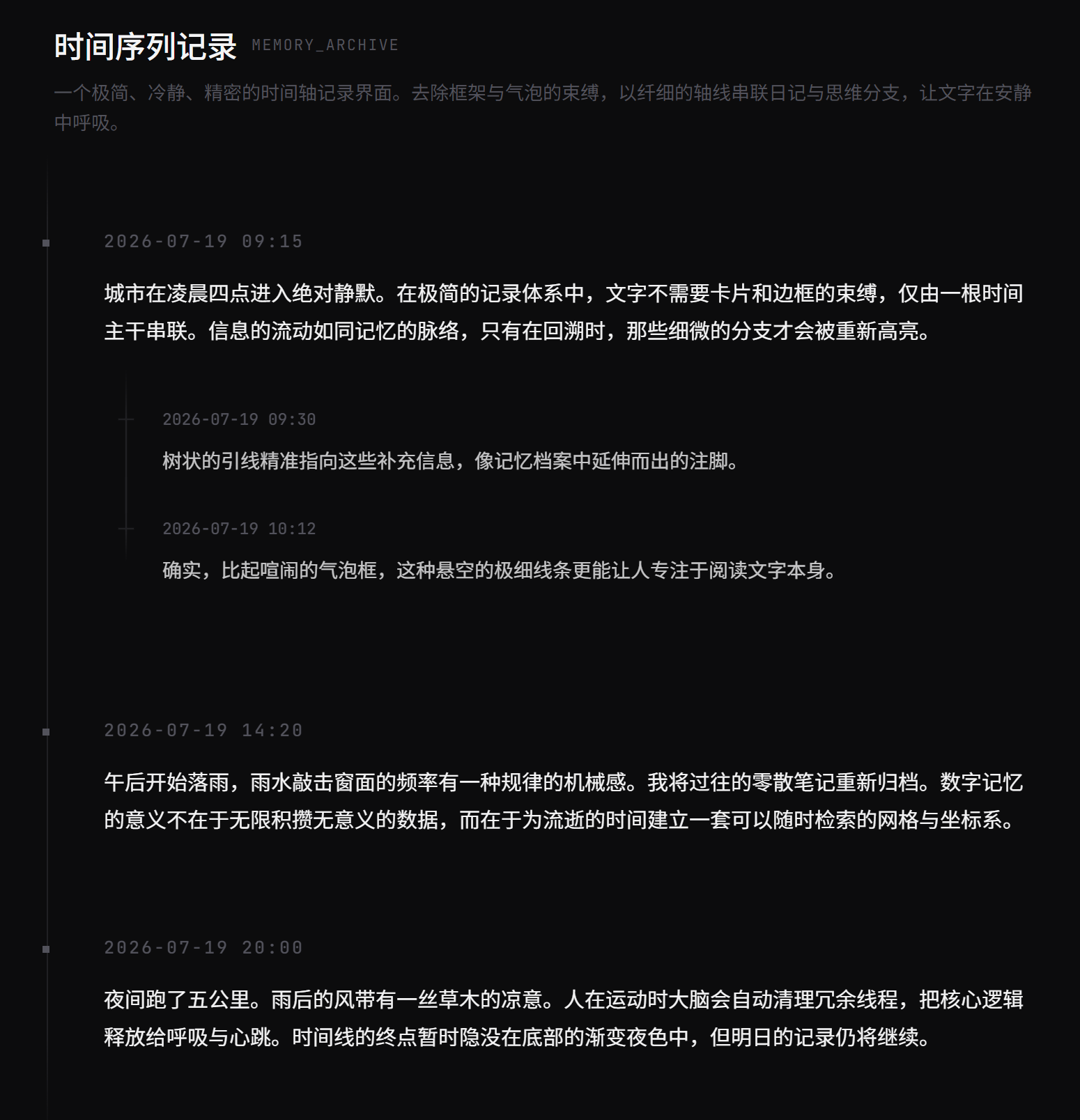
Best for: changelogs, research trails, incident records, progress logs, and chronological journals.
Installation
Requirements
- Obsidian 1.8.7 or later.
- Community plugins must be enabled. Obsidian's Restricted Mode blocks third-party plugins until you turn it off; only install plugins you trust.
- The plugin does not require an API key or an external service.
1. Install from the Obsidian Community plugins marketplace
Use this method when Floor notes is available in the official community directory.
- Open Settings → Community plugins.
- Turn off Restricted Mode or select Turn on community plugins if prompted.
- Select Browse and search for
Floor notes. - Select the plugin, click Install, and then click Enable.
- Open Settings → Community plugins → Installed plugins → Floor notes to review its options.
If the search does not return Floor notes, the current repository or version has not been published to the community directory yet. Use BRAT or manual installation instead.
2. Install with BRAT
BRAT is useful for beta builds and releases that are not yet in the community directory.
-
Install and enable Obsidian42 - BRAT from the Community plugins marketplace.
-
Open the Command palette and run BRAT: Add a beta plugin for testing. Some BRAT versions show this as BRAT: Plugins: Add a beta plugin for testing.
-
Enter the GitHub repository URL for Floor notes, for example:
https://github.com/<owner>/<repository> -
Select Add Plugin and wait for BRAT to finish downloading the release.
-
Return to Settings → Community plugins, refresh the installed list if needed, and enable Floor notes.
BRAT needs a usable GitHub release. The release should contain main.js, manifest.json, and styles.css; a source-only checkout is not enough for a normal Obsidian installation.
3. Manual installation
Use this method for a specific release, an offline installation, or a locally built copy.
-
Download
main.js,manifest.json, andstyles.cssfrom a Floor notes GitHub Release. For a local build, create them withnpm run buildfirst. -
In the target vault, create the plugin directory:
<vault>/.obsidian/plugins/floor-notes/ -
Copy all three files into that directory. The folder name must match the plugin ID:
floor-notes. -
In Obsidian, open Settings → Community plugins, refresh the plugin list, and enable Floor notes.
On Windows the same path looks like <vault>\.obsidian\plugins\floor-notes\; on macOS and Linux it uses / separators. Do not copy the src directory as a substitute for the compiled main.js.
Quick start
Create your first thread
- Create or open a Markdown note.
- With that note active, press
Ctrl + P(Windows/Linux) orCmd + P(macOS) to open the Command palette, then run Enable floor view for this note. - The plugin adds the required frontmatter marker and opens the note in the thread view.
- Use the + button in the header to add the first floor.
- Use the reply icon on a floor to add a reply.
You can also use the file context menu item Open in floor view, the Open floor view ribbon icon, or the command Open in floor view for a note that is already configured.
By default, Automatically enable floor view is enabled. When it is enabled, opening a configured Markdown note is routed to the thread view automatically. Disable it in settings if you prefer to open the source as native Markdown first.
Work with records
- Add a floor: select the plus button in the thread header.
- Add a reply: select the reply icon on a floor. Replies belong to the closest preceding floor.
- Edit: select the pencil icon on a floor or reply.
- Delete: select the trash icon and confirm. Deleting a floor also deletes its replies.
- Favorite a floor: select the star icon. Only floors can be favorited.
- Resize an image: hover a direct image in desktop floor view and drag its bottom corner. Double-click the corner to remove the saved size.
- Change sort order: select the up/down arrow in the header. The choice is written to the note and persists per note.
- Change layout: select the palette icon and choose Bubble, Glass, Paper, or Timeline.
- Open source Markdown: select the file-text icon in the header.
The editor supports Markdown syntax highlighting, bold, italic, Markdown links, internal links, preview mode, emoji and kaomoji insertion, image paste, local draft recovery, and a character count. Create and edit dialogs keep the source text in the note format; they do not move records into a separate database.
Reply attribution and image controls
- Reply attribution: If reply metadata contains lowercase
[author:: Bob]and its parent floor has no effective author or a different author, floor view prefixes an ordinary reply paragraph withBob: content. A body that begins with an image, list, heading, blockquote, code block, table, or another non-text block receives a separateBob:lead line. A floor's own author is not shown. The label is display metadata rather than an account or permission identity, and the plugin does not add an author input or rewrite the field. - Desktop image resizing: A bottom-corner control appears for
![[image]]andimages that floor view can map uniquely to the current record source. Dragging preserves the aspect ratio and saves an Obsidian-compatible width such as![[image.png|description|320]]; double-clicking the corner removes the saved size. If the record body changes before the width is saved, the plugin writes nothing and refreshes the floor view. - Image actions: Hovering a supported image reveals actions for opening the image viewer and editing the exact image source in the record dialog.
- Image descriptions: The optional Show image descriptions setting is disabled by default. When enabled, floor view shows a meaningful author-supplied Wiki alias or inline Markdown description beneath the image. Automatic attachment filenames and size-only labels remain hidden.
- Safe degradation: Mobile, editor preview, and native Obsidian views do not receive Floor Notes resize controls or description titles. HTML images, reference-style images, images rendered through embedded notes, and ambiguous rendered images remain visible without a resize control.
These capabilities retain the floor-notes: 1 file format. Reply attribution and desktop resizing do not add settings; image-description visibility and view-position restoration are configurable.
Native outline in floor view
While a floor view is active, the native outline displays content summaries for Floor and Reply entries, retaining the reply hierarchy and native collapse state. Labels omit floor numbers and truncate to one line. Native search matches summaries, and clicking an entry navigates across pages when needed. Regular views retain native headings. This adapter targets the internal outline structure in Obsidian 1.13.7 and leaves incompatible structures unchanged.
Browse favorites
Use the star ribbon icon or run Open favorite floors from the Command palette. The favorites sidebar shows the source note and a short content snippet. Selecting an item opens the source thread and focuses the associated record.
Configure the plugin
Open Settings → Community plugins → Floor notes. The available options are:
| Setting | Purpose |
|---|---|
| Default sort order | Fallback order for notes without floor-notes-sort; choose ascending or descending. |
| Preferred line endings | Preserve the file's current style (auto) or write new changes as LF or CRLF. |
| Language | Follow Obsidian automatically, or force English / Simplified Chinese. |
| Theme | Use the host Obsidian theme or a bundled palette. |
| Color mode | Follow Obsidian, use light, or use dark mode for bundled palettes. |
| Default view style | Fallback layout for new or unspecified notes. |
| Show image descriptions | Show meaningful author-supplied image descriptions beneath images in floor view; disabled by default. |
| Restore last view position | Restore each existing pane's reading position and use the note's most recent position for a new pane; disabled by default, and turning it off clears saved positions. |
| Automatically enable floor view | Route configured notes to the thread view when they are opened. |
Thread file format
Floor notes intentionally uses a small, explicit Markdown convention. A valid file must begin with YAML frontmatter containing floor-notes: 1. Floors and replies must use the exact structural headings below at column zero.
---
floor-notes: 1
floor-notes-sort: asc
floor-notes-view-style: bubble
---
# Project discussion

## Floor
[id:: floor-20260716-120000-abcde123]
[date:: 2026-07-16 12:00:00]
[favorite:: true]

The first floor is regular Markdown content.

### Reply
[id:: reply-20260716-120500-xyz789ab]
[date:: 2026-07-16 12:05:00]

Replies are attached to the closest preceding floor.
Frontmatter keys
| Key | Required | Accepted values | Meaning |
|---|---|---|---|
floor-notes | Yes | 1 | Enables the version 1 thread parser. |
floor-notes-sort | No | asc, desc | Per-note sort order; otherwise the plugin setting is used. |
floor-notes-view-style | No | bubble, glass, paper, timeline | Per-note layout; otherwise the plugin setting is used. |
Record rules
- A floor heading is exactly
## Floorwith optional trailing spaces or tabs. - A reply heading is exactly
### Replywith optional trailing spaces or tabs. - Headings must start at column zero; indented headings are treated as ordinary Markdown.
- Each record must be followed immediately by a metadata block, then a blank line.
idanddateare required. IDs are generated in the formfloor-YYYYMMDD-HHMMSS-suffixorreply-YYYYMMDD-HHMMSS-suffixand must be unique within the file.- The generated suffix uses eight characters from the plugin's safe alphanumeric alphabet. Do not reuse an ID or change a floor ID into a reply ID.
[favorite:: true]is optional and is allowed only for floors. A reply cannot contain a favorite field.- Lowercase
[author:: name]is optional display metadata. It remains non-reserved and is shown only on a reply whose effective label differs from, or has no counterpart on, its parent floor. - Keep the body below the terminating blank line. It can contain normal Markdown, including fenced code; headings inside fenced code are not treated as records.
- A first-level
# Titlebefore the first record becomes the thread title. If it is absent, the filename is used.
When editing the source by hand, preserve the blank line after every metadata block and keep structural headings unindented. If the parser finds invalid metadata, duplicate IDs, an unsupported version, or another fatal format error, the plugin shows a diagnostic and returns the note to native Markdown instead of risking a destructive render.
Source tree
The repository separates the compiled release files from the TypeScript source and test suite:
floor-notes/
├─ manifest.json              # Obsidian plugin metadata and minimum app version
├─ versions.json              # Supported Obsidian version for each plugin release
├─ main.js                    # Generated production bundle (created by npm run build)
├─ styles.css                 # Generated CSS bundle (created by npm run build)
├─ src/
│  ├─ main.ts                 # Plugin lifecycle, commands, routing, and ribbon actions
│  ├─ view/
│  │  ├─ FloorThreadView.ts   # Main floor/reply view, pagination, sorting, and layout switch
│  │  ├─ FavoritesSidebarView.ts
│  │  ├─ glassGrid.ts         # Measurement used by the Glass masonry layout
│  │  └─ components/          # Header, record, Markdown, empty/error renderers
│  ├─ format/                 # Frontmatter, headings, metadata parser, and source mutations
│  ├─ services/               # File identity, serialized mutations, attachments, favorites index
│  ├─ modals/                 # Create, edit, delete-confirm, and confirm dialogs
│  ├─ settings/               # Settings types and the plugin settings tab
│  ├─ locales/                # English and Simplified Chinese UI strings
│  ├─ styles/                 # Modular CSS source files; build-css.mjs concatenates them
│  ├─ theme.ts                # Theme palettes, mode resolution, and theme class helpers
│  └─ util/                   # Locale, dates, IDs, and text helpers
├─ scripts/                   # Build, lint, source, theme, locale, CSS, and release checks
├─ tests/                     # Vitest tests for format, views, services, modals, and contracts
├─ package.json               # Development scripts and dependencies
├─ esbuild.config.mjs         # TypeScript bundling configuration
├─ tsconfig.json              # TypeScript compiler configuration
├─ eslint.config.mjs          # JavaScript/TypeScript lint rules
├─ stylelint.config.mjs       # CSS lint rules
└─ LICENSE                    # MIT license
For end users, the only files required by an installed release are main.js, manifest.json, and styles.css. The src tree is for development and is not loaded directly by Obsidian.
Development
The project uses Node.js 20 in CI. From the repository root:
npm ci
| Task | Command |
|---|---|
| Start the watch build | npm run dev |
| Create production assets | npm run build |
| Type-check | npm run typecheck |
| Run ESLint | npm run lint |
| Run Stylelint | npm run lint:css |
| Run tests once | npm run test |
| Watch tests | npm run test:watch |
| Run coverage | npm run test:coverage |
| Run the complete verification suite | npm run verify |
| Preview the npm package contents | npm pack --dry-run |
npm run dev rebuilds the CSS bundle before starting esbuild's watch process. npm run build writes the production main.js and styles.css used by manual installation and release packaging.
For local development inside a vault, the repository can be placed at <vault>/.obsidian/plugins/floor-notes/. Run the watch build from the repository, then reload or disable and re-enable the plugin in Obsidian after source changes.
Troubleshooting
The plugin does not appear in the marketplace
Community listing and repository releases are separate from the source tree. Use BRAT with the project's GitHub repository URL or install the three release files manually.
The note opens as normal Markdown
Check the opening frontmatter and verify that it contains floor-notes: 1. Also check that structural headings are exactly ## Floor and ### Reply, begin at column zero, and have valid metadata directly below them. A malformed thread intentionally falls back to native Markdown.
A change cannot be applied
The mutation service re-reads the note and checks the record revision before writing. If the note was edited externally while a dialog was open, close and reopen the thread, then retry so that a newer source version is not overwritten.
A favorite is marked stale
The source file, record ID, or favorite field may have changed. Open the item from the favorites sidebar to let the plugin validate it, then repair the source record or remove the stale favorite.
License
For plugin developers
Search results and similarity scores are powered by semantic analysis of your plugin's README. If your plugin isn't appearing for searches you'd expect, try updating your README to clearly describe your plugin's purpose, features, and use cases.