by Haissam Makki
Icons for every folder and file in the file explorer, plus colors and text styles you pick from the right-click menu.
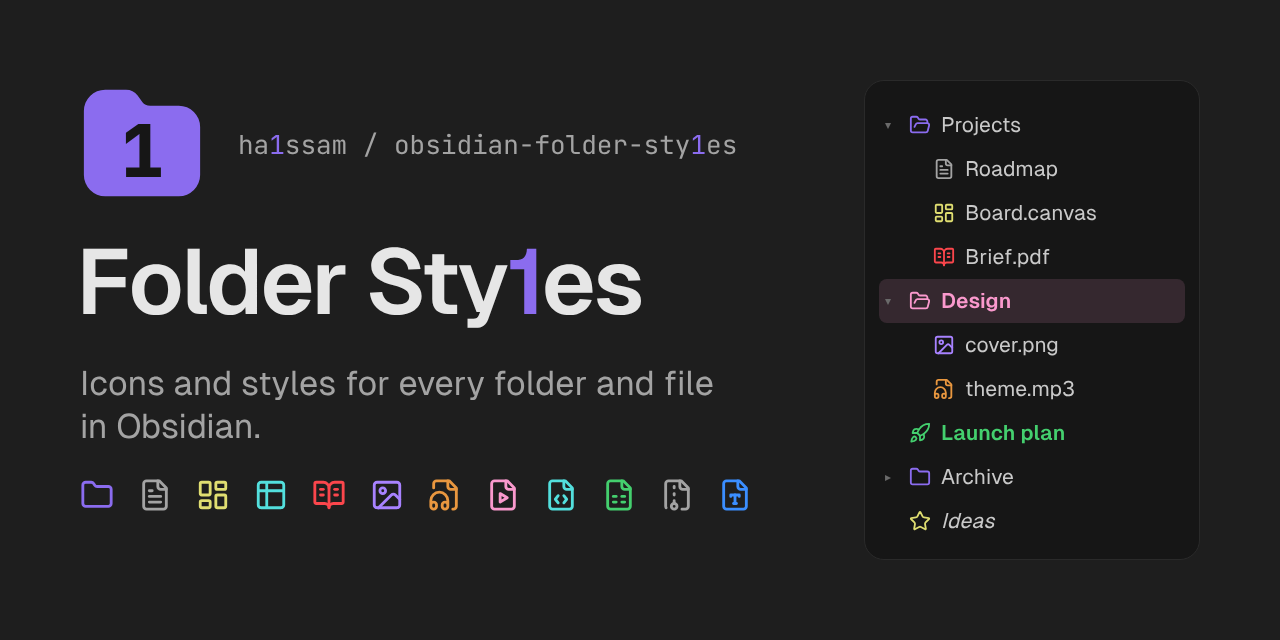
Folder Sty1es
Icons and styles for the folders and files in Obsidian's file explorer. Every item gets an icon based on its type, colored by type. Right-click any folder or file to pick another icon (from Obsidian's icon set or one you upload) or to change its colors and text style.
Automatic icons
| Type | Icon | Color | Extensions |
|---|---|---|---|
| Folder | folder (open or closed) | accent | |
| Note | file with text | theme color | md |
| Canvas | dashboard | yellow | canvas |
| Base | table | cyan | base |
| open book | red | pdf | |
| Image | image | purple | png jpg gif webp svg … |
| Audio | audio file | orange | mp3 wav m4a ogg flac … |
| Video | video file | pink | mp4 mov mkv webm … |
| Code | code file | cyan | js ts css html py … |
| Data | spreadsheet | green | json yaml csv xlsx … |
| Archive | archive | gray | zip rar 7z tar gz … |
| Document | text file | blue | txt docx pptx epub … |
| Anything else | file | theme color |
Colors come from the theme's variables, so they follow light and dark themes. Turn off Colored icons to keep every icon in the theme's icon color, or Automatic icons to only show the icons you pick yourself.
Change an icon
Right-click a folder or file and choose Change icon. The window has two tabs:
- Obsidian icons — every icon that ships with Obsidian, with a search box.
- Your icons — images you uploaded. The first tile uploads new ones.
Automatic icon goes back to the icon for the item's type, and No icon hides the icon for that item.
Select several items in the file explorer and right-click to change all of them at once.
Your own icons
Upload SVG, PNG, JPG, WebP, GIF or AVIF images, up to 512 KB each, from the Change icon window or from the settings. They are saved in the plugin's folder (.obsidian/plugins/folder-styles/icons), not among your notes. Your own icons keep their colors; the icon color setting only applies to Obsidian icons. You are responsible for the rights to the images you upload.
Edit a style
Right-click a folder or file and choose Edit style:
- Icon color, Name color and Background: none, one of ten theme colors, or any color you pick.
- Bold and Italic.
- Text size: small, normal or large.
Changes apply right away, with a preview at the top of the window. Reset icon and style in the right-click menu clears what you set for that item.
Inheritance
With Items inherit folder style on, everything inside a styled folder takes its colors and text style, including subfolders. The closest styled folder wins, and a style set on an item itself always wins over an inherited one. Icons are not inherited: each item keeps the icon for its type.
Settings
- Automatic icons — give every folder and file an icon based on its type.
- Colored icons — color the automatic icons by type.
- Hide extension labels — hide the small PDF, PNG… label next to file names.
- Items inherit folder style — see above. Off by default.
- Default styles — colors and text style for all folders and for all files. A style set on an item wins over these.
- Your icons — upload icons and delete the ones you no longer use. Deleting an icon puts the items that used it back on their automatic icon.
- Clear all icons and styles — remove what you set on individual items.
How it works
- Icons and styles are saved in the plugin's settings, keyed by the item's path. Your notes are never changed.
- Renaming or moving a folder or file keeps its icon and style; deleting it removes them.
- Styles are applied with CSS that targets each item's path, so they show up as soon as the file explorer draws an item.
- Works on desktop, phones and tablets.
Limitations
- Only the file explorer is styled, not bookmarks, search results or tab headers.
- Themes that restyle the file explorer heavily may change how icons line up.
Development
npm install
npm run build
styles.css holds the layout of the icons and windows; per-item colors and text styles are generated at runtime in src/css.ts. Automatic icons and type colors live in src/kinds.ts.
Releases are published by the GitHub workflow when manifest.json on main has a new version.
For plugin developers
Search results and similarity scores are powered by semantic analysis of your plugin's README. If your plugin isn't appearing for searches you'd expect, try updating your README to clearly describe your plugin's purpose, features, and use cases.