Font Slider
approvedby Matt
Drag a slider to set the editor font size. - This plugin has not been manually reviewed by Obsidian staff.
Font Slider
Drag a slider to set the font size of your notes.
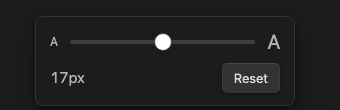
How to use
- Click Size: 17px in the status bar at the bottom of the window, then drag the slider. Text resizes as you drag.
- The control lives in the status bar, so it's always available no matter which note or tab is active.
- The size applies to every note, in both editing and reading view. Headings scale with it. Menus, sidebars and the rest of the interface keep their size.
- Reset returns to the font size set under Settings → Appearance.
- Press Escape or click anywhere else to close the slider.
Commands
- Show font size slider
- Increase font size
- Decrease font size
- Reset font size
You can assign hotkeys to any of these under Settings → Hotkeys.
Adding it to a toolbar
If you use a toolbar plugin such as Editing Toolbar, add the Font Slider: Show font size slider command as a button. The slider opens directly under the button you clicked.
On mobile, where there's no status bar, use the ribbon icon or the command.
Settings
- Smallest size (px) and Largest size (px) set the slider's range. The default is 10–40px.
Privacy
Font Slider makes no network requests and collects no data. It stores only your chosen size and range, in the plugin's own settings file.
License
For plugin developers
Search results and similarity scores are powered by semantic analysis of your plugin's README. If your plugin isn't appearing for searches you'd expect, try updating your README to clearly describe your plugin's purpose, features, and use cases.