Note Zoom
approvedby Fusioncorn
Zoom note content with Ctrl+Scroll, per-tab memory, sidebar unaffected. - This plugin has not been manually reviewed by Obsidian staff.
Note Zoom
Hold a modifier key + scroll to visually zoom notes in and out. Lightweight, instant — each tab remembers its own zoom, sidebar stays untouched.
Mac auto-detects ⌘ Cmd, Windows/Linux defaults to Ctrl. Everything configurable.
✨ Features
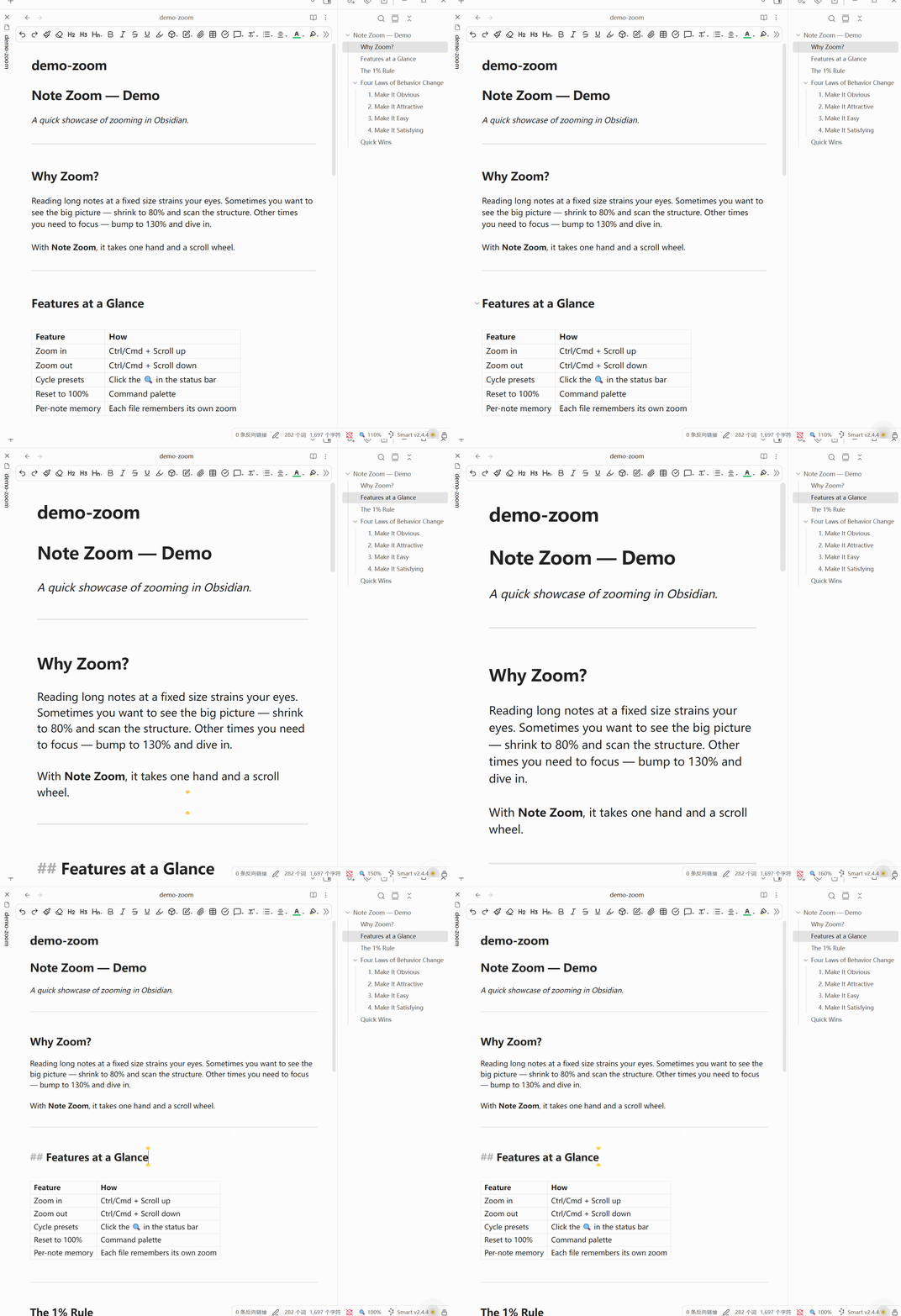
- Ctrl/Cmd + Scroll to zoom in/out — lightweight, instant visual scaling
- Pinch-to-zoom — two-finger pinch on Precision Touchpads
- Pop-out window support — zoom works in notes opened in separate windows
- Zoom feedback bubble — a % indicator appears at your cursor while zooming
- Per-tab memory — every tab remembers its own zoom level independently
- Per-note mode (optional) — each note file remembers its zoom, persists across tab switches
- Double-click slider — double-click the 🔍 in the status bar to open a draggable zoom slider
- Sidebar & UI unaffected — only the note content scales, toolbar and panels stay sharp
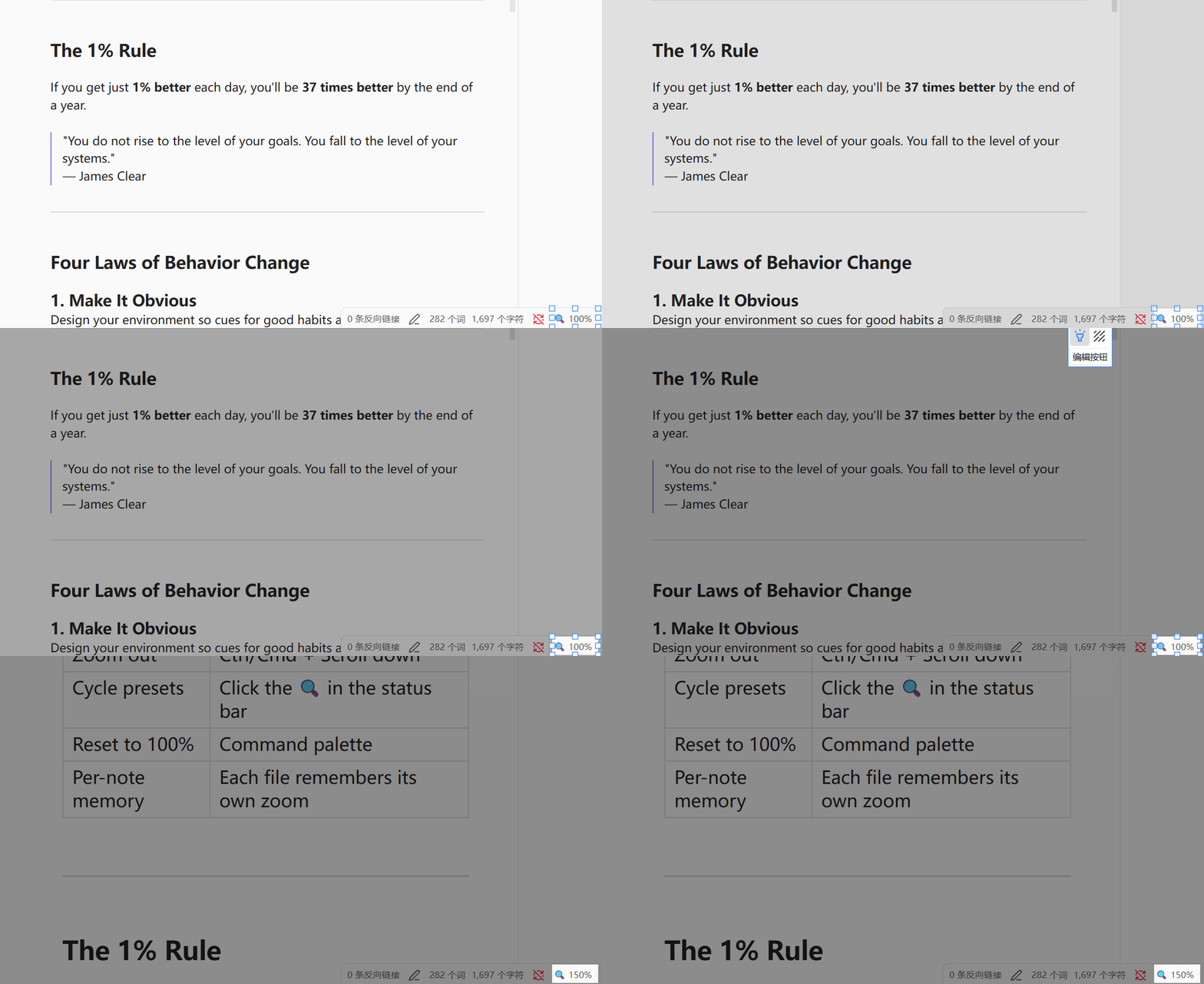
- Status bar indicator — shows current zoom %, click to cycle presets, double-click for slider
- Reset all zoom — one click or hotkey clears every saved zoom level
- 4 commands — Zoom in, Zoom out, Reset zoom, Reset all zoom (hotkey-friendly)
- 5 languages — English, 简体中文, 繁體中文, 日本語, 한국어
- Fully configurable — modifier key, step size, range limits, presets, zoom mode
🎬 Demo
Ctrl/Cmd + Scroll to zoom:
Click status bar to cycle presets:
📦 Installation
Manual
- Download
main.jsandmanifest.jsonfrom the latest release - Create a folder:
<vault>/.obsidian/plugins/note-zoom/ - Drop both files in
- Settings → Community plugins → enable Note Zoom
- Reload Obsidian
From Source
cd <vault>/.obsidian/plugins
git clone https://github.com/FusionC0rn/obsidian-note-zoom.git note-zoom
cd note-zoom
npm install
npm run build
Then enable the plugin and reload.
🕹️ Usage
| Action | How |
|---|---|
| Zoom in | Hold modifier key + scroll up |
| Zoom out | Hold modifier key + scroll down |
| Open zoom slider | Double-click 🔍 in the status bar |
| Cycle presets | Click 🔍 in the status bar |
| Reset to 100% | Ctrl+P → Reset zoom |
| Reset all zoom | Ctrl+P → Reset all zoom levels |
All four commands are bindable to custom hotkeys in Settings → Hotkeys.
⚙️ Settings
| Setting | Type | Default | Description |
|---|---|---|---|
| Language | Dropdown | English | 5 languages: English / 简体中文 / 繁體中文 / 日本語 / 한국어 |
| Modifier Key | Dropdown | Ctrl (Win) / ⌘ Cmd (Mac) | Which key to hold while scrolling |
| Zoom Step | Slider | 0.1 | How much each scroll tick changes zoom |
| Pinch Sensitivity | Slider | 0.1 | How fast pinch-to-zoom responds |
| Min Zoom | Slider | 0.3 | Smallest allowed zoom ratio |
| Max Zoom | Slider | 3.0 | Largest allowed zoom ratio |
| Zoom Mode | Dropdown | Per Tab | Per Tab: tab-based memory. Per Note: file-based memory |
| Preset Zoom Levels | Text | 0.8,0.9,1.0,1.1,1.2,1.5 | Comma-separated; click status bar to cycle |
⚠️ Known Limitations
- Desktop-only — this plugin targets the desktop app; mobile is not supported yet.
📄 License
MIT © 2026 Fusioncorn
For plugin developers
Search results and similarity scores are powered by semantic analysis of your plugin's README. If your plugin isn't appearing for searches you'd expect, try updating your README to clearly describe your plugin's purpose, features, and use cases.