MyHistory
approvedby Henrique Manduca
Enable a local and private history for your notes. - This plugin has not been manually reviewed by Obsidian staff.
MyHistory
MyHistory is an Obsidian plugin that keeps a local, private version history for your Markdown notes.
Every time a note's content changes, MyHistory stores the full text as an immutable version in a local database inside your vault. You can then open a note's timeline in the sidebar, read any stored version, and restore it.
Nothing leaves your machine. There is no server, no account, and no network request.
[!WARNING] Back up your vault before using it with important notes. Restoring a version overwrites the note's current content, and resetting the local database permanently deletes every stored version.
Features
- Version history for Markdown notes, for the whole vault or one folder.
- Immutable versions: a stored version is never rewritten by a later edit.
- One continuous timeline per note, preserved across renames and moves.
- Deleting a note records the deletion and keeps its history.
- Restore any version; the content being replaced is stored first.
- Pin versions so retention never expires them.
- Retention limit per note, defaulting to the 50 most recent versions.
- Startup scan that captures whatever changed while Obsidian was closed.
- Sidebar timeline plus a preview modal for reading a version before restoring.
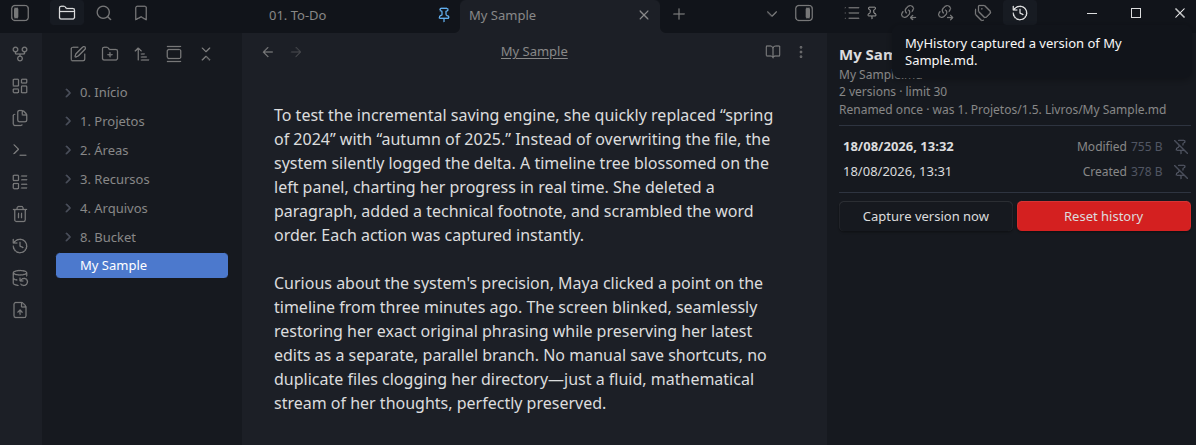
View of the side panel listing the note versions:
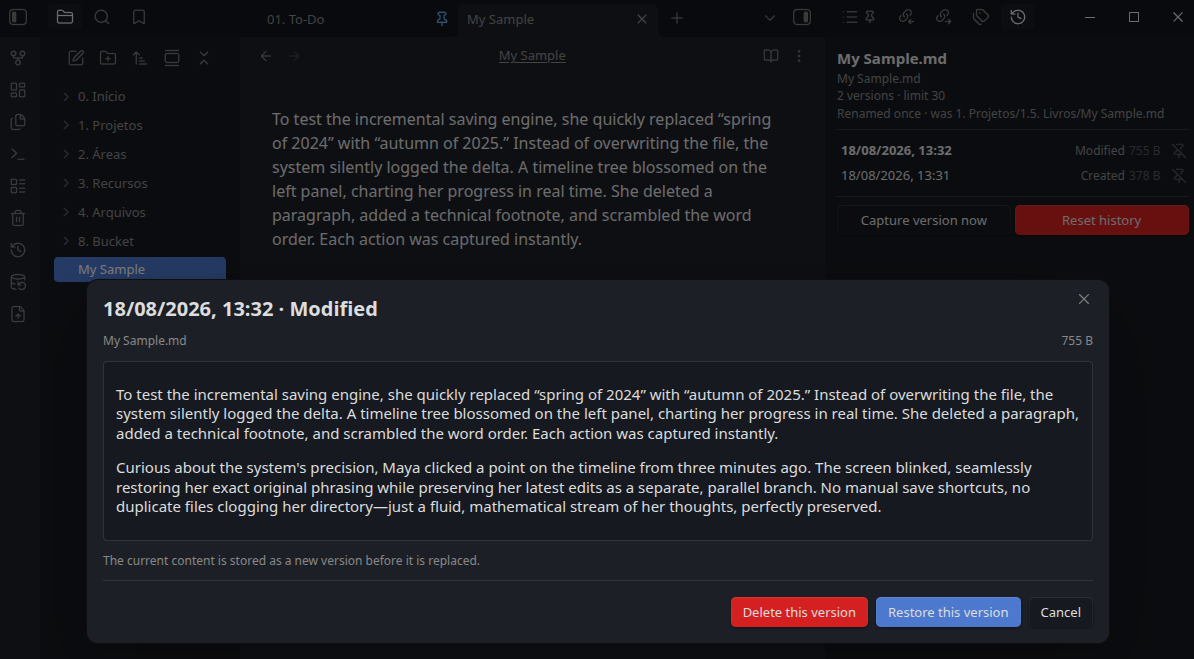
Click on any item in the history list to open the details screen:
Requirements
- Obsidian
1.12.7or newer. - Node.js
22.22.0or newer for development builds.
MyHistory has no external dependencies to configure. The local database is created automatically the first time the plugin loads.
Installation
Manual Installation From A Release
Download the release files and place them in your vault plugin folder:
VaultFolder/.obsidian/plugins/myhistory/
The folder must contain:
main.js
manifest.json
styles.css
Reload Obsidian, open Settings -> Community plugins, and enable MyHistory.
Configuration
Open Settings -> MyHistory in Obsidian.
History
- Tracked folder: whether every note in the vault gets a history, or only the notes inside one folder.
- Tracked folder path: folder inside the vault to track when the folder mode is selected.
- Versions per note: how many versions to keep per note, defaulting to
50. Use0to keep every version. Pinned versions never expire. - Capture delay: seconds of inactivity before an edited note is captured,
defaulting to
15. A note edited without pause is captured anyway once four times this delay has passed, so a long writing session still produces versions. - Scan notes on startup: compare every tracked note with its history when the plugin loads, capturing what changed while Obsidian was closed. On by default.
- Log level: minimum level written to
myhistory.loginside the plugin folder.
Local data
- Local history database: read-only name of this vault's database.
- Last captured version, Last vault scan, Last restore, and Last database reset: read-only timestamps.
- Apply retention now: remove versions above the current limit from every note. Useful right after lowering the limit.
- Reset local database: delete every stored version for this vault. Notes in the vault are not changed.
Usage
The ribbon icon and the status bar both open the history panel.
MyHistory adds these command palette commands:
- Open note history: open the sidebar timeline for the active note.
- Capture version of current note: store a version right away instead of waiting for the capture delay.
- Scan notes for missing versions: compare every tracked note with its stored history and capture what changed.
- Apply retention to every note: enforce the retention limit across the vault.
The history panel
The panel lists the active note's versions, newest first. Each row shows when the version was captured, what caused it, and its size. Selecting a row opens a preview modal with the version's content rendered as Markdown, and the modal is where you confirm a restore.
The pin next to a version protects it from retention.
What creates a version
A version is created when a note's content hash changes. Touching a note without changing its text — a metadata change, a save with identical content — never creates one.
Events shown in the timeline:
- Baseline: the note's first version, stored by a vault scan.
- Created: the note's first version, stored from an edit, or its return after a deletion.
- Modified: an ordinary content change.
- Deleted: the note was deleted. The event carries the last known content, so it stays restorable.
- Restored: a stored version was written back to the note.
Renaming or moving a note does not create a version. The note keeps its identity and the panel reports the rename above the timeline.
Restoring
Restoring writes the selected version's content to the note's current path. The content being replaced is captured as a version first, so a restore never destroys the current state. Restoring a deleted note recreates the file, and its folder if needed.
Before writing, MyHistory re-hashes the stored content and refuses the restore if it does not match the hash recorded with the version.
Safety Notes And Limitations
- Back up your vault before first use and before testing restore behavior.
- Only
.mdfiles are tracked. Other file types get no history. - Restoring overwrites the note's current content in the vault.
- History is local to this vault and this machine. It is not synced, not encrypted, and not included in Obsidian Sync.
- Versions store the full text of the note, so a large vault with many edits produces a large database. The retention limit is what bounds that growth.
- Notes moved out of the tracked folder keep their stored history but stop getting new versions.
- If a note is created outside Obsidian while the plugin is not running, its first stored version is a baseline. Edits made before that are not recoverable.
- Resetting the local database permanently removes every version, including pinned ones.
- No automated end-to-end test framework is configured; the unit suite covers the storage and capture logic.
Development
Clone this repository into your vault plugin folder:
VaultFolder/.obsidian/plugins/myhistory
Install dependencies:
npm install
Run the development watcher:
npm run dev
Create a production build:
npm run build
npm run build runs TypeScript checks and produces the bundled plugin files in
dist/.
Run the unit tests:
npm test
Use npm run test:watch while developing, npm run test:coverage to generate
the coverage report, or npm run check to run the production build, test type
checks, and unit tests together. See TESTING.md for the mock
boundaries and the testing roadmap.
For local Obsidian testing, reload Obsidian after starting the development build, then enable the plugin from community plugin settings.
To bump the plugin version, use:
npm version patch
You can also use minor or major. The version hook updates manifest.json
and versions.json. Release tags are generated without a v prefix so they
match the manifest version.
How It Works
MyHistory stores three kinds of document in one local PouchDB database named
myhistory-<vault-id>:
note:<file-id>— the mutable record for a tracked note: its current path, content hash, latest version, and rename history. Thefile-idis generated once and never changes, which is what keeps a timeline continuous across renames.version:<file-id>:<timestamp>:<suffix>— an immutable version holding the full content, its hash, the path at the time, and the event that created it. The id sorts chronologically, so reading a timeline is a single ranged query rather than a scan of the database.path:<vault-path>— maps a vault path to thefile-idthat owns its history.
A capture writes the version and the note record in one batch. If Obsidian stops between those writes, the next capture or vault scan detects the mismatch and repairs the note record instead of storing the same content twice.
License
MIT. See LICENSE.
For plugin developers
Search results and similarity scores are powered by semantic analysis of your plugin's README. If your plugin isn't appearing for searches you'd expect, try updating your README to clearly describe your plugin's purpose, features, and use cases.