by BanyanSo
A lightweight Memos entry for Obsidian: quick capture, daily context, monthly collection, and local-first control.
Knomo
English | 简体中文
A local-first Memos entry for Obsidian: quick capture, Daily Note context, monthly Markdown collection, card review, and mobile-friendly input.
Knomo is a memo-first capture plugin for Obsidian. It helps you write down fragmented thoughts quickly while keeping the content inside your own Vault, in regular Markdown files that remain readable and editable outside the plugin.
Knomo is built around a simple idea:
- Write quickly, without deciding the final note structure first;
- Keep every memo in the context of the day through Daily Notes;
- Automatically collect memos into monthly Markdown files for browsing and review;
- Use cards, filters, search, references, images, tasks, and statistics to rediscover and reuse what you wrote;
- Stay local-first and non-destructive.
Knomo does not try to replace Obsidian's files, folders, tags, links, backlinks, or Daily Notes. It provides a lighter capture layer on top of Obsidian's Markdown workflow.
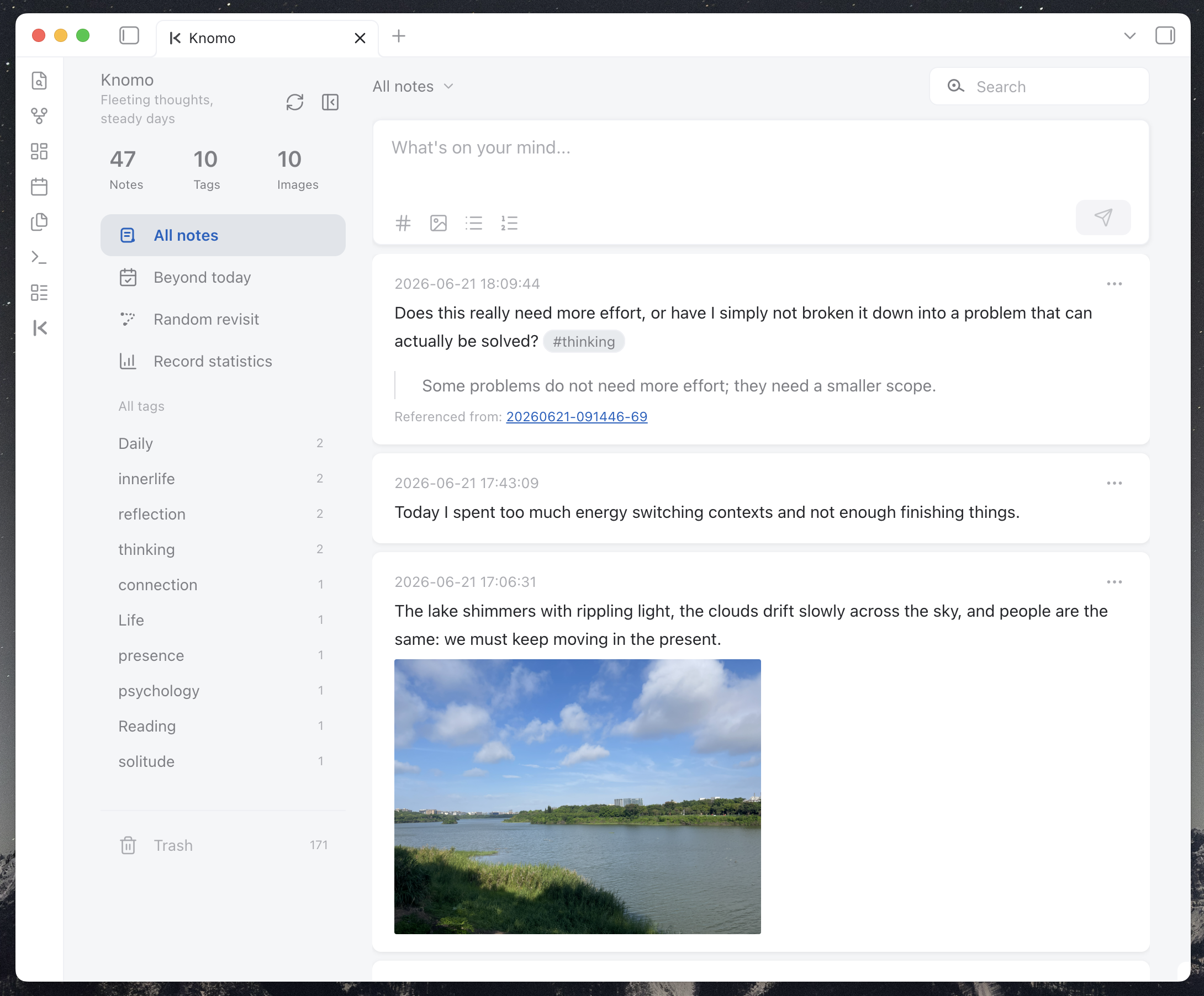
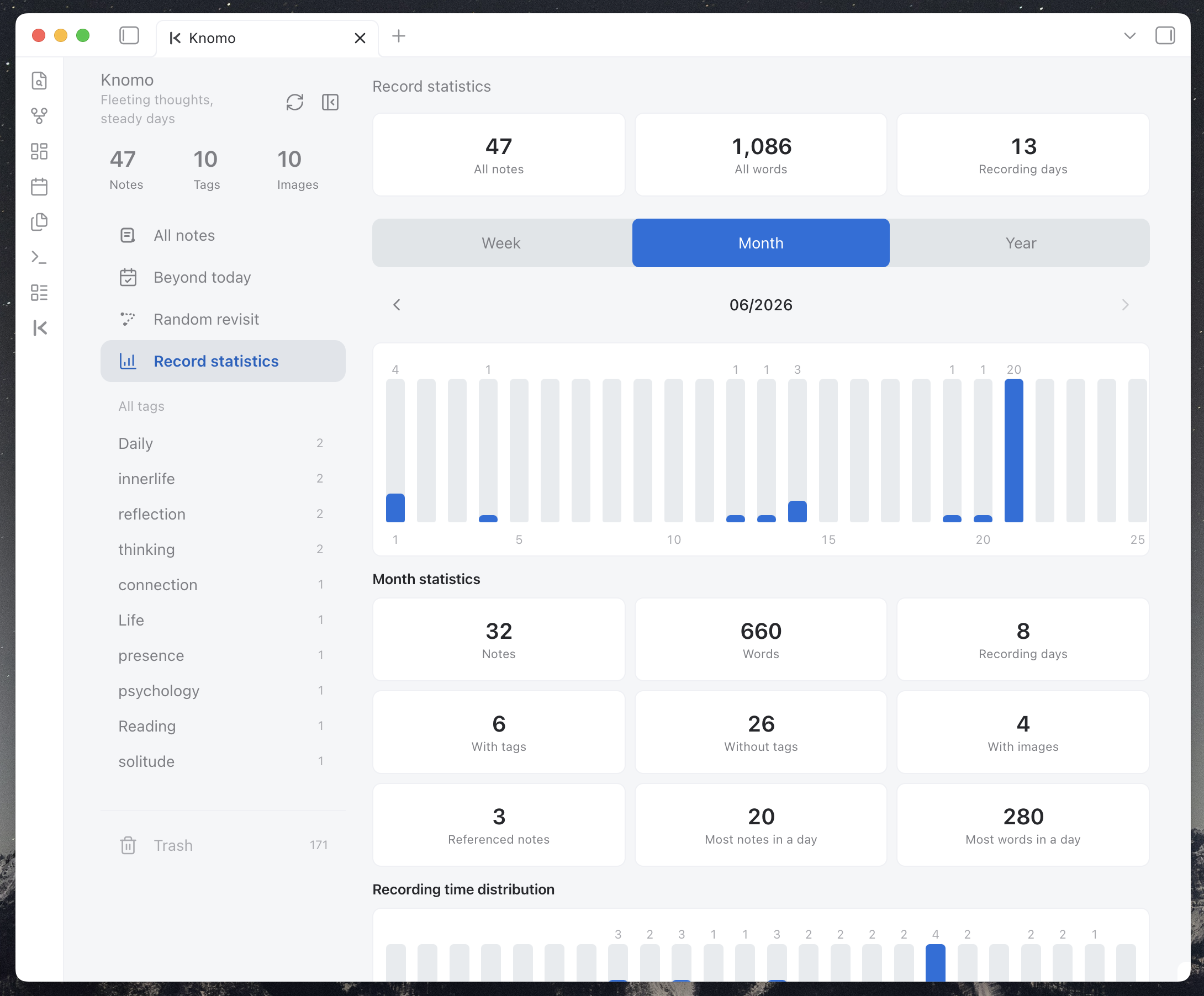
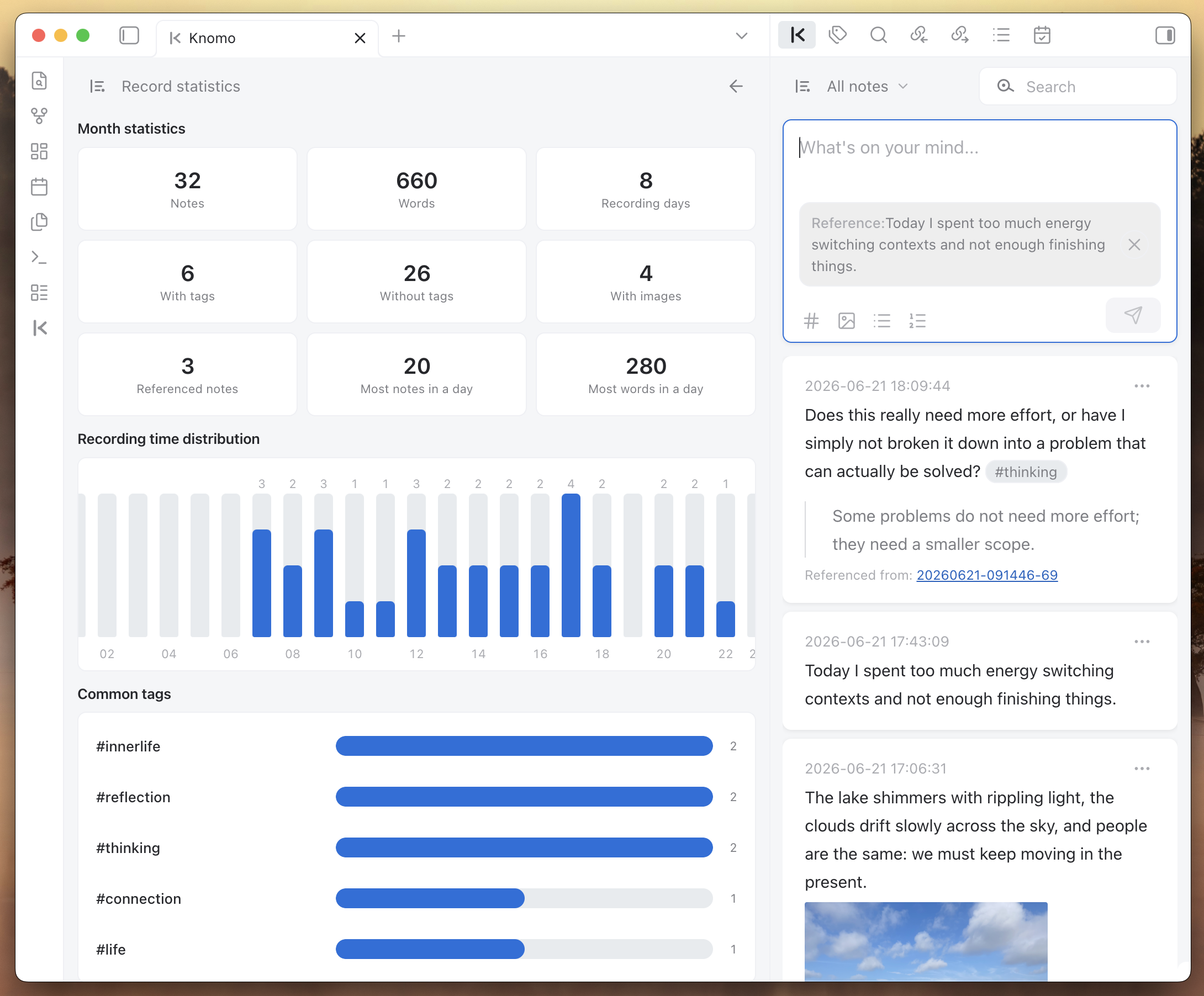
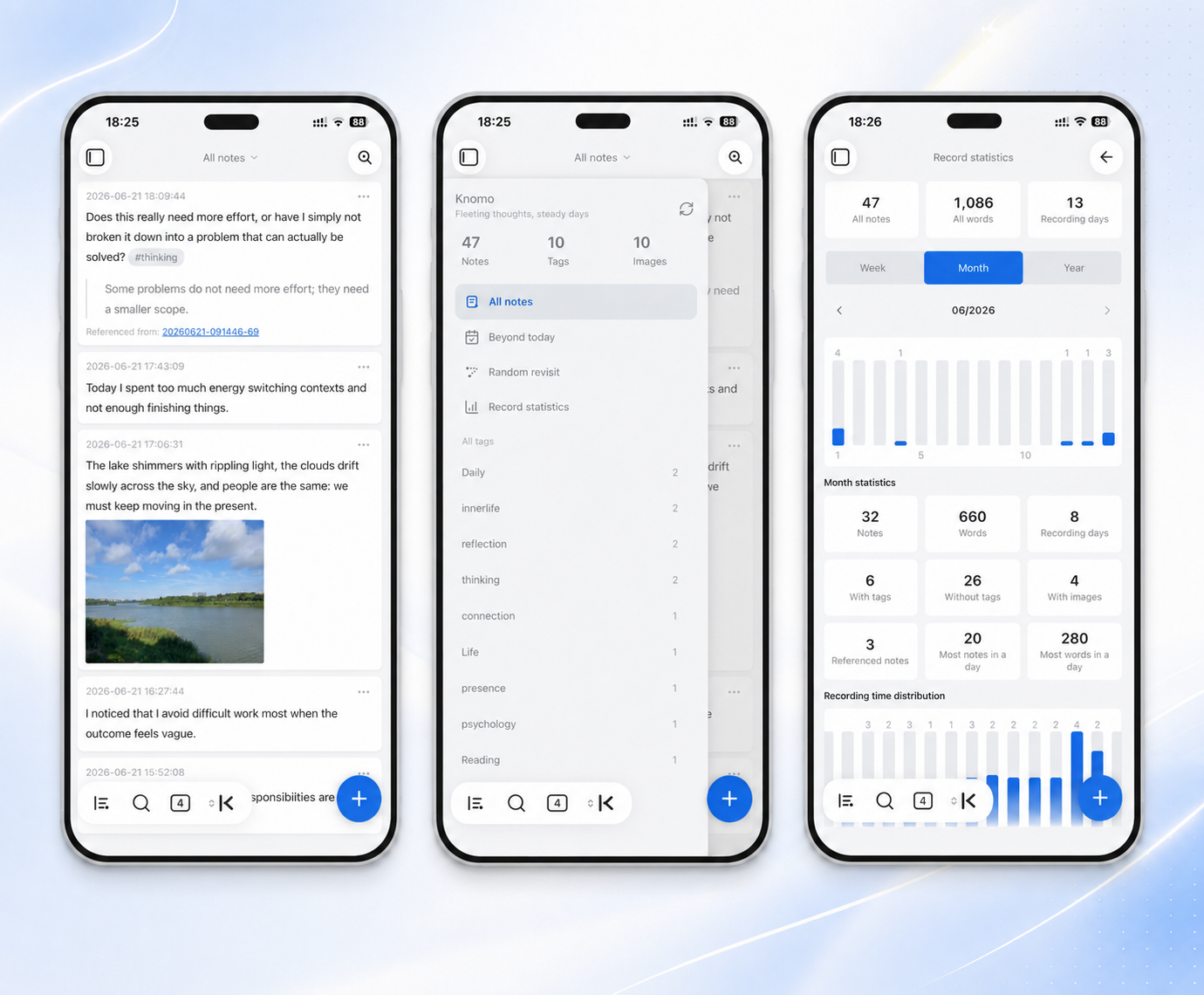
Screenshots
Desktop
Mobile
Why Knomo?
Obsidian is excellent for long-term knowledge management, but many thoughts do not arrive as polished notes. They arrive as fragments: a sentence from reading, a meeting idea, a task, a screenshot, a link, a small decision, a feeling, or a half-formed connection.
If every fragment requires opening the right file, finding the right heading, choosing the right folder, and deciding the final structure, many of them never get written down.
Knomo gives those fragments a low-friction entry point:
- Capture first — open Knomo, write a memo, save it.
- Keep daily context — the memo is written to the Daily Note of the day.
- Collect by month — Knomo maintains monthly Memos Markdown files for centralized browsing.
- Review as cards — use the card flow, filters, search, and statistics to revisit what you wrote.
- Return to Markdown — every memo remains part of your local Obsidian workflow.
Core Principles
Memo-first
Knomo treats the memo as the first capture unit. You can record first, then later connect, tag, search, reference, develop, or move content into larger notes.
Daily Note + Monthly Memos
Knomo's core workflow has two Markdown layers:
- Daily Note: preserves when and where the memo happened;
- Monthly Memos file: collects memos into a month-level stream for browsing and review.
Daily Notes answer: What happened today?
Monthly Memos answer: What did I write down this month?
Local-first
Memo content is stored in your Obsidian Vault. Knomo does not require an account, does not rely on an external server, and does not actively upload your notes.
Markdown-friendly
Knomo tries to support and preserve common Obsidian / Markdown syntax, including tags, internal links, Markdown links, URLs, images, lists, task lists, block references, quotes, headings, and code blocks.
Non-destructive
Knomo does not turn your Daily Notes into a private database. It writes memo-shaped Markdown and keeps the original content readable.
Mobile-friendly
Knomo treats Obsidian mobile as a core use case, not as a smaller desktop window. The composer, keyboard behavior, touch targets, sidebar, search, and card browsing are optimized for mobile capture.
Feature Highlights
Quick capture
Write and save memos directly inside Knomo without opening a Markdown file first.
Good for:
- fleeting thoughts;
- reading excerpts;
- project ideas;
- meeting notes;
- work reminders;
- daily review material;
- temporary notes to process later.
Quick commands
Search for Knomo in Obsidian's command palette to run New memo, Random revisit, Shuffle day, Time buoy, Record statistics, or On this day. You can assign your own shortcuts in Obsidian's Hotkeys settings.
Commands reuse an open Knomo view or open one when needed. New memo keeps the current draft; Time buoy requires the feature to be enabled in Knomo settings.
Markdown editing and drafts
The Composer displays Markdown formatting while revealing the relevant source as you edit. Use it to write lists, links, quotes, and code, or toggle supported checkboxes in the draft with undo and redo support.
On Obsidian 1.14+, the Composer displays six highlight colors from a leading 🔴, 🟠, 🟡, 🟢, 🔵, or 🟣 inside ==...==. Editing reveals the complete source; removing highlight formatting preserves the original body, including the emoji. Older hosts retain the ordinary highlight display. Card text, input, and supporting UI text use the host's preferred sizes where available, including system text scaling on Obsidian 1.14 mobile.
Within the same open Knomo view, closing and reopening the Composer keeps your draft. Editing an existing memo temporarily sets aside the new-memo draft and restores its text, references, selection, and scroll position after you save or cancel the edit. A failed save keeps your editing content available.
Since 1.12.7, reopening Knomo after closing its view or restarting Obsidian can restore unfinished new and edited drafts, including text, references, selection, scroll position, and completed image attachments. Drafts stay on the current device, are isolated by vault, and do not sync between devices with the vault. A recovered draft still needs to be saved to Daily to become a Memo.
Recovery has these limits:
- A crash or forced shutdown may lose recent input that has not yet been stored. Unavailable, damaged, or cleared local storage can also prevent recovery. If local draft storage fails, keep the view open or copy your text; saving to Daily is still available.
- Unfinished image processing is not recovered. Completed image attachments are checked again on recovery; if an attachment is missing or its link resolves differently, follow the notice to check or reinsert it. Your draft text is kept.
- If the original edit target changed or is unavailable, Knomo keeps the text and pauses saving. Refresh the list and choose Edit on the intended Memo again.
- If a Daily write is unconfirmed, check Daily before deciding whether to retry. Knomo keeps the pending draft and does not resubmit it automatically.
Daily Note writing
Knomo depends on Obsidian's core Daily Notes plugin.
New memos are written under a configured heading in the Daily Note of the day. The default heading is:
## Memos
Example:
## Memos

- 18:30:12 I came up with a new product idea #idea
- 21:10:03 This paragraph from a book is worth revisiting #reading
You can configure the heading, insertion position, and time format in Knomo settings.
Monthly Memos files
In addition to Daily Notes, Knomo automatically maintains monthly Memos Markdown files.
Default example:
# Knomo/Memos-2026-06.md

## [[2026-06-21]]

- 09:20:10 A small product idea that should not be lost #idea
- 22:15:42 Review note: this needs to become a project brief later #review

## [[2026-06-20]]

- 16:42:03 Useful quote from reading #reading
Monthly files make it easier to browse a long memo stream without losing the daily source context.
Card-based browsing
Knomo displays memos as cards so you can scan recent entries and jump straight to the original Markdown when you need it.
Cards are useful for:
- quickly browsing recent memos;
- reading on mobile;
- scanning search results;
- filtering by tags, links, images, or date ranges;
- opening the source Daily Note;
- copying text or links;
- editing, deleting, restoring, or referencing a memo.
Filters and search
Knomo supports multiple ways to narrow down your memo stream:
- all notes.
- Things — memos containing Markdown checkboxes.
- Favorites — memos you’ve starred (Knomo 1.15.0+).
- untagged memos.
- memos with links.
- memos with images.
- Referenced — memos that other memos link to, with optional keyword and date filters.
- on-this-day / anniversary review.
- recent ranges such as this week, this month, last 7 days, last 30 days, last week, and last month.
- tag filtering.
- keyword search.
- statistics-driven filters.
Since 1.13.0, desktop and mobile search accept dates directly and can combine them with text:
| Example input | Matches |
|---|---|
2026, 2026-10, 2026-10-09 | Memos from that year, month, or day |
10-09 | October 9 in any year |
2026-10-01~2026-10-09 review | Memos containing “review” within the date range; 至 also joins range endpoints |
"2026" | The literal text 2026 |
project review | Memos containing both keywords, in any order |
"project review" budget | Memos containing the phrase “project review” and the keyword “budget” |
In Knomo 1.15.0 and later, separate keywords with spaces to find memos containing all of them. Put a phrase in double quotes to find those words together. Keywords can also match tags, link targets, or image paths. You can combine keywords, phrases, and a date in one search.
Search within Things, Favorites, Referenced, or a Record statistics detail to keep that scope. A search date narrows the original date range, and the result summary shows the scope and dates. If the ranges do not overlap, Knomo displays a notice.
To search for a typed date as text, enclose it in double quotes or choose Search date as text in the result summary after the date is recognized. If a date is incomplete or invalid, Knomo searches the entire input as continuous text and displays Searched as typed. Selecting a quick date replaces a valid typed date while keeping the other keywords.
Search highlights matches that can be reliably located in the card's currently visible body. A result may have no highlight when only a link target, image path, or content outside the preview matches.
Knomo uses a rebuildable local Catalog for historical queries, filters, and statistics. Each device builds its own Catalog from Daily Notes and loads matching cards in pages.
Tags, links, and backlinks-friendly Markdown
Knomo recognizes tags and links written inside memos.
- 16:20:00 Improve the mobile composer spacing #knomo #interaction
- 19:05:00 This connects to [[Product Design]] and [[Mobile UX]]
- 20:10:00 Reference: https://obsidian.md
Knomo preserves the original Markdown instead of replacing it with a private format.
Reference cards
When a memo should respond to or build on another memo, Knomo can create a reference from the card action menu.
This is useful when you want to:
- continue an old thought;
- cite a previous memo in a new memo;
- connect scattered fragments over time;
- keep the original source memo traceable.
References use Obsidian links or block references so you can follow them from the original Markdown.
When other memos reference a card, it can show a preview of those memos. Open Relation details to see the total and browse the direct referrers, newest first. You can follow more connections from there and return to the previous memo or list at your reading position.
Image capture and preview
Paste screenshots or clipboard images directly into the Composer, or use the image picker. Image paste supports PNG, JPEG, GIF, and WebP when the clipboard supplies image data without accompanying text or HTML. Mobile clipboard support depends on the system and input method; the image picker remains available.
Images are saved to your Vault using Obsidian's attachment location and link-format settings, then inserted as Markdown embeds. Knomo keeps usable original filenames, adjusts unsafe names, and avoids overwriting existing attachments. You can keep typing while images are processed; wait for processing to finish before sending the memo. Cancelling an insertion or undoing an embed does not delete an attachment already saved to the Vault.
Knomo supports lightweight image previews in memo cards.
Supported use cases include:
- local Obsidian embeds such as
![[image.png]]; - regular Markdown images such as
; - multiple images in one memo;
- opening a larger preview from the card;
- switching between images in the preview.
Double-click the image to enlarge it, then drag to pan. On mobile, double-tap or pinch with two fingers; panning a zoomed image does not switch images. Double-click or double-tap again to fit the image, or pinch inward to zoom out. If loading fails, retry directly in the preview.
The goal is not to become an image manager. Knomo only provides compact previews so image-based memos remain easy to browse.
Share a memo as an image
Choose Share from the memo’s card menu to preview it as a PNG. Pick Paper, Daybook, Reflection, or Midnight, then share, copy, or save using the options available on your device. You can also save the image to the Vault root.
Export supports common Markdown, static images, task lists, and expanded callouts. Knomo shows a message for content it cannot fully export, such as math, footnotes, HTML, dynamic queries or diagrams, and note, audio, video, or document embeds.
Task lists and checkboxes
Knomo supports Markdown task lists inside memos.
Example:
- 09:30:00
	- [ ] Send the project note
	- [x] Check yesterday's meeting memo
Task status can be updated from the card view and synced back to the source Markdown content.
Open Things from the sidebar or view selector to see memos with supported checkboxes, including both checked and unchecked items. Combine it with tags, keyword search, and date filters; mobile search keeps the Things scope. Results show complete memos, and checking every item does not remove a memo from Things. Checkbox-like text inside code examples is excluded.
Favorites
From a memo’s card menu, choose Star, then open Favorites from the sidebar or view selector. You can search and filter your starred memos, and the result count includes matches beyond the pages you’ve loaded. Use Unstar to remove a memo from the collection.
Beacon
Choose Set as Beacon from a card menu to pin one memo at the top of the default All notes view. Set another memo as the Beacon to replace it, or choose Remove from Beacon on the pinned card. If the memo also has a Time buoy, the card shows both markers.
Beacon and Favorites are available in Knomo 1.15.0 and later. See the 1.15.0 release notes
Record statistics
Knomo includes a record statistics view for understanding your memo habits and reviewing your writing rhythm.
It can show:
- total notes.
- total words.
- recording days.
- notes with tags.
- notes without tags.
- notes with images.
- notes containing block references and notes referenced by other memos.
- memos in Things and Favorites (Knomo 1.15.0+).
- busiest days by note count.
- wordiest days.
- weekly, monthly, and yearly trends.
- recording time distribution.
- common tags.
Select a supported count or chart entry to open the matching memo cards. Things and Favorites count qualifying memos by the date of the source daily note. If you star an old memo today, it counts toward the period in which it was written.
The Common tags section shows up to 10 tags per period. It counts each directly applied tag once per memo. Selecting #project here shows memos with that exact tag. The sidebar tag filter also includes child tags.
Random revisit and review
Knomo includes lightweight review entry points such as random revisit and date-based review. They are designed to help old fragments meet the present again without requiring AI or external services.
Random revisit shows up to 10 eligible memos per group, including image-only and link-only notes. During the current view session, it favors memos outside the last three groups. With at least 20 stable candidates, consecutive full groups do not overlap; smaller pools repeat only as needed. Showing a card does not mark it as reviewed. Opening it successfully or explicitly marking it does, which lowers its selection weight for the next three calendar days.
A memo does not need to become useful immediately. Sometimes its value appears when you encounter it again in a different context.
Shuffle day
Shuffle day brings back one complete day from at least seven days ago and displays that day's memos in chronological order. It favors varied dates and avoids immediately repeating recently shown days when possible.
It first chooses among available time ranges, then chooses a day within that range. Days with more content receive a modest preference. Returning to either review view keeps its current results; use Shuffle to choose again. If review history cannot be saved, the selected day's content remains available and Knomo shows a notice.
Alongside the memo cards, Knomo summarizes the day's memo count, word count, tags, images, and links. Selection happens entirely from your local memo index, without AI or external services.
Time buoy
Add @YYYY-MM-DD to a memo to make it surface on a chosen date. You can type the marker directly or use the date picker in the composer, then review buoys in Today, Upcoming, and Past views.
The date marker remains part of the memo's Markdown content. Knomo only builds a local, removable, and rebuildable index for fast lookup; the index does not replace or rewrite the source memo in your Daily Note.
Trash, restore, and repair
Knomo includes safer maintenance flows for day-to-day use:
- deleted memos can appear in Trash;
- memos can be restored when possible;
- permanent deletion requires a separate action;
- the memo index can be repaired from Markdown sources;
- existing
- HH:mmand- HH:mm:ssmemo entries in configured Daily Notes are recognized automatically, without a separate manual import.
Markdown remains the long-term trusted source. The plugin index is used to improve browsing, filtering, and synchronization.
Responsive desktop layout
Knomo adapts to the width of its own pane, making it suitable for side-by-side notes. At 780px and above, it uses the desktop sidebar layout; narrower panes use a compact header and a sidebar drawer contained within that pane. Close the drawer with its close button or Escape.
Resizing the pane preserves your draft, search state, and sidebar width and collapse preferences.
Mobile input experience
Knomo has dedicated mobile interaction improvements:
- touch-friendly quick create entry;
- bottom composer designed for phone input;
- better coordination with the system keyboard;
- long-content height and scrolling control;
- larger touch targets;
- mobile search page;
- mobile sidebar drawer;
- mobile-friendly image preview;
- adaptation for safe areas and Obsidian mobile navigation bars.
Knomo's mobile goal is not just to open inside Obsidian mobile, but to make quick memo capture feel natural there.
Theme compatibility
Knomo uses Obsidian theme variables where possible and includes compatibility work for community themes such as Minimal.
If you use a different theme and see spacing, color, contrast, or mobile layout issues, feedback is welcome.
Installation
Install from Obsidian Community Plugins
Open the Knomo community plugin page, select Add to Obsidian, then Install and Enable in Obsidian.
You can also install it from Obsidian Settings:
- Open Obsidian Settings;
- Go to Community plugins;
- Turn off Restricted Mode if needed;
- Select Browse, search for
Knomo, and open its plugin page; - Install and enable the plugin.
Manual installation
- Download these three files from the same latest release:
main.jsmanifest.jsonstyles.css
- Create this folder in your Vault:
.obsidian/plugins/knomo/
If your Vault uses a custom configuration folder, replace .obsidian with that folder.
- Put the three files into the folder;
- Restart Obsidian;
- Enable Knomo in Community plugins;
- Run
Open Knomofrom the command palette.
Quick Start
1. Enable Daily Notes
Knomo requires Obsidian's core Daily Notes plugin.
Before using Knomo, make sure:
- Daily Notes is enabled;
- the Daily Notes folder is configured;
- the date format is configured;
- Obsidian can create Daily Note files normally.
2. Open Knomo
You can open Knomo by:
- clicking the Ribbon icon;
- running
Open Knomofrom the command palette; - pinning the Knomo view to your workspace.
3. Create your first memo
Write:
Today I started using Knomo to capture small thoughts #knomo
After saving, the memo appears in the card flow and is written to the corresponding Markdown files.
4. Review and connect
After writing for a while, try:
- filtering by tags.
- searching text or entering a date such as
2026-10-09. - opening memos with links or images.
- using Random revisit.
- starring a memo you want to find again, or setting one as the Beacon.
- checking Record statistics.
- referencing an older memo when creating a new one.
Obsidian URL shortcuts
Open Knomo from iOS Shortcuts or another app using Obsidian's native URL handler. Enable Knomo in the target vault first. Replace the example Vault ID below with your own:
obsidian://knomo?vault=ef6ca3e3b524d22f&command=open-view
obsidian://knomo?vault=ef6ca3e3b524d22f&command=new-memo
obsidian://knomo?vault=ef6ca3e3b524d22f&command=random-revisit
obsidian://knomo?vault=ef6ca3e3b524d22f&command=shuffle-day
obsidian://knomo?vault=ef6ca3e3b524d22f&command=time-buoy
obsidian://knomo?vault=ef6ca3e3b524d22f&command=record-stats
obsidian://knomo?vault=ef6ca3e3b524d22f&command=on-this-day
| Command | Behavior |
|---|---|
open-view | Only open or focus Knomo, reusing the existing view |
new-memo | Open the new Memo composer; keep the existing draft |
random-revisit | Random revisit |
shuffle-day | Shuffle day |
time-buoy | Time buoy; requires the feature to be enabled |
record-stats | Record statistics |
on-this-day | On this day |
In iOS Shortcuts, add a URL action with the desired URL, followed by Open URLs. new-memo opens the writing interface; it does not save a Memo automatically. No command accepts Memo content through the URL. Missing, empty, or unknown command values do nothing and do not create a Knomo view.
Obsidian selects the vault before dispatching the custom action. vault accepts a vault name or ID; prefer the ID to avoid name changes or duplicate names. In the vault switcher, use Copy vault ID from the vault's context menu. IDs are local to the device's vault registration: obtain the ID separately on each device, and check it after removing/re-adding a vault. See Obsidian URI documentation.
For a name containing spaces or Chinese characters, encode the parameter value once, for example obsidian://knomo?vault=%E5%B7%A5%E4%BD%9C%20%E7%AC%94%E8%AE%B0&command=open-view for 工作 笔记. To use the vault actually opened by Obsidian, omit vault: obsidian://knomo?command=new-memo. Knomo does not choose another vault, forward requests between vaults, or fall back to another Knomo instance when the target plugin is unavailable. Use only the documented parameters; Obsidian handles its own routing parameters before Knomo receives the request.
The plugin uses the official registerObsidianProtocolHandler API (available since Obsidian 0.11.0), so minAppVersion remains 1.11.0. The public callback API does not promise that vault will be retained: local inspection of Obsidian Desktop 1.13.7 confirms that the host selects a vault by name/ID and removes vault before dispatch. Knomo therefore relies on native routing and does not attempt to compare an ID with a vault name or read a private vault registry. Commands wait for workspace layout restoration, then use the existing view-opening and Quick Command controller paths.
Markdown Format
Knomo uses simple Markdown that stays readable outside the plugin.
Single-line memo
- 18:30:12 This is a memo
Multi-line memo
- 18:30:12 First line
	Second line
	Third line
Memo with tags
- 18:30:12 I read a useful point today #reading #product
Memo with links
- 18:30:12 This connects to [[Product Design]] and https://obsidian.md
Memo with image
- 18:30:12 Inspiration screenshot ![[image.png]]
Memo with task list
- 09:30:00
	- [ ] Follow up with the project owner
	- [x] Check yesterday's memo
Memo with quote
- 20:15:00
	> A small note can become useful when it returns at the right time.
Monthly archive
## [[2026-06-21]]

- 18:30:12 This is a memo
Settings Overview
Knomo settings include:
- Daily Note insertion heading.
- new memo insertion position.
- memo time format.
- Composer toolbar controls and a Time buoy toggle.
- display preferences such as Recent 3-day time flow and Reduce glass effects.
- Knomo folder for monthly archives, Trash, and Favorites.
- monthly memos filename format.
- date heading format inside monthly files.
- monthly date sort order.
- optional exclusion of monthly memo files from Obsidian search / graph / statistics.
- pinned tags.
- data repair and rebuild tools.
In Knomo 1.15.0 and later, changing the Knomo folder generates monthly archives in the new location from your daily notes. Knomo also attempts to move the Trash and Favorites files and reports any incomplete move.
Data and Privacy
Knomo's core principle is: your data belongs to you.
- Memo content is stored in your Obsidian Vault.
- Daily Notes and monthly Memos files are regular Markdown files.
- Markdown files can be read, backed up, synced, and migrated directly.
- the local Catalog speeds up browsing, filtering, and statistics on each device.
- Daily Notes are the source of truth for active memos; the local Catalog and monthly files can be rebuilt from them.
- Knomo does not require an account.
- Knomo does not rely on an external server.
- Knomo does not actively upload your notes.
Favorites records are stored in knomo-favorite.json in the Knomo folder. If you want to use your Favorites on another device, keep that file and the source daily notes in your vault sync or backup.
Data Safety Notes
Knomo writes to Markdown files. To reduce risk:
- back up your Vault before first use;
- make sure Obsidian Sync, Git, or other sync tools are working normally;
- to import Trash from Knomo 1.2.9 or earlier, complete the import in a version that offers legacy Trash recovery, such as 1.14.8, before upgrading. Imported records remain available in the current Trash;
- check the original Markdown if the card flow looks inconsistent;
- use repair / rebuild tools if the index becomes outdated;
- treat Markdown files as the long-term trusted source.
Knomo's goal is not to hide Markdown. It is to make Markdown easier to capture, browse, and reuse.
Recommended Workflows
Daily fragmented capture
Use Knomo as a quick input box inside Obsidian. Write first; organize later.
Reading excerpts
- 10:32:00 The important part is not the number of features, but the path users take to complete their goals. #reading #product
Project idea pool
- 16:20:00 The mobile input box should feel like a calm panel above the keyboard. #knomo #interaction
Task capture
- 09:30:00
	- [ ] Draft the release note
	- [ ] Review the mobile card layout
Image-based inspiration
- 18:30:12 Layout reference for a compact card ![[card-layout-reference.png]] #design
Review and reuse
Use tags, search, Random revisit, Record statistics, and references to bring old fragments back into current work.
What Knomo Is Not
Knomo is not:
- a replacement for Obsidian files or folders;
- a cloud memo service;
- an AI note organizer;
- a full task manager;
- an image manager;
- a private database that locks your content away.
Knomo is a local memo-first capture and review layer for Obsidian Markdown.
Differences from Other Tools
How is Knomo different from flomo?
flomo is a standalone Memos product. Knomo is an Obsidian plugin.
Knomo is more suitable for users who want to keep fragmented notes in their own Vault while continuing to use Obsidian's tags, links, search, backlinks, Daily Notes, and Markdown workflow.
How is Knomo different from Thino?
Thino is a mature Obsidian Memos plugin.
Knomo focuses more on:
- Daily Note integration;
- monthly Markdown collection;
- local-first memo storage;
- mobile input experience;
- lightweight card review;
- low-friction personal capture.
If you need a mature and feature-rich Memos plugin, Thino may be a better fit. If you want a lightweight memo entry that stays close to Daily Notes and local Markdown, Knomo may fit your workflow.
FAQ
Will Knomo lock my data inside the plugin?
No. Core memo content is written to Markdown files. The index improves the experience, but Markdown remains the long-term trusted source.
Do I have to enable Daily Notes?
Yes. Knomo's main writing workflow is built around Obsidian's core Daily Notes plugin.
Will Knomo upload my notes?
No. Knomo does not rely on external servers and does not actively upload your notes.
Does Knomo support mobile?
Yes. Mobile is one of Knomo's main optimization areas. Knomo includes a mobile composer, keyboard adaptation, mobile search, touch-friendly controls, safe-area handling, mobile sidebar behavior, and mobile-friendly card browsing.
Why do my card flow and Markdown files look inconsistent?
The index may not have refreshed yet, or Markdown files may have been edited externally.
- Check the original Markdown file.
- Refresh Knomo.
- If Knomo reports an index problem, open its settings and choose Reread daily notes under Needs attention.
- If the problem persists, open an issue with steps to reproduce it.
Can I edit Markdown files manually?
Yes. Knomo is designed to keep content readable in Markdown. If you edit files manually, refresh or rebuild the index if the card flow does not update as expected.
Development Verification
The Obsidian 1.14.4 API types are pinned to an official repository commit, because that version was not available from npm when the adaptation was implemented. package-lock.json records the archive integrity and matching CodeMirror peers. These are development dependencies; supported-host compatibility still starts at Obsidian 1.11.0.
Choose verification by the change's scope and risk. Documentation-only work needs content, reference and diff checks. For a low-risk local change, run the relevant tests (multiple files may be passed together):
npm run test:file -- tests/<Name>.test.ts
npm test / npm run test:quiet run product behavior, data safety, sync acceptance and architecture/product contracts. npm run test:tooling runs the test runner and verification utilities. npm run test:node runs the product and tooling Node tests. npm run test:browser runs the separate real-browser files. npm run test:all compiles once, then runs Node with up to two workers and the browser tests serially. The latter two commands require a working browser and fail with installation instructions if it is unavailable. CI uses the same Node/browser entries; release checks and npm run verify require test:all.
After npm ci, install the pinned Playwright Chromium once with npm run test:browser:install (Linux CI: npx playwright install --with-deps chromium). No environment variables are needed for Chromium. Optional KNOMO_LAYOUT_PLAYWRIGHT and KNOMO_LAYOUT_BROWSER overrides still select another installed module/channel; missing browsers fail the required checks. Tests remain in the same directory, new files default to the product set, and test:file can select files from either set. Browser and synthetic trace tests do not replace Obsidian host or real-device acceptance.
Persistence, migration, identity, data-safety and cross-service semantic changes require focused regression coverage followed by npm run test:quiet and npm run typecheck. Run npm run build when build artifacts need verification. Expand or repeat checks only for new changes, failures or unresolved risks; report unrun checks separately.
npm run build writes the release assets main.js, manifest.json, and minified styles.css to dist/. Use these three files for local installation or publication; the root styles.css remains readable source.
npm run verify is a comprehensive check, not a default handoff requirement: it includes type checking, all tests, the production build, i18n, diff whitespace, forbidden source patterns and trailing whitespace scans. Use it only when that full scope is required. Do not run lint unless requested. Coordinate test commands serially within one working tree because they share compiled output.
When device verification is in the current task, select the affected scenarios; the full device matrix belongs to the corresponding Stage/Beta/Release scope. The optional local mobile QA checklist is supporting guidance, not a test/build dependency.
Feedback and Contribution
Feedback is welcome, especially:
- bug reports;
- mobile experience feedback;
- theme compatibility issues;
- Markdown parsing edge cases;
- data sync / index repair issues;
- UI / UX suggestions;
- documentation improvements.
When reporting mobile issues, please include device model, OS version, Obsidian version, theme, and reproduction steps.
License
Knomo for Obsidian Desktop and Mobile
Starting with the Knomo 1.10.0 licensing change, Knomo's original material is licensed under GNU GPL version 3 only (GPL-3.0-only), with the Knomo Obsidian Host Additional Permission. Read LICENSING.md, the standard GPLv3 text, and the host additional permission together.
You may use, modify, and commercially distribute Knomo under these terms. Distribution of covered forks or extracted code, styles, components, and utilities must comply with applicable GPL obligations, including Corresponding Source and required notices. The host permission permits the necessary combination with independently obtained Obsidian; it does not waive GPL obligations for Knomo or authorize distribution of Obsidian. The software is provided without warranty to the extent permitted by law.
Historical MIT grants remain valid: you may continue to use material previously supplied under MIT on those terms. The historical MIT notice is preserved; it does not grant MIT permission for new contributions. Third-party material retains its own licenses and required notices. Your notes do not become GPL-covered merely by using Knomo.
The brand policy separates code licensing from official identity. Forks and commercial use are allowed under the software license; do not imply official endorsement. A project link or Buy me a coffee link is appreciated, not required. See CONTRIBUTING.md for the license of new contributions.
Development source is available in this repository. Each GPL binary distribution must provide a clearly identified way to obtain its complete Corresponding Source.
For plugin developers
Search results and similarity scores are powered by semantic analysis of your plugin's README. If your plugin isn't appearing for searches you'd expect, try updating your README to clearly describe your plugin's purpose, features, and use cases.