Nautilus Logger
approvedby dimpurr
A spiral day planner with explicit time capacity. Fixed events stay fixed, flexible tasks flow into what remains, and overload never disappears from view. - This plugin has not been manually reviewed by Obsidian staff.
Nautilus Logger for Obsidian
English · 简体中文
Give every minute a job.
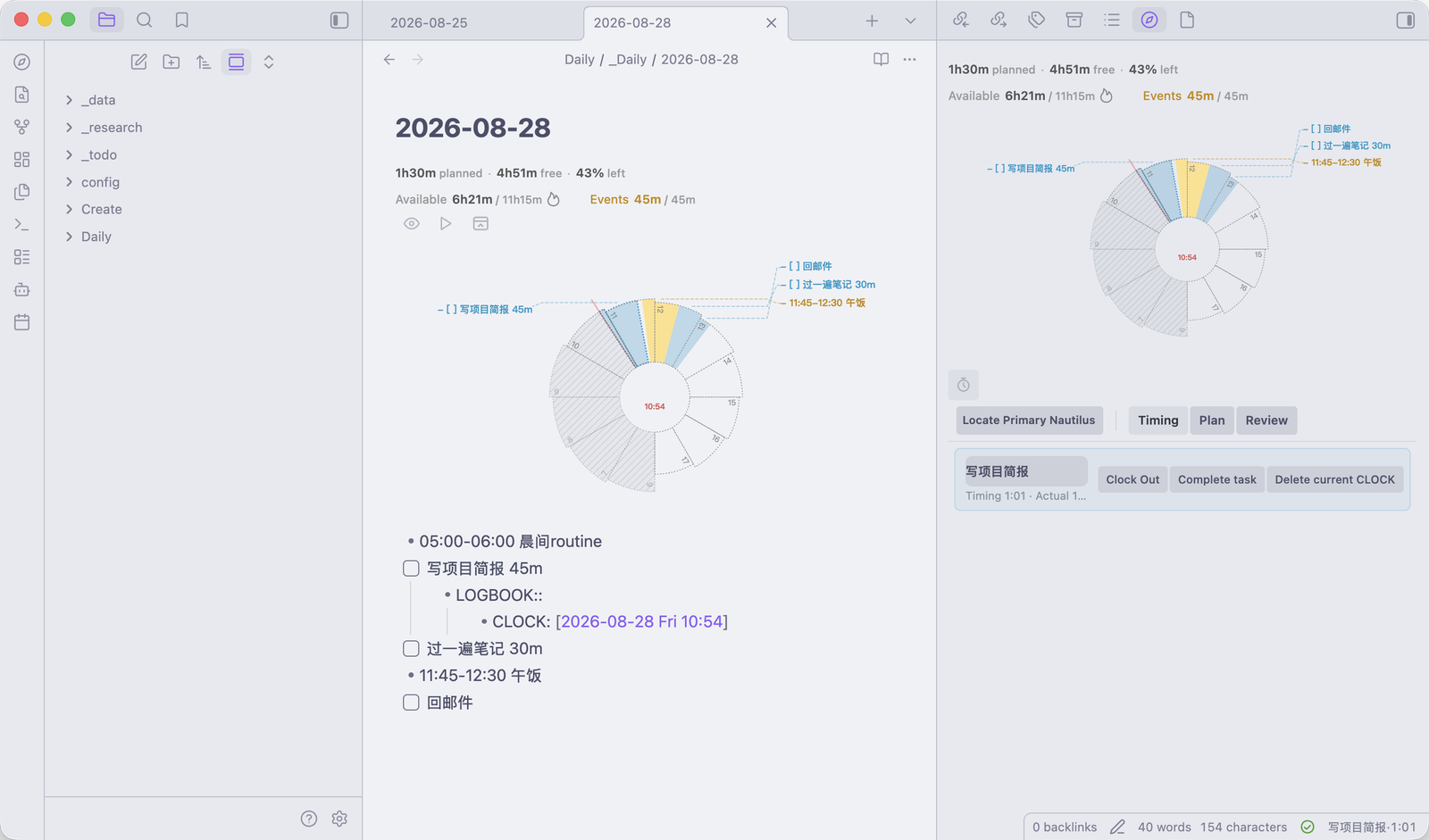
A visual day planner for Obsidian. Nautilus Logger turns one note into a living spiral schedule: fixed events stay fixed, flexible tasks flow into the time that remains, and overload never disappears from view.
Where this comes from
This is a port of one specific project:
🧭 Nautilus Log for Roam Research by 404KSG
The scheduling and capacity engine (
log-core.js,timing-core.js,timing-runtime.js,timing-topbar.js) is vendored undersrc/vendor/byte-for-byte unchanged, so the numbers you see here are computed by upstream's code rather than by a reimplementation of it.What this project adds is the Obsidian side: the same engine, fed from Markdown files instead of a Roam graph.
That project has ancestors of its own, listed in Credits. They shaped the upstream, which is why they are kept separate from the line above.
⚠️ Status: not in the Obsidian community plugin store yet. See Installation for how to install it today.
Contributing, or porting this somewhere else? Start with
docs/PORTING-DECISIONS.md. It records every place this port deliberately diverges from upstream, in enough detail that upstream plus that document is enough to redo the port from scratch.
Installation
Not in the community plugin store yet. There are three ways to install it today. Pick BRAT if you want updates.
Option 1: BRAT (recommended, auto-updates)
- Install BRAT from Obsidian's Community Plugins.
- BRAT settings → Add Beta plugin → paste:
dimpurr/obsidian-nautilus-logger - Enable Nautilus Logger in Community Plugins.
BRAT tracks this repo's GitHub releases and updates the plugin for you.
Option 2: Manual
- Download
main.js,manifest.jsonandstyles.cssfrom the latest release. - Create the folder
<your vault>/.obsidian/plugins/nautilus-logger/. - Put the three files in it.
- Restart Obsidian (or Reload app without saving), then enable the plugin in Community Plugins.
Option 3: One-liner (macOS / Linux)
Run from inside your vault folder:
mkdir -p .obsidian/plugins/nautilus-logger && cd .obsidian/plugins/nautilus-logger && \
  curl -LO https://github.com/dimpurr/obsidian-nautilus-logger/releases/latest/download/main.js && \
  curl -LO https://github.com/dimpurr/obsidian-nautilus-logger/releases/latest/download/manifest.json && \
  curl -LO https://github.com/dimpurr/obsidian-nautilus-logger/releases/latest/download/styles.css
Then reload Obsidian and enable the plugin.
Getting started
After enabling, run Create test note from the command palette. It writes a small example note, so you can see the spiral before you commit to a format. The shorter route is to paste this into today's Daily Note:
```naut
start: 8
```
- 09:00-10:00 Standup
- [ ] Write the report 90m
- [ ] Answer email 30m
Updating
- BRAT: automatic.
- Manual / one-liner: re-download the three files, then Reload app without saving.
What it gives you
- The capacity figures are explicit: planned demand, available time, time already claimed by fixed events, what is left, and the work that will not fit today.
- Events keep the times you gave them. Unfinished tasks fill the gaps in the order you wrote them.
- The day can start at any whole hour, and run past midnight when that is where the plan actually goes.
- Planned against actual, in the same note you were already writing in.
Scheduling is deterministic: events claim their ranges first, then whole tasks fill suitable gaps from the current moment. Tasks that cannot fit appear in Today won't fit instead of being silently dropped.
Plan format
The Roam original has the component read its child blocks. Obsidian code blocks have siblings rather than children, so this port keeps the plan as ordinary Markdown below the code block. The block itself holds the per-day overrides:
```nautilus
end: 02:00
```
05:00-06:00 Morning routine
- [ ] Write project brief 45m
- [ ] Review notes 30m
11:45-12:30 Lunch
- [ ] Reply to email
The fenced block holds per-day overrides (leave it empty to use your global
settings); the plan itself lives below the block as ordinary Markdown, so it
stays editable, reorderable, and visible to Tasks and Dataview. The plan ends at
the first blank line. Both ```nautilus and the shorter ```naut
are accepted.
- A time range pins the line to the clock:
12:30-14:00,9 to 10:45. This works with or without a checkbox, so- [ ] 09:00-10:00 Standupis a fixed event you can still tick off. - A single start time also pins it.
- [ ] 09:00 Write brief 30mbecomes 09:00–09:30. Without a duration it uses the configured default. A bare number is not read as a time (Read chapter 9stays flexible); write9:00or9amto mean a clock time. - An unchecked task with no clock time is flexible. It flows into whatever time remains.
- Line order is priority. Reorder the lines and the schedule follows.
- Durations support
30m,30min,1h, and1h30m. - Urgent tasks turn red. Set an Urgent trigger word in settings (empty disables it); a flexible task whose title contains that word as a whitespace- delimited token is drawn red instead of blue. Fixed events keep their own colour.
Completed work
A completed task needs a completion time before it can be drawn. The engine
will not invent history it was not given. Write it as a d-prefixed anchor:
- [x] Academic reading 40m d11:20
That renders as a muted 10:40–11:20 slice. Without the anchor the task still counts as done (it stops consuming capacity) but cannot be placed on the chart.
Rather than typing anchors by hand, use the command Complete task with timestamp, which ticks the current line and appends the current time. It ships with no default hotkey. Bind one in Settings → Hotkeys if you want it.
Style
Events read best as list items too, so they line up with tasks:
- 08:30-09:30 Morning routine
- [ ] Write brief 45m
Bare lines (08:30-09:30 Morning routine) still parse, but mixing the two looks
inconsistent once rendered.
Execution layer
The optional execution layer records how the plan actually went. It is off by default: the setting tab keeps its four sub-settings hidden until you turn on Actual time tracking.
When enabled, the first ```nautilus block on today's Daily Note becomes the Primary Plan, and the execution panel offers three views:
| View | Purpose |
|---|---|
| Timing | The current Timing Line and recently closed tasks |
| Plan | Unfinished direct-child tasks from the Primary Plan |
| Review | Today's Planned vs Actual |
Time is written into your note next to the task as Org-style CLOCK lines under a
LOGBOOK:: drawer:
- [ ] Write report 45m
    - LOGBOOK::
        - CLOCK: [2026-08-24 Mon 10:00]--[2026-08-24 Mon 10:18] => 0:18
- Only an unfinished task can own the Timing Line, and only one CLOCK runs at a time. Switching tasks closes the previous CLOCK and opens the next at the same instant.
- With Timing line in sidebar on, Clock In also fronts the active task in the right sidebar.
- Recent keeps the last 45 minutes of closed work (Recent retention minutes;
0disables). - The Pomodoro threshold (45 min) changes the live signal when reached. It does not stop anything. With no task CLOCK active, the panel header starts a standalone count-up POMO that writes nothing and touches neither Actual, Planned, Review, nor the spiral; starting a task CLOCK clears it, because CLOCK always has priority.
- The forgotten-timer warning (120 min) flags a CLOCK left running that long.
It only warns; it never stops or deletes a CLOCK.
0disables it. - Actual time is never capped at Planned. Without an explicit completion anchor
(
dHH:MM) or an Actual end, Nautilus Logger does not invent history.
Status bar timer
With the execution layer on, a timer token lives in Obsidian's status bar. It
shows the running task's title and elapsed time (or elapsed · POMO for a
standalone pomodoro), and it turns to a warning state past the pomodoro and
forgotten-timer thresholds.
It is also the only place the modifier-key gestures are mounted (upstream hangs them off its top bar; this port has none):
| Click | Action |
|---|---|
| Plain click | Open the sidebar |
| ⌥ / Alt + click | Locate today's Primary Plan in the main editor |
| ⇧ / Shift + click | Send the Primary Plan to the right sidebar |
The panel's Locate Primary Nautilus button also honours ⇧; there a plain click already means "locate in the main editor", so ⌥ is a synonym for it.
Looking at other days
A chart does not have to be about today. If the note's path contains a
YYYY-MM-DD date (the usual Daily Note naming), that day becomes the chart's
display day; otherwise it falls back to today.
| Display day | Behaviour |
|---|---|
| Today | Red now-hand; tasks laid out from this moment; capacity counts the time that is left |
| Past | No now-hand; the elapsed hatching covers the whole day; tasks laid out from the day's start; capacity counts the whole day; "relative to now" interactions (eye, playback) are off |
| Future | No now-hand and no hatching at all, since tomorrow has not started, so nothing has elapsed; otherwise as above |
The rules for the three cases come from the upstream engine's timelineDayState;
this port only tells it which day the note is about.
What it touches in your vault
The directory's automated review flags two of these. Both are real, so here is the full picture.
Reading. With the execution layer on, the plugin scans every Markdown file in
the vault for CLOCK: lines, because a task you timed can live in any note. With
the execution layer off, it only reads the note being displayed. Nothing is sent
anywhere: this plugin contains no network code.
Writing. Writes stay inside the plan block of the daily note on screen. They
are CLOCK lines under LOGBOOK::, the dHH:MM completion anchor, and dNN%
progress. Each one matches its target line by content before touching the file,
and refuses to write at all if the match is ambiguous.
Storing. Settings live in the plugin's own data.json. Whether a chart is
collapsed is remembered per device through Obsidian's local storage API.
Troubleshooting
The execution-layer chain has four independent failure points (injection path / file exists / synchronous cache hit / fence regex hit). Rather than guessing, run the command Diagnose execution layer: it reports the value at each link as a single notice.
Differences from the Roam original
| Roam original | This port | |
|---|---|---|
| Component | {{[[roam/render]]:((uid))}} | ```nautilus code block |
| Plan source | child blocks | Markdown below the block (block holds per-day overrides) |
| Task identity | :block/uid | filepath:line |
| Reactivity | roam.datascript.reactive | metadataCache events |
| Renderer | ClojureScript / Reagent (SCI) | TypeScript / SVG |
| Panel mount | DOM-scraped Roam topbar | Obsidian right-sidebar ItemView (nautilus-logger-view) |
| iCal subscriptions | dropped upstream in gen 3 | not planned |
The scheduling and capacity engine is reused unchanged from the Roam version.
Credits
The direct source of this port is 404KSG/roam-nautilus-log; see Where this comes from. Everything below is the lineage that project descends from. They are acknowledged here because the MIT license and the idea both travel down this chain, but this port did not take code from them directly.
- roam-depot-render-template by Matt Vogel. The Roam extension scaffolding the whole lineage descends from; its copyright line is still the one in this project's MIT license.
- Nautilus by Tomáš Baránek. The original spiral-planning concept. The spiral is not decoration: its narrowing coils mirror one's diminishing energy for creative work over a day.
- Nautilus Enhanced by hopeserena. Fixed the timer memory leak, and added bilingual settings, Bézier connectors and CJK typography fixes.
- 🧭 Nautilus Log
by 404KSG. The project this one is ported from.
It turned the spiral into a real planner: the capacity model
(Planned / Available / Overload / No fitting slot), the optional execution layer
with
LOGBOOK::/CLOCK:tracking, Planned-vs-Actual review, overnight chart windows, and a test suite. Its engine runs here unmodified. - Roam Logbook by forrestchang. What upstream drew on for compatible CLOCK tracking.
The time-allocation philosophy is inspired by the YNAB Method. Nautilus Logger is not affiliated with YNAB.
Released under the original MIT license, unchanged.
For plugin developers
Search results and similarity scores are powered by semantic analysis of your plugin's README. If your plugin isn't appearing for searches you'd expect, try updating your README to clearly describe your plugin's purpose, features, and use cases.