Zone Scroll Zoom
approvedby kqint
Zoom where your mouse is — font in editor, interface elsewhere. - This plugin has not been manually reviewed by Obsidian staff.
Obsidian Zone Scroll Zoom
An Obsidian plugin that scales the interface and font with keyboard shortcuts, where the zoom behavior adapts to your mouse position.
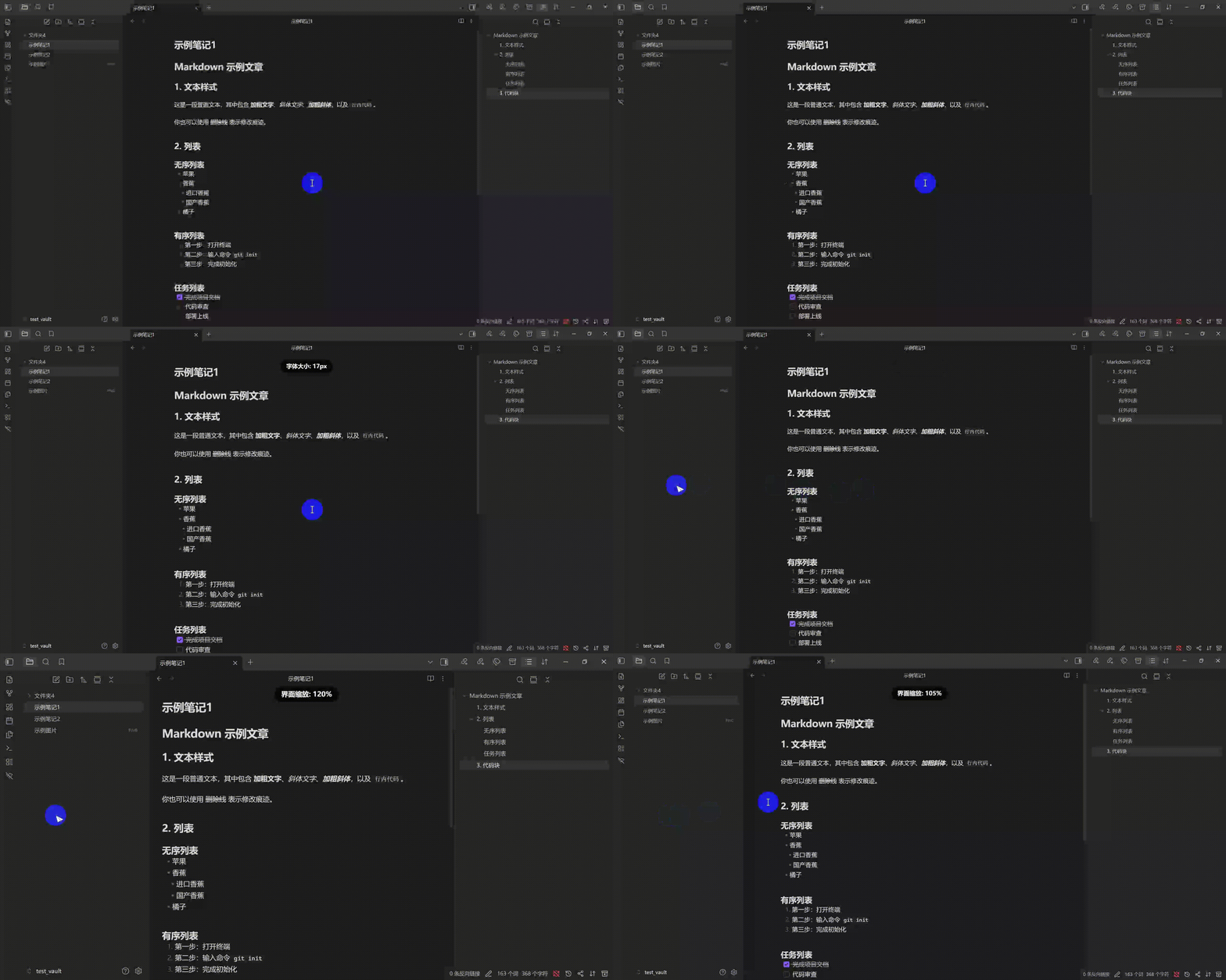
Features
- Shortcut Zoom: Use keyboard shortcuts to zoom in different areas (default: Ctrl + Scroll Wheel).
- Zone-Based Zooming:
- Mouse in Editor Area: Zooms the editor font size.
- Mouse in Non-Editor Area: Zooms the entire Obsidian interface (including sidebar, menus).
- Real-time Status Display: A clean OSD indicator appears at the top of the screen, showing the current scale/font size in real time.
- Customizable Settings: Adjust zoom precision in settings, modify shortcuts (supports Ctrl/Cmd, Shift, Alt). Personal settings are automatically saved to
data.json. - Multi-language Support: Supports English, Simplified Chinese, and Traditional Chinese. Switch languages in settings or follow Obsidian's system language.
- Reset Zoom Ratio: A button in the settings page to quickly restore default font size (16px) or interface scale (100%).
[!note] Before using this plugin, go to Settings → Appearance and disable "Quick font size adjustment".
Installation
Community Plugin Marketplace
Open Obsidian Settings → Community Plugins → Browse, search "Zone Scroll Zoom", install and enable.
Or visit the plugin page and click "Add to Obsidian".
BRAT Installation
- Install BRAT.
- Open BRAT settings →
Add Beta Plugin. - Enter repository:
kqint/obsidian-zone-scroll-zoom.
Manual Installation
- Download
main.jsandmanifest.jsonfrom releases/latest. - Create an
obsidian-zone-scroll-zoomfolder inside.obsidian/plugins/, and placemain.jsandmanifest.jsoninto this folder. - Enable the plugin in Obsidian settings.
Internationalization
Language source files are located in src/locales/:
src/locales/en.jsonsrc/locales/zh-CN.jsonsrc/locales/zh-TW.json
Adding a New Language
- Copy
src/locales/en.jsontosrc/locales/xx.jsonand translate all string values (keep the keys as-is). - In
src/i18n.ts, register your locale by adding:- An import for your JSON file
- An entry in
BUILT_IN_LOCALES - Obsidian language code mappings in
OBSIDIAN_LANG_MAP - Locale metadata in
LOCALE_META
- Add the locale option name to all existing locale files under
settings.language.options. - Run
npm run buildand test.
See CONTRIBUTING.md for the detailed step-by-step guide.
License
For plugin developers
Search results and similarity scores are powered by semantic analysis of your plugin's README. If your plugin isn't appearing for searches you'd expect, try updating your README to clearly describe your plugin's purpose, features, and use cases.