Note Masonry
unlistedby rednao
View and edit your markdown notes in a Google Keep style masonry layout.
★ 1 starsUpdated 5mo agoMIT
Note Masonry for Obsidian
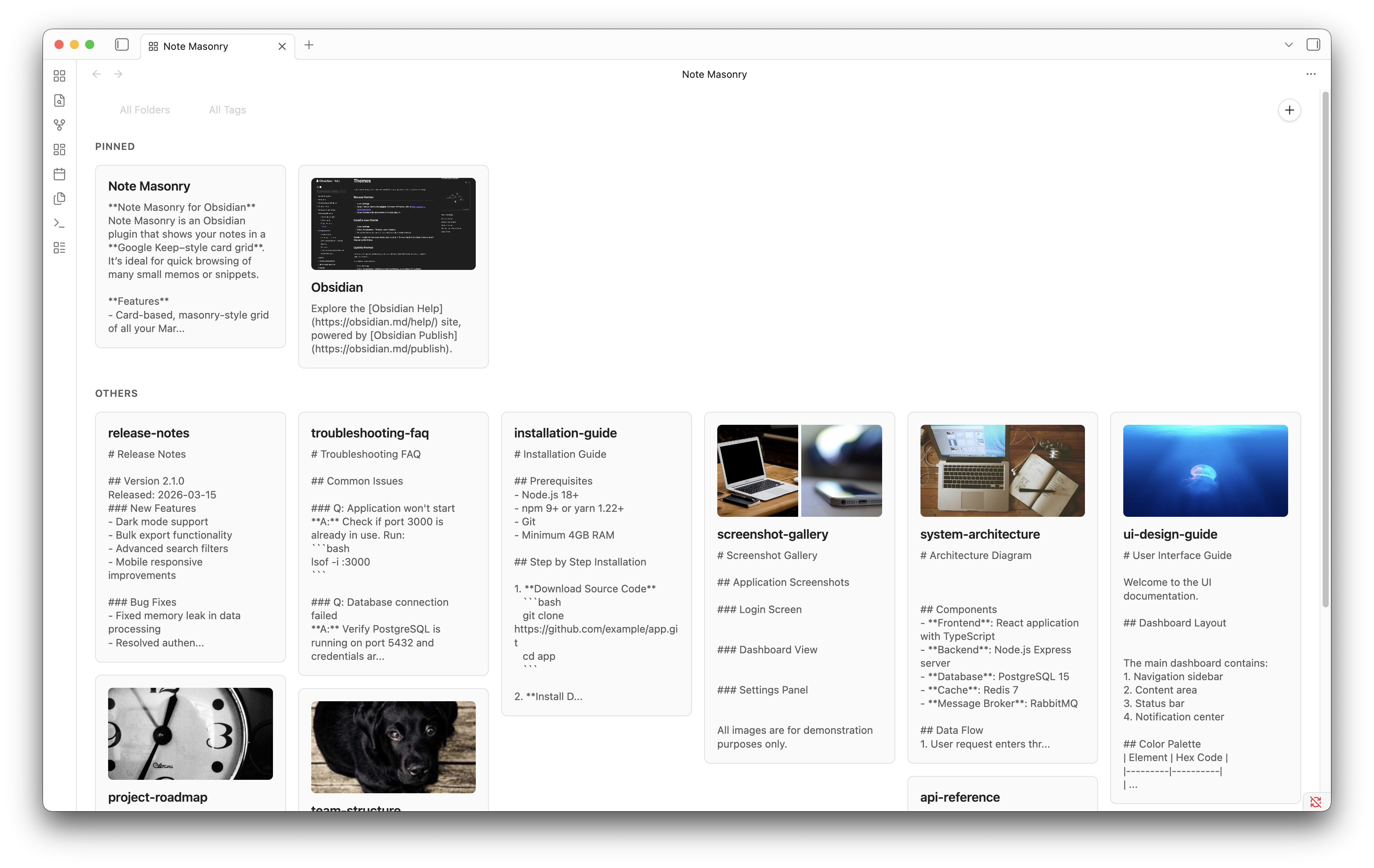
Note Masonry is an Obsidian plugin that shows your notes in a Google Keep–style card grid. It’s ideal for quick browsing of many small memos or snippets. It is not optimized for mobile use; it’s mainly intended for desktop.
Features
- Card-based, masonry-style grid of all your Markdown notes
- Filter by folder and tag from a toolbar at the top
- Search bar to filter notes by title or content instantly
- Pinned section for notes with
pinned: truein frontmatter - Up to 2 image thumbnails per note (Markdown images or wikilinks)
- Text snippet preview with frontmatter and image markup removed
- Pin/unpin, delete and split-view buttons directly on each card
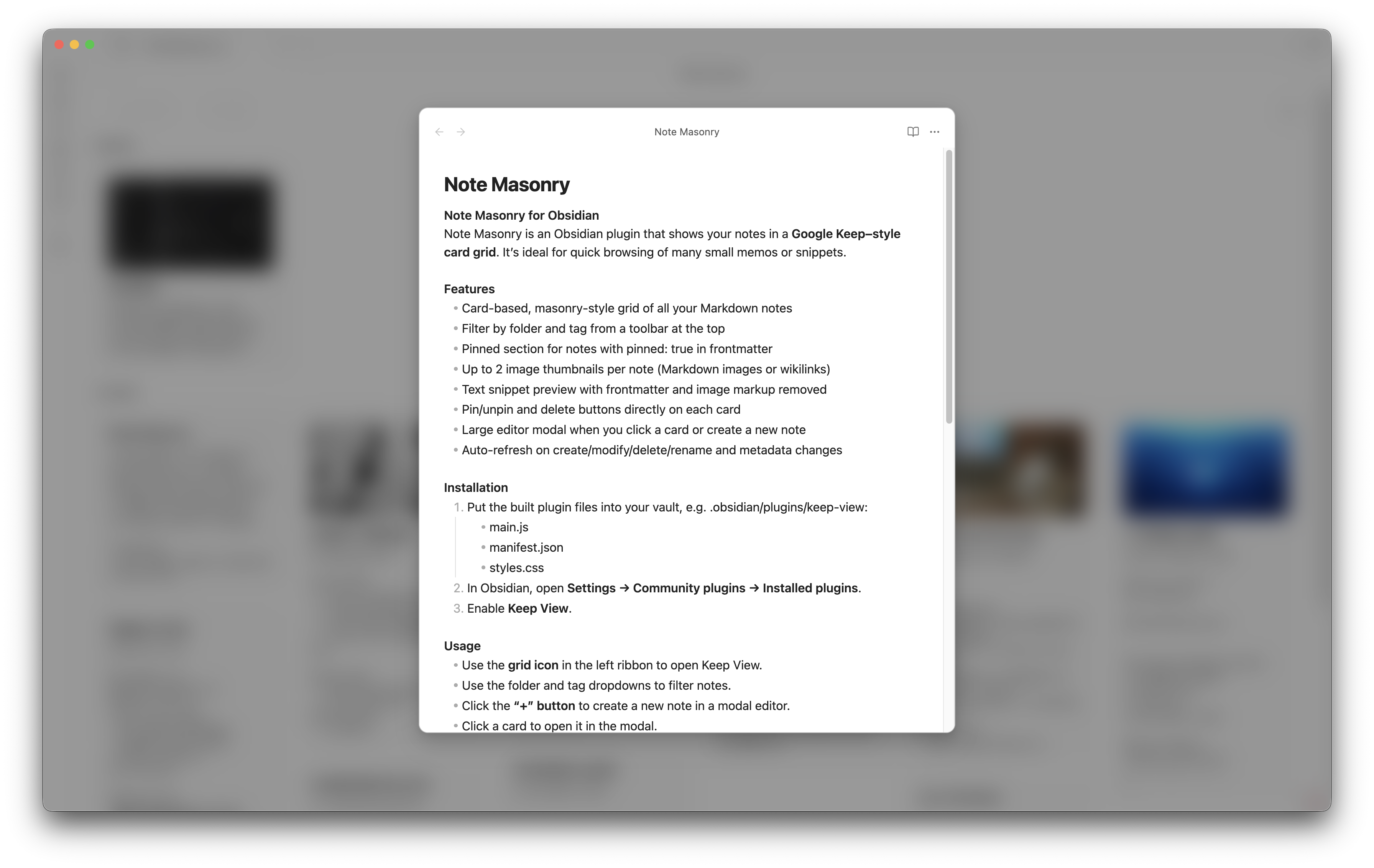
- Large editor modal when you click a card or create a new note
- Auto-refresh on create/modify/delete/rename and metadata changes
- Multiple Keep View tabs can be opened from the ribbon button
Installation
- Put the built plugin files into your vault, e.g.
.obsidian/plugins/note-masonry:main.jsmanifest.jsonstyles.css
- In Obsidian, open Settings → Community plugins → Installed plugins.
- Enable Note Masonry.
Usage
- Use the grid icon in the left ribbon to open Keep View.
- You can click the ribbon button multiple times to open multiple Keep View tabs/pages.
- Use the folder and tag dropdowns to filter notes
- Use the search bar at the top to filter notes by text in the title or body.
- Click the “+” button to create a new note in a modal editor.
- Click a card to open it in the modal.
- Use the pin icon to toggle
pinned: truein frontmatter. - Use the split pane icon on a card to open the note in a right split view
- Use the trash icon to delete the note.
Known Limitations
- Hotkeys in the Modal: Standard Obsidian hotkeys (e.g., opening the Command Palette, text formatting shortcuts) do not work when editing a note inside the pop-up modal. This is due to an architectural limitation in Obsidian: the editor inside the modal is technically "detached" from the main workspace, so Obsidian does not recognize it as the active target for commands.
- Workaround: If you want to perform heavy editing or use your custom hotkeys, click the split pane icon on the card instead. This opens the note in a standard Obsidian split view where all hotkeys function perfectly.
- Mobile Support: The layout and interactions are designed for desktop; mobile usage is not optimized.
For plugin developers
Search results and similarity scores are powered by semantic analysis of your plugin's README. If your plugin isn't appearing for searches you'd expect, try updating your README to clearly describe your plugin's purpose, features, and use cases.