by Andrey Torlopov
Arrange existing notes on a horizontal timeline with expandable Markdown cards, tags, and a persistent layout.
Noteline for Obsidian
English · Русский
Why Noteline
A project, a research journal, or a collection of ideas often makes more sense in chronological order. Noteline places your existing Obsidian notes on a horizontal timeline so you can see when things happened and read the notes in context.
Select notes from any folder, expand their Markdown cards, and arrange them vertically without changing their dates. Your notes stay ordinary files in their original locations. The timeline keeps its own membership, layout, and view state.
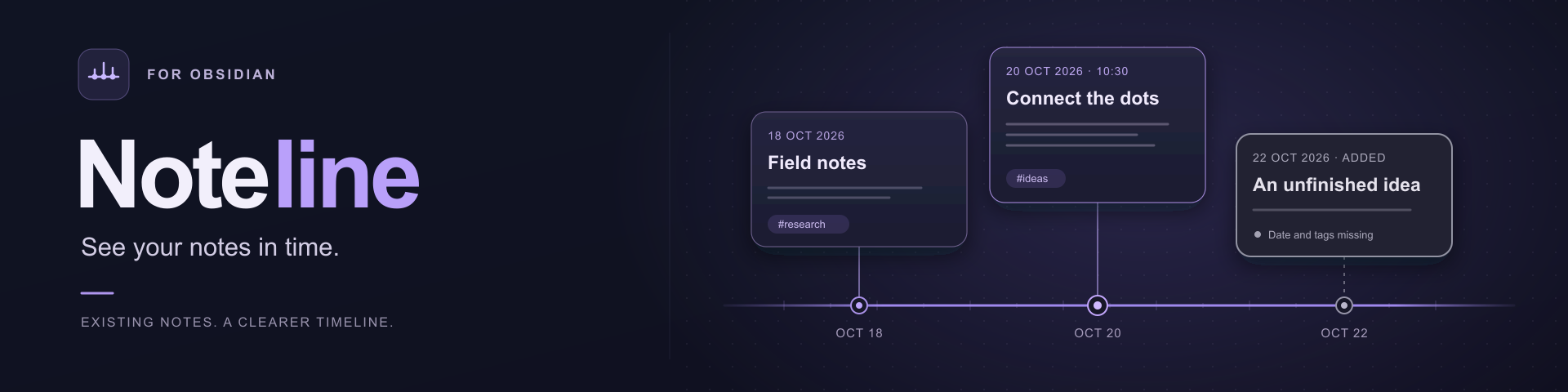
The banner is an original illustration, not a screenshot of the plugin.
Documentation is available in English and Russian. The interface in version 0.2.0 is Russian. English guides include the actual Russian control labels. Translating the documentation does not add an interface language switch.
What you can do
- Add existing Markdown notes from anywhere in your vault, including folders with identical filenames.
- Read dates from note properties or a leading
📅line, with optional time of day. - Collapse cards to their title, date, and tags, or expand them to read native Obsidian Markdown.
- Move cards above or below one another; the horizontal coordinate follows the note date.
- Zoom, pan, fit the selected notes, and jump to a date or today.
- See missing metadata immediately: notes without a date or tags have a gray frame and a text explanation.
- Add a tag explicitly to the original note; adding or moving a card does not rewrite the note.
- Keep the timeline between sessions, with light and dark themes and touch-friendly action buttons.
- Use a thin time axis with ringed note markers, fine card borders, rounded tags, and a subtle gradient background inspired by the banner.
If a note has no date, Noteline uses the local date when you add it and saves that fallback. The card stays on that day instead of moving with “today.” If only tags are missing, the note keeps its original date. Date and tag rules.
Quick start
Obsidian 1.7.2 or newer. Desktop smoke checks were completed on macOS with Obsidian 1.14.4. The plugin uses browser-compatible APIs, but physical iOS and Android devices and the minimum Obsidian version still need testing.
- Install a built copy in a test vault. A source checkout alone is not an installed plugin. Community directory installation requires review and acceptance by Obsidian.
- Open the command palette and run Noteline: Открыть временную ось — Open timeline.
- Choose Добавить заметку — Add note — and select a note by name or path. You can also use the file context menu or the active-note command.
- Expand a card with its expand button. Use the title to open the original note for editing.
- Move the card with its vertical handle or ↑/↓ buttons. Use −/+ to zoom and Показать все — Show all — to fit the selected dates.
Note formats
Use existing properties or a small metadata block at the beginning of the note:
---
timeline-date: "2026-10-22 15:30"
tags:
  - research
  - ideas/audio
---
📅 2026-10-22 15:30
📍 Tags: #research #ideas/audio

---

Your note content.
The default date priority is timeline-date, then date, then the leading 📅 line. Property names and their order are configurable. Dates are calendar values without a time zone; 2026-10-22 15:30 remains the same wall-clock value on another device. Supported formats, conflicts, and missing fields.
Documentation
- Installation and updates
- Quick start and controls
- Dates, tags, and gray frames
- Data storage, privacy, backups, and sync
- Troubleshooting and known limits
- Development and publication
- All user documentation
Your notes and your data
Noteline stores the selected note paths, fallback dates, and layout in its standard plugin data.json. It does not make a second library of your notes. Opening, expanding, moving, or removing a card from the timeline does not delete or rewrite its source file. Adding a tag is an explicit write to that note.
Back up your notes and Noteline's plugin data. Use one active writer when syncing the same timeline between devices; simultaneous layout changes are not merged automatically. Storage and recovery.
The plugin makes no network requests of its own, collects no telemetry, and needs no account or server. Obsidian's Markdown renderer and other installed plugins may load external content referenced in a note.
Development
Node.js 24+ and npm are development tools; users only need the built plugin files.
npm ci
npm run check
npm run build
The production build creates main.js. Install it alongside manifest.json and styles.css; do not copy node_modules into a vault. GitHub release assets use these three files individually, with a tag matching manifest.version. Build and publication guide.
Scope of version 0.2.0
One timeline per vault, one card per note, and vertical placement only. There are no event intervals, horizontal date editing, image export, automatic conflict merging, or pinch-to-zoom. Files renamed while the plugin is disabled may need manual relinking. Compatibility and limitations.
Licensed under MIT. The original banner artwork is provided under CC0 1.0.
For plugin developers
Search results and similarity scores are powered by semantic analysis of your plugin's README. If your plugin isn't appearing for searches you'd expect, try updating your README to clearly describe your plugin's purpose, features, and use cases.