by theluckystrike
Import Note Station backups as notes with notebooks, dates, tags, and local attachments.
Note Station NSX Import
Move a local Synology Note Station backup into your vault. Select an NSX archive, check its counts, and create a new import folder. The free importer keeps notebook folders, source IDs, dates, source tags, source URLs, and local attachments. It writes a report so that you can check missing assets and links after the transfer.
This plugin reads the file that you select through the system file picker. That file can be outside the vault. It does not scan your computer for backups. Keep the original NSX archive until you have checked the imported notes and assets.
Features
Preview a local backup
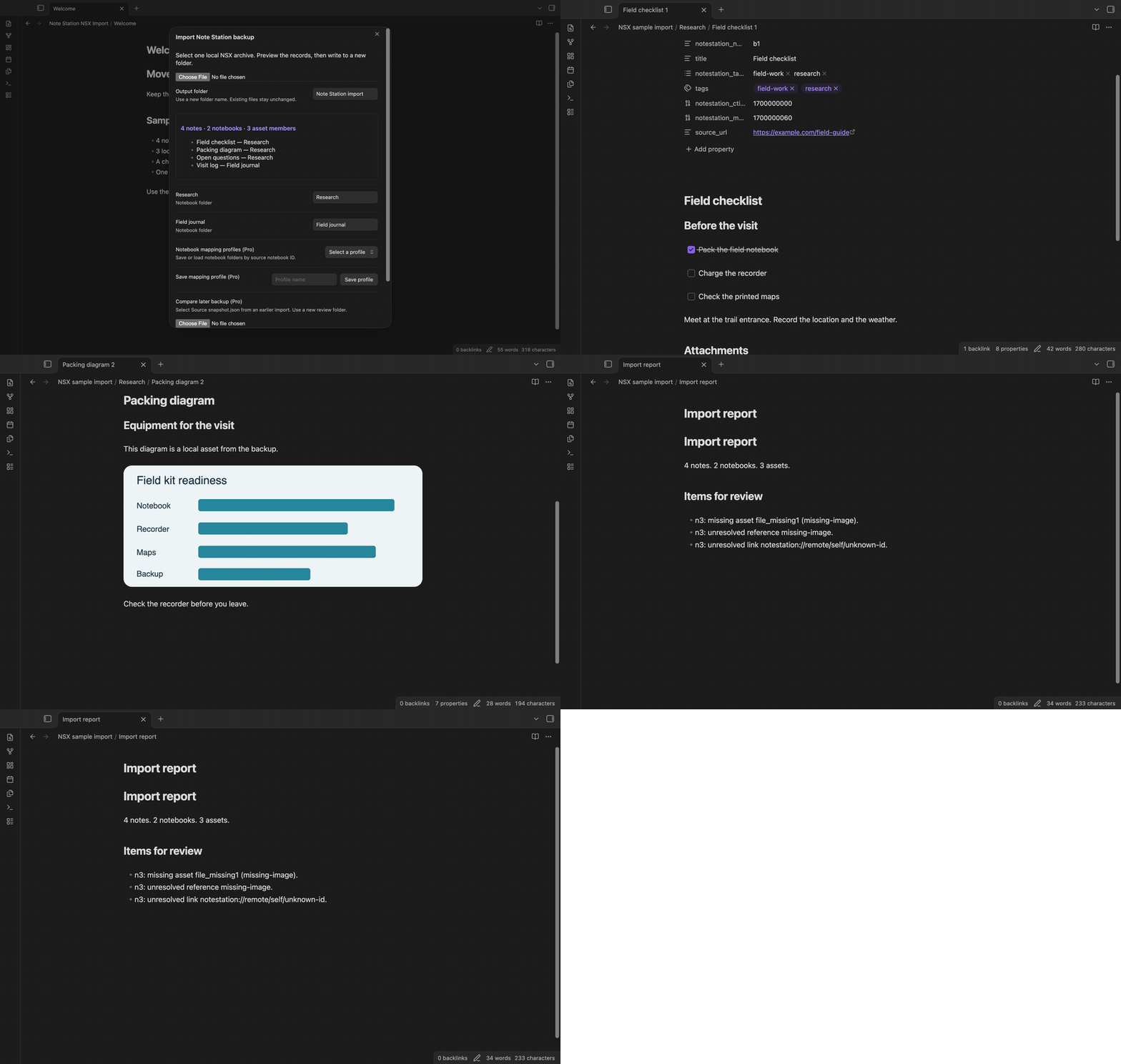
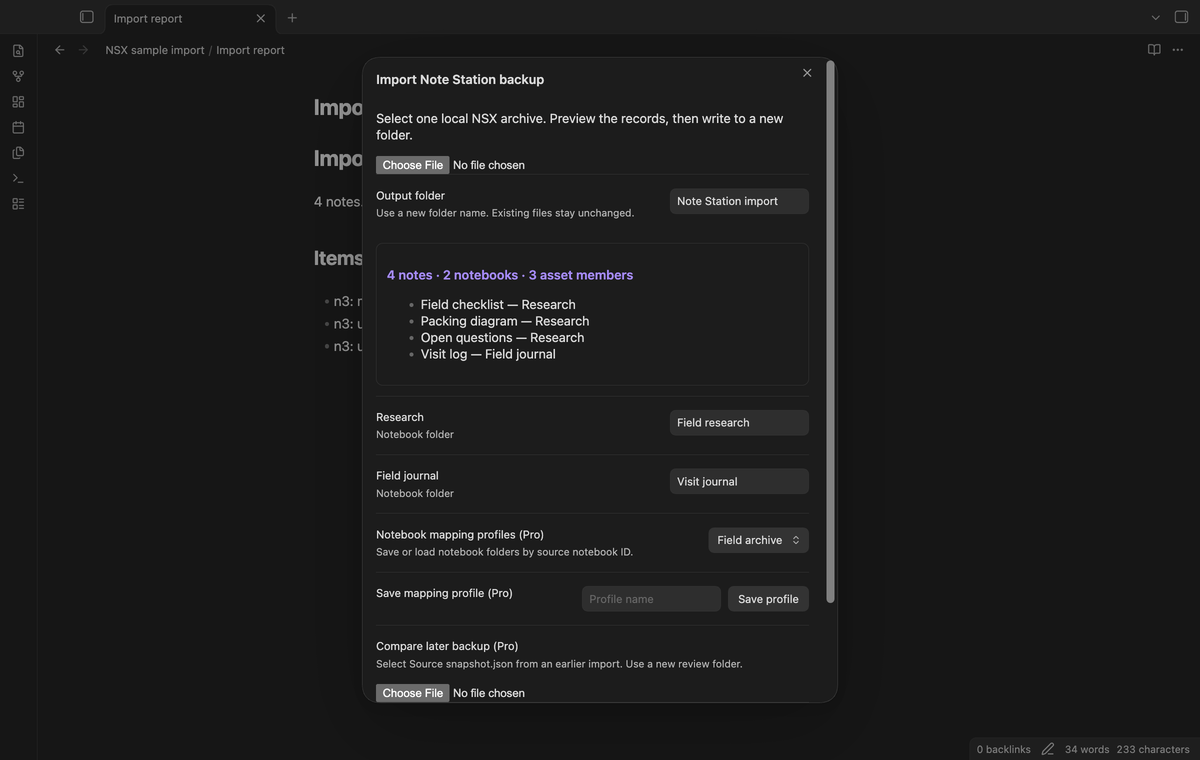
Use the import command to select one NSX file. The plugin reads config.json and the listed note and notebook records. The preview shows note, notebook, and asset member counts, plus up to six note titles. You can close the modal before creating files. The preview makes no vault changes.
The limits are 20 MiB for the archive, 100 MiB for expanded data, and 5,000 ZIP members. Unsafe member paths and duplicate names stop the import. Encrypted, split, and ZIP64 archives are rejected. A missing record also stops the import before files are written.
Notebook folders and note properties
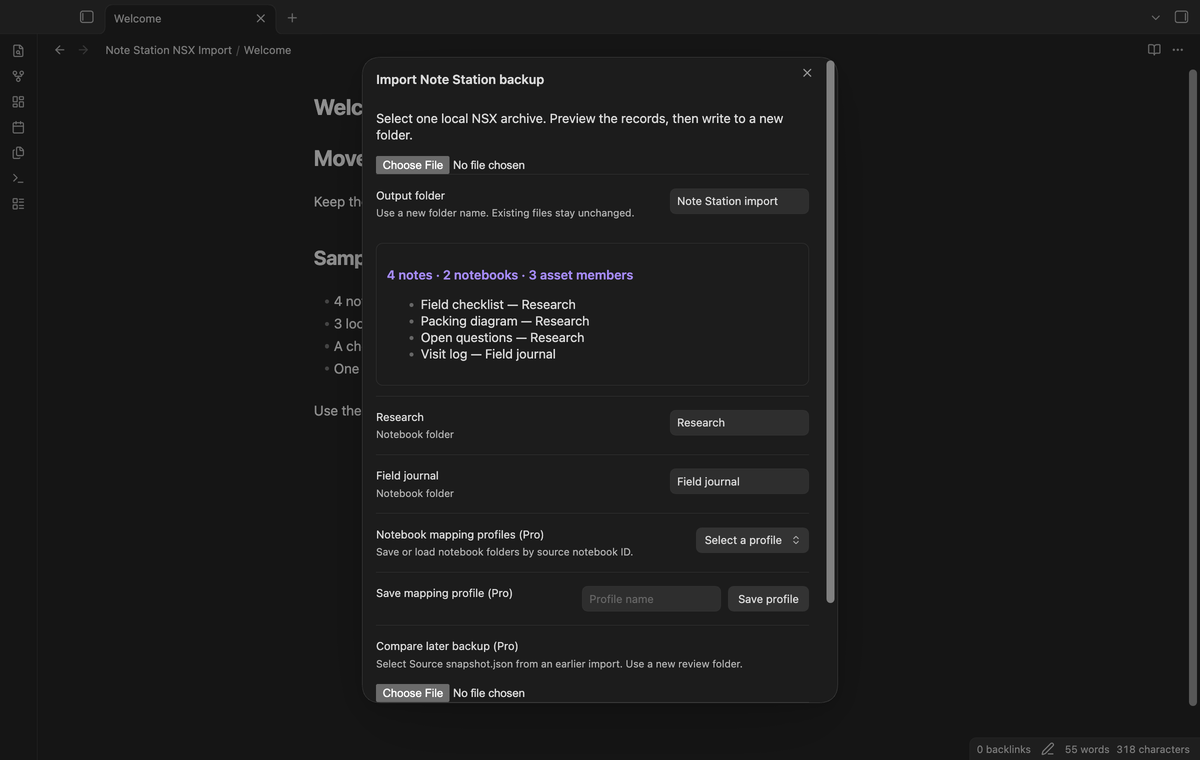
Notebook titles become folders. You can change a notebook folder in the import modal. Unsafe filename characters become hyphens. A sequence number at the end of each note filename separates notes with the same title. A note whose notebook is missing goes to an Unfiled folder, with an entry in the report.
The note properties keep notestation_id, notestation_notebook, notestation_ctime, notestation_mtime, and notestation_tags. Valid source dates stay as Unix seconds in the properties. The plugin supplies their millisecond values to the Vault file creation method. Source tags stay exact in notestation_tags; a cleaned form also goes to tags. A source URL goes to source_url when present.
Note HTML is converted with the Obsidian HTML converter. Simple Note Station checkboxes become Markdown tasks. When two checkboxes share one line block, each keeps its state as a checked or empty box character. Check the result for complex lists, charts, and tables. A note that Note Station encrypted is not decrypted. Its source text goes into a code block, and the report lists the note.
Local attachments
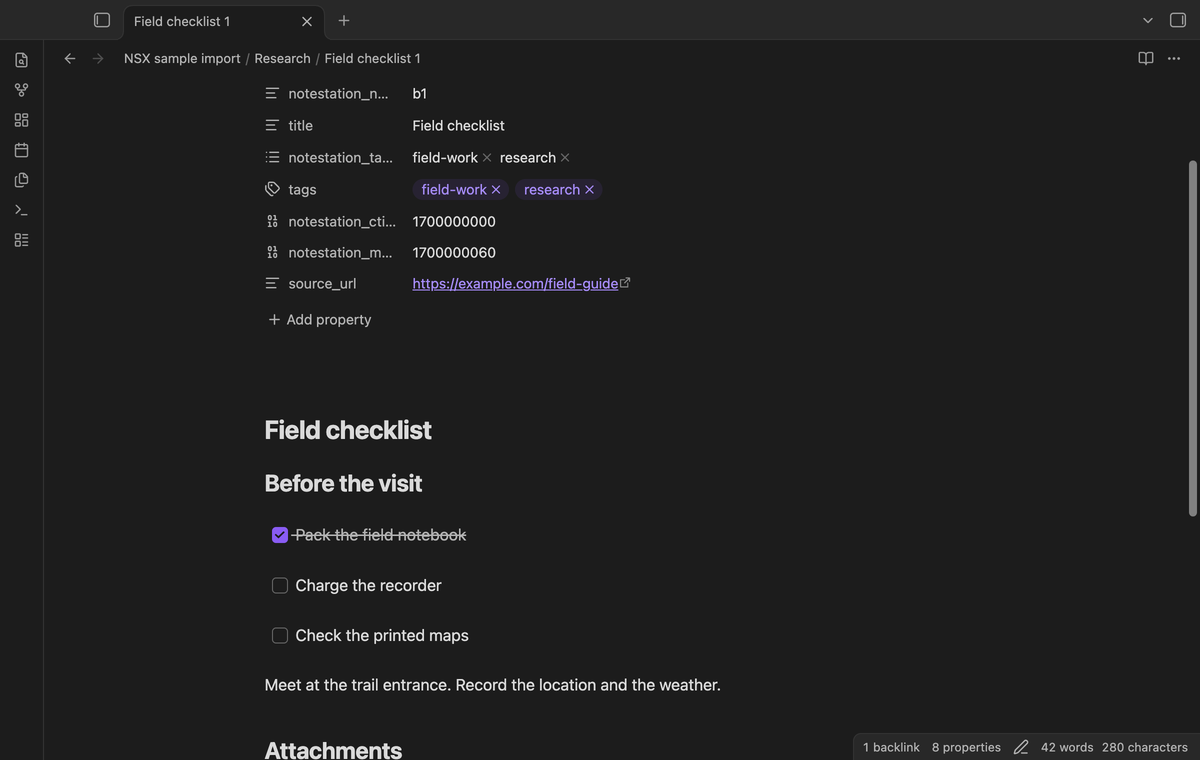
The importer maps an attachment reference through its exported md5 field to the corresponding file_<hash> member. It copies that member into the import folder's Assets folder. Image and attachment links then use the saved local path. An attachment without a reference gets a link under Attachments.
A missing member is reported and the source reference is kept as a link. The plugin does not create an empty placeholder. Asset members without an attachment record are kept with a generated name and reported. Thumbnail members are omitted. An external image is kept as a link rather than an image embed. The importer does not fetch its content.
Import report and new files
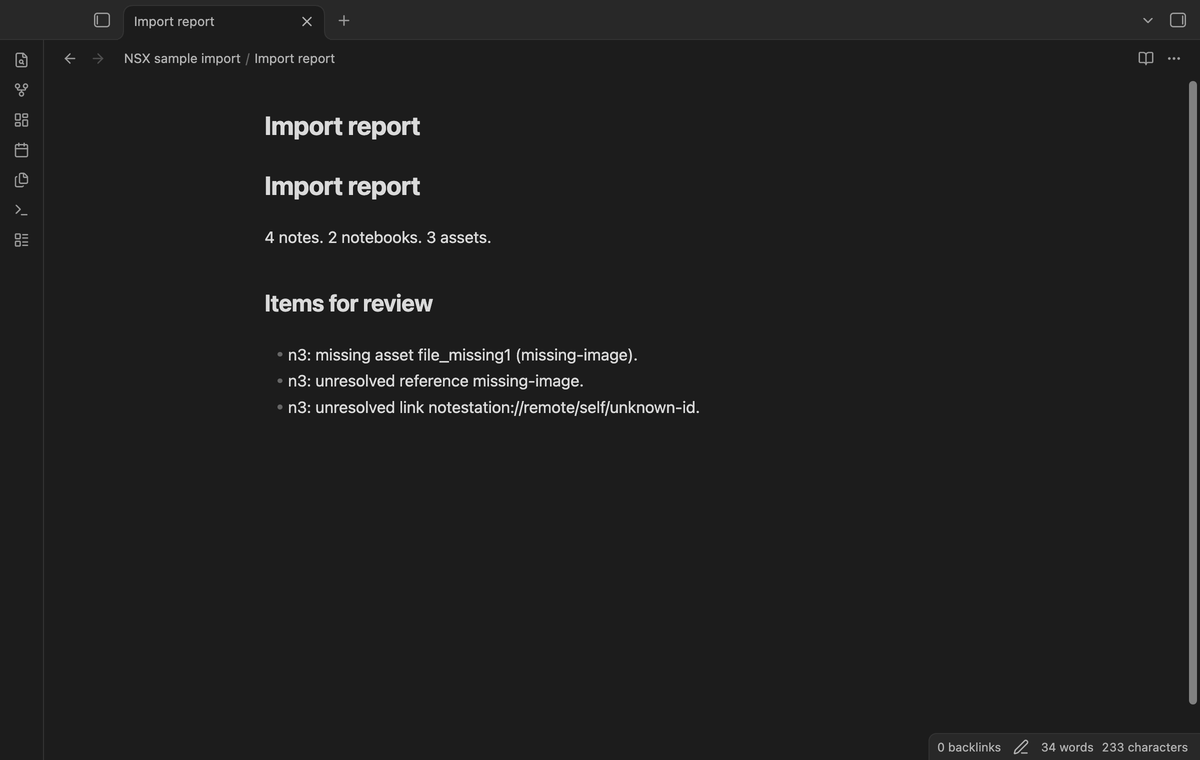
The output folder must be new. If a root file or folder has the selected name, including a different letter case, the importer stops before writes. It uses Vault methods to create notebook folders, notes, assets, a Markdown import report, and Source snapshot.json.
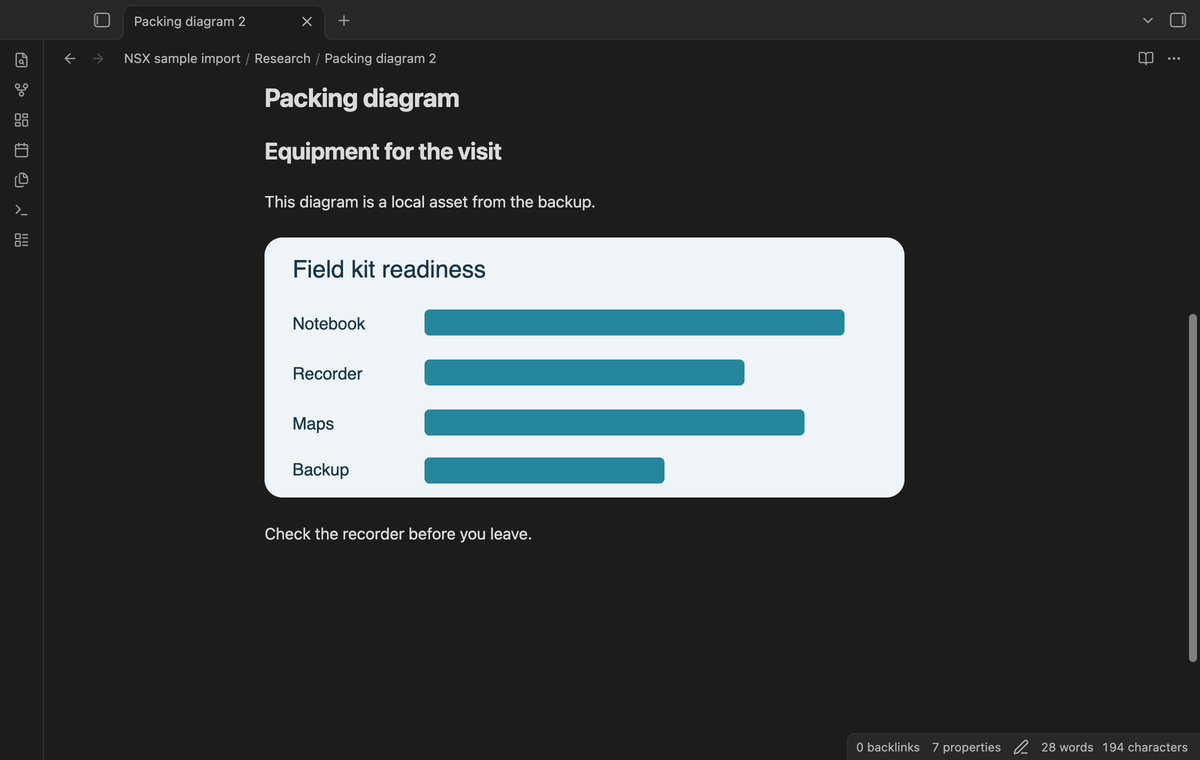
The report lists missing assets, unresolved references, unknown notebook IDs, and tables or charts that need review. An internal Note Station link is converted only when its final ID segment exactly matches a source note ID in the import. A title match is not sufficient. Other Note Station links stay in the note and appear in the report.
If a write fails, partial files remain in the new folder. The error shows that folder. Check the partial import before starting again with a different output name.
Notebook mapping profiles (Pro)
Save the notebook folder choices as a named profile. A profile maps source notebook IDs to folder names and stays in the plugin data for this vault. Select a profile to apply it to a later archive that uses those IDs. You can still edit the folder choices before the import. Loading and saving a profile require Pro.
Compare later backups (Pro)
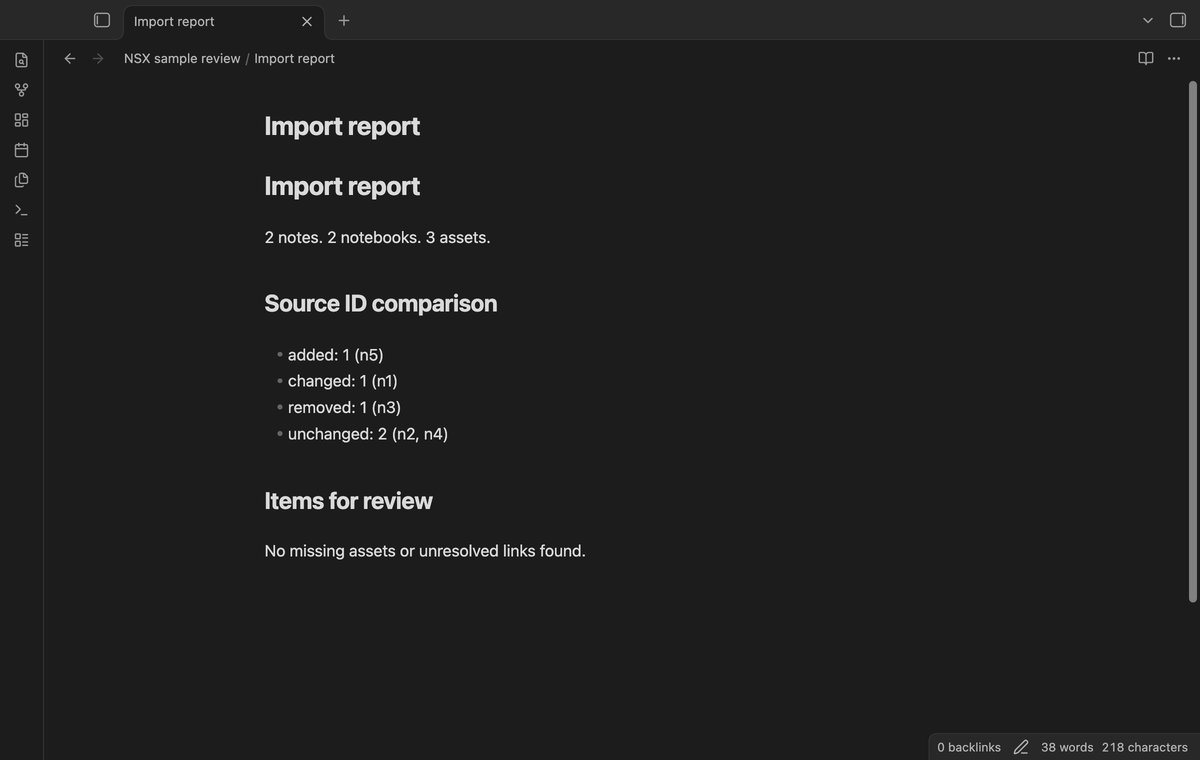
Select Source snapshot.json from an earlier import after selecting a later NSX backup. Use a new review folder. The report groups source IDs as added, changed, removed, or unchanged. Added and changed notes are created in that folder. Removed notes are listed in the report. The earlier import stays intact.
The comparison checks exported source note records. It does not compare your edits in imported vault notes or asset byte hashes. The review copies the asset members of the later archive. A link to an unchanged note is kept as a source link and reported, because that note is absent from the review folder.
Install
For manual installation, copy main.js, manifest.json, and styles.css from the release into <vault>/.obsidian/plugins/notestation-nsx-import/. Enable community plugins and then enable Note Station NSX Import. Use Obsidian 1.13.4 or later.
Usage
- Export an NSX backup from Note Station and keep a copy.
- Open the command palette and run Note Station NSX Import: Import a local NSX archive.
- Select the backup and check the preview counts.
- Enter a new output folder name and check the notebook folder choices.
- Select Create new files. Open the import report and inspect sample notes and assets.
Keep Source snapshot.json if you want to compare a later backup. Snapshot selection has a 20 MiB limit. The snapshot contains the source note records, including note text, tags, titles, and attachment metadata. Treat it with the same care as the original backup.
Settings
Default output folder supplies the initial folder name in the modal. Use one name without a slash or a parent path. The import modal can use a different name for a single run. GitHub sign-in and Pro status controls are in the plugin settings. Saved notebook profiles are managed in the import modal.
FAQ
What was tested? The unit tests check the two named NSX fixtures, attachment mapping, missing members, source IDs, dates, output conflicts, archive limits, and offline Vault writes. End-to-end tests check import behavior in the real desktop app on the earliest supported and latest public versions.
What was not tested? Physical Android and iOS devices, Windows and Linux desktop systems, encrypted backups, nested notebook stacks, large vaults, and complex chart layouts were not tested. There is no automatic backup watcher. File timestamp display depends on the vault adapter and operating system.
Can the importer repair a missing attachment? No. Check the original Note Station note or make a new export. The report keeps the source reference so that you can locate the problem.
Payment, account and network
The core features are free. Pro features need a GitHub Sponsors sponsorship of theluckystrike: $5 a month or more, or $15 once. A total payment of $15 meets the payment requirement for Pro without further payment. Sign-in and the checks below still apply. Your notes stay readable and editable with or without Pro.
GitHub handles the payment. Sponsor at https://github.com/sponsors/theluckystrike. You need no account for the free features. Pro needs the GitHub account that sponsors.
Until you select "Sign in with GitHub" in the settings, Note Station NSX Import makes no network requests. Sign in uses the GitHub device flow. Note Station NSX Import sends its public client ID and the scope read:user to https://github.com/login/device/code and shows you a code. While you enter the code at https://github.com/login/device, it asks https://github.com/login/oauth/access_token every few seconds to check the sign-in status. The scope permits profile reads only. GitHub needs this access to show the sponsorship tier. It grants no repository scope and no write access.
After sign in, Note Station NSX Import sends one query to https://api.github.com/graphql. It checks if the signed-in account sponsors theluckystrike. It asks for the tier and the total payment to theluckystrike. The plugin reuses a successful check for 7 days. Failed checks can retry after 6 hours. Select Refresh to request an earlier check. It sends no note content, file names or other vault data, and it has no telemetry.
After a successful check, Pro can work offline for up to 14 days. Sign out or a negative sponsorship answer turns Pro off. The plugin stores the GitHub token through the secret storage API of Obsidian. It does not put the token in its saved settings or its local sponsorship data. The local storage of this device keeps your GitHub login, the tier and the time of the last check. Sign out clears the token. You can also revoke the access in your GitHub settings, under Applications.
Support
Use the issue tracker at theluckystrike/notestation-nsx-import or see notemods.com. Include the plugin version, Obsidian version, and the report entry. Remove private note text and paths before sharing an example. The plugin source is under the MIT license.
For plugin developers
Search results and similarity scores are powered by semantic analysis of your plugin's README. If your plugin isn't appearing for searches you'd expect, try updating your README to clearly describe your plugin's purpose, features, and use cases.