Core Search Assistant
approvedby qawatake
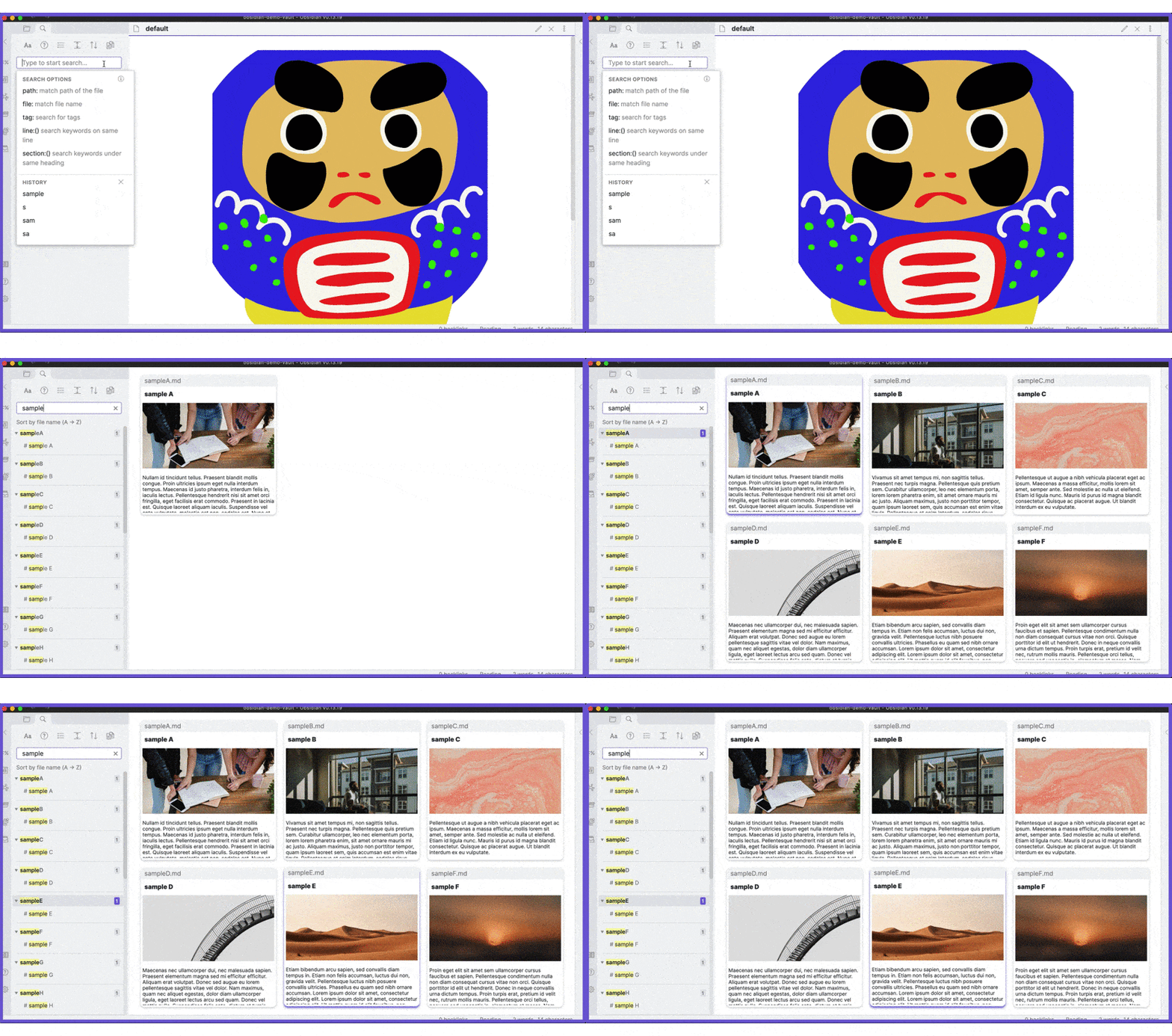
Enhance built-in search: keyboard interface, card preview, bigger preview.
Core Search Assistant

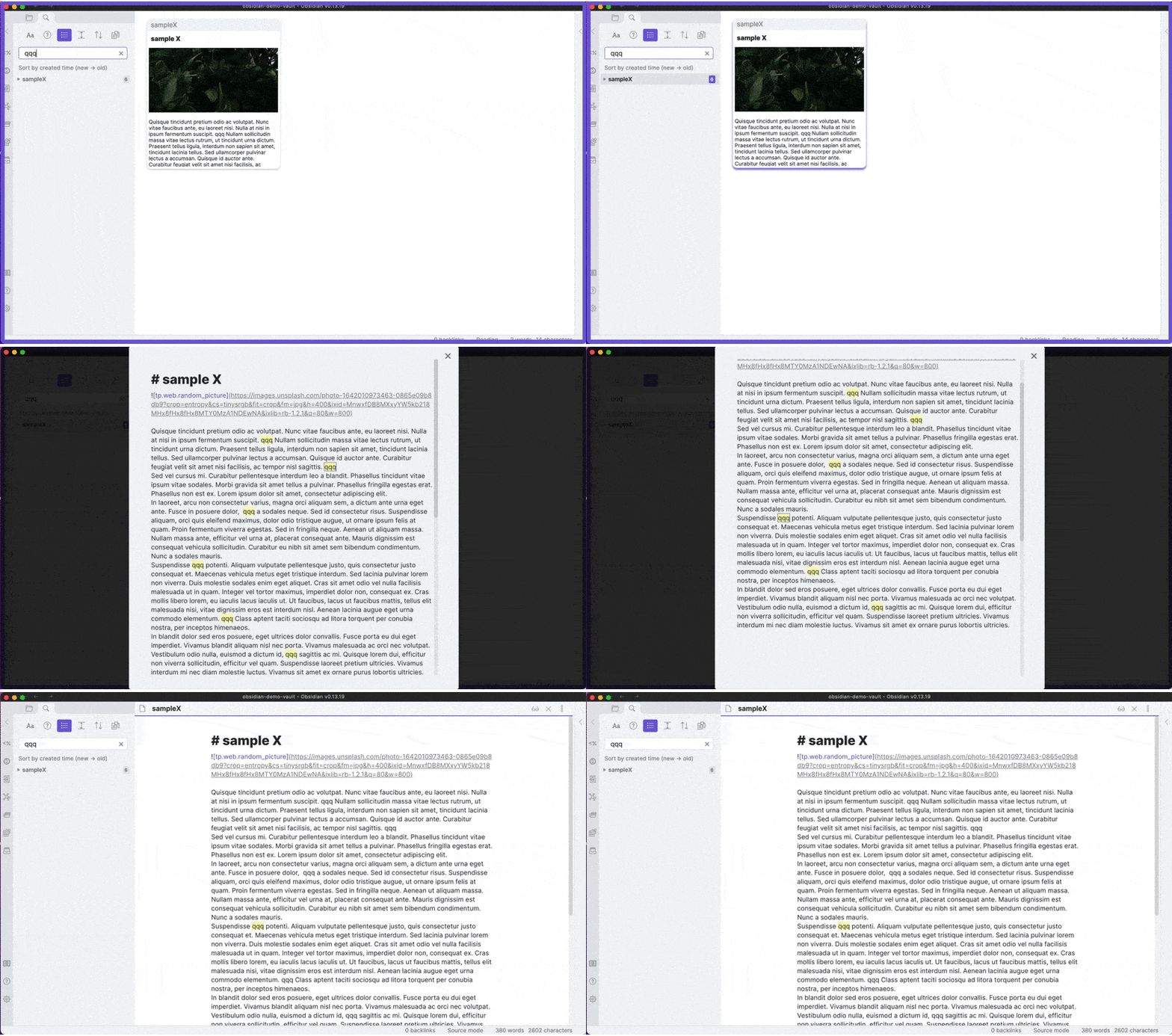
This plugin enhances the built-in search function by providing
- keyboard interface,
- card view,
- bigger preview,
- auto preview,
How to use
When you open the built-in search panel, you enter search mode. In the search mode, you can use the following hotkeys.
| Key | Action |
|---|---|
Ctrl + N, ↓ | Select the next item. |
Ctrl + P, ↑ | Select the previous item. |
Ctrl + Space | Preview the selected item. Currently not supported in the legacy editor. (Manual preview) |
Ctrl + Enter | Open the selected item. |
Ctrl + Shift + Enter | Open the selected item in a new pane. |
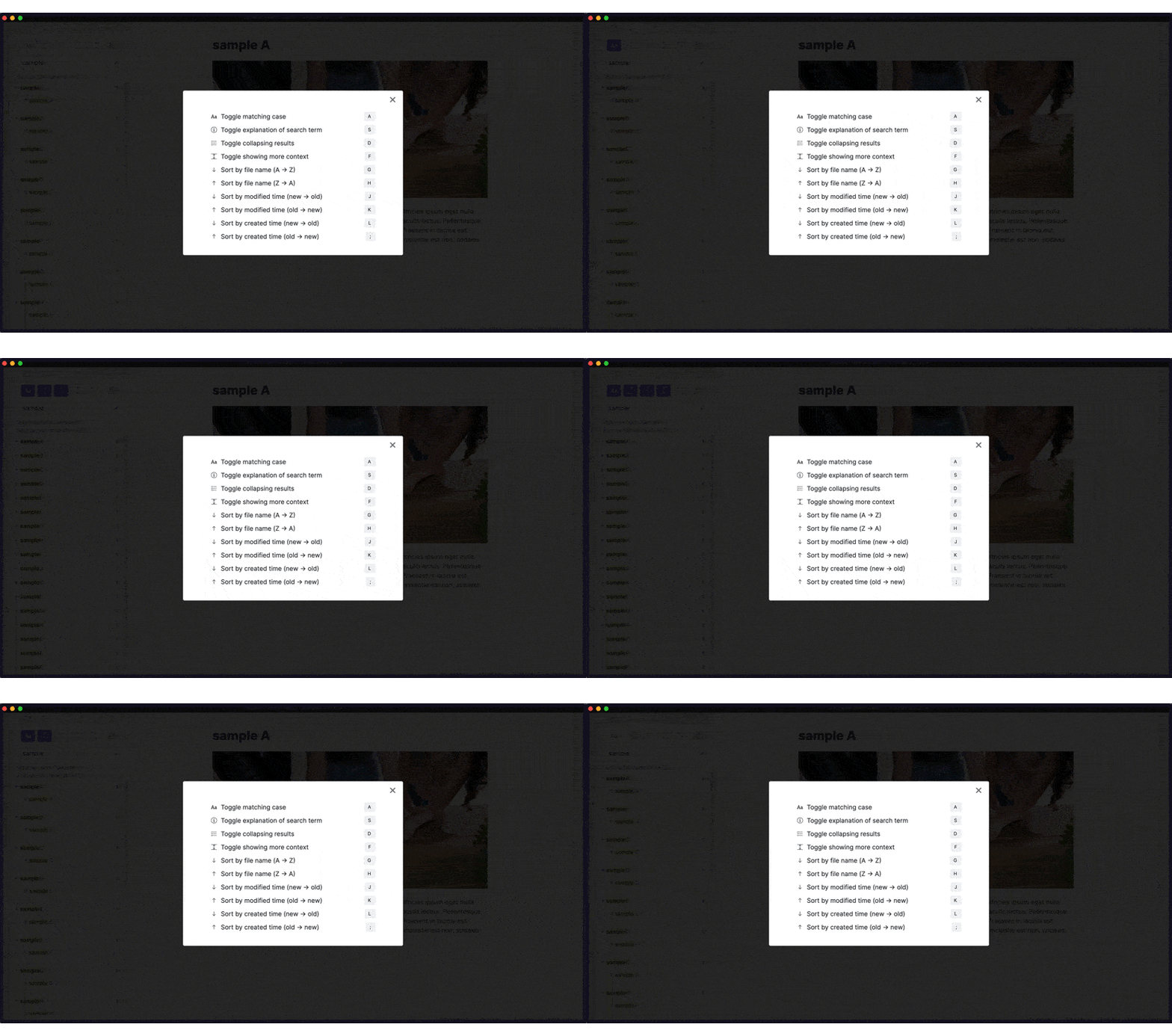
Shift + Space | Set search options. |
Ctrl + ] | Move to the next set of cards. (available only in card view.) |
Ctrl + [ | Move to the previous set of cards. (available only in card view.) |
Ctrl + I | Copy the wiki link of the selected item. |
- The hotkeys above are available only in the search mode, so don't worry about overwriting your hotkey settings.
- You can customize hotkeys in the setting tab.
- To exit the search mode, press
Escor click any part of the screen other than the search panel.
Auto Preview
There are three options for auto preview.
- none,
- single view,
- card view.
1. None
Manual preview by Ctrl + Enter is still available.
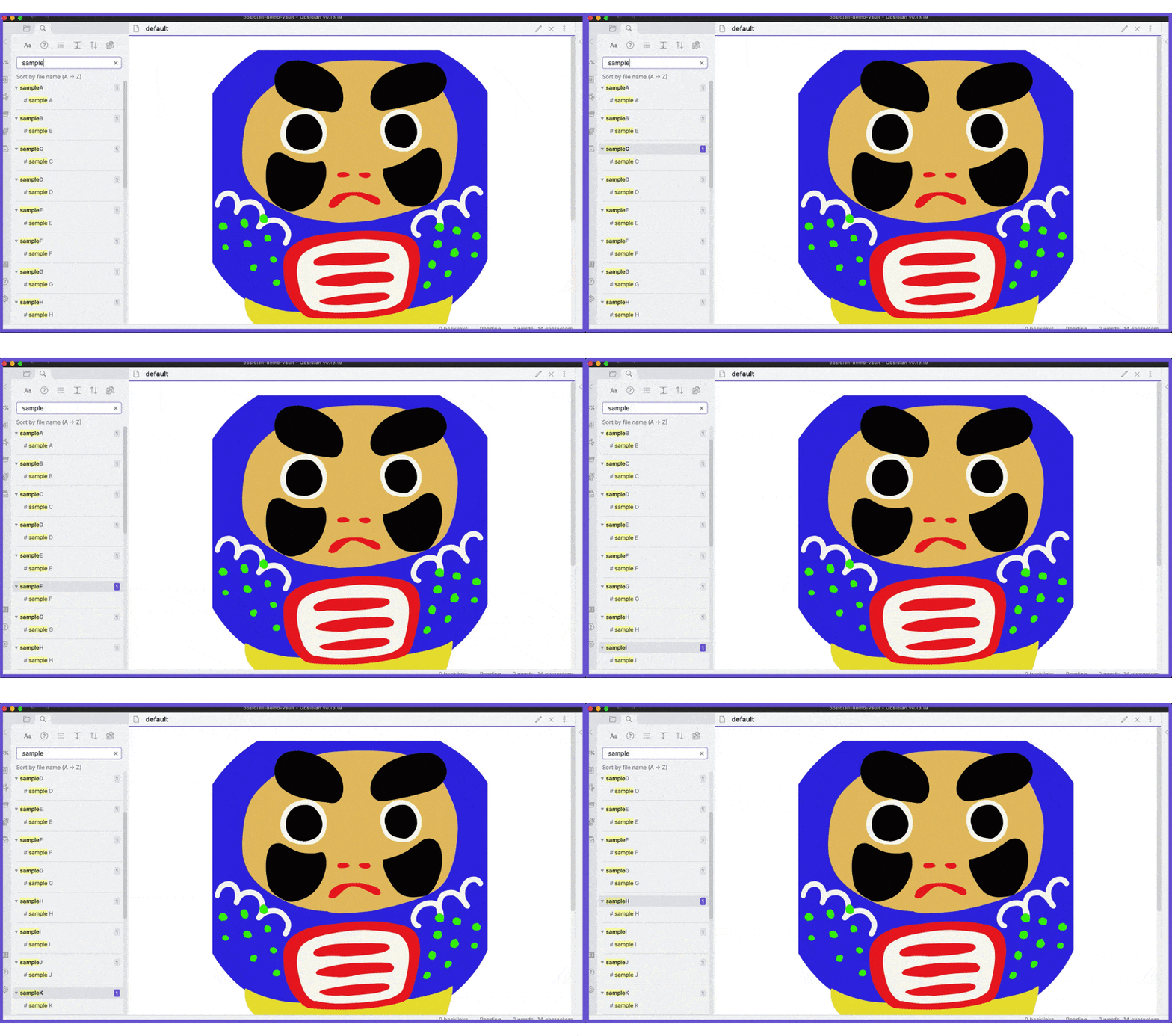
2. Single view
Previewed item can be scrolled unlike card view.
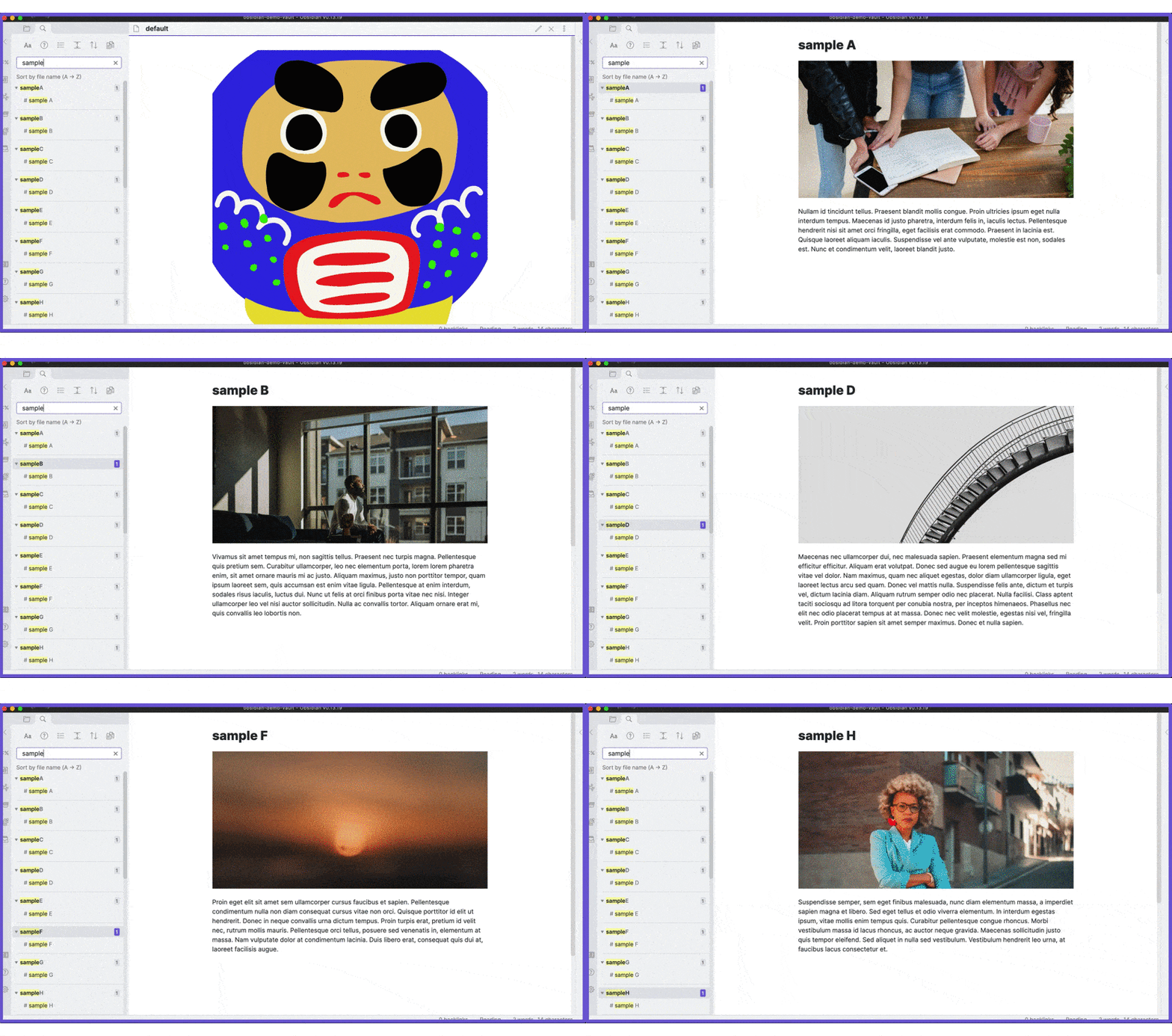
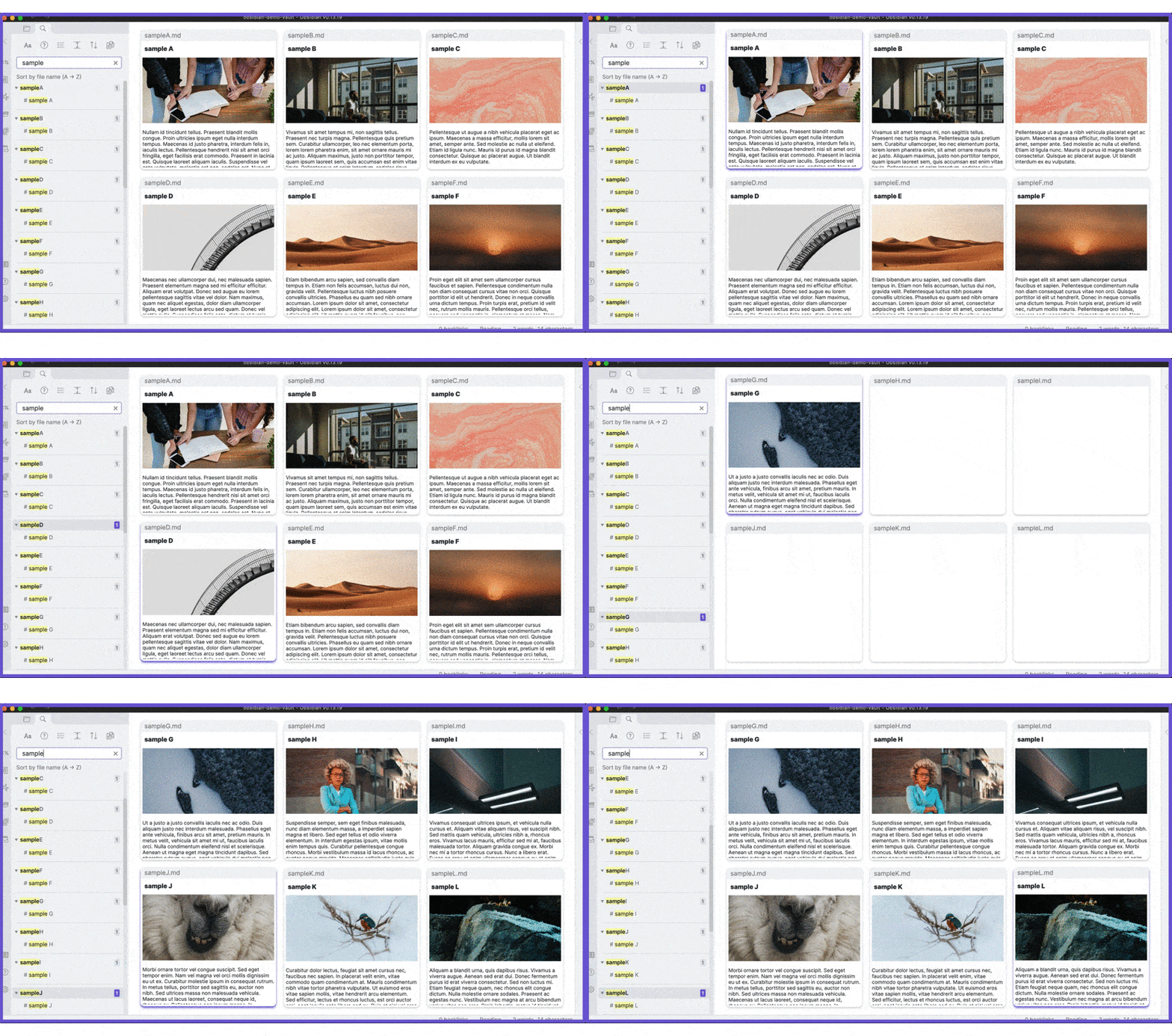
3. Card view
Available layouts:
- 2 x 2,
- 2 x 3,
- 3 x 2,
- 3 x 3.
If rendered results are wrong, press Enter to reload.
Manual Preview
Currently manual preview is not supported in the legacy editor.
In the preview modal, the following hotkeys are available.
| Key | Action |
|---|---|
Ctrl + N, ↓ | Scroll down a bit. |
Ctrl + P, ↑ | Scroll up a bit. |
Space | Scroll down a lot. |
Shit + Space | Scroll up a lot. |
Ctrl + Enter | Open the selected item. |
Ctrl + Shift + Enter | Open the selected item in a new pane. |
Esc, Ctrl + Space | Close the modal. |
Tab | Focus on the next match. |
Shift + Tab | Focus on the previous match. |
Ctrl + E | Toggle preview mode. |
Ctrl + I | Copy the wiki link of the selected item. |
- You can customize hotkeys in the setting tab.
Search options
Trouble shooting
Hotkeys do not work after a search (issue #44)
Please reload Obsidian. If that does not help you, enable the Render cards manually option in the setting tab.
For plugin developers
Search results and similarity scores are powered by semantic analysis of your plugin's README. If your plugin isn't appearing for searches you'd expect, try updating your README to clearly describe your plugin's purpose, features, and use cases.