by June
Turn task checkboxes into paper-style bullets and combine them freely with signifiers.
Oh My Bullet
Turn task checkboxes into paper-style bullets, and combine them freely with signifiers. Use the ones it comes with, or make your own: any character, any symbol, a meaning, a color, a style.
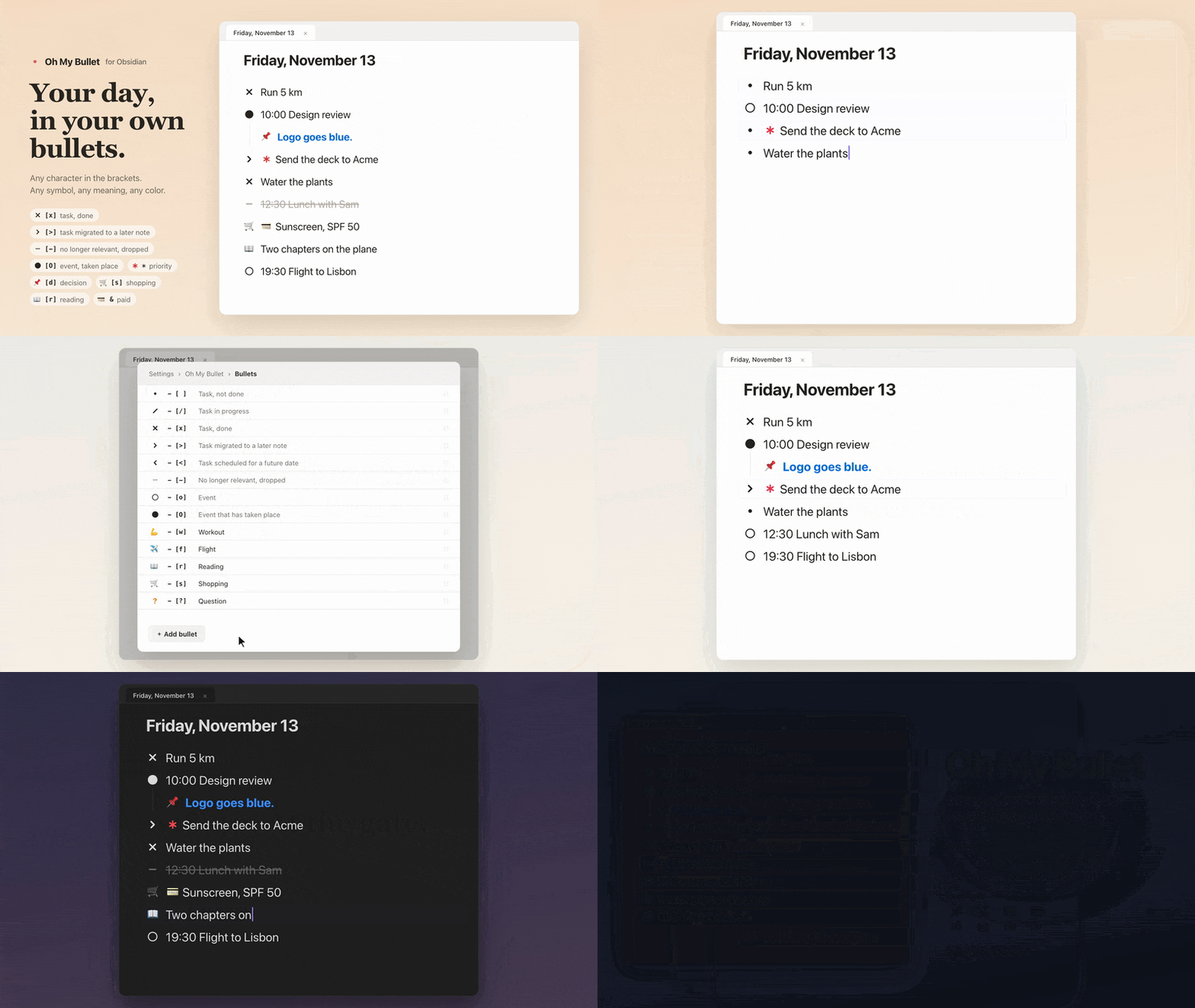
Your notes stay plain Markdown. A bullet is the character between the brackets of a task, as in - [x], so everything you write still works in any other app, and in other plugins such as Tasks.
Bullets
| You type | Shown as | Meaning |
|---|---|---|
- [ ] | • | Task, not done |
- [/] | / | Task in progress |
- [x] | × | Task, done |
- [>] | > | Task migrated to a later note |
- [<] | < | Task scheduled for a future date |
- [-] | – (struck through) | No longer relevant, dropped |
- [o] | ○ | Event |
- [O] | ● | Event that has taken place |
Signifiers
A signifier is one character typed right after the checkbox. It adds meaning to any bullet.
| You type | Shown as | Meaning |
|---|---|---|
- [ ] * Send the deck | • ✱ Send the deck | Priority |
- [ ] ! Plants that text you? | • ! Plants that text you? | Inspiration, an idea worth keeping |
Make your own
In Settings → Oh My Bullet, add as many bullets and signifiers as you like.
- Bullets: pick the character for the brackets, the symbol to draw (an emoji works too), a meaning, the bullet's color, and how the line's text looks: its color, struck through, underlined, bold or italic.
- Signifiers: pick the character, the symbol, a meaning, a color, and where it is drawn: left of the bullet, on top of it, or right of it, before the text.
Each one shows a live preview while you edit it. For example:
| You type | Shown as | A bullet for |
|---|---|---|
- [d] Logo goes blue. | 📌 Logo goes blue. (in blue) | Decisions |
- [s] Sunscreen | 🛒 Sunscreen | Shopping |
- [r] Two chapters on the plane | 📖 Two chapters on the plane | Reading |
Changing a bullet
- Right-click a bullet, or touch and hold it on a phone, to choose another bullet or toggle a signifier from a menu. Your own bullets and signifiers are in the menu too.
- Or type it: put the cursor between the brackets and change the character.
- Clicking or tapping a bullet does nothing by default, so a stray tap never changes a task. You can make it mark the task done or open the menu instead.
- The command Oh My Bullet: Choose a bullet for this line opens the same menu for the line you are on. Give it a hotkey, or add it to the mobile toolbar. Every bullet and signifier also has a command of its own.
A legend for AI agents
AI agents read the raw text of your notes, so they see - [>], not >. Turn on Keep a legend for AI agents and the plugin keeps a short section in AGENTS.md and CLAUDE.md at the top of your vault that says what each bullet and signifier means. If neither file exists, AGENTS.md is created. The rest of those files is never touched.
You can also add the legend to each note that uses your notation, as a bullet-legend property, so the meaning travels with the note.
Works with
- Live Preview and reading view
- Light and dark mode, and any theme
- Desktop and mobile
- The Tasks plugin: its query results show your bullets and signifiers too
Installation
In Obsidian, open Settings → Community plugins → Browse, search for Oh My Bullet, then select Install and Enable. You can also open its page in the plugin directory and select Add to Obsidian.
To install it by hand instead:
- Download
main.js,manifest.jsonandstyles.cssfrom the latest release. - Put them in
<your vault>/.obsidian/plugins/oh-my-bullet/. - Reload Obsidian, then turn on Oh My Bullet in Settings → Community plugins.
Development
npm install
npm run dev     # rebuild main.js on every change
npm run build   # type-check and build for production
npm run lint
License
For plugin developers
Search results and similarity scores are powered by semantic analysis of your plugin's README. If your plugin isn't appearing for searches you'd expect, try updating your README to clearly describe your plugin's purpose, features, and use cases.